## Common tags used in webpush messages

You can use all tags from [Insert usage](/developers/inserts/insert-usage).


<div class="admonition admonition-tip"><div class="admonition-icon"><svg xmlns="http://www.w3.org/2000/svg" fill="none" viewBox="0 0 24 24" stroke="currentColor" stroke-width="2.5"><path stroke-linecap="round" stroke-linejoin="round" d="M9.663 17h4.673M12 3v1m6.364 1.636l-.707.707M21 12h-1M4 12H3m3.343-5.657l-.707-.707m2.828 9.9a5 5 0 117.072 0l-.548.547A3.374 3.374 0 0014 18.469V19a2 2 0 11-4 0v-.531c0-.895-.356-1.754-.988-2.386l-.548-.547z" /></svg></div><div class="admonition-body"><div class="admonition-content">

If you use Visual Studio Code as your editor, you can use code snippets to speed up working with inserts.  
You can find the snippets in our Github repository: [https://github.com/Synerise/jinja-code-snippet](https://github.com/Synerise/jinja-code-snippet)

</div></div></div>


## Adding UTM and tracking parameters to link

If the message includes links, you automatically add parameters (such as UTM) and track click events by using `{% preparelink %}{% endpreparelink %}`. This will generate a redirect URL based on the hosting environment of your workspace:    

If your workspace is hosted on: 
- Microsoft Azure EU, the default domain redirect URL is `link.snrs.it`,
- Microsoft Azure USA, the default domain redirect URL is `link.azu.snrs.it`
- Google Cloud, the default domain redirect URL is `link.geb.snrs.it`.


  <div class="admonition admonition-tip"><div class="admonition-icon"><svg xmlns="http://www.w3.org/2000/svg" fill="none" viewBox="0 0 24 24" stroke="currentColor" stroke-width="2.5"><path stroke-linecap="round" stroke-linejoin="round" d="M9.663 17h4.673M12 3v1m6.364 1.636l-.707.707M21 12h-1M4 12H3m3.343-5.657l-.707-.707m2.828 9.9a5 5 0 117.072 0l-.548.547A3.374 3.374 0 0014 18.469V19a2 2 0 11-4 0v-.531c0-.895-.356-1.754-.988-2.386l-.548-.547z" /></svg></div><div class="admonition-body"><div class="admonition-content">

  On the user interface in the Synerise platform, you can configure how the end user's identifier (UUID) is handled [when a link contains end-user identifying parameters](/developers/web/user-identification#recognizing-customers-from-link-parameters) (`snrs_cl` and `snrs_he`); for detailed instructions, see the ["Managing user context" section](/docs/settings/configuration/non-unique-emails#managing-user-context).

  </div></div></div>
  

### Configuring a custom domain for redirect URL

If you have already set up a custom domain (for example, for [first-party tracking](/developers/web/first-party-tracking)), you can use it immediately without any additional configuration; simply contact [Synerise Support](https://hgintelligence.atlassian.net/servicedesk/customer/portals) for assistance. Otherwise, to set up a custom domain for the redirect URL, meet the following requirements:

- If you want to provide your own certificate:1. Prepare an X.509-format certificate.
                                              2. Deliver the following files to Synerise Support:  
                                              - private key (`key.pem`)
                                              - Fullchain certificate (`fullchain.pem`):  
                                                  - The leaf certificate **must be the first** in the file.
                                                  - Intermediate certificates must follow, from the lowest-level to the highest.
                                                  - **Do not** include the root CA.
                                              
   <div class="admonition admonition-important"><div class="admonition-icon"><svg xmlns="http://www.w3.org/2000/svg" fill="none" viewBox="0 0 24 24" stroke="currentColor" stroke-width="2.5"><path stroke-linecap="round" stroke-linejoin="round" d="M12 8v4m0 4h.01M21 12a9 9 0 11-18 0 9 9 0 0118 0z" /></svg></div><div class="admonition-body"><div class="admonition-content">

   - When you use your own certificate, it is your responsibility to monitor its expiration time and re-generate it.
                                                 - Ensure that the `fullchain.pem` file is complete. Missing certificates or wrong certificate order may cause SSL/TLS errors.

   </div></div></div>

- Send the SSL certificate to Synerise Support or give an approval for generating a certificate through Let's Encrypt.
- Configure DNS - add the `CNAME` record. Depending on the cloud where your workspace is hosted:
    - for Microsoft Azure EU, set the CNAME to: `link.snrs.it`
    - for Microsoft Azure USA, set the CNAME to: `link.azu.snrs.it`
    - for Google Cloud Platform, set the CNAME to: `link.geb.snrs.it`
- Submit a customer service request for configuring your domain in Synerise.
 

#### Preview in messages

If you use a custom redirect URL, the links in the message preview still use the default domain. The custom domain is applied while sending the messages to customers.

### Usage

- Emails: 
    - If your link is stored as a Jinja variable and then used as a variable in the HTML, you must use a `preparelink` tag to generate a link with the parameters:  
    
      <pre><code class="language-jinja">{% set a = "/" %}
      &lt;a href="{% preparelink %}{{a}}{% endpreparelink %}"&gt;Link text&lt;/a&gt;</code></pre>

    - If the link is defined in the template as plain HTML, the parameters and tracking are added automatically when parsing the HTML. You don't need to use the insert:
    
      <pre><code class="language-html">&lt;a href=""&gt;Link text&lt;/a&gt;</code></pre>

- Mobile push and SMS:
    - 
      <pre><code class="language-jinja">{% preparelink %}YOUR_URL{% endpreparelink %}</code></pre>


Example of a parsed link:
```
/?snrs_medium=email&snrs_action=newsletter.click&snrs_test=false&snrs_var=4715029&snrs_cp=6b716f86-a14d-4b8c-8795-872f7432a046&snrs_cl=b5d8c721-c2b7-42ac-9cd5-7714dedf73bf&snrs_category=client._DEVICE_.browser.mail&snrs_he=1940871749&snrs_redir=1
```

## Using inserts in webpush messages

Inserts can be used in all fields of the webpush definition.  

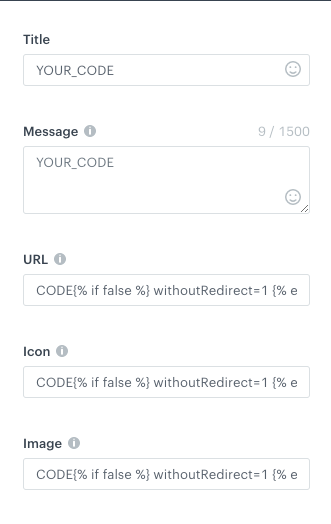
In the **URL**, **Icon**, and **Image** fields, if any jinjava is used, the following tag **must** be added at the end of the code of the field:
```
{%- if false -%} withoutRedirect=1 {%- endif -%}
```
<figure><img src="/api/docs/image/54176ad07f146575310749eba44b7c2f42c1b327/developers/inserts/_gfx/webpush-inserts.png" class="full" alt="Adding jinjava to URL, Icon, or Image"><figcaption>Adding jinjava to URL, Icon, or Image</figcaption></figure>
