# Configuring push notifications (Flutter)
## Prerequisites
---
### Firebase Cloud Messaging
Google Firebase Cloud Messaging is necessary to handle [push notifications](/docs/campaign/Mobile) sent from Synerise.
1. Follow the instructions in [this article](https://firebase.google.com/docs/flutter/setup) and integrate the Firebase plugin with your application.
2. Follow the instructions in [this article](https://firebase.flutter.dev/docs/messaging/overview/) and integrate cloud messaging in your application.
3. Integrate Firebase with Synerise. See [Integration](/docs/settings/tool/firebase) section.
It's important that the Firebase plugin is initialized as early as possible in the application lifecycle and also after the Synerise SDK. Late initialization may cause compilation problems.
## Setting up - Android {id=setting-up-android}
---
### Requirements {id=android-requirements}
1. After configuring Firebase, add the `google-services.json` file to your project.
2. Add the google-services dependency to your project's `build.gradle` file.
## Setting up - iOS {id=setting-up-ios}
---
### Requirements {id=ios-requirements}
1. Configure handling Push Notifications in your application. See [Apple Notifications](https://developer.apple.com/notifications/).
2. After configuring Firebase, add the `GoogleService-Info.plist` file to your project.
3. Make sure your `Info.plist` file contains the following snippet:
```
FirebaseAppDelegateProxyEnabled
```
### Extensions for push notifications {id=ios-extensions-for-push-notifications}
#### Notification Service Extension {id=synerise-notification-service-extension-for-ios}
**Synerise Notification Service Extension** is an object that adds the notification functionality to the SDK.
It implements the following operations:
- Decrypting **Simple Push** communication data (if encryption is enabled).
- Tracking events from **Simple Push** communication.
- Adding action buttons to **Simple Push** communication (if the communication contains any).
- Improving the appearance of **Simple Push** communication (Rich Media - Single Image) with an image thumbnail.
**Notification Service Extension** should be implemented in the native part of the application. Follow the instructions in [this article](/developers/mobile-sdk/configuring-push-notifications/ios#synerise-notification-service-extension-configuration).
#### Rich Media Notification Content Extensions {id=synerise-notification-content-extension-for-ios}
**Synerise Rich Media Notification Content Extension** is an object that allows rendering your own appearance of a push notification when the notification is expanded (by tapping the notification).
**Synerise Rich Media Notification Content Extensions** should be implemented in the native part of the application. Follow the instructions in [this article](/developers/mobile-sdk/configuring-push-notifications/ios#rich-media-in-push-notifications).
## Set up Firebase Cloud Messaging for Synerise SDK
---
The following code example explains how to implement Firebase Cloud Messaging integration with Synerise:
1. Define a top-level function for handling notifications when the app is in the terminated state.
2. Request permissions from the user.
3. Set presentation options for foreground state.
4. Get Firebase FCM token and set it to deliver push notifications from Synerise.
5. Make sure that the Firebase FCM token is always up-to-date.
6. Set Firebase listener method for handling notifications when the app is in the foreground.
7. Set Firebase listener method for handling notification clicks when the app is in the background.
8. Invoke method for handling notification clicks when a user opens a notification in the app’s closed state.
```Dart
class InitialViewState extends State {
@override
void initState() {
// Initialize Synerise SDK
initializeSynerise();
// Setup notifications with Firebase
setupNotifications();
// 8. Invoke method for handling notification clicks when a user opens a notification in the app’s closed state (see below for definition of the method).
checkForInitialNotificationMessage();
super.initState();
}
Future initializeSynerise() async {
Synerise.initializer()
.withApiKey('YOUR_PROFILE_API_KEY')
.withBaseUrl("YOUR_API_BASE_URL")
.withDebugModeEnabled(true)
.init();
}
Future setupNotifications() async {
await Firebase.initializeApp();
// 1. Define a top-level function for handling notifications when the app is in the terminated state (see below for definition of the method).
FirebaseMessaging.onBackgroundMessage(backgroundHandlerForFCM);
// 2. Request permissions from the user
await FirebaseMessaging.instance.requestPermission(
alert: true,
announcement: false,
badge: true,
carPlay: false,
criticalAlert: false,
provisional: false,
sound: true,
);
// 3. Set presentation options for the foreground state
await FirebaseMessaging.instance.setForegroundNotificationPresentationOptions(
alert: true,
badge: true,
sound: true,
);
// 4. Get Firebase FCM token and set it to deliver push notifications from Synerise
FirebaseMessaging.instance.getToken().then((token) {
if (token != null) {
Synerise.notifications.registerForNotifications(token, true);
}
});
// 5. Make sure that the Firebase FCM token is always up-to-date
FirebaseMessaging.instance.onTokenRefresh.listen((event) {
FirebaseMessaging.instance.getToken().then((token) {
if (token != null) {
Synerise.notifications.registerForNotifications(
firebaseToken!,
mobileAgreement: true, // true or false, should depend on device permissions and customer's agreement in the application
onSuccess: () {},
onError: (error) {},
);
}
});
});
Synerise.notifications.listener((listener) {
listener.onRegistrationRequired = () {
FirebaseMessaging.instance.getToken().then((token) {
if (token != null) {
Synerise.notifications.registerForNotifications(
firebaseToken!,
mobileAgreement: true, // true or false, should depend on device permissions and customer's agreement in the application
onSuccess: () {},
onError: (error) {},
);
}
});
};
});
// 6. Set Firebase listener method for handling notifications when the app is in the foreground
FirebaseMessaging.onMessage.listen((RemoteMessage message) async {
Map messageMap = message.toMap();
bool isSyneriseNotification = await Synerise.notifications.isSyneriseNotification(messageMap);
if (isSyneriseNotification == true) {
Synerise.notifications.handleNotification(messageMap);
}
});
// 7. Set Firebase listener method for handling notification clicks when the app is in the background
FirebaseMessaging.onMessageOpenedApp.listen((RemoteMessage message) async {
Map messageMap = message.toMap();
bool isSyneriseNotification = await Synerise.notifications.isSyneriseNotification(messageMap);
if (isSyneriseNotification == true) {
Synerise.notifications.handleNotificationClick(messageMap);
}
});
}
@pragma('vm:entry-point')
Future backgroundHandlerForFCM(RemoteMessage message) async {
await Firebase.initializeApp();
await initializeSynerise();
Map messageMap = message.toMap();
bool isSyneriseNotification = await Synerise.notifications.isSyneriseNotification(messageMap);
if (isSyneriseNotification) {
Synerise.notifications.handleNotification(remoteMessageMap);
}
}
Future checkForInitialNotificationMessage() async {
await Firebase.initializeApp();
RemoteMessage? message = await FirebaseMessaging.instance.getInitialMessage();
if (message != null) {
Map messageMap = message.toMap();
bool isSyneriseNotification = await Synerise.notifications.isSyneriseNotification(messageMap);
if (isSyneriseNotification == true) {
Synerise.notifications.handleNotificationClick(messageMap);
}
}
}
//...
}
```
The second parameter of the registration method is the agreement for mobile push campaigns. In the Profile's card in Synerise, you can find it in the **Subscriptions** section (if you have the required access permission). Learn more about the [Synerise.notifications.registerForNotifications(registrationToken, mobileAgreement) method in the method reference](/developers/mobile-sdk/method-reference/flutter/campaigns#register-for-push-notifications).
You must always keep the Firebase token updated. In many cases in the application lifecycle, such as authorization, destroy session, user context change, and so on, the registration needs to be updated. In these situations, the SDK invokes the [onRegistrationRequired()](/developers/mobile-sdk/listeners-and-delegates/flutter-listeners#notifications-listener) method (see code snippet above).
## Configure Notification Encryption
---
### Android {id=android-notification-encryption-configuration}
See [Configure Notification Encryption](/developers/mobile-sdk/configuring-push-notifications/android#configure-notification-encryption).
### iOS {id=ios-notification-encryption-configuration}
See [Synerise Notification Service Extension](#synerise-notification-service-extension-for-ios) and [Configure Notification Encryption](/developers/mobile-sdk/configuring-push-notifications/ios#configure-notification-encryption).
### Application implementation {id=application-notification-encryption-configuration}
In the application, you must set `encryption` to `true` in the SDK initializer or in the SDK settings.
```JavaScript
// WARNING: This option must be configured before Synerise SDK is initialized!
Synerise.settings.notifications.encryption = true;
```
## Handling incoming push notifications
---
You may disable handling push notifications in the SDK at any time. See [Enable/disable notifications](/developers/mobile-sdk/settings#enabledisable-notifications).
### Synerise payload
The following sample code shows how to handle notifications and check if they are from Synerise:
### Custom payload
You may send both custom push notifications and custom campaigns in [Synerise](https://app.synerise.com). The code below of one sample Firebase listener method checks the notification origin and then handles it:
```Dart
//...
FirebaseMessaging.onMessage.listen((RemoteMessage message) {
Map messageMap = message.toMap();
bool isSyneriseNotification = await Synerise.notifications.isSyneriseNotification(messageMap);
if (isSyneriseNotification == true) {
Synerise.notifications.handleNotification(messageMap);
} else {
// Handle other notifications in your own way
}
});
//...
```
## Handling actions from push notifications
---
- [Read more about types of actions in campaigns](/developers/mobile-sdk/campaigns/action-handling#types-of-actions-in-campaigns)
- [Read more about handling actions from push notifications](/developers/mobile-sdk/campaigns/action-handling#handling-actions-from-campaigns-in-flutter)
## Additional in-app alert from push notifications
---
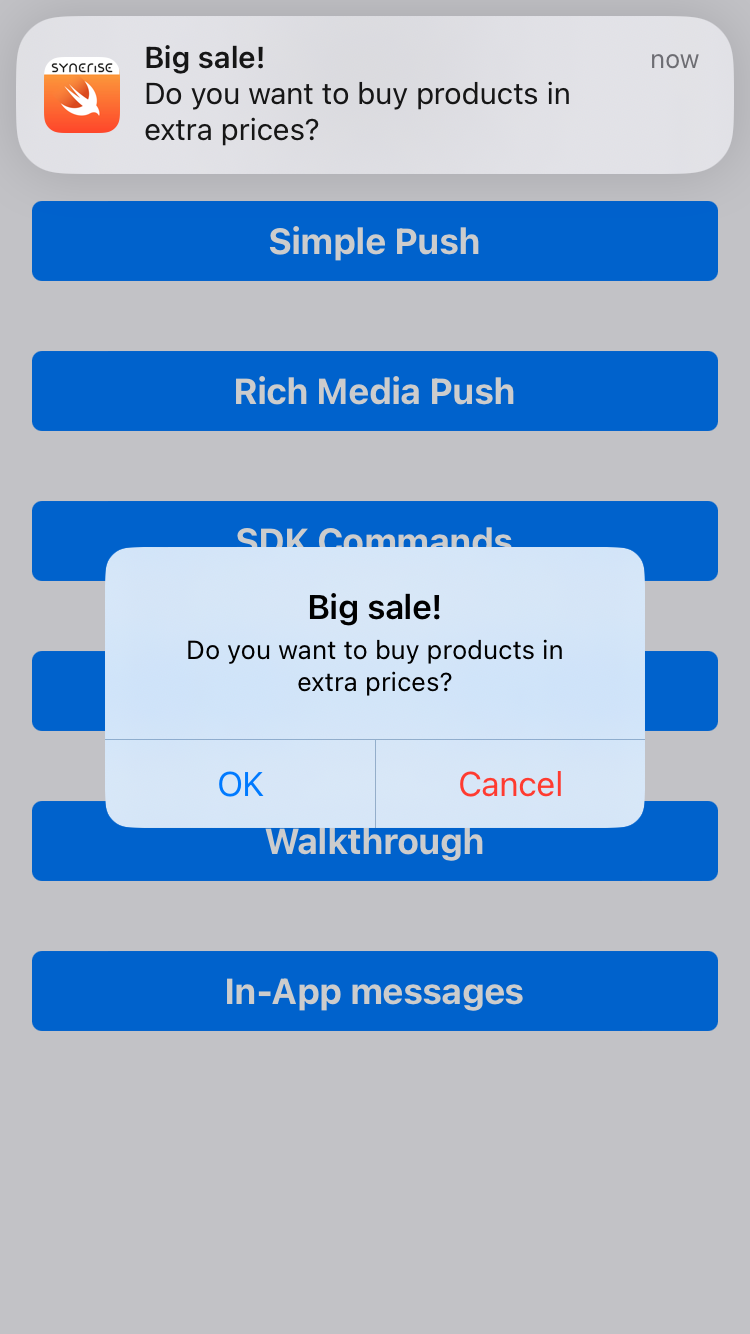
The Flutter SDK on iOS devices can display an additional alert in the application after a push notification is received. See [this article](/developers/mobile-sdk/campaigns/simple-push#additional-in-app-alert-when-simple-push-is-received) to read more about this feature.
Simple Push campaign with in-app alert
## Limitations compared to native platforms
---
Due to platform limitations, not all notification functionalities may work as in native SDKs.
- **iOS only**: Native-configured button from a Simple Push campaign always invokes the default action (if configured) or displays an in-app alert with buttons to choose.