Synerise provides a solution for displaying AI recommendations in your mobile application compatible with the following operating systems and frameworks: 
- Android, 
- Flutter, 
- iOS,
- React Native. 

The process involves [creating a document](/docs/assets/documents/creating-documents) or [screen view](/docs/campaign/screen-views/creating-screen-views) in the Synerise platform (`app.synerise.com`) that contains a reference to an AI recommendation and then retrieving [documents](/docs/assets/documents) and/or [screen views](/docs/campaign/screen-views) in your mobile application. There is no direct mobile SDK method that lets you retrieve AI recommendations. 

### Creating documents/screen views

In the Synerise platform, you can create documents which are JSON-encoded objects tailored to target specific audiences. These documents can then be shown in your application by themselves or as part of a screen view. 

The body of the document can contain static elements (such as description or images) and dynamic elements created with [Jinjava inserts](/developers/inserts/insert-usage). The dynamic elements are information you can retrieve from Synerise and will vary for each recipient of the document.

You can add recommendations and other dynamic elements, such as profile attributes, expression results, vouchers, and so on by using [inserts](/developers/inserts/insert-usage) (further details can be found in the ["Create a document"](#create-a-document) section in this article).  


<div class="admonition admonition-important"><div class="admonition-icon"><svg xmlns="http://www.w3.org/2000/svg" fill="none" viewBox="0 0 24 24" stroke="currentColor" stroke-width="2.5"><path stroke-linecap="round" stroke-linejoin="round" d="M12 8v4m0 4h.01M21 12a9 9 0 11-18 0 9 9 0 0118 0z" /></svg></div><div class="admonition-body"><div class="admonition-content">

When a document is generated, the parameters defined in the body of the document are sorted alphabetically. This is especially significant when the document contains Jinjava, as the order may be rearranged and impact the document's display.

</div></div></div>


Screen views let you include one or more documents with additional static or dynamic elements.

### Retrieving documents/screen views in your mobile application

Once you created a document or screen view that contains recommendations, you can retrieve them using mobile SDK methods (as described further in the article). There are three methods that let you retrieve documents and screen views, but only one method has no restrictions in terms of recommendation types. The rest of the methods only let you retrieve documents/screen views with recommendations without an **item context**. 

#### Item context

Certain recommendation types require an **item context** in order to generate their suggested set of items. For example, recommendations with similar or visually similar items or those based on items already in a customer's cart. The context is usually provided at the moment of requesting a recommendation (for example, on a product page or shopping cart page). However, you can also provide the item context in the configuration of the recommendation in the [additional settings](/docs/ai-hub/recommendations-v2/creating-recommendation-campaign#additional-settings) through the **Item context from analytics** option.


<div class="admonition admonition-note"><div class="admonition-icon"><svg xmlns="http://www.w3.org/2000/svg" fill="none" viewBox="0 0 24 24" stroke="currentColor" stroke-width="2.5"><path stroke-linecap="round" stroke-linejoin="round" d="M13 16h-1v-4h-1m1-4h.01M21 12a9 9 0 11-18 0 9 9 0 0118 0z" /></svg></div><div class="admonition-body"><div class="admonition-content">

See the table in the [Recommendation types](/docs/ai-hub/recommendations-v2/recommendation-types#recommendation-model-summary) article to see which recommendation types require item context.

</div></div></div>


### Tracking recommendation events
---

To track customer activities related to recommendations displayed through a document or screen view such as viewing or clicking implement [recommendation.view](/developers/mobile-sdk/event-tracking#recommendation-viewed) and [recommendation.click](/developers/mobile-sdk/event-tracking#recommendation-clicked) events in your mobile application. 

Tracking events is useful for preparing the statistics on the effectiveness of recommendations.

Alternatively, you can use the [Content widget](/developers/mobile-sdk/displaying-recommendations/content-widget) for displaying AI recommendations which provides you with in-built recommendation events tracking option, however it's available for Android and iOS only.

## Prerequisites
---
- [Configure AI recommendations](/docs/ai-hub/recommendations-v2/introduction-to-recommendation-campaigns#requirements)
- [Meet all document requirements](/docs/assets/documents/introduction-to-documents#requirements)

## Using documents
---

### Create a document
---
1. Create a document according to the [instruction](/docs/assets/documents/creating-documents#procedure). In the body of the document, use the [`recommendations_json3 insert](/developers/inserts/screen-views-documents#recommendations).  
    This way you will include a recommendation in a document.
    Example JSON document body:  
    
   <pre><code class="language-json">{  
   "name": "Best offers for You",
   "itemId": "9743578945",
   "recommendations": "{% recommendations_json3 campaignId=XRHP6iVS20SG %} {% endrecommendations_json3 %}"
   }</code></pre>
  
    where:  
    - `name` this parameter contains the title that displays above the recommendation frame.
    - `itemId` is the ID of a context item. This parameter is required for recommendations that require an item context.
    - `recommendations` - this parameter contains the recommendation insert with the ID of the recommendation created in Synerise.
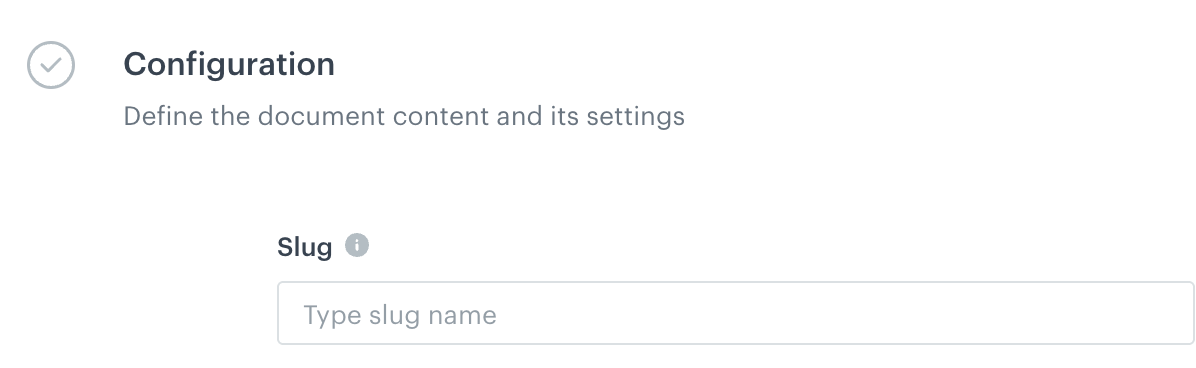
3. In a notepad, note down the slug (identifier) of the document you created (you define the slug while creating a document). The screenshot below shows where you can find the slug value.  
    <figure><img src="/api/docs/image/54176ad07f146575310749eba44b7c2f42c1b327/docs/assets/_gfx/slug.png" class="large" alt="The Slug field in the document configuration form"><figcaption>The Slug field in the document configuration form</figcaption></figure>
4. Publish the document.


### Retrieve the document in the application
---
The Mobile SDK offers three methods that let you display a document with a recommendation in your application.

1. The `Get recommendation v2` method lets you generate a document that contains a recommendation of any type.
2. The `Generate document with query parameters` method lets you generate a document with any recommendation type, but you need to provide information about context items and some request parameters.
2. The `Generate document` method doesn't support providing a context in the method, so you can only use:
    - a recommendation whose context is provided in the recommendation settings (context from analytics).
    - a recommendation without an item context: [Personalized](/docs/ai-hub/recommendations-v2/recommendation-types#personalized), [Last seen](/docs/ai-hub/recommendations-v2/recommendation-types#last-seen), [Top items](/docs/ai-hub/recommendations-v2/recommendation-types#top-items), [Recent interactions](/docs/ai-hub/recommendations-v2/recommendation-types#recent-interactions), [Section](/docs/ai-hub/recommendations-v2/recommendation-types#section-page), and [Attributes](/docs/ai-hub/recommendations-v2/recommendation-types#attribute).  


#### Get recommendation v2 method reference
- [Android](/developers/mobile-sdk/method-reference/android/content#get-recommendations-v2)
- [iOS](/developers/mobile-sdk/method-reference/ios/content#get-recommendations-v2)
- [React Native](/developers/mobile-sdk/method-reference/react-native/content#get-recommendations-v2)
- [Flutter](/developers/mobile-sdk/method-reference/flutter/content#get-recommendations-v2)

#### Generate document method reference
- [Android](/developers/mobile-sdk/method-reference/android/content#generate-document)
- [iOS](/developers/mobile-sdk/method-reference/ios/content#generate-document)
- [React Native](/developers/mobile-sdk/method-reference/react-native/content#generate-document)
- [Flutter](/developers/mobile-sdk/method-reference/flutter/content#generate-document)


## Using screen views
---

The main purpose of screen views is to display a group or groups of documents. You can create a screen view that contains a document or documents with recommendations. 

1. Create a screen view. In the settings of the screen view, add [a document or documents that contain recommendation inserts](#create-a-document).  
    
   <div class="admonition admonition-warning"><div class="admonition-icon"><svg xmlns="http://www.w3.org/2000/svg" fill="none" viewBox="0 0 24 24" stroke="currentColor" stroke-width="2.5"><path stroke-linecap="round" stroke-linejoin="round" d="M12 9v2m0 4h.01m-6.938 4h13.856c1.54 0 2.502-1.667 1.732-2.5L13.732 4c-.77-.833-1.964-.833-2.732 0L4.082 16.5c-.77.833.192 2.5 1.732 2.5z" /></svg></div><div class="admonition-body"><div class="admonition-content">

   If one document fails to render, the screen view will not render. It's important especially if your mobile application is built with screen views.

   </div></div></div>

2. Optionally, you can add a recommendation insert manually to a screen view. Do it by enabling the **Use customized screen view structure**. Then, to the request body, add a recommendation insert, for example:
    
   <pre><code class="language-json">{  
   "name": "Best offers for You",
   "itemId": "9743578945",
   "recommendations": "{% recommendations_json3 campaignId=XRHP6iVS20SG %} {% endrecommendations_json3 %}"
   }</code></pre>
  
    where:  
    - `name` this parameter contains the title that displays above the recommendation frame.
    - `itemId` is the ID of a context item. This parameter is required for recommendations that require an item context.
    - `recommendations` - this parameter contains the recommendation insert with the ID of the recommendation created in Synerise.
4. In a notepad, note down the screen views feed (identifier) of the screen view you created (you define the screen view feed while creating a screen view). If more than one screen view is assigned to the screen views feed, the screen view with the highest priority will be retrieved.  
    The screen below shows where you can find the feed value.  
    <figure><img src="/api/docs/image/54176ad07f146575310749eba44b7c2f42c1b327/docs/campaign/_gfx/screen-view-content-new.png" class="large" alt="The screen view feed in the screen view configuration form"><figcaption>The screen view feed field in the document configuration form</figcaption></figure>
5. Publish the screen view.


### Retrieve the screen view in the application
---
Use the following method to generate a screen view in your mobile application:  


- [Android](/developers/mobile-sdk/method-reference/android/content#generate-screen-view)
- [iOS](/developers/mobile-sdk/method-reference/ios/content#generate-screen-view)
- [React Native](/developers/mobile-sdk/method-reference/react-native/content#generate-screen-view)
- [Flutter](/developers/mobile-sdk/method-reference/flutter/content#generate-screen-view)

## Testing tips
---
To obtain the parameters of a generated document and/or screen view, which will be valuable for preparing integration requirements and other related tasks, you can make API requests to the following endpoints:

- [Generate a screen view from feed](https://developers.synerise.com/Campaigns/Campaigns.html#operation/generateScreenViewByFeedGetV2)
- [Generate document](https://developers.synerise.com/AssetManagement/AssetManagement.html#operation/generateDocumentBySlugGet)

