The statistics module of the AI search engine allows you to break down the search results of the customers into data categories such as filter usage, popular searches, and so on. It also gives you an insight into the words and phrases the customers use.

This article explains the way the statistics are counted. 

<div class="youtube-embed youtube-facade not-prose" data-youtube-id="aPQZU4BFgao" role="button" tabindex="0" aria-label="Play YouTube video"><img src="https://img.youtube.com/vi/aPQZU4BFgao/hq720.jpg" alt="YouTube video" class="youtube-facade-thumb" loading="lazy" /><span class="youtube-facade-play" aria-hidden="true"><svg viewBox="0 0 68 48" width="68" height="48"><path d="M66.52 7.74c-.78-2.93-2.49-5.41-5.42-6.19C55.79.13 34 0 34 0S12.21.13 6.9 1.55c-2.93.78-4.64 3.26-5.42 6.19C.06 13.05 0 24 0 24s.06 10.95 1.48 16.26c.78 2.93 2.49 5.41 5.42 6.19C12.21 47.87 34 48 34 48s21.79-.13 27.1-1.55c2.93-.78 4.64-3.26 5.42-6.19C67.94 34.95 68 24 68 24s-.06-10.95-1.48-16.26z" fill="red"/><path d="M45 24 27 14v20" fill="white"/></svg></span></div>


## Benefits
---

- You receive an idea about how product data should be structured.
- You can get to know how to configure ranking and relevance.
- You can check whether your products are properly described or represented.
- It helps you to keep the number of products balanced (to avoid having too much or too less of some products).

## Requirements
---
The table below shows events which must be sent to Synerise in order to make specific statistics work. The `item.search` events are generated automatically when search results are sent back from Synerise and they are used by all models.  


<div class="admonition admonition-warning"><div class="admonition-icon"><svg xmlns="http://www.w3.org/2000/svg" fill="none" viewBox="0 0 24 24" stroke="currentColor" stroke-width="2.5"><path stroke-linecap="round" stroke-linejoin="round" d="M12 9v2m0 4h.01m-6.938 4h13.856c1.54 0 2.502-1.667 1.732-2.5L13.732 4c-.77-.833-1.964-.833-2.732 0L4.082 16.5c-.77.833.192 2.5 1.732 2.5z" /></svg></div><div class="admonition-body"><div class="admonition-content">

In order to make the search statistics work properly and the results to be personalized, you have to send the customer's UUID with the search request.

</div></div></div>


| Event name:           | `item.search.click`                         | `transaction.charge`                        |
|-----------------------|---------------------------------------------|---------------------------------------------|
| CTR                   | <img src="/api/docs/image/54176ad07f146575310749eba44b7c2f42c1b327/icons/check-s.svg" class="icon" alt="Green checkmark"> | <img src="/api/docs/image/54176ad07f146575310749eba44b7c2f42c1b327/icons/close-s.svg" class="icon" alt= "Red checkmark"> |
| Conversion            | <img src="/api/docs/image/54176ad07f146575310749eba44b7c2f42c1b327/icons/check-s.svg" class="icon" alt="Green checkmark"> | <img src="/api/docs/image/54176ad07f146575310749eba44b7c2f42c1b327/icons/check-s.svg" class="icon" alt="Green checkmark"> |
| Conversion rate       | <img src="/api/docs/image/54176ad07f146575310749eba44b7c2f42c1b327/icons/check-s.svg" class="icon" alt="Green checkmark"> | <img src="/api/docs/image/54176ad07f146575310749eba44b7c2f42c1b327/icons/check-s.svg" class="icon" alt="Green checkmark"> |
| Revenue               | <img src="/api/docs/image/54176ad07f146575310749eba44b7c2f42c1b327/icons/check-s.svg" class="icon" alt="Green checkmark"> | <img src="/api/docs/image/54176ad07f146575310749eba44b7c2f42c1b327/icons/check-s.svg" class="icon" alt="Green checkmark"> |
| Avg. click position   | <img src="/api/docs/image/54176ad07f146575310749eba44b7c2f42c1b327/icons/check-s.svg" class="icon" alt="Green checkmark"> | <img src="/api/docs/image/54176ad07f146575310749eba44b7c2f42c1b327/icons/close-s.svg" class="icon" alt= "Red checkmark"> |
| Avg. order value      | <img src="/api/docs/image/54176ad07f146575310749eba44b7c2f42c1b327/icons/check-s.svg" class="icon" alt="Green checkmark"> | <img src="/api/docs/image/54176ad07f146575310749eba44b7c2f42c1b327/icons/check-s.svg" class="icon" alt="Green checkmark"> |
| Searches              | <img src="/api/docs/image/54176ad07f146575310749eba44b7c2f42c1b327/icons/close-s.svg" class="icon" alt= "Red checkmark"> | <img src="/api/docs/image/54176ad07f146575310749eba44b7c2f42c1b327/icons/close-s.svg" class="icon" alt= "Red checkmark"> |
| Clicks                | <img src="/api/docs/image/54176ad07f146575310749eba44b7c2f42c1b327/icons/check-s.svg" class="icon" alt="Green checkmark"> | <img src="/api/docs/image/54176ad07f146575310749eba44b7c2f42c1b327/icons/close-s.svg" class="icon" alt= "Red checkmark"> |
| Suggestions used      | <img src="/api/docs/image/54176ad07f146575310749eba44b7c2f42c1b327/icons/close-s.svg" class="icon" alt= "Red checkmark"> | <img src="/api/docs/image/54176ad07f146575310749eba44b7c2f42c1b327/icons/close-s.svg" class="icon" alt= "Red checkmark"> |
| No results            | <img src="/api/docs/image/54176ad07f146575310749eba44b7c2f42c1b327/icons/close-s.svg" class="icon" alt= "Red checkmark"> | <img src="/api/docs/image/54176ad07f146575310749eba44b7c2f42c1b327/icons/close-s.svg" class="icon" alt= "Red checkmark"> |
| Most popular searches | <img src="/api/docs/image/54176ad07f146575310749eba44b7c2f42c1b327/icons/close-s.svg" class="icon" alt= "Red checkmark"> | <img src="/api/docs/image/54176ad07f146575310749eba44b7c2f42c1b327/icons/close-s.svg" class="icon" alt= "Red checkmark"> |


## Statistics
---

1. Go to <img src="/api/docs/image/54176ad07f146575310749eba44b7c2f42c1b327/icons/ai-hub-icon.svg" alt="AI Hub icon" class="icon" > **AI Hub > Indexes**.
2. Select an index from the list.
3. Select the **Statistics** tab.
4. From the **Search type** dropdown list, select the type of search which you want to see the statistics. You can select:  
    - **All**
    - **Autocomplete**
    - **Full-text**
    - **Listing**
    
   <div class="admonition admonition-note"><div class="admonition-icon"><svg xmlns="http://www.w3.org/2000/svg" fill="none" viewBox="0 0 24 24" stroke="currentColor" stroke-width="2.5"><path stroke-linecap="round" stroke-linejoin="round" d="M13 16h-1v-4h-1m1-4h.01M21 12a9 9 0 11-18 0 9 9 0 0118 0z" /></svg></div><div class="admonition-body"><div class="admonition-content">

   When setting up Synerise AI Search, you can use different endpoints. Each endpoint allows you to implement AI search in a different way:
   - With autocomplete, you can make requests while the user is typing.
   - With full-text, make the request when the user presses ENTER.
   - With listing, you can can make a search without a query phrase.
   You can find more information in the ["Implementation"](/docs/ai-hub/ai-search/introduction-to-ai-search#implementation) section of [Introduction to AI Search](/docs/ai-hub/ai-search/introduction-to-ai-search).

   </div></div></div>

5. By clicking the calendar icon, you can select the period from which you want to preview the statistics.

### Global
---

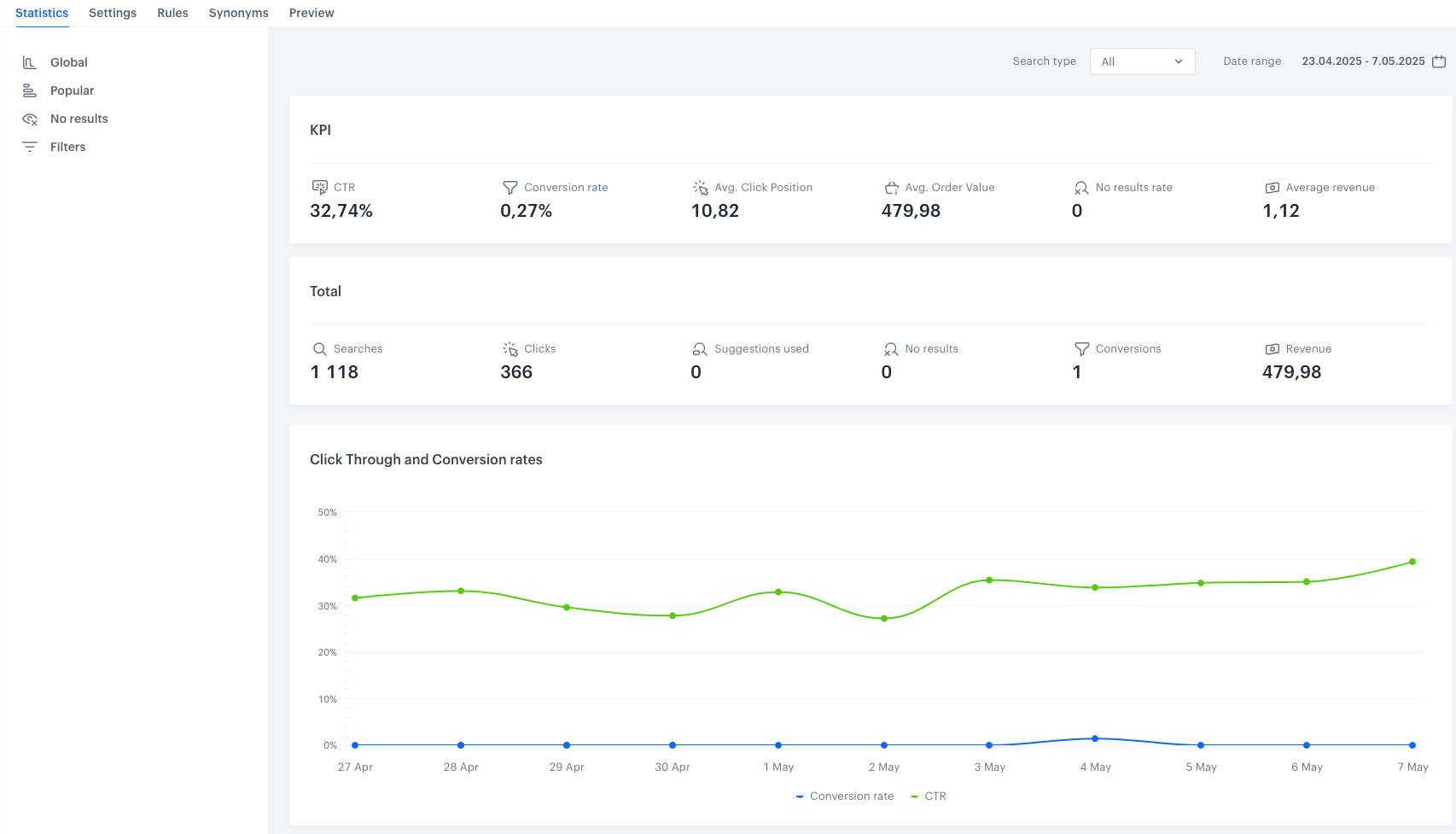
By selecting **Global** in the **Statistics** tab, you can check general search statistics for the selected index. The interface displays metrics for a specific time period. The table below shows the description of the metrics.


<figure>
<img src="/api/docs/image/54176ad07f146575310749eba44b7c2f42c1b327/docs/ai-hub/_gfx/aisearchstats1.png" alt="Global statistics" class="full">
<figcaption> Global statistics </figcaption>
</figure>


| Metric name         | Description                                                                                                                                                                                                                                                          |
|---------------------|----------------------------------------------------------------------------------------------------------------------------------------------------------------------------------------------------------------------------------------------------------------------|
| CTR                 | (Click Through Rate) It is the ratio of the number of clicks in search results to all searches.                                                                                                                                                                   |
| Conversion Rate     | It represents the ratio of the number of conversions to the total number of clicks on search results.                                                                                                                 |
| Avg. Click Position | It is the average placement of a clicked item on a list of search results. This position is indicated by ordinal ranking, with the higher numbers representing lower positions in the search results. This metric is calculated by dividing the number of all positions to the number of all clicks on search results.                                                                                             |
| Avg. Order Value    | It is the average amount spent by customers on a single transaction. A higher value indicates that customers are making larger purchases per transaction. This metric is calculated by dividing the value of all transactions by the number of conversions.                                                                                                                                             |
| No Results rate     | It is the ratio of number of search requests that returned no results to the number of all search queries.                                                                                                                                                         |
| Average Revenue     | It is the ratio of conversions to the number of customers using the search.                                                                                                                                |
| Searches            | It is the number of search queries.                                                                                                                                                                                                                |
| Clicks              | It is the number of clicks on the search results.                                                                                                                                                                                                                    |
| Suggestions Used    | When a customer sends a search query that doesn't produce any results, an internal request for suggestions is made before showing the results.<br>This is the number of such requests.       |
| No Results          | It is the number of search queries with no results and no suggestions.                                                                                                                                                                                               |
| Conversions         | It is the effectiveness indicator that shows how many times a unique product was bought after clicking it in the search results. A purchased item is bound to the search click event when the item is purchased in 5 or fewer days since clicking the search result. |
| Revenue             | It is the value of all transactions made after clicking the product in the search results.                                                                                                                                                                                                              |


### Popular
---

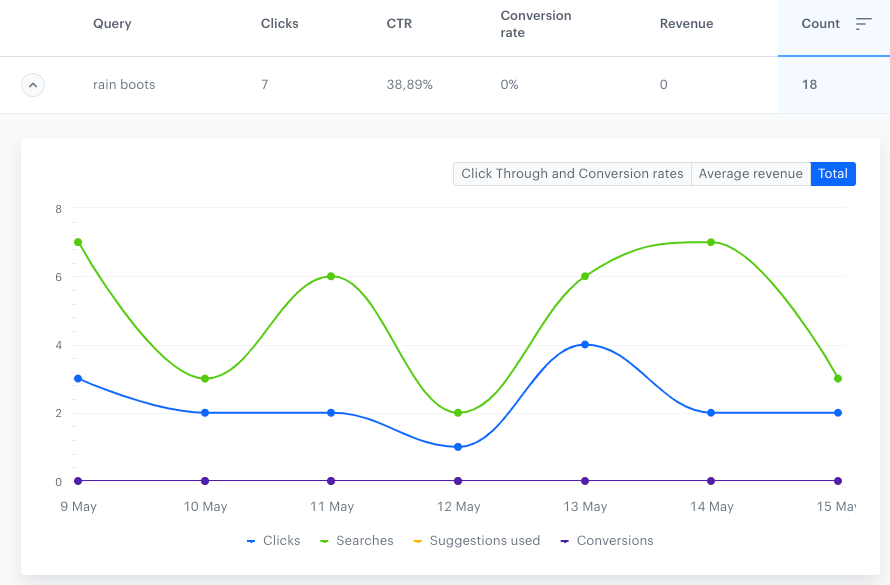
To view popular query statistics, choose the **Popular** option in the **Statistics** tab. You'll see a list of the most commonly used queries and how often they're used. The numbers in the columns represent the total for each metric during the chosen period. To see the metrics for each day, click the arrow on the left.


<figure>
<img src="/api/docs/image/54176ad07f146575310749eba44b7c2f42c1b327/docs/ai-hub/_gfx/aisearchstats2.png" alt="Popular searches" class="full">
<figcaption> Popular searches </figcaption>
</figure>


| Metric name         | Description                                                                                                                                                                                                                                                          |
|---------------------|----------------------------------------------------------------------------------------------------------------------------------------------------------------------------------------------------------------------------------------------------------------------|
| Clicks                 |  It is the number of clicks on the query.                                                                                                                                                              |
| CTR                 | (Click Through Rate) It is the ratio of the number of clicks in search results to all searches for this query.                                                                                                                                                                  |
| Conversion Rate     | It represents the ratio of the number of conversions* to the total number of clicks on search results for this query.                                                                                                                 |
| Revenue     | It is the value of all transactions made after clicking the results of the query.                                                                                                                                              |

`*`Conversions- It is the effectiveness indicator that shows how many times a unique product was bought after clicking it in the search results. An item is counted as purchased if the time between clicking on the search result and completing the transaction is 5 days or fewer.

### No results
---

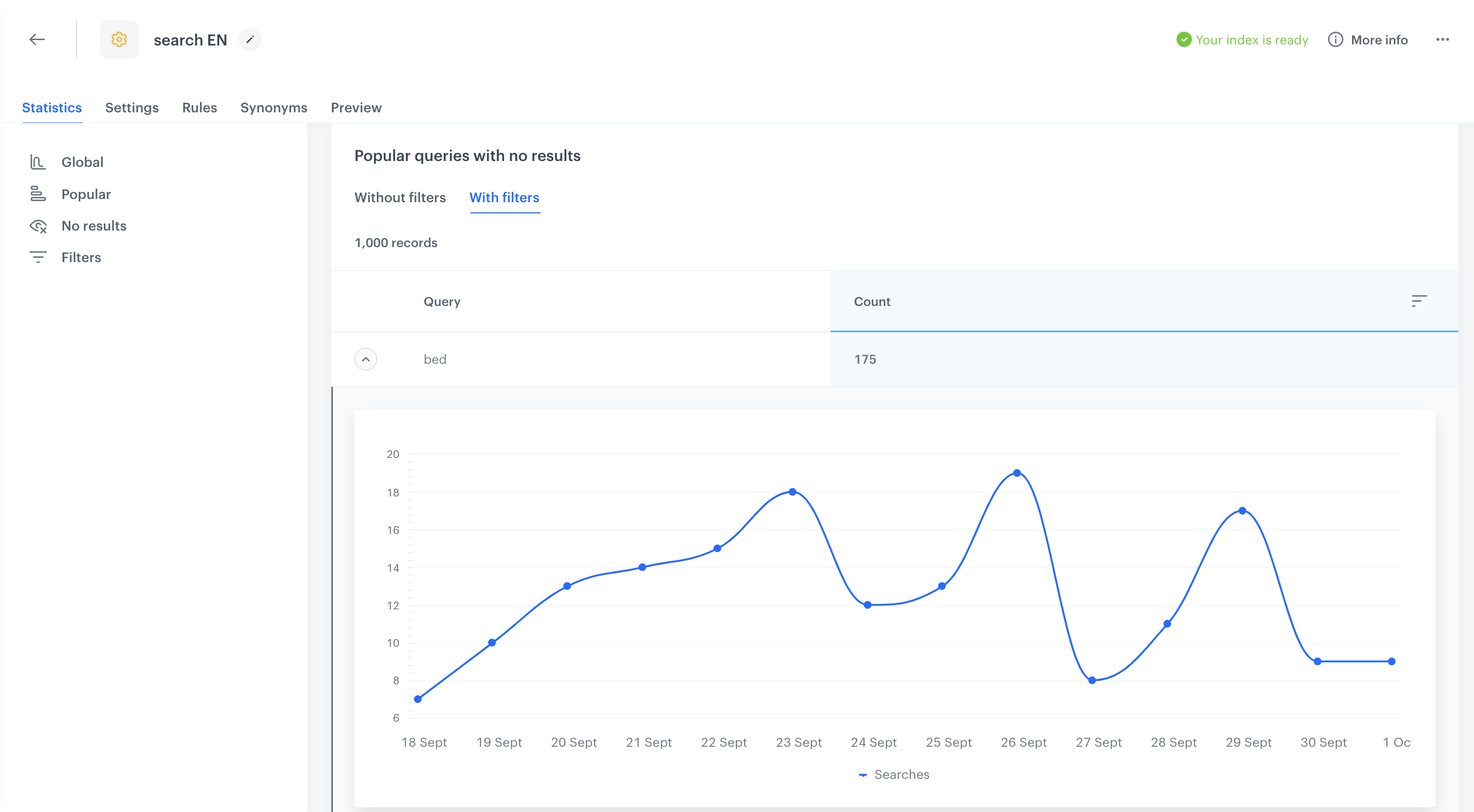
By selecting **No results** in the **Statistics** tab, you can check the results on how many times a search query didn't find any results, with or without the visitor to the website applying search filters available on the interface.

<figure>
<img src="/api/docs/image/54176ad07f146575310749eba44b7c2f42c1b327/docs/ai-hub/_gfx/aisearchstats3.png" alt="No result searches" class="full">
<figcaption> No result searches </figcaption>
</figure>


1. **Query** - This column contains the list of all popular queries searched in the chosen period that returned no results.
2. **Count** - This column shows the number of times a particular phrase was searched.

### Filters
---
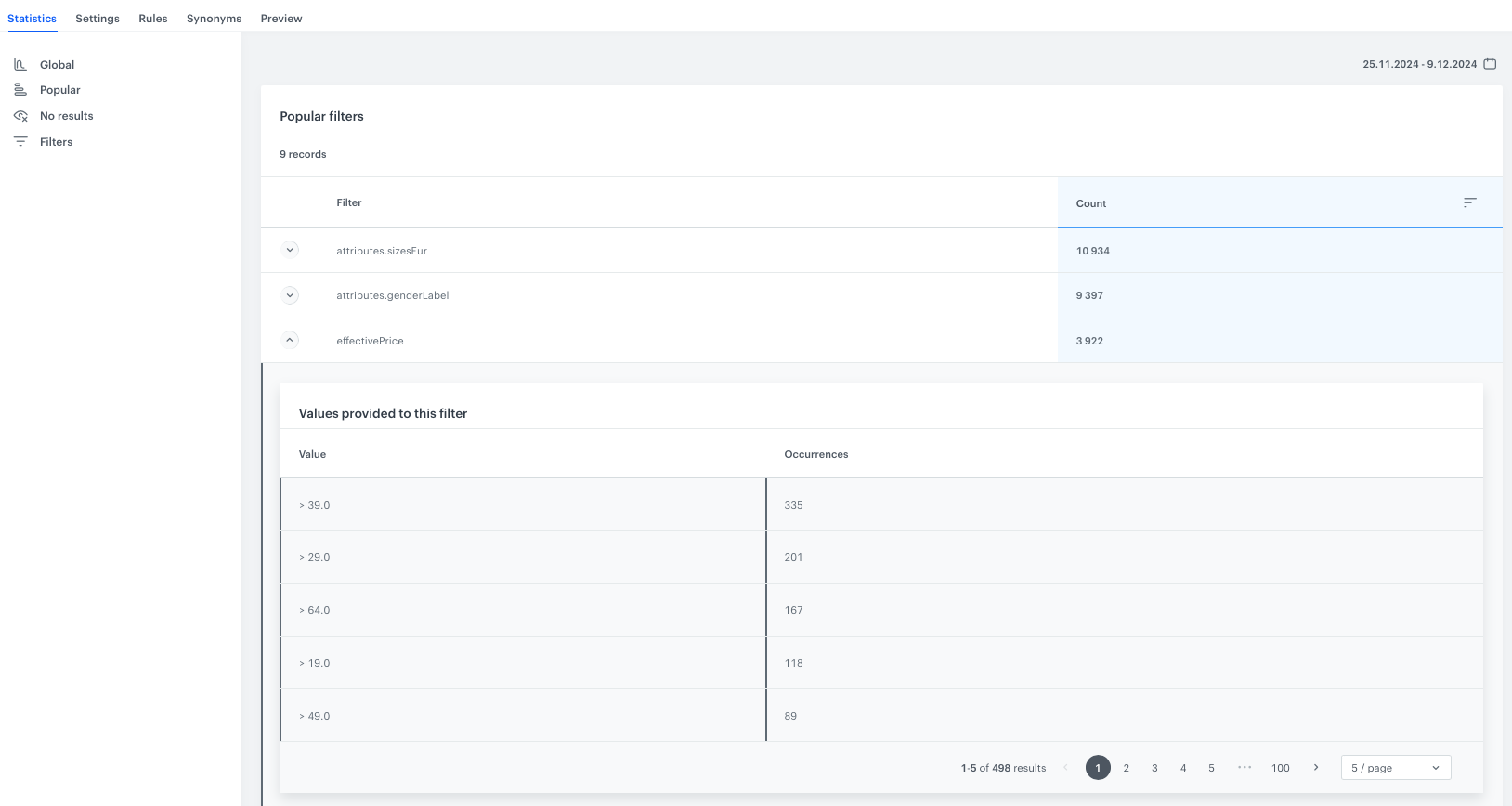
By selecting **Filters** in the **Statistics** tab, you can check how many times a particular item attribute and its value were used in the filters. Details for each attribute are accessible by clicking the arrow beside the item attribute name. 

<figure>
<img src="/api/docs/image/54176ad07f146575310749eba44b7c2f42c1b327/docs/ai-hub/_gfx/aisearchstats4.png" alt="Filters" class="full">
<figcaption> Filters </figcaption>
</figure>