By default, a search index can be managed by all [users](/docs/settings/identity-access-management/users) with the [required permissions](/docs/settings/identity-access-management/permissions/ai-hub-permissions). You can limit access per index to a selection of users or roles.
## Considerations for access settings
- All users with "read" permissions to the module have at least read-only access to all indexes, regardless of per-index access settings.
- The [PROFILE_ADMIN role](/docs/settings/identity-access-management/permissions#basic-roles) always has unlimited access, regardless of per-index access settings.
- To edit [query rules](/docs/ai-hub/ai-search/query-rules) in an index, the **Analytics** > **Segmentations**: `read` permission is required. You must grant it separately.
- If you configure different permissions for a user than for their roles, all granted permissions are combined.
**For example**:
1. You grant only the "edit" permission to a user.
2. You grant only the "delete" permission to a role where this user belongs.
3. In result, the user has both "edit" and "delete" permissions.
- Changing the access settings doesn't grant module permissions to users or roles.
**For example**:
1. A user role only has "read" access to the AI search feature.
2. You edit the settings of an index to give "edit" permissions to that role.
3. In result, users with the role **can't** edit the index, because per-index access settings only restrict permissions - they don't grant permissions beyond what the role already has.
## Changing access settings
To change the access settings:
1. Go to **AI Hub > Indexes**.
2. In the list of indexes, find the index you want to manage and click the padlock icon.
**Result**: The access management panel opens.
3. From the **Permission in this object** dropdown list, select an option:
- **Public**: everyone with the required permissions can access and manage the index.
- **Read only**: everyone with module permissions can access the index, but only the creator and administrators can edit or delete it.
- **Restricted**: you can manage edit and delete permissions separately for different users and roles.
4. If:
- you selected **Public** or **Read only**, click **Apply** to save and start enforcing the settings.
- you selected **Restricted**, proceed to [configuring the details (next step)](#restricted-config).
5. Configure the settings for **Users** and **Roles**:
1. Expand the options and configure them:
- For **Users**:
1. To add a user to the list of managed users, enter their name or email address in the search box and click their name.
2. Repeat to add more users.
3. Confirm by clicking **Add user**.
4. Use the checkboxes to set the permissions for each added user.
5. To remove a user from the list of permission settings, click next to their name and click **Remove user**.
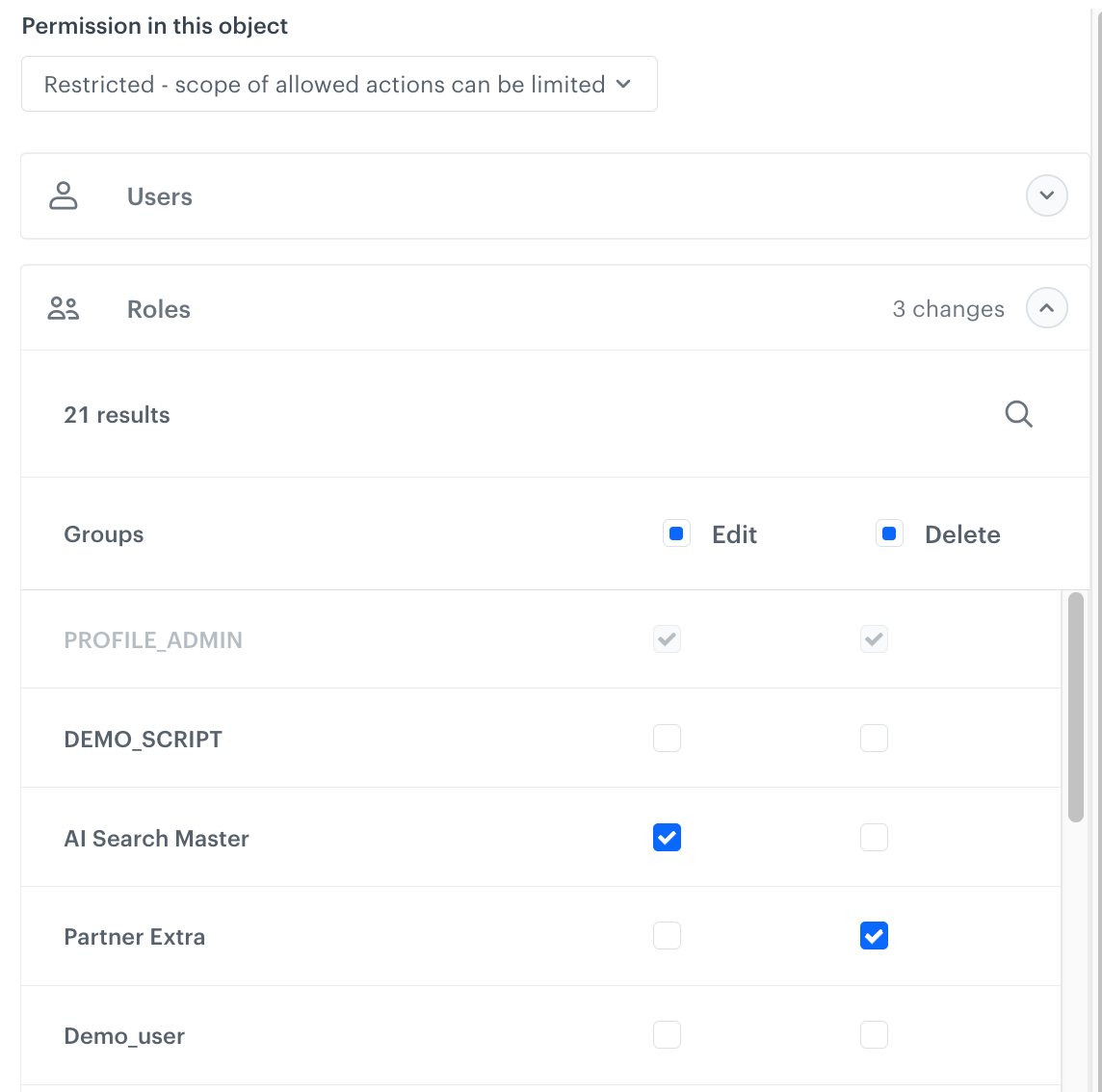
- For **Roles**:
1. Expand the list.
2. Use the checkboxes to set the permissions for each role.
Selecting permissions for roles; an example with unsaved changes
6. To save and start enforcing the settings, click **Apply** in the lower-right corner.
 **AI Hub > Indexes**.
2. In the list of indexes, find the index you want to manage and click the padlock icon.
**Result**: The access management panel opens.
3. From the **Permission in this object** dropdown list, select an option:
- **Public**: everyone with the required permissions can access and manage the index.
- **Read only**: everyone with module permissions can access the index, but only the creator and administrators can edit or delete it.
- **Restricted**: you can manage edit and delete permissions separately for different users and roles.
4. If:
- you selected **Public** or **Read only**, click **Apply** to save and start enforcing the settings.
- you selected **Restricted**, proceed to [configuring the details (next step)](#restricted-config).
5. Configure the settings for **Users** and **Roles**:
1. Expand the options and configure them:
- For **Users**:
1. To add a user to the list of managed users, enter their name or email address in the search box and click their name.
2. Repeat to add more users.
3. Confirm by clicking **Add user**.
4. Use the checkboxes to set the permissions for each added user.
5. To remove a user from the list of permission settings, click
**AI Hub > Indexes**.
2. In the list of indexes, find the index you want to manage and click the padlock icon.
**Result**: The access management panel opens.
3. From the **Permission in this object** dropdown list, select an option:
- **Public**: everyone with the required permissions can access and manage the index.
- **Read only**: everyone with module permissions can access the index, but only the creator and administrators can edit or delete it.
- **Restricted**: you can manage edit and delete permissions separately for different users and roles.
4. If:
- you selected **Public** or **Read only**, click **Apply** to save and start enforcing the settings.
- you selected **Restricted**, proceed to [configuring the details (next step)](#restricted-config).
5. Configure the settings for **Users** and **Roles**:
1. Expand the options and configure them:
- For **Users**:
1. To add a user to the list of managed users, enter their name or email address in the search box and click their name.
2. Repeat to add more users.
3. Confirm by clicking **Add user**.
4. Use the checkboxes to set the permissions for each added user.
5. To remove a user from the list of permission settings, click  next to their name and click **Remove user**.
- For **Roles**:
1. Expand the list.
2. Use the checkboxes to set the permissions for each role.
next to their name and click **Remove user**.
- For **Roles**:
1. Expand the list.
2. Use the checkboxes to set the permissions for each role.