
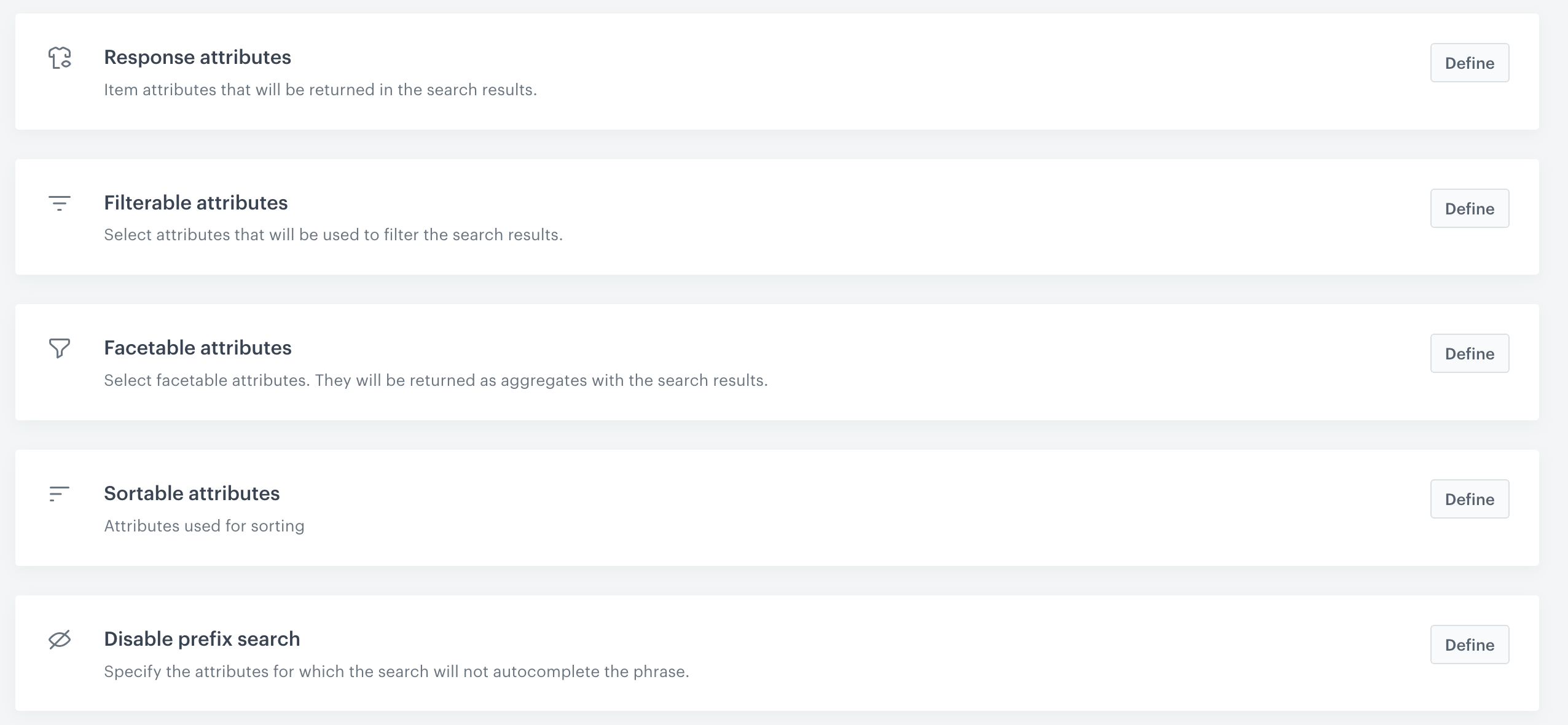
The attribute filters allow you to define which item features are available in the search results, which features the customers can use to filter the results, and so on. 


<figure>
<img src="/api/docs/image/54176ad07f146575310749eba44b7c2f42c1b327/docs/ai-hub/_gfx/ai-search-attributes.png" class="full" alt="The configuration of attributes in AI Search">
<figcaption>The configuration of attributes in AI Search</figcaption>
</figure>


## Configuration
---
1. Go to **AI Hub > Indexes**. 
2. [Create](/docs/ai-hub/ai-search/create-index) or select the index on the list. 
3. Go to the **Settings** tab.
4. Each attribute type has a separate section, to select or remove added attributes on the dedicated section, click **Define**. You can define the following attributes:


   <div class="admonition admonition-note"><div class="admonition-icon"><svg xmlns="http://www.w3.org/2000/svg" fill="none" viewBox="0 0 24 24" stroke="currentColor" stroke-width="2.5"><path stroke-linecap="round" stroke-linejoin="round" d="M13 16h-1v-4h-1m1-4h.01M21 12a9 9 0 11-18 0 9 9 0 0118 0z" /></svg></div><div class="admonition-body"><div class="admonition-content">

   The settings are saved automatically as you modify them.

   </div></div></div>


### Response attributes

This section defines which attributes will be included in the search response. For each item returned, only attributes defined in this section will be available in the search response. Only attributes defined in this section will be available in the search response so you can show them to the customers.

### Filterable attributes

Filterable attributes are those that are enabled for use in item filters for including or excluding results.    

Including an attribute value narrows down the search results to items with that attribute value. Excluding values of an attribute displays results with items that have different values of these attributes.  

#### Examples

- Products in your catalog have the `sale` attribute which can take the `true` (on sale) or `false` value. Include `sale` as a filterable attribute. Now, you can filter the results by the items' sale status. 
- Products in your catalog have the `last_item` attribute that can take the `yes`(one item is available) or `no` (more than 1 item is on stock) values. Exclude `last_item` as a filterable attribute. Now, you can filter the items that have one item left from the search results. 
- You want to filter out the products that cost more than $100. Include `price` as the range-type filterable attribute and in the settings, filter items where `price` is equal to or greater than 100$. 

### Facetable attributes

Choose attributes that can be use as facets. Facets allow customers to sort search results by attributes and their values. For example, you can use the `color` attribute as facetable to let the customers select which colors they're interested in.

The search result also includes information how many items have a particular value of a facetable attribute.

For a live example, see our [use cases](/use-cases). "Challenges", "Channel", "Difficulty", and so on are facetable attributes.

#### Example

You want to give a customer a possibility to filter results by some attributes - `color` and `brand`. Add these attributes to the **Facetable attributes** section. When this is done, the customers will be able to narrow down the results of the filter to desired brand and color of the item and additionally they will be shown information about the number of items in each facet in the search response. This information can be displayed along with the search results and based on that filtering can be applied to the results.


<div class="admonition admonition-warning"><div class="admonition-icon"><svg xmlns="http://www.w3.org/2000/svg" fill="none" viewBox="0 0 24 24" stroke="currentColor" stroke-width="2.5"><path stroke-linecap="round" stroke-linejoin="round" d="M12 9v2m0 4h.01m-6.938 4h13.856c1.54 0 2.502-1.667 1.732-2.5L13.732 4c-.77-.833-1.964-.833-2.732 0L4.082 16.5c-.77.833.192 2.5 1.732 2.5z" /></svg></div><div class="admonition-body"><div class="admonition-content">

1. The returned facets in the search response contain the top 50 distinct attribute values.
2. The sum of distinct attribute values, for filterable and facetable attributes, can't exceed 10000.   
That means that if the X attribute has 5000 different values and the Y attribute has 5000 different values, they cannot be used in filterable attributes at the same time. Remember that 10000 distinct values are shared for filterable AND facetable attributes.
Therefore, we do not recommend filtering and/or faceting with attributes that have many distinct values in the item feed.
</div></div></div>
  

### Sortable attributes

You can enable sorting the results by the chosen attributes. You can add both range and text attributes. Sorting by range attributes allows you to arrange the returned items from highest to lowest value of the specified attribute. Sorting by text attributes allows you to order the results in an alphabetic order, ascending or descending.

### Disabling prefix search

You can disable the prefix search for specific attributes. This will prevent the search engine from trying to autocomplete the phrase for these attributes. Keep in mind that if the search engine will not find any items for the phrase it will still try to check for typos.