Search results can change quickly, because some meanings of a word can become more popular than others. To keep up with these changes, you can use a dynamic re-ranker. This tool **changes search rankings to match current trends automatically**, which is more convenient than manually changing search rules. This approach is more **scalable as it can handle a lot of changes**.
The search engine learns from what people have been clicking on in the last 30 days, and then uses this information to make popular things show up higher in search results. For example, if users click nail polish results more often than nail remover when they search for `nail`, the nail polish will be shown higher in the results.
Search rankings **get updated every 12 hours** to keep up with what users are looking for. This means you get search results that fit what users need, which can lead to more users taking action based on what they find. All of this happens without the need to make manual rules or add more filters to change how relevant the results are.
### Impact on relevance
In the ["About search engine" section](/docs/ai-hub/ai-search/introduction-to-ai-search#about-search-engine) you can check at what stage of search engine operations re-ranker is applied if enabled.
## Requirements
---
This feature can be enabled only if:
- at least 100,000 [item.search.click events](/docs/assets/events/event-reference/search#itemsearchclick) are generated for [an index](/docs/ai-hub/ai-search/create-index);
- `item.search.click` events must contain `itemId` which is an ID of the clicked item. Must be the same as the item's itemId in the item feed and sku in transaction events.
## Enabling dynamic re-ranker
---
1. Go to **AI Hub > Indexes**.
2. From the list of indexes, click the one to which you want to apply the dynamic re-ranker.
**Result**: The index statistics opens.
3. Select the **Settings** tab.
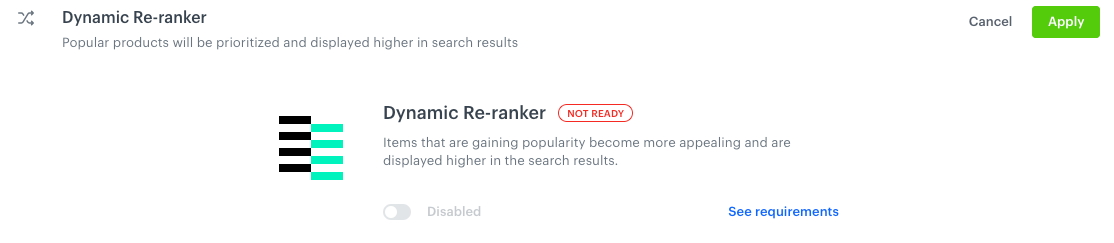
4. On the **Dynamic Re-reranker** section, click **Define**.
Default state of the dynamic re-ranker feature
5. Switch the toggle on.
You can enable the dynamic re-ranker only if your index meets the [requirements](#requirements).
### Filtering items
This step is optional.
The engine prepares the ranking of promoted items every 12 hours. You can narrow down the scope of promoted items by applying filters.
Dynamic re-ranker enabled
2. Optionally, from the **Item filter** dropdown list, you can restrict promoted items in search results by selecting the item attributes.
**Result**: A pop-up opens.
1. From the **Select value** dropdown list, select an item attribute.
2. From the **Operator** dropdown list, select a logical operator.
You can find more information on Operators in the ["Describing conditions by operators" section](/docs/ai-hub/recommendations-v2/recommendation-filters#describing-conditions-by-operators).
3. From the **Select value** dropdown list, choose a value of the item attribute.
This filter lets you only select [a value from the list](/docs/ai-hub/recommendations-v2/recommendation-filters#value-from-the-list) or [an array](/docs/ai-hub/recommendations-v2/recommendation-filters#array) , you can find more information in ["Defining the values of operators "](/docs/ai-hub/recommendations-v2/recommendation-filters#defining-the-values-of-operators).
4. To add more requirements to a condition, click **and where** and repeat steps a-c.
4. To add more conditions, click **Add filter** and repeat steps a-d. Then, you must define the condition chaining (AND/OR).
Condition chaining
5. If you want to change the conditions from including to excluding items, click the **Matching** word in "Matching these conditions".
Enabling and disabling condition matching
### Selecting number of promoted items
---
In this part of the process, define how many items in the search results will be promoted by the dynamic re-ranker.
1. In the **Number of items** field, select the number of items which will be promoted in the search results.
You can promote maximum 50 items.
2. Confirm the settings in this section by clicking **Apply**.
 **AI Hub > Indexes**.
2. From the list of indexes, click the one to which you want to apply the dynamic re-ranker.
**Result**: The index statistics opens.
3. Select the **Settings** tab.
4. On the **Dynamic Re-reranker** section, click **Define**.
**AI Hub > Indexes**.
2. From the list of indexes, click the one to which you want to apply the dynamic re-ranker.
**Result**: The index statistics opens.
3. Select the **Settings** tab.
4. On the **Dynamic Re-reranker** section, click **Define**.


