Predictive filtering is a helpful tool that improves search results by showing items from the most relevant categories. This process is transparent for the end user.
The AI engine determines the best item categories for your query based on past [item.search.click events](/docs/assets/events/event-reference/search#itemsearchclick). You can then make these results even more relevant by applying filters and boosting, depending on the AI's reliability level of the prognosis. For example, you can use an elastic filter to prioritize categories with high confidence levels, moving them to the top of the search results.
Available filters:
- **Static filter** - Only shows items from categories with the reliability level you define.
- **Elastic filter** - Displays the category with a specific reliability level at the top of the search results.
- **Boosting** - Increases the score of categories with the relability level you defined, affecting their position in the search results.
Each search result with applied predictive filtering produces two events:
- [item.search](/docs/assets/events/event-reference/search#itemsearch)
- [item.search.classification](/docs/assets/events/event-reference/search#itemsearchclassification)
In the ["About search engine"](/docs/ai-hub/ai-search/introduction-to-ai-search#about-search-engine) section you can check at what stage of search engine operations predictive filtering is applied if enabled.
## Requirements
---
This feature can be enabled only if:
- at least 100,000 [item.search.click events](/docs/assets/events/event-reference/search#itemsearchclick) are generated for [an index](/docs/ai-hub/ai-search/create-index) for the last year;
- `item.search.click` events must contain `itemId` which is an ID of the clicked item. Must be the same as the item's itemId in the item feed and sku in transaction events.
- the item feed must contain the [`category` attribute](/docs/ai-hub/item-feed/item-feed-in-catalog#category-attribute)
- the `category` attribute is selected as one of the facetable attributes while [creating an index](/docs/ai-hub/ai-search/create-index)
## Enabling predictive filtering
---
1. Go to **AI Hub > Indexes**.
2. From the list of indexes, click the one to which you want to apply the predictive filtering.
**Result**: The index statistics opens.
3. Select the **Settings** tab.
4. On the **Predictive filtering** section, click **Define**.
Default state of the predictive filtering feature
5. Switch the toggle on.
You can enable predictive filtering only if your index meets the [requirements](#requirements).
## Enabling filters and boosting
---
You can define which filters will be applied when a predicted category reaches specific reliability level. You can apply the following filters:
- **Static filter** - Only shows items from categories with the reliability level you define.
- **Elastic filter** - Displays the category with a specific reliability level at the top of the search results.
- **Boosting** - Increases the score of categories with the reliability level you defined, affecting their position in the search results.
You can apply all filters at the same time.
1. To enable a filter, switch the toggle on.
2. To define the reliability level from which the filters will be applied to the predicted categories, use the slider next to the filter toggle.
3. To confirm the settings, click **Apply**.
### Example
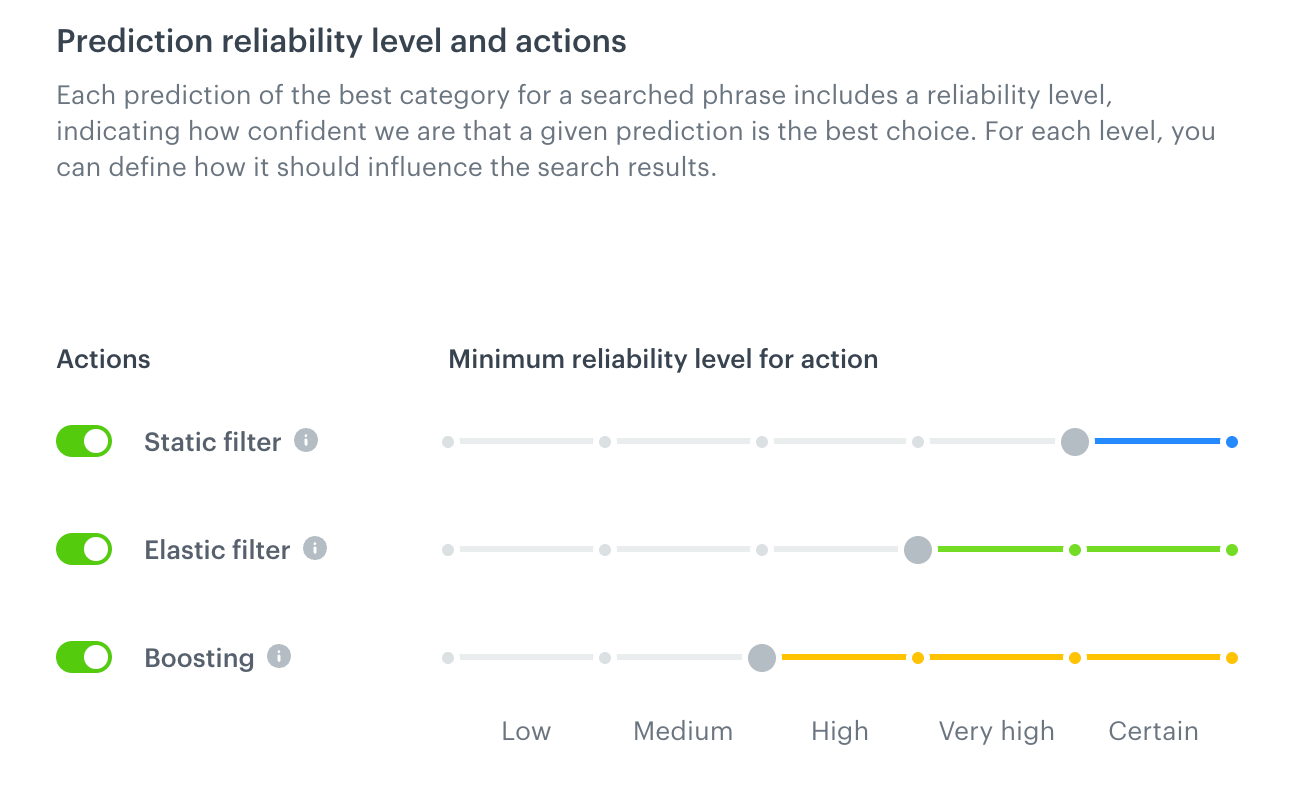
You configured the settings of the predictive filter to apply the following actions based on the reliability levels of the predicted categories:
- Static filters will be applied to categories with a reliability level assessed as "certain"
- Elastic filters will be applied to categories with a reliability level assessed as "very high"
- Boosting will be applied to categories with a reliability level assessed as "high"
Configuration of elastic, static filters and boosting
When a user searches for an item using `XYZ` query, predictive filters will return the following results:
| Category | Reliability level |
|-----------------------------------------------------------------------------|-------------------|
| `shoes` | certain |
| `shoes > sport` | very high |
| - `shoes > sport > running > women`; - `shoes > sport > running > men` | high |
This means that:
- The search results will contain only items from the `shoes` category.
- The items from the `sport` category and the `shoes` category will appear at the top of search results.
- The items from the following categories will be boosted: `shoes`, `sport`, `running`, `women`, and `men`.
## Excluding phrases and categories
Excluding phrases and categories
1. To enable excluding phrases from predictive filtering, switch the **Exclude phrases** toggle on.
2. In the **Phrases** field, enter a phrase and confirm adding it by clicking **Add [phrase name]**. Repeat for each phrase you want to add.
3. After you completed adding phrases, on the right side of the text field, click **Add**.
**Result**: A list of excluded phrases is added.
1. To enable excluding categories from predictive filtering, switch the **Exclude categories** toggle on.
2. To add categories to the list, click **Add categories**.
**Result**: A pop-up with categories appears.
3. On the pop-up, you can select a root category (then categories which belong to the root categories will be selected as well) or you can expand the root category and select sub-categories.
4. Confirm your choice by clicking **Apply**.

 **AI Hub > Indexes**.
2. From the list of indexes, click the one to which you want to apply the predictive filtering.
**Result**: The index statistics opens.
3. Select the **Settings** tab.
4. On the **Predictive filtering** section, click **Define**.
**AI Hub > Indexes**.
2. From the list of indexes, click the one to which you want to apply the predictive filtering.
**Result**: The index statistics opens.
3. Select the **Settings** tab.
4. On the **Predictive filtering** section, click **Define**.