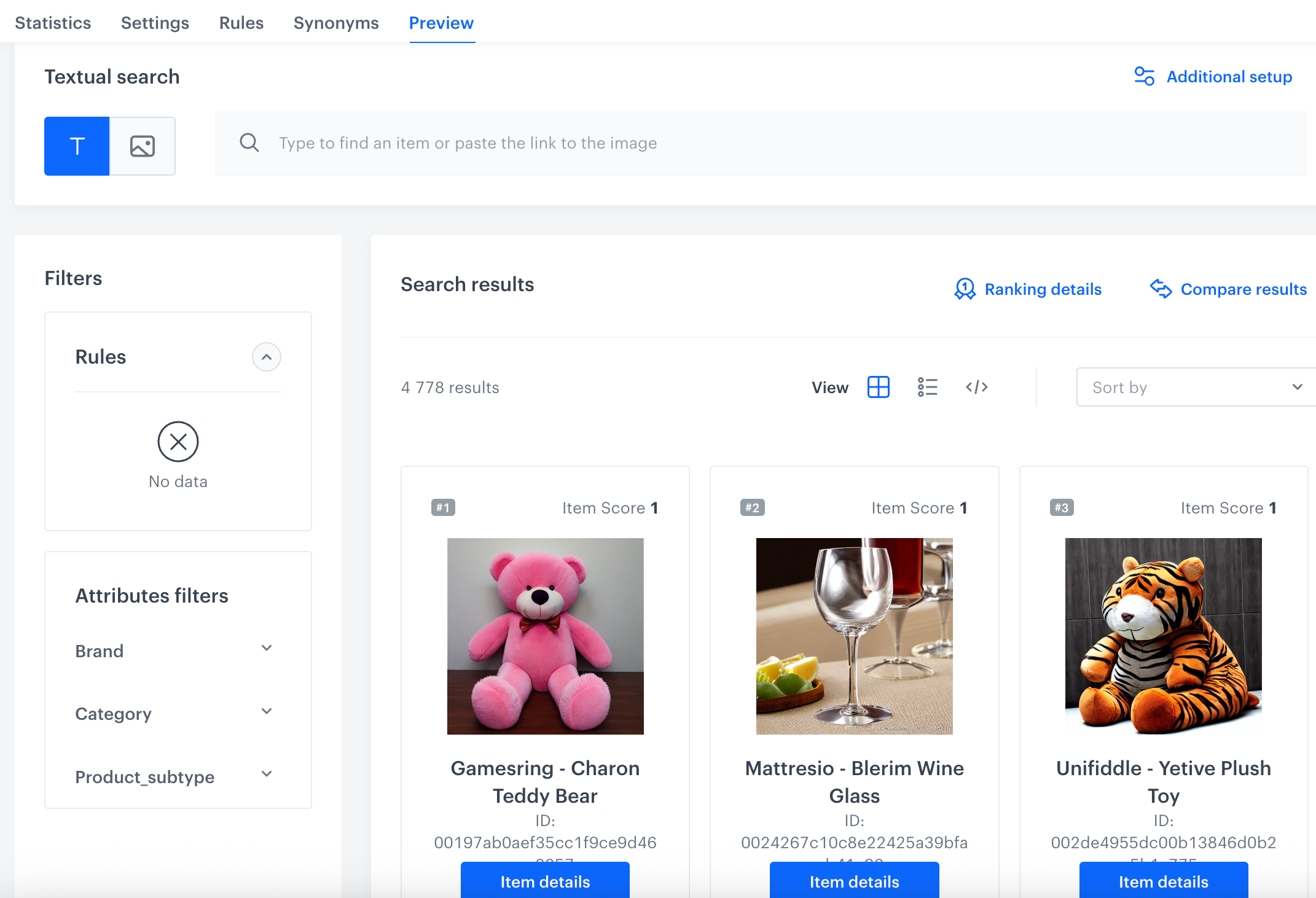
To evaluate search engine results or review specific outcomes for a customer, utilize the Preview feature within the AI Search Engine. Additionally, you have the option to compare results from two different indices.

<figure>
<img src="/api/docs/image/54176ad07f146575310749eba44b7c2f42c1b327/docs/ai-hub/_gfx/ai-search-preview.png" alt="The Preview section of a selected index" class="large">
<figcaption> The Preview section of a selected index</figcaption>
</figure>

## Requirements
---
[Select the attributes for preview](/docs/settings/configuration/ai-engine-configuration/engine-configuration-for-search#selecting-attributes-for-preview) in the AI engine configuration for the catalog you use for AI Search.

## Previewing search results
---

1. Go to <img src="/api/docs/image/54176ad07f146575310749eba44b7c2f42c1b327/icons/ai-hub-icon.svg" alt="AI Hub icon" class="icon" > **AI Hub > Indexes**.
2. Select an index from the list.
3. Go to the **Preview** section. 
2. In the search box, type any phrase to see the results you get from particular words.
3. To see the an item for a specific customer, in the upper-right corner, click **Additional setup**.  
    **Result**: A pop-up appears.  
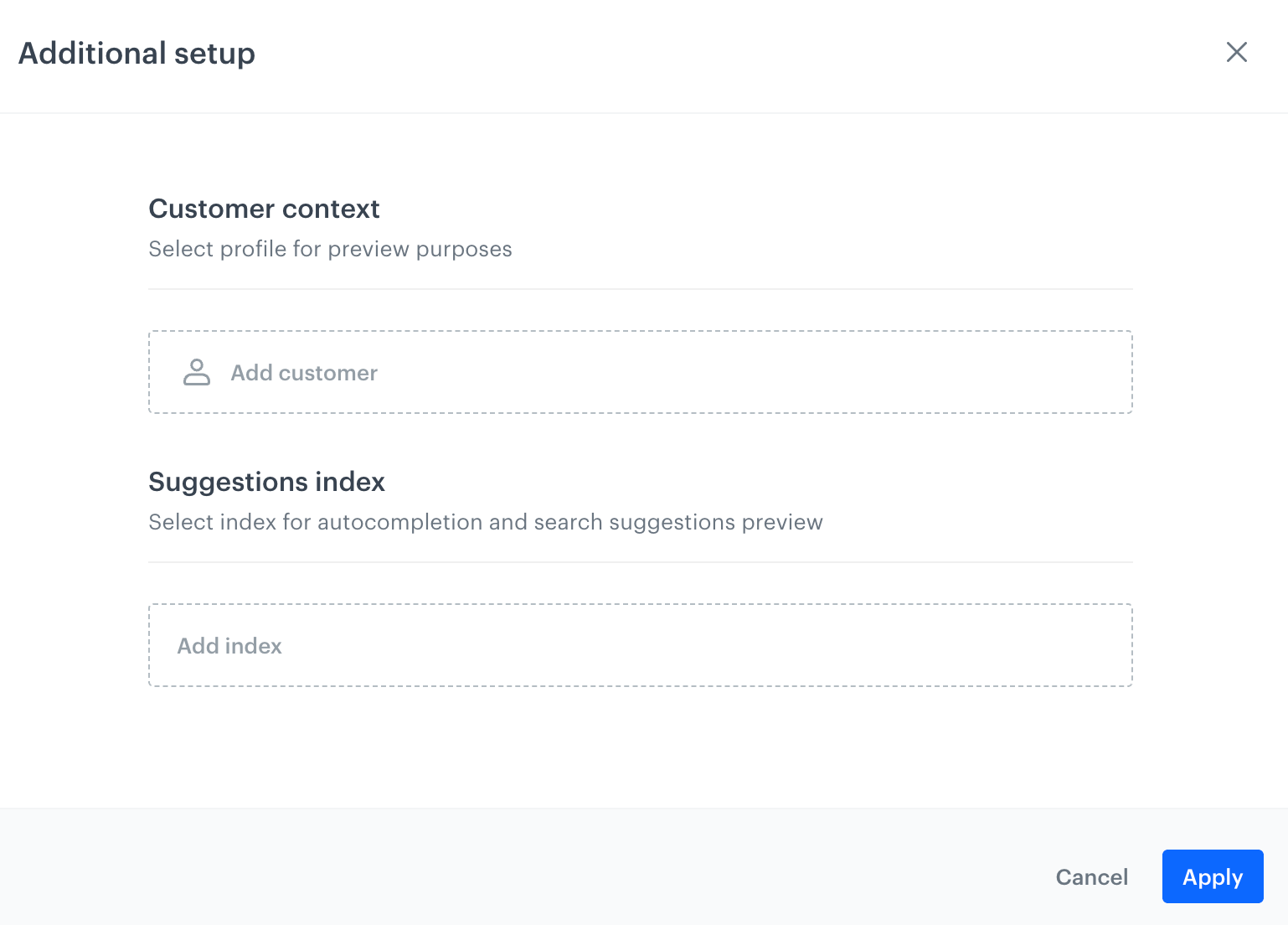
    <figure><img src="/api/docs/image/54176ad07f146575310749eba44b7c2f42c1b327/docs/ai-hub/_gfx/additional-setup-search-preview.png" alt="Pop-up that lets you select a customer for whom the search results will be generated and select a suggestion index" class="medium"><figcaption>Pop-up that lets you select a customer for whom the search results will be generated and select a suggestion index</figcaption></figure>  

6. In the **Customer context** section, from the **Add customer** dropdown list, select the customer for whom the preview of search results will be generated.  
7. Optionally, from the **Suggestion index** section, you can select index of suggestions which will be applied in the preview.  
    
   <div class="admonition admonition-tip"><div class="admonition-icon"><svg xmlns="http://www.w3.org/2000/svg" fill="none" viewBox="0 0 24 24" stroke="currentColor" stroke-width="2.5"><path stroke-linecap="round" stroke-linejoin="round" d="M9.663 17h4.673M12 3v1m6.364 1.636l-.707.707M21 12h-1M4 12H3m3.343-5.657l-.707-.707m2.828 9.9a5 5 0 117.072 0l-.548.547A3.374 3.374 0 0014 18.469V19a2 2 0 11-4 0v-.531c0-.895-.356-1.754-.988-2.386l-.548-.547z" /></svg></div><div class="admonition-body"><div class="admonition-content">

   [Suggestions](/docs/ai-hub/ai-search/query-suggestions) are created to enhance the user search experience by providing real-time, relevant queries or query completions that guide users toward successful search results more efficiently.

   </div></div></div>

8. Confirm by clicking **Apply**.


## Previewing item details
---

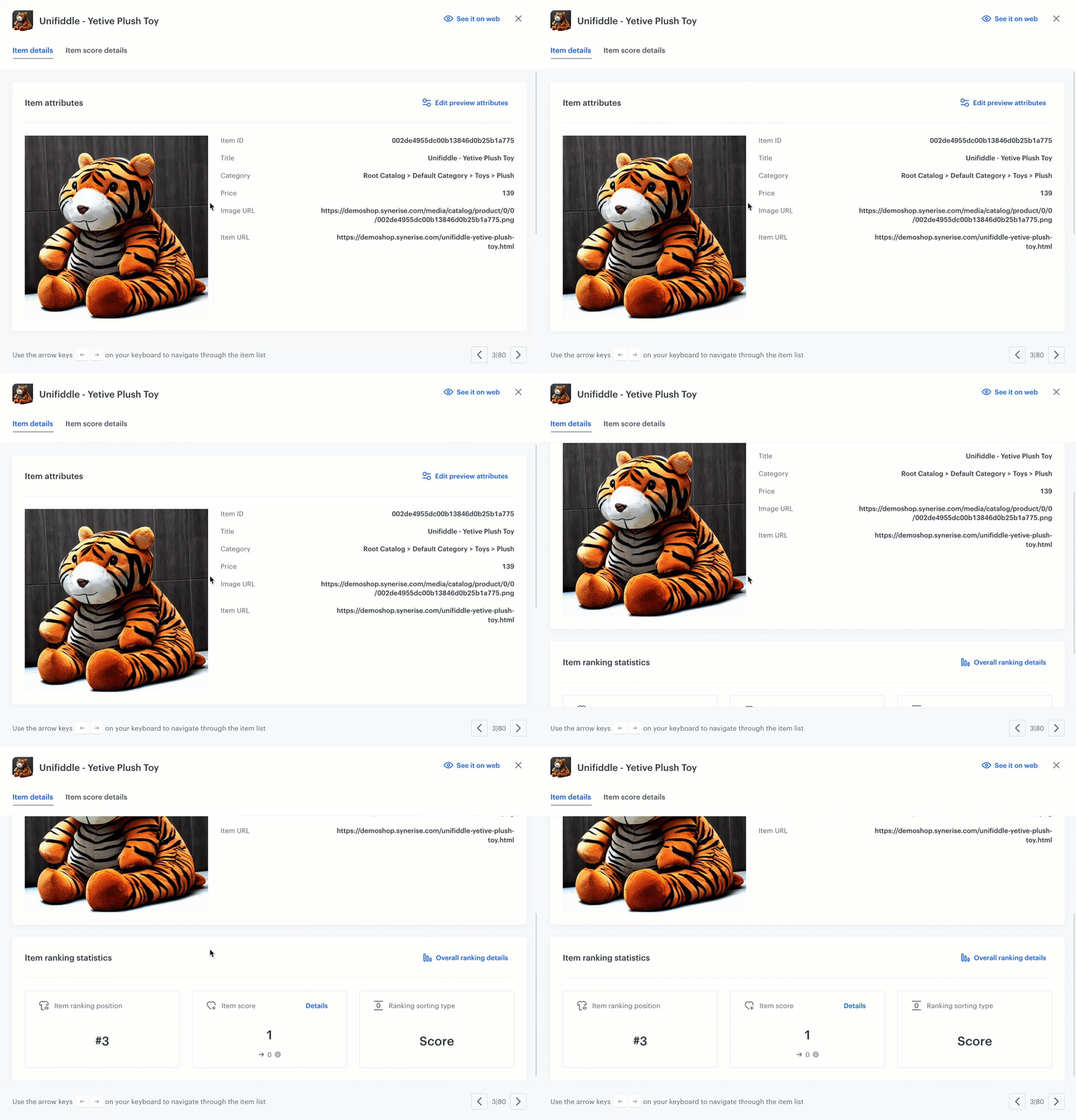
<figure><img src="/api/docs/image/54176ad07f146575310749eba44b7c2f42c1b327/docs/ai-hub/_gfx/item-details.gif" alt="A preview of item details returned in search results" class="medium"><figcaption>A preview of item details returned in search results</figcaption></figure>


- You can set the preview attributes by clicking **Edit preview attributes**. By changing the preview attributes, you can control the attribute values that will appear in the preview.  More information about attributes for preview is available [here](/docs/settings/configuration/ai-engine-configuration/engine-configuration-for-search#selecting-attributes-for-preview).
    
  <div class="admonition admonition-note"><div class="admonition-icon"><svg xmlns="http://www.w3.org/2000/svg" fill="none" viewBox="0 0 24 24" stroke="currentColor" stroke-width="2.5"><path stroke-linecap="round" stroke-linejoin="round" d="M13 16h-1v-4h-1m1-4h.01M21 12a9 9 0 11-18 0 9 9 0 0118 0z" /></svg></div><div class="admonition-body"><div class="admonition-content">

  This setting is mutual for the Recommendation preview as well as the AI Search Engine preview.

  </div></div></div>


- **Item ranking statistics**:  
    - **Item ranking position** - The place where an item appears in the list of search results, with 1 being the top position.
    - **Item score** - A numerical value that shows how well an item matches the search query, determining its relevance.
    - **Ranking sorting type** - The method used to order search results, such as by relevance, date, or popularity.

### Item score details tab
---

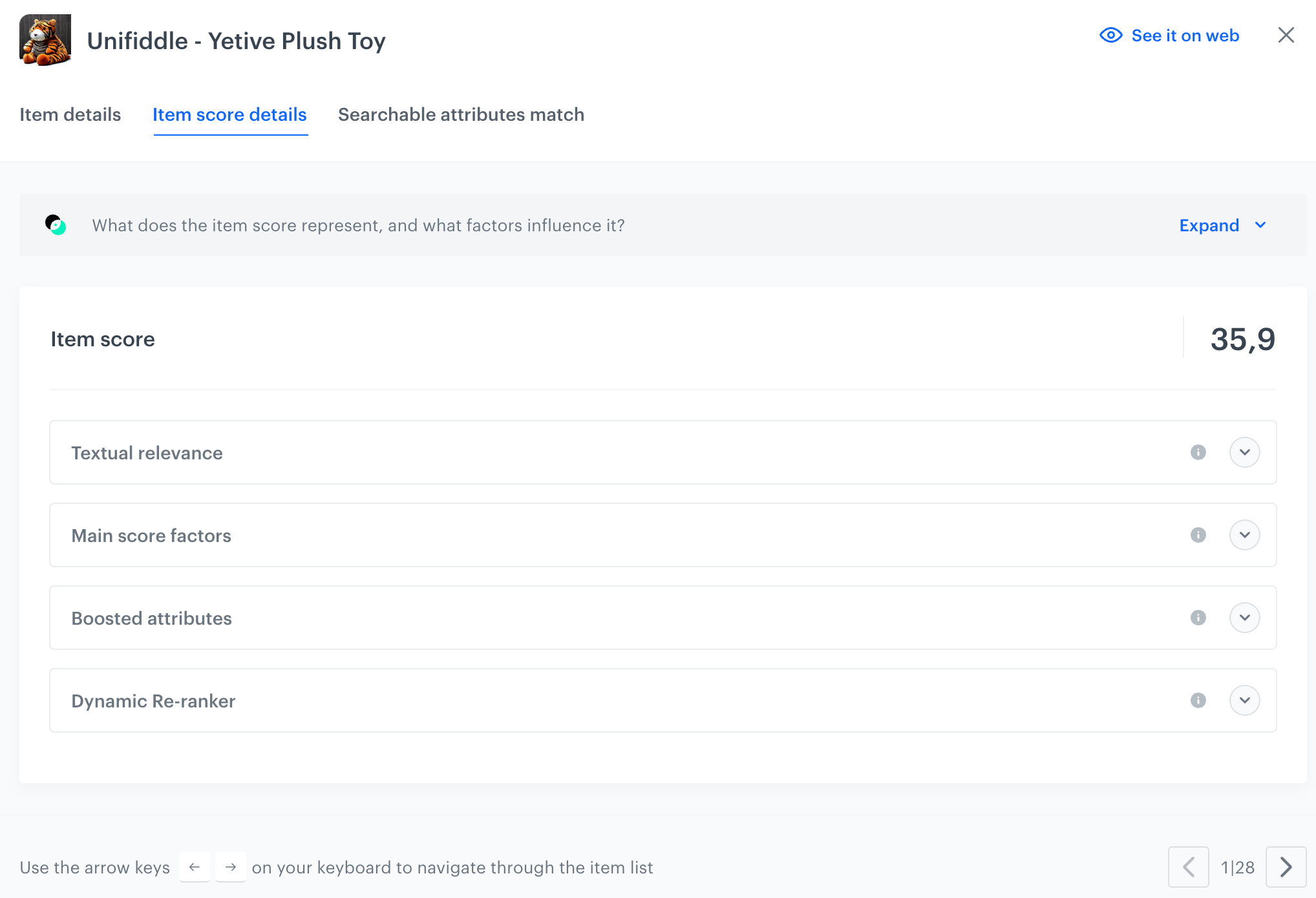
This section provides an overview of how search relevance has been determined for an item.

<figure><img src="/api/docs/image/54176ad07f146575310749eba44b7c2f42c1b327/docs/ai-hub/_gfx/item-score-details.png" alt="A preview of item score details returned in search results" class="medium"><figcaption>A preview of item score details returned in search results</figcaption></figure>

- **Textual relevance** - indicates how closely a user’s search term matches the text in item attributes such as the title, description, and other related fields. Higher scores are assigned to words that appear often, naturally, and meaningfully within these attributes.  

- **Main score factors** - you can see how each factor individually affects the score of the item shown in the search results. You can adjust the overall influence of these factors in the Ranking section of the index settings.

- **Boosted attributes** - you can view the rules that caused the attribute’s score to increase, along with how much each rule boosted it.

- **Dynamic re-ranker** - you can see a preview of how the [dynamic re-ranker](/docs/ai-hub/ai-search/dynamic-reranker) changed the score of the item shown in the search results.

### Searchable attributes match tab
---

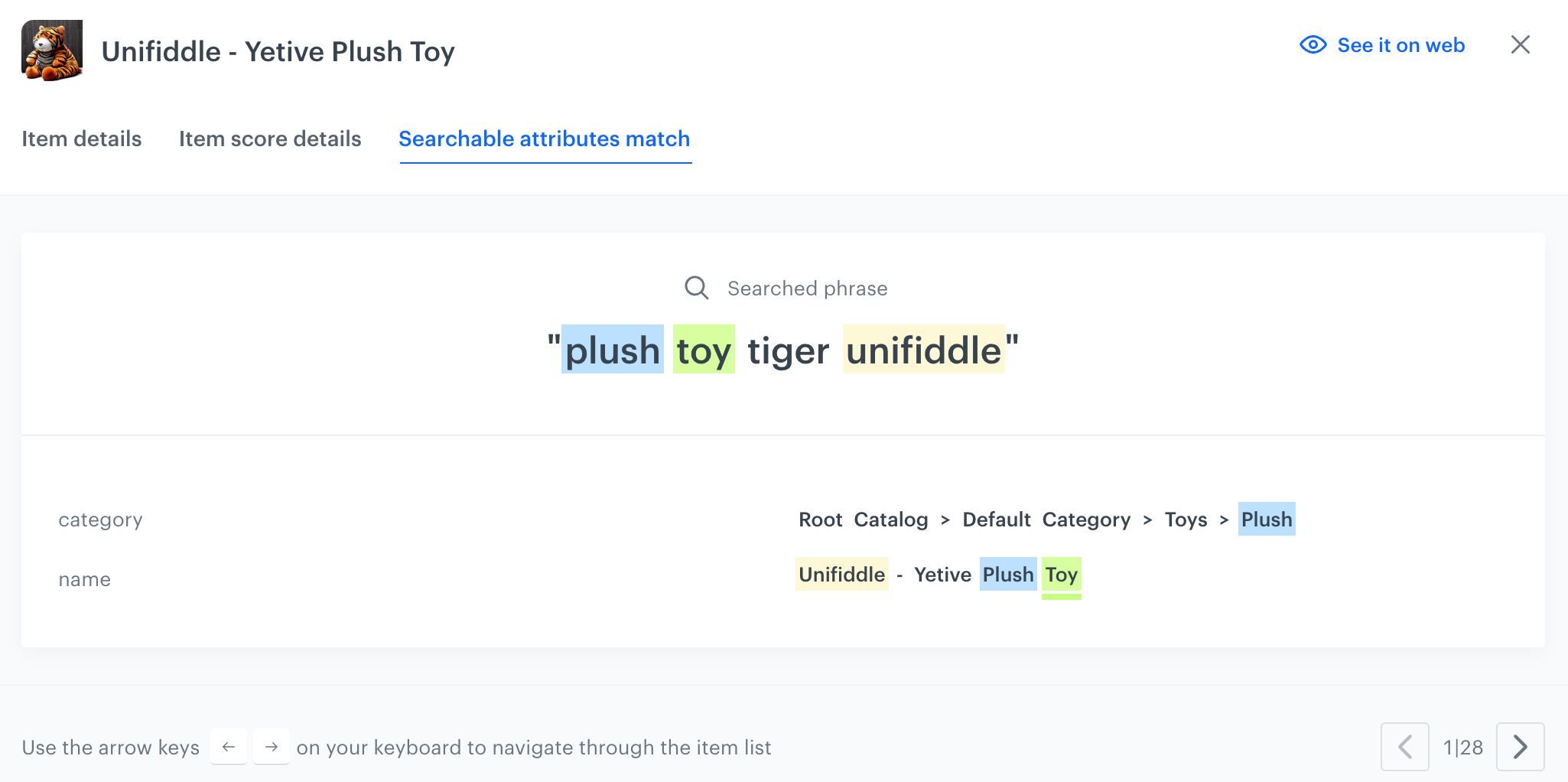
This section of the item preview displays the specific attributes that matched the user’s search query. It highlights the data segments recognized as *matches*, with underlined phrases indicating *synonyms*. This feature helps you understand why a particular item appeared in the search results and enhances transparency by revealing which attributes influenced the outcome.  

<figure><img src="/api/docs/image/54176ad07f146575310749eba44b7c2f42c1b327/docs/ai-hub/_gfx/searchable-attributes-match.png" class="large" alt="Preview of a searched phrase"><figcaption>An example search phrase with highlighted matches and underlined synonyms</figcaption></figure>


## Comparing indices
---
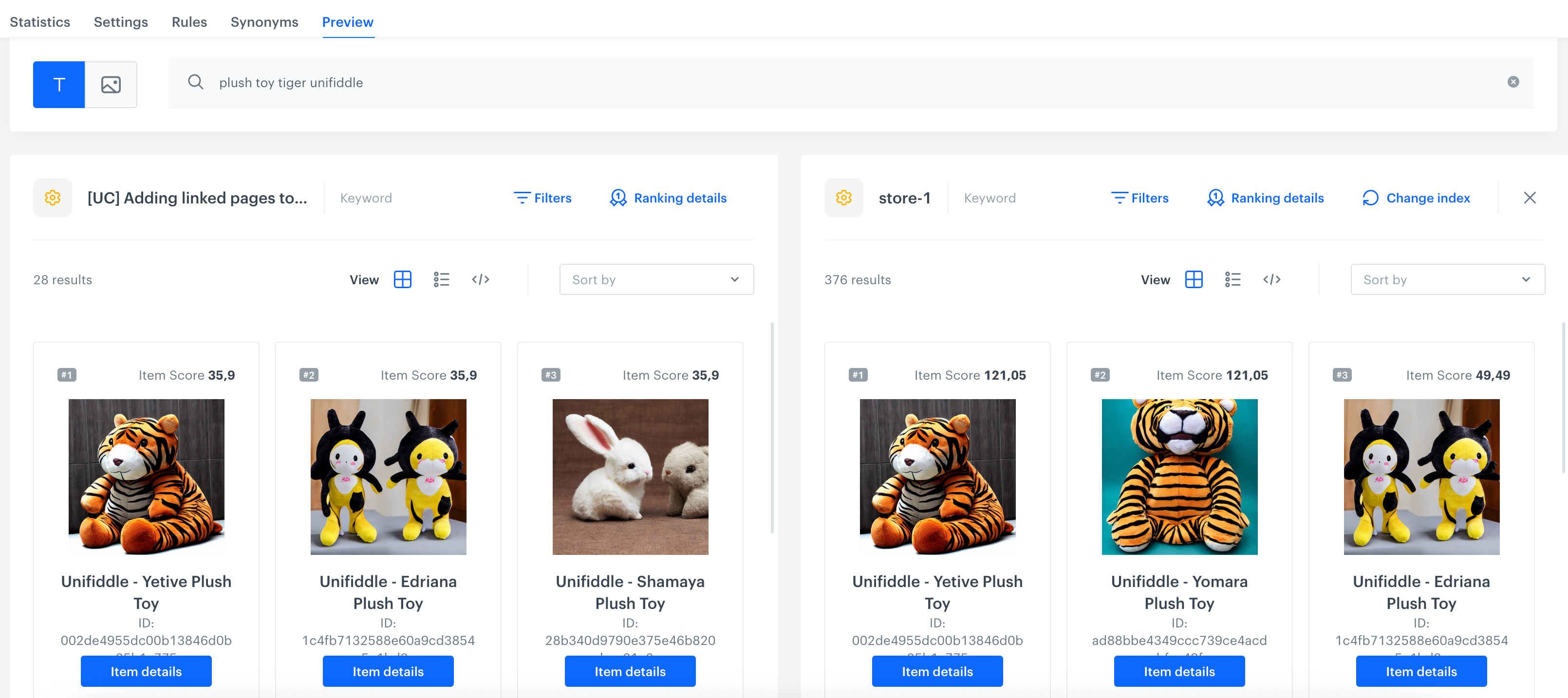
Comparing indices allows you to assess results they return. Before entering any search query, you can apply filters within each index.

1. Click **Compare results**.  
    **Result**: A pop-up appears.
2. From the **Select index** dropdown list, select the index with which you want to compare the index you're previewing.
3. Confirm your choice by clicking **Apply**.  
    **Result**: 
    <figure>
    <img src="/api/docs/image/54176ad07f146575310749eba44b7c2f42c1b327/docs/ai-hub/_gfx/compare-indices.png" alt="Comparing index 1 and index 2" class="large">
    <figcaption> Comparing index 1 and index 2</figcaption>
    </figure>

4. In the search box, enter a query so you can compare the results produced by each index.

## Query and ranking details
---

Query and ranking details extend the search preview with transparent insights into the generation of search results, including query transformations, applied rules, filters, sorting details. Its purpose is to improve satisfaction by making search results more explainable and transparent, helping you understand the mechanics of generating results. It aims to improve transparency and simplify debugging for you.  
Query and ranking details are available for all search methods (hybrid, keywords, semantic).


### Query details

In the **Query details** section, which is available after performing a search request, you can review the modifications made to the original search phrase in a search query. Several factors contribute to these modifications:
- [Rules](/docs/ai-hub/ai-search/query-rules)
- [Synonyms](/docs/ai-hub/ai-search/add-synonyms) (two-way synonyms only)


<figure><img src="/api/docs/image/54176ad07f146575310749eba44b7c2f42c1b327/docs/ai-hub/_gfx/query-details.png" class="full" alt="The query details option in the search preview"><figcaption>The query details option in the search preview</figcaption></figure>

1. **General overview** - This section provides an overview how the original search phrase has been changed due to rules, synonyms, and suggestions from the search engine, focusing specifically on numbers. 

    - **Phrase typed by a user** - This is original search phrase entered by the user.
    - **Final searched phrase** - This is the final phrase for which the search request was made; it's changed as a result of applying rules, synonyms, and suggestions from the search engine.
    - **Query rules that have changed phrase** - This section shows how many [rules](/docs/ai-hub/ai-search/query-rules) have been applied to the original phrase.
    - **Used synonyms** - This section shows how many [synonyms](/docs/ai-hub/ai-search/add-synonyms) were searched and their results added to the search results.

2. **Query transformation** - This section shows a list of applied [rules](/docs/ai-hub/ai-search/query-rules) to the original searched phrase. The rules provide IF - THEN logic that lets you influence the search results. This way you can manage the behavior of the search engine by telling it to promote specific products, replace the query or a word in the query or remove a word from it in specific circumstances.

    - **The condition that has been met** - This column shows the rule condition met by the original query.
    - **Consequence** - This column shows what changes have been made to the original searched phrase.

3. **Used synonyms** - This section shows a list of applied two-way [synonyms](/docs/ai-hub/ai-search/add-synonyms) to the original searched phrase. Two-way synonyms work in two directions. For example, if “telephone”, “smartphone”, and “phablet” are two-way synonyms, searching for “smartphone” or “phablet” also shows the results for “telephone”.


### Ranking details

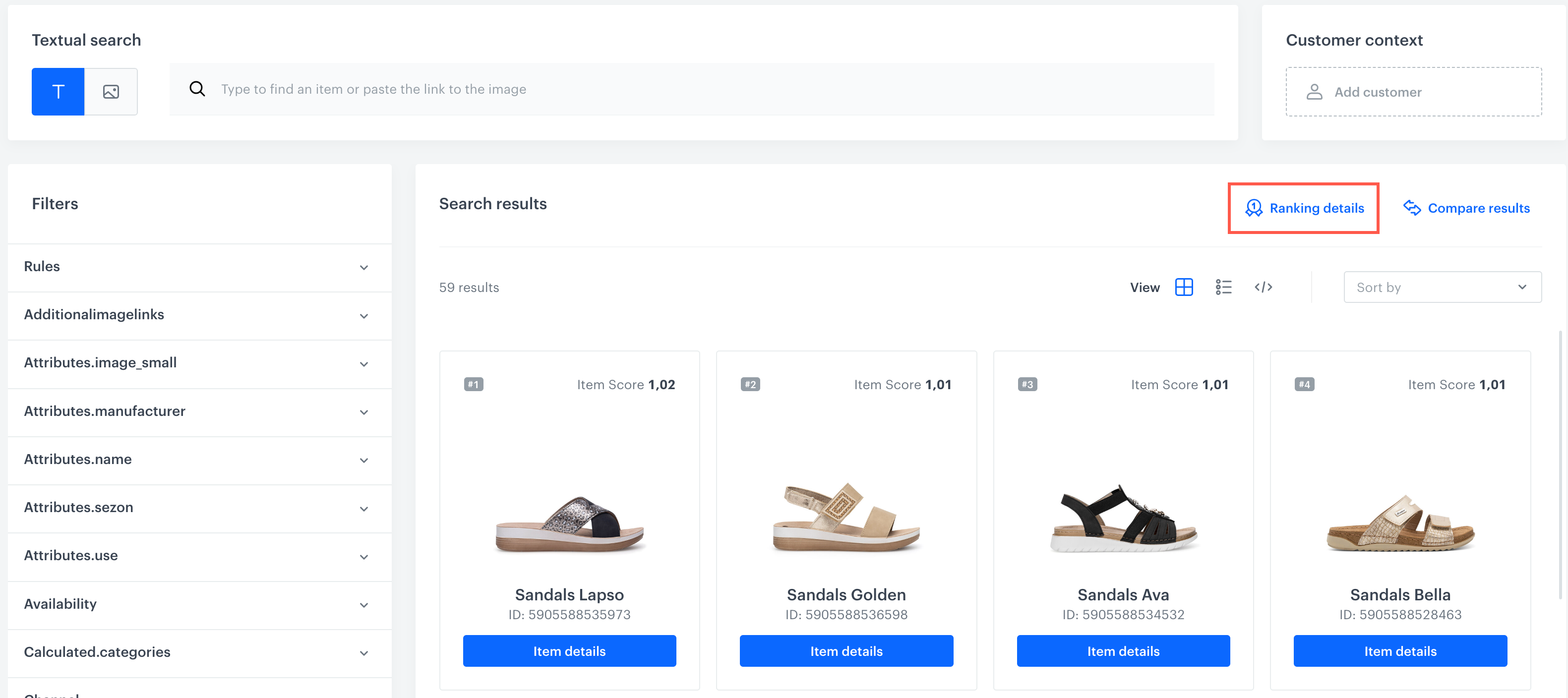
In the ranking details section, you can check how the [rules](/docs/ai-hub/ai-search/query-rules), [sorting](/docs/ai-hub/ai-search/define-attributes#sortable-attributes) and [ranking](/docs/ai-hub/ai-search/define-item-ranking) settings have impacted the listing of search results. 

<figure><img src="/api/docs/image/54176ad07f146575310749eba44b7c2f42c1b327/docs/ai-hub/_gfx/ranking-details.png" class="full" alt="The ranking details option in the search preview"><figcaption>The ranking details option in the search preview</figcaption></figure>

1. General overview:  
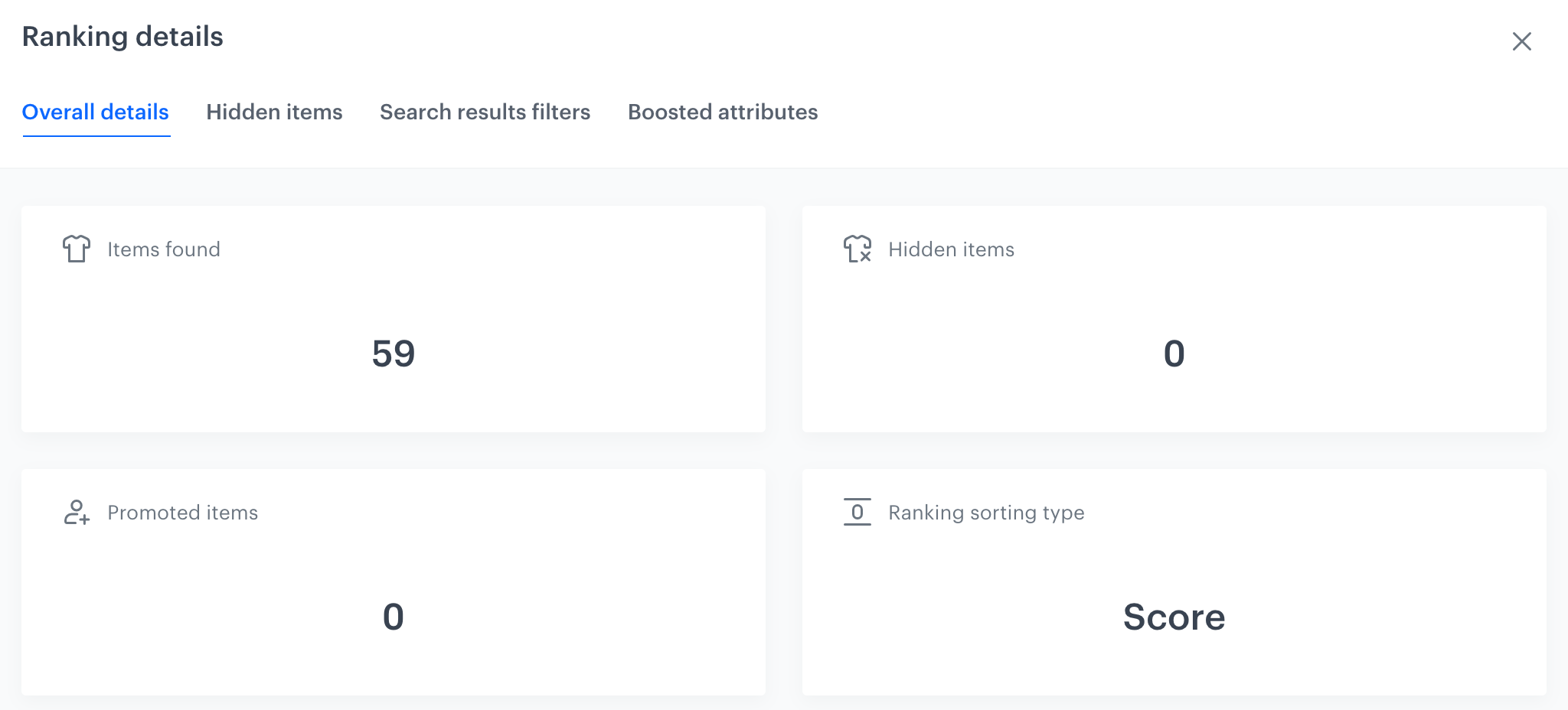
    - **Items found** - This section shows the total number of items that matched the query (including hidden items; an item can be hidden as a consequence of the applied [rules](/docs/ai-hub/ai-search/query-rules)).
    - **Hidden items** - This section shows the number of all items that are hidden as a result of the rules applied to the searched phrase.
    - **Promoted items** - This section shows the number of items promoted as a result of the rules applied to the searched phrase.
    - **Ranking sorting type** - This section shows the method of sorting search results. This value is definable in [Sortable attributes](/docs/ai-hub/ai-search/define-attributes#sortable-attributes) of the index settings.  

    <figure><img src="/api/docs/image/54176ad07f146575310749eba44b7c2f42c1b327/docs/ai-hub/_gfx/ranking-details-overall.png" class="full" alt="The preview of Overall details"><figcaption>The preview of Overall details</figcaption></figure>

2. **Hidden items** - This section shows a list of items (name and item ID) hidden from the results. Items can be hidden due to query rules. 
3. **Search results filters** - This section shows a list of rules whose consequence is **Filter query results**. The **Conditions** column shows the conditions of the rule and the **Consequences** column shows the changes that are made to the results. 
4. **Boosted attributes** - This section shows a list of rules whose consequence is **Boost by attribute**. The **Conditions** column shows the conditions of the rule and the **Consequences** column shows the changes that are made to the results.