Personalized promotions is a set of promotions selected by the AI engine for a particular customer. The promotions are managed by creating any [promotion type](/docs/ai-hub/promotions/creating-promotions#type--limits), which provide settings for the AI engine. When a promotion is generated for a customer, the AI retrieves the promotion available to the customer and selects the most relevant ones.

## Business advantages
---
- High quality mechanisms of selecting items for a personalized promotion:
   - Checking the group of customers to whom the promotion is assigned.
   - Selecting the promotions whose start and end date covers the activity time of the personalized promotions.
   - In-built mechanisms that prevent overlapping items included in general promotions and advertising flyers with the items in personalized promotions.
   - In-built mechanism that prevents overlapping active promotions.
- The great flexibility of promotion sets allows users to create relevant promotions that will apply in the distant future (in a year and longer).

## Prerequisites
---

- Create a catalog that will be the source of items from the promotion. This can be your [item feed imported to a catalog](/use-cases/import-product-feed-to-catalog).  
   The product identifiers (for example, `sku`) in the feed in the catalog must be consistent with product identifiers from transaction and interaction events.
- Your transaction data history must be at least three months long. 
- Optionally, create a [catalog](/docs/assets/catalogs/creating-catalogs) with items you don't want to show in the personalized promotions.  
   The product identifiers (for example, `sku`) in the feed in the catalog must be consistent with product identifiers from transaction and interaction events.
- Optionally, if you want to consider only specific promotion candidates, create a filter on the list of (regular) promotions to be reused while preparing the personalized promotion.
   
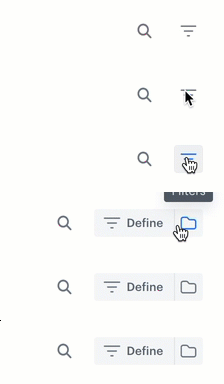
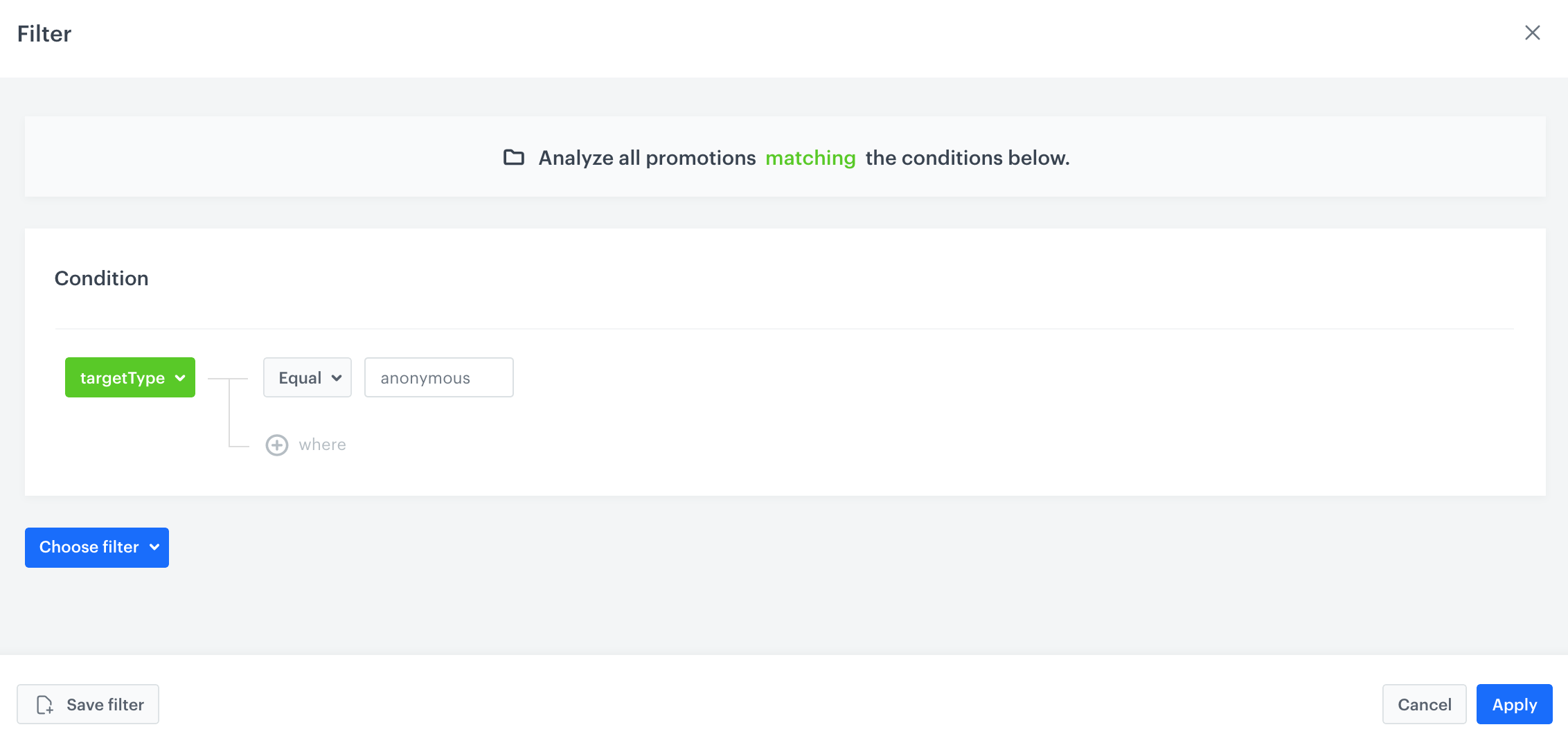
  <details class="accordion"><summary>Click here to see how to build the filter</summary><div class="accordion-content"><ol> <li>Go to <strong>AI Hub &gt; Regular Promotions</strong>.</li> <li>On the right side of the screen, click the filter icon. <figure><img src="/api/docs/image/54176ad07f146575310749eba44b7c2f42c1b327/docs/campaign/_gfx/promotion-filter-define.gif" alt="Clicking the filter icon" class="full"></figure> </li> <li>Click <strong>Define</strong>.</li> <li>On the pop-up, define the conditions by clicking <strong>Choose filters</strong>. The list contains all parameters from the product feed. <figure> <img src="/api/docs/image/54176ad07f146575310749eba44b7c2f42c1b327/docs/campaign/_gfx/promotion-filter-defined.png" alt="Promotion targeted at anonymous customers" class="full"> <figcaption>Promotion targeted at anonymous customers</figcaption> </figure></li> <li>To add a new condition, repeat the previous step.</li> <li>Save the filter by clicking <strong>Save filter</strong>.</li> </ol></div></details>

## Create promotion candidates
---

**Required actions**:
- [create a promotion of any type, define the discount types and redemption settings ](/docs/ai-hub/promotions/creating-promotions#type--limits)
- [schedule how long the items are available as candidates for the personalized promotion](/docs/ai-hub/promotions/creating-promotions#type--limits)
- [select the items for the promotion](/docs/ai-hub/promotions/creating-promotions#items)


## Create a personalized promotion
---

<figure>
<img src="/api/docs/image/54176ad07f146575310749eba44b7c2f42c1b327/docs/campaign/_gfx/handbill-general.png" alt="Configuring a personalized promotion" class="large">
<figcaption>Configuring a personalized promotion </figcaption>
</figure>

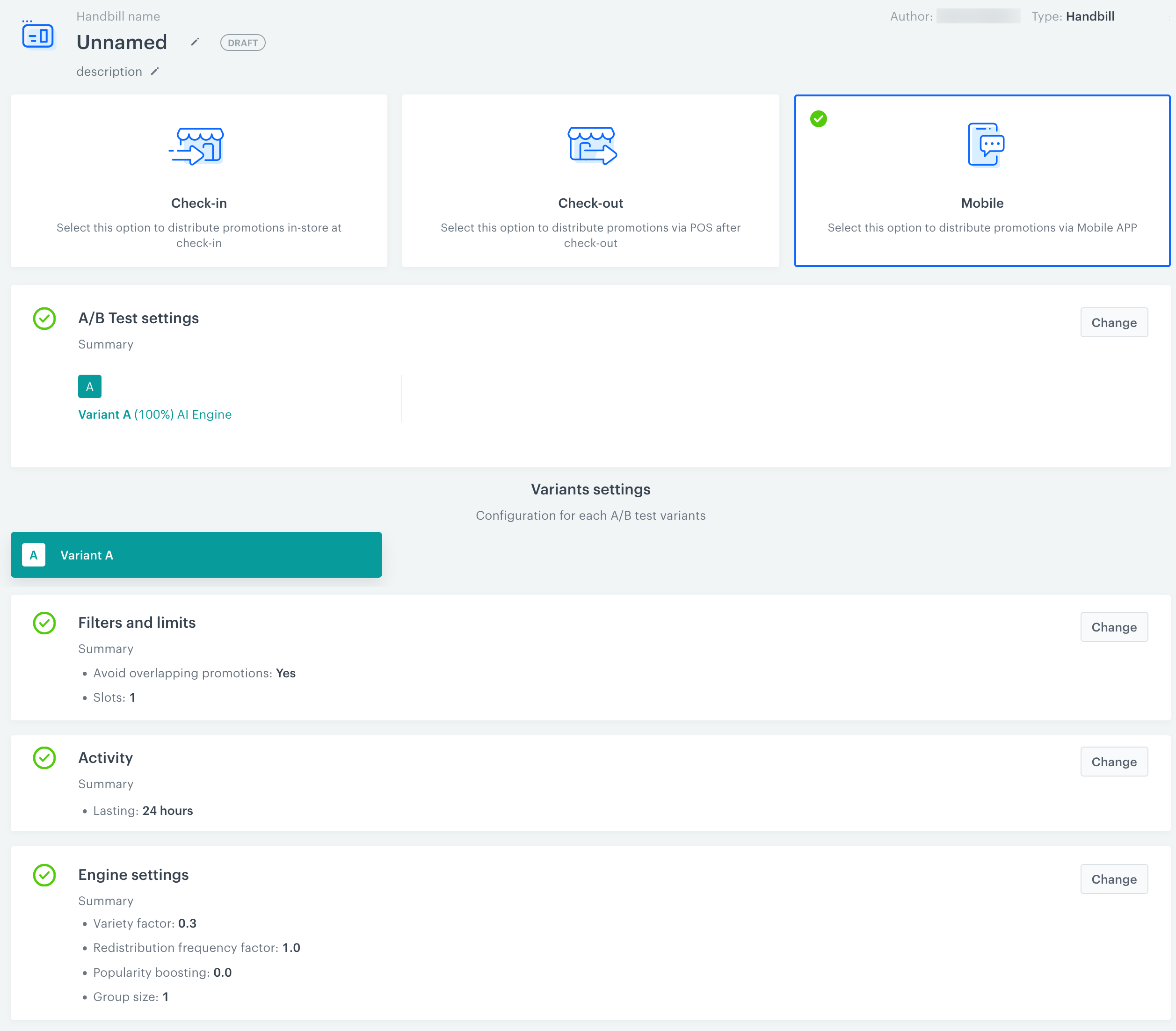
1. Go to <img src="/api/docs/image/54176ad07f146575310749eba44b7c2f42c1b327/icons/ai-hub-icon.svg" alt="AI Hub menu icon" class="icon"> **AI Hub > Personalized promotions > New promotion**.
2. Select the type of promotion:
   - **Check-in** - Example of use: If you have an interactive kiosk in your point of sales, your customers can register their loyalty card before they enter the shopping area. Then, they receive a print out of promotions available only for them. 
   - **Check-out** - A promotion is generated based on their current transaction. 

     <div class="admonition admonition-important"><div class="admonition-icon"><svg xmlns="http://www.w3.org/2000/svg" fill="none" viewBox="0 0 24 24" stroke="currentColor" stroke-width="2.5"><path stroke-linecap="round" stroke-linejoin="round" d="M12 8v4m0 4h.01M21 12a9 9 0 11-18 0 9 9 0 0118 0z" /></svg></div><div class="admonition-body"><div class="admonition-content">

     It's the only type that allows you to prepare a personalized promotion for an anonymous customer.

     </div></div></div>

   - **Mobile app** - You can apply promotions dedicated only for the users of your mobile application.
3. In the **A/B test settings** add variants of the personalized promotion by clicking **Define**. You can define variants of the promotions and set up a control group. The control group is a part of the customer base that doesn't receive the promotions, so you can measure the effectiveness of your actions.  
    
   <div class="admonition admonition-note"><div class="admonition-icon"><svg xmlns="http://www.w3.org/2000/svg" fill="none" viewBox="0 0 24 24" stroke="currentColor" stroke-width="2.5"><path stroke-linecap="round" stroke-linejoin="round" d="M13 16h-1v-4h-1m1-4h.01M21 12a9 9 0 11-18 0 9 9 0 0118 0z" /></svg></div><div class="admonition-body"><div class="admonition-content">

   You must add at least one variant to continue creating the promotion.

   </div></div></div>

   1. Click the plus button to add the first (and/or more) variants.
   3. If you want to set up a control group, select the **Enable a control group** checkbox.
   4. Adjust the size of each variant and the control group by using the slider.
      <figure>
      <img src="/api/docs/image/54176ad07f146575310749eba44b7c2f42c1b327/docs/ai-hub/personalized-promotions/_gfx/variant-slider.gif" alt="Variant size adjustment" class="large">
      <figcaption>Variant size adjustment</figcaption>
      </figure>
   2. In the **Advanced options**, select how items are selected for the promotion.
      - **AI Engine** - By selecting this option, the AI engine chooses the items to be included in the promotion.
      - **Randomization** - By selecting this option, the items included in the promotions are chosen randomly. 
   3. Confirm by clicking **Apply**.  
   **Result**: The remaining configuration options become available.

### Defining limits and order of discounted items  
---

<figure>
<img src="/api/docs/image/54176ad07f146575310749eba44b7c2f42c1b327/docs/campaign/_gfx/filter-limits-promotions.png" alt="Filters and limits in the personalized promotions" class="full">
<figcaption>Filters and limits in the personalized promotions </figcaption>
</figure>

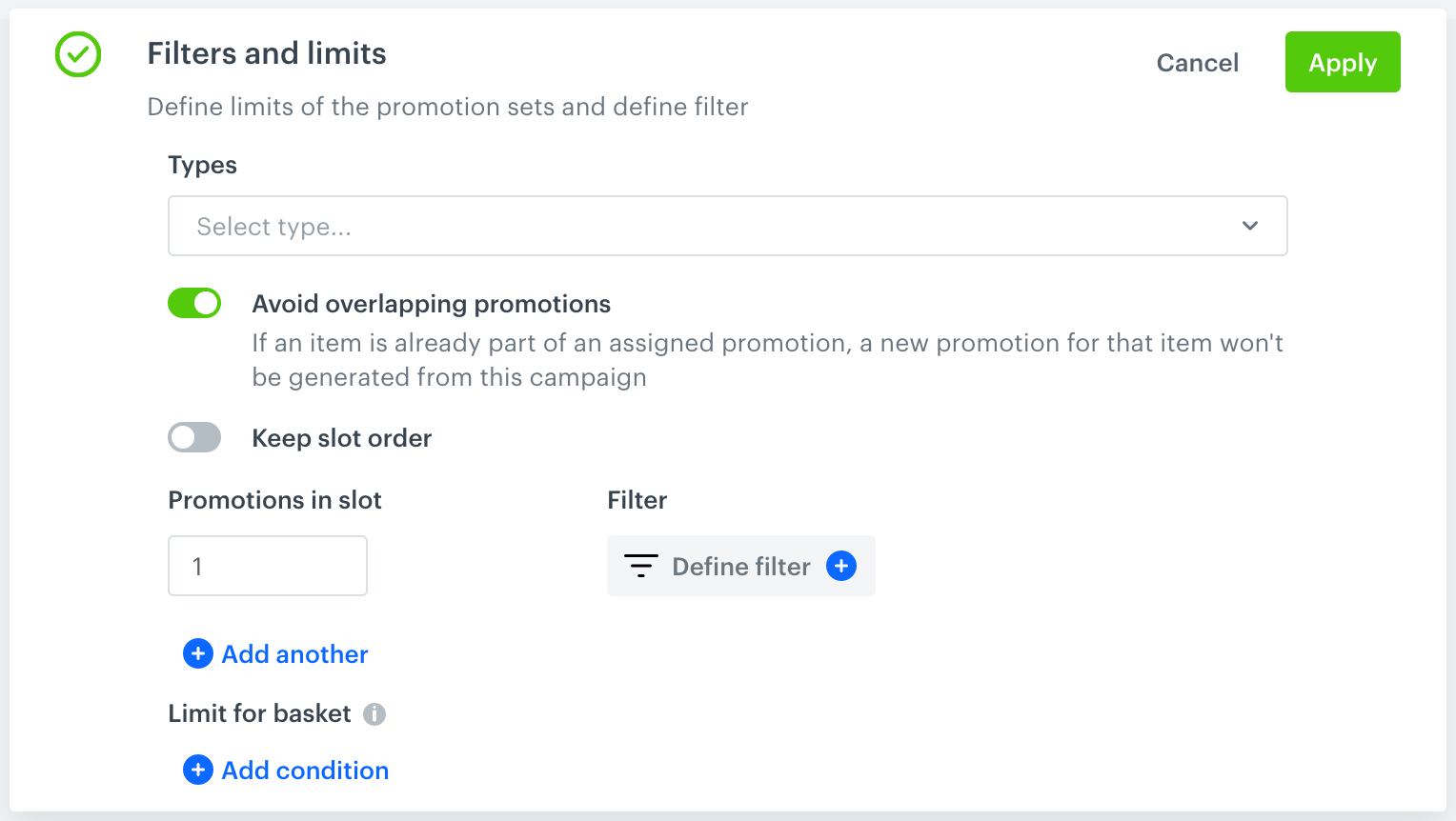
In the **Filters and limits** section, you can:
   - From the **Types** dropdown, select the types of promotions that can be selected.  
      If you apply changes to this section without selecting a promotion type, Handbill is selected as the default option.
   - With the **Avoid overlapping promotions** toggle, choose what happens when an item is already part of an assigned promotion:
        - Enabled (default): A new promotion for this item is NOT generated.
        - Disabled: A new promotion is generated.
   - With the **Keep slot order** toggle, choose how items are ordered:
      - Enabled: Promotions are grouped by slot and the slots are returned in the order you set.
      - Disabled (default): Promotions are returned in an order AI for each customer by the AI. They are not grouped by slots.
   - If you want to add slots, click **Add another**.
   - With the **Promotions in slot** field, for each slot, define the number of returned promotions.
   - With the **Filter** selector, for each slot, select an item filter [created earlier](/docs/ai-hub/personalized-promotions/creating-ai-promotions#prerequisites)  
      
     <details class="accordion"><summary>Click to see example</summary><div class="accordion-content"><figure> <img src="/api/docs/image/54176ad07f146575310749eba44b7c2f42c1b327/docs/campaign/_gfx/filter-limits-promotions-example.png" alt="Personalized promotion for items of specific brand" class="full"> <figcaption>Personalized promotion for items of specific brand </figcaption> </figure> You can prepare a discount for 3 items of a defined brand, for example.</div></details>

   - **Check-out promotions only**: 
      - If you want to add a basket condition, click **Add condition**.  
         The conditions apply only to anonymous profiles.
      - With the **Minimum requirements for basket** fields, set the minimum value and/or number of items in the basket required for triggering this promotion.
      - If you want to add more conditions, click **Add condition**.  
         At least one condition needs to met for the promotion to apply.


### Excluding items from promotions
---
<figure>
<img src="/api/docs/image/54176ad07f146575310749eba44b7c2f42c1b327/docs/campaign/_gfx/exclude-items-promotions.png" alt="Exclude items from a promotion" class="full">
<figcaption> Exclude items from a promotion </figcaption>
</figure>


<div class="admonition admonition-important"><div class="admonition-icon"><svg xmlns="http://www.w3.org/2000/svg" fill="none" viewBox="0 0 24 24" stroke="currentColor" stroke-width="2.5"><path stroke-linecap="round" stroke-linejoin="round" d="M12 8v4m0 4h.01M21 12a9 9 0 11-18 0 9 9 0 0118 0z" /></svg></div><div class="admonition-body"><div class="admonition-content">

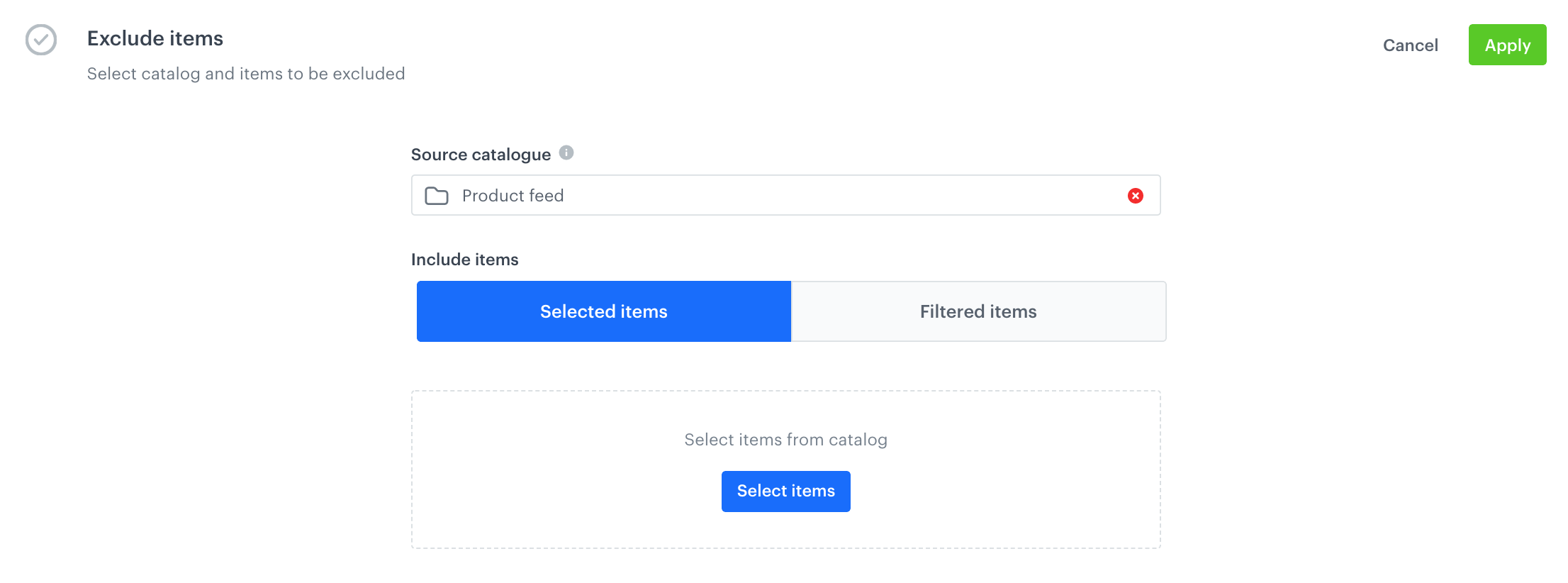
This option is available only for the Check-out type.

</div></div></div>


You can exclude items from the personalized promotion. You can either pick the items from a catalog or exclude an entire catalog.


### Defining promotion schedule
---

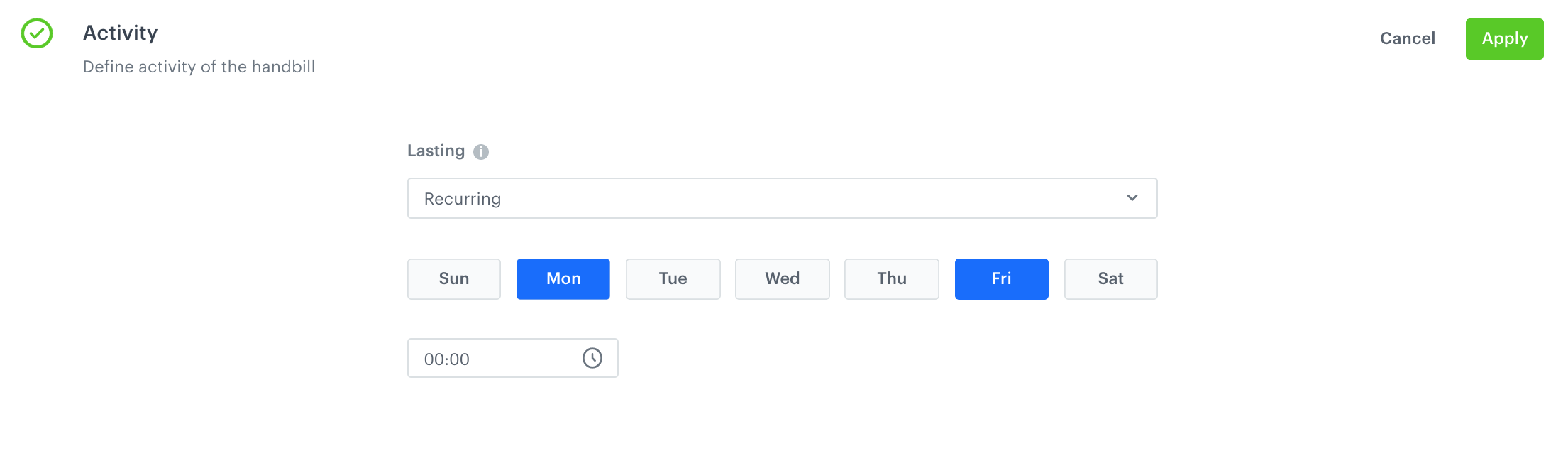
In the **Activity** section, you can schedule the personalized promotions.  
   - **Relative** - Select the activity time of the promotion, it is counted from the moment of generating a promotion for a customer (for example, if you distribute personalized promotions through a mobile application, the moment of generating a promotion is entering a section where the promotions are displayed). When the activity time of a personalized promotion expires, it is replaced with another one (if there are promotion candidates available).
   - **Absolute** - Select the exact date when a personalized promotion expires. The start date is the moment of generating a promotion for a customer (for example, if you distribute personalized promotions through a mobile application, the moment of generating a promotion is entering a section where the promotions are displayed). After it expires, the promotion won't be replaced by any other candidate.
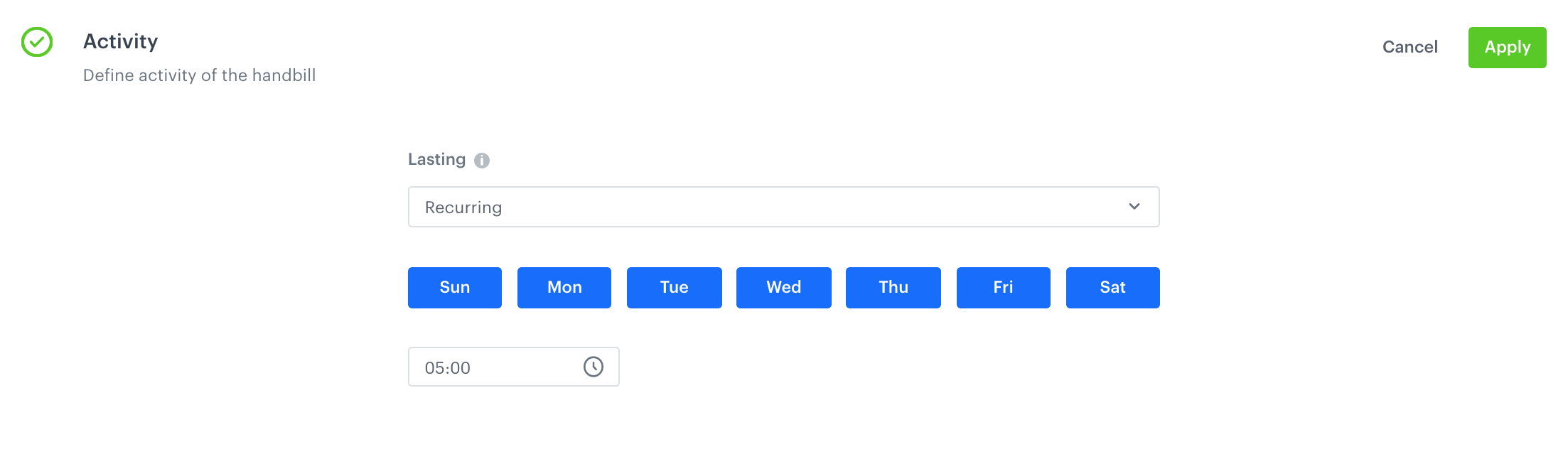
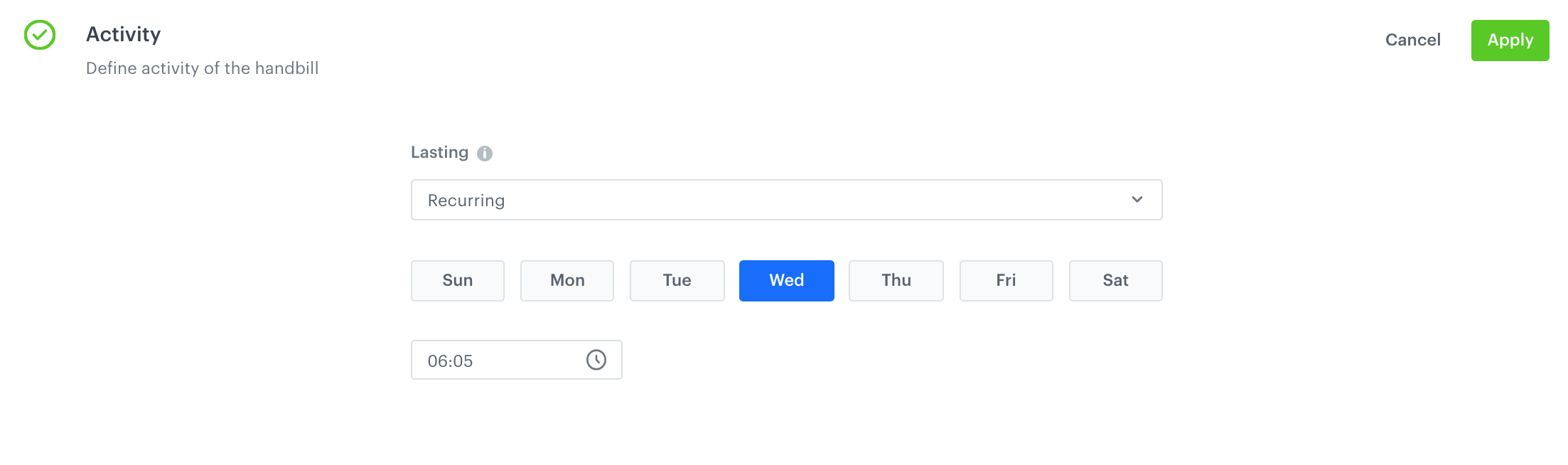
   - **Recurring** - Define the days of the week when a personalized promotion is active. After it expires, it is replaced with another one (if there are promotion candidates available)

   
     <details class="accordion"><summary>Click here to see examples for recurring activity</summary><div class="accordion-content"><ul> <li>To generate new personalized promotions during the weekend, select Friday and Monday at 0:00. The personalized promotion will be generated on Friday at 00:00 and it will expire on Sunday at 23:59. On Monday at 0:00 the new personalized promotion is generated and it is valid to Thursday at 23:59. <figure> <img src="/api/docs/image/54176ad07f146575310749eba44b7c2f42c1b327/docs/campaign/_gfx/recurring-example-one.png" alt="Limits for check-out" class="full"> <figcaption>Recurring limit, personalized promotion during the week and weekends </figcaption> </figure></li> <li>To generate personalized promotions every day at 5:00 in the morning, copy the settings from the image below: <figure> <img src="/api/docs/image/54176ad07f146575310749eba44b7c2f42c1b327/docs/campaign/_gfx/recurring-example-two.png" alt="Limits for check-out" class="full"> <figcaption>Recurring limit, personalized promotion generated every day </figcaption> </figure></li> <li>To generate new promotions once a week, copy the settings from the image below: <figure> <img src="/api/docs/image/54176ad07f146575310749eba44b7c2f42c1b327/docs/campaign/_gfx/recurring-example-three.png" alt="Limits for check-out" class="full"> <figcaption>Recurring limit, personalized promotion generated once a week</figcaption> </figure></li> </ul></div></details>


### AI engine boosting settings
--- 
<figure>
<img src="/api/docs/image/54176ad07f146575310749eba44b7c2f42c1b327/docs/campaign/_gfx/engine-settings-promotions.png" alt="AI engine boosting settings" class="full">
<figcaption>AI engine boosting settings </figcaption>
</figure>

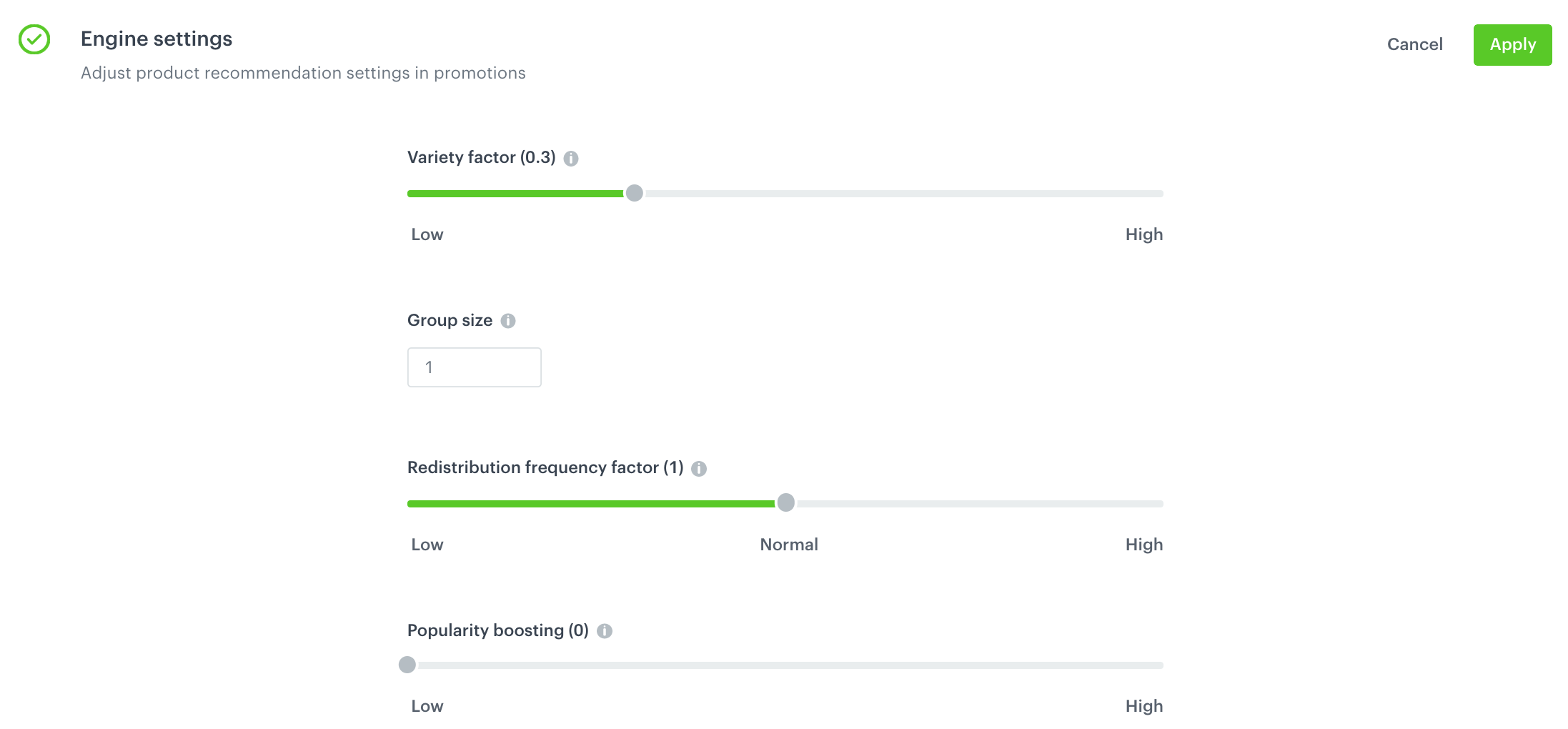
- If the items to your personalized promotion are selected by AI engine, in the **Engine settings** section, define the following parameters:
   - Adjust the variety of offered products by using the **Variety factor** slider.
   - In the **Group size** field, enter the maximum number of similar products that can be offered as promotions.
   - Adjust the frequency of delivering the same items in a promotion by using the **Redistribution frequency factor** slider.
   - Adjust the importance of a product's popularity by using the **Popularity boosting** slider.  
- To be able to assign multiple sets of promotions to customers, [create a filter](/docs/ai-hub/promotions/managing-promotions#saving-filters) on the list of promotions.