Best fit predictions offer the capability to determine the most suitable item or value of an item attribute for each customer. By configuring the prediction, you can specify the attribute value you are interested in, such as brand, ID, color, or any other item attribute available in your item feed. The prediction result will then provide you with the attribute value that is most likely to be relevant to the customer.
You can create a best fit prediction from scratch or by using one of the predefined scenarios:
- Find best fit from brand, category or other attribute for a given customer
- Find the overall best item for a given customer
Predefined scenarios are configured using a user-friendly wizard that allows you to adjust scenario settings according to your preferences. This is done through a step-by-step configuration form, which provides hints on the interface to guide you. You will be able to select the predefined scenario at the beginning of creating the prediction ([Select the model type](#select-the-model-type)).
## Prerequisites
- [Configure AI Engine for Propensity and Best Fit](/docs/settings/configuration/ai-engine-configuration/engine-configuration-for-propensity). It usually takes several hours to initialize the model and perform necessary calculations.
- The attributes that you want to use for best fit predictions must be added to [filterable attributes](/docs/settings/configuration/ai-engine-configuration/engine-configuration-for-propensity#selecting-filters).
## Configure a prediction
### Select the model type
1. Go to **AI Hub > (AI Predictions) Models**.
2. Click **New prediction**.
1. On the pop-up, select one of the following options:
- **Use predefined prediction** - This option allows you to use the ready-made prediction scenarios and adjust their settings to your preferences in a user-friendly, step-by-step configuration form by following hints shown on the interface. If you select this option, you can skip reading the rest of the article.
- **Create from scratch** - This option allows you to create your own configuration of a propensity prediction to achieve your custom business objective. If you use this option, select **Best Fit**.
### Select customers to be analyzed
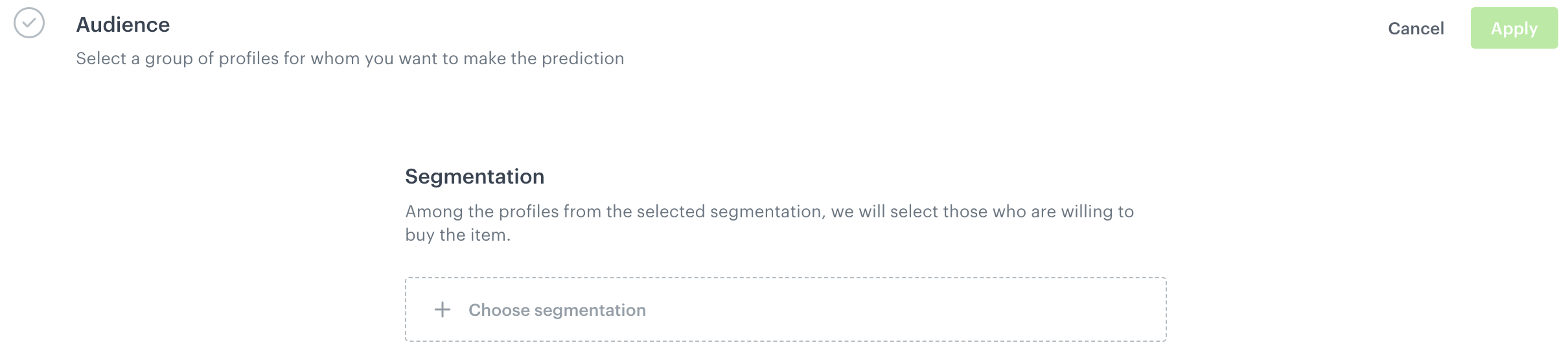
Select the audience for whom you want to prepare a prediction.
Selecting a group of customers
1. In the **Audience** section, click **Define**.
2. Click **Choose segmentation** and perform one of the following actions:
- From the list, select an existing segmentation.
You can use the search field.
- To define a new group segmentation, at the bottom of the dropdown list, click the **Create new** button.
1. In the **Segmentation name** field, enter the name of the group of customers and click **Next step**.
2. Build the segmentation.
See [this article](/docs/analytics/segmentations/creating-segmentations) for instructions.
3. Click **Create segmentation**.
3. Confirm by clicking **Apply**.
### Select items
1. In the **Item selection** section, click **Define**.
2. Click **Choose item feed**.
3. From the list of available catalogs, select the item feed you want to analyze.
This can be the same catalog as the one you use for recommendations.
**Result**: The **Item attribute** and **Item filter** sub-sections appear.
4. From the **Choose item attribute** dropdown list, select the item attribute you want to analyze.
5. From the **Define item filter** dropdown list, define the filters to include the item or items that you want to calculate the prediction for.
- The filters are created using the same [visual builder](/docs/ai-hub/recommendations-v2/recommendation-filters#visual-builder) as recommendations filters, but some operators are not available for Predictions.
- You can use [the `created` attribute](/docs/ai-hub/recommendations-v2/recommendation-filters#the-created-attribute) which lets you filter the items based on the date of adding an item to the feed.
- Only attributes [selected as filterable when configuring the AI engine](/docs/settings/configuration/ai-engine-configuration/engine-configuration-for-propensity#selecting-filters) are available for use.
3. Click **Apply**.
### Define calculation frequency and start date
By default, the calculation is performed once and it is launched immediately.
1. If you want to leave the settings as default, the prediction is ready to calculate. Click **Save & Calculate**.
2. If you want to change the settings, in the **Settings** section, click **Change**.
3. To schedule a recurring calculation:
1. Select the **Recurring calculation** checkbox.
2. In the input field, enter the number of days between calculations.
4. To change the start date of the prediction, in the **Settings** section, click **Change**.
1. Select the **Scheduled** checkbox.
2. In the **Select start date and time** field, specify the date and time for launching the calculation of the prediction.
5. Click **Apply**.
6. Click **Save & Calculate**.
## Results
The maximum calculation time is 24 hours.
### Understanding propensity prediction results
| Attribute name | Description |
|-------------|-------------------------------------------------------------------------------------------------|
| action | An event type for the prediction - `snr.bestfit.score` |
| added by | An entity that generated this event. In the case of prediction events, it is always Synerise. |
| modelId | A unique identifier of the prediction |
| modelName | The name of the prediction |
| attribute | The name of an item attribute which was selected in the configuration of prediction. The value of this attribute is the prediction result |
| topValue | The human-readable result of the prediction, it is the value of the item attribute |
| topScore | The result of the prediction |
| clientId | Customer's identifier |
| time | Time when a prediction was generated, as a Unix timestamp |
| configurationVersion | Allows to verify whether two consecutive calculations ran with the settings (*only for debug*) |
| modelVersion | Model version allows to verify whether two consecutive calculations ran on the same model parameters (*only for debug*) |
 **AI Hub > (AI Predictions) Models**.
2. Click **New prediction**.
1. On the pop-up, select one of the following options:
- **Use predefined prediction** - This option allows you to use the ready-made prediction scenarios and adjust their settings to your preferences in a user-friendly, step-by-step configuration form by following hints shown on the interface. If you select this option, you can skip reading the rest of the article.
- **Create from scratch** - This option allows you to create your own configuration of a propensity prediction to achieve your custom business objective. If you use this option, select **Best Fit**.
### Select customers to be analyzed
Select the audience for whom you want to prepare a prediction.
**AI Hub > (AI Predictions) Models**.
2. Click **New prediction**.
1. On the pop-up, select one of the following options:
- **Use predefined prediction** - This option allows you to use the ready-made prediction scenarios and adjust their settings to your preferences in a user-friendly, step-by-step configuration form by following hints shown on the interface. If you select this option, you can skip reading the rest of the article.
- **Create from scratch** - This option allows you to create your own configuration of a propensity prediction to achieve your custom business objective. If you use this option, select **Best Fit**.
### Select customers to be analyzed
Select the audience for whom you want to prepare a prediction.