## Related terms
- prediction
- user
- segmentation
- item\-feed
See the [glossary](/glossary.md) for definitions.
---
# Change prediction access settings
By default, a prediction can be managed by all [users](/docs/settings/identity-access-management/users) with the [required permissions](/docs/settings/identity-access-management/permissions/ai-hub-permissions). You can limit access per prediction to a selection of users or roles.
## How access works
Whether a user can edit or delete a prediction depends on two levels of permissions:
- **Role permissions**: the permissions of the user's [role](/docs/settings/identity-access-management/permissions), for example **Predictions**: `edit`. They apply to all predictions in the workspace.
- **Prediction access settings**: the settings of a single prediction, described in this article.
A user can perform an action only if both levels allow it:
| Action | Role permission | Prediction access setting |
|---|---|---|
| Edit a prediction | **Predictions**: `edit` | Edit |
| Delete a prediction | **Predictions**: `delete` | Delete |
If either permission is missing, the action button is disabled. Hover over the button to see the reason. If you use the API, the request returns an error.
**For example**:
1. A user's role has the **Predictions**: `edit` permission.
2. In the access settings of a prediction, the user doesn't have the Edit permission.
3. As a result, the user can't edit this prediction, but can edit other predictions.
## Considerations for access settings
- All users with the **Predictions**: `read` permission have at least read-only access to all predictions, regardless of per-prediction access settings.
- The [PROFILE_ADMIN role](/docs/settings/identity-access-management/permissions#basic-roles) always has unlimited access, regardless of per-prediction access settings.
- To create and edit predictions, you need permissions to the objects used in the prediction configuration. You must grant them separately:
- **Analytics** > **Segmentations**: `read` - to select an audience
- **Analytics** > **Segmentations**: `create` - to create a new segmentation in the **Audience** section
- **Assets** > **Catalogs**: `read` - to select an item feed and define item filters
- **Analytics** > **Expressions**: `read`.
- If you configure different permissions for a user than for their roles, all granted permissions are combined.
**For example**:
1. You grant only the "edit" permission to a user.
2. You grant only the "delete" permission to a role where this user belongs.
3. As a result, the user has both "edit" and "delete" permissions.
## Changing access settings
To change the access settings:
1. Go to **AI Hub > (AI Predictions) Models**.
2. In the list of predictions, find the prediction you want to manage and click the padlock icon.
**Result**: The access management panel opens.
3. From the **Permission in this object** dropdown list, select an option:
- **Public**: everyone with the required permissions can access and manage the prediction.
- **Read only**: everyone with module permissions can access the prediction, but only the creator and administrators can edit or delete it.
- **Restricted**: you can manage edit and delete permissions separately for different users and roles.
4. If:
- you selected **Public** or **Read only**, click **Apply** to save and start enforcing the settings.
- you selected **Restricted**, proceed to [configuring the details (next step)](#restricted-config).
5. Configure the settings for **Users** and **Roles**:
1. Expand the options and configure them:
- For **Users**:
1. To add a user to the list of managed users, enter their name or email address in the search box and click their name.
2. Repeat to add more users.
3. Confirm by clicking **Add user**.
4. Use the checkboxes to set the permissions for each added user.
5. To remove a user from the list of permission settings, click next to their name and click **Remove user**.
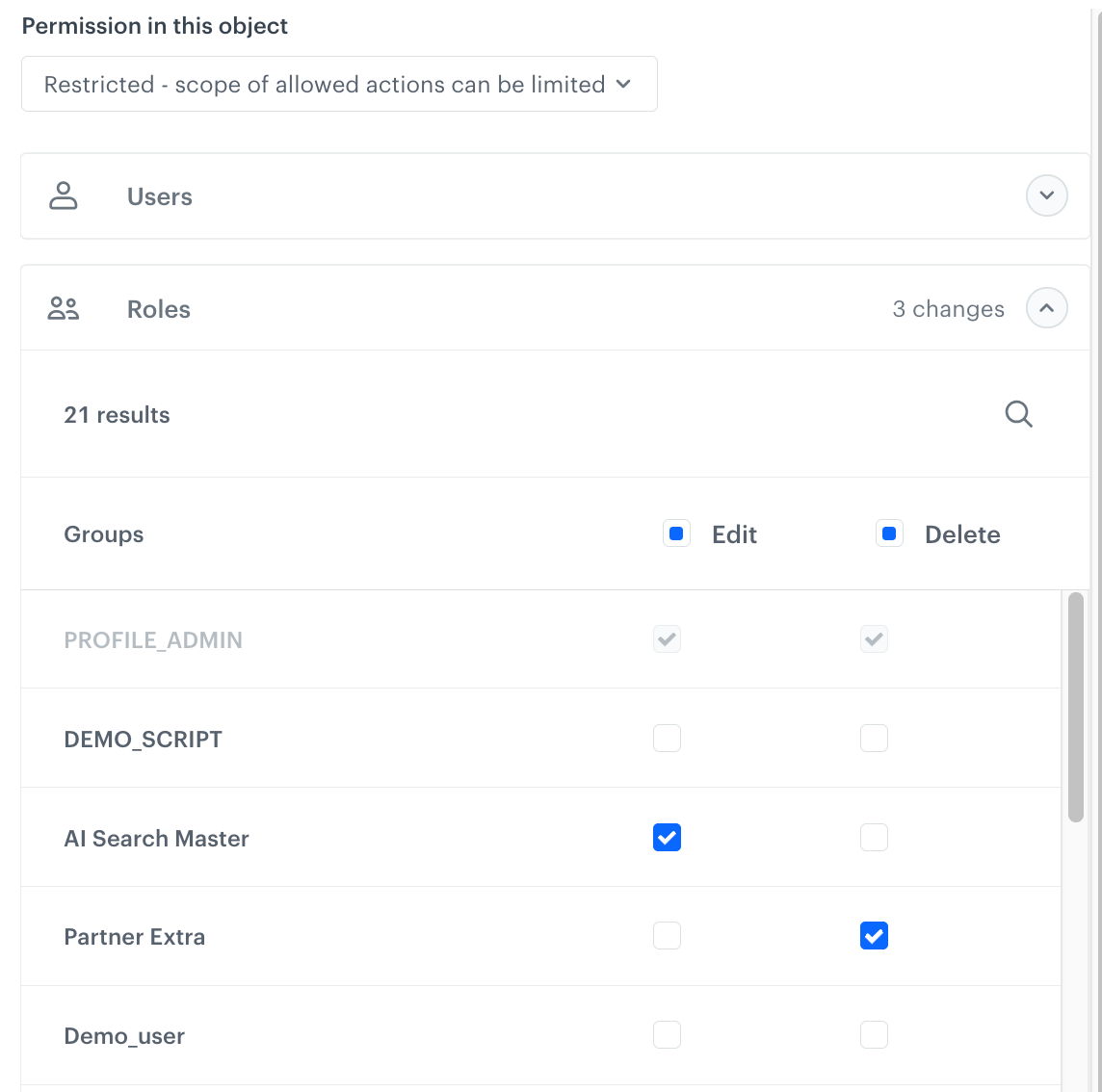
- For **Roles**:
1. Expand the list.
2. Use the checkboxes to set the permissions for each role.
Selecting permissions for roles; an example with unsaved changes
6. To save and start enforcing the settings, click **Apply** in the lower-right corner.
 **AI Hub > (AI Predictions) Models**.
2. In the list of predictions, find the prediction you want to manage and click the padlock icon.
**Result**: The access management panel opens.
3. From the **Permission in this object** dropdown list, select an option:
- **Public**: everyone with the required permissions can access and manage the prediction.
- **Read only**: everyone with module permissions can access the prediction, but only the creator and administrators can edit or delete it.
- **Restricted**: you can manage edit and delete permissions separately for different users and roles.
4. If:
- you selected **Public** or **Read only**, click **Apply** to save and start enforcing the settings.
- you selected **Restricted**, proceed to [configuring the details (next step)](#restricted-config).
5. Configure the settings for **Users** and **Roles**:
1. Expand the options and configure them:
- For **Users**:
1. To add a user to the list of managed users, enter their name or email address in the search box and click their name.
2. Repeat to add more users.
3. Confirm by clicking **Add user**.
4. Use the checkboxes to set the permissions for each added user.
5. To remove a user from the list of permission settings, click
 next to their name and click **Remove user**.
- For **Roles**:
1. Expand the list.
2. Use the checkboxes to set the permissions for each role.