Propensity predictions let you evaluate how likely customers are to buy products with specific features, such as brand, category, color, and much more.

You can create a propensity prediction from scratch or by using one of the predefined scenarios:
- Find customers who will buy a specific item, brand, or category;
- Find customers who will buy any item;
- Find customers who will buy through a specific communication channel;
- Find customers who will buy offline

Predefined scenarios are configured using a user-friendly wizard that allows you to adjust scenario settings according to your preferences. This is done through a step-by-step configuration form, which provides hints on the interface to guide you. The option of creating a prediction based on a predefined scenario is available in the initial part of creating the prediction ([Select the model type](#select-the-model-type)).

## Prerequisites

- [Configure AI Engine for Propensity and Best Fit](/docs/settings/configuration/ai-engine-configuration/engine-configuration-for-propensity). It usually takes several hours to initialize the model and perform necessary calculations.
- The attributes that you want to use for propensity predictions must be configured as [filterable attributes](/docs/settings/configuration/ai-engine-configuration/engine-configuration-for-propensity#selecting-filters).

## Configure a prediction

### Select the model type

1. Go to <img src="/api/docs/image/54176ad07f146575310749eba44b7c2f42c1b327/icons/ai-hub-icon.svg" alt="Image presents the AI Hub icon" class="icon"> **AI Hub > (AI Predictions) Models**. 
2. Click **New prediction**.
1. On the pop-up select one of the following options:  
    - **Use predefined prediction** - This option allows you to use the ready-made prediction scenarios and adjust its settings to your preferences in a user-friendly, step-by-step configuration form by following hints shown on the interface. If you select this option, you can skip reading the rest of the article.
    - **Create from scratch** - This option allows you to create your own configuration of a propensity prediction to achieve your custom business objective. If you use this option, select **Propensity**.

### Select customers to be analyzed

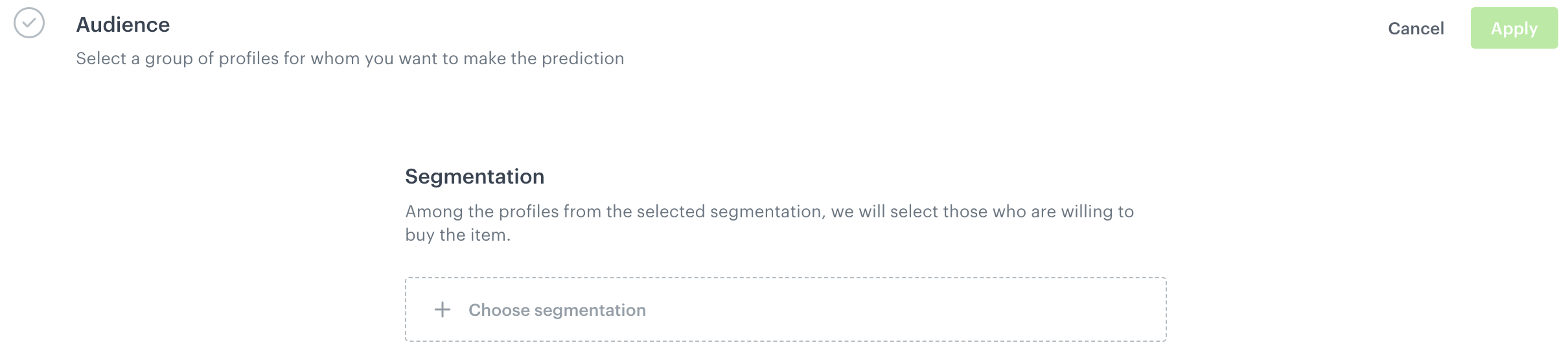
Select the audience for whom you want to prepare a prediction. 
<figure>
<img src="/api/docs/image/54176ad07f146575310749eba44b7c2f42c1b327/docs/ai-hub/_gfx/select-audience.png" alt="Selecting an audience to be analyzed" class="full">
<figcaption> Selecting a group of customers </figcaption>
</figure>

1. In the **Audience** section, click **Define**.
2. Click **Choose segmentation** and perform one of the following actions:
    - From the list, select an existing segmentation.  
        You can use the search field.
    - To define a new group segmentation, at the bottom of the dropdown list, click the **Create new** button.  
        1. In the **Segmentation name** field, enter the name of the group of customers and click **Next step**.
        2. Build the segmentation.  
            See [this article](/docs/analytics/segmentations/creating-segmentations) for instructions.
        3. Click **Create segmentation**.
3. Confirm by clicking **Apply**.

### Select items

<!-- TODO: add image -->

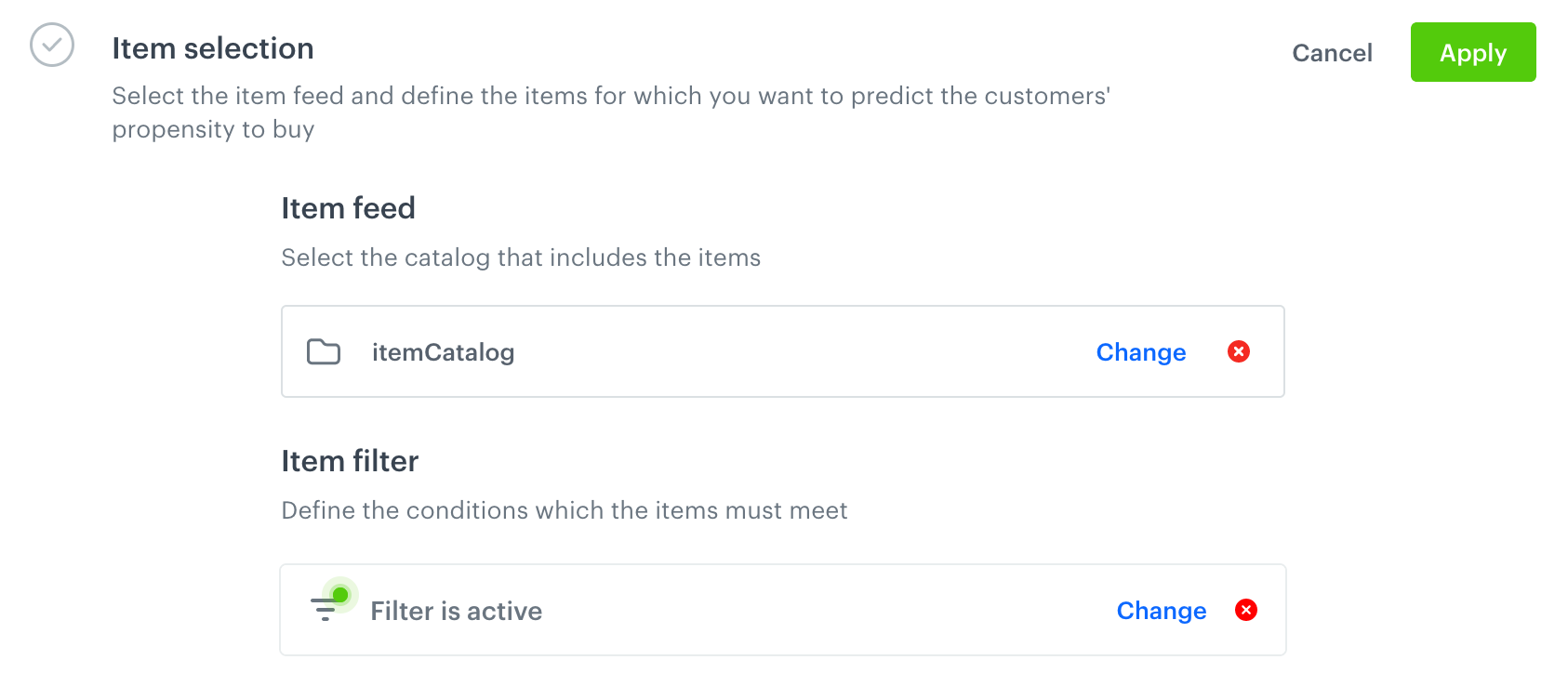
1. In the **Item feed** section, click **Define**.
2. Click **Choose item feed**.
3. From the list of available catalogs, select the item feed you want to analyze.  
This can be the same catalog as the one you use for recommendations.  
    **Result**: The **Items filter** sub-section appears.
1. Click **Define item filter**.
2. Define the filters that describe the item or items that you want to calculate the prediction for.  
    - The filters are created using the same [visual builder](/docs/ai-hub/recommendations-v2/recommendation-filters#visual-builder) as recommendations filters, but some operators are not available for Predictions.  
    - You can use [the `created` attribute](/docs/ai-hub/recommendations-v2/recommendation-filters#the-created-attribute) which lets you filter the items based on the date of adding an item to the feed.
    - Only attributes [selected as filterable when configuring the AI engine](/docs/settings/configuration/ai-engine-configuration/engine-configuration-for-propensity#selecting-filters) are available for use.
    <figure><img src="/api/docs/image/54176ad07f146575310749eba44b7c2f42c1b327/docs/ai-hub/_gfx/propensity-item-select.png" class="large" alt="The Item selection view after configuring the filters"><figcaption>The Item selection view after configuring the filters</figcaption></figure>
3. Click **Apply**.
### Additional settings

By default, the calculation is performed once and the results are presented on a 5-point scale.

1. If you want to leave the settings as default, the predictions is ready to calculate. Continue to [saving the prediction](#save-the-prediction).
2. If you want to change the settings, in the **Settings** section, click **Change**.
3. To schedule a recurring calculation:
    1. Select the **Set up recurring prediction calculation** checkbox.
    2. In the input field, enter the number of days between calculations.
4. To change the scale from 5-point to 2-point, select the **2-point scale** radio button.
5. Click **Apply**.
### Save the prediction

To save the prediction:
- as a draft, click **Save**.
- and calculate, click **Save & Calculate**.  
        
  <div class="admonition admonition-tip"><div class="admonition-icon"><svg xmlns="http://www.w3.org/2000/svg" fill="none" viewBox="0 0 24 24" stroke="currentColor" stroke-width="2.5"><path stroke-linecap="round" stroke-linejoin="round" d="M9.663 17h4.673M12 3v1m6.364 1.636l-.707.707M21 12h-1M4 12H3m3.343-5.657l-.707-.707m2.828 9.9a5 5 0 117.072 0l-.548.547A3.374 3.374 0 0014 18.469V19a2 2 0 11-4 0v-.531c0-.895-.356-1.754-.988-2.386l-.548-.547z" /></svg></div><div class="admonition-body"><div class="admonition-content">

  You can check the logs of the activated prediction. [Learn more](/docs/ai-hub/predictions/predictions-functionalities#previewing-logs).

  </div></div></div>

## Results

The maximum calculation time is 24 hours.

### Understanding propensity prediction results

| Attribute name   | Description                                                                                     |
|-------------|-------------------------------------------------------------------------------------------------|
| action      |  An event type for the prediction - `snr.propensity.score`                                  |
| added by | An entity that generated this event. In the case of prediction events, it is always Synerise.                                |
| modelId | A unique identifier of the prediction                               |
| modelName | The name of the prediction                     |
| score_label        | Prediction output: two- or five-point scale label. You can select the scale in the [settings of the prediction](#additional-settings).  |
| score        | The result of the prediction                                                    |
| percentile   | [Prediction percentile](/docs/glossary#percentiles)                                                        |
| clientId   | Customer's identifier                                                       |
| time        | Time when a prediction was generated, as a Unix timestamp                                                      |
| configurationVersion      | Allows to verify whether two consecutive calculations ran with the settings (*only for debug*) |
| modelVersion | Model version allows to verify whether two consecutive calculations ran on the same model parameters (*only for debug*)                            |