
You can import the promotion created in external sources, so you can manage them in Synerise. The output of the import is a promotion added to the list of promotions in <img src="/api/docs/image/54176ad07f146575310749eba44b7c2f42c1b327/icons/ai-hub-icon.svg" alt="Image presents the AI Hub icon" class="icon"> **AI Hub > Regular Promotions**

## Import methods

Before you proceed to importing promotions to Synerise, decide on the method of import and then see [Requirements](#requirements) for the import method of your choice. 

- [Simple import wizard](#importing-in-simple-import-wizard) - This method allows you to upload only a `.csv` file from your device and map the columns contained in the file with the equivalent parameters in your [workspace](/docs/settings/business-profile).  
    **Recommended use**: Single import of `.csv` files.
- [Automation Hub](#importing-in-automation) - This method allows you to import a file from a server or from your device. The supported file formats include: `.csv`, `.json`, `.jsonl`, and `.xml`. You will be redirected to a workflow template which you can adjust to your business assumptions. The template contains a [Data Transformation node](/docs/automation/operation/data-transformation-node) that allows you to select transformation rules if the imported data need modification before the import to Synerise to meet Synerise data standards.  
    **Recommended use**: Imports of files stored in external servers (using HTTP and SFTP protocol), periodic imports;
- Through API by using the [Create or update promotion method](https://developers.synerise.com/LoyaltyandEngagement/LoyaltyandEngagement.html#operation/CreateOrUpdateAPromotion).


## Requirements
---


<details class="accordion"><summary>Click here to see Simple wizard import requirements</summary><div class="accordion-content"><ul> <li>You need <a href="/docs/settings/identity-access-management/permissions/">user permissions</a> that grant you access to Simple Imports or/and Automation Hub.</li> <li>Prepare a CSV file. It must contain the following parameters:<ul> <li>the ID of the promotion - it must be a string</li> <li>type of redemption; accepted values: <code>FULL</code>, <code>PARTIAL</code></li> <li>the name of promotion that will be displayed on the list of promotions in Synerise UI (<img src="/api/docs/image/54176ad07f146575310749eba44b7c2f42c1b327/icons/ai-hub-icon.svg" alt="Image presents the AI Hub icon" class="icon"> <strong>AI Hub &gt; Regular Promotions</strong>)</li> <li>the name of the promotion visible to end-users</li> <li>promotion type; accepted values: <code>GENERAL</code>, <code>MEMBERS_ONLY</code>, <code>HANDBILL</code>, <code>CUSTOM</code></li> </ul> </li> <li>The file must be smaller than 5 GB (5 000 000 000 bytes).</li> <li>In the <a href="https://developers.synerise.com/LoyaltyandEngagement/LoyaltyandEngagement.html#operation/CreateOrUpdateAPromotion">Request body schema in the API Reference</a> you can find a complete list of promotion information you can include in the file. The left column contains the parameter names and the right column contains information about allowed values.</li> </ul></div></details>


<details class="accordion"><summary>Click here to see Automation import requirements</summary><div class="accordion-content"><ul> <li>You need <a href="/docs/settings/identity-access-management/permissions/">user permissions</a> that grant you access to Simple Imports or/and Automation.</li> <li>The imported file with promotions must contain the parameters listed below. If the file uses different names or values for the required parameters, create a <a href="/docs/automation/data-transformation-and-imports/creating-data-transformation/">transformation rule</a> to align with Synerise requirements. This transformation rule will be used in Data Transformation node in the workflow which imports promotions.</li> </ul> <table> <thead> <tr> <th>Parameter</th> <th>Allowed values type</th> <th>Required parameter name</th> </tr> </thead> <tbody><tr> <td>The ID of the promotion</td> <td>any string</td> <td><code>code</code></td> </tr> <tr> <td>Type of redemption</td> <td><code>FULL</code>; <code>PARTIAL</code></td> <td><code>redeemType</code></td> </tr> <tr> <td>The name of the promotion displayed on the list of promotions in Synerise UI</td> <td>any string</td> <td><code>headerName</code></td> </tr> <tr> <td>The name of the promotion visible to end-users</td> <td>any string</td> <td><code>name</code></td> </tr> <tr> <td>The promotion type</td> <td><code>GENERAL</code>; <code>MEMBERS_ONLY</code>; <code>HANDBILL</code>; <code>CUSTOM</code></td> <td><code>type</code></td> </tr> </tbody></table> <ul> <li>You can add more promotion information, see the full list in the <a href="https://developers.synerise.com/LoyaltyandEngagement/LoyaltyandEngagement.html#operation/CreateOrUpdateAPromotion">Request body schema in the API Reference</a>.</li> </ul></div></details>


<details class="accordion"><summary>Click here to see requirements for importing promotions through API</summary><div class="accordion-content"><p>The requirements for importing through API are in <a href="https://developers.synerise.com/LoyaltyandEngagement/LoyaltyandEngagement.html#operation/CreateOrUpdateAPromotion">Create or update promotion method</a> documentation.</p></div></details>


### Tips for preparing a file

- We recommend importing promotions in JSON files (through [Automation Hub](#importing-in-automation)).  
    - To include multiple values in one parameter, for example 3 colors in the `colors` parameter, do it in the following way:
    
      <pre><code class="language-json">"colors": [
      "white",
      "green",
      "blue"
      ]</code></pre>


- If you import a CSV file, these file metacharacters are recommended:  
    - A character that marks the end of a column (delimiter): `,`
    - A character that is used to contain the text (quotation mark): `"`
    - A character (escape character) that changes the default interpretation of a sign or string followed by the escape character: `\`
    - To include multiple values in one column, for example, 3 colors in the `colors` column, do it in the following way:
    
      <pre><code class="language-plaintext">color.0,color.1,color.2
      white,green,blue</code></pre>


- For more details about parameters that can be defined for a promotion, you can check [the API Reference](https://developers.synerise.com/LoyaltyandEngagement/LoyaltyandEngagement.html#operation/CreateOrUpdateAPromotion).


## Importing in Simple import wizard
---

1. Go to <img src="/api/docs/image/54176ad07f146575310749eba44b7c2f42c1b327/icons/settings-icon.svg" alt="Settings icon" class="icon" > **Settings > Import > New import**.
2. As the data type for import, select **Promotions**.
3. As the import method, select **Import a local file**. 
4. From the **Promotion parameters** column, select the Synerise counterparts for the columns from the imported file. This way, you will point which parameters in Synerise will contain the promotion information from the imported file.  
    - If you are not sure of the purpose of a parameter from the **Promotion parameters** list, see the [Request schema body](https://developers.synerise.com/LoyaltyandEngagement/LoyaltyandEngagement.html#operation/CreateOrUpdateAPromotion), where you can find the description of all parameters from this list.
    - To toggle between including/excluding a parameter, click <img src="/api/docs/image/54176ad07f146575310749eba44b7c2f42c1b327/icons/import-column-icon.png" alt="Import column icon" class="icon" >/<img src="/api/docs/image/54176ad07f146575310749eba44b7c2f42c1b327/icons/exclude-from-import.png" alt="Import column icon" class="icon" > icons.
    - During the mapping process, you can't add new columns to the imported file.  
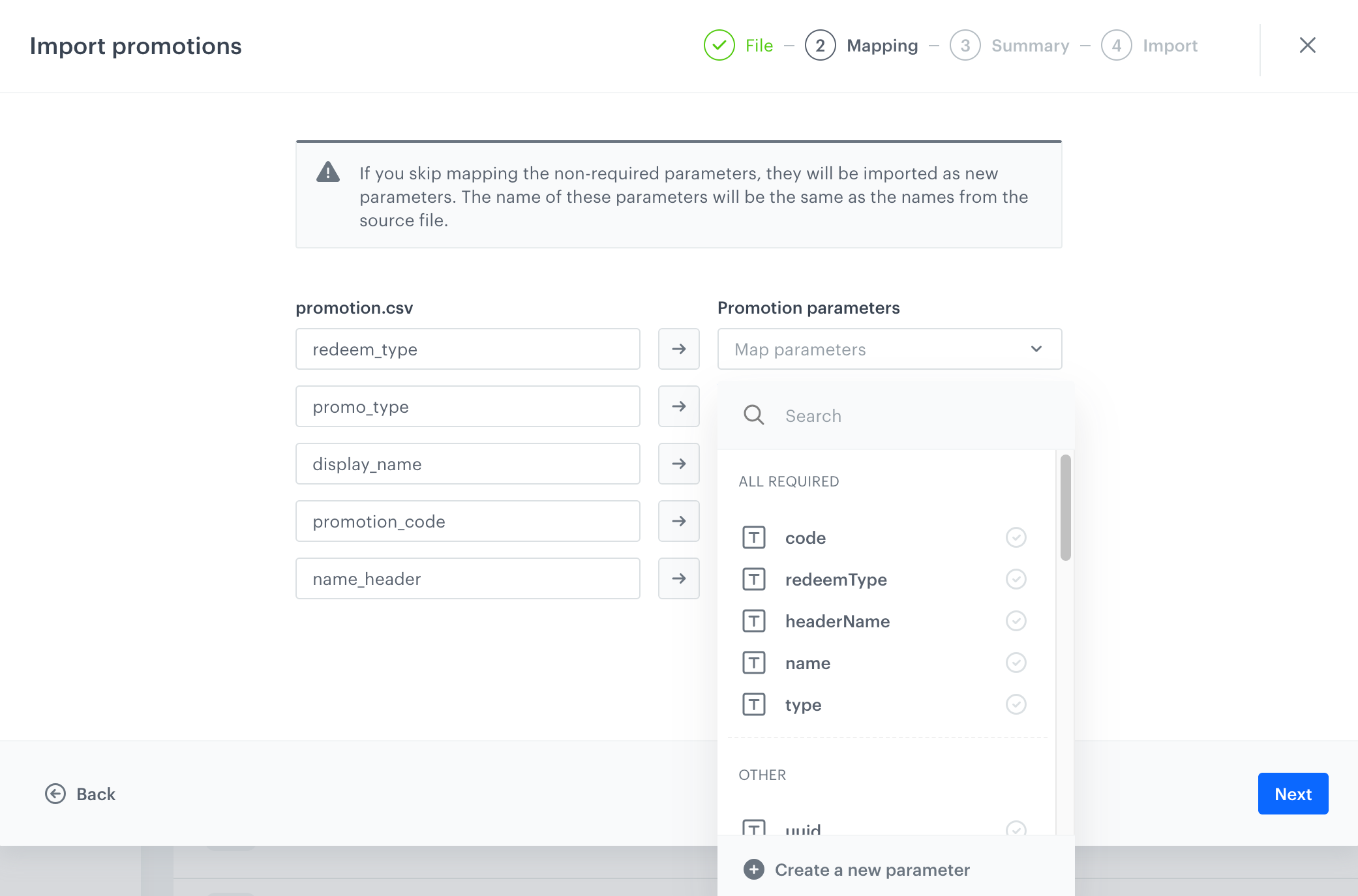
    <figure><img src="/api/docs/image/54176ad07f146575310749eba44b7c2f42c1b327/docs/assets/_gfx/promotion-mapping.png" class="full" alt="Mapping promotion parameters"><figcaption>Mapping promotion parameters</figcaption></figure>
5. When mapping is completed, click **Next**.  
  **Result**: A summary of import mapping is displayed.  
6. Verify the mapping summary. If it is correct, click **Run import**.  
    **Result**: Promotions will be available on the list of promotions in <img src="/api/docs/image/54176ad07f146575310749eba44b7c2f42c1b327/icons/ai-hub-icon.svg" alt="Image presents the AI Hub icon" class="icon"> **AI Hub > Regular Promotions** and the import logs will be available in <img src="/api/docs/image/54176ad07f146575310749eba44b7c2f42c1b327/icons/data-modeling-hub-icon.svg" alt="Data Modeling Hub icon" class="icon"> **Data Modeling Hub > Imports**.

## Importing in Automation
---

1. Go to <img src="/api/docs/image/54176ad07f146575310749eba44b7c2f42c1b327/icons/settings-icon.svg" alt="Settings icon" class="icon" > **Settings > Import > New import**.

2. As the data type for import, select **Promotions**.
3. As the import method, select **Import in Automation**.
1. Select the method of delivering the file:
    - Local File - This option allows you to upload a file from your device.
    - SFTP protocol - This option allows you to fetch a file from a server using the SFTP protocol.
    - HTTPS protocol - This option allows you to fetch a file from a server using the HTTPS protocol.   
2. Click **Go to import template**.  
    **Result**: You are redirected to a workflow template for importing promotions.
    <figure><img src="/api/docs/image/54176ad07f146575310749eba44b7c2f42c1b327/docs/assets/_gfx/automation-template-import-promotions.png" class="full" alt="Workflow template for importing promotions"><figcaption>Workflow template for importing promotions</figcaption></figure>
3. Define the settings of the [Scheduled Run node](/docs/automation/triggers/scheduled-run).
4. Depending on the method of delivering the file, configure the settings of [Local File](/docs/automation/integration/http-integrations/http-get-file) or replace the node with the [Get File](/docs/automation/integration/http-integrations/http-get-file) node that uses HTTP protocol or the [Get File](/docs/automation/integration/sftp-integrations/sftp-get-file) node that uses SFTP protocol. 
5. If the data requires modification, configure the settings of the [Data Transformation node](/docs/automation/operation/data-transformation-node). If you have prepared the transformation rules for the data structure of the imported file, select it from the dropdown list. If not, create it from scratch.  
    If your data doesn't require transformation, you can remove this node.
6. The rest of the nodes in the default template don't require any further configuration.
7. If your workflow is ready, click **Save & Run**.  
    **Result**: Promotions will be available on the list of promotions in <img src="/api/docs/image/54176ad07f146575310749eba44b7c2f42c1b327/icons/ai-hub-icon.svg" alt="Image presents the AI Hub icon" class="icon"> **AI Hub > Regular Promotions** and the import logs will be available in <img src="/api/docs/image/54176ad07f146575310749eba44b7c2f42c1b327/icons/data-modeling-hub-icon.svg" alt="Data Modeling Hub icon" class="icon"> **Data Modeling Hub > Imports**.

## Importing through API
--- 
To import promotions to Synerise through API, send a POST request to this [endpoint](https://developers.synerise.com/LoyaltyandEngagement/LoyaltyandEngagement.html#operation/CreateOrUpdateAPromotion).