
 **AI Hub > Regular Promotions**.
2. On the list of promotions, find a promotion and click its name.
3. Edit the settings in the same way as when [creating a promotion](/docs/ai-hub/promotions/creating-promotions).
## Importing promotions
---
See [Importing promotions](/docs/assets/imports/importing-promotions).
## Publishing promotions
---
When you click the **Finish later** button while creating a promotion, the promotion becomes an unpublished draft. To let your customers activate the promotion, it must be published.
1. Go to **AI Hub > Regular Promotions**.
2. On the list of promotions, find the promotion and click its name.
3. Ensure that the settings are correct.
4. In the upper-right corner of the screen, click **Publish**.
**Result:** If the schedule was set to "Immediately", the promotion becomes visible after you click **Publish**. If it was scheduled for a date, it becomes visible at that date.
## Hiding promotions
---
After a promotion is published, you can hide it from customer view without returning it to draft status.
1. Go to **AI Hub > Regular Promotions**.
2. On the list of promotions, locate the promotion you want to hide.
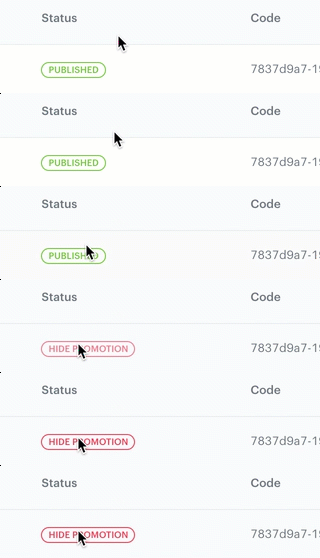
3. Hover your mouse over the "Published" status icon.
The icon becomes the **Hide promotion** button.
**AI Hub > Regular Promotions**.
2. On the list of promotions, find a promotion and click its name.
3. Edit the settings in the same way as when [creating a promotion](/docs/ai-hub/promotions/creating-promotions).
## Importing promotions
---
See [Importing promotions](/docs/assets/imports/importing-promotions).
## Publishing promotions
---
When you click the **Finish later** button while creating a promotion, the promotion becomes an unpublished draft. To let your customers activate the promotion, it must be published.
1. Go to **AI Hub > Regular Promotions**.
2. On the list of promotions, find the promotion and click its name.
3. Ensure that the settings are correct.
4. In the upper-right corner of the screen, click **Publish**.
**Result:** If the schedule was set to "Immediately", the promotion becomes visible after you click **Publish**. If it was scheduled for a date, it becomes visible at that date.
## Hiding promotions
---
After a promotion is published, you can hide it from customer view without returning it to draft status.
1. Go to **AI Hub > Regular Promotions**.
2. On the list of promotions, locate the promotion you want to hide.
3. Hover your mouse over the "Published" status icon.
The icon becomes the **Hide promotion** button.
 **AI Hub > Regular Promotions**.
2. On the list of promotions, find the promotion and click
**AI Hub > Regular Promotions**.
2. On the list of promotions, find the promotion and click  .
3. In the list that opens, click **Duplicate**.
**Result:** An exact duplicate of the promotion is created. It has the same name as the original promotion. The code is generated automatically and unique.
## Filtering promotions
---
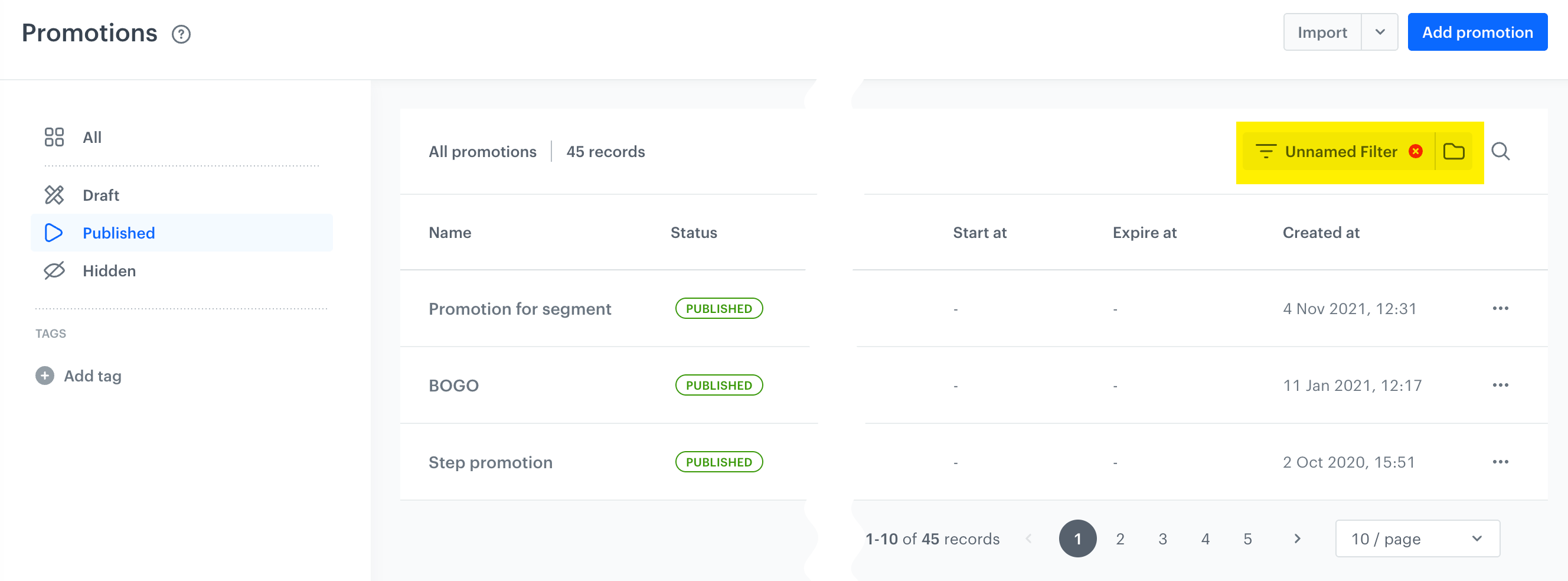
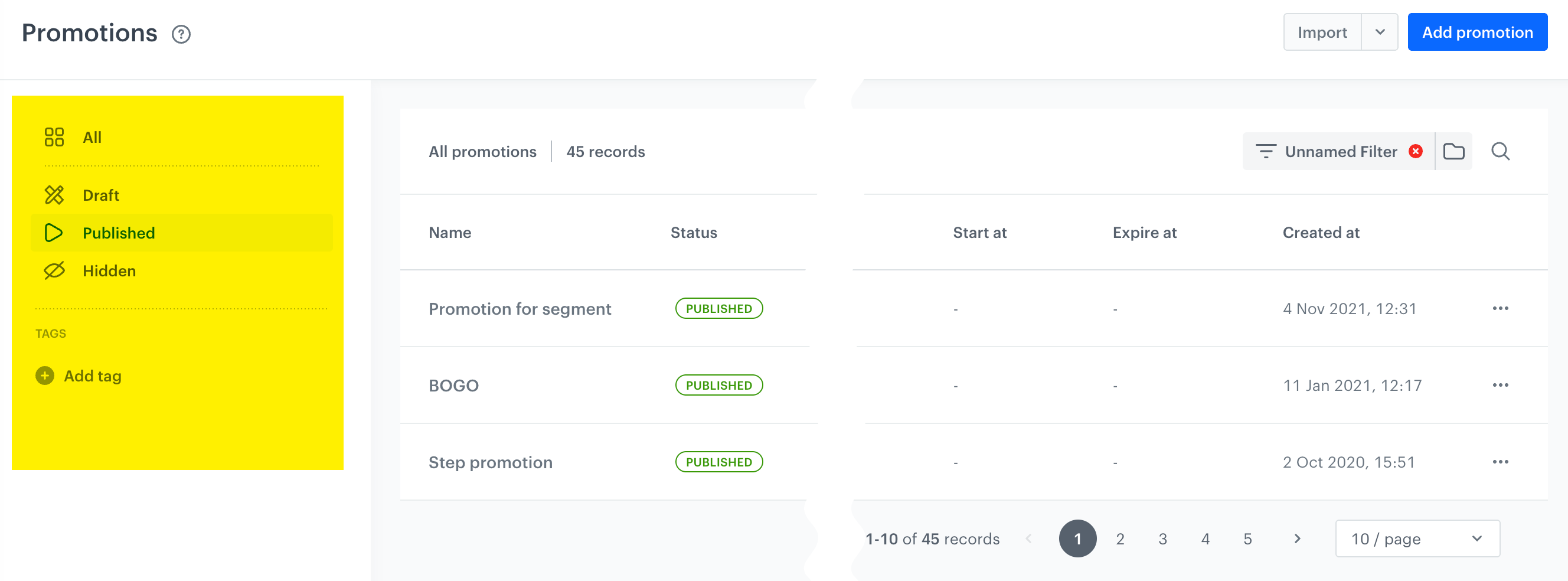
You can use the following filter types:
- Main filter - This filter lets you use all promotion attributes to build conditions for:
- Finding a particular promotion or group of promotions on the list of promotions.
- Saving the filter for reuse in the configuration of [personalized promotions](/docs/ai-hub/personalized-promotions/creating-ai-promotions).
The filtered promotions will be used as content for personalized promotions.
.
3. In the list that opens, click **Duplicate**.
**Result:** An exact duplicate of the promotion is created. It has the same name as the original promotion. The code is generated automatically and unique.
## Filtering promotions
---
You can use the following filter types:
- Main filter - This filter lets you use all promotion attributes to build conditions for:
- Finding a particular promotion or group of promotions on the list of promotions.
- Saving the filter for reuse in the configuration of [personalized promotions](/docs/ai-hub/personalized-promotions/creating-ai-promotions).
The filtered promotions will be used as content for personalized promotions.
 **> Regular Promotions**
2. On the right side of the screen, click the
**> Regular Promotions**
2. On the right side of the screen, click the  icon.
**Result**: The icon changes into **Define filter** button.
3. Click **Define filter**.
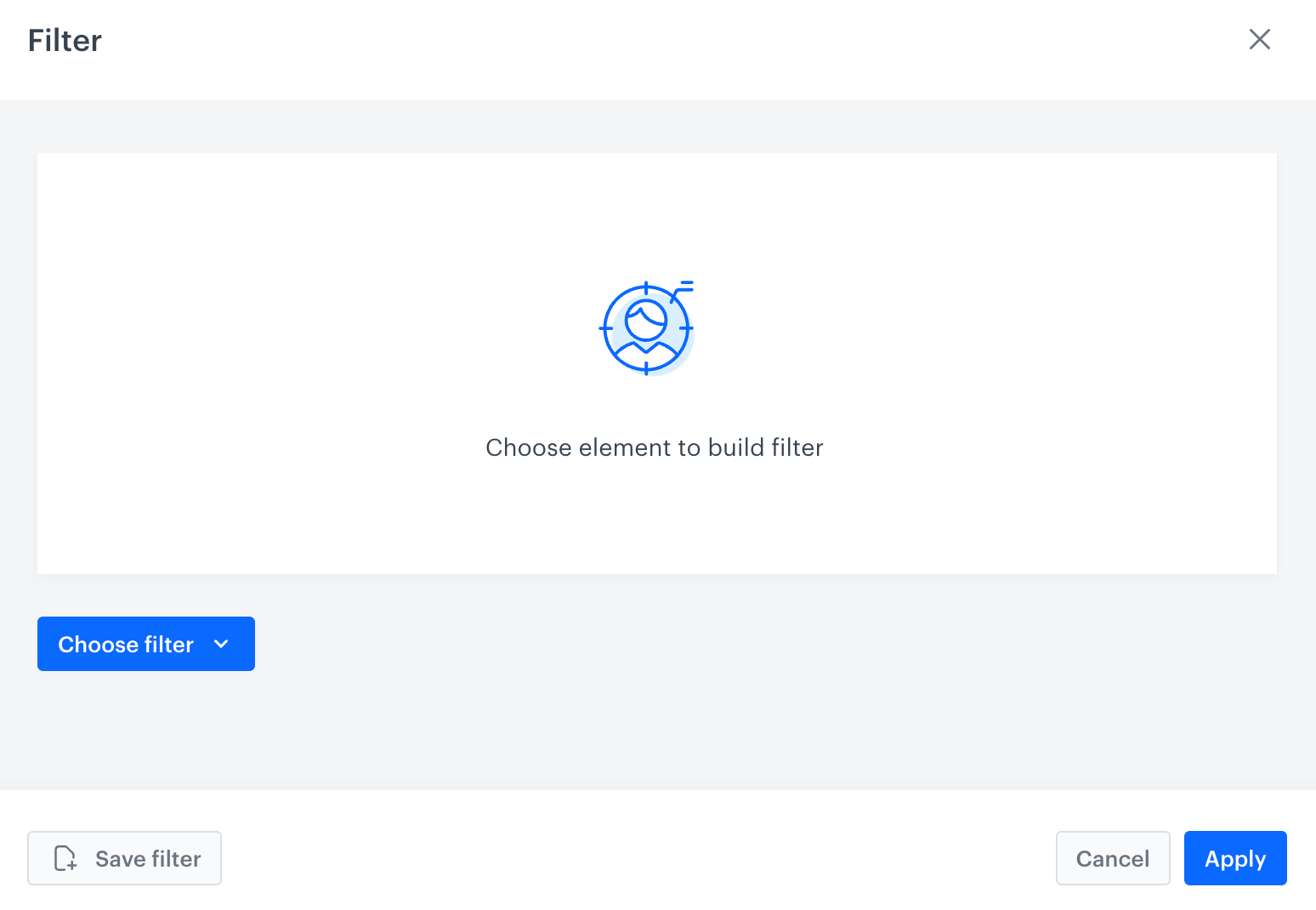
**Result**:
icon.
**Result**: The icon changes into **Define filter** button.
3. Click **Define filter**.
**Result**:
 folder
- filter out the items on the list of promotions, click **Apply**.
## Deleting promotions
---
**AI Hub > Regular Promotions**.
2. On the list of promotions, find the promotion and click .
3. In the list that opens, click **Delete**.
**Result:** The promotion is deleted from the system.
folder
- filter out the items on the list of promotions, click **Apply**.
## Deleting promotions
---
**AI Hub > Regular Promotions**.
2. On the list of promotions, find the promotion and click .
3. In the list that opens, click **Delete**.
**Result:** The promotion is deleted from the system.