Once the model training is completed, you can create a recommendation. The recommendations you create and activate will not be visible until you indicate how and where the recommendations are to be displayed.

Because each recommendation is different for every customer, you can't indicate exactly the items to be shown in the recommendations. However, you can [preview the recommendation](/docs/ai-hub/recommendations-v2/previewing-recommendations) for any customer.

## Distributing recommendations
---
You can use the ID of the recommendation and [inject it with a snippet](/docs/assets/snippets) in other types of communication, such as:
- [dynamic content](/docs/campaign/dynamiccontent) - this way you can show the recommendations on your website.
- [email](/docs/campaign/e-mail) - this way you can send out recommended items through emails.
- mobile application - you can use [documents](/docs/assets/documents) to build your own mobile app and show the recommended items.
- [mobile push](/docs/campaign/Mobile) - you can send recommendations through notifications in your mobile application.
- [web push](/docs/campaign/Webpush) - this way you can send notifications to your customers through a web browser.
- [SMS](/docs/campaign/SMS) - this way you can reach your customers with recommendations on their mobile.

## You may want to read
---
- [Recommendation types](/docs/ai-hub/recommendations-v2/recommendation-types)
- [How to build a filter in a recommendation](/docs/ai-hub/recommendations-v2/recommendation-filters)
- [Filters - examples of use](/docs/ai-hub/recommendations-v2/recommendation-filters-examples)
- [Previewing recommendations](/docs/ai-hub/recommendations-v2/creating-recommendation-campaign)
- [Recommendation statistics](/docs/ai-hub/recommendations-v2/recommendation-statistics)

## Prerequisites
---
- You must [configure an item catalog for recommendations](/docs/ai-hub/recommendations-v2/configure-item-feed-ai-recommendations).
- You must have [permissions](/docs/settings/identity-access-management/permissions#permissions) from the following sets:
    - Communications > Recommendations  
        Without these permissions, you can't see **Recommendations** in the menu.
    - Assets > Catalogs  
        Without these permissions, **Recommendations** may not load.
- If you want to create a visual similarity recommendation, select an item feed which contains less than 1,000,000 items.
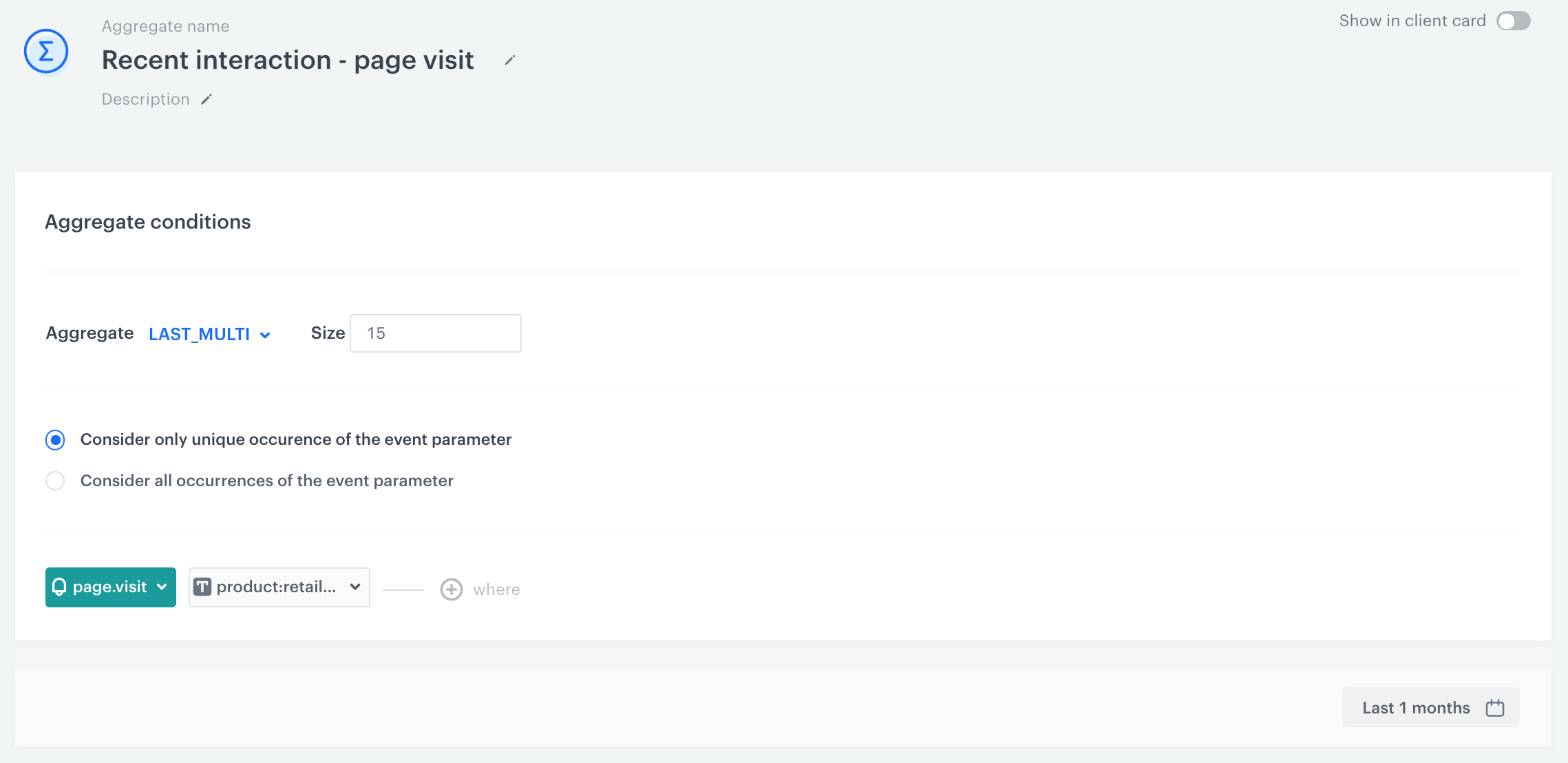
- If you want to create the **Recent interactions** recommendation, create an aggregate that gathers a group of items towards which a specific event has occurred
    
  <details class="accordion"><summary>Click here to see example aggregate</summary><div class="accordion-content"><figure> <img src="/api/docs/image/54176ad07f146575310749eba44b7c2f42c1b327/docs/campaign/_gfx/aggregate-recent-recommendations.png" alt="Type & Source section" class="full"> <figcaption> The Type & Source section </figcaption> </figure> <p><strong>Required</strong> in the configuration:</p> <ul> <li><p>Aggregate type set as <strong>Last Multi</strong></p> </li> <li><p>Event</p> </li> <li><p>Event parameter connected to an item </p> <div class="admonition admonition-note"><div class="admonition-icon"><svg xmlns="http://www.w3.org/2000/svg" fill="none" viewBox="0 0 24 24" stroke="currentColor" stroke-width="2.5"><path stroke-linecap="round" stroke-linejoin="round" d="M13 16h-1v-4h-1m1-4h.01M21 12a9 9 0 11-18 0 9 9 0 0118 0z" /></svg></div><div class="admonition-body"><div class="admonition-content"> <p>You can read more about aggregates <a href="/docs/analytics/aggregates/creating-aggregates/">here</a>.</p> </div></div></div></li> </ul></div></details>


## Creating recommendation
---

1. Go to <img src="/api/docs/image/54176ad07f146575310749eba44b7c2f42c1b327/icons/ai-hub-icon.svg" alt="Image presents the AI Hub icon" class="icon"> **AI Hub > (AI Recommendations) Models > Add recommendation**.
2. Enter the name of the recommendation (it is only visible on the list of recommendation).

## Select feed and recommendation type
---
Start with selecting the feed from which items will be sourced to recommendations and the type of recommendations to be displayed. 

1. In the **Type & Items feed** section, click **Define**.
2. From the **Items feed** dropdown list, select an item feed.
3. Under **Recommendation type**, click **Select model**.
4. On the pop-up that opens, select a recommendation type.  
    If a recommendation type is disabled, it means the AI engine is not trained yet or that a recommendation type is not available for this item feed.
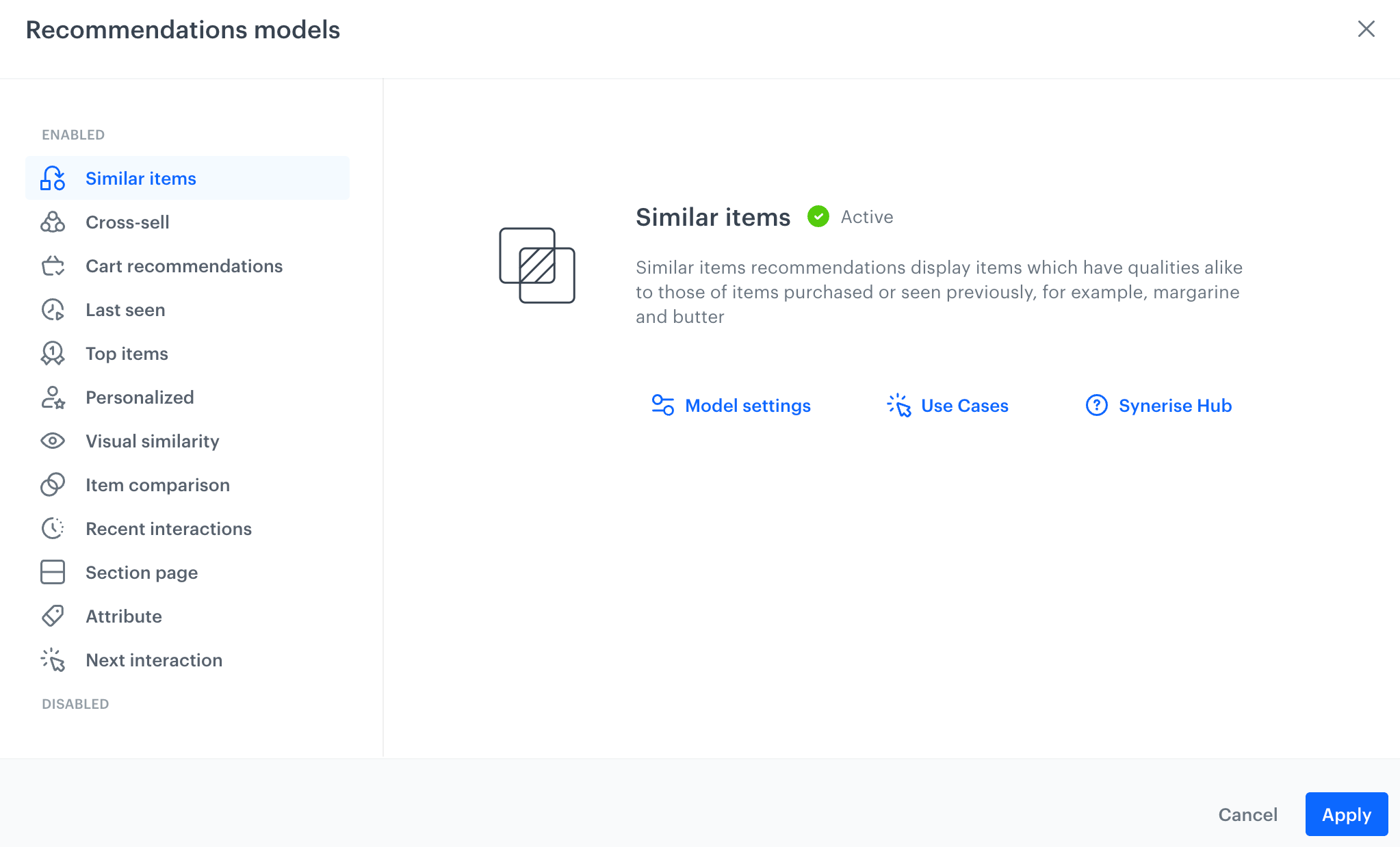
         <figure><img src="/api/docs/image/54176ad07f146575310749eba44b7c2f42c1b327/docs/campaign/_gfx/recommendation-types.png" class="large" alt="Selecting a recommendation model"><figcaption>Selecting a recommendation model</figcaption></figure>
    
   <div class="admonition admonition-tip"><div class="admonition-icon"><svg xmlns="http://www.w3.org/2000/svg" fill="none" viewBox="0 0 24 24" stroke="currentColor" stroke-width="2.5"><path stroke-linecap="round" stroke-linejoin="round" d="M9.663 17h4.673M12 3v1m6.364 1.636l-.707.707M21 12h-1M4 12H3m3.343-5.657l-.707-.707m2.828 9.9a5 5 0 117.072 0l-.548.547A3.374 3.374 0 0014 18.469V19a2 2 0 11-4 0v-.531c0-.895-.356-1.754-.988-2.386l-.548-.547z" /></svg></div><div class="admonition-body"><div class="admonition-content">

   Learn more about:
   - [recommendation types](/docs/ai-hub/recommendations-v2/recommendation-types)
   - [recommendation statuses](/docs/settings/configuration/ai-engine-configuration/model-status)

   </div></div></div>

4. Confirm the selection by clicking **Apply**.
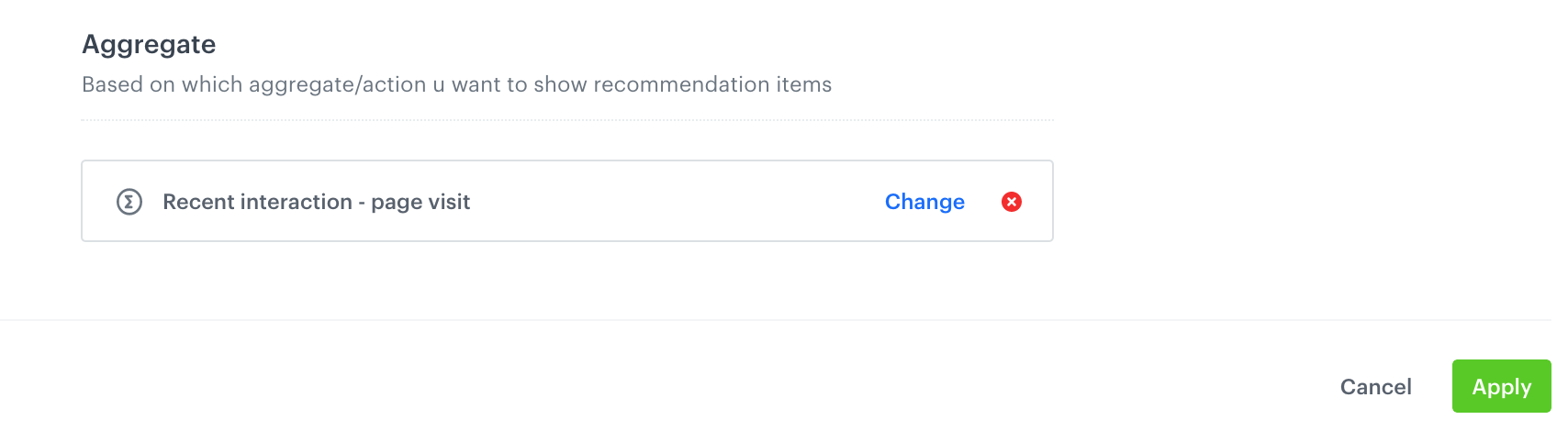
5. **Recent interactions model only**: Under **Aggregate**, click **Select** and select the aggregate which defines the interactions that you want to take into account.
5. Save the settings in the **Type & Items feed** section by clicking **Apply**.


## Select an aggregate (only recent interactions model)
---

<details class="accordion"><summary>Only for Recent interactions</summary><div class="accordion-content"><div class="admonition admonition-important"><div class="admonition-icon"><svg xmlns="http://www.w3.org/2000/svg" fill="none" viewBox="0 0 24 24" stroke="currentColor" stroke-width="2.5"><path stroke-linecap="round" stroke-linejoin="round" d="M12 8v4m0 4h.01M21 12a9 9 0 11-18 0 9 9 0 0118 0z" /></svg></div><div class="admonition-body"><div class="admonition-content"> <p>This section is available only for the <strong>Recent interactions</strong> recommendation type.</p> </div></div></div> <figure> <img src="/api/docs/image/54176ad07f146575310749eba44b7c2f42c1b327/docs/campaign/_gfx/selected-aggregate-general.png" alt="Selecting an aggregate for the recent interactions recommendation type" class="full"> <figcaption> Selecting an aggregate for the recent interactions recommendation type </figcaption> </figure> <ol> <li><p>Select the aggregate you created within the scope of <a href="/docs/ai-hub/recommendations-v2/creating-recommendation-campaign/#prerequisites">Prerequisites</a></p> </li> <li><p>Confirm the selection by clicking <strong>Apply</strong>.</p> </li> <li><p>Proceed to <a href="/docs/ai-hub/recommendations-v2/creating-recommendation-campaign/#configure-comparison-attributes-only-item-comparison-model">Configuring comparison attributes</a>.</p> <div class="admonition admonition-note"><div class="admonition-icon"><svg xmlns="http://www.w3.org/2000/svg" fill="none" viewBox="0 0 24 24" stroke="currentColor" stroke-width="2.5"><path stroke-linecap="round" stroke-linejoin="round" d="M13 16h-1v-4h-1m1-4h.01M21 12a9 9 0 11-18 0 9 9 0 0118 0z" /></svg></div><div class="admonition-body"><div class="admonition-content"> <p>You can read more about aggregates <a href="/docs/analytics/aggregates/creating-aggregates/">here</a>.</p> </div></div></div></li> </ol></div></details>


## Configure comparison attributes (only item comparison model)
---

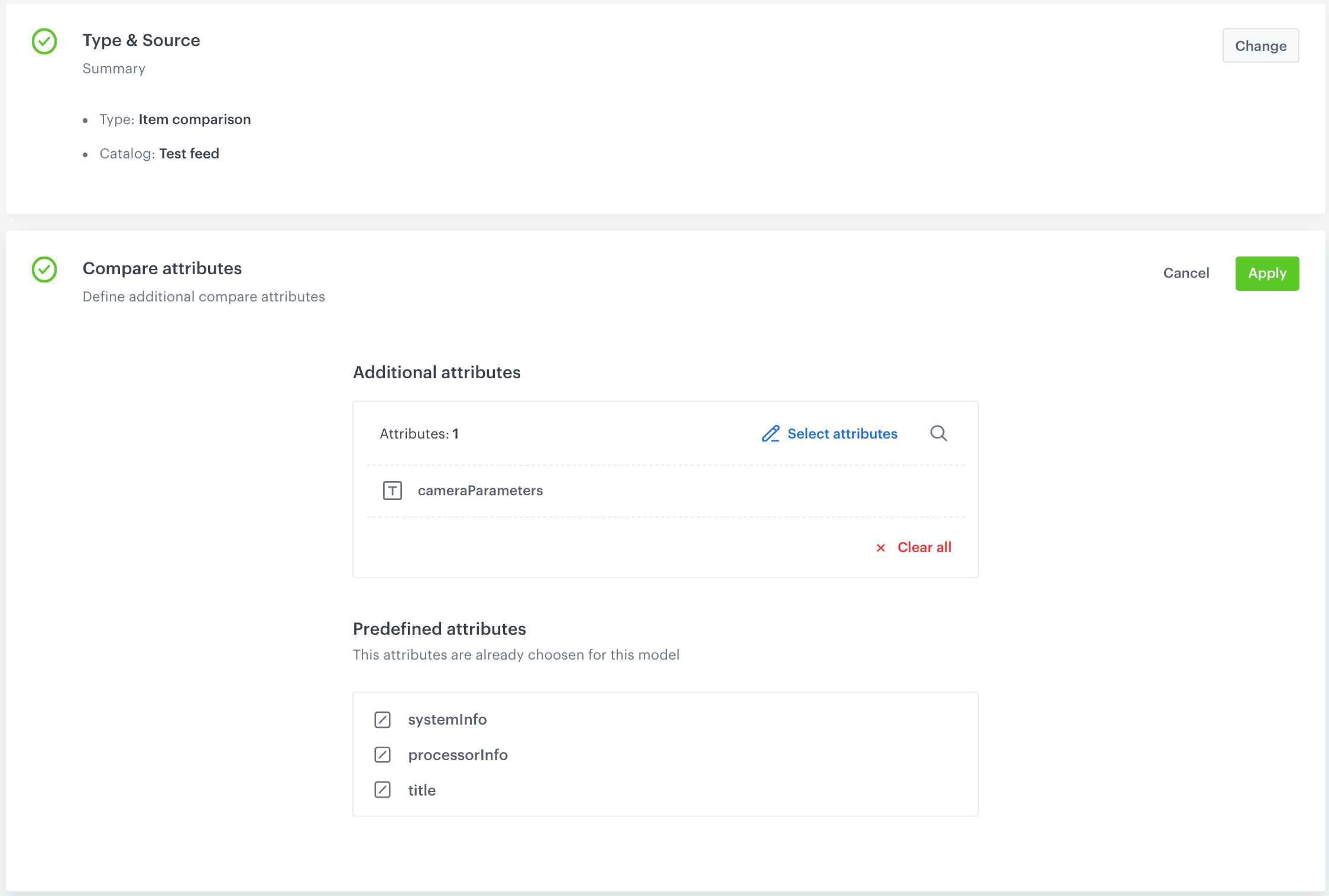
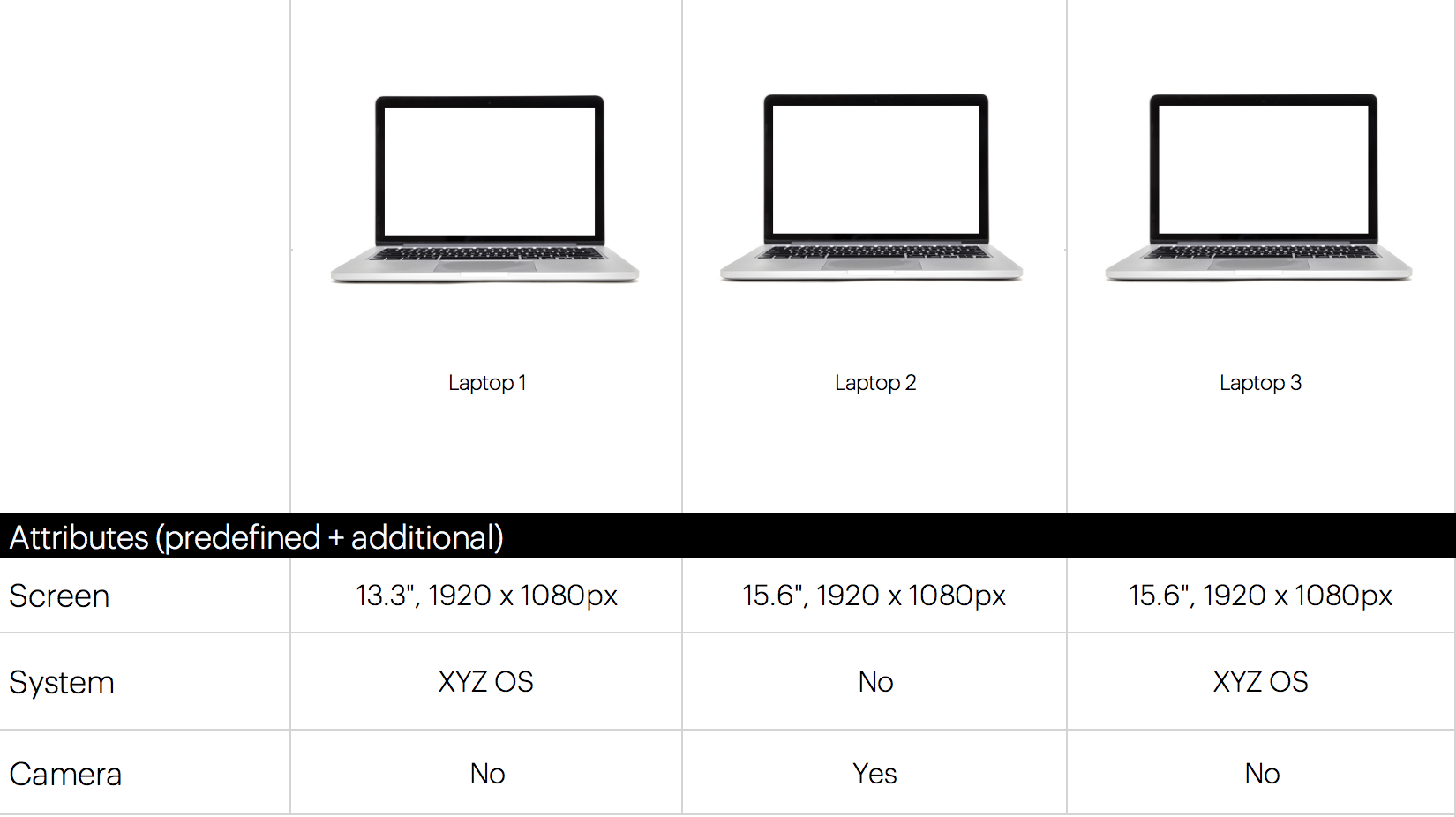
<details class="accordion"><summary>Only for Item comparison</summary><div class="accordion-content"><div class="admonition admonition-important"><div class="admonition-icon"><svg xmlns="http://www.w3.org/2000/svg" fill="none" viewBox="0 0 24 24" stroke="currentColor" stroke-width="2.5"><path stroke-linecap="round" stroke-linejoin="round" d="M12 8v4m0 4h.01M21 12a9 9 0 11-18 0 9 9 0 0118 0z" /></svg></div><div class="admonition-body"><div class="admonition-content"> <p>This section is available only for the <strong>Item comparison</strong> recommendation type.</p> </div></div></div> <figure> <img src="/api/docs/image/54176ad07f146575310749eba44b7c2f42c1b327/docs/campaign/_gfx/compare-attributes.png" alt="A blank form for configuring recommendation campaigns" class="full"> <figcaption> A blank form for configuring a recommendation </figcaption> </figure> <p>You can select the attributes of the items to be included in the comparison. The attributes in the <strong>Predefined attributes</strong> section are sourced from the <strong>Response attributes</strong> which can be edited in <strong>Settings &gt; AI Engine Configuration</strong>. </p> <ol> <li>To add more attributes apart from the predefined ones to the comparison, in the <strong>Additional attributes</strong>, click <strong>Select attributes</strong>.</li> <li>On the pop-up, select the attributes.</li> <li>Confirm by clicking <strong>Apply</strong>.<br><strong>Result</strong>: Example item comparison on a website (the context item is included in one of the columns): <figure> <img src="/api/docs/image/54176ad07f146575310749eba44b7c2f42c1b327/docs/campaign/_gfx/example-item-comparison.png" alt="Example item comparison frame" class="large"> <figcaption> Example item comparison frame </figcaption> </figure></li> </ol></div></details>


## Configure item slots
---

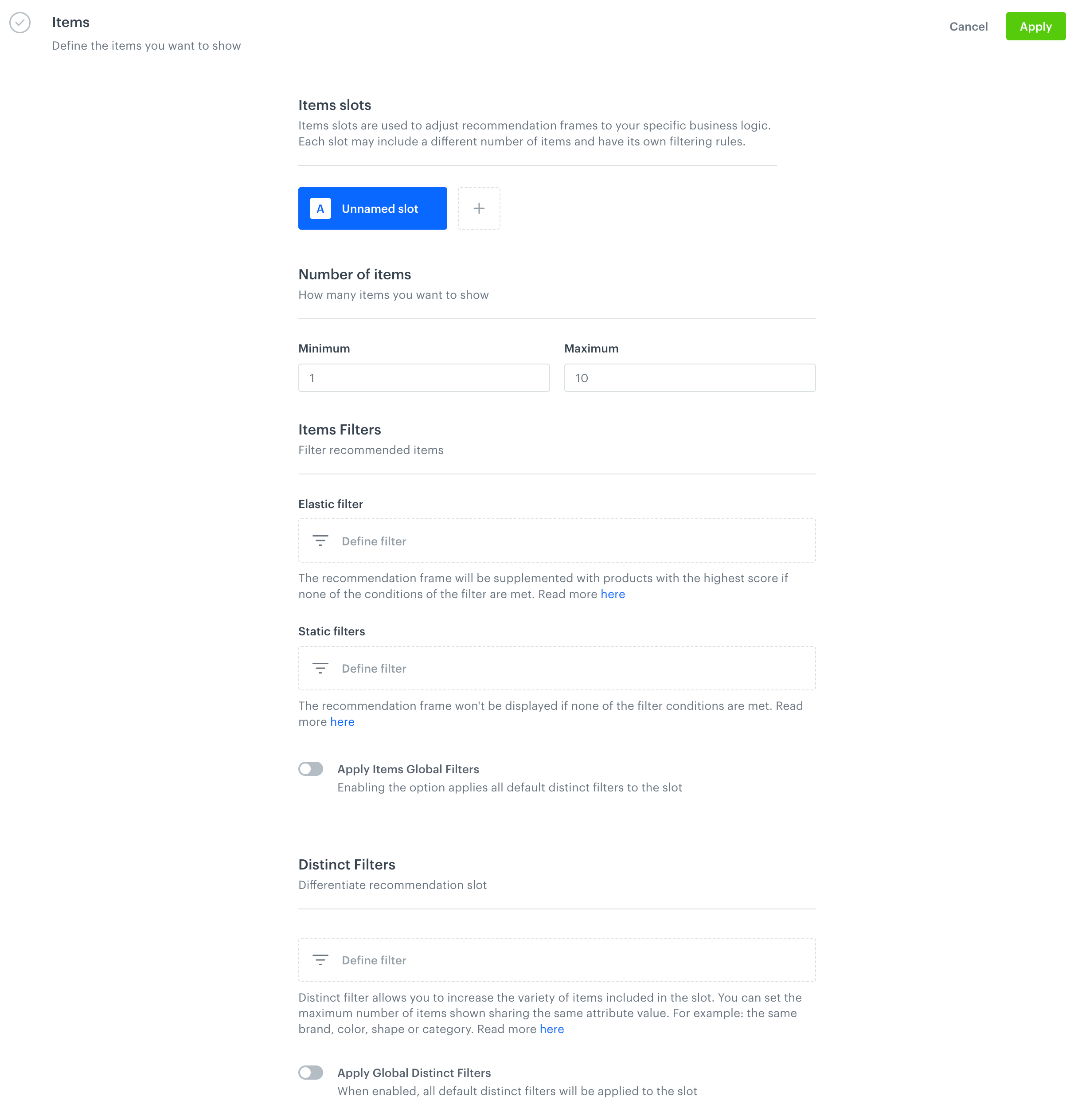
You can use slots to assign space in your recommendation frame to specific items. Each slot may include a different number of items and have its own filtering rules.

<figure>
<img src="/api/docs/image/54176ad07f146575310749eba44b7c2f42c1b327/docs/campaign/_gfx/items-recov2.png" alt="A blank form for configuring recommendation campaigns" class="large">
<figcaption> A blank form for configuring a recommendation </figcaption>
</figure>

For example, you can use three slots to display:
- Items of specific brand - This allows you to use space in your recommendation slots by items of your partners and suppliers.
- Items of specific category,
- Items of specific color  

A recommendation must include at least one slot.

### Adding slots

1. In the **Items** section, click **Define**.
3. Click <img src="/api/docs/image/54176ad07f146575310749eba44b7c2f42c1b327/docs/analytics/_gfx/plus-button.png" alt="Plus icon" class="icon"> button.
4. If you want to name the slot, hover over the **Unnamed slot** tab and double click it.
2. When adding multiple slots, you can define their order by dragging and dropping the tabs into the desired sequence. The slot represented by the leftmost tab is considered the first slot. For more slot order options, refer to the [Define slot and item ordering](#define-slot-and-item-ordering) section.
5. To proceed to the slot settings, click the tab with the slot.
6. In the **Number of items** subsection, enter the minimum and maximum number of items to include in the slot.
7. <span id="select-conditions-of-displaying-items"></span>Add the filters for this slot.  
    - [Elastic filters](#elastic-filters)
    - [Static filters](#static-filters)
    - [Distinct filter](#distinct-filter)
4. Confirm the settings by clicking **Apply**.
#### Elastic filters

This type of filter allows you to select the items to be included in the slot and supplement the slot if it’s not entirely filled up with the items.  
For example, if you select to display up to 10 items, and you have only 5 items that meet the conditions of elastic filter to be included in the slot, then the slot will be filled with additional items which do not match the elastic filter (based on scoring).

1. Click **Define filter**.
2. Select one of the filter creators:
    - [visual builder](/docs/ai-hub/recommendations-v2/recommendation-filters#visual-builder)
    - [IQL query wizard](/docs/ai-hub/recommendations-v2/recommendation-filters#iql-query)

#### Static filters

This type of filter allows you to show a fixed number of items that match the conditions of the filter.

- If the applied filter conditions (that don't include any customer context) are too strict and there are not enough items to fill in the recommendation slot, the slot is not generated at all.
- If the filter conditions include customer context from one of the following sources: [aggregate](/docs/ai-hub/recommendations-v2/recommendation-filters#aggregate), [expression](/docs/ai-hub/recommendations-v2/recommendation-filters#expression), or a [profile attribute](/docs/ai-hub/recommendations-v2/recommendation-filters#customer-context-value), and the context cannot be retrieved for any reason:
    - By default, the filter is ignored and the slot will be generated without applying the filters.
    - If **Fail slot when the context is missing** is selected from the **Ignore filter** dropdown list, the slot is not generated at all.

<figure><img src="/api/docs/image/54176ad07f146575310749eba44b7c2f42c1b327/docs/campaign/_gfx/static-filters-ignore-limits.png" class="full" alt="The Ignore filter option in static filters in AI Recommendations"><figcaption>The Ignore filter option in static filters in AI Recommendations</figcaption></figure>

1. If you want to [apply global item filter](/docs/settings/configuration/ai-engine-configuration/engine-configuration-for-recommendations#selecting-recommendation-types-and-default-filters) defined for the recommendation model based on which you're creating the campaign, enable **Apply Items Global Filters**. Enabling this toggle applies the global item filters and they work in combination with other filters in the slot.  
2. If you want to apply custom static filters for the slot, click **Define filter**. Select one of the filter creators:
   - [visual builder](/docs/ai-hub/recommendations-v2/recommendation-filters#visual-builder)
   - [IQL query wizard](/docs/ai-hub/recommendations-v2/recommendation-filters#iql-query)


   <div class="admonition admonition-important"><div class="admonition-icon"><svg xmlns="http://www.w3.org/2000/svg" fill="none" viewBox="0 0 24 24" stroke="currentColor" stroke-width="2.5"><path stroke-linecap="round" stroke-linejoin="round" d="M12 8v4m0 4h.01M21 12a9 9 0 11-18 0 9 9 0 0118 0z" /></svg></div><div class="admonition-body"><div class="admonition-content">

   When the global item filters and the filters defined in the recommendation are mutually exclusive, recommendation filters take precedence.

   </div></div></div>


#### Distinct filter

This type of filter allows you to increase the variety of items included in the slot. You can define the allowed number of items that share the same attribute value to be shown, for example, a number of items that have the same brand, color, shape, category, and so on. 

- For all recommendation types except for **Last seen**, the engine considers up to 1000 items with the highest score that match the recommendation type. For example, if you selected the **Cross-sell** type, the engine analyzes up to 1000 items that match the cross-sell recommendation type, and then selects the number of items you chose to include in the slot. 

- For the **Last seen** recommendation type, the engine considers the last 100 page visit events. Based on the data from these events, the engine selects the number of items you chose to include in the slot.


  <div class="admonition admonition-important"><div class="admonition-icon"><svg xmlns="http://www.w3.org/2000/svg" fill="none" viewBox="0 0 24 24" stroke="currentColor" stroke-width="2.5"><path stroke-linecap="round" stroke-linejoin="round" d="M12 8v4m0 4h.01M21 12a9 9 0 11-18 0 9 9 0 0118 0z" /></svg></div><div class="admonition-body"><div class="admonition-content">

  This filter can only use attributes defined when [configuring the recommendation engine](/docs/settings/configuration/ai-engine-configuration/engine-configuration-for-recommendations#selecting-attributes-to-increase-item-variety).

  </div></div></div>


1. If you want to [apply global distinct filter](/docs/settings/configuration/ai-engine-configuration/engine-configuration-for-recommendations#selecting-recommendation-types-and-default-filters) defined for the recommendation model based on which you're creating the campaign, enable **Apply Global Distinct Filters**. Enabling this toggle applies global distinct filters to the slot and it overrides the settings of slot distinct filter. 
2. If you want to apply custom distinct filters for the slot, click **Define filter**.  
    1. In the **Show only** field, enter the number of items whose attribute values can be the same.
    2. From the **Choose attribute** dropdown list, select the attribute.  
        You can use each attribute only once. This means that if you add multiple filters, any attribute that has already been used will no longer be available for selection.  

        
       <div class="admonition admonition-note"><div class="admonition-icon"><svg xmlns="http://www.w3.org/2000/svg" fill="none" viewBox="0 0 24 24" stroke="currentColor" stroke-width="2.5"><path stroke-linecap="round" stroke-linejoin="round" d="M13 16h-1v-4h-1m1-4h.01M21 12a9 9 0 11-18 0 9 9 0 0118 0z" /></svg></div><div class="admonition-body"><div class="admonition-content">

       You can read how to build conditions in the distinct filters for the `category` attribute [here](/docs/ai-hub/recommendations-v2/recommendation-filters#the-category-attribute).

       </div></div></div>

    3. To add more conditions, click **Add another** and repeat the steps.
    4. If you want the distinct filter to supplement the slot with non-matching items when not enough matching items are found, enable the **Mark filter as elastic** option.
    5. Confirm by clicking **Apply**. 


<div class="admonition admonition-important"><div class="admonition-icon"><svg xmlns="http://www.w3.org/2000/svg" fill="none" viewBox="0 0 24 24" stroke="currentColor" stroke-width="2.5"><path stroke-linecap="round" stroke-linejoin="round" d="M12 8v4m0 4h.01M21 12a9 9 0 11-18 0 9 9 0 0118 0z" /></svg></div><div class="admonition-body"><div class="admonition-content">

When the global item filters and the filters defined in the recommendation are mutually exclusive, recommendation filters take precedence.

</div></div></div>


## Define slot and item ordering
---

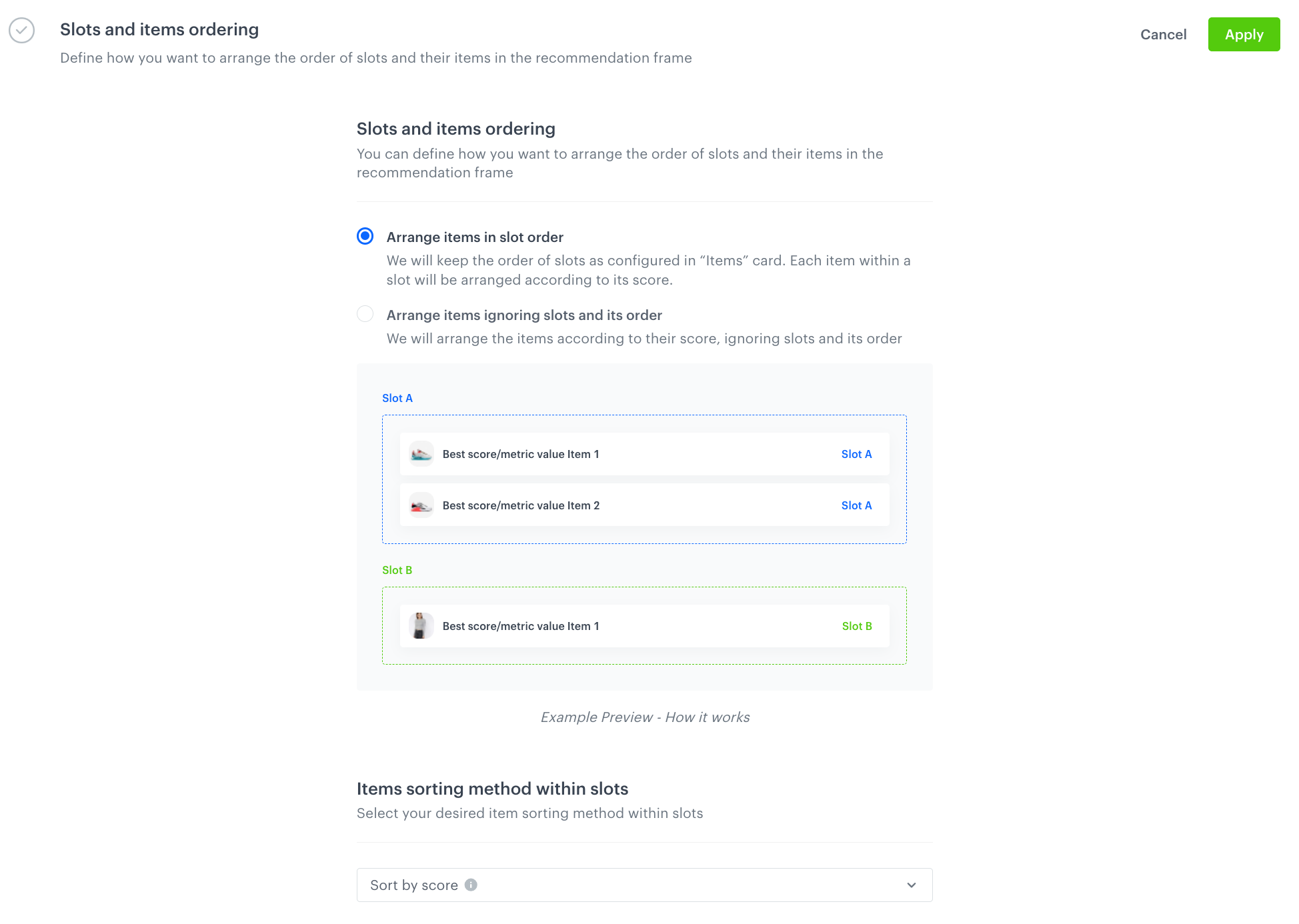
In this section, you can define the order of slots and the order of recommended items in the slot. 

<figure>
<img src="/api/docs/image/54176ad07f146575310749eba44b7c2f42c1b327/docs/campaign/_gfx/slot-and-item-ordering.png" alt="A form for configuring slot order and item order within slots" class="large">
<figcaption> A form for configuring slot order and item order within slots </figcaption>
</figure>

1. In the **Slots and items ordering** section, click **Define**.
2. To define the order of slots and order of items within the slots, in the **Slots and items ordering** subsection, select one of the following options:
    - **Arrange items in slot order**:
        - the slots will be presented in the order defined in the **Items** section. 
        - the order of items within the slot is defined by the scoring method selected in **Items sorting method within slots**. By default, the items are arranged based on the results of the recommendation model.
    - **Arrange items in personalized slot order**:  
        - the order of slots is arranged based on the results from the Personalized recommendation model. The higher the score, the higher position the slot takes.
        - the order of items within the slot is defined by the scoring method selected in **Items sorting method within slots**. By default, the items are arranged based on the results of the recommendation model.
        
      <div class="admonition admonition-important"><div class="admonition-icon"><svg xmlns="http://www.w3.org/2000/svg" fill="none" viewBox="0 0 24 24" stroke="currentColor" stroke-width="2.5"><path stroke-linecap="round" stroke-linejoin="round" d="M12 8v4m0 4h.01M21 12a9 9 0 11-18 0 9 9 0 0118 0z" /></svg></div><div class="admonition-body"><div class="admonition-content">

      This option is available only for **Personalized** recommendations.

      </div></div></div>


    - **Arrange items ignoring slots and its order**: the slots will be ignored and the order of items will be arranged according to the score method selected in **Items sorting method within slots**. By default, the items are arranged based on the results of the recommendation model.

3. To define the method of sorting the items within slots, in the **Items sorting method** subsection, select one of the methods. 

    
   <div class="admonition admonition-important"><div class="admonition-icon"><svg xmlns="http://www.w3.org/2000/svg" fill="none" viewBox="0 0 24 24" stroke="currentColor" stroke-width="2.5"><path stroke-linecap="round" stroke-linejoin="round" d="M12 8v4m0 4h.01M21 12a9 9 0 11-18 0 9 9 0 0118 0z" /></svg></div><div class="admonition-body"><div class="admonition-content">

   This section is unavailable for Attribute and Section recommendations, however, the items in these recommendation types are arranged in the order defined by the Personalized recommendation model.

   </div></div></div>


    You can select the following sorting methods:

    - **Sort by personalized score** - The items are arranged in the order in which they were returned by the Personalized recommendation model (this sorting method is available only for the Personalized recommendation type).
    - **Sort by score** - It's a default method, the items are arranged in the order in which they were returned by the recommendation model (for example, if you create a Cart recommendation, then the items are organized based on the results of the Cart recommendation model).
    - **Sold items count in the last 30 days** - The items returned by the model will be arranged from the most sold to the least sold in the last 30 days.
    - **Sold items value in the last 30 days** - The items returned by the model will be sorted based on their price, with the most expensive ones sold in the last 30 days listed first.
    - **Page visit count in the last 30 days** - The items returned by the model will be sorted based on the visits to the item page, with the most visited ones in last 30 days listed first.
    - **Conversion percent in the last 30 days** - The items returned by the model will be sorted based on the conversion rate of the product (ratio of purchases to the number of users visiting product page) in the last 30 days, with those with the highest rate listed first.
    - **Conversion percent after clicking on the recommendations in the last 30 days** - The items returned by the model will be sorted based on purchases after clicking the item in any communication channel in the last 30 days, with those with the highest rate listed first.
    - **Sold items count in the last day** - The items returned by the model will be arranged from the most sold to the least sold in the last day.
    - **Sold items count from the same weekday last week** - The items will be sorted in descending order based on their quantity sold on the same weekday as last week (for example, if today is Wednesday, items will be arranged according to their sales quantity from last Wednesday).
    - **Page visit count in the last 7 days** - The items returned by the model will be sorted based on the visits to the item page, with the most visited ones in last 7 days listed first.
    - **Sold items count in the last 7 days** - The items returned by the model will be arranged from the most sold to the least sold in the last 7 days.
4. Confirm the settings by clicking **Apply**.

## Define the boosting factors
---
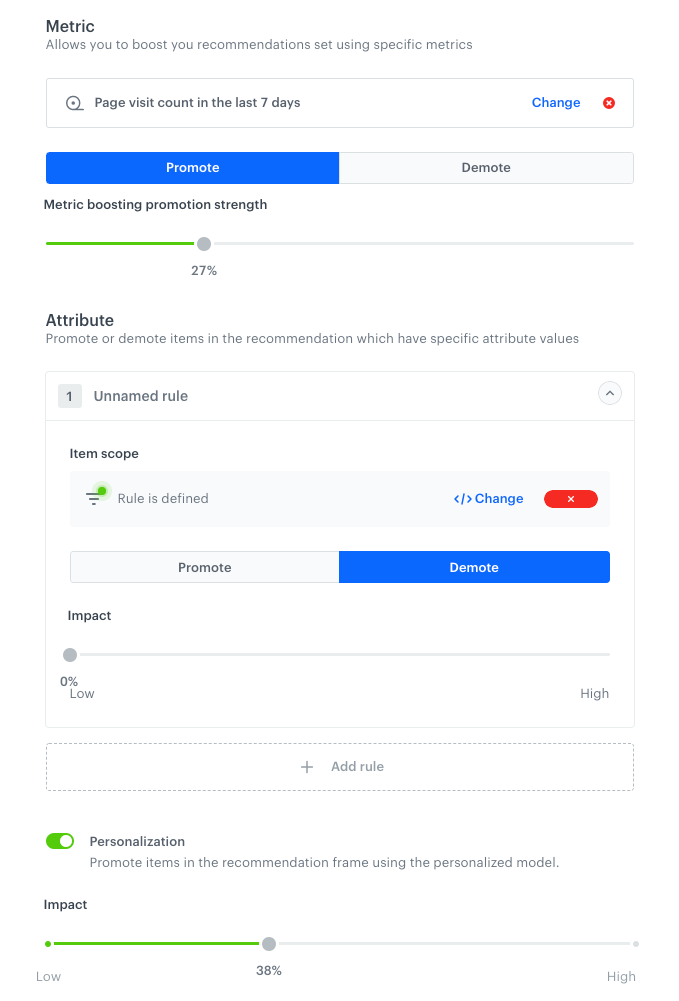
You can increase probability of appearing in the recommendation frame. You can boost the items in three ways (both can be used at the same time):
- **Metric** boosting uses pre-defined item popularity metrics to influence item scoring. Metric boosting is available only for the Similar, Cart, Visual similarity recommendation types.
- **Attribute** boosting influences item scoring depending on rules applied to the item's attributes. This is done by applying a filter to items and adjusting the score of those items that match the filter. For example, you can increase the scoring of a particular brand without excluding other brands entirely.
- **Personalization** boosting uses the personalization model to influence the items' scoring according to the preferences of each customer - items that fit their preferences have a higher probability of appearing in the recommendation frame. You can manage the influence of personalization model on boosting by using the Impact scrollbar. Personalization boosting is available for all recommendation types, except for Personalized, Section, and Attribute.   
This element has a significant impact on the model's outcome. For instance, if we set the personalization impact to 80% in the recommendation model based on **Top items**, the suggested items will be influenced mostly by the personalization model (making up 80% of the impact). Meanwhile, the **Top items** model will only contribute 20% to the recommendations (along with other factors like boosting attributes).

<figure><img src="/api/docs/image/54176ad07f146575310749eba44b7c2f42c1b327/docs/campaign/_gfx/recov2-boosting.png" class="large" alt="An example of a Boosting section with metric boosting used to promote items, attribute boosting used to demote items and personalization boosting"><figcaption>An example of a Boosting section with metric boosting used to promote items, attribute boosting used to demote items and personalization boosting</figcaption></figure>

1. In the **Boosting** section, click **Define**.
2. **Metric boosting**:
    1. Click **Select** and select a metric to use for adjusting the score.
    2. Choose the **Promote** (default) or **Demote** option.
    3. Use the slider to determine how much you want the metric to influence the score of the items.
3. **Attribute boosting**:
    1. Click **Add rule**.
    2. Click the created rule to open its settings.
    3. In the **Items scope** section, click **Define filter**.  
        Items that meet the filter will have their scores adjusted. To learn how to build filters, see [Recommendation filters](/docs/ai-hub/recommendations-v2/recommendation-filters).
    4. Choose the **Promote** (default) or **Demote** option.
    5. Use the slider to determine how much you want the metric to influence the score of the items.
4. **Personalization**:
    1. Enable the **Personalization** toggle.
    2. From the Impact scrollbar, select how much you want the personalization model to influence the arrangement of items in the recommendation.
4. Confirm the settings by clicking **Apply**.

## Additional settings
---
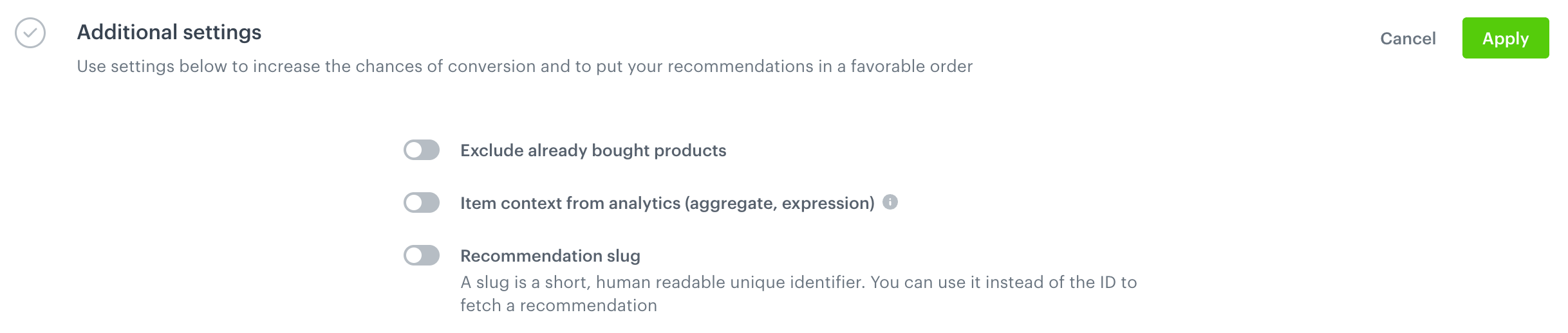
<figure><img src="/api/docs/image/54176ad07f146575310749eba44b7c2f42c1b327/docs/campaign/_gfx/reco-additional-settings.png" class="full" alt="The Additional settings section in the configuration form"><figcaption>The Additional settings section in the configuration form</figcaption></figure>

1. In the **Additional settings** section, click **Define**.
2. If you want to exclude items that the customer already purchased, enable the **Exclude already bought products** option.  
  This option will exclude up to 100 items that were purchased within a specific number of days, as defined in the **Since** field, which appears after enabling the option.  
Optionally, you can also set this option as elastic, which will work as an [elastic filter](/docs/ai-hub/recommendations-v2/recommendation-filters#elastic-filter).
5. If you want to source the item context from an aggregate or expression results instead of the website, enable the **Item context from analytics** toggle. Then from the dropdown list, select the analysis whose result will be treated as the item context.      
     On the basis of the item context, the engine selects the items to display in the recommendation. By default, the recommendation sources the item context from the product page where it is implemented. This option lets you override this setting, so the item context will be taken from the result of the aggregate or expression that returns for example, a recently viewed item, favorite items, recently purchased items or items purchased the most frequently.
    
   <div class="admonition admonition-important"><div class="admonition-icon"><svg xmlns="http://www.w3.org/2000/svg" fill="none" viewBox="0 0 24 24" stroke="currentColor" stroke-width="2.5"><path stroke-linecap="round" stroke-linejoin="round" d="M12 8v4m0 4h.01M21 12a9 9 0 11-18 0 9 9 0 0118 0z" /></svg></div><div class="admonition-body"><div class="admonition-content">

   This option is available for all recommendation types except for Recent interactions and Last seen.

   </div></div></div>

6. Optionally, you can assign a slug to the recommendation. In such a case, enable the **Recommendation slug** toggle.  
    This option lets you assign a user-friendly, unique identifier of the recommendation which you can use to fetch recommendation campaign instead of its ID. The slug can be edited at any time.
    In the **Enter unique slug name** field, enter the name containing 3 to 25 characters. You can only use:
      - lowercase Latin alphabet letters (a-z)
      - digits (0-9)
      - `-` but it can't be the first and/or last character
7. To confirm the settings in the **Additional settings** section, click **Apply**.
## Saving the recommendation
---

To save the recommendation:  
- as a draft, click **Finish later**.
- and activate the recommendation, click **Save**.

Once you activate the recommendation, you can use it as described in the [Distributing recommendations](#distributing-recommendations) section.