 **Experience Hub**
2. Select a communication type:
- Dynamic content
- Email
- In-app messages
- Mobile Push
- Web Push
2. On the left pane, select **Templates**.
3. In the upper right corner, click **New template**.
4. If you selected Mobile Push, after clicking **New template**, you must select the notification type:
- **Simple push** - Appear in the notification center when the screen is locked or they are visible in the top bar when the screen is unlocked.
- **Silent push** - A hidden notification that is delivered to the app on a user's device.
4. If you selected dynamic content, email, in-app message or a mobile push as a communication type, select **Code editor**.
If you selected web push, you will be redirected automatically to the template editor.
3. At the top of the view, click **Inserts**.
4. Select one of the categories: **AI Cart Recommendations** (for the Cart recommendation model) or **AI Suite** (for the remaining recommendation model types).
5. Click the name of the recommendation.
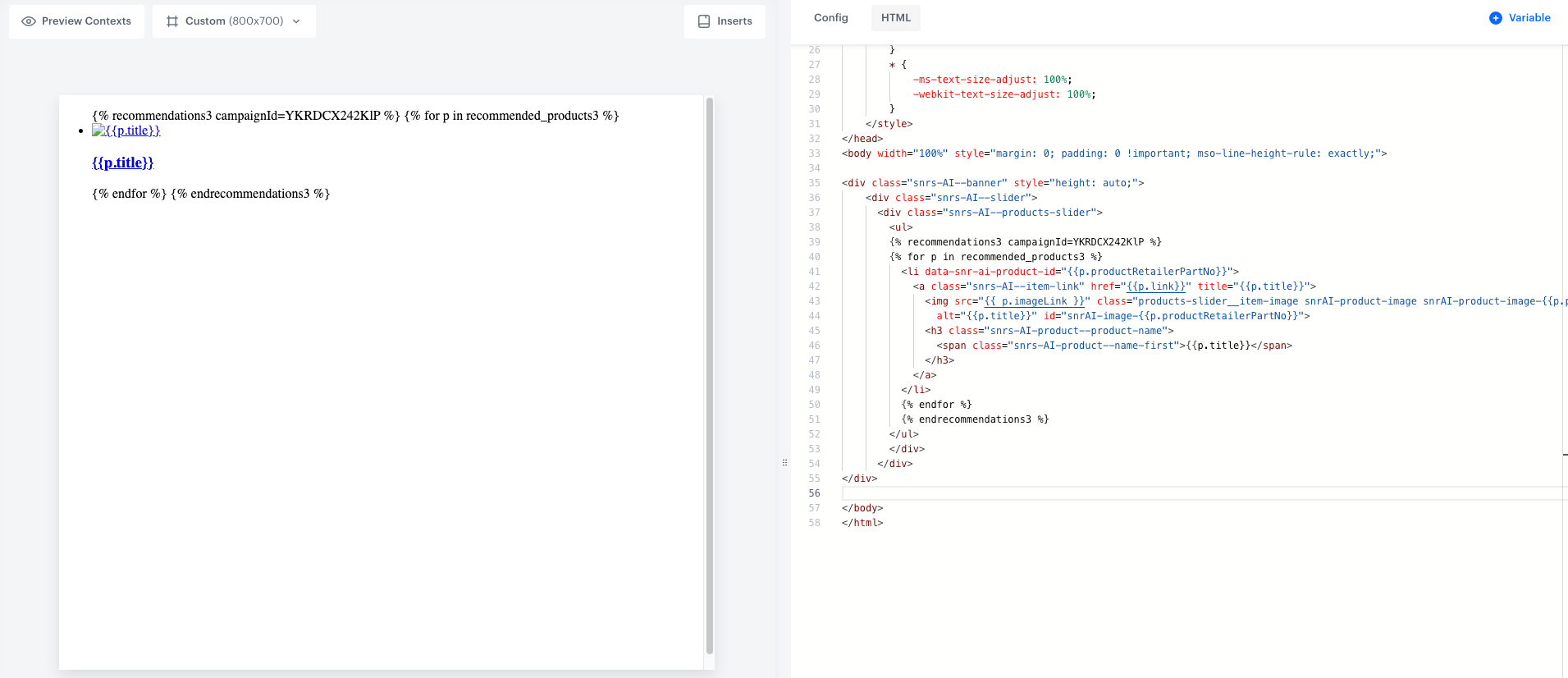
**Result**: You get a code of the recommendation.
6. Click **Get HTML code**.
7. If necessary, you can make changes to the HTML code.
8. Click **Copy to clipboard**.
9. Close the HTML preview of the code.
10. Paste the code into the HTML editor.
**Result**:
**Experience Hub**
2. Select a communication type:
- Dynamic content
- Email
- In-app messages
- Mobile Push
2. On the left pane, select **Templates**.
3. In the upper right corner, click **New template**.
4. If you selected Mobile Push, after clicking **New template**, you must select the notification type:
- **Simple push** - Appear in the notification center when the screen is locked or they are visible in the top bar when the screen is unlocked.
- **Silent push** - A hidden notification that is delivered to the app on a user's device.
4. Select **Code editor**.
5. Select one of the following tabs: HTML, CSS, JavaScript, JSON (available only for mobile push notification templates).
6. In the upper-right corner, click **Variable**.
**Result**: On the left side, a sidebar appears.
7. In the **Identifier** field, enter the ID of the variable.
The first character of the ID can't be a number.
8. From the **Type** dropdown list, select **Synerise insert select**.
9. Optionally, fill the **Label** (which is the name of the field in the configuration form) and the **Description** (which is the description of the field in the configuration form) fields.
10. From the **Insert Type** dropdown list, select **AI Recommendations**.
11. At the top of the sidebar, click **Add**.
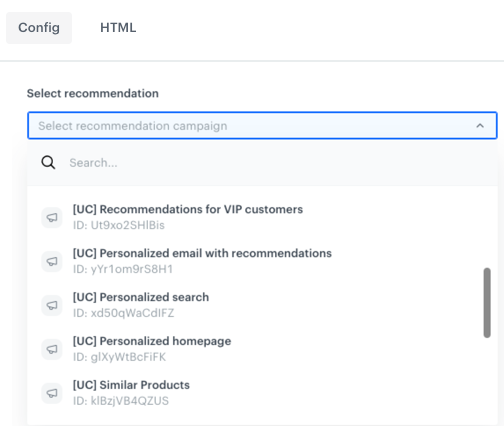
**Result**: In the **Config** tab, a selector with recommendations appears.
**Experience Hub**
2. Select a communication type:
- Dynamic content
- Email
- In-app messages
- Mobile Push
- Web Push
2. On the left pane, select **Templates**.
3. In the upper right corner, click **New template**.
4. If you selected Mobile Push, after clicking **New template**, you must select the notification type:
- **Simple push** - Appear in the notification center when the screen is locked or they are visible in the top bar when the screen is unlocked.
- **Silent push** - A hidden notification that is delivered to the app on a user's device.
4. If you selected dynamic content, email, in-app message or a mobile push as a communication type, select **Code editor**.
If you selected web push, you will be redirected automatically to the template editor.
3. At the top of the view, click **Inserts**.
4. Select one of the categories: **AI Cart Recommendations** (for the Cart recommendation model) or **AI Suite** (for the remaining recommendation model types).
5. Click the name of the recommendation.
**Result**: You get a code of the recommendation.
6. Click **Get HTML code**.
7. If necessary, you can make changes to the HTML code.
8. Click **Copy to clipboard**.
9. Close the HTML preview of the code.
10. Paste the code into the HTML editor.
**Result**:
**Experience Hub**
2. Select a communication type:
- Dynamic content
- Email
- In-app messages
- Mobile Push
2. On the left pane, select **Templates**.
3. In the upper right corner, click **New template**.
4. If you selected Mobile Push, after clicking **New template**, you must select the notification type:
- **Simple push** - Appear in the notification center when the screen is locked or they are visible in the top bar when the screen is unlocked.
- **Silent push** - A hidden notification that is delivered to the app on a user's device.
4. Select **Code editor**.
5. Select one of the following tabs: HTML, CSS, JavaScript, JSON (available only for mobile push notification templates).
6. In the upper-right corner, click **Variable**.
**Result**: On the left side, a sidebar appears.
7. In the **Identifier** field, enter the ID of the variable.
The first character of the ID can't be a number.
8. From the **Type** dropdown list, select **Synerise insert select**.
9. Optionally, fill the **Label** (which is the name of the field in the configuration form) and the **Description** (which is the description of the field in the configuration form) fields.
10. From the **Insert Type** dropdown list, select **AI Recommendations**.
11. At the top of the sidebar, click **Add**.
**Result**: In the **Config** tab, a selector with recommendations appears.