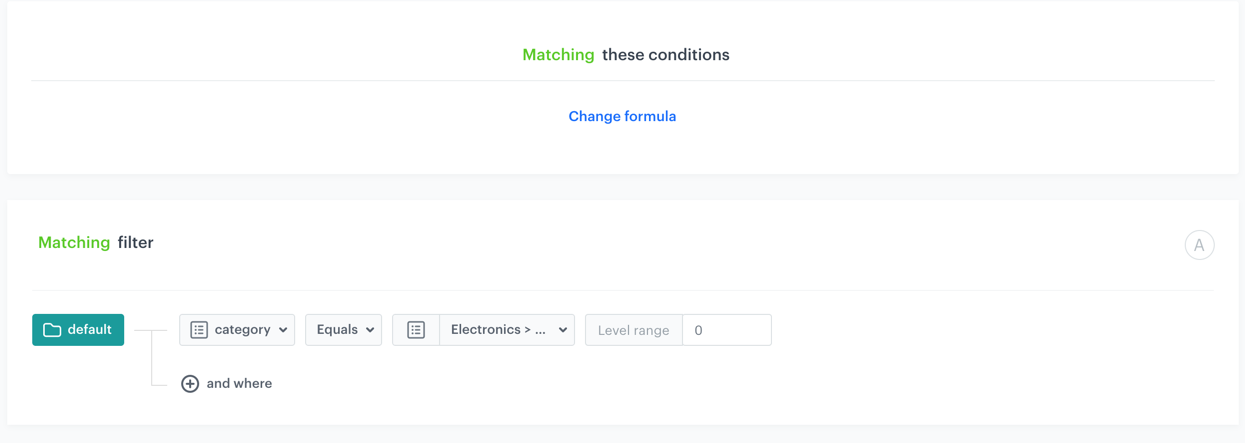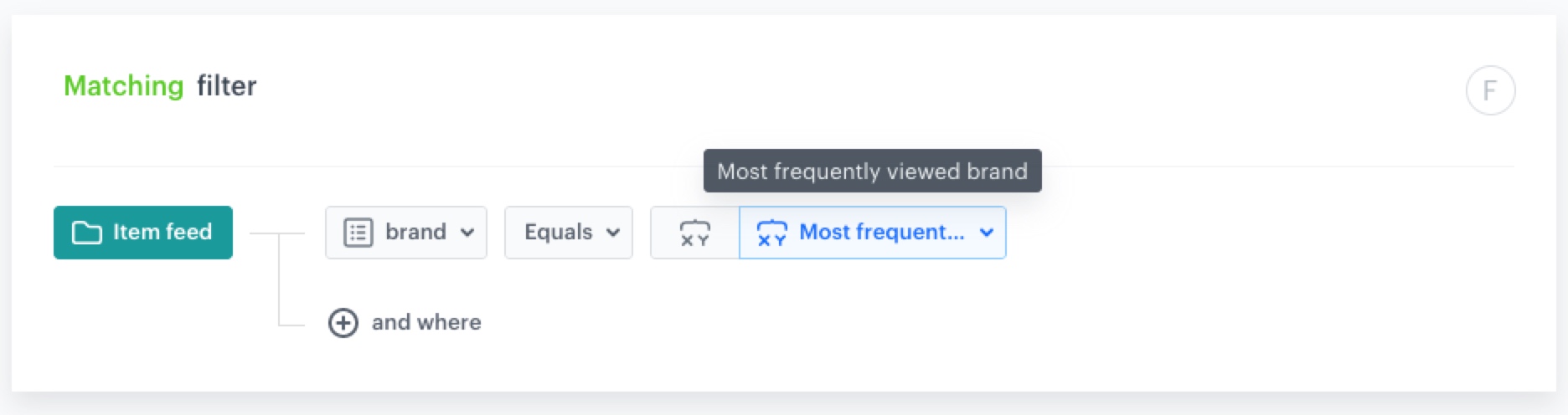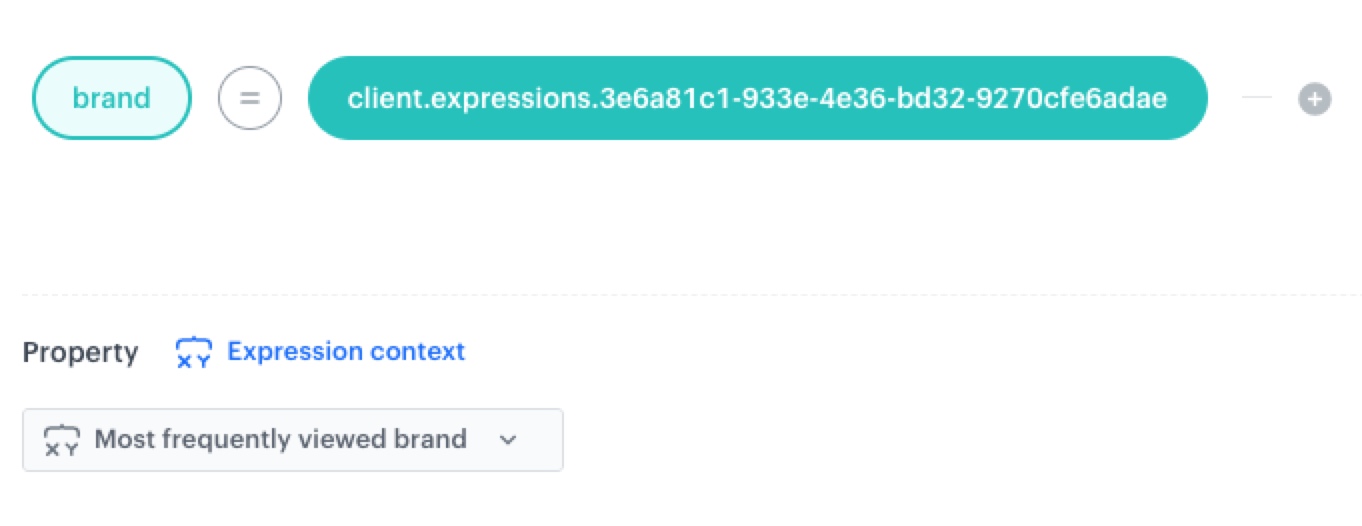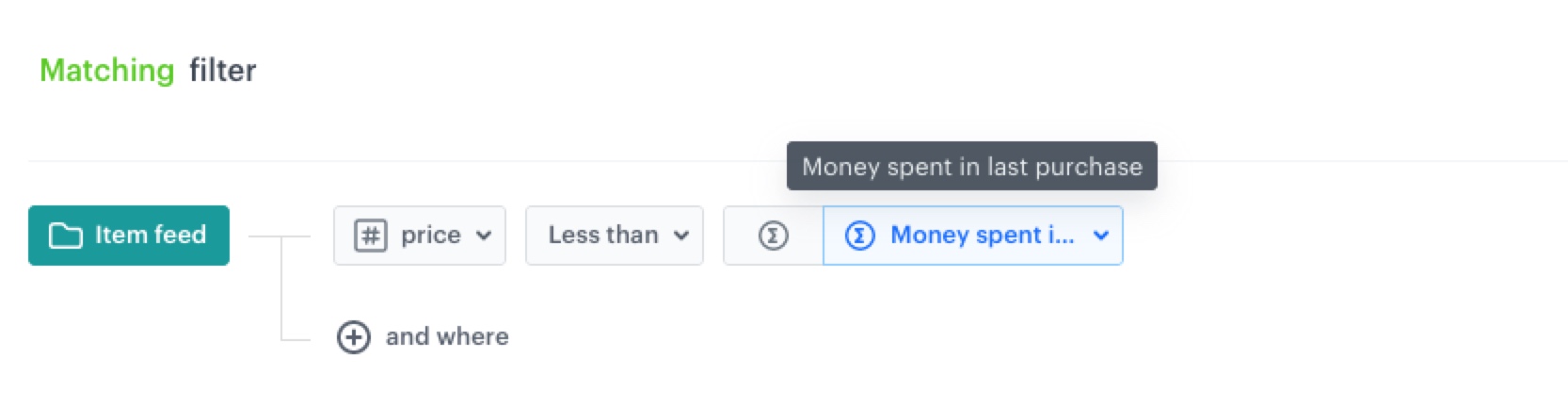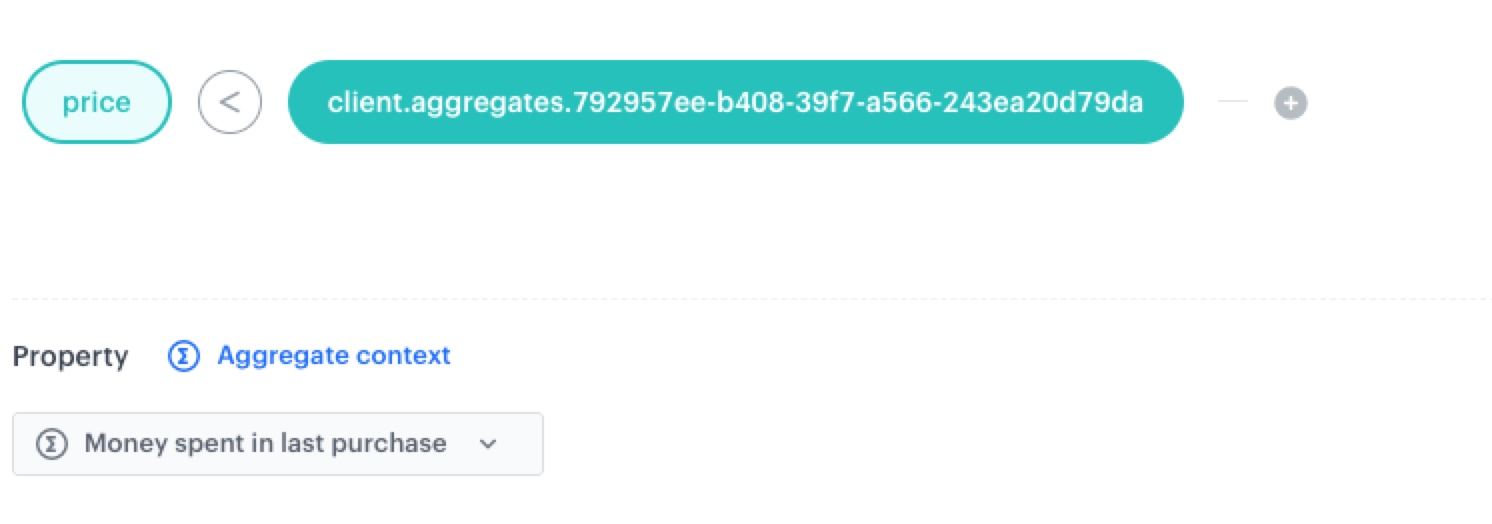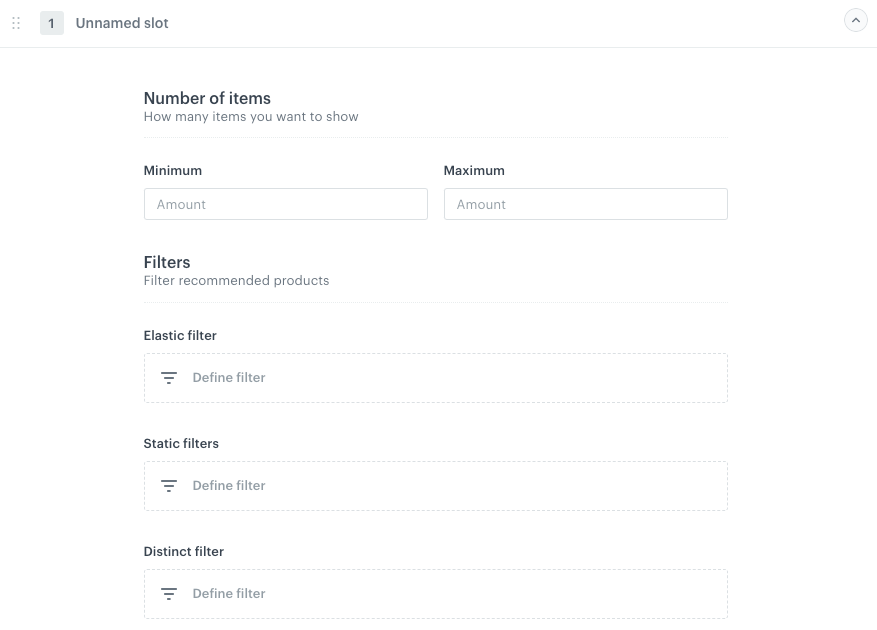

Filters can apply additional logic on top of recommendation results served by the AI engine.

They are used in two situations:
- For filtering, to exclude or include items from a recommendation.
- For score boosting, to promote or demote matching items.

Filters can only use item attributes that you set as filterable while [configuring AI engine](/docs/settings/configuration/ai-engine-configuration/engine-configuration-for-recommendations). You can use static customer attributes, such as `city`, `name`, `birthdate`, segmentations, and tags. The allowed formats of the attributes are: string, integer, float, boolean, objects, and arrays.   
The attribute names are case sensitive, however the filter values are not. So, the filter `brand == "ABC"` is equivalent to `brand == "abc"`, but different than `Brand == "ABC"`. 


## Filter types
---
Before you create the filter rules, you must decide which filter type you will use:

<figure>
<img src="/api/docs/image/54176ad07f146575310749eba44b7c2f42c1b327/docs/campaign/_gfx/filter-types.png" alt="Filter types" class="large">
<figcaption> Filter types </figcaption>
</figure>

### Elastic filter

This type of filter allows you to select the items to be included in the slot and supplement the slot if it’s not entirely filled up with the items.  
For example, if you select to display up to 10 items, and you have only 5 items that meet the conditions of elastic filter to be included in the slot, then the slot will be filled with additional items which do not match the elastic filter (based on scoring).

### Static filter

This type of filter allows you to show a fixed number of items that match the conditions of the filter.

- If the applied filter conditions (that don't include any customer context) are too strict and there are not enough items to fill in the recommendation slot, the slot is not generated at all.
- If the filter conditions include customer context from one of the following sources: [aggregate](/docs/ai-hub/recommendations-v2/recommendation-filters#aggregate), [expression](/docs/ai-hub/recommendations-v2/recommendation-filters#expression), or a [profile attribute](/docs/ai-hub/recommendations-v2/recommendation-filters#customer-context-value), and the context cannot be retrieved for any reason:
    - By default, the filter is ignored and the slot will be generated without applying the filters.
    - If **Fail slot when the context is missing** is selected from the **Ignore filter** dropdown list, the slot is not generated at all.

<figure><img src="/api/docs/image/54176ad07f146575310749eba44b7c2f42c1b327/docs/campaign/_gfx/static-filters-ignore-limits.png" class="full" alt="The Ignore filter option in static filters in AI Recommendations"><figcaption>The Ignore filter option in static filters in AI Recommendations</figcaption></figure>  

There are two types of static filters:

- If you want to [apply global item filter](/docs/settings/configuration/ai-engine-configuration/engine-configuration-for-recommendations#selecting-recommendation-types-and-default-filters) defined for the recommendation model based on which you're creating the campaign, enable **Apply Items Global Filters**. Enabling this toggle applies the global item filters and they work in combination with other filters in the slot.
- If you want to apply custom static filters for the slot, click **Define filter**. Select one of the filter creators:
    - [visual builder](/docs/ai-hub/recommendations-v2/recommendation-filters#visual-builder)
    - [IQL query wizard](/docs/ai-hub/recommendations-v2/recommendation-filters#iql-query)

### Distinct filter

This type of filter allows you to increase the variety of items included in the slot. You can define the allowed number of items that share the same attribute value to be shown, for example, a number of items that have the same brand, color, shape, category, and so on. 

- For all recommendation types except for **Last seen**, the engine considers up to 1000 items with the highest score that match the recommendation type. For example, if you selected the **Cross-sell** type, the engine analyzes up to 1000 items that match the cross-sell recommendation type, and then selects the number of items you chose to include in the slot. 

- For the **Last seen** recommendation type, the engine considers the last 100 page visit events. Based on the data from these events, the engine selects the number of items you chose to include in the slot.


  <div class="admonition admonition-important"><div class="admonition-icon"><svg xmlns="http://www.w3.org/2000/svg" fill="none" viewBox="0 0 24 24" stroke="currentColor" stroke-width="2.5"><path stroke-linecap="round" stroke-linejoin="round" d="M12 8v4m0 4h.01M21 12a9 9 0 11-18 0 9 9 0 0118 0z" /></svg></div><div class="admonition-body"><div class="admonition-content">

  This filter can only use attributes defined when [configuring the recommendation engine](/docs/settings/configuration/ai-engine-configuration/engine-configuration-for-recommendations#selecting-attributes-to-increase-item-variety).

  </div></div></div>


  There are two types of distinct filters:  

- If you want to [apply global distinct filter](/docs/settings/configuration/ai-engine-configuration/engine-configuration-for-recommendations#selecting-recommendation-types-and-default-filters) defined for the recommendation model based on which you're creating the campaign, enable **Apply Global Distinct Filters**. Enabling this toggle applies these global distinct filters automatically to all slots in a recommendation, streamlining recommendation consistency and quality.
- If you want to apply custom distinct filters for the slot, click **Define filter**.  
    1. In the **Show only** field, enter the number of items whose attribute values can be the same.
    2. From the **Choose attribute** dropdown list, select the attribute.  
        You can use each attribute only once. This means that if you add multiple filters, any attribute that has already been used will no longer be available for selection.  
    3. To add more conditions, click **Add another** and repeat the steps.
    4. If you want the distinct filter to supplement the slot with non-matching items in case not enough matching items are found, enable the **Mark filter as elastic** option.
    5. Confirm by clicking **Apply**. 

## Filter building methods
---
You can create filter rules by using two filter wizards:
- **Visual Builder** - You can construct the filter conditions similarly to creating a [segmentation](/docs/analytics/segmentations/creating-segmentations) in the **Decision Hub**. The list below presents the features available in the wizard:
    - Creating separate filters and then defining conditional dependencies between them           
    - A separate option for matching/not matching filter conditions
    - A separate option for defining formula of conditions
    - Lack of the elements: functions, take none and take all options (available in the IQL Query wizard)
    - The range of options available to build filter conditions and the form of building the conditions may restrict the scope of business applications
- **IQL query** - Advanced 
 may construct a formula of the filter, which is similar to [creating expressions](/docs/analytics/expressions/creating-expressions). The list below presents the capabilities of the wizard:
    - Possibility to create filter conditions for advanced business applications
    - Building one formula involves all conditions and dependencies between them   
    - Additional elements that visual builder lacks: functions, segmentations, tags, take all, and take none options

### Filter limits
---
While building the filter conditions, remember about the [limits](/docs/ai-hub/recommendations-v2/introduction-to-recommendation-campaigns#limits).
 
## Visual builder
---
In the visual builder, you need to define the filters by:
- selecting one or more attributes
- describing the condition for the attribute using operators and their values
- defining the dependency between the filters by preparing a formula


  <div class="admonition admonition-tip"><div class="admonition-icon"><svg xmlns="http://www.w3.org/2000/svg" fill="none" viewBox="0 0 24 24" stroke="currentColor" stroke-width="2.5"><path stroke-linecap="round" stroke-linejoin="round" d="M9.663 17h4.673M12 3v1m6.364 1.636l-.707.707M21 12h-1M4 12H3m3.343-5.657l-.707-.707m2.828 9.9a5 5 0 117.072 0l-.548.547A3.374 3.374 0 0014 18.469V19a2 2 0 11-4 0v-.531c0-.895-.356-1.754-.988-2.386l-.548-.547z" /></svg></div><div class="admonition-body"><div class="admonition-content">

  See [the article](/docs/ai-hub/recommendations-v2/recommendation-filters-examples) with examples of filters in the visual builder.

  </div></div></div>


### Selecting attributes
---

You can select the following attribute types:
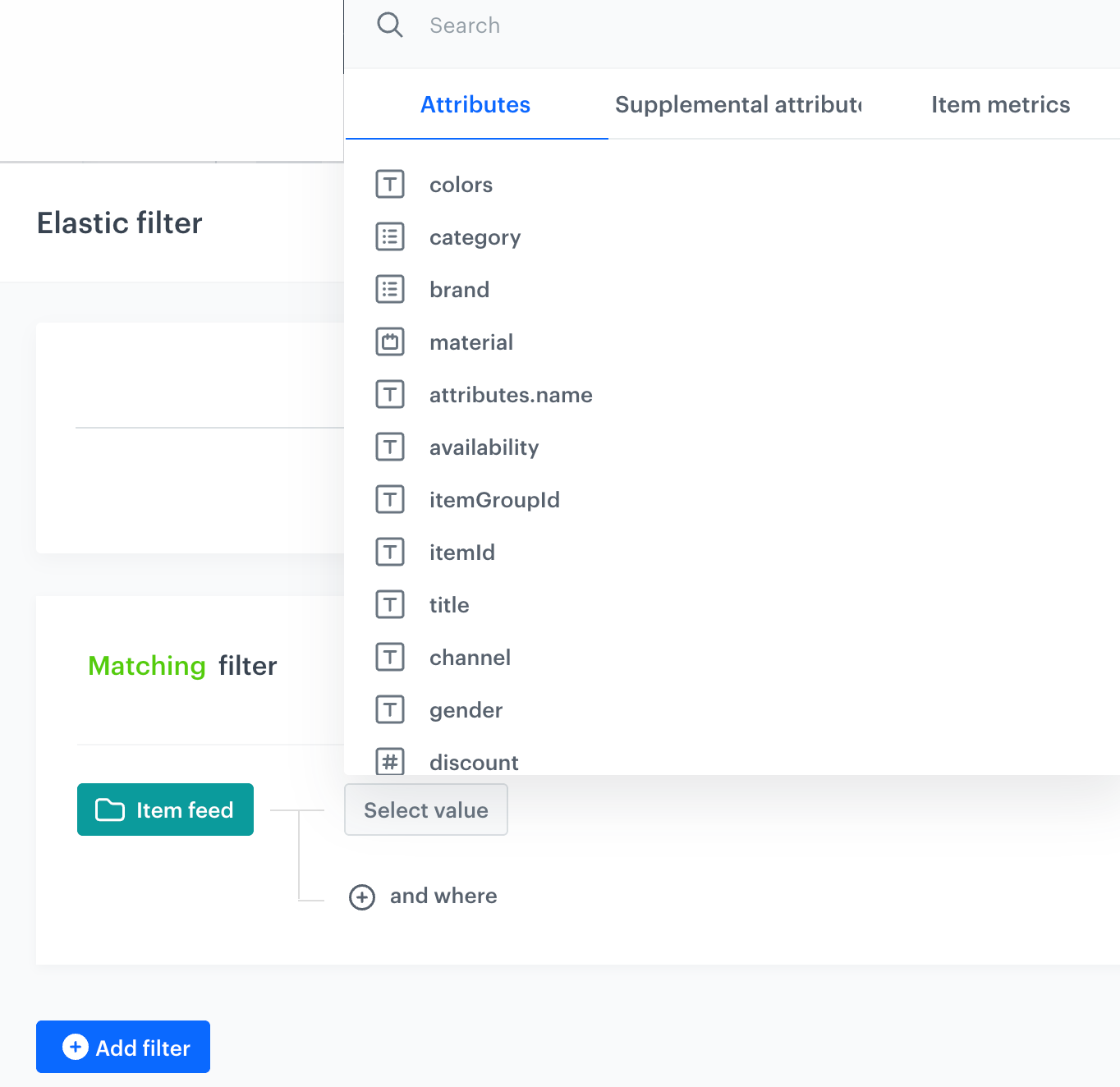
- **Attributes** - The list of item attributes sourced from the main item feed. The list contains a [predefined **created** attribute](#the-created-attribute).  
- **Supplemental attributes** - The list of item attributes sourced from [supplemental catalogs](/docs/ai-hub/item-feed/supplemental-catalog) connected to the main item feed.
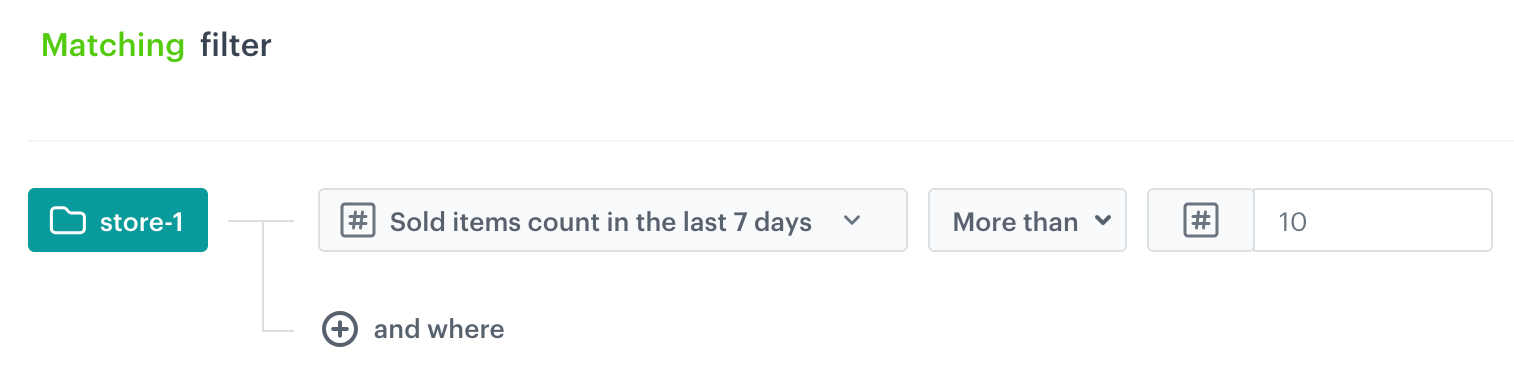
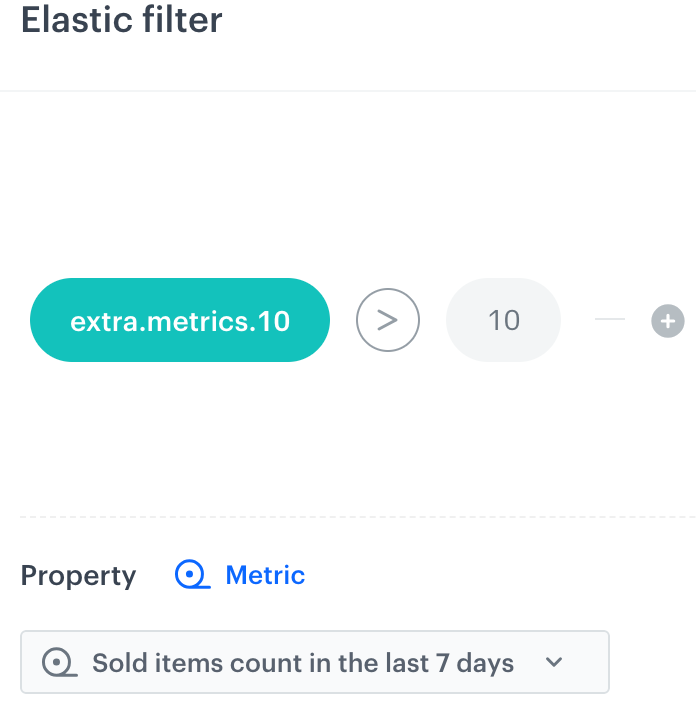
- **Item metrics** - By using predefined metrics as filter conditions in the recommendation settings, you can showcase popular items from your store. You can find these metrics in the **Item metrics** tab. When you select a metric as an attribute, you can use numerical values and operators associated with numbers. You can use these metrics:
    | Metric name                                      | Explanation                                                                                                                                                                                                                                                                                                       |
    |--------------------------------------------------|-------------------------------------------------------------------------------------------------------------------------------------------------------------------------------------------------------------------------------------------------------------------------------------------------------------------|
    | Page visit count in the last 7 days              | This metric counts the number of visits on a product page in the last 7 days. You can use the results of the metric in the recommendation filters, for example, to show items which were visited more than X times in the last 7 days.                                                                          |
    | Page visit count in the last 30 days             | This metric counts the number of visits on a product page in the last 30 days. You can use the results of the metric in the recommendation filters, for example, to show items which were visited more than X times in the last 30 days.                                                                        |
    | Sold items count in the last 7 days              | This metric counts the number of items which were sold in the last 7 days. You can use the results of the metric to exclude items which weren't purchased in the last 7 days.                                                                                                                                    |
    | Sold items value in the last 30 days             | This metric calculates the total value of items sold within the past 30 days, including tax. The results of this metric can be used to showcase items that have generated revenue above specific threshold in the last 30 days. |
    | Sold items count from the same weekday last week | This metric counts the number of items which were sold on the same day of the week last week, for example, assuming that today is Thursday, the metric counts the number of items sold on last Thursday. You can use the results of the metrics to exclude items which weren't purchased at all on last Thursday. |
    | Sold items count in the last 30 days             | This metric counts the number of items which were sold in the last 30 days. The results of this metric can be used to exclude items which weren't purchased in the last 30 days.                                                                                                                                 |
    | Sold items count yesterday                 | This metric counts the number of items which were sold the day before. The results of this metric can be used to showcase items whose purchase count exceeds a specific threshold.                                                                                                                                 |                                                                                                                                                                                 |

<figure>
<img src="/api/docs/image/54176ad07f146575310749eba44b7c2f42c1b327/docs/campaign/_gfx/filters-visual-builder-attribute.png" alt="Selection of an attribute" class="large">
<figcaption> Selection of an attribute in the visual builder </figcaption>
</figure>

1. An item feed is already chosen and filterable attributes have been defined. 
2. From the dropdown list, select an attribute of an item (in this example, `brand` is the selected attribute).  
    **Result**: The **Operator** button appears.

#### The `category` attribute
---
<figure>
<img src="/api/docs/image/54176ad07f146575310749eba44b7c2f42c1b327/docs/campaign/_gfx/category-level-range.png" alt="Defining category in filters" class="large">
<figcaption> Defining category in the visual builder </figcaption>
</figure>

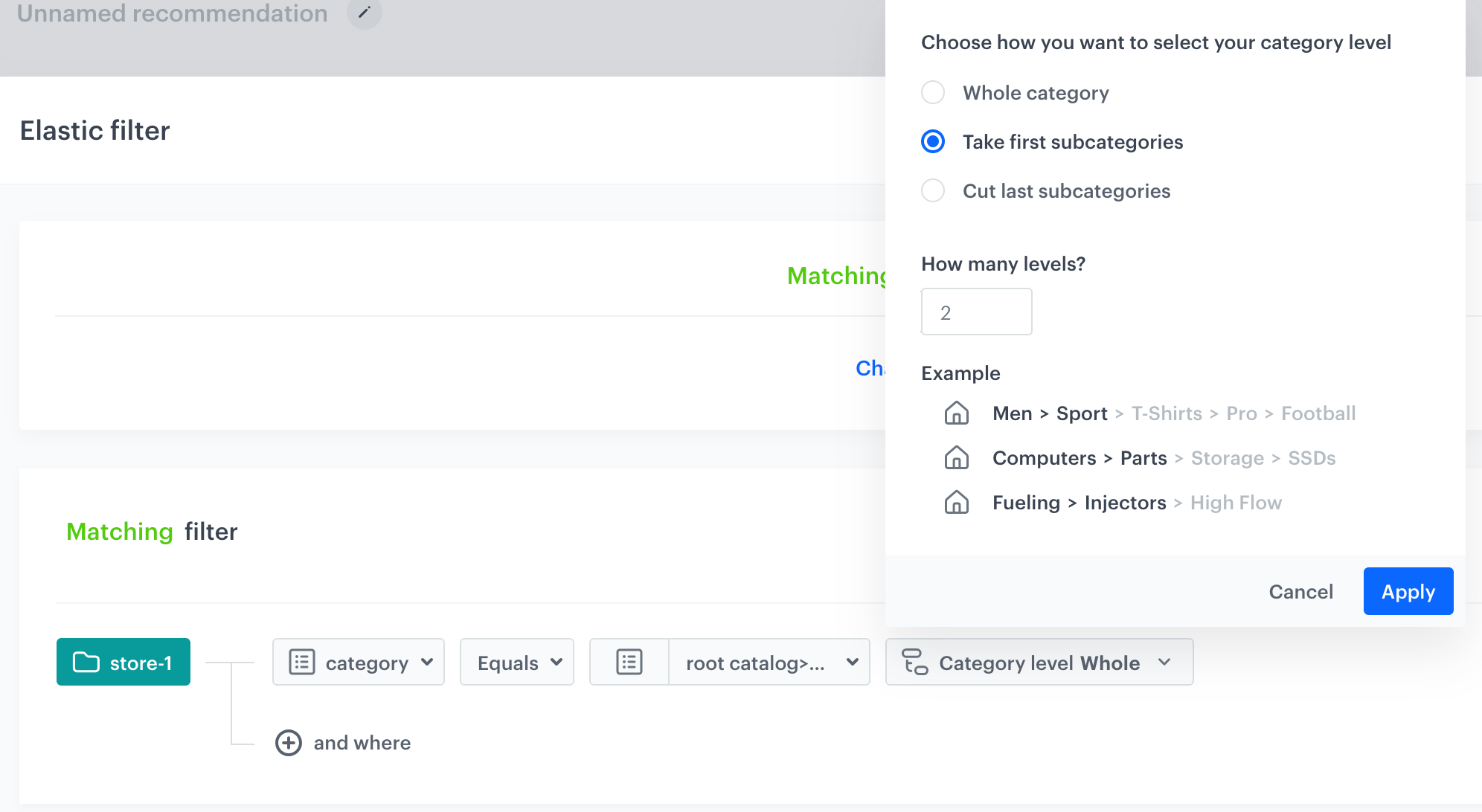
The `category` attribute allows for additional settings. Its structure represents the hierarchy of categories that the item belongs to (read more [here](/docs/ai-hub/item-feed/item-feed-in-catalog#category-attribute)).  
It allows you to define what part of the category should be taken into account by the filter. For a given category value, you can define the part using the level range.  

You can choose from the following options:
- **Whole category** - As a result, all levels of the category are taken into account by the filter.  
- **Take first subcategories** - In the **How many levels?** field, enter a number to define how many subcategories from the left will be included. For example, if the category is "X > Y > Z", and you type `1`, then the resulting category value is `"X"`
- **Cut last subcategories** - In the **How many levels?** field, enter a number to define how many subcategories from the right will be dropped. For example, if the category is "X > Y > Z", and you type `1`, then the resulting category value is `"X > Y"`

#### The `created` attribute

The `created` attribute lets you filter items on the basis of date of adding the item to the feed (time in this attribute is specified down to the second). This is a date-type attribute which lets you boost recently added items. 

You can choose from the following operators:
- **Later than or at** - This includes items added to the feed on or after the specified date.
- **Later than** - This includes items added to the feed after the specified date.
- **Earlier than or at** - This includes items added to the feed before or on the specified date.
- **Earlier than** - This includes items added to the feed before the specified date.
- **At** - This includes items added to the feed exactly on the specified date.

You can choose from the following values:
- **Date** - You can pick an exact date and time from the calendar as the required value of the `created` attribute.
- **Relative date** - You can define the number of minutes, hours, days, months or years before or after the current date and time.  
- **Context** - The value of the attribute is taken from the context item's entry in the item feed. This option is available only in the recommendation filters.


### Describing conditions by operators
---
The next step is defining the conditions concerning the selected attribute by using operators. The list of operators contains:

- **Is defined** - If the selected attribute has any other value than `null`. For example, if a filter is set to "`brand` is defined", the result contains only those items which have a specified brand (in the item feed).
- **Equal** - If the selected attribute has an exact value. For example, if a filter is set to "`brand` equals `acme`", then the result contains items of Acme brand. 
- **Does not equal** - It excludes a particular value of an attribute. For example, if a filter is set to "`brand` does not equal `acme`", then the result contains all items except for the items of Acme brand. 
- **In** - It checks whether the attribute is present in a selected array(s). For example, if a filter is set to "`attribute.color` in `red, blue` /array/", then the result contains all items that are in the red and blue color.
- **Not In** - It checks whether the attribute is not present in a selected array(s). For example, if a filter is set to "`attribute.color` in `red, blue` /array/", then the result will not contain items in red and blue color.
- **Less than** - For example, if a filter is set to "`price.value` less than `50`", then the result contains items that are cheaper than 50 dollars (or other currency you use).
- **Less than or equals** - For example, if a filter is set to "`attribute.size` less than or equals `43`", then the result contains items of size 43 or less.
- **More than** - For example, if a filter is set to "`attribute.quantity` more than `10`", then the result contains those items whose quantity in your stock is greater than 10.
- **More than or equals** - For example, if a filter is set to "`discountAmount` more than or equals `20`", then the result contains items which are discounted by $20 or more. 

### Defining the values of operators
---
The examples presented in the [Describing conditions by operators section](/docs/ai-hub/recommendations-v2/recommendation-filters#describing-conditions-by-operators) already contain the value of the operator. The list of values is as follows:


#### Value from the list

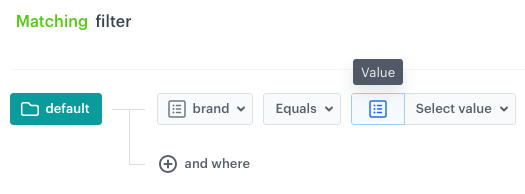
<img src="/api/docs/image/54176ad07f146575310749eba44b7c2f42c1b327/docs/campaign/_gfx/filter-select-value.png" alt="Value from the list" class="medium">

Out of the list of attributes sourced from the feed, you select one, like in the example: "`brand` equals `acme`"

#### Context value
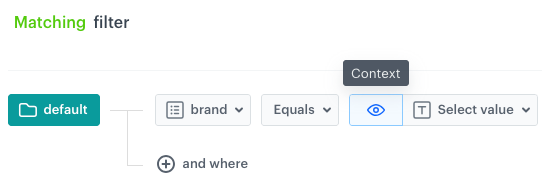
<img src="/api/docs/image/54176ad07f146575310749eba44b7c2f42c1b327/docs/campaign/_gfx/filter-context.png" alt="Context value" class="medium">

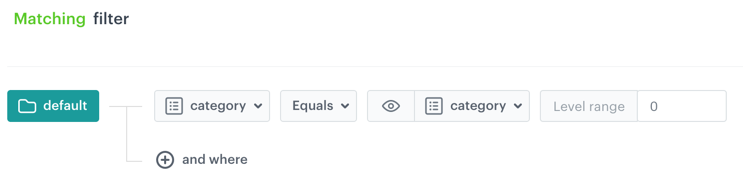
The filters of any recommendation type can use the attributes of the item that the customer is currently browsing. For example, you can create a filter that shows items with the same category as the viewed item:  
<figure>
<img src="/api/docs/image/54176ad07f146575310749eba44b7c2f42c1b327/docs/campaign/_gfx/context-value-filter-example.png" alt="Example of a context value operator" class="large">
<figcaption> In this example, the result contains the items that have the same category as the item the customer is currently browsing. </figcaption>
</figure>    

#### Customer context value

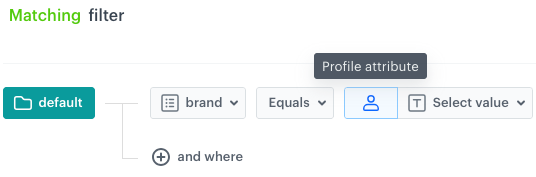
<img src="/api/docs/image/54176ad07f146575310749eba44b7c2f42c1b327/docs/campaign/_gfx/filter-profile-attribute.png" alt="Profile attribute" class="medium">

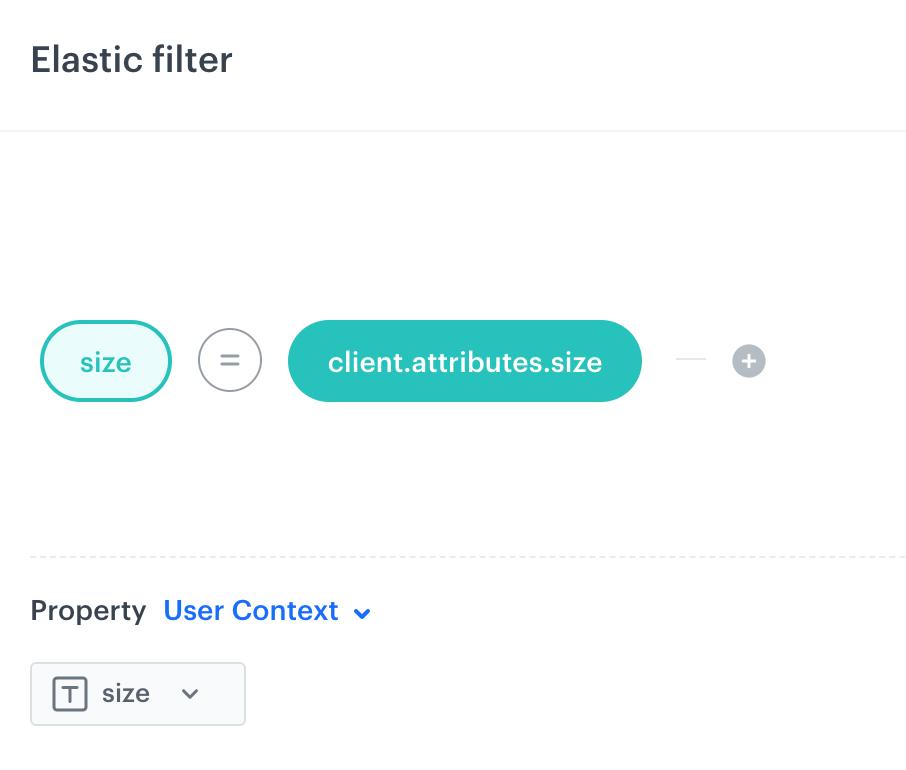
It allows you to use the customer attribute as the value of the item attribute. For example, you can filter displayed items by size, using the size value stored in an attribute of a customer who displays the recommendation.

#### Array
<img src="/api/docs/image/54176ad07f146575310749eba44b7c2f42c1b327/docs/campaign/_gfx/filter-array.png" alt="Array" class="medium">

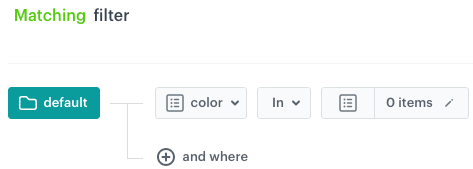
This value type is only available for the **In** operator.  
It lets you include items whose attribute matches a value from an array.  
You can use it with attributes whose values are strings, numbers, and arrays. If you compare an array to an array, at least one value between them must be the same.


To define an array:
1. Click **0 items**.  
    **Result**: A pop-up appears.
2. In the text box, you can paste the array from a notepad, enter values manually or you can select values from the dropdown list.
3. Confirm your choice by clicking **Add**.  
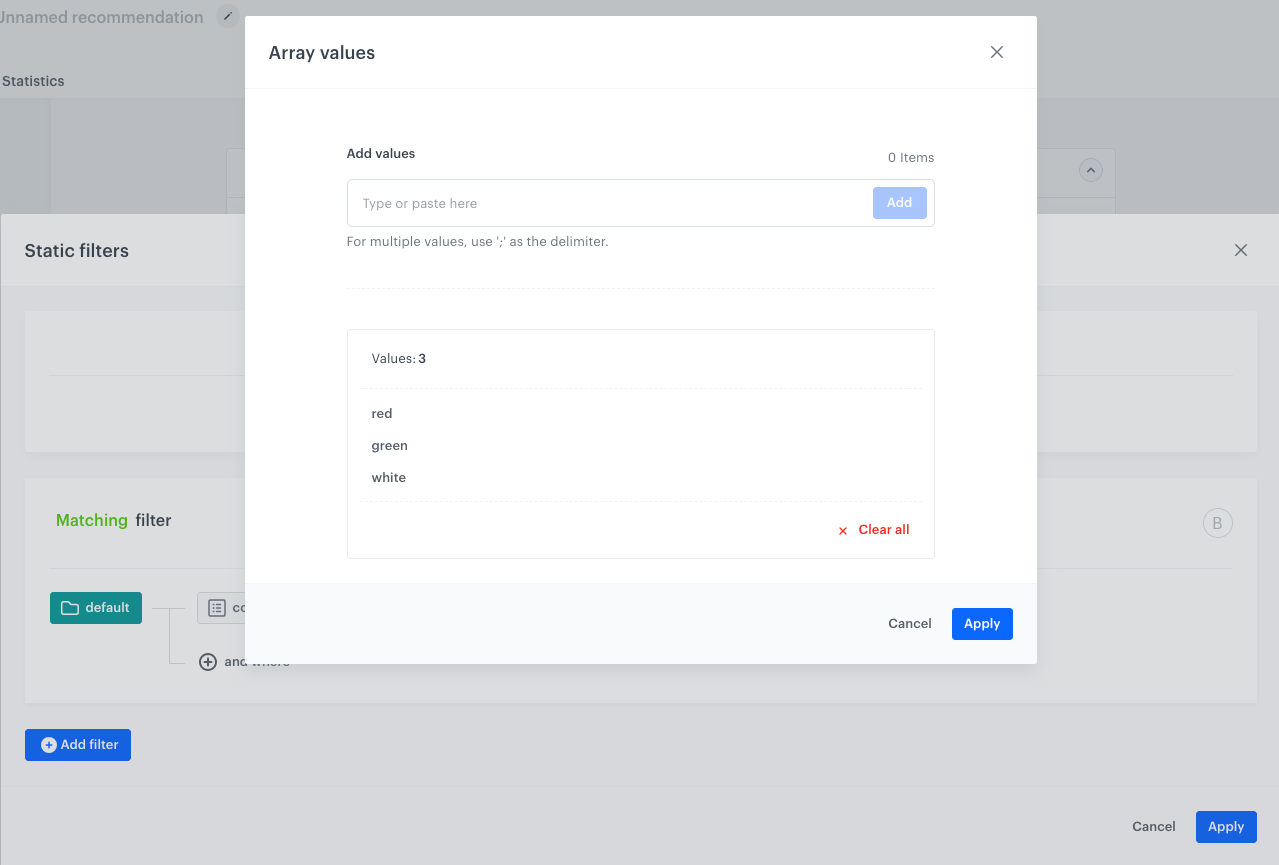
    <figure><img src="/api/docs/image/54176ad07f146575310749eba44b7c2f42c1b327/docs/campaign/_gfx/adding-array-values.png" class="large" alt="Adding values to an array"><figcaption>Adding values to an array</figcaption></figure>  
4. Save the array by clicking **Apply**.  
    **Result**: The output of the filter conditions in Figure 5 will include items whose color attribute contains at least one of the colors defined in an array.

#### Aggregate

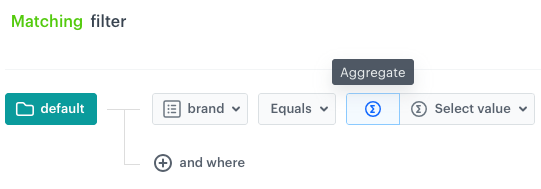
<img src="/api/docs/image/54176ad07f146575310749eba44b7c2f42c1b327/docs/campaign/_gfx/filter-aggregate.png" alt="Aggregate" class="medium">

Allows you to select an aggregate as a value of the attribute from the item catalog.  
- The **aggregate result must match the item attribute** type defined in the feed. For example, if the attribute of an item is a number (price), you must select an aggregate that produces a number as the result.   
- You can use **two various aggregates** or **expressions**, or **one expression** and **one aggregate**. This **limit** applies per **one recommendation campaign** for filtering and boosting options.  Multiple occurrences of the same aggregate count as one towards the limit. 
- If the condition contains an aggregate whose result is **null**, this condition is **skipped**. If it's the only condition, the result is that no filter is applied (all items match).  
- Using `null` as a **condition** in an aggregate is **impossible**. Using a `null` value as a string is not supported.

#### Expression
<img src="/api/docs/image/54176ad07f146575310749eba44b7c2f42c1b327/docs/campaign/_gfx/filter-expression.png" alt="Expression" class="medium">

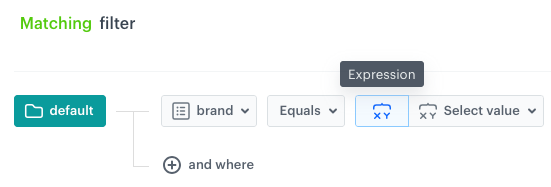
Allows you to select an expression as a value of the attribute from the item catalog. 
    
- The **expression result must match the item attribute** type defined in the feed. For example, if the expression of an item is a text string (favorite color of the customer), you must select the expression that produces a result which is a text string as well.  
- You can use **two various expressions** or **aggregates**, or **one expression** and **one aggregate**. This **limit** applies to **one recommendation campaign** for filtering and boosting options. Multiple occurrences the same expression count as one towards the limit. 
- If the condition contains an expression whose **result** is **null**, this condition is **skipped**, unless it's the only condition.
- Using `null` as a **condition** in an expression is **impossible**. Using a `null` value as a string is not supported.

#### Formula
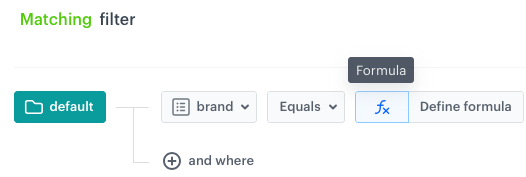
<img src="/api/docs/image/54176ad07f146575310749eba44b7c2f42c1b327/docs/campaign/_gfx/filter-formula.png" alt="Formula" class="medium">

You can create it through the [IQL Query builder](/docs/ai-hub/recommendations-v2/recommendation-filters#iql-query). It allows you to define the advanced conditions, which can be done with the available operators and its value types. For example, if you want to display in the recommendation frame items which are discounted more than the currently viewed item.
    

<details class="accordion"><summary>Click here to see the tutorial for the Formula example</summary><div class="accordion-content"></div></details>


### Defining filter conditions
---
You can define how filters coexist by defining the dependency between them by using logical operators. Below you can find exemplary configuration of filters. 


<details class="accordion"><summary>Click to see the video</summary><div class="accordion-content"></div></details>


## IQL Query
---
The IQL Query wizard allows for a greater flexibility of creating the formula of the filter due to the wide range of elements and the possibility combine them using mathematical operators. 


<div class="admonition admonition-tip"><div class="admonition-icon"><svg xmlns="http://www.w3.org/2000/svg" fill="none" viewBox="0 0 24 24" stroke="currentColor" stroke-width="2.5"><path stroke-linecap="round" stroke-linejoin="round" d="M9.663 17h4.673M12 3v1m6.364 1.636l-.707.707M21 12h-1M4 12H3m3.343-5.657l-.707-.707m2.828 9.9a5 5 0 117.072 0l-.548.547A3.374 3.374 0 0014 18.469V19a2 2 0 11-4 0v-.531c0-.895-.356-1.754-.988-2.386l-.548-.547z" /></svg></div><div class="admonition-body"><div class="admonition-content">

See [the article](/docs/ai-hub/recommendations-v2/recommendation-filters-examples#iql-query) with examples of filters in the visual builder.

</div></div></div>


### Elements of the formula
---

The filter formula can be built of the following elements:

- String (a sequence of characters)
- Number
- Boolean
- Array (a group of elements)
- Take All (include all items)
- Take None (include no items)
- Attributes:
    - **Attribute** - any attribute from the item feed 
    - **Segmentation**
    - **Boolean**
    - **Metric**
    - **Supplemental attribute** - item attributes sourced from [supplemental catalogs](/docs/ai-hub/item-feed/supplemental-catalog) connected to the main item feed.
- Segmentations
- Profile Tags
- Functions
- Context
    -  **Item Context** - to access attribute of an item a profile is currently viewing.
    - **Profile Context** - to access an attribute of a profile.
    - **Aggregate context** - to access the result of an aggregate calculated for the context profile.
    - **Expression context** - to access the result of an expression calculated for the context profile.

    
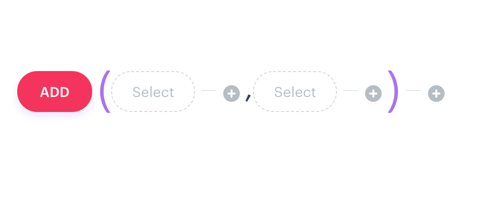
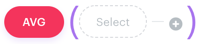
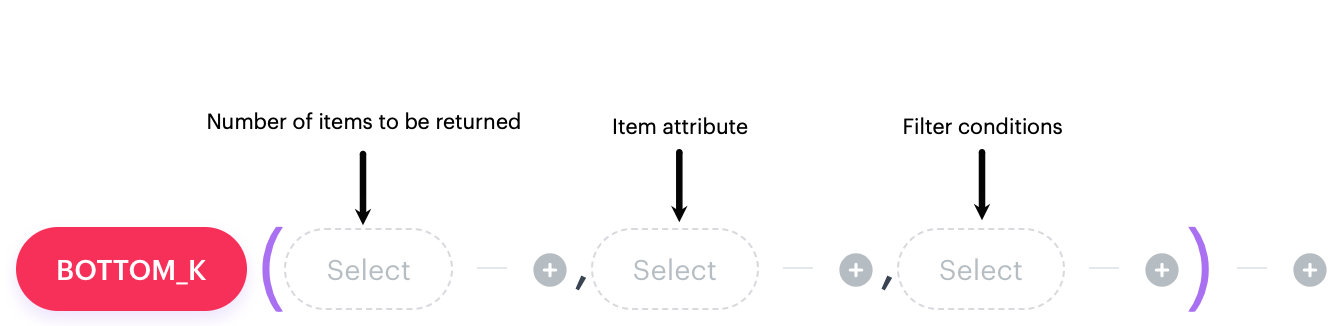
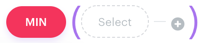
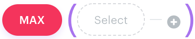
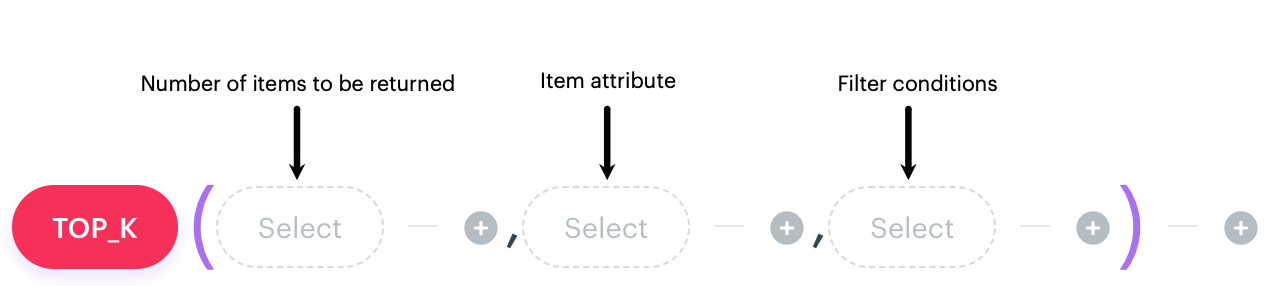
      <details class="accordion"><summary>Click to see the list of functions</summary><div class="accordion-content"><table> <thead> <tr> <th>Function</th> <th>Description</th> <th>Syntax &amp; Example of use</th> </tr> </thead> <tbody><tr> <td>ADD</td> <td>Adds a constant to value of a selected variable</td> <td><strong>1. Syntax</strong> <figure><img src="/api/docs/image/54176ad07f146575310749eba44b7c2f42c1b327/docs/campaign/_gfx/add-function-syntax.png" alt="Syntax" class="full"></figure> <strong>2. Example of use</strong> <figure><img src="/api/docs/image/54176ad07f146575310749eba44b7c2f42c1b327/docs/campaign/_gfx/add-function-example.png" alt="Example of use" class="full"></figure> In this example, the result includes items which are more expensive than the item the customer is currently browsing.</td> </tr> <tr> <td>AVG</td> <td>Returns the average value of a selected attribute (for example, a shoe size)</td> <td><strong>1. Syntax</strong> <figure><img src="/api/docs/image/54176ad07f146575310749eba44b7c2f42c1b327/docs/campaign/_gfx/avg-function-syntax.png" alt="Syntax" class="full"></figure> <strong>2. Example of use</strong> <figure><img src="/api/docs/image/54176ad07f146575310749eba44b7c2f42c1b327/docs/campaign/_gfx/avg-function-example.png" alt="Example of use" class="full"></figure> In this example, the result includes items that have the average size in relation to size of the item the customer is currently browsing.</td> </tr> <tr> <td>BOTTOM_K</td> <td>Returns the bottom K number of items from a list generated based on a specified item attribute, which may be expressed as a range such as price, number of visits to the item&#39;s page, or the quantity of item purchases. The final component of the function syntax allows for defining filter conditions to narrow down the results of the function; if you don&#39;t want to apply filters, select the <strong>Take All</strong> option - this component cannot be empty.</td> <td><strong>1. Syntax</strong> <figure><img src="/api/docs/image/54176ad07f146575310749eba44b7c2f42c1b327/docs/campaign/_gfx/bottomk-function-syntax.png" alt="Syntax" class="full"></figure> <strong>2. Example of use</strong> <figure><img src="/api/docs/image/54176ad07f146575310749eba44b7c2f42c1b327/docs/campaign/_gfx/bottomk-function-example.png" alt="Example of use" class="full"></figure> In this example, the result will be 10 least visited items of the <code>clicmo</code> brand in the last 7 days</td> </tr> <tr> <td>CATEGORY</td> <td>Allows to define the categories to be included or excluded while filtering items</td> <td><strong>1. Syntax</strong> <figure><img src="/api/docs/image/54176ad07f146575310749eba44b7c2f42c1b327/docs/campaign/_gfx/category-function-syntax.png" alt="Syntax" class="full"></figure> <strong>2. Example of use</strong> <figure><img src="/api/docs/image/54176ad07f146575310749eba44b7c2f42c1b327/docs/campaign/_gfx/category-function-example.png" alt="Example of use" class="full"></figure> In this example, the result includes items of exactly the same category as the item the customer is currently browsing. <figure><img src="/api/docs/image/54176ad07f146575310749eba44b7c2f42c1b327/docs/campaign/_gfx/category-function-example2.png" alt="Example of use" class="full"></figure> In this example, all items that belong exactly to <code>Electronics &gt; Phones and Smartphones &gt; Smartphones</code>, or in one of the subcategories of <code>Electronics &gt; Phones and Smartphones &gt; Smartphones</code> are included in the result. The filter also includes items that have the category defined in the <code>additionalCategories</code> parameter. <div class="admonition admonition-note"><div class="admonition-icon"><svg xmlns="http://www.w3.org/2000/svg" fill="none" viewBox="0 0 24 24" stroke="currentColor" stroke-width="2.5"><path stroke-linecap="round" stroke-linejoin="round" d="M13 16h-1v-4h-1m1-4h.01M21 12a9 9 0 11-18 0 9 9 0 0118 0z" /></svg></div><div class="admonition-body"><div class="admonition-content"> The number allows to manipulate the category value. A positive number defines how many subcategories from the right should be dropped. If in the second example <code>0</code> was replaced with <code>1</code>, these would be the categories included in the filter: <code>Electronics &gt; Phones and Smartphones</code>. A negative number defines how many subcategories from the left should be included. If in the second example <code>0</code> was replaced with <code>-1</code>, <code>Electronics</code> would be included in the filter. </div></div></div></td> </tr> <tr> <td>IF</td> <td>Allows logical comparisons between values and defining actions to be performed when the condition is met or not.</td> <td><strong>1. Syntax</strong> <figure><img src="/api/docs/image/54176ad07f146575310749eba44b7c2f42c1b327/docs/campaign/_gfx/if-function-syntax.png" alt="Syntax" class="full"></figure> <strong>2. Example of use</strong> <figure><img src="/api/docs/image/54176ad07f146575310749eba44b7c2f42c1b327/docs/campaign/_gfx/example-query-iql.png" alt="Example of use" class="full"></figure> Explanation is available in the <a href="/docs/ai-hub/recommendations-v2/recommendation-filters-examples/#iql-query">Examples of use</a> section (example 3).</td> </tr> <tr> <td>MULTIPLY</td> <td>Multiplies the value of a variable by a specified constant</td> <td>1. Syntax <figure><img src="/api/docs/image/54176ad07f146575310749eba44b7c2f42c1b327/docs/campaign/_gfx/multiply-function-syntax.png" alt="Syntax" class="full"></figure> <strong>2. Example of use</strong> <figure><img src="/api/docs/image/54176ad07f146575310749eba44b7c2f42c1b327/docs/campaign/_gfx/multiply-function-example.png" alt="Example of use" class="full"></figure> In this example, the result includes items whose final price is higher than the price of the item the customer is currently browsing multiplied by <code>0.8</code>.</td> </tr> <tr> <td>MIN</td> <td>This function returns the lowest value in a set of values</td> <td><strong>1. Syntax</strong> <figure><img src="/api/docs/image/54176ad07f146575310749eba44b7c2f42c1b327/docs/campaign/_gfx/min-function-syntax.png" alt="Syntax" class="full"></figure> <strong>2. Example of use</strong> <figure><img src="/api/docs/image/54176ad07f146575310749eba44b7c2f42c1b327/docs/campaign/_gfx/min-function-example.png" alt="Example of use" class="full"></figure> In this example, the result includes items whose size is larger than the smallest size of the item the customer is currently browsing.</td> </tr> <tr> <td>MAX</td> <td>This function returns the highest value in a set of values.</td> <td><strong>1. Syntax</strong> <figure><img src="/api/docs/image/54176ad07f146575310749eba44b7c2f42c1b327/docs/campaign/_gfx/max-function-syntax.png" alt="Syntax" class="full"></figure> <strong>2. Example of use</strong> <figure><img src="/api/docs/image/54176ad07f146575310749eba44b7c2f42c1b327/docs/campaign/_gfx/max-function-example.png" alt="Example of use" class="full"></figure> In this example, the result includes items whose size is larger than the largest size of the item the customer is currently browsing.</td> </tr> <tr> <td>NOT</td> <td>Negates a filter</td> <td><strong>1. Syntax</strong> <figure><img src="/api/docs/image/54176ad07f146575310749eba44b7c2f42c1b327/docs/campaign/_gfx/not-function-syntax.png" alt="Example of a use" class="full"></figure> <strong>2. Example of use</strong> <figure><img src="/api/docs/image/54176ad07f146575310749eba44b7c2f42c1b327/docs/campaign/_gfx/not-function-example.png" alt="Example of a use" class="full"></figure> In this example, the result includes items of all colors except for pink.</td> </tr> <tr> <td>TOP_K</td> <td>Returns the top K number of items from a list generated based on a specified item attribute, which may be expressed as a range such as price, number of visits to the item&#39;s page, or the quantity of item purchases. The final component of the function syntax allows for defining filter conditions to narrow down the results of the function; if you don&#39;t want to apply filters, select the <strong>Take All</strong> option - this component cannot be empty.</td> <td><strong>1. Syntax</strong> <figure><img src="/api/docs/image/54176ad07f146575310749eba44b7c2f42c1b327/docs/campaign/_gfx/topk-function-syntax.png" alt="Example of a use" class="full"></figure> <strong>2. Example of use</strong> <figure><img src="/api/docs/image/54176ad07f146575310749eba44b7c2f42c1b327/docs/campaign/_gfx/topk-function-example.png" alt="Example of a use" class="full"></figure> In this example, the result will be the top 10 best-selling items from the last 7 days that are currently in stock.</td> </tr> </tbody></table></div></details>


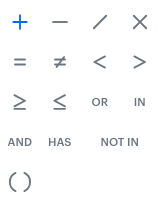
  The elements of the filter formula can be combined with the following mathematical operators:

  <figure>
  <img src="/api/docs/image/54176ad07f146575310749eba44b7c2f42c1b327/docs/campaign/_gfx/filter-mathematical-operators.png" alt="Mathematical operators in IQL Query wizard" class="full">
  <figcaption> Mathematical operators in IQL Query wizard </figcaption>
  </figure>

- Apart from the symbols of mathematical operations such as addition, subtraction, multiplication, or division, you can use operators such as `AND`, `HAS`, `IN`, and `OR`.  
- `AND` and `OR` have the same function in the formula as `AND` and `OR` in the Visual Builder (which is defining conditional dependencies between filters). 
- The `IN` operator works the same in both wizards and allows you to check if a value is included in an array. The first argument is a value, and the second is an array.
- The `HAS` operator is available only in the IQL wizard. It allows you to check if an array includes a value. The first argument is an array, and the other is a value.
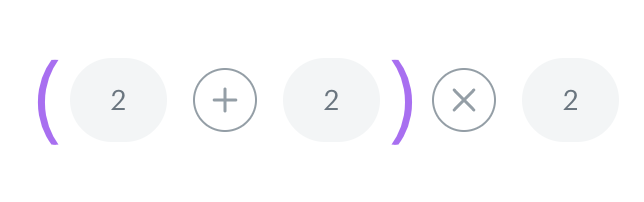
- The brackets `()` let you group elements, for example to dictate the order of mathematical operations.


### Creating a formula in the wizard
---
Using the elements listed above and mathematical operators, you can create a filter formula that defines the conditions an item must meet in order to match the filter.

In the tutorial below, the condition of the filters states that the recommendation displays only items that are of the same brand as the item currently displayed by a customer and the number of available items in the stock is higher than 12. If an item doesn't meet two conditions simultaneously, it won't be included in the result of the filter. 


## Comparison between filters
---
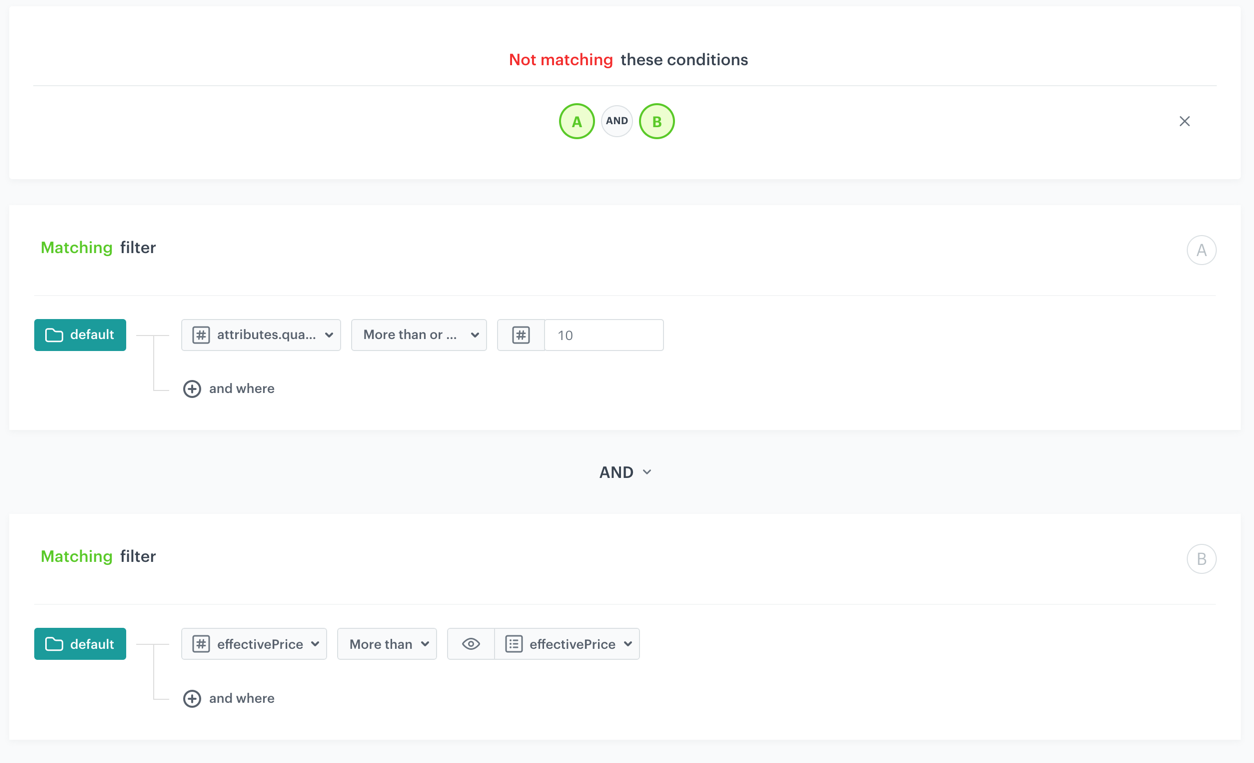
The table below shows the same business application of the filter in the two filter wizards. The further parts of the article include the explanation of the similar examples as those presented in the table. 


<div class="admonition admonition-tip"><div class="admonition-icon"><svg xmlns="http://www.w3.org/2000/svg" fill="none" viewBox="0 0 24 24" stroke="currentColor" stroke-width="2.5"><path stroke-linecap="round" stroke-linejoin="round" d="M9.663 17h4.673M12 3v1m6.364 1.636l-.707.707M21 12h-1M4 12H3m3.343-5.657l-.707-.707m2.828 9.9a5 5 0 117.072 0l-.548.547A3.374 3.374 0 0014 18.469V19a2 2 0 11-4 0v-.531c0-.895-.356-1.754-.988-2.386l-.548-.547z" /></svg></div><div class="admonition-body"><div class="admonition-content">

Click the image to enlarge it.

</div></div></div>


| Visual Builder | IQL Query  |
|----------------|------------|
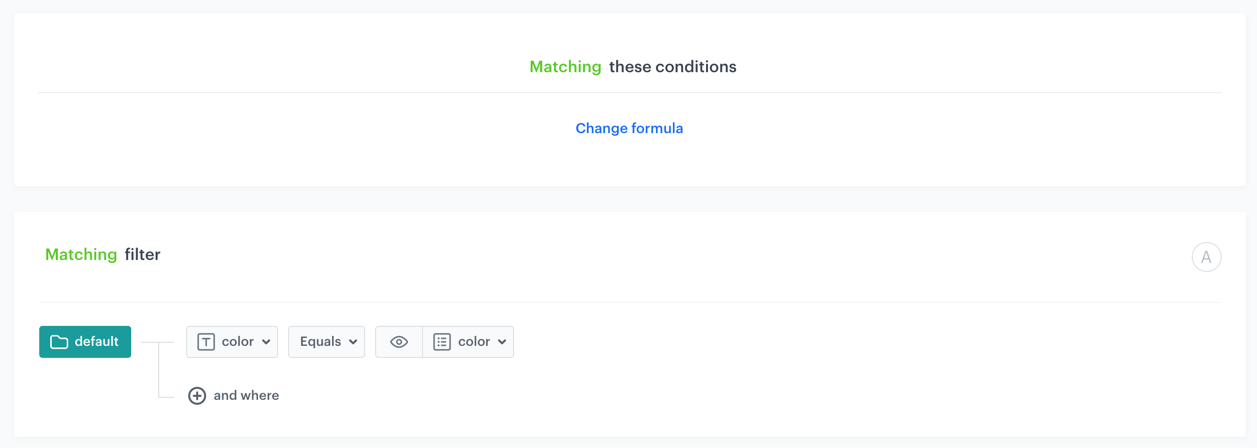
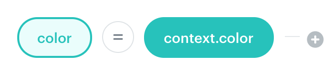
|  <figure><img src="/api/docs/image/54176ad07f146575310749eba44b7c2f42c1b327/docs/campaign/_gfx/color-visual-builder1.png"  alt="Example of a use" class="full"></figure>              | <figure><img src="/api/docs/image/54176ad07f146575310749eba44b7c2f42c1b327/docs/campaign/_gfx/comparison-iql-example1.png"  alt="Example of a use" class="full"></figure>           |
|  <figure><img src="/api/docs/image/54176ad07f146575310749eba44b7c2f42c1b327/docs/campaign/_gfx/visual-builder-user-context-example.png"  alt="Example of a use" class="full"></figure>              | <figure><img src="/api/docs/image/54176ad07f146575310749eba44b7c2f42c1b327/docs/campaign/_gfx/iql-builder-user-context-example.png"  alt="Example of a use" class="full"></figure>           |
| *Not applicable*               |  <figure><img src="/api/docs/image/54176ad07f146575310749eba44b7c2f42c1b327/docs/campaign/_gfx/example-query-iql.png"  alt="Example of a use" class="full"></figure>          |
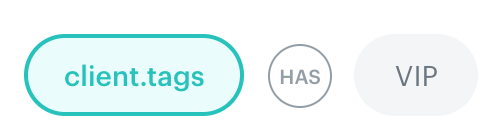
| *Not applicable*               |  <figure><img src="/api/docs/image/54176ad07f146575310749eba44b7c2f42c1b327/docs/campaign/_gfx/client-tags.png"  alt="Example of a use" class="full"></figure>          |
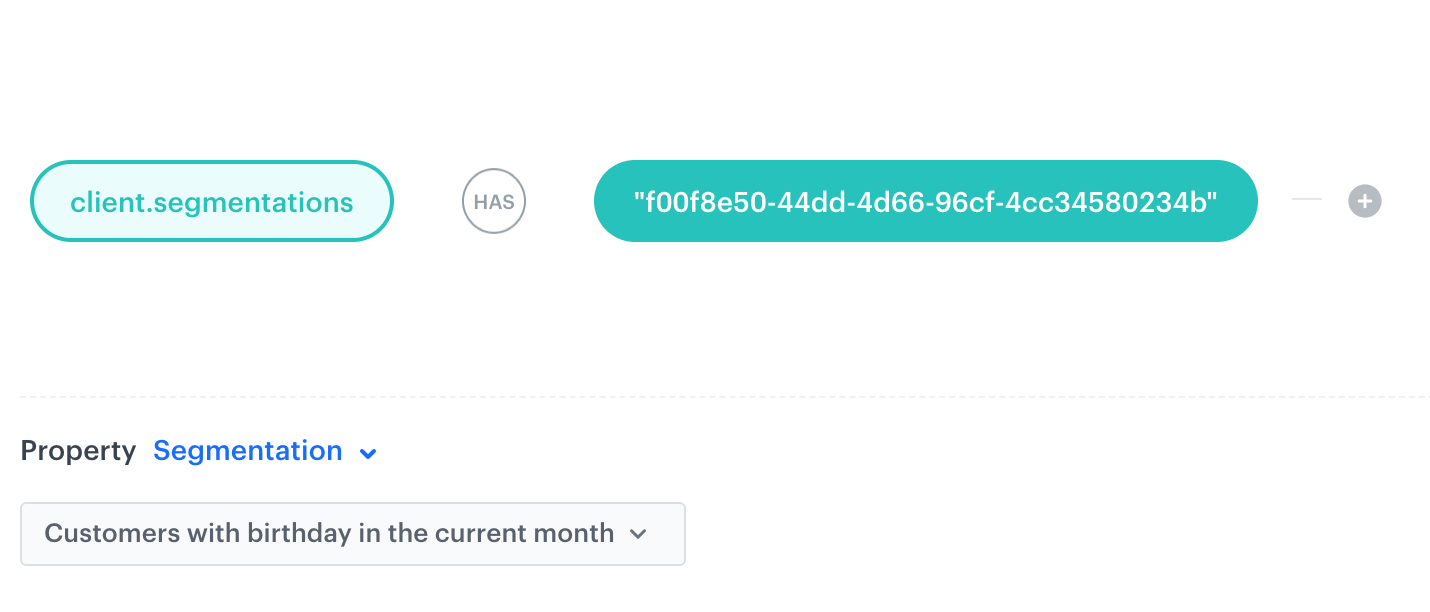
| *Not applicable*               |  <figure><img src="/api/docs/image/54176ad07f146575310749eba44b7c2f42c1b327/docs/campaign/_gfx/client-segmentations.png"  alt="Example of a use" class="full"></figure>          |
| *Not applicable*               | <figure><img src="/api/docs/image/54176ad07f146575310749eba44b7c2f42c1b327/docs/campaign/_gfx/filter-iql-bracket.png"  alt="Example of a use" class="full"></figure> |
| <figure><img src="/api/docs/image/54176ad07f146575310749eba44b7c2f42c1b327/docs/campaign/_gfx/visual-builder-comparison3.png"  alt="Example of a use" class="full"></figure>               |  <figure><img src="/api/docs/image/54176ad07f146575310749eba44b7c2f42c1b327/docs/campaign/_gfx/iql-builder-comparison3.png"  alt="Example of a use" class="full"></figure>          |
|  <figure><img src="/api/docs/image/54176ad07f146575310749eba44b7c2f42c1b327/docs/campaign/_gfx/visual-builder-comparison4.png"  alt="Example of a use" class="full">              |  <figure><img src="/api/docs/image/54176ad07f146575310749eba44b7c2f42c1b327/docs/campaign/_gfx/category-function-example2.png"  alt="Example of a use" class="full">          | | <figure><img src="/api/docs/image/54176ad07f146575310749eba44b7c2f42c1b327/docs/campaign/_gfx/expression-comparison-visual-builder.png"  alt="Example of a use" class="full"></figure>               |  <figure><img src="/api/docs/image/54176ad07f146575310749eba44b7c2f42c1b327/docs/campaign/_gfx/expression-comparison-iql.png"  alt="Example of a use" class="full"></figure>          | | <figure><img src="/api/docs/image/54176ad07f146575310749eba44b7c2f42c1b327/docs/campaign/_gfx/aggregate-comparison-visual-builder.png"  alt="Example of a use" class="full"></figure>              |  <figure><img src="/api/docs/image/54176ad07f146575310749eba44b7c2f42c1b327/docs/campaign/_gfx/aggregate-comparison-iql.png"  alt="Example of a use" class="full"></figure>          | | <figure><img src="/api/docs/image/54176ad07f146575310749eba44b7c2f42c1b327/docs/campaign/_gfx/predefined-metric-visualbuilder-comparison.png"  alt="Example of a use" class="full"></figure>              |  <figure><img src="/api/docs/image/54176ad07f146575310749eba44b7c2f42c1b327/docs/campaign/_gfx/predefined-metric-iql-comparison.png"  alt="Example of a use" class="full"></figure>          |</figure></figure>