Create a dashboard that gathers analyses such as metrics, funnels, trends, and so on. The dashboard can display general data or [dynamic data](/docs/analytics/analytics-dashboard/creating-dashboards#dynamic-data-in-dashboards) such as the values of parameters, for example, a message ID, customer ID, product ID, and so on.  

## Requirements
---
- You must implement a [tracking code](/docs/settings/tool/tracking_codes) into your website. 
- You must be granted a set of [user permissions](/docs/settings/identity-access-management/permissions) that allow access to Decision Hub and creating analyses.

## Creating a dashboard
---

<figure>
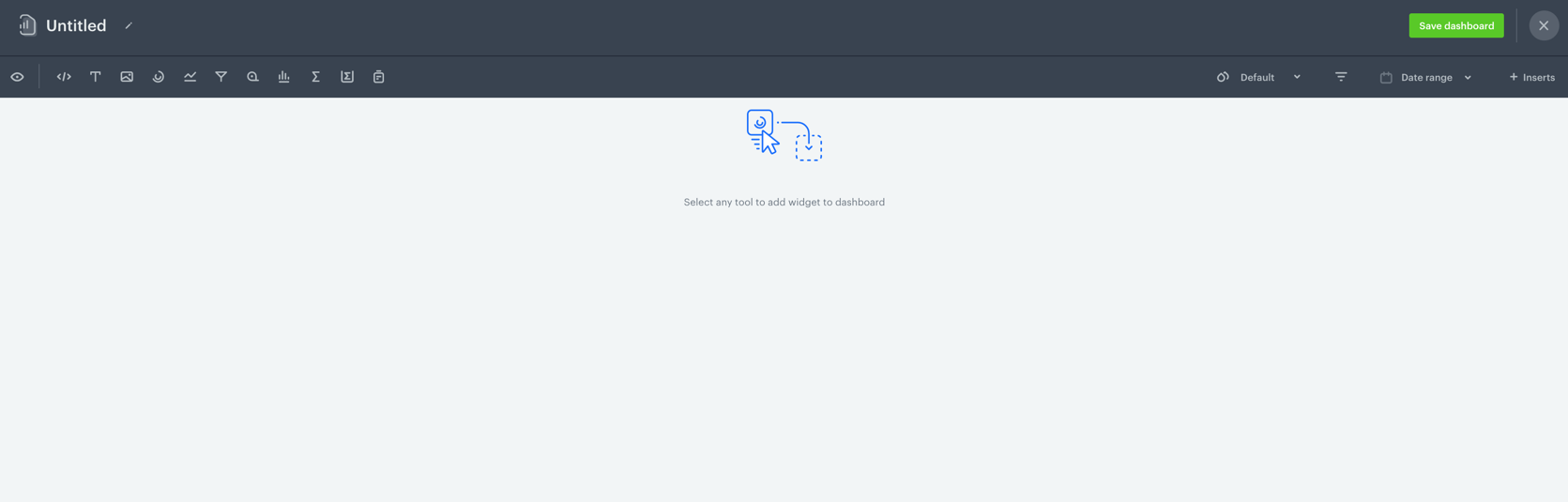
<img src="/api/docs/image/54176ad07f146575310749eba44b7c2f42c1b327/docs/analytics/_gfx/creating-dashboards.png" alt="Image presents an empty dashboard" class="full" >
<figcaption>A blank dashboard</figcaption>
</figure>

1.  Go to <img src="/api/docs/image/54176ad07f146575310749eba44b7c2f42c1b327/icons/decision-hub-icon.svg" alt="Image presents the Decision Hub icon" class="icon"> **Decision Hub > Dashboards > Add dashboard**.
2. Enter the name of the dashboard.
3. To add a widget to the dashboard, click an icon on the <img src="/api/docs/image/54176ad07f146575310749eba44b7c2f42c1b327/icons/dashboard-analysis-selection.png" alt="The panel of analysis icons" class="icon"> panel. The icons are (left to right): HTML code, text field, image, [segmentation](/docs/analytics/segmentations/creating-segmentations), [trend](/docs/analytics/trends/creating-trends), [funnel](/docs/analytics/funnels/creating-funnels), [metric](/docs/analytics/metrics/creating-simple-metrics), [histogram](/docs/analytics/histograms/creating-histograms), [aggregate](/docs/analytics/aggregates/creating-aggregates), [expression](/docs/analytics/expressions), and a [report](/docs/analytics/reports/creating-reports). 

4. To use [snippets](/docs/assets/snippets) in HTML code:
    1. Click **Snippets**.
    2. Select a snippet.
    3. Paste the snippet or create a reference to it.  
Snippet usage is restricted to images and blocks.  
 **Result**: A widget appears on the dashboard.

### Configuring analyses widgets
---
4. If you chose a particular type of an analysis to be added to the dashboard, in order to configure the widget settings, click the widget on the dashboard.  
**Result**: On the right side, a panel shows up with two tabs: **Data** and **Style**. 
5. In the **Data** panel, enter the title of the analysis.
6. Optionally, in the **Description** field, to let other users know the purpose of the analysis, enter a short description.
7. From the dropdown list, you can either:
    - Select an existing analysis.
    - Create a new analysis by clicking **Create new** at the bottom of the list. 
        
   <div class="admonition admonition-important"><div class="admonition-icon"><svg xmlns="http://www.w3.org/2000/svg" fill="none" viewBox="0 0 24 24" stroke="currentColor" stroke-width="2.5"><path stroke-linecap="round" stroke-linejoin="round" d="M12 8v4m0 4h.01M21 12a9 9 0 11-18 0 9 9 0 0118 0z" /></svg></div><div class="admonition-body"><div class="admonition-content">

   If you want to display dynamic data on the dashboard, proceed to the [Dynamic data in dashboards](/docs/analytics/analytics-dashboard/creating-dashboards#dynamic-data-in-dashboards) section.

   </div></div></div>

8. You can configure additional settings:

    | Property name | Available in                        | Description                                                                                                                                                                                                                                                                                                                                                                 |
    |---------------|-------------------------------------|-----------------------------------------------------------------------------------------------------------------------------------------------------------------------------------------------------------------------------------------------------------------------------------------------------------------------------------------------------------------------------|
    | **Allow overwriting time filters**   | All apart from segmentations        | By default, the dashboard uses the original time range of the selected analysis. You can use the following options: <br> - **Allow overwriting analytic main time filter** - Instead of using time range from [main analysis filter](/docs/analytics/analytics-dashboard/date-ranges-in-dashboard#main-analysis-time-filter), you can either apply the global date range of the dashboard as a main analysis filter of the selected analysis or choose your own date range (use **Chart date range** field then), which can be different from the one defined in the analysis. <br> - **Allow overwriting all nested time filters** - Instead of using time range from [nested time filters](/docs/analytics/analytics-dashboard/date-ranges-in-dashboard#nested-time-filter), you can either apply the global date range of the dashboard as nested time filters or choose your own date range (use **Chart date range** field then), which can be different from the one defined in the analysis. Enabling this option also enables **Allow overwriting time filters**. <br> More information and examples are available in [Date ranges in dashboards](/docs/analytics/analytics-dashboard/date-ranges-in-dashboard).  |
    | **Comparison**    | All apart from segmentations        | The option of comparing the results of the selected analysis  to a time range or other analysis. In the case of selecting  the time range option, remember it must overlap with  the date range set directly in the selected analysis.                                                                                                                                      |
    | **Goal**          | Metrics, aggregates and expressions | The option of setting the desired result. As a result of switching on this option, a progress bar displays in the widget.                                                                                                                                                                                                                                                   |


8. In the **Style** tab, you can configure the following settings: 

   <details class="accordion"><summary>Style settings</summary><div class="accordion-content"><table> <thead> <tr> <th> Property name </th> <th> Available in </th> <th> Description </th> </tr> </thead> <tr> <td> <strong>Visualization type</strong> </td> <td> All types of analyses apart from a metric and an expression </td> <td> Select a chart type an analysis is going to be presented in. </td> </tr> <tr> <td> <strong>Appearance</strong> </td> <td> All types of analyses </td> <td> Define the unit of results and their accuracy (decimal places). </td> </tr> <tr> <td> <strong>Layout</strong> </td> <td> All types of analyses apart from a metric, aggregate and an expression </td> <td> Select a horizontal or vertical layout of a chart. </td> </tr> <tr> <td> <strong>Axes</strong> </td> <td> All types of analyses apart from a metric, aggregate and an expression </td> <td> <ul> <li> Define the minimum and maximum values shown on a chart. </li> <li> Select the direction of the X and Y axes. </li></ul> </td> </tr> <tr> <td> <strong>Axes titles</strong> </td> <td> All type of analyses apart from a metric, aggregate and an expression </td> <td> Enter titles for X and Y axes. </td> </tr> <tr> <td> <strong>Legend</strong> </td> <td> All type of analyses apart from a metric, aggregate and an expression </td> <td> Define the position and alignment of a chart legend. </td> </tr> <tr> <td> <strong>Colorize</strong> </td> <td> All type of analyses apart from a metric, aggregate and an expression </td> <td><ul> Define the method of coloring the chart elements: <li> <strong>Full pallet</strong> – Every element of the chart has different color. </li> <li> <strong>Color per series</strong> – Chart elements within one unit have different colors (for example, when comparing occurrence of a few events in a particular day). </li> <li> <strong>One color</strong> – Every element of the chart has the same color. </li> <li> <strong>Min &amp; max values</strong> – All chart elements have the same colors apart from those which show the highest and the lowest value. </li> <li> <strong>Value based</strong> – Intensity of the color of the chart element depends on the value. </li></ul> </td> </tr> <tr> <td> <strong>Color palette</strong> </td> <td> All type of analyses apart from a metric, aggregate and an expression </td> <td> Select colors of chart elements. </td> </tr> <tr> <td> <strong>Text</strong> </td> <td> A metric, aggregate and an expression </td> <td><ul> <li> Define the alignment of the result in the widget. </li> <li> Select the font size. </li></ul> </td> </tr> <tr> <td> <strong>Icon</strong> </td> <td> A metric, aggregate and an expression </td> <td> Select an icon and its color. The icon is displayed above the title of the widget. </td> </tr> <tr> <td> <strong>Goal colors</strong> </td> <td> A metric, aggregate and an expression </td> <td> Define the color of the lowest and the highest result. </td> </tr> </table></div></details>

8. To filter the results of the dashboards, click the <img src="/api/docs/image/54176ad07f146575310749eba44b7c2f42c1b327/icons/dashboard-filter.png" alt="Dashboard filter" class="icon"> icon. 
9. When you complete creating the dashboard, click **Save dashboard**.  

   <div class="admonition admonition-tip"><div class="admonition-icon"><svg xmlns="http://www.w3.org/2000/svg" fill="none" viewBox="0 0 24 24" stroke="currentColor" stroke-width="2.5"><path stroke-linecap="round" stroke-linejoin="round" d="M9.663 17h4.673M12 3v1m6.364 1.636l-.707.707M21 12h-1M4 12H3m3.343-5.657l-.707-.707m2.828 9.9a5 5 0 117.072 0l-.548.547A3.374 3.374 0 0014 18.469V19a2 2 0 11-4 0v-.531c0-.895-.356-1.754-.988-2.386l-.548-.547z" /></svg></div><div class="admonition-body"><div class="admonition-content">

   By default, a new dashboard is private. If you want to share it with others, check the instruction [here](/docs/analytics/analytics-dashboard/sharing-dashboards).

   </div></div></div>


### Dynamic data in dashboards
---
Dynamic data is a collection of information that refers to a particular entity (for example, a customer, a product, a message sent to customers, a URL, attributes (city, name, birth date), and so on). It's described as a dynamic because it changes as the context of the analysis changes.

1. To display data for an individual customer or attribute on the dashboard, add analyses that contain the same [dynamic key](/docs/analytics/i_events-parameter-value#dynamic-key).  
**Result**: The <img src="/api/docs/image/54176ad07f146575310749eba44b7c2f42c1b327/icons/dynamic-key-icon.png" alt="Dynamic key icon" class="icon"> icon shows on the settings panel on the dashboard. 
2. Click the icon.  
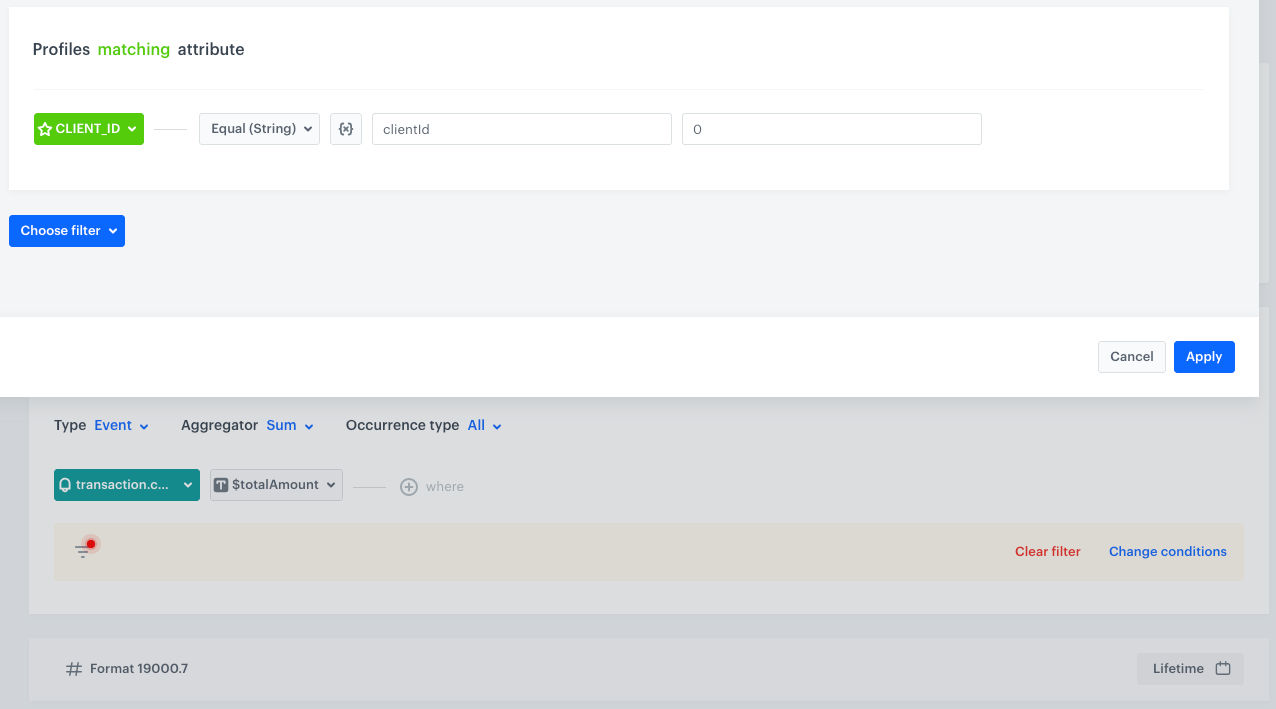
   **Result**: A pop-up shows up. The name of the dynamic key that is used in the analyses added is already there. 
    
   <div class="admonition admonition-important"><div class="admonition-icon"><svg xmlns="http://www.w3.org/2000/svg" fill="none" viewBox="0 0 24 24" stroke="currentColor" stroke-width="2.5"><path stroke-linecap="round" stroke-linejoin="round" d="M12 8v4m0 4h.01M21 12a9 9 0 11-18 0 9 9 0 0118 0z" /></svg></div><div class="admonition-body"><div class="admonition-content">

   If the value of a dynamic key is not defined, the analyses on the dashboard that use dynamic key show `0`.

   </div></div></div>

3. To display the results for a specific value of the dynamic key parameter (for example, a customer), enter the parameter value.  
**Result**: The data in the analyses that contain the same parameter are updated. 
    
<div class="admonition admonition-warning"><div class="admonition-icon"><svg xmlns="http://www.w3.org/2000/svg" fill="none" viewBox="0 0 24 24" stroke="currentColor" stroke-width="2.5"><path stroke-linecap="round" stroke-linejoin="round" d="M12 9v2m0 4h.01m-6.938 4h13.856c1.54 0 2.502-1.667 1.732-2.5L13.732 4c-.77-.833-1.964-.833-2.732 0L4.082 16.5c-.77.833.192 2.5 1.732 2.5z" /></svg></div><div class="admonition-body"><div class="admonition-content">

You must be consistent with the names of the dynamic keys while creating analyses that are used in the dashboard. For example, `ID` and `id` will be treated as different dynamic keys. But, the values of the dynamic keys are case-insensitive.

</div></div></div>
 

### Predefined dynamic keys
---
There are some predefined dynamic keys which you can use to your advantage:
- `id` - The ID of a [communication campaign](/docs/campaign). You can create analyses dedicated to your campaigns and use the `id` dynamic key in the conditions of these analyses. Then, you can create a dashboard to contain these analyses. Later on, you can [add this dashboard to the statistics of a campaign](#adding-dashboards-to-campaign-statistics), so you can check your custom KPIs of campaigns you run. 
- `clientId` - The ID of a profile. You can create analyses dedicated to measuring customer behavior or other measurable customer-related aspects and use the `clientId` dynamic key in the conditions of these analyses. Then, you can create a dashboard to contain these analyses. Later on, you can [add this dashboard to the statistics in a profile's card](#adding-dashboards-to-a-profile-card), so you can have all necessary data related to each profile in one place. 

#### Adding dashboards to a profile card

This procedure contains exemplary analyses such:
- as a metric that sums the amount of money a customer has spent so far, 
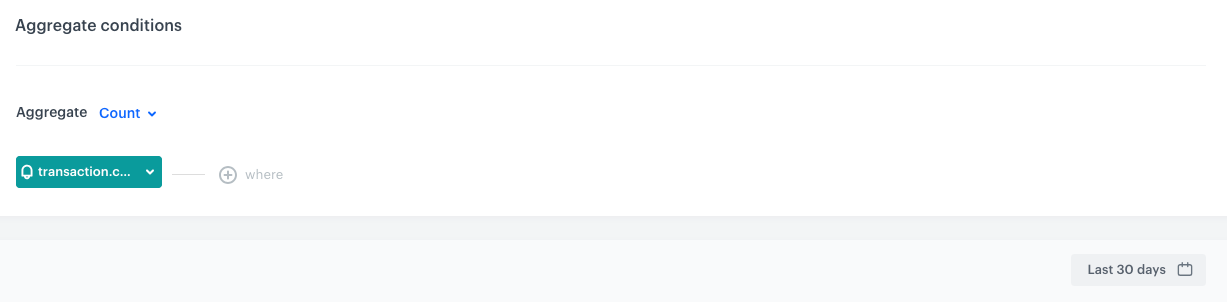
- an aggregate that counts the number of transactions made in the last 30 days 
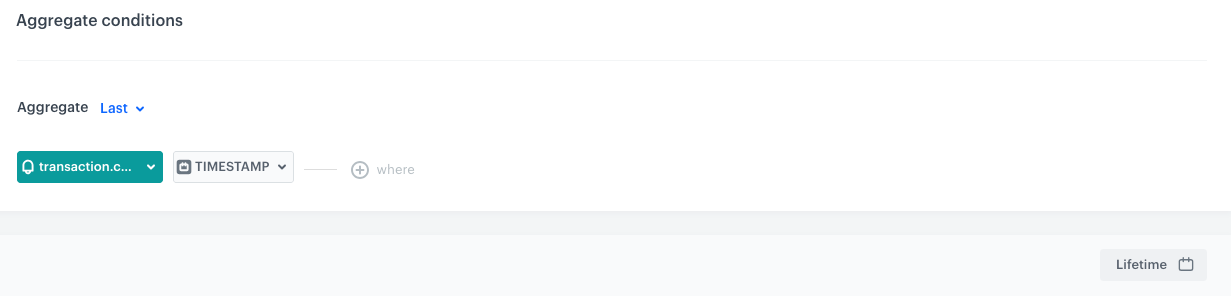
- an aggregate that returns the date of the latest purchase.  

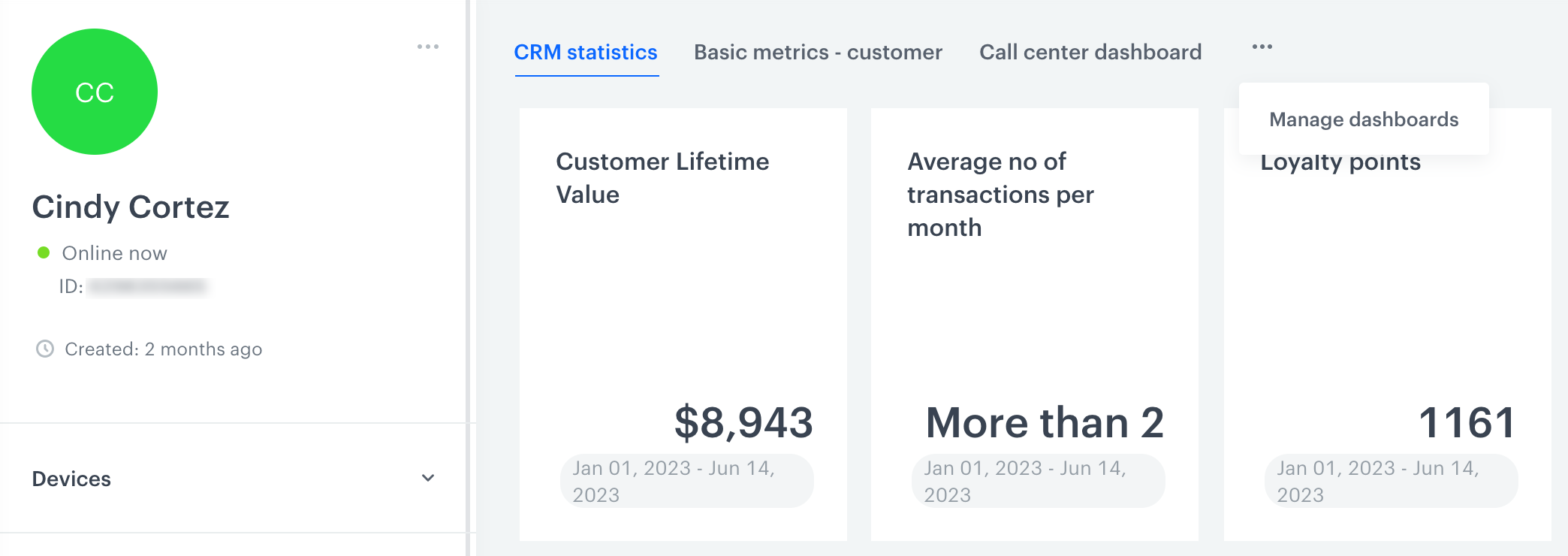
These analyses will be used in a dashboard which will be added to the profile cards, so you can check the results of the analyses in the dashboard directly on the card.

1. Create a set of analyses that contain the `clientId` [dynamic key parameter](/docs/analytics/i_events-parameter-value#how-to-create-a-dynamic-key). The value of the parameter can be set to any value.  
    
   <div class="admonition admonition-important"><div class="admonition-icon"><svg xmlns="http://www.w3.org/2000/svg" fill="none" viewBox="0 0 24 24" stroke="currentColor" stroke-width="2.5"><path stroke-linecap="round" stroke-linejoin="round" d="M12 8v4m0 4h.01M21 12a9 9 0 11-18 0 9 9 0 0118 0z" /></svg></div><div class="admonition-body"><div class="admonition-content">

   In aggregates and expressions, the `clientId` dynamic parameter is added automatically. You don't need to add it.

   </div></div></div>

    1. Create a metric that returns the amount of money spent so far.
    
       <details class="accordion"><summary>Click here to see the configuration of the metric</summary><div class="accordion-content"><figure><img src="/api/docs/image/54176ad07f146575310749eba44b7c2f42c1b327/docs/analytics/_gfx/dynamic-key-metric.png" class="full" alt="The configuration of the metric that contains dynamic key parameter"><figcaption>The configuration of the metric that contains dynamic key parameter</figcaption></figure></div></details>

    2. Create an aggregate that returns the number of transactions made in last 30 days. 
    
       <details class="accordion"><summary>Click here to see the configuration of the aggregate</summary><div class="accordion-content"><figure><img src="/api/docs/image/54176ad07f146575310749eba44b7c2f42c1b327/docs/analytics/_gfx/aggregate-for-dashboard.png" class="full" alt="The configuration of the aggregate that returns the number of transactions"><figcaption>The configuration of the aggregate that returns the number of transactions</figcaption></figure></div></details>

    3. Create an aggregate that returns the date of the latest transaction
    
       <details class="accordion"><summary>Click here to see the configuration of the aggregate</summary><div class="accordion-content"><figure><img src="/api/docs/image/54176ad07f146575310749eba44b7c2f42c1b327/docs/analytics/_gfx/aggregate-for-dashboard-timestamp.png" class="full" alt="The configuration of the aggregate that returns the timestamp of the latest transaction"><figcaption>The configuration of the aggregate that returns the timestamp of the latest transaction</figcaption></figure></div></details>

2. Create a dashboard that contains all analyses created in the previous step.
3. Go to **Behavioral Data Hub > Profiles**. 
4. Select any profile on the list.
5. Select the **Statistics** tab.
6. Click the <img src="/api/docs/image/54176ad07f146575310749eba44b7c2f42c1b327/icons/threedoticon.png" alt="Three-dot icon" class="icon"> icon.  
   **Result**:
    <figure>
    <img src="/api/docs/image/54176ad07f146575310749eba44b7c2f42c1b327/docs/analytics/_gfx/add-dash-to-profile.png" alt="The Statistics section of a profile" class="full" >
    <figcaption>The Statistics section on a profile's card </figcaption>
    </figure> 
7. From the dropdown list, select **Manage dashboards**.
8. On the pop-up, in the text field, enter the name of the dashboard you created previously.
9. Confirm your choice by clicking **Add**.
10. Optionally, you can define the order of displaying dashboards by dragging and dropping them in the desired order.
11. Confirm the dashboard settings by clicking **Apply**.  


#### Adding dashboards to campaign statistics

1. Create a set of analyses that contain the `id` [dynamic key parameter](/docs/analytics/i_events-parameter-value#how-to-create-a-dynamic-key). The value of the parameter can be set to any value. 
2. Create a dashboard that contains all analyses created in the previous step.
3. Go to **Experience Hub**.
4. Select the communication type.
5. Go to the details of your active or finished communication campaign.
5. Select the **Statistics** tab.
6. Click the <img src="/api/docs/image/54176ad07f146575310749eba44b7c2f42c1b327/icons/threedoticon.png" alt="Three-dot icon" class="icon"> icon.  
    **Result**:
    <figure>
    <img src="/api/docs/image/54176ad07f146575310749eba44b7c2f42c1b327/docs/analytics/_gfx/add-dash-to-campaign-stats.png" alt="The Statistics section of an email campaign" class="full" >
    <figcaption>The Statistics section of an email campaign </figcaption>
    </figure>
7. From the dropdown list, select **Manage dashboards**.
8. On the pop-up, in the text field, enter the name of the dashboard you created previously.
9. Confirm your choice by clicking **Add**.
10. Optionally, you can define the order of displaying dashboards by dragging and dropping them in the desired order.
11. Confirm the dashboard settings by clicking **Apply**.