## Overview

When you add an analysis to a dashboard, its date ranges can be overwritten by the dashboard or widget date range. This article explains how overwriting works:

- Analyses can contain nested date ranges: when a condition uses another analysis (a segmentation, aggregate, or expression), that inner analysis has its own date range.
- You can choose to overwrite the main date range only, both the main and nested date ranges, or neither - each combination behaves differently.
- Profile filters are not treated as nested by default — if the conditions inside are event-based, their date ranges are treated as the main analysis date range, not nested.
- Dashboard date ranges cannot overwrite segmentation widgets added directly to the dashboard; segmentations used as conditions inside a metric are treated as nested date ranges and can be overwritten.

## Date range types in analyses and dashboards
---

### Main analysis date range

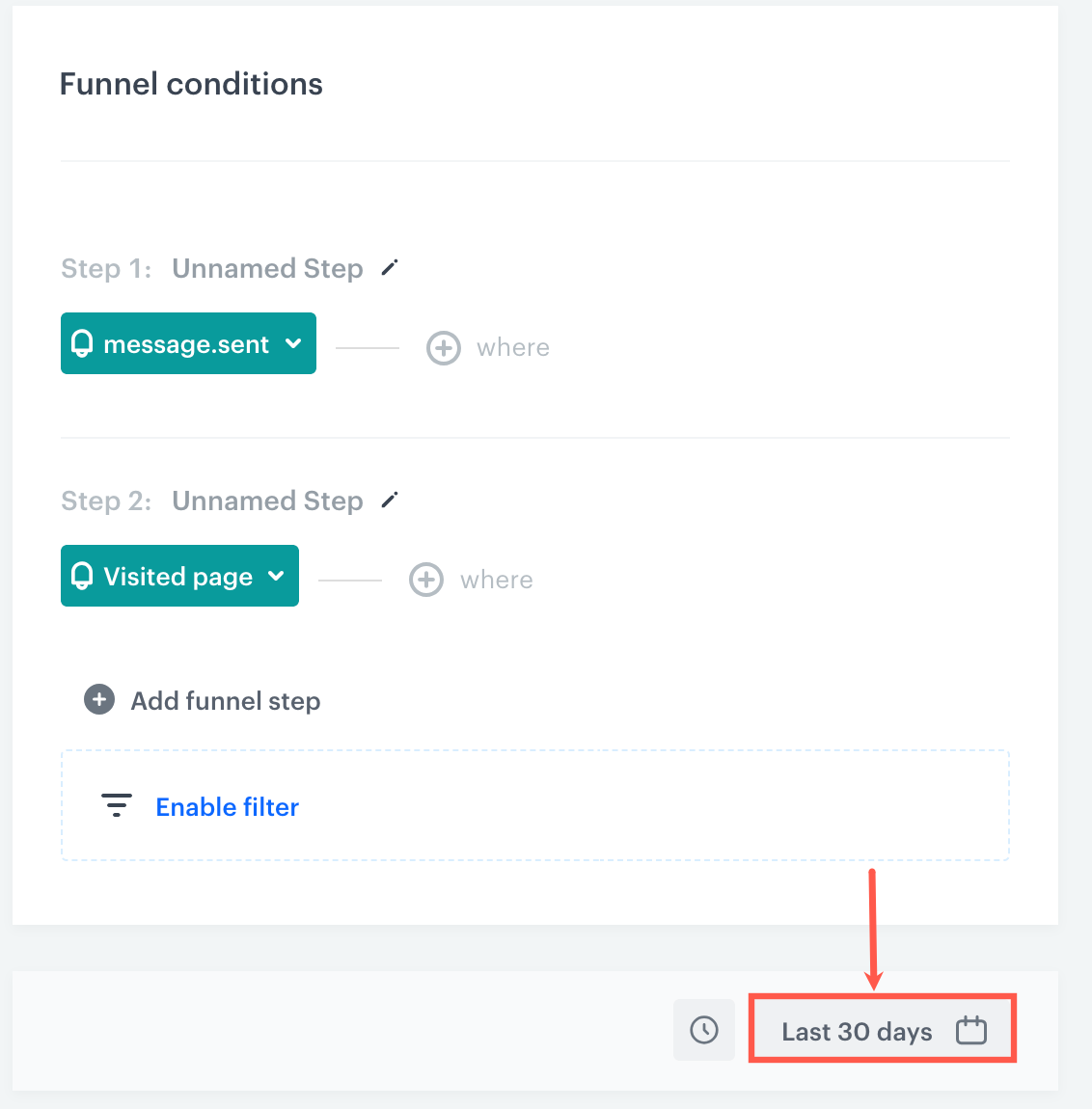
While creating an analysis, you can apply date filters. The image below presents a preview of a funnel configuration in the funnel creator, the area marked with a red rectangle presents the funnel's main filter.  

<figure>
<img src="/api/docs/image/f8f2cd0367a41d3e7612c2fc2e6f0ff32442c96a/docs/analytics/_gfx/timefilter3.png" alt="A date range inside a funnel" class="medium" >
<figcaption>A date range inside a funnel </figcaption>
</figure>

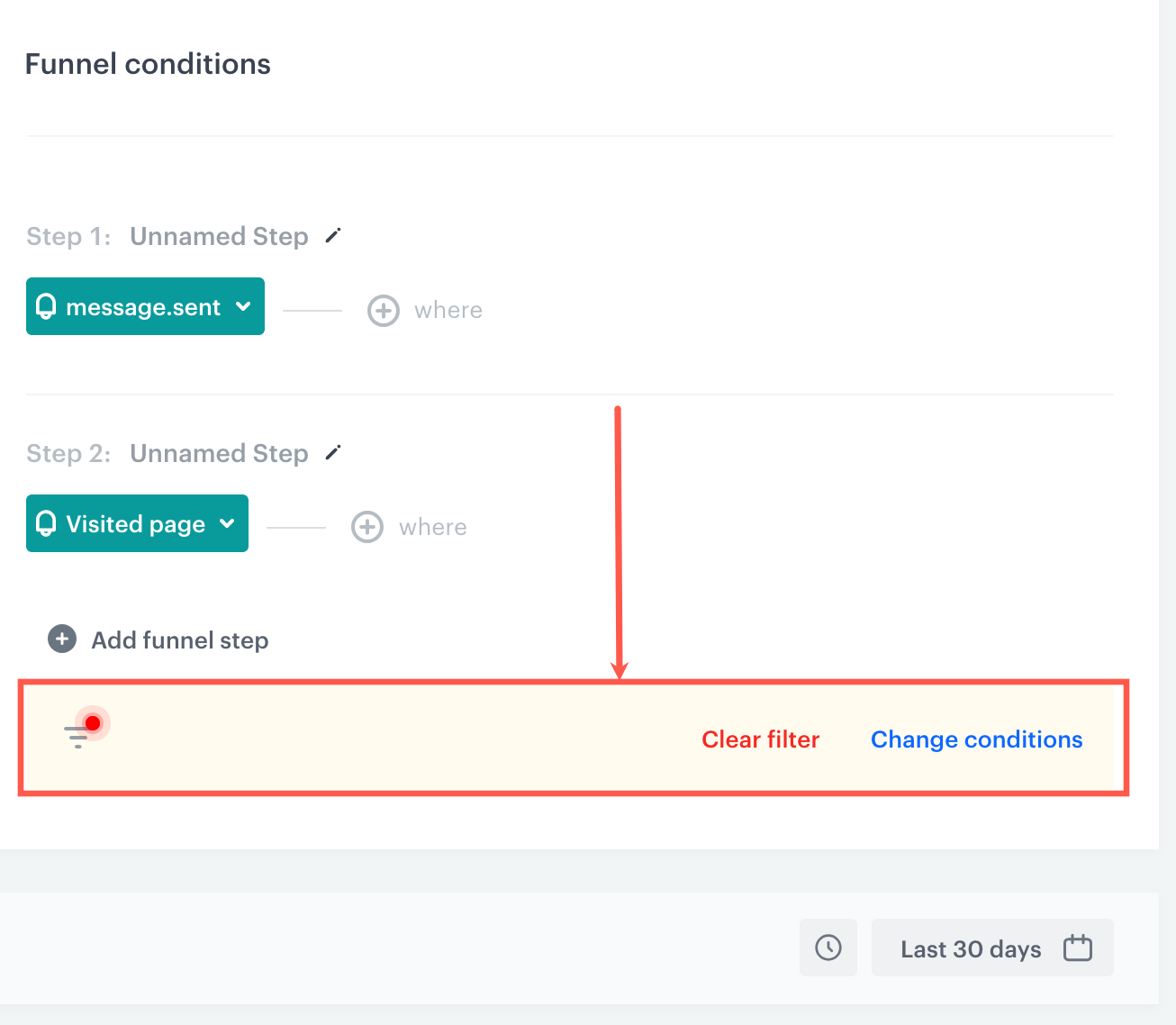
If you apply a profile filter on your analysis and the conditions inside the profile filter are based only on events, the date ranges of those events are treated as the main analysis date range.

<figure>
<img src="/api/docs/image/f8f2cd0367a41d3e7612c2fc2e6f0ff32442c96a/docs/analytics/_gfx/main-time-filter-profile-filter.png" alt="A main time filter in a profile filter applied to an analysis (marked with a red rectangle)" class="full" >
<figcaption> A main time filter in a profile filter applied to an analysis (marked with a red rectangle) </figcaption>
</figure>

### Nested date range

A nested date range is the date range of an analysis used as a condition inside another analysis, for example, when analysis conditions include an aggregate, segmentation, or expression, that inner analysis has its own date range. The same applies when a profile filter is applied on top of the main analysis: if the profile filter contains another analysis (a segmentation, aggregate, or expression), its date range is also considered nested.

The exception is event-based conditions inside a profile filter: if the profile filter contains events with a visible date range, those are treated as the main date range, not nested. See the note in [Date range dependencies](#date-range-dependencies) for details.

In the image below, the nested date ranges are marked with a red rectangle.


<figure>
<img src="/api/docs/image/f8f2cd0367a41d3e7612c2fc2e6f0ff32442c96a/docs/analytics/_gfx/nested-filter-funnel.png" alt="Nested time filters in an analysis (marked with red rectangles)" class="large" >
<figcaption>Nested time filters in an analysis (marked with red rectangles)</figcaption>
</figure>

### Dashboard date range

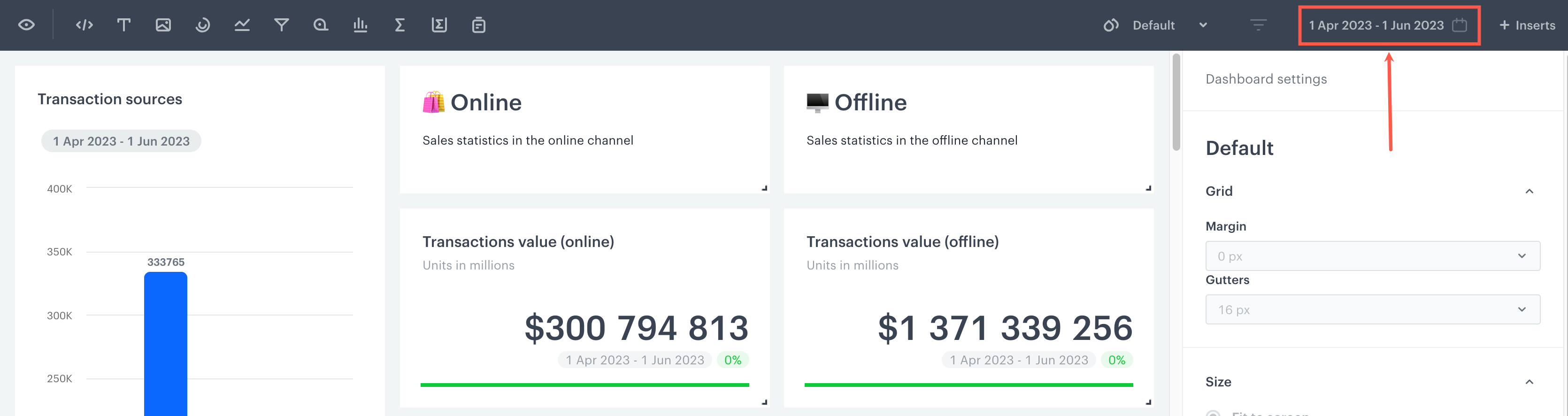
The image below presents a dashboard preview in the editing mode. The area marked with a red rectangle contains a date range for the dashboard:  
<figure>
<img src="/api/docs/image/f8f2cd0367a41d3e7612c2fc2e6f0ff32442c96a/docs/analytics/_gfx/date-range-global-highlight.png" alt="A date range of a dashboard" class="full" >
<figcaption>A global date range of a dashboard </figcaption>
</figure>

The dashboard date range applies to all widgets on the dashboard at once. When set, it overwrites the main date range of each analysis where **Allow overwriting analysis' main time filter** is enabled, and also the nested date ranges where **Allow overwriting all nested time filters** is also enabled.

### Widget date range

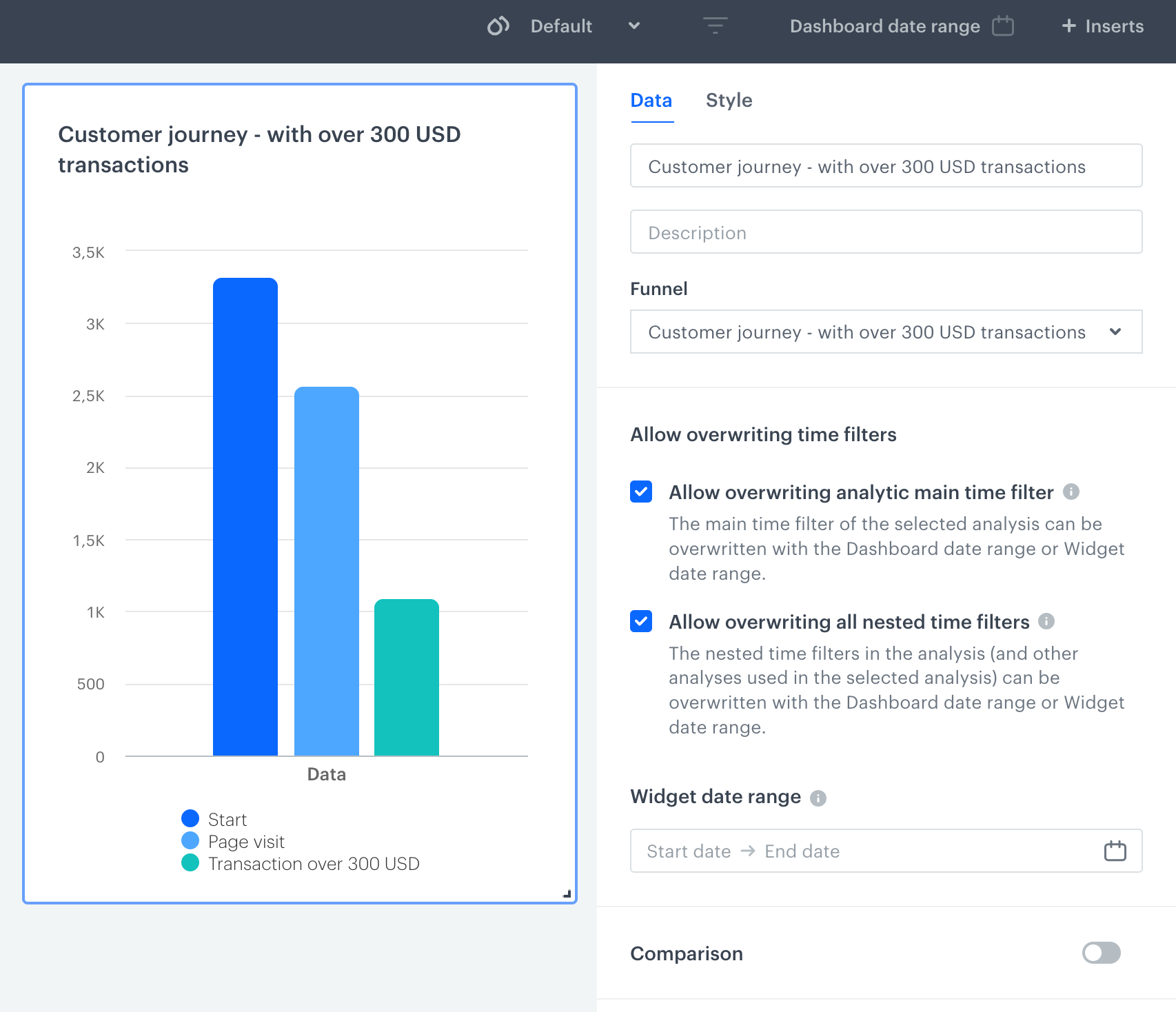
The widget date range is configured per widget in the widget's **Data** settings panel, in the **Widget date range** field. Unlike the [dashboard date range](#dashboard-date-range), which applies to all widgets on the dashboard, the widget date range overwrites the date range only for the specific widget where it is set.

The widget date range works the same way as the dashboard date range: when set, it overwrites the main date range of the analysis where **Allow overwriting analysis' main time filter** is enabled, and also the nested date ranges where **Allow overwriting all nested time filters** is also enabled.

If a [dashboard date range](#dashboard-date-range) is also defined, it takes priority — the widget date range is ignored. The widget date range is applied only when no dashboard date range is set.

<figure>
<img src="/api/docs/image/f8f2cd0367a41d3e7612c2fc2e6f0ff32442c96a/docs/analytics/_gfx/widget-date-range.png" alt="Widget date range field in widget settings" class="medium" >
<figcaption>Widget date range field in widget settings</figcaption>
</figure>


## Date range dependencies
---
- When an analysis is added to a dashboard, the results of the analysis are immediately presented on the dashboard. The system returns results for the analysis based on the time range taken from the analysis.  
- If you want to restrict the data shown on the dashboard to a certain period, you can define a time range through the [Dashboard date range](#dashboard-date-range) option. However, if the date range selected for the dashboard and the date range in the analysis' filters (both main and nested) don't overlap, the analysis may present wrong results or no results at all. To handle this, enable the **Allow overwriting analysis' main time filter** or **Allow overwriting all nested time filters** options described below.   
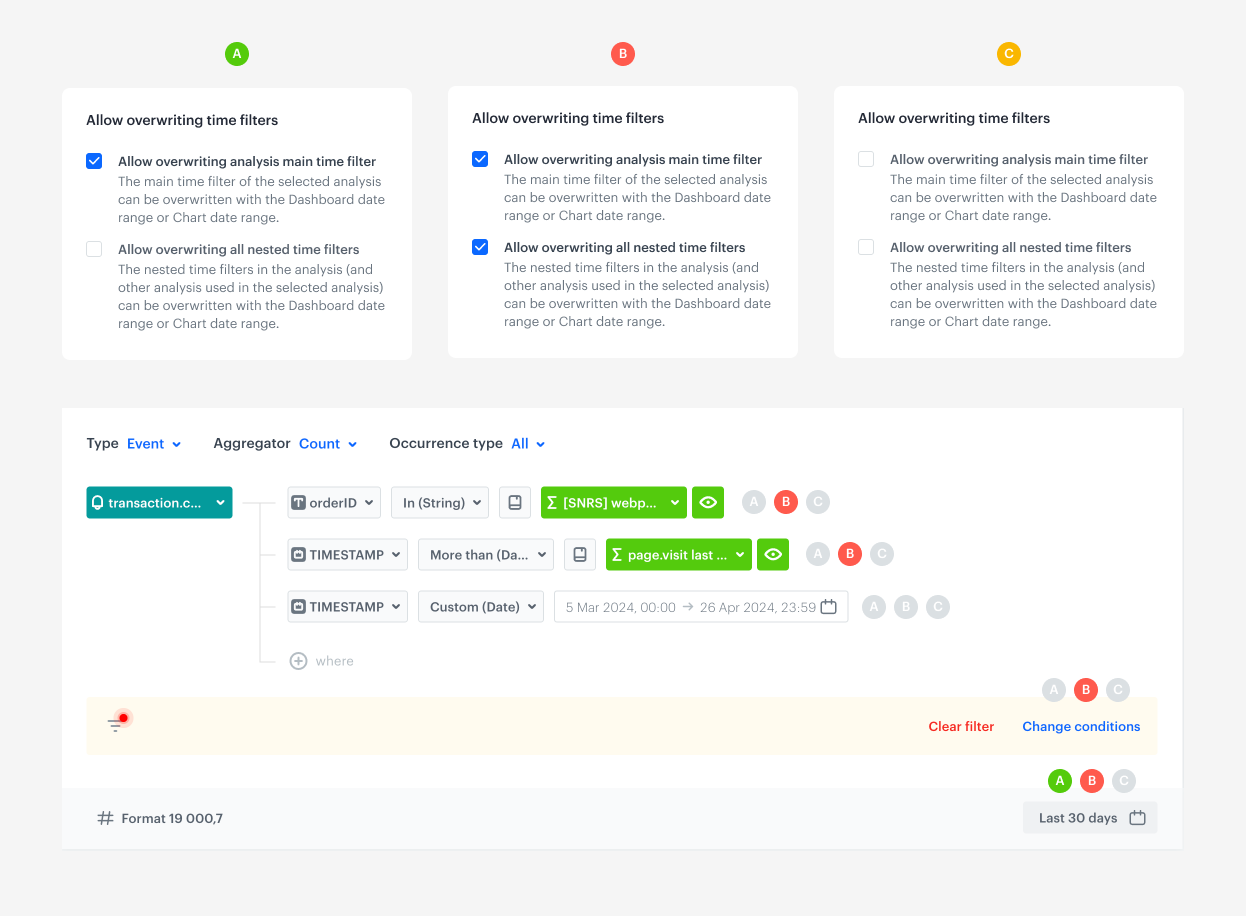
- In each analysis, you can enable overwriting the date range of analysis added to the dashboard with the dashboard's date range or your own. The image and the table below explain the behavior of the overwriting options and their impact on date ranges of analyses added to the dashboard:  
    
  <div class="admonition admonition-important"><div class="admonition-icon"><svg xmlns="http://www.w3.org/2000/svg" fill="none" viewBox="0 0 24 24" stroke="currentColor" stroke-width="2.5"><path stroke-linecap="round" stroke-linejoin="round" d="M12 8v4m0 4h.01M21 12a9 9 0 11-18 0 9 9 0 0118 0z" /></svg></div><div class="admonition-body"><div class="admonition-content">

  The dashboard date range cannot overwrite the date range of a segmentation widget added directly to the dashboard. When you edit such a widget, the **Allow overwriting time filters** checkboxes are not available, which means the dashboard date range has no effect on it.

  This does not apply to segments used as conditions inside a metric or other analysis. A segment used as a nested condition is treated as a nested date range and can be overwritten when **Allow overwriting all nested time filters** (option B) is enabled.

  </div></div></div>


<figure><img src="/api/docs/image/f8f2cd0367a41d3e7612c2fc2e6f0ff32442c96a/docs/analytics/_gfx/overwriting-logic.png" class="full" alt="Allowed combinations of overwriting options"><figcaption>Allowed combinations of overwriting options</figcaption></figure>

|Option| Allow overwriting analysis' main time filter | Allow overwriting all nested time filters | Result                                                                                                                                                                                                                                                                                                                                                     |
|---|---------------------------------------------|-------------------------------------------|------------------------------------------------------------------------------------------------------------------------------------------------------------------------------------------------------------------------------------------------------------------------------------------------------------------------------------------------------------|
|A| selected                                    | unselected                                | The [main date range](#main-analysis-date-range) of the analysis is overwritten by:<br>- **Dashboard date range** — always takes priority, even if a widget date range is also set.<br>- **Widget date range** — only applied when no dashboard date range is set.<br>If neither is defined, the analysis' main date range is applied without changes.    |
|B| selected                                    | selected                                  | The [main](#main-analysis-date-range) and [nested date ranges](#nested-date-range) of the analysis are overwritten by:<br>- **Dashboard date range** — always takes priority, even if a widget date range is also set.<br>- **Widget date range** — only applied when no dashboard date range is set.<br>If neither is defined, the analysis' main date range and nested date ranges are applied without changes.    |
|C| unselected                                  | unselected                                | The analysis' own main and nested date ranges are applied without changes. The dashboard date range and widget date range have no effect.                                                                                                                                                                                                                     |
|n/a| unselected                                  | selected                                  | Not supported                                                                                                                                                                                                                                                                                                                                          |


<div class="admonition admonition-note"><div class="admonition-icon"><svg xmlns="http://www.w3.org/2000/svg" fill="none" viewBox="0 0 24 24" stroke="currentColor" stroke-width="2.5"><path stroke-linecap="round" stroke-linejoin="round" d="M13 16h-1v-4h-1m1-4h.01M21 12a9 9 0 11-18 0 9 9 0 0118 0z" /></svg></div><div class="admonition-body"><div class="admonition-content">

**Date range overwriting in analysis' profile filter**

When an analysis has a profile filter applied, the date range overwriting behavior depends on the type of conditions inside it:  
    - **Events with a visible date range**: If the profile filter contains event-based conditions with a date range visible when you open it, those date ranges are treated as the main date range. Both options A and B overwrite them when a dashboard or widget date range is defined.  
    - **Aggregates, segments, or expressions**: If the profile filter contains aggregates, segments, or expressions, those are nested date ranges. Only option B overwrites them.    

A filter can contain a mix of condition types. In that case, the overwriting applies to each condition according to the rules above.

</div></div></div>


## Example
---

### Overwriting analysis' main date range only

**Setup:**

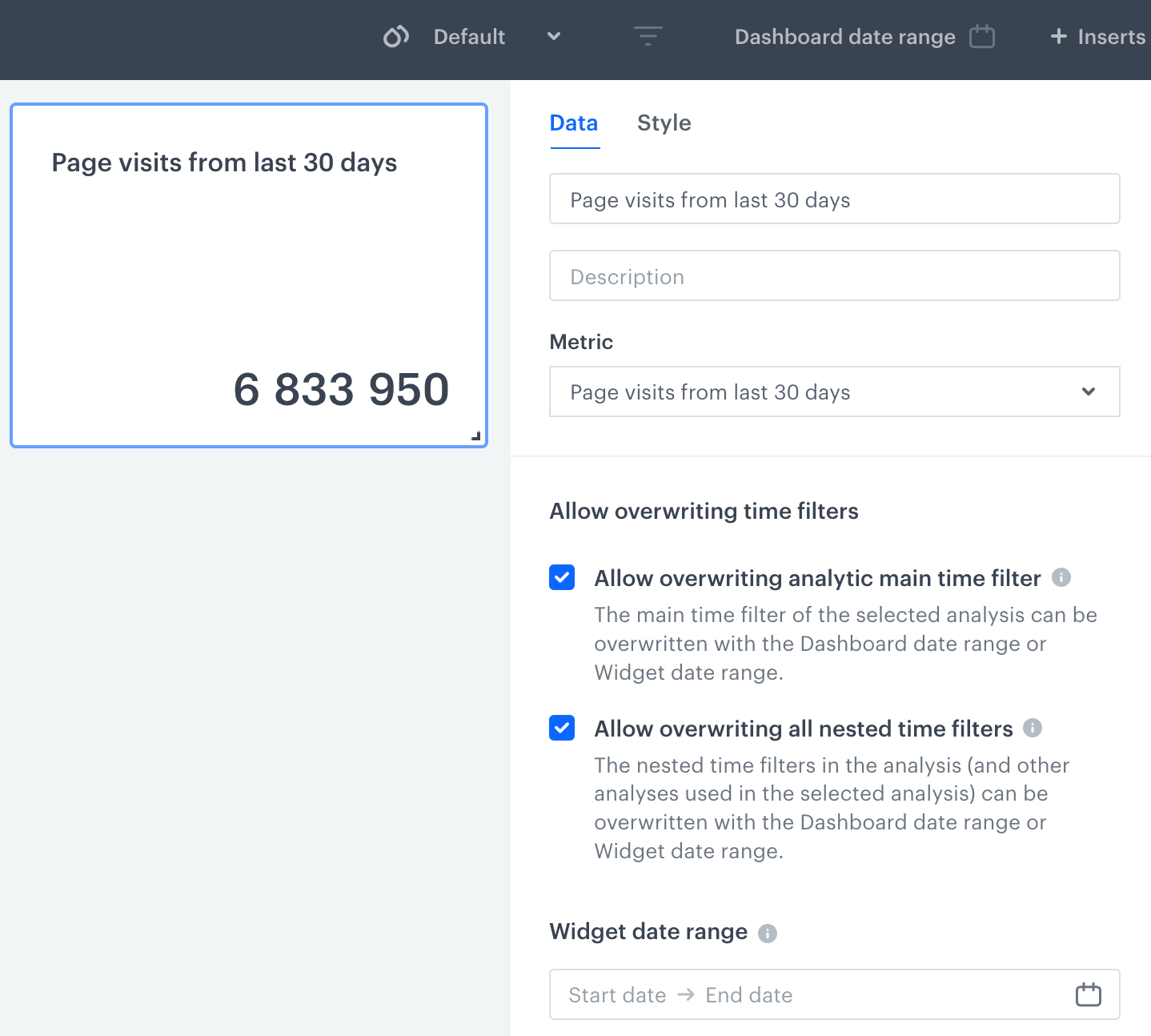
- A metric counting [`page.visit`](/docs/assets/events/event-reference/web-and-app#pagevisit) events in the last 30 days is added to a dashboard (assuming current date is 7 Mar, 2024).
- The metric doesn't contain any nested date ranges.
- Both **Allow overwriting analysis' main time filter** and **Allow overwriting all nested time filters** are enabled.
- No [dashboard date range](#dashboard-date-range) or **Widget date range** is defined.

**Result:** The metric uses its own date range (last 30 days), because no overwriting date range is defined.

<figure><img src="/api/docs/image/f8f2cd0367a41d3e7612c2fc2e6f0ff32442c96a/docs/analytics/_gfx/overwrite-main-time-example1.png" class="medium" alt="A metric added to the dashboard - main analysis filters are applied"><figcaption>A metric added to the dashboard - main analysis filters are applied</figcaption></figure>

To overwrite the main date range, define a date range using one of the following methods:

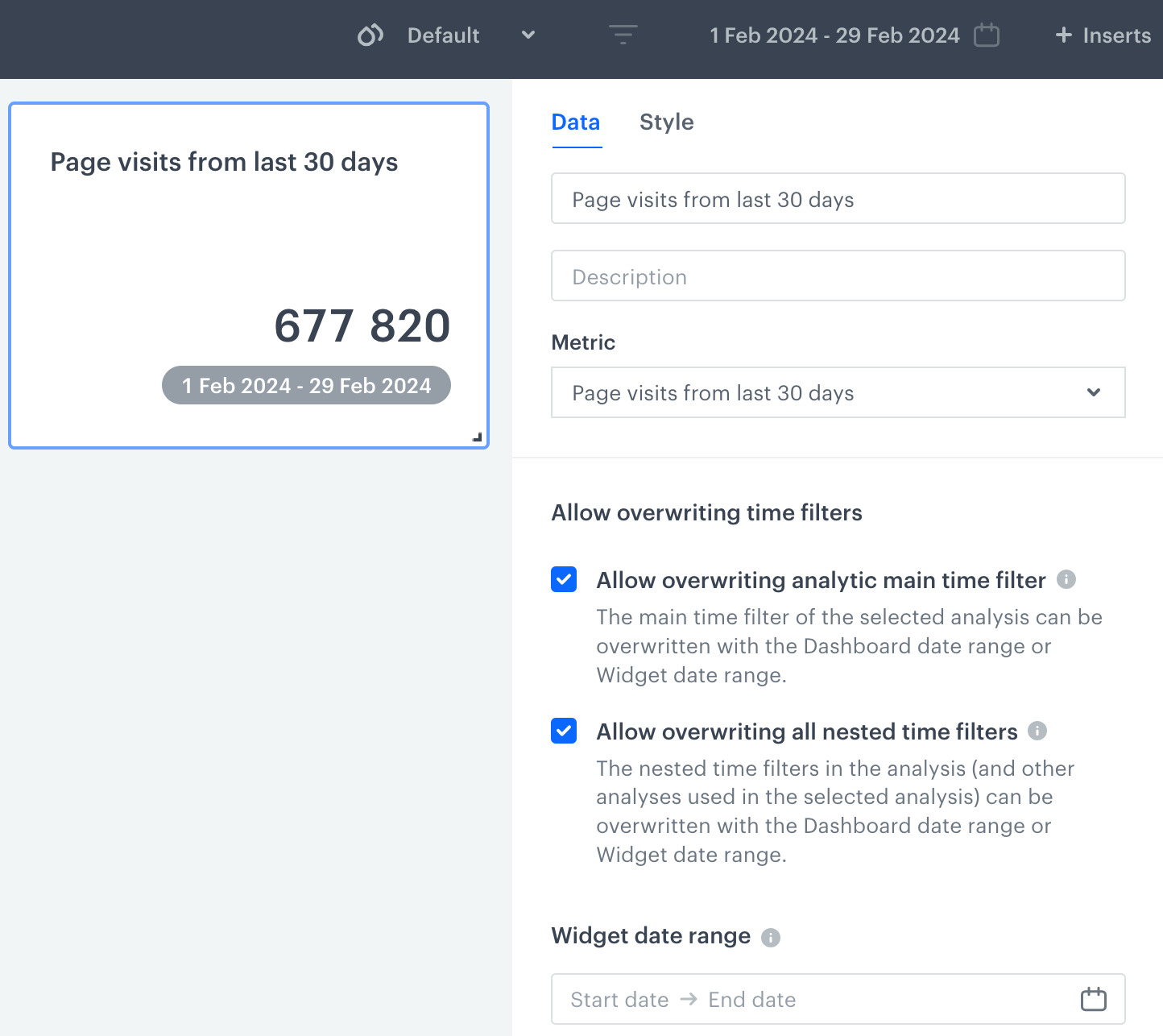
- **[Dashboard date range](#dashboard-date-range)**: Set to the time period you want to analyze (in this example, 1 Feb, 2024 – 29 Feb, 2024). This overwrites the main date range for this metric and all other analyses on the dashboard where **Allow overwriting analysis' main time filter** is enabled.
- **Widget date range**: Set directly on this widget. This overwrites the main date range only for this specific metric.

**Result:** The metric's date range is overwritten and results are shown for the defined period.

<figure><img src="/api/docs/image/f8f2cd0367a41d3e7612c2fc2e6f0ff32442c96a/docs/analytics/_gfx/overwrite-main-time-example1a.png" class="medium" alt="A metric added to the dashboard - dashboard date range applied"><figcaption>A metric added to the dashboard - dashboard date range applied</figcaption></figure>

### Overwriting a nested date range

**Goal**: Show today's `transaction.charge` events, but only for customers who are making their first-ever transaction today.

**Setup**:

- A metric is added to a dashboard. The metric counts `transaction.charge` events where the transaction timestamp equals the value returned by a nested aggregate.
- The nested aggregate finds the timestamp of the first `transaction.charge` event in a customer's history. The aggregate's own date range is **Lifetime**.
- The metric's main date range is **Last 30 days**. 
    <figure><img src="/api/docs/image/f8f2cd0367a41d3e7612c2fc2e6f0ff32442c96a/docs/analytics/_gfx/overwriting-nested-date-range.png" class="medium" alt="Metric widget settings showing a transaction.charge metric with a nested aggregate set to Lifetime and the metric's main date range set to Last 30 days"><figcaption>Metric setup: transaction.charge metric with a nested Lifetime aggregate and a Last 30 days main date range</figcaption></figure>
- The [dashboard date range](#dashboard-date-range) is set to today.

**What happens when both options are enabled**:

If both **Allow overwriting analysis' main time filter** and **Allow overwriting all nested time filters** are enabled, the dashboard date range overwrites both the metric's main date range and the aggregate's date range to today.

The aggregate no longer finds the customer's first-ever transaction — it finds the first transaction within today's range instead. This breaks the metric in two ways:

- **Returning customer with a transaction today**: the aggregate returns today's first transaction timestamp instead of the first-ever timestamp. The metric condition matches today's transaction and the customer appears in results — incorrectly, because their first-ever transaction was not today.
- **Customer with no transactions today**: the aggregate finds nothing and returns null — the metric returns null and the customer is excluded from results entirely.

**Correct approach — overwrite main only**:

Enable only **Allow overwriting analysis' main time filter**. Leave **Allow overwriting all nested time filters** disabled.

- The metric's main date range is overwritten to today → only today's transactions are evaluated.
- The aggregate's date range stays on **Lifetime** → it still finds the absolute first transaction in the customer's history.

**Result**: The metric returns today's `transaction.charge` events only for customers whose first-ever transaction occurred today.

### Overwriting date ranges in a profile filter

This example shows how date ranges inside a profile filter interact with the overwriting options, depending on the type of conditions inside it.

**Scenario A: Profile filter contains an event**

**Setup:**

- A metric counting `transaction.charge` events is added to a dashboard.
- The metric has a **Change conditions** filter applied. The filter contains a `newsletter.click` event with a fixed date range (1 Oct 2024, 00:00 – 31 Oct 2024, 23:59), visible when you open the filter.  
    <figure><img src="/api/docs/image/f8f2cd0367a41d3e7612c2fc2e6f0ff32442c96a/docs/analytics/_gfx/profile-contains-event.png" class="medium" alt="Change conditions filter containing a newsletter.click event with a fixed date range visible in the filter settings"><figcaption>Change conditions filter with a newsletter.click event and a visible fixed date range</figcaption></figure>
- Only **Allow overwriting analysis' main time filter** is enabled.
- The [dashboard date range](#dashboard-date-range) is set to 1 Jan 2025 – 31 Jan 2025.

**Result:** The `newsletter.click` event date range inside the filter is treated as a main time filter. It is overwritten by the dashboard date range: 1 Jan 2025 – 31 Jan 2025.

**Scenario B: Profile filter contains a segment or aggregate**

**Setup:**

- A metric counting `transaction.charge` events is added to a dashboard.
- The metric has a **Change conditions** filter applied. The filter contains a segment condition.  
    <figure><img src="/api/docs/image/f8f2cd0367a41d3e7612c2fc2e6f0ff32442c96a/docs/analytics/_gfx/profile-contains-segment.png" class="medium" alt="Change conditions filter containing a segment condition in the filter settings"><figcaption>Change conditions filter with a segment condition</figcaption></figure>
- Only **Allow overwriting analysis' main time filter** is enabled.
- The [dashboard date range](#dashboard-date-range) is set to 1 Jan 2025 – 31 Jan 2025.

**Result:** Segment and aggregate conditions inside a profile filter are treated as nested date ranges. **Allow overwriting analysis' main time filter** alone does not overwrite them. To overwrite these date ranges, also enable **Allow overwriting all nested time filters**.