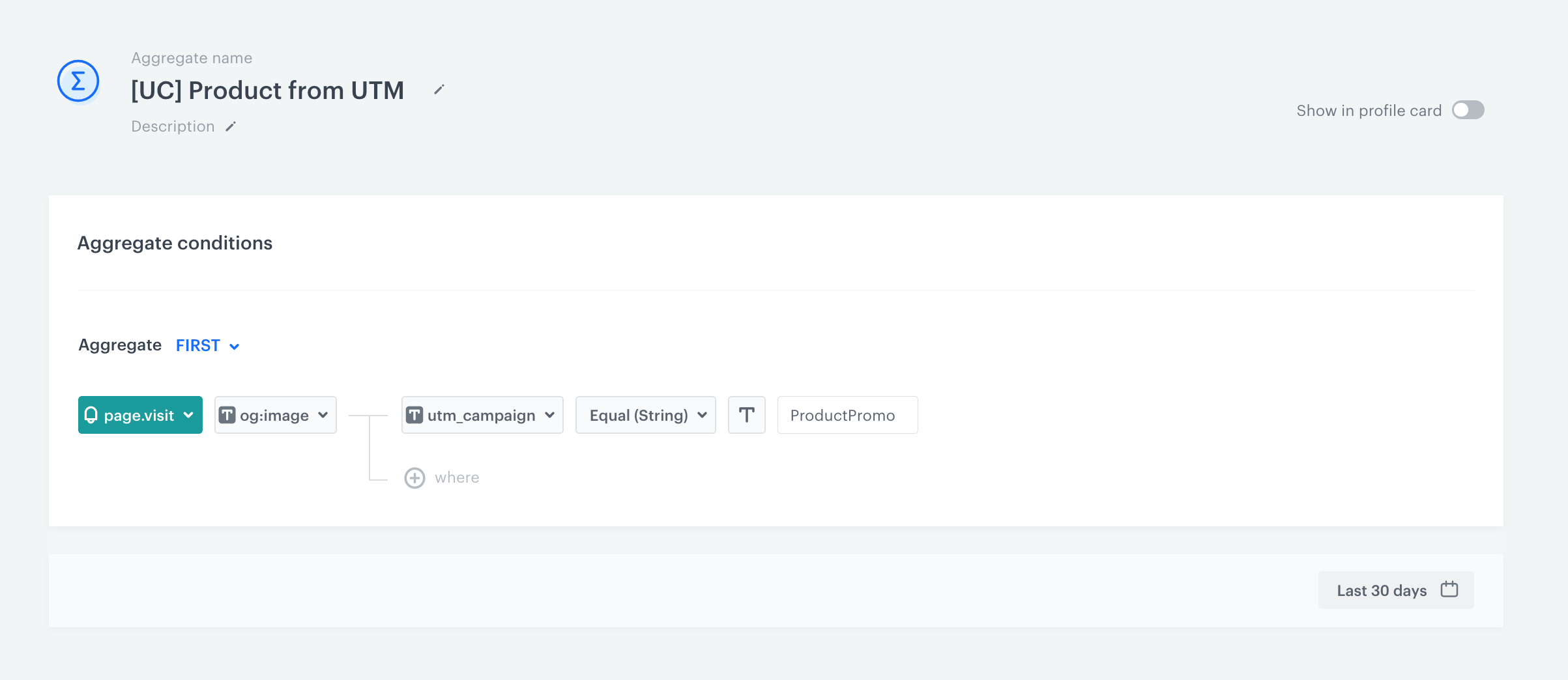
 **Behavioral Data Hub > Live Aggregates > Create aggregate**.
2. Enter the name of the aggregate.
3. By clicking the
**Behavioral Data Hub > Live Aggregates > Create aggregate**.
2. Enter the name of the aggregate.
3. By clicking the  button, set **First** as the type of the aggregate result (this configures the aggregate to show the first value of the event parameter in the time range selected in the analysis).
4. From the **Choose event** dropdown list, select the **page.visit** event.
5. From the **Choose parameter** dropdown list, select **og:image**.
6. Click the **+ where** button.
7. From the **Choose parameter** dropdown list, select the **utm_campaign**.
8. Select the **Equal** logical operator.
9. Next to the logical operator, in the text field, enter the name of the UTM campaign.
10. By default, the date range for the analysis is set to the last 30 days. To change the date range, click the calendar icon. Confirm the changes with the **Apply** button.
11. Save the aggregate by clicking **Save**.
**Result**: The aggregate uses the image of the product and returns the first product viewed in the UTM campaign.
button, set **First** as the type of the aggregate result (this configures the aggregate to show the first value of the event parameter in the time range selected in the analysis).
4. From the **Choose event** dropdown list, select the **page.visit** event.
5. From the **Choose parameter** dropdown list, select **og:image**.
6. Click the **+ where** button.
7. From the **Choose parameter** dropdown list, select the **utm_campaign**.
8. Select the **Equal** logical operator.
9. Next to the logical operator, in the text field, enter the name of the UTM campaign.
10. By default, the date range for the analysis is set to the last 30 days. To change the date range, click the calendar icon. Confirm the changes with the **Apply** button.
11. Save the aggregate by clicking **Save**.
**Result**: The aggregate uses the image of the product and returns the first product viewed in the UTM campaign.
 **Decision Hub > Segmentations > New segmentation**.
13. Enter the name of the segmentation.
14. Click **Add condition** and from the dropdown list select the **page.visit** event.
15. Click **+ where** button.
16. From the **Choose parameter** dropdown list, select the **utm_campaign** parameter.
17. Select the **Equal** logical operator.
18. Next to the logical operator, in the text field, enter the UTM campaign name.
19. Click **and then...**.
20. From the dropdown list, select the **Bought product** event.
21. Click the **+ where** button.
22. From the **Choose parameter** dropdown list, select **$image**.
23. Select the **Equal** logical operator.
24. As the value select **Parameter** by clicking the icon next to the input.
25. From the **Parameter** dropdown list, select the **Aggregates** catalog.
26. Select the aggregate created in previous steps.
27. By default, the date range for the analysis is set at the last 30 days. To change the date range, click the calendar icon. Confirm the changes with the **Apply** button.
**Decision Hub > Segmentations > New segmentation**.
13. Enter the name of the segmentation.
14. Click **Add condition** and from the dropdown list select the **page.visit** event.
15. Click **+ where** button.
16. From the **Choose parameter** dropdown list, select the **utm_campaign** parameter.
17. Select the **Equal** logical operator.
18. Next to the logical operator, in the text field, enter the UTM campaign name.
19. Click **and then...**.
20. From the dropdown list, select the **Bought product** event.
21. Click the **+ where** button.
22. From the **Choose parameter** dropdown list, select **$image**.
23. Select the **Equal** logical operator.
24. As the value select **Parameter** by clicking the icon next to the input.
25. From the **Parameter** dropdown list, select the **Aggregates** catalog.
26. Select the aggregate created in previous steps.
27. By default, the date range for the analysis is set at the last 30 days. To change the date range, click the calendar icon. Confirm the changes with the **Apply** button.
 **Behavioral Data Hub > Expressions > New expression**.
2. Enter the name of the expression.
3. Select the **Event** type of expression by clicking the icon.
4. From the **Choose event** dropdown list, select the **Bought product** event.
5. Start creating the formula of the expression by clicking the **Select** button.
**Result**: A dropdown list appears.
6. From the dropdown list, select **Event attribute**.
**Result**: The **Unnamed** event attribute appears.
7. Click the attribute.
8. From the **Choose parameter** dropdown list, select **$quantity**.
9. Click the plus button.
**Result**: Another **event attribute** appears.
10. Click the attribute.
11. From the **Choose parameter** dropdown list, select **$finalUnitPrice**.
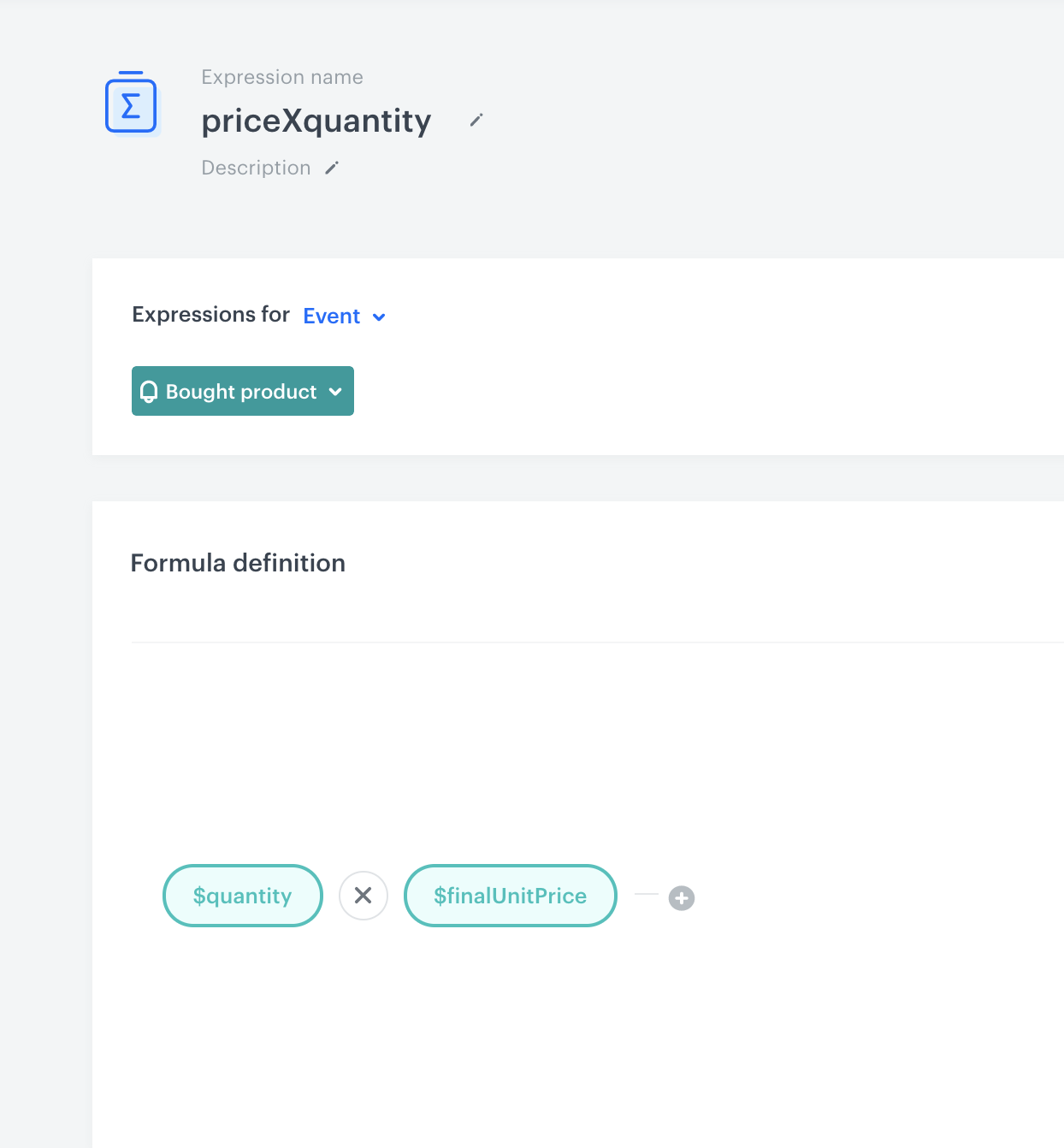
12. Multiply those two attributes, by selecting the multiplication sign between two event attributes.
**Result**:
**Behavioral Data Hub > Expressions > New expression**.
2. Enter the name of the expression.
3. Select the **Event** type of expression by clicking the icon.
4. From the **Choose event** dropdown list, select the **Bought product** event.
5. Start creating the formula of the expression by clicking the **Select** button.
**Result**: A dropdown list appears.
6. From the dropdown list, select **Event attribute**.
**Result**: The **Unnamed** event attribute appears.
7. Click the attribute.
8. From the **Choose parameter** dropdown list, select **$quantity**.
9. Click the plus button.
**Result**: Another **event attribute** appears.
10. Click the attribute.
11. From the **Choose parameter** dropdown list, select **$finalUnitPrice**.
12. Multiply those two attributes, by selecting the multiplication sign between two event attributes.
**Result**:
 **Decision Hub > Metrics > New metric**.
15. Enter the name of the metric.
16. From the **Type** dropdown list, select **Event**.
17. From the **Aggregator** list, select **Sum**.
18. From the **Occurrence type**, select **All**.
19. From the **Choose event** dropdown, select **Bought product**
20. From the **Choose parameter** dropdown list, click the
**Decision Hub > Metrics > New metric**.
15. Enter the name of the metric.
16. From the **Type** dropdown list, select **Event**.
17. From the **Aggregator** list, select **Sum**.
18. From the **Occurrence type**, select **All**.
19. From the **Choose event** dropdown, select **Bought product**
20. From the **Choose parameter** dropdown list, click the  icon, and then select **Expression**.
21. Select the expression created in the previous steps.
22. From the **Choose parameter** dropdown list, select **$sku**.
23. As the logic operator, select **In**.
24. Click the icon next to the logic operator and keep clicking until you get
icon, and then select **Expression**.
21. Select the expression created in the previous steps.
22. From the **Choose parameter** dropdown list, select **$sku**.
23. As the logic operator, select **In**.
24. Click the icon next to the logic operator and keep clicking until you get  .
25. From the **Choose value** dropdown list, click the icon, and then select **Aggregates**.
26. Select the aggregate created in the previous steps.
**Result**:
.
25. From the **Choose value** dropdown list, click the icon, and then select **Aggregates**.
26. Select the aggregate created in the previous steps.
**Result**:
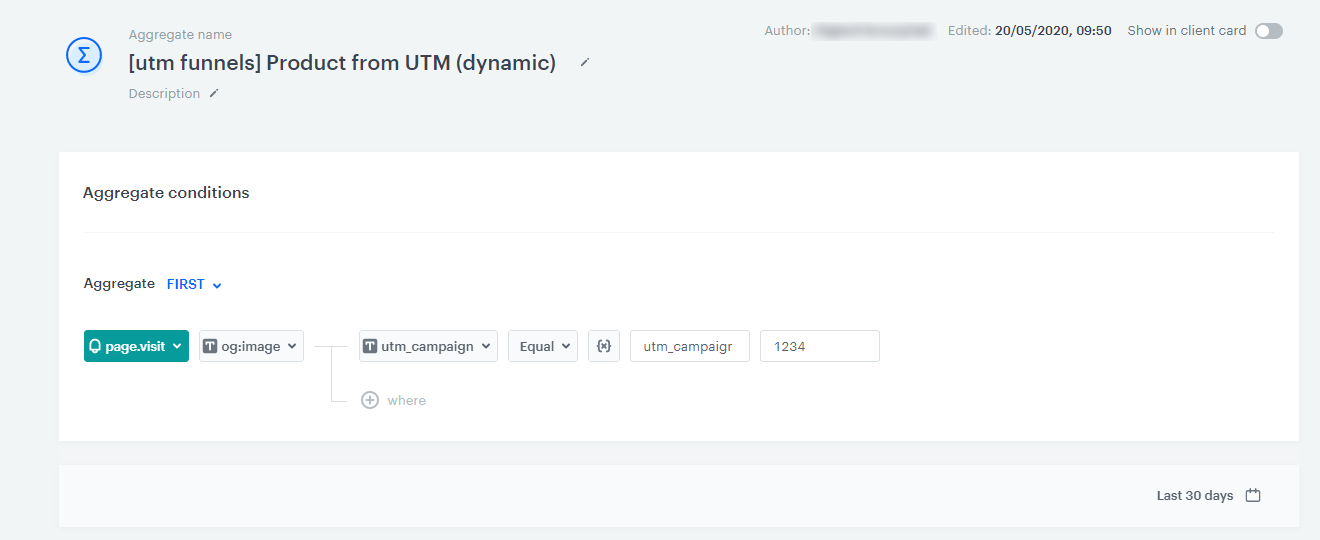
 **Behavioral Data Hub > Live Aggregates > Create aggregate**.
2. Enter the name of the aggregate.
3. By clicking the button, set **First** as the type of the aggregate result (then the aggregate result shows the first value of the event parameter in the time range selected in the analysis).
4. From the **Choose event** dropdown list, select the **page.visit** event.
5. From the **Choose parameter** dropdown list, select the **og:image**.
6. Click the **+ where** button.
7. From the **Choose parameter** dropdown list, select **utm_campaign**.
8. Select the **Equal** logical operator.
9. Click the icon next to the logic operator and keep clicking until you get
**Behavioral Data Hub > Live Aggregates > Create aggregate**.
2. Enter the name of the aggregate.
3. By clicking the button, set **First** as the type of the aggregate result (then the aggregate result shows the first value of the event parameter in the time range selected in the analysis).
4. From the **Choose event** dropdown list, select the **page.visit** event.
5. From the **Choose parameter** dropdown list, select the **og:image**.
6. Click the **+ where** button.
7. From the **Choose parameter** dropdown list, select **utm_campaign**.
8. Select the **Equal** logical operator.
9. Click the icon next to the logic operator and keep clicking until you get  .
10. In the left text field, enter the name of the dynamic key (in this case, it's `utm_campaign`).
11. In the right text field, enter the value of the dynamic key (name of the UTM campaign).
.
10. In the left text field, enter the name of the dynamic key (in this case, it's `utm_campaign`).
11. In the right text field, enter the value of the dynamic key (name of the UTM campaign).
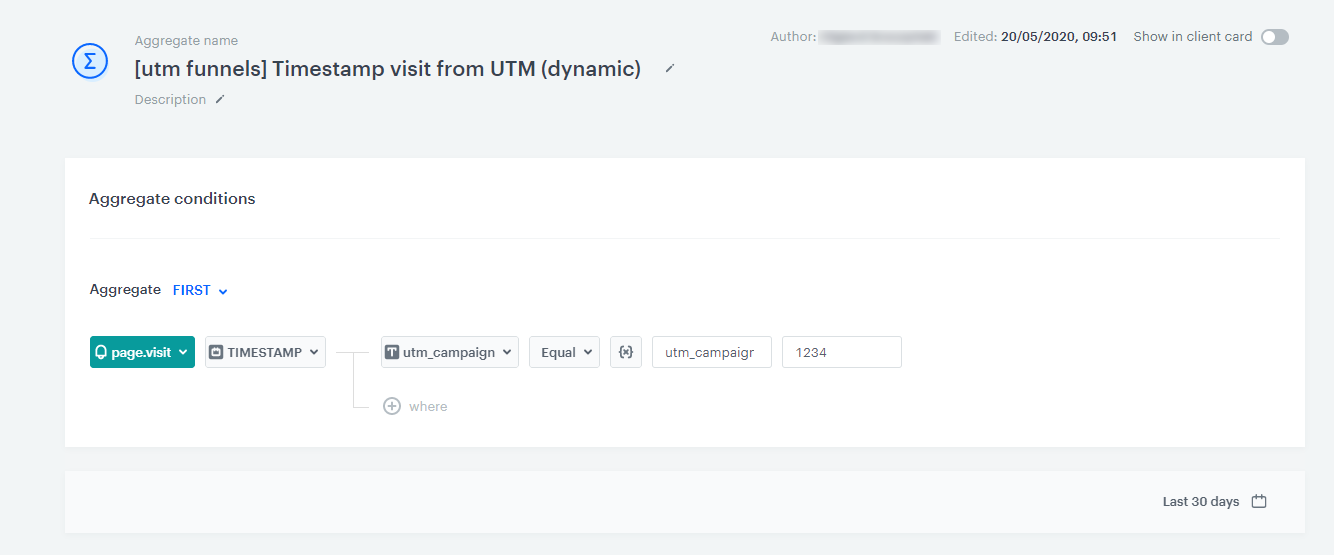
 **Behavioral Data Hub > Live Aggregates > Create aggregate**.
2. Enter the name of the aggregate.
3. By clicking the button, set **First** as the type of the aggregate result (this configures the aggregate to show the first value of the event parameter in the time range selected in the analysis).
4. From the **Choose event** dropdown list, select the **page.visit** event.
5. From the **Choose parameter** dropdown list, click the icon, and then select **Specials**.
6. From the list, select **TIMESTAMP**.
6. Click the **+ where** button.
7. From the **Choose parameter** dropdown list, select **utm_campaign**.
8. Select the **Equal** logical operator.
9. Click the icon next to the logic operator and keep clicking until you get .
10. In the left text field, enter the name of the dynamic key (in this case, it's `utm_campaign`).
11. In the right text field, enter the value of the dynamic key.
**Behavioral Data Hub > Live Aggregates > Create aggregate**.
2. Enter the name of the aggregate.
3. By clicking the button, set **First** as the type of the aggregate result (this configures the aggregate to show the first value of the event parameter in the time range selected in the analysis).
4. From the **Choose event** dropdown list, select the **page.visit** event.
5. From the **Choose parameter** dropdown list, click the icon, and then select **Specials**.
6. From the list, select **TIMESTAMP**.
6. Click the **+ where** button.
7. From the **Choose parameter** dropdown list, select **utm_campaign**.
8. Select the **Equal** logical operator.
9. Click the icon next to the logic operator and keep clicking until you get .
10. In the left text field, enter the name of the dynamic key (in this case, it's `utm_campaign`).
11. In the right text field, enter the value of the dynamic key.
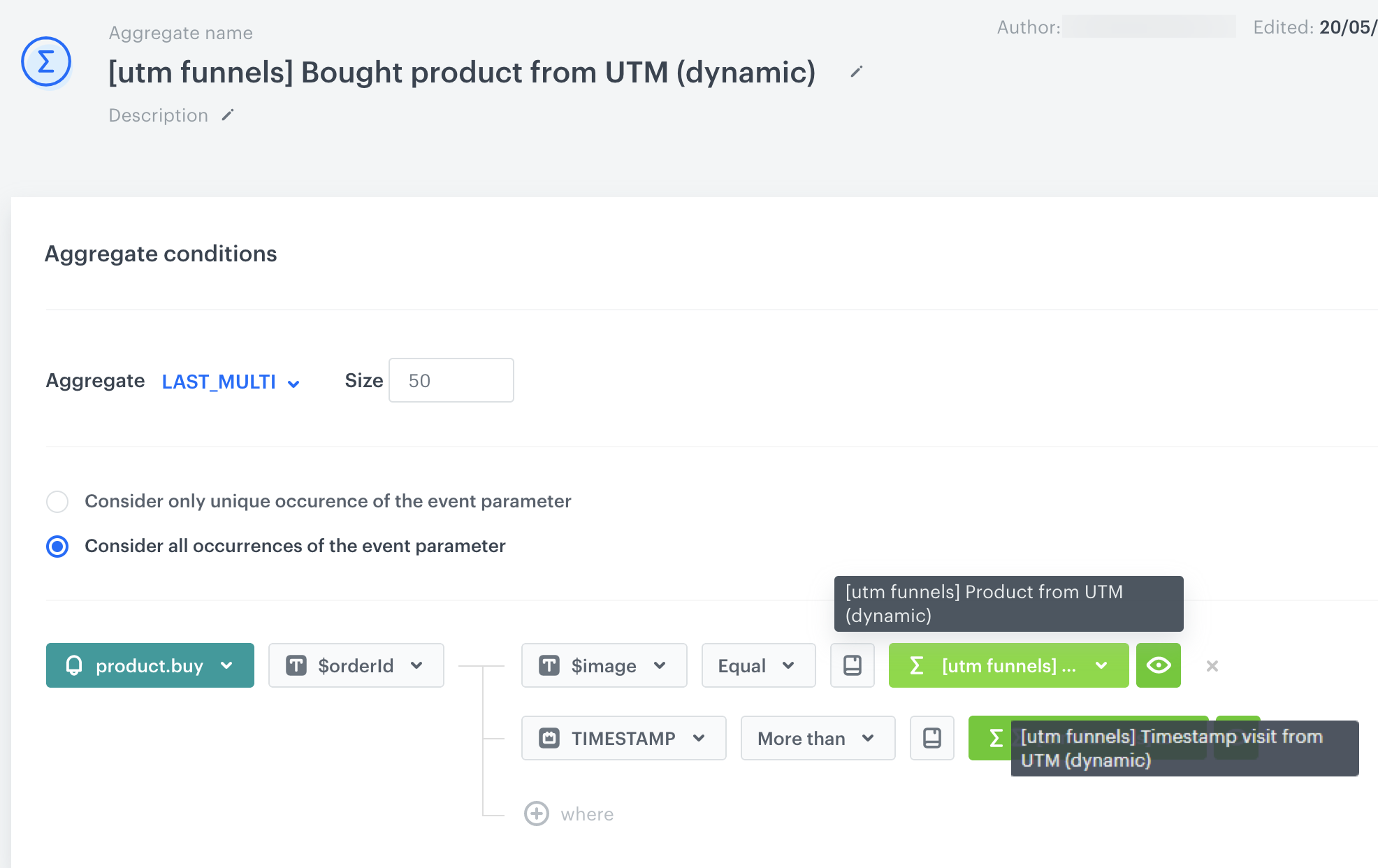
 **Behavioral Data Hub > Live Aggregates > Create aggregate**.
2. Enter the name of the aggregate.
3. By clicking the button, set **Last Multi** as the type of the aggregate result (this configures the aggregate to show the defined number of results of the event parameter in the time range selected in the analysis).
4. In the **Size** field, select the number of results of the aggregate.
4. From the **Choose event** dropdown list, select the **product.buy** event.
5. From the **Choose parameter** dropdown list, select **$orderId**.
6. Click the **+ where** button.
7. From the **Choose parameter** dropdown list, select **$image**.
8. Select the **Equal** logical operator.
9. Click the icon next to the logic operator and keep clicking until you get .
19. From the **Choose value** dropdown list, click the icon, and then select **Aggregates**.
20. Select the first aggregate created in the previous steps.
6. Click the **+ where** button.
7. From the **Choose parameter** dropdown list, select **$image**.
8. Select the **Equal** logical operator.
9. Click the icon next to the logic operator and keep clicking until you get .
19. From the **Choose value** dropdown list, click the icon, and then select **Aggregates**.
21. Select the second aggregate created in previous steps.
22. Save the aggregate by clicking **Save**.
**Result**: The aggregate returns a list of products (the number of products depend on the value entered in the **Size** field, in the step 4) from the selected UTM campaign.
**Behavioral Data Hub > Live Aggregates > Create aggregate**.
2. Enter the name of the aggregate.
3. By clicking the button, set **Last Multi** as the type of the aggregate result (this configures the aggregate to show the defined number of results of the event parameter in the time range selected in the analysis).
4. In the **Size** field, select the number of results of the aggregate.
4. From the **Choose event** dropdown list, select the **product.buy** event.
5. From the **Choose parameter** dropdown list, select **$orderId**.
6. Click the **+ where** button.
7. From the **Choose parameter** dropdown list, select **$image**.
8. Select the **Equal** logical operator.
9. Click the icon next to the logic operator and keep clicking until you get .
19. From the **Choose value** dropdown list, click the icon, and then select **Aggregates**.
20. Select the first aggregate created in the previous steps.
6. Click the **+ where** button.
7. From the **Choose parameter** dropdown list, select **$image**.
8. Select the **Equal** logical operator.
9. Click the icon next to the logic operator and keep clicking until you get .
19. From the **Choose value** dropdown list, click the icon, and then select **Aggregates**.
21. Select the second aggregate created in previous steps.
22. Save the aggregate by clicking **Save**.
**Result**: The aggregate returns a list of products (the number of products depend on the value entered in the **Size** field, in the step 4) from the selected UTM campaign.
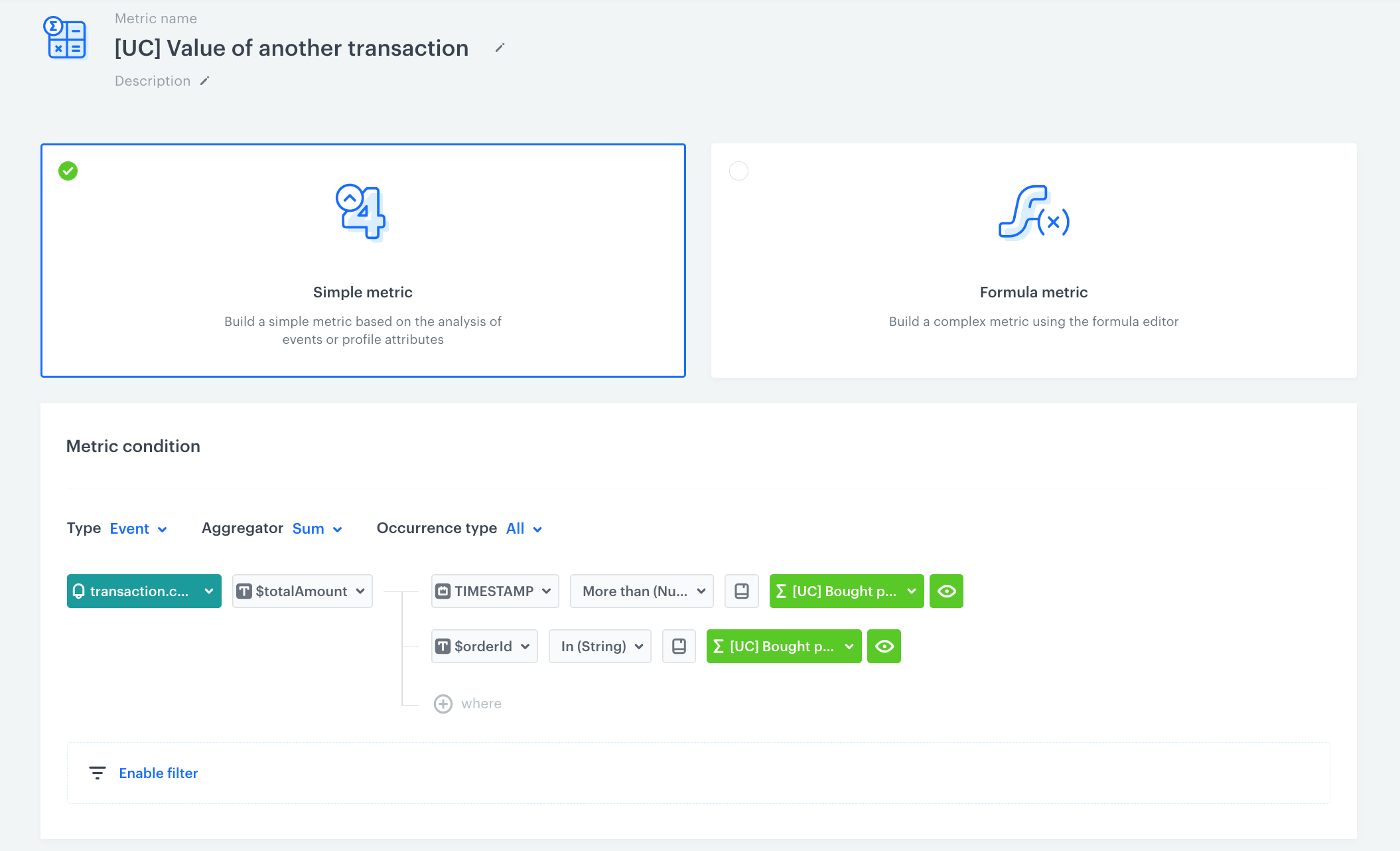
 **Decision Hub > Metrics > New metric**.
2. Enter the name of the metric.
3. Select a simple metric (set by default).
4. As the **Type**, select **Event** (set by default).
5. As the **Aggregator**, select **Sum**.
6. As the **Occurrence**, select **All**.
7. From the **Choose event** dropdown list, select **transaction.charge**.
8. Click the **+ where** button.
9. From the **Choose parameter** dropdown list, select **$totalAmount**.
10. Click the **+ where** button.
11. From the **Choose parameter** dropdown list, click the icon, and then select **Specials**.
12. From the list, select **TIMESTAMP**.
13. As the logical operator, select **More than**.
14. Click the icon next to the logic operator and keep clicking until you get .
15. From the **Choose value** dropdown list, click the icon, and then select **Aggregates**.
16. Select the third aggregate.
17. Click the **+ where** button.
18. From the **Choose parameter** dropdown list, select **$orderId**.
19. As the logical operator, select **In**.
20. Click the icon next to the logic operator and keep clicking until you get .
21. From the **Choose value** dropdown list, click the icon, and then select **Aggregates**.
22. Select the third aggregate.
23. Save the metric.
**Result**:
**Decision Hub > Metrics > New metric**.
2. Enter the name of the metric.
3. Select a simple metric (set by default).
4. As the **Type**, select **Event** (set by default).
5. As the **Aggregator**, select **Sum**.
6. As the **Occurrence**, select **All**.
7. From the **Choose event** dropdown list, select **transaction.charge**.
8. Click the **+ where** button.
9. From the **Choose parameter** dropdown list, select **$totalAmount**.
10. Click the **+ where** button.
11. From the **Choose parameter** dropdown list, click the icon, and then select **Specials**.
12. From the list, select **TIMESTAMP**.
13. As the logical operator, select **More than**.
14. Click the icon next to the logic operator and keep clicking until you get .
15. From the **Choose value** dropdown list, click the icon, and then select **Aggregates**.
16. Select the third aggregate.
17. Click the **+ where** button.
18. From the **Choose parameter** dropdown list, select **$orderId**.
19. As the logical operator, select **In**.
20. Click the icon next to the logic operator and keep clicking until you get .
21. From the **Choose value** dropdown list, click the icon, and then select **Aggregates**.
22. Select the third aggregate.
23. Save the metric.
**Result**: