Date filtering lets you analyze data from a chosen period or schedule certain actions. Date filters are available in multiple modules in two versions:
- [date pickers](#date-pickers) - it lets you pick fixed date to schedule an action such as sending emails, text messages, or notifications. Some forms of communication, such as **dynamic content** or **promotions** are continuous, so you may select start and end date for them on the date picker.
- [date range pickers](#date-range-picker) - it lets you select date ranges based on fixed dates or relative date ranges and it lets you further narrow down the selected period.
When selecting the date and time in filters, the filter analyzes data that occurred exactly on or after the defined start date and time. For example, if you define a filter from August 5, 2024, at 13:00, the data that occurred at 13:00:00.000 on August 5, 2024 or later will be analyzed.
## Date pickers
---
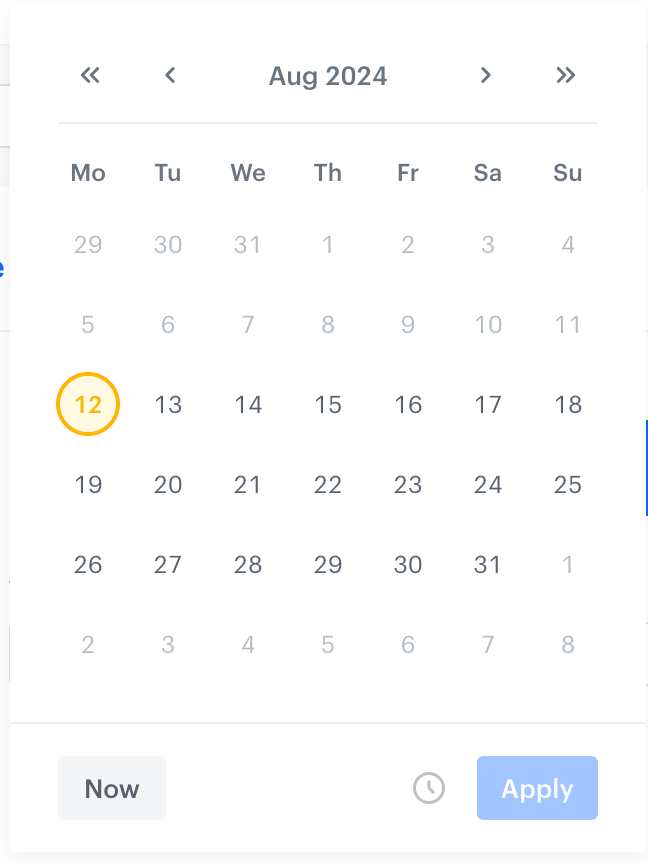
Date picker lets you select the date for performing a particular task. It's a calendar with which you can pick single dates and define exact time (by clicking the clock icon). It's available in the **Experience Hub**, **Data Modeling Hub**, and **Automation Hub**.
Date picker
## Date range picker
---
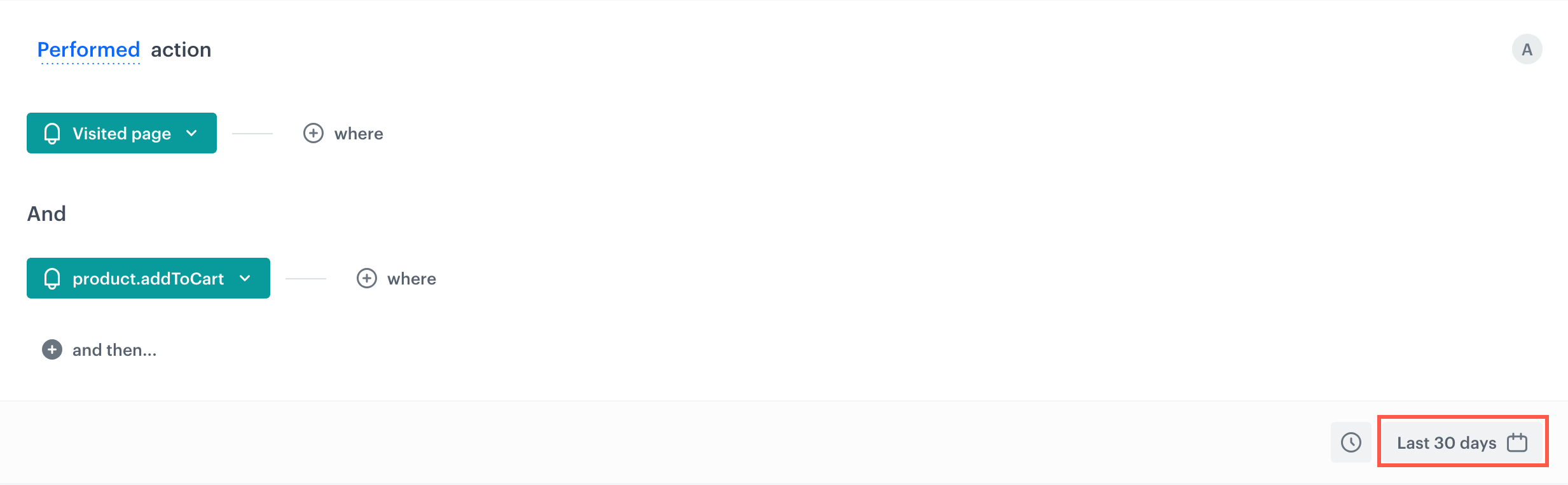
You may find date range picker in the **Decision Hub**.
Date range picker in a segmentation condition
### Selecting date range
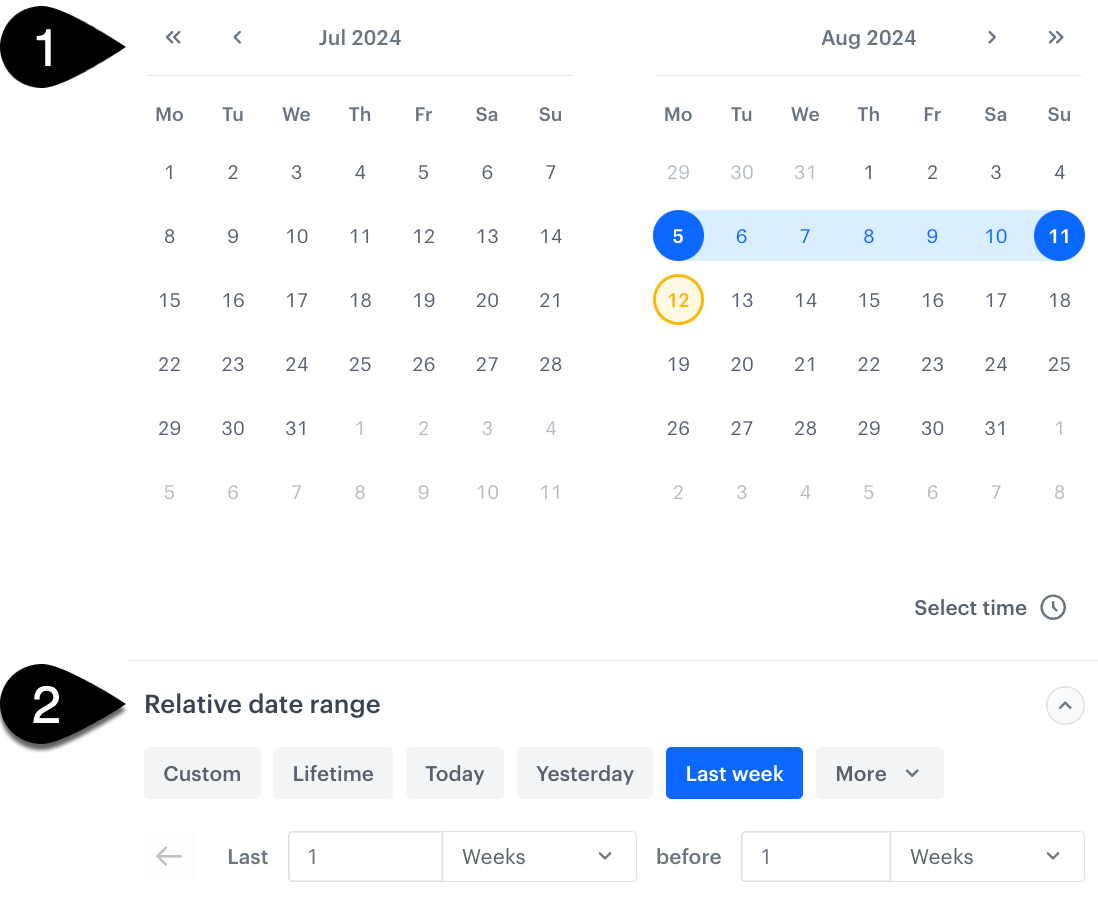
You can pick the time range in several ways.
Selecting a date range in the date range picker
1. You can pick the start and end date on the calendar; you can also define an exact time by clicking **Select time**. The analyzed period will be highlighted on the calendar.
2. You can select a **relative date range**. Unlike manually selecting fixed dates for data analysis, a relative date range will automatically adjust as time goes by, for example "3 weeks before current time". You can customize the relative date range by specifying how many days or weeks before or after the analyzed period you want to include or exclude, then the date range changes to **Custom**.
The table below displays all the available relative date ranges in the date range picker. All examples use **August 12, 2024** as the current date.
[Events](/docs/assets/events) have different retention periods. For example, when analyzing an event with a one-month retention period and applying a Lifetime date filter, the results will be limited to that one month.
| Relative date range | Output |
|---------------------|------------------------------------------------------------------------------------------------------------------------------------------------------------------------------------------|
| Today | Current day (August 12, 2024) from 00:00:00.000 to 23:59:59.999 |
| Yesterday | The day before the current day (August 11, 2024) from 00:00:00.000 to 23:59:59.999 |
| Last year | Period from January 1, 2023 to December 31, 2023 |
| This month | Period from the first to the last day of the current month: August 1 to August 31, 2024 |
| Last month | Period from the first to the last day of the previous month: July 1 to July 31, 2024 |
| This week | Period from Monday (00:00:00.000) to Sunday (23:59:59.999) of the current week: August 12 to August 19, 2024 |
| Last week | Period from Monday (00:00:00.000) to Sunday (23:59:59.999) of the previous week: August 05 to August 11, 2024 |
| Last 7 days | Period of the last 7 days including today: August 05 (00:00:00.000) to August 12 (23:59:59.999), 2024 |
| Last 3 months | Last 3 full months (May 1 to July 31, 2024). |
| Last 6 months | Last 6 full months (February 1 to July 31, 2024). |
| Lifetime | All available data from the past until now. |
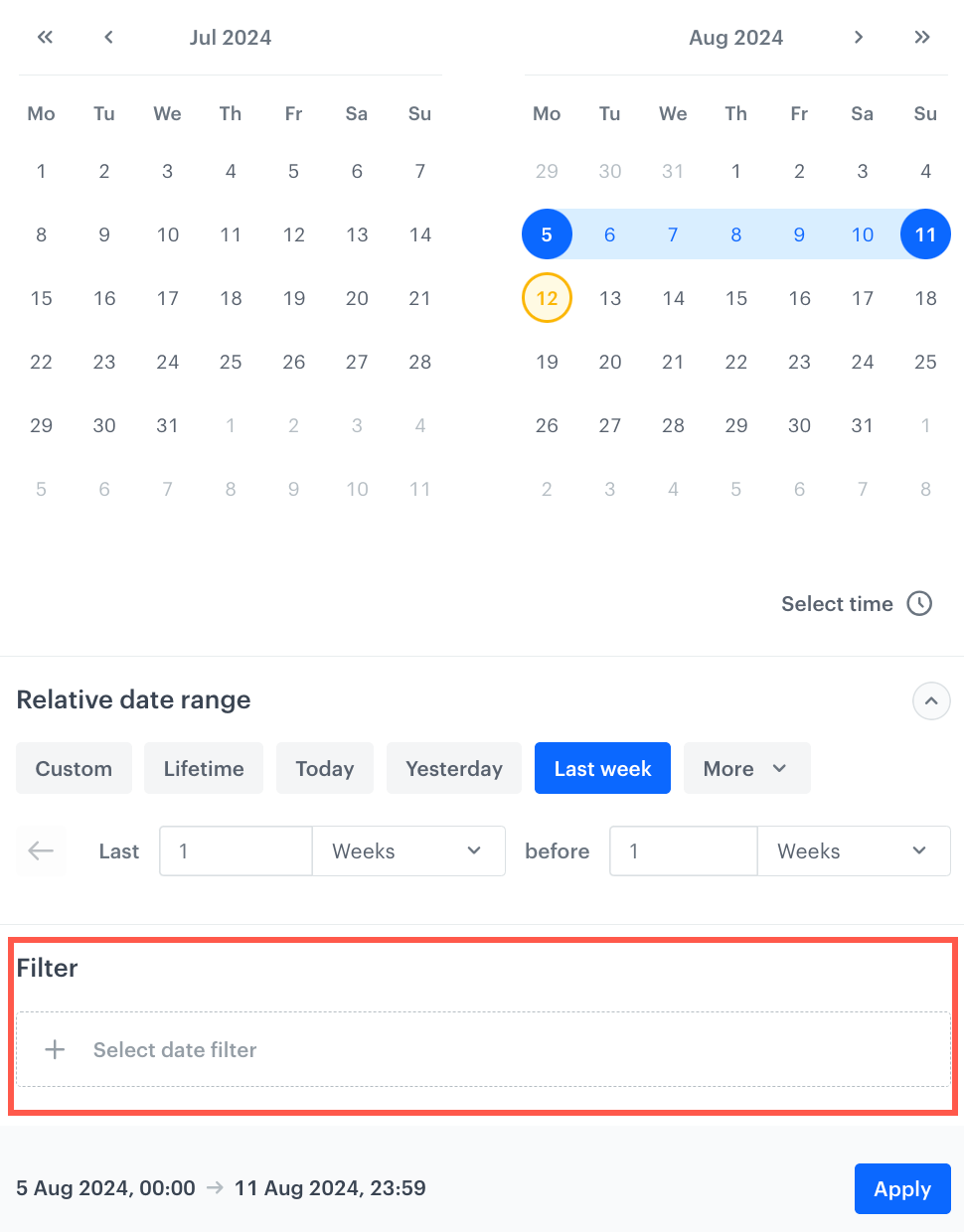
### Applying additional filters
This is an optional step that lets you narrow down the date range you have selected. For the [every month](#every-month) variant, you can create several rules for the additional filters.
Additional filters in date range picker
#### Every day
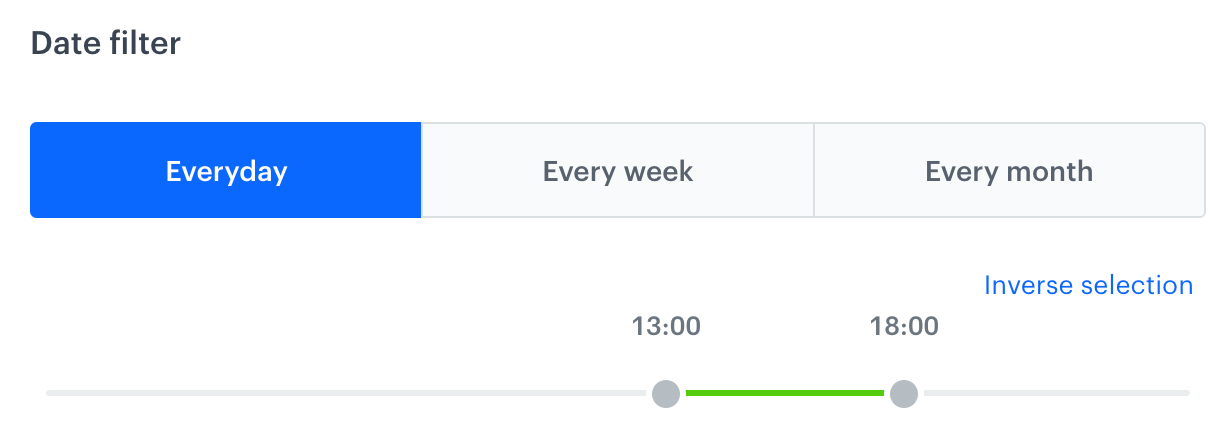
This option lets you narrow down the filters to specific hours of each day within selected date range. For example, to retrieve event data from August 5 to August 11, 2024 for events that occurred between 13:00:00.000 and 18:00:00.000.
By selecting **Inverse selection**, you can retrieve data from events that occurred only outside of the 13:00:00.000 to 18:00:00.000 range every day within the [selected date range](#selecting-date-range).
Everyday option in additional filters
#### Every week
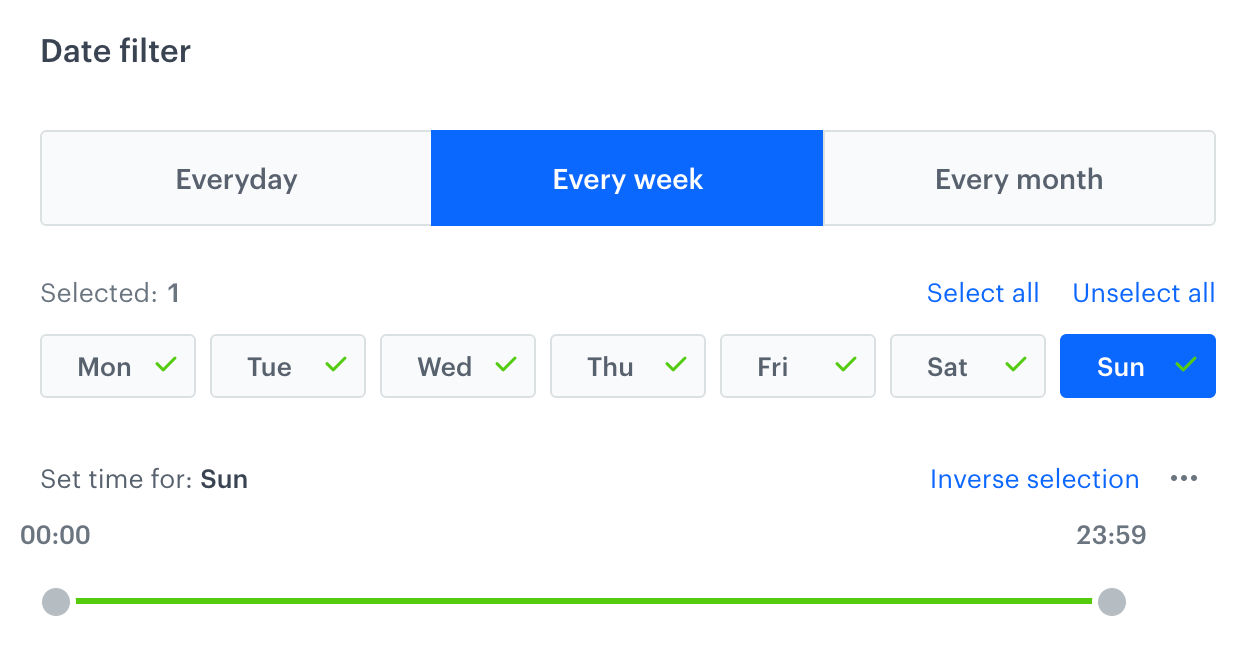
This option lets you narrow down the data to specific hours differently each day of the week within a [selected date range](#selecting-date-range). For example, between August 5 to August 11, 2024, the filter can be used to retrieve data:
- from 13:00:00.000 to 18:00:00.000 on Monday, Wednesday, and Friday
- from the entire day on the other days
Every week option in additional filters
#### Every month
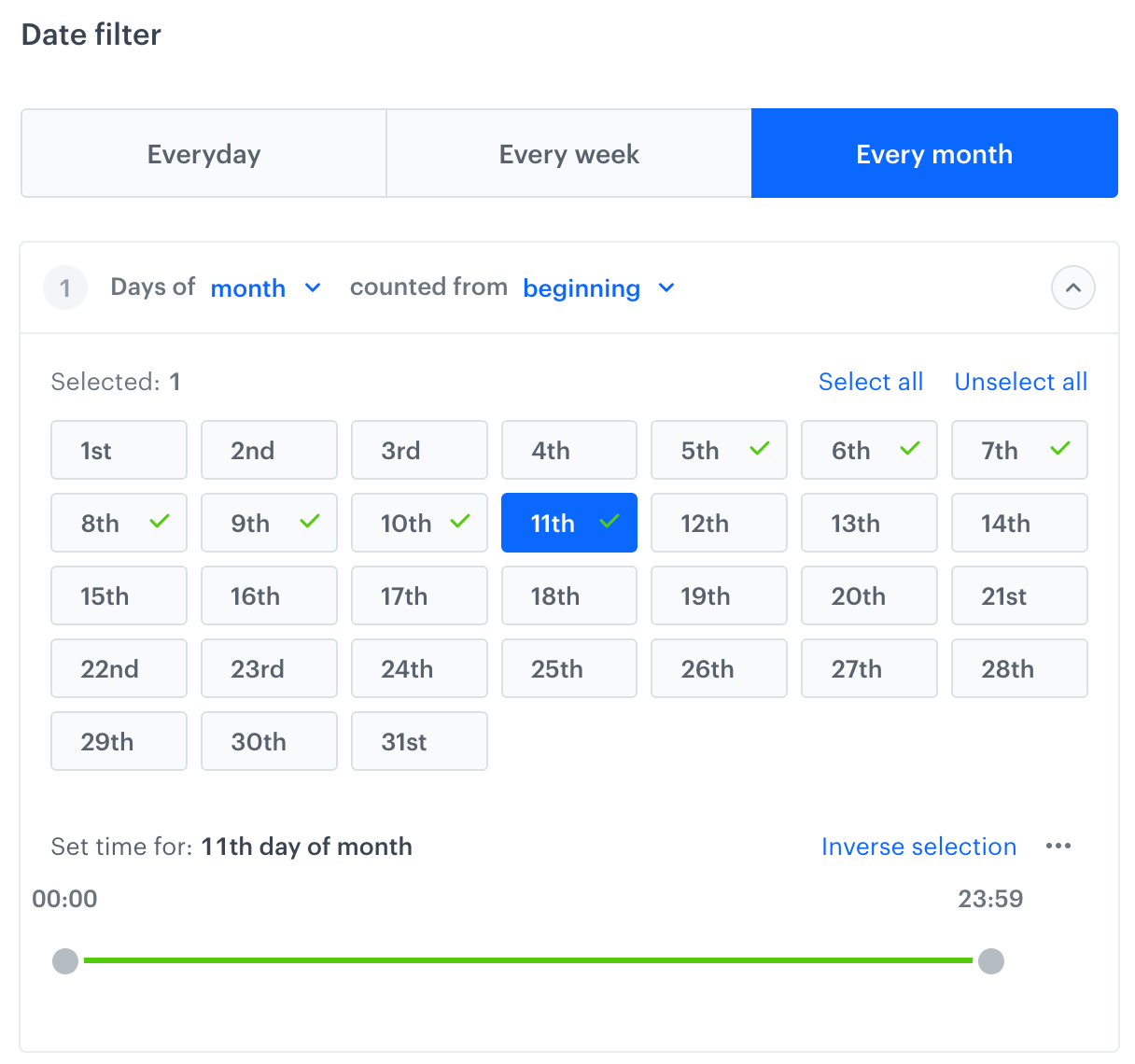
This option narrows down the data to specific hours differently each day of the week or month within a [selected date range](#selecting-date-range). You can create rules within the filter concerning the scope of daily and hourly activity.
You can choose the order of the days. You can either display days of the month or the week from the first to the last day or from the last day to the first one.
For example, on the 5th, 7th, and 9th day of the month the data will be filtered to only include events from 13:00:00.000 to 18:00:00.000, whereas on 6th, 8th, 10th and 11th day, events from the entire day will be included.
Every month option in additional filters