#### Profiles and attributes

A profile represents an entity such as a person, organization, and so on. The summary of all data collected about a single profile is available in **Behavioral Data Hub > Profiles**. In Synerise such actions as preparing most analyses, sending communication ([email](/docs/campaign/e-mail), [text messages](/docs/campaign/SMS), [web push notifications](/docs/campaign/Webpush), [mobile push notifications](/docs/campaign/Mobile), and [in-app messages](/docs/campaign/in-app-messages)), preparing [promotions](/docs/ai-hub/promotions) and [recommendations](/docs/ai-hub/recommendations-v2), making [predictions](/docs/ai-hub/predictions) are profile-oriented.

An attribute describes a trait of a profile, for example, an email address, marketing agreements, size, age, favorite brand, results of [aggregates](/docs/analytics/aggregates) and [expressions](/docs/analytics/expressions), and so on.


<div class="admonition admonition-note"><div class="admonition-icon"><svg xmlns="http://www.w3.org/2000/svg" fill="none" viewBox="0 0 24 24" stroke="currentColor" stroke-width="2.5"><path stroke-linecap="round" stroke-linejoin="round" d="M13 16h-1v-4h-1m1-4h.01M21 12a9 9 0 11-18 0 9 9 0 0118 0z" /></svg></div><div class="admonition-body"><div class="admonition-content">

You can find more information about attributes [here](/docs/assets/customer-properties).

</div></div></div>


#### Events and event parameters
[Events](/docs/assets/events) describe actions that occur within your website or mobile application, such as page views (available in a workspace as `page.visit`), clicks, and purchases. They are connected with profiles (for example customers) and they are generated as a result of implementing a tracking code into your website.  
Events contain parameters, which are the details of the action they describe. Thanks to them, you can analyze events in terms of various aspects. For example, you can measure visits to a specific subpage within your website.

<div class="admonition admonition-note"><div class="admonition-icon"><svg xmlns="http://www.w3.org/2000/svg" fill="none" viewBox="0 0 24 24" stroke="currentColor" stroke-width="2.5"><path stroke-linecap="round" stroke-linejoin="round" d="M13 16h-1v-4h-1m1-4h.01M21 12a9 9 0 11-18 0 9 9 0 0118 0z" /></svg></div><div class="admonition-body"><div class="admonition-content">

You can learn more about [events here](/docs/assets/events/introduction-to-events) and check the full [Synerise event reference](/docs/assets/events/default-events).

</div></div></div>


## Operators: list by expected value type

While creating an analysis or creating conditions for filters, you can base them on events, event parameters, and attributes. Operators allow you to describe a particular quality of an event parameter/attribute. Operators are grouped by the data type they are used with: **string** (<img src="/api/docs/image/54176ad07f146575310749eba44b7c2f42c1b327/icons/profile-filter-string.png" alt="string icon" class="icon" > icon), **number** (<img src="/api/docs/image/54176ad07f146575310749eba44b7c2f42c1b327/icons/seg-number.png" alt="number icon" class="icon" > icon), **boolean** (<img src="/api/docs/image/54176ad07f146575310749eba44b7c2f42c1b327/icons/profile-filter-boolean.png" alt="boolean icon" class="icon" > icon), **null** (<img src="/api/docs/image/54176ad07f146575310749eba44b7c2f42c1b327/icons/profile-filter-null.png" alt="null icon" class="icon" > icon) **array** (<img src="/api/docs/image/54176ad07f146575310749eba44b7c2f42c1b327/icons/profile-filter-array.png" alt="array icon" class="icon" > icon), and **date** (<img src="/api/docs/image/54176ad07f146575310749eba44b7c2f42c1b327/icons/profile-filter-date.png" alt="date icon" class="icon" > icon). 

<figure>
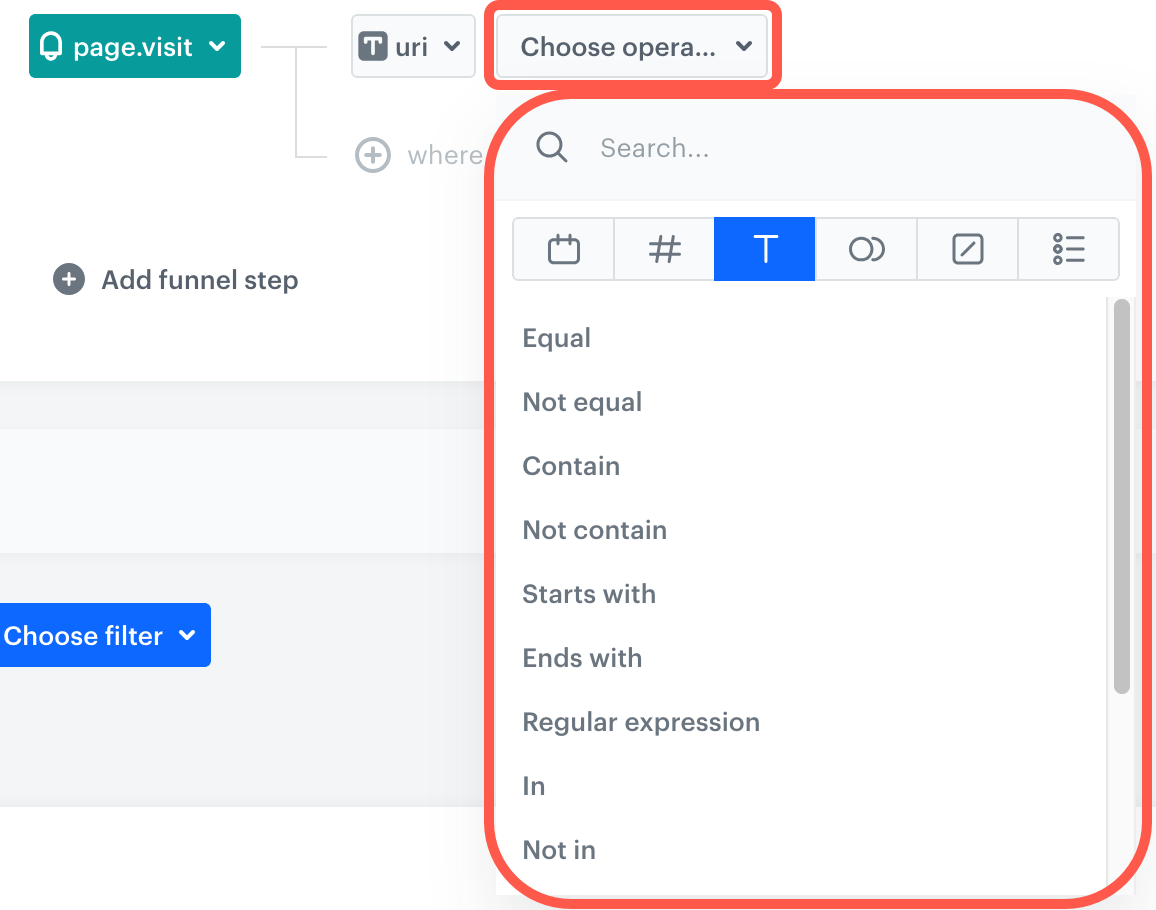
<img src="/api/docs/image/54176ad07f146575310749eba44b7c2f42c1b327/docs/analytics/_gfx/general-operators.png" alt="List of operators" class="medium" >
<figcaption> The marked area on the screen presents the list of available operators </figcaption>
</figure>

The figure above is an example of grouping customers who visited a website that contained the `shoe` phrase in the URL. This is done by creating a segmentation based on a `page.visit` event and the `uri` event parameter, and then choosing the String-type `Contain` operator with the value `shoe`.

### Empty, null, and boolean operator summary

The table summarizes the behavior of operators that can be used to analyze boolean values, null values, and check if a string is empty. The details are described in each operator's section further in the article.

- <img src="/api/docs/image/54176ad07f146575310749eba44b7c2f42c1b327/icons/check-s.svg" class="icon" alt= "MATCH">: the operator returns "true" (match) for the value
- <img src="/api/docs/image/54176ad07f146575310749eba44b7c2f42c1b327/icons/close-s.svg" class="icon" alt= "NO MATCH">: the operator returns "false" (doesn't match) for the value

|         Example value          |                           Is true                           |                          Is false                           |                          Is empty                           |                        Is not empty                         |                           Is null                           |                         Is not null                         |
| :----------------------------: | :---------------------------------------------------------: | :---------------------------------------------------------: | :---------------------------------------------------------: | :---------------------------------------------------------: | :---------------------------------------------------------: | :---------------------------------------------------------: |
|              `""`              | <img src="/api/docs/image/54176ad07f146575310749eba44b7c2f42c1b327/icons/close-s.svg" class="icon" alt= "NO MATCH"> |  <img src="/api/docs/image/54176ad07f146575310749eba44b7c2f42c1b327/icons/check-s.svg" class="icon" alt= "MATCH">   |  <img src="/api/docs/image/54176ad07f146575310749eba44b7c2f42c1b327/icons/check-s.svg" class="icon" alt= "MATCH">   | <img src="/api/docs/image/54176ad07f146575310749eba44b7c2f42c1b327/icons/close-s.svg" class="icon" alt= "NO MATCH"> | <img src="/api/docs/image/54176ad07f146575310749eba44b7c2f42c1b327/icons/close-s.svg" class="icon" alt= "NO MATCH"> |  <img src="/api/docs/image/54176ad07f146575310749eba44b7c2f42c1b327/icons/check-s.svg" class="icon" alt= "MATCH">   |
|    `" "`, `"foo"`, `"null"`    |  <img src="/api/docs/image/54176ad07f146575310749eba44b7c2f42c1b327/icons/check-s.svg" class="icon" alt= "MATCH">   | <img src="/api/docs/image/54176ad07f146575310749eba44b7c2f42c1b327/icons/close-s.svg" class="icon" alt= "NO MATCH"> | <img src="/api/docs/image/54176ad07f146575310749eba44b7c2f42c1b327/icons/close-s.svg" class="icon" alt= "NO MATCH"> |  <img src="/api/docs/image/54176ad07f146575310749eba44b7c2f42c1b327/icons/check-s.svg" class="icon" alt= "MATCH">   | <img src="/api/docs/image/54176ad07f146575310749eba44b7c2f42c1b327/icons/close-s.svg" class="icon" alt= "NO MATCH"> |  <img src="/api/docs/image/54176ad07f146575310749eba44b7c2f42c1b327/icons/check-s.svg" class="icon" alt= "MATCH">   |
|  `1`; `"1"`; `true`; `"true"`  |  <img src="/api/docs/image/54176ad07f146575310749eba44b7c2f42c1b327/icons/check-s.svg" class="icon" alt= "MATCH">   | <img src="/api/docs/image/54176ad07f146575310749eba44b7c2f42c1b327/icons/close-s.svg" class="icon" alt= "NO MATCH"> | <img src="/api/docs/image/54176ad07f146575310749eba44b7c2f42c1b327/icons/close-s.svg" class="icon" alt= "NO MATCH"> |  <img src="/api/docs/image/54176ad07f146575310749eba44b7c2f42c1b327/icons/check-s.svg" class="icon" alt= "MATCH">   | <img src="/api/docs/image/54176ad07f146575310749eba44b7c2f42c1b327/icons/close-s.svg" class="icon" alt= "NO MATCH"> |  <img src="/api/docs/image/54176ad07f146575310749eba44b7c2f42c1b327/icons/check-s.svg" class="icon" alt= "MATCH">   |
| `0`; `"0"`; `false`, `"false"` | <img src="/api/docs/image/54176ad07f146575310749eba44b7c2f42c1b327/icons/close-s.svg" class="icon" alt= "NO MATCH"> |  <img src="/api/docs/image/54176ad07f146575310749eba44b7c2f42c1b327/icons/check-s.svg" class="icon" alt= "MATCH">   | <img src="/api/docs/image/54176ad07f146575310749eba44b7c2f42c1b327/icons/close-s.svg" class="icon" alt= "NO MATCH"> |  <img src="/api/docs/image/54176ad07f146575310749eba44b7c2f42c1b327/icons/check-s.svg" class="icon" alt= "MATCH">   | <img src="/api/docs/image/54176ad07f146575310749eba44b7c2f42c1b327/icons/close-s.svg" class="icon" alt= "NO MATCH"> |  <img src="/api/docs/image/54176ad07f146575310749eba44b7c2f42c1b327/icons/check-s.svg" class="icon" alt= "MATCH">   |
|          `-1`; `"-1"`          |  <img src="/api/docs/image/54176ad07f146575310749eba44b7c2f42c1b327/icons/check-s.svg" class="icon" alt= "MATCH">   | <img src="/api/docs/image/54176ad07f146575310749eba44b7c2f42c1b327/icons/close-s.svg" class="icon" alt= "NO MATCH"> | <img src="/api/docs/image/54176ad07f146575310749eba44b7c2f42c1b327/icons/close-s.svg" class="icon" alt= "NO MATCH"> |  <img src="/api/docs/image/54176ad07f146575310749eba44b7c2f42c1b327/icons/check-s.svg" class="icon" alt= "MATCH">   | <img src="/api/docs/image/54176ad07f146575310749eba44b7c2f42c1b327/icons/close-s.svg" class="icon" alt= "NO MATCH"> |  <img src="/api/docs/image/54176ad07f146575310749eba44b7c2f42c1b327/icons/check-s.svg" class="icon" alt= "MATCH">   |
|             `null`             | <img src="/api/docs/image/54176ad07f146575310749eba44b7c2f42c1b327/icons/close-s.svg" class="icon" alt= "NO MATCH"> |  <img src="/api/docs/image/54176ad07f146575310749eba44b7c2f42c1b327/icons/check-s.svg" class="icon" alt= "MATCH">   |  <img src="/api/docs/image/54176ad07f146575310749eba44b7c2f42c1b327/icons/check-s.svg" class="icon" alt= "MATCH">   | <img src="/api/docs/image/54176ad07f146575310749eba44b7c2f42c1b327/icons/close-s.svg" class="icon" alt= "NO MATCH"> |  <img src="/api/docs/image/54176ad07f146575310749eba44b7c2f42c1b327/icons/check-s.svg" class="icon" alt= "MATCH">   | <img src="/api/docs/image/54176ad07f146575310749eba44b7c2f42c1b327/icons/close-s.svg" class="icon" alt= "NO MATCH"> |
| Empty array (`[]`) | <img src="/api/docs/image/54176ad07f146575310749eba44b7c2f42c1b327/icons/close-s.svg" class="icon" alt= "NO MATCH"> | <img src="/api/docs/image/54176ad07f146575310749eba44b7c2f42c1b327/icons/check-s.svg" class="icon" alt= "MATCH"> | <img src="/api/docs/image/54176ad07f146575310749eba44b7c2f42c1b327/icons/check-s.svg" class="icon" alt= "MATCH"> | <img src="/api/docs/image/54176ad07f146575310749eba44b7c2f42c1b327/icons/close-s.svg" class="icon" alt= "NO MATCH"> | <img src="/api/docs/image/54176ad07f146575310749eba44b7c2f42c1b327/icons/close-s.svg" class="icon" alt= "NO MATCH"> | <img src="/api/docs/image/54176ad07f146575310749eba44b7c2f42c1b327/icons/check-s.svg" class="icon" alt= "MATCH"> |
| Non-empty array (at least one item) | <img src="/api/docs/image/54176ad07f146575310749eba44b7c2f42c1b327/icons/close-s.svg" class="icon" alt= "NO MATCH"> | <img src="/api/docs/image/54176ad07f146575310749eba44b7c2f42c1b327/icons/check-s.svg" class="icon" alt= "MATCH"> | <img src="/api/docs/image/54176ad07f146575310749eba44b7c2f42c1b327/icons/check-s.svg" class="icon" alt= "MATCH"> | <img src="/api/docs/image/54176ad07f146575310749eba44b7c2f42c1b327/icons/close-s.svg" class="icon" alt= "NO MATCH"> | <img src="/api/docs/image/54176ad07f146575310749eba44b7c2f42c1b327/icons/close-s.svg" class="icon" alt= "NO MATCH"> | <img src="/api/docs/image/54176ad07f146575310749eba44b7c2f42c1b327/icons/check-s.svg" class="icon" alt= "MATCH"> |


#### Where can I find operators?

Operators can be found across the whole [Decision Hub](/docs/analytics) in which you create analyses based on events, their parameters and profile attributes. Additionally, you can find operators in various filters across the application, for example on the list of profiles, while defining audiences for messages and workflows, where the operators are used in [Profile filters](/docs/analytics/i_client-filter).  
You can also find operators while defining filters within item feed, such as defining the [filters for items to be displayed in AI recommendations](/docs/ai-hub/recommendations-v2/recommendation-filters).


<div class="admonition admonition-warning"><div class="admonition-icon"><svg xmlns="http://www.w3.org/2000/svg" fill="none" viewBox="0 0 24 24" stroke="currentColor" stroke-width="2.5"><path stroke-linecap="round" stroke-linejoin="round" d="M12 9v2m0 4h.01m-6.938 4h13.856c1.54 0 2.502-1.667 1.732-2.5L13.732 4c-.77-.833-1.964-.833-2.732 0L4.082 16.5c-.77.833.192 2.5 1.732 2.5z" /></svg></div><div class="admonition-body"><div class="admonition-content">

When selecting an operator for an attribute or event parameter, pay attention to their data type. When an attribute or parameter is a string, use logical operators of the [string](#string) type, if it is a number/digit, use logical operators of the [number](#number) type, and so on.

</div></div></div>


### Array <img src="/api/docs/image/54176ad07f146575310749eba44b7c2f42c1b327/icons/profile-filter-array.png" alt="array icon" class="icon" > {#array}
---
An array is an ordered collection of elements of the same or different type.  
- If you want to operate on a value that is already an array of strings, no additional action is required to analyze the value.
- If the array contains different data types (numbers, objects, arrays) it must be [converted into a string](#converting-arrays-into-strings) and analyzed as a string. 

#### Converting arrays into strings
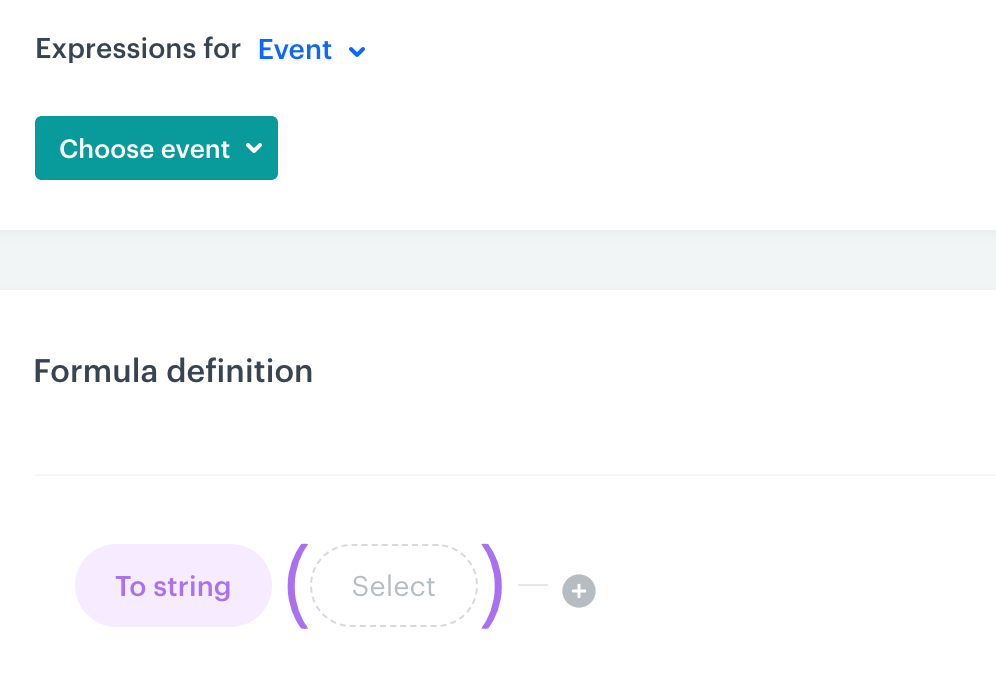
<details class="accordion"><summary>Click here to expand the instruction of converting an array into a string</summary><div class="accordion-content"><ol> <li>Go to <strong>Behavioral Data Hub &gt; Expressions &gt; New expression</strong>.</li> <li>Set the <strong>Expression for</strong> option to <strong>Event</strong>.<br> Profile attributes can also be arrays. In such case, the <strong>Expression for</strong> option would be set to <strong>Attributes</strong>.</li> <li>From the <strong>Choose event</strong> dropdown list, select an event whose parameter contains an object. </li> <li>Create the following configuration of an expression: <figure><img src="/api/docs/image/54176ad07f146575310749eba44b7c2f42c1b327/docs/analytics/_gfx/object-into-string.png" class="medium" alt="The configuration of the expression"><figcaption>The configuration of the expression</figcaption></figure> </li> <li>Click the <strong>Select</strong> node.</li> <li>From the dropdown list, select <strong>Event attribute</strong>.<br> If it&#39;s an attribute expression, select <strong>Profiles</strong>.</li> <li>Click the <strong>Unnamed</strong> node.</li> <li>On the bottom, click <strong>Choose parameter</strong> button.</li> <li>From the dropdown list, select event parameter which contains the array that you need to convert into a string.<br> Only arrays of strings don&#39;t need to be converted into strings before use in analytics. </li> <li>Save the expression.<br> <strong>Result</strong>: You can select this expression as an event parameter which you can use in analyses and filters. In such case, you can use only the <a href="#string">String</a> operator type.<br> If you created an attribute expression, it can be used as an attribute in analyses and filters.</li> </ol></div></details>


The Array operator type contains the following logical operators: 

1. **Equal** and **Not equal** - Choose these options to check if the array includes at least one item that matches the entered value exactly.
2. **Contain** and **Not contain** - Choose these options to check if any item in the array contains the entered value.  
    For example, if the array is `["foo","bar"]` and the condition is `Contain "oo"`, the array matches the condition.
3. **Starts with** and **Ends with** - Choose these options if you want to check if the value you enter matches the first/last characters of any item in the array.  
    For example, the array `["foo","bar"]` matches conditions such as `Starts with "f"`; `"Starts with "ba"`; `"Ends with "oo"`.
4. **Regular expression** - Choose this option to check if at least one item in the array matches a regular expression.

### Boolean <img src="/api/docs/image/54176ad07f146575310749eba44b7c2f42c1b327/icons/profile-filter-boolean.png" alt="boolean icon" class="icon" > {#boolean}
---
This operator type is used in analyses/filters to verify whether an attribute/event parameter/event exists, the value of an attribute is `false` or `true` (string or boolean) or `null`.

This operator type contains the following logical operators:
1. **Is true** - Choose this operator to analyze event parameters and/or attributes whose value is `true` (string) or true boolean (attribute or parameter value sent to Synerise as a boolean value).
2. **Is false** - Choose this operator to analyze event parameters and/or attributes whose value is  `false` (string), false boolean (attribute or parameter value sent to Synerise as a boolean value), `null`, empty.

### Null <img src="/api/docs/image/54176ad07f146575310749eba44b7c2f42c1b327/icons/profile-filter-null.png" alt="null icon" class="icon" > {#null}
---

<div class="admonition admonition-note"><div class="admonition-icon"><svg xmlns="http://www.w3.org/2000/svg" fill="none" viewBox="0 0 24 24" stroke="currentColor" stroke-width="2.5"><path stroke-linecap="round" stroke-linejoin="round" d="M13 16h-1v-4h-1m1-4h.01M21 12a9 9 0 11-18 0 9 9 0 0118 0z" /></svg></div><div class="admonition-body"><div class="admonition-content">

This operator is only available in Decision Hub and for filtering the list of profiles in Behavioral Data Hub.

</div></div></div>


Null-test operators can be used with all attributes, regardless of their regular data type.

They can be used to check if the value of an attribute is `null`, which means the attribute has no value, or doesn't exist at all in the tested event/profile.

The attribute/parameter is NOT null if it exists and has any value (including `""`, `" "`, `0`, and `false`) other than `null`.  
The string `"null"` is NOT the same as a `null` value.

You can choose one of the logical operators:
- **Is null**
- **Is not null**

If you want to test for empty strings (`""`), use the **Is empty**/**Is not empty** operators from the [String](#string) category.

### Date <img src="/api/docs/image/54176ad07f146575310749eba44b7c2f42c1b327/icons/profile-filter-date.png" alt="date icon" class="icon" > {#date}
---
This operator can be used only for event parameters and profile attributes whose value is a date/time string formatted according to ISO 8601. 
 
While defining the condition for this operator type, you can select a date from a calendar. All the operators are meant to narrow the scope of dates considered in the general date filter of the analysis/filter.


<div class="admonition admonition-warning"><div class="admonition-icon"><svg xmlns="http://www.w3.org/2000/svg" fill="none" viewBox="0 0 24 24" stroke="currentColor" stroke-width="2.5"><path stroke-linecap="round" stroke-linejoin="round" d="M12 9v2m0 4h.01m-6.938 4h13.856c1.54 0 2.502-1.667 1.732-2.5L13.732 4c-.77-.833-1.964-.833-2.732 0L4.082 16.5c-.77.833.192 2.5 1.732 2.5z" /></svg></div><div class="admonition-body"><div class="admonition-content">

While creating an analysis/filter, if you select **Custom**/**Date**/**Current date** for an event parameter and define data in general date filter make sure dates are not mutually exclusive.

</div></div></div>


This type contains the following logical operators:

1. **Date** - you can test the date in an attribute against these conditions:
    - **More than**: date in attribute must be later thea the selected date and time.
    - **More or equal to**: date in attribute must be later than or the same as the selected date and time.
    - **Less than**: date in attribute must be earlier than the selected date and time.
    - **Less or equal to**: date in attribute must be earlier than or the same as the selected date and time.
2. **Custom** - Choose this option to check if the date in an attribute is in a selected range of dates. 
  
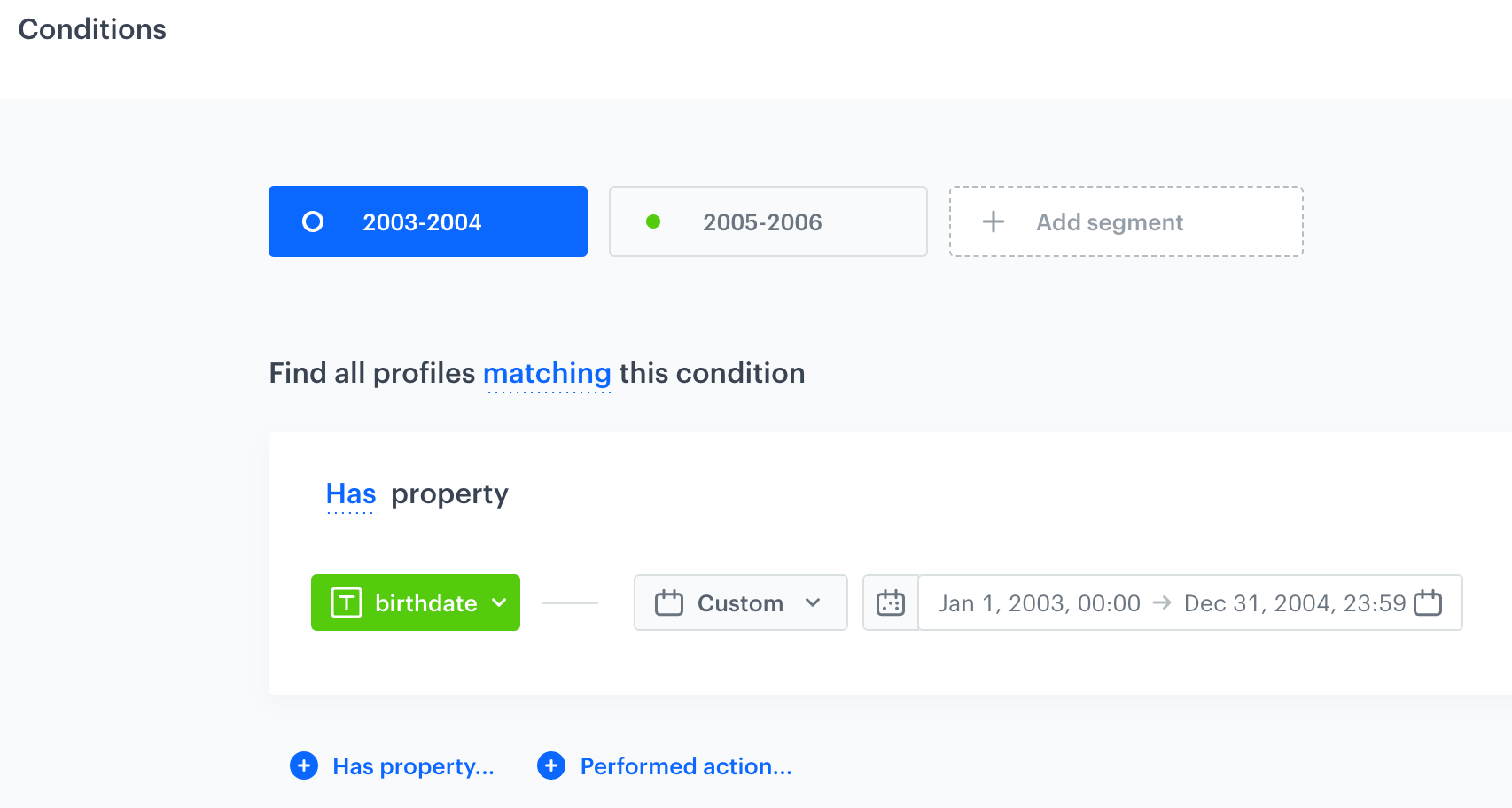
   <details class="accordion"><summary>Click here to see an example</summary><div class="accordion-content"><p>The screen below presents a segmentation that groups profiles in terms of their date of birth. The conditions of the segmentation uses the <strong>Custom</strong> logical operator to define the date range for the birth date attribute.</p> <figure><img src="/api/docs/image/54176ad07f146575310749eba44b7c2f42c1b327/docs/analytics/_gfx/date-operator-example.png" class="full" alt="The configuration of the segmentation with the Custom operator"><figcaption>The configuration of the segmentation with the Custom operator</figcaption></figure></div></details>

3. **Current date** - This option lets you choose elements from the current date (the system takes into consideration the date of checking the result of the analysis). 

    - **Matches current hour** - The system considers only the event occurrences that happened at the hour of the current date within the given date range. Assuming the current date is the 28th of February, 2023, 11.30 A.M., then while previewing the analysis of page visits in the last 30 days, the system will return results for the page visit events that occurred for 30 days backwards, every day between 11:00:00 and 11:59:59 from the current date (28th of February, 2023).
    - **Matches current day** - The system considers only the event occurrences that happened at the current day of the month. Assuming the current date is the 28th of February, 2023, then while previewing the analysis of page visits in the last 3 months, the system will return results for the page visit events that occurred on the 28th day of the month for 3 previous months.
    - **Matches current month** - The system considers only the event occurrences that happened in the current month. Assuming that February is the current month, then while previewing the analysis of page visits in the last 3 years, the system will return results for the page visit events that occurred only in February of the previous 3 years (including current year).
      
      <div class="admonition admonition-tip"><div class="admonition-icon"><svg xmlns="http://www.w3.org/2000/svg" fill="none" viewBox="0 0 24 24" stroke="currentColor" stroke-width="2.5"><path stroke-linecap="round" stroke-linejoin="round" d="M9.663 17h4.673M12 3v1m6.364 1.636l-.707.707M21 12h-1M4 12H3m3.343-5.657l-.707-.707m2.828 9.9a5 5 0 117.072 0l-.548.547A3.374 3.374 0 0014 18.469V19a2 2 0 11-4 0v-.531c0-.895-.356-1.754-.988-2.386l-.548-.547z" /></svg></div><div class="admonition-body"><div class="admonition-content">

      You can check the usage of **Matches current day** and **Matches current month** operators in the [Birthday email use case](/use-cases/birthday-coupon#set-up-the-birthday-attribute).

      </div></div></div>

    - **Matches current year** - The system considers only the event occurrences that happened in the current year. Assuming that the current date is the 28th of February 2023, then while previewing the analysis of page visits in the 6 months, the system will return results for the page visit events that occurred from current date backwards until the 1st of January, 2023 00:00:00.
  

### Number <img src="/api/docs/image/54176ad07f146575310749eba44b7c2f42c1b327/icons/seg-number.png" alt="number icon" class="icon" > {#number}
---
This operator can be used only for event parameters or attributes whose values are expressed as numbers (including those sent as a string). For example, you can create a following condition: `size more than 8` (analyze the `size` attribute whose value is higher than 8, which is 9, 10, and higher).  

This type contains the following logical operators: 

1. **Equal** and **Not equal** - Choose these options to check if the attribute is or isn't exactly the same as the value you enter. 
2. **Less than** and **More than** - Choose these options to analyze an event parameter or attribute whose value is lower or higher than the provided value (for example, for the following condition - the `size` attribute is `More than 8`, the results will contain entities whose `size` attribute is 8,01 or higher).
3. **Less or equal to** - Choose this option if you want to analyze an event parameter or attribute whose value is lower than or equal to the provided value.
4. **More or equal to** - Choose this option if you want to consider the elements which are equal or bigger than the number you provide.

### Object
---
If you want to analyze an object (a collection of key/value data) in the event parameters, that object must be [converted into a string](#converting-arrays-into-strings) and analyzed as a [string](#string). 


### String <img src="/api/docs/image/54176ad07f146575310749eba44b7c2f42c1b327/icons/profile-filter-string.png" alt="string icon" class="icon" > {#string}
---
This operator can be used with event parameters and attributes whose values is a piece of text. For example,`favoriteBrand equals XYZ`. This type contains the following logical operators:

1. **Equal** and **Not equal** - Choose these options to check if the parameter/attribute value is or isn't the same as the value you enter. 
2. **Contain** and **Not contain** - Choose these options to either include or exclude values that contain a specific phrase, respectively.
3. **Starts with** and **Ends with** - Choose these options if you want to include values that start or end with a particular string of characters.
4. **Regular expression** - Choose this option when you want to check if the value of an event parameter or attribute matches a regular expression.  
  
   <div class="admonition admonition-important"><div class="admonition-icon"><svg xmlns="http://www.w3.org/2000/svg" fill="none" viewBox="0 0 24 24" stroke="currentColor" stroke-width="2.5"><path stroke-linecap="round" stroke-linejoin="round" d="M12 8v4m0 4h.01M21 12a9 9 0 11-18 0 9 9 0 0118 0z" /></svg></div><div class="admonition-body"><div class="admonition-content">

   If you want to test for empty strings, use the **Is empty**/**Is not empty** operators. DO NOT use `.+`, `.`, or similar expressions.

   </div></div></div>

5. **Is empty** and **Is not empty** - Choose this option if you want to check if a string is empty (contains zero characters of any type).  
    - These operators are only available in Decision Hub and for filtering the profile list in Behavioral Data Hub.
    - A string that consists only of whitespace characters (for example, a single space: `" "`) is NOT empty.
    - For this operator, a `null` value or a property that doesn't exist at all in the tested event/profile are considered empty strings.  
6. **In array** and **Not in array** - With these operators, you can check the string-type attribute or parameter against a comma-separated list of strings. The parameter/attribute value must be an exact match to one of the strings.  
    Examples:  
    -  if the value of an attribute is `shoes` and the filter is **In** `shoes, shirts`, the attribute matches the filter.
    -  if the value of an attribute is `shi` and the filter is **In** `shoes, shirts`, the attribute does NOT match the filter, because there is no exact match.
    -  if the value of an attribute is `t-shirts` and the filter is **In** `shoes, shirts`, the attribute does NOT match the filter, because there is no exact match.
  
   <div class="admonition admonition-important"><div class="admonition-icon"><svg xmlns="http://www.w3.org/2000/svg" fill="none" viewBox="0 0 24 24" stroke="currentColor" stroke-width="2.5"><path stroke-linecap="round" stroke-linejoin="round" d="M12 8v4m0 4h.01M21 12a9 9 0 11-18 0 9 9 0 0118 0z" /></svg></div><div class="admonition-body"><div class="admonition-content">

   The list is ALWAYS split on a comma (`,`). Escape characters aren't supported.  
   **Example**:
   1. an event has an `itemTags` attribute with a string value: `"garden,hobby"`
   2. the filter is **In array** `garden,hobby`  

   **Result**:  
   The filter is split on a comma, so `itemTags` is checked separately against `garden` and `hobby`. The attribute doesn't match the filter, because `garden,hobby` isn't an exact match for any of the strings after the list is split.
   <br><br>
   If your attribute values contain commas, you can:
   - use the **Equal/Not equal** or **Contain/Not contain** operators to check against a single string.
   - use the **Regular expression** operator to check against multiple strings:  
     For example, the regular expression `(garden,hobby|sports,summer)` matches two attribute values: `"garden,hobby"` and `"sports,summer"`

   </div></div></div>


## What's next?
---
After you select an operator, you must [define a value](/docs/analytics/i_events-parameter-value) which you want to operate on.