Filters let you collect a group of profiles that meet specific conditions. Conditions can be built on the basis of events (actions profiles have performed or actions that were directed at profiles) or profile attributes.
Filters can be applied in various places in the Synerise platform - they can be used in analyses, in workflows or, in the campaign settings in order to select recipients of the campaign.
## Where can you find filters?
---
- In **Decision Hub** (funnels, segmentations, analytics, metrics, dashboards)
- In **Experience Hub** (while selecting audience in the following channels: email, SMS, mobile, webpush, landing page, and dynamic content)
- In **Automation Hub**, for example in "Profile filter" nodes
- On the list in **Behavioral Data Hub**
The configuration of the filter is not saved anywhere, so it's impossible to re-use them.
## Defining conditions
---
In filters, you define a condition or conditions that profiles must meet in order to be included. These conditions can be based on events and their parameters and on customer attributes.
If you add multiple conditions, you can specify the relationship between them as **AND** or **OR**. Additionally, event-based conditions can be limited to a specific time period.
### Selecting an event
You can filter profiles based on the actions they have taken or the actions they have been subject of. In such case, use [events and event parameters](/docs/analytics/i_events-parameter-value#event-and-event-parameters-as-properties) as filter properties.
2. To select an event, click the button that lets you define the filter conditions (for example, it can be **Choose event** or **Add condition**).
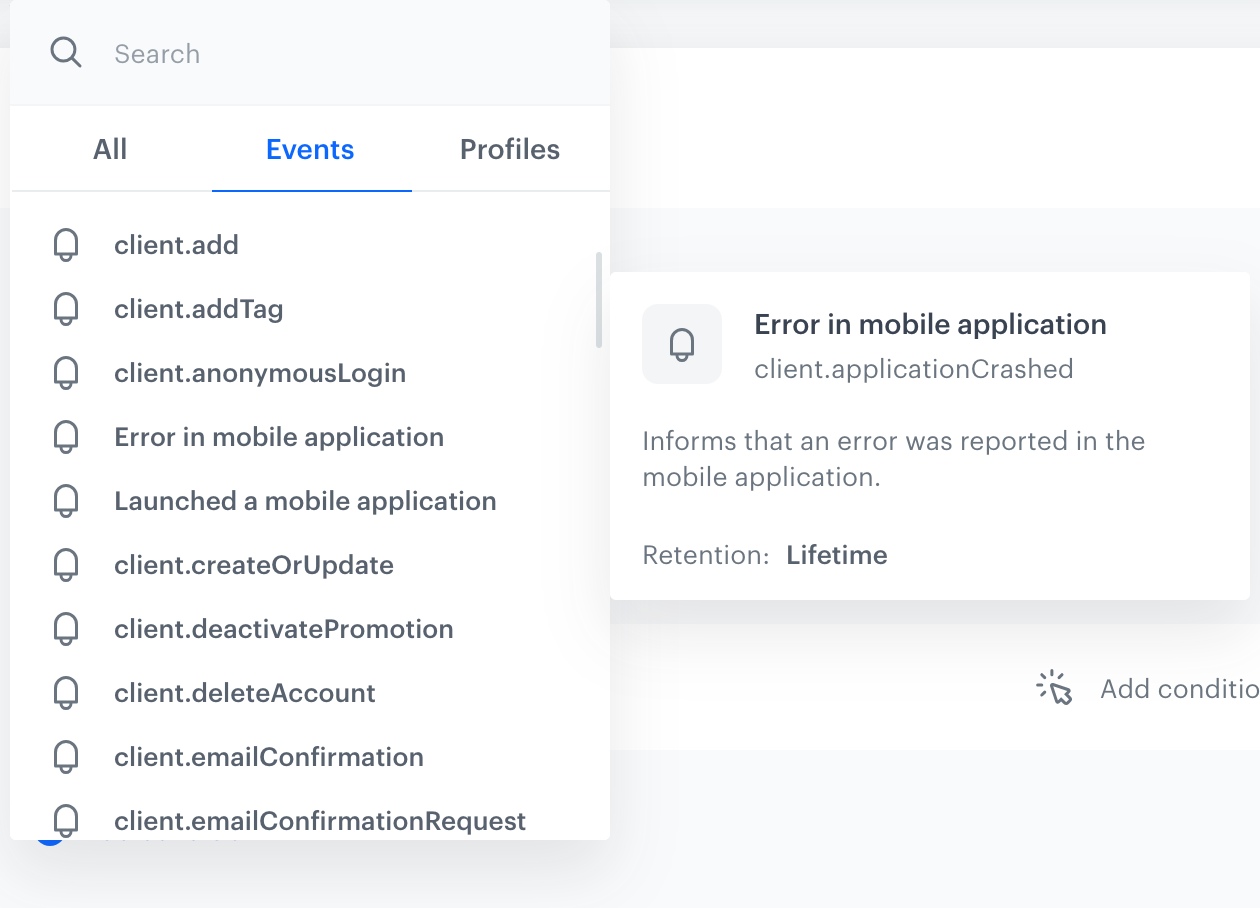
2. From the **Events** tab, select an event. You can scroll through the list or find events using the search box and type the event action (for example `page.visit`) or its display name. If you're using only event display names, to see its action name, hover the mouse cursor over the event:
Event description on the list of events
1. To set additional conditions for the event:
1. Click **+ where** and from the dropdown list select an event parameter you want to filter by.
2. Use the [logical operators](/docs/analytics/i_events-parameter-operators#operators-list-by-expected-value-type) to set the type of condition.
3. Define the [value](/docs/analytics/i_events-parameter-value) that will be used as the filter according to the logical operator.
If the value is a string or dynamic key, it can't be longer than 21000 characters. If it's an array, it can't be larger than 65000 items, and items can't be longer than 21000 characters each.
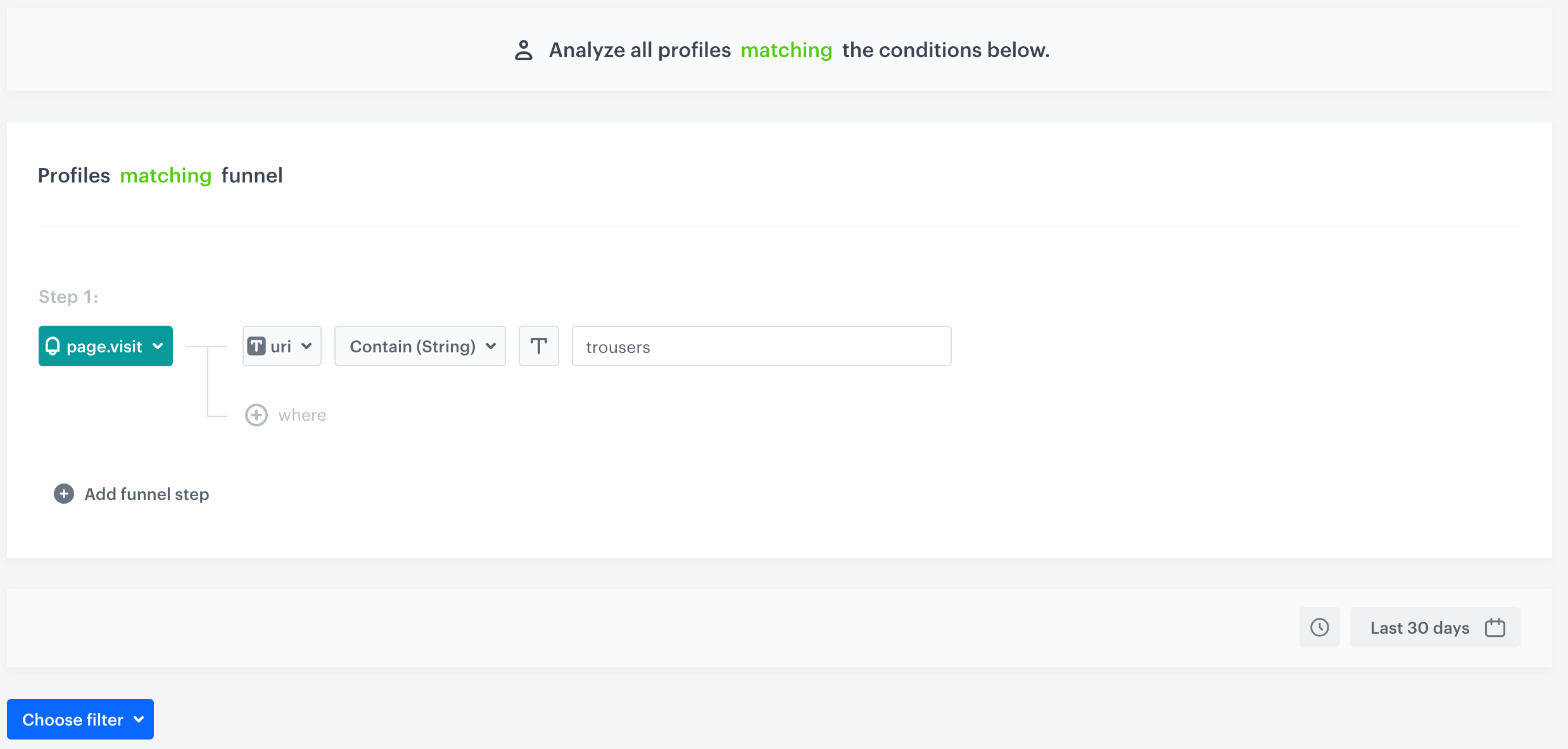
4. By default, the system analyzes the last 30 days, but you can define your own time period by clicking the calendar icon in the lower right corner in the condition.
Filtering in profiles who in last 30 days visited a website whose URL contains the word `trousers`
#### Defining funnels within conditions
While defining a condition or conditions based on an event, instead of that one [event](/docs/assets/events), you can define a sequence of steps (events) a profile must go through to meet the conditions. The order of these steps is crucial, with the top event representing the first step in the funnel.
Optionally, you can set a time limit during which these steps must be completed in the specified order.
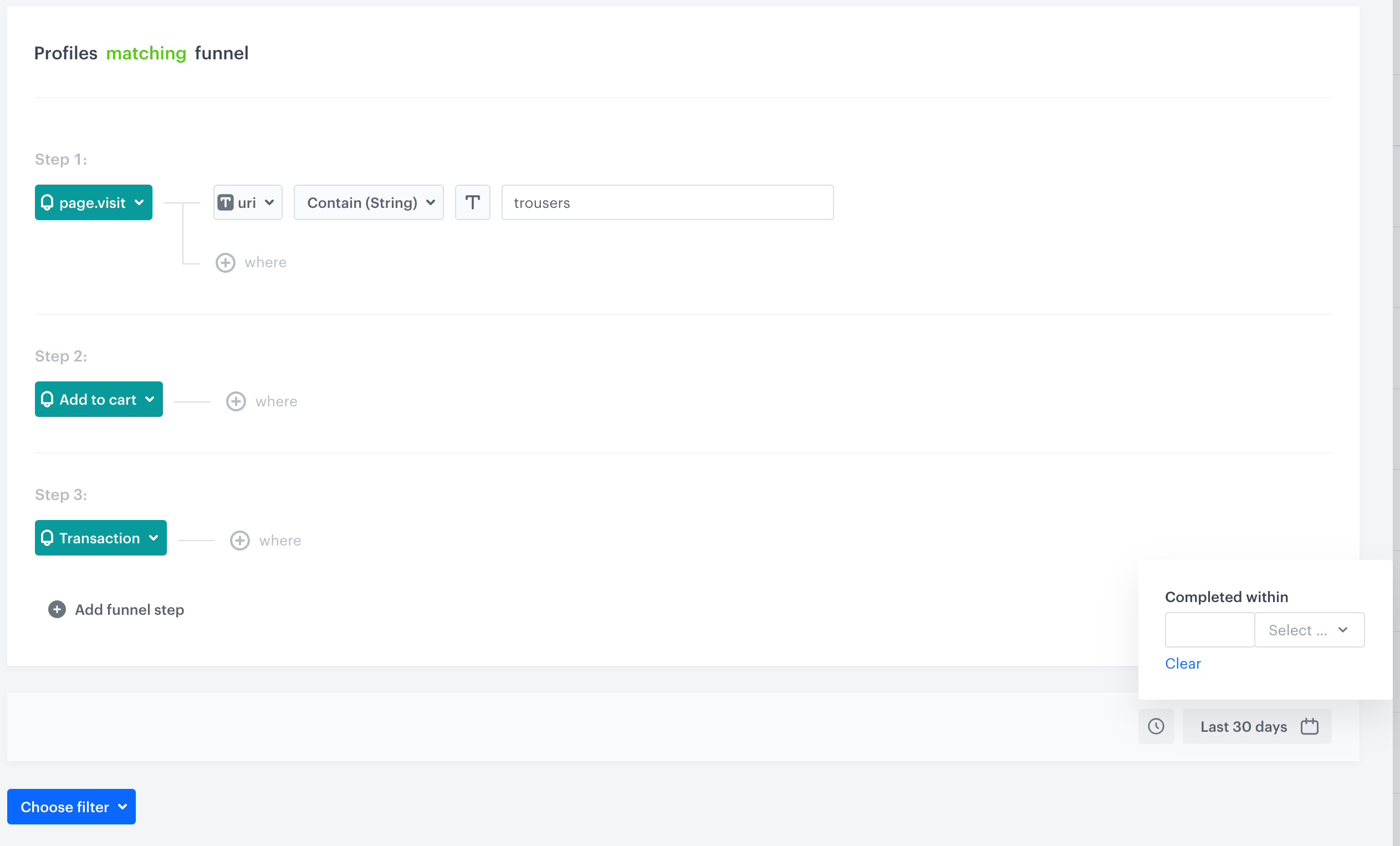
1. After [selecting an activity](#selecting-an-event), add a next step to the condition by clicking a button under the main event that lets you add another event to the sequence (for example **Add funnel step** or **ant then...**).
2. From the dropdown list, select an event. Optionally, you can define additional conditions for the event parameters.
3. To impose the time limit on performing these steps:
1. Next to the calendar, click the clock icon.
2. Define the time within which a profile must perform these steps to be filtered in. Time is counted from the occurrence of the first step in the sequence.
Filtering in profiles who visited website whose URL contained a word `trousers` and purchased any item in last 30 days
### Selecting a profile attribute
You can filter profiles based on their [attributes](/docs/analytics/i_events-parameter-value#profile-attributes-as-properties).
1. To select an attribute to be used as a condition, click the button that lets you define the filter conditions (for example, it can be **Choose event** or **Add condition**).
2. Select the **Profiles** tab.
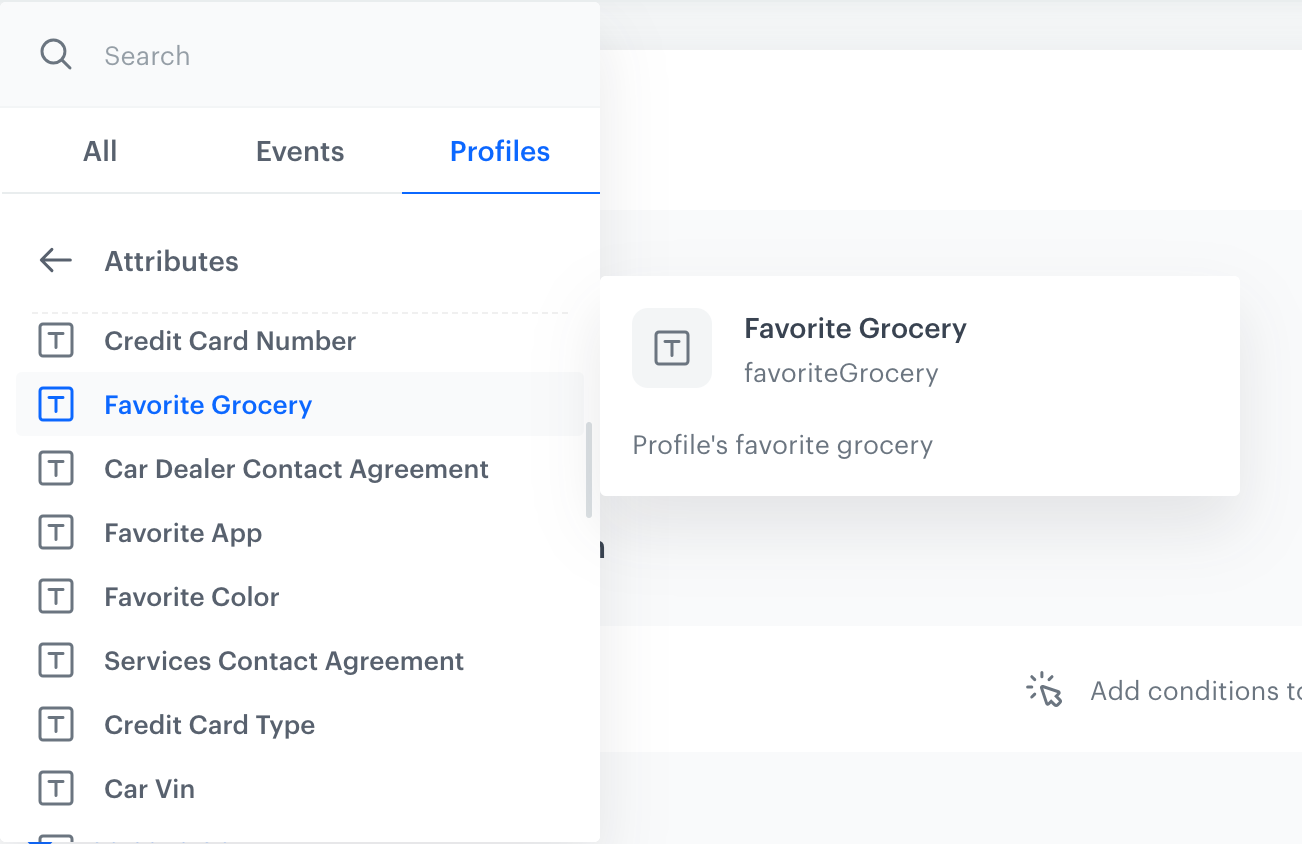
3. From the list, select a category of attributes from which you want to select a value. You can scroll through the list or find attributes using the search box and type source parameter name or property name (display name). If you're using property name, to check the source parameter name or description of the attribute, hover the mouse cursor over the attribute:
Attribute description on the list of profile attributes
1. Use the [logical operators](/docs/analytics/i_events-parameter-operators#operators-list-by-expected-value-type) to set the type of condition.
2. Define the [value](/docs/analytics/i_events-parameter-value) that will be used as the filter according to the logical operator.
If the value is a string or dynamic key, it can't be longer than 21000 characters. If it's an array, it can't be larger than 65000 items, and items can't be longer than 21000 characters each.
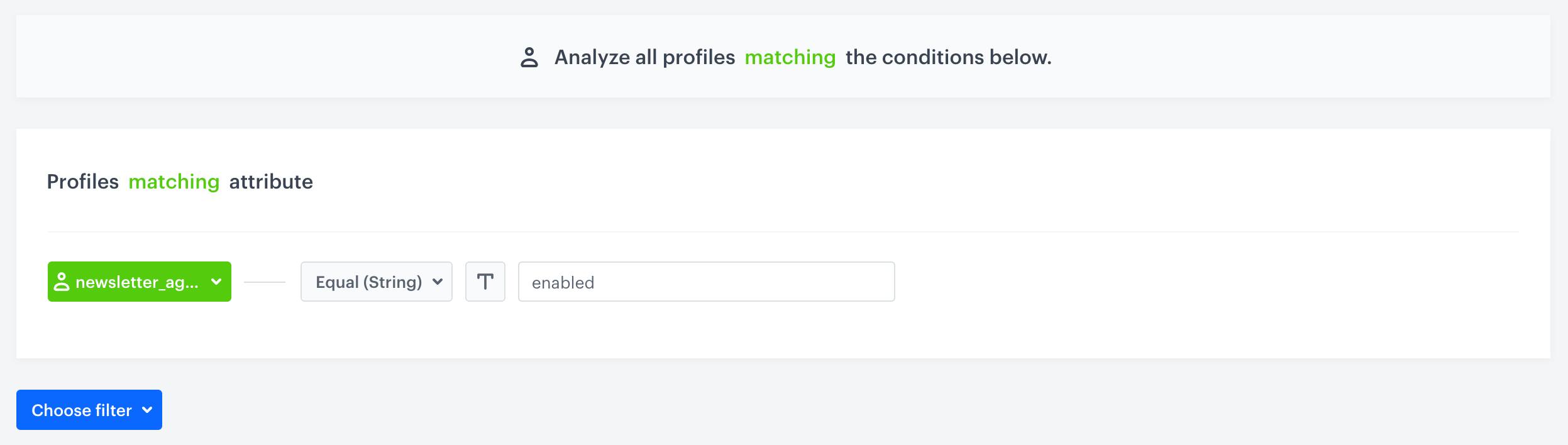
Filtering in profiles who agreed to receive newsletters
### Combining conditions
You can add more conditions and mix conditions based on attributes and events. The relationship between the conditions can be expressed by **AND** or **OR** logical operators. The more conditions you add, the more complicated it gets, read through [The logic of segmentation](/docs/analytics/segmentations/the-logic-of-segmentation) to find out how the conditions are interpreted, especially if there are more than two.
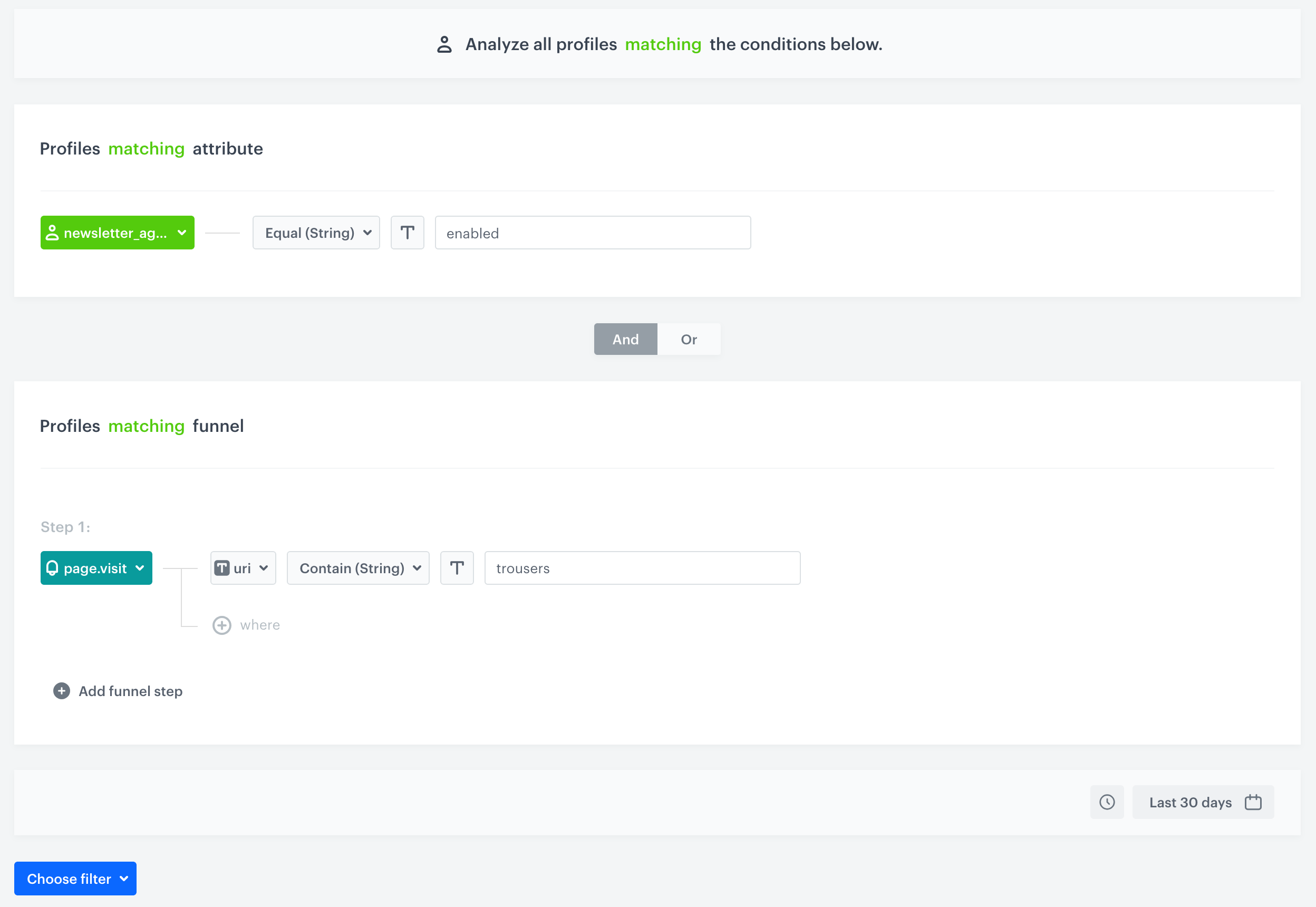
Filtering in profiles who have agreed to receive newsletters and those who in the last 30 days visited your website that contained a word `trousers` in URL
### Reversing the filter logic
By default, when creating a filter, the conditions you define include customers if they have certain attributes or have performed specific actions. However, you can reverse the logic and exclude those customers instead. You can apply it for individual conditions in the filter or apply it collectively for all conditions.
You can do it in the following ways:
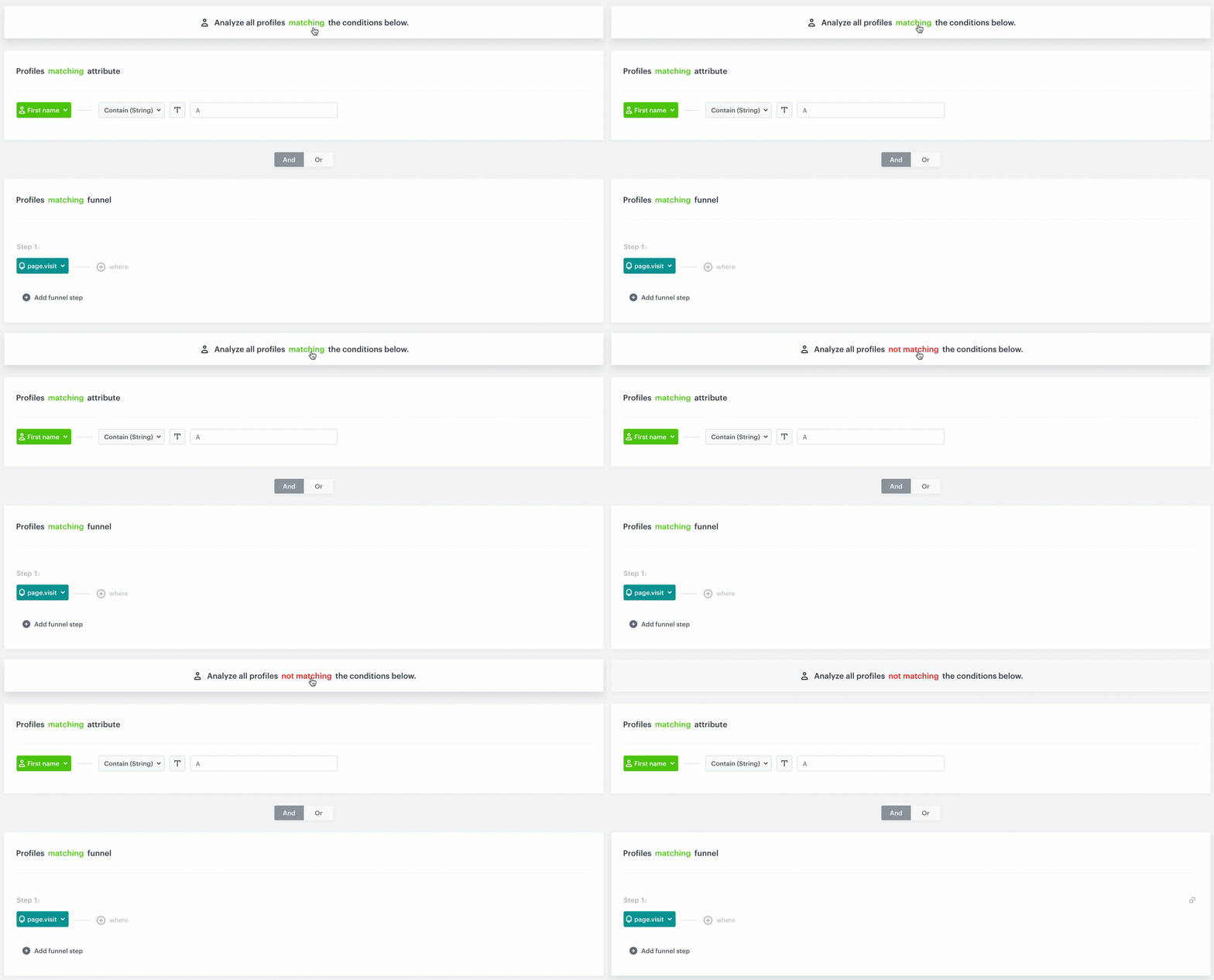
- To apply exclusion for all conditions in the filter, in the **Analyze all profiles matching the conditions below** sentence, click the **matching** to change it to **not matching**. For example:
1. Select **not matching** for the entire filter.
2. Set a "has an XYZ attribute" condition to **not matching**.
**Result**: The filter _includes_ profiles which have the XYZ attribute.
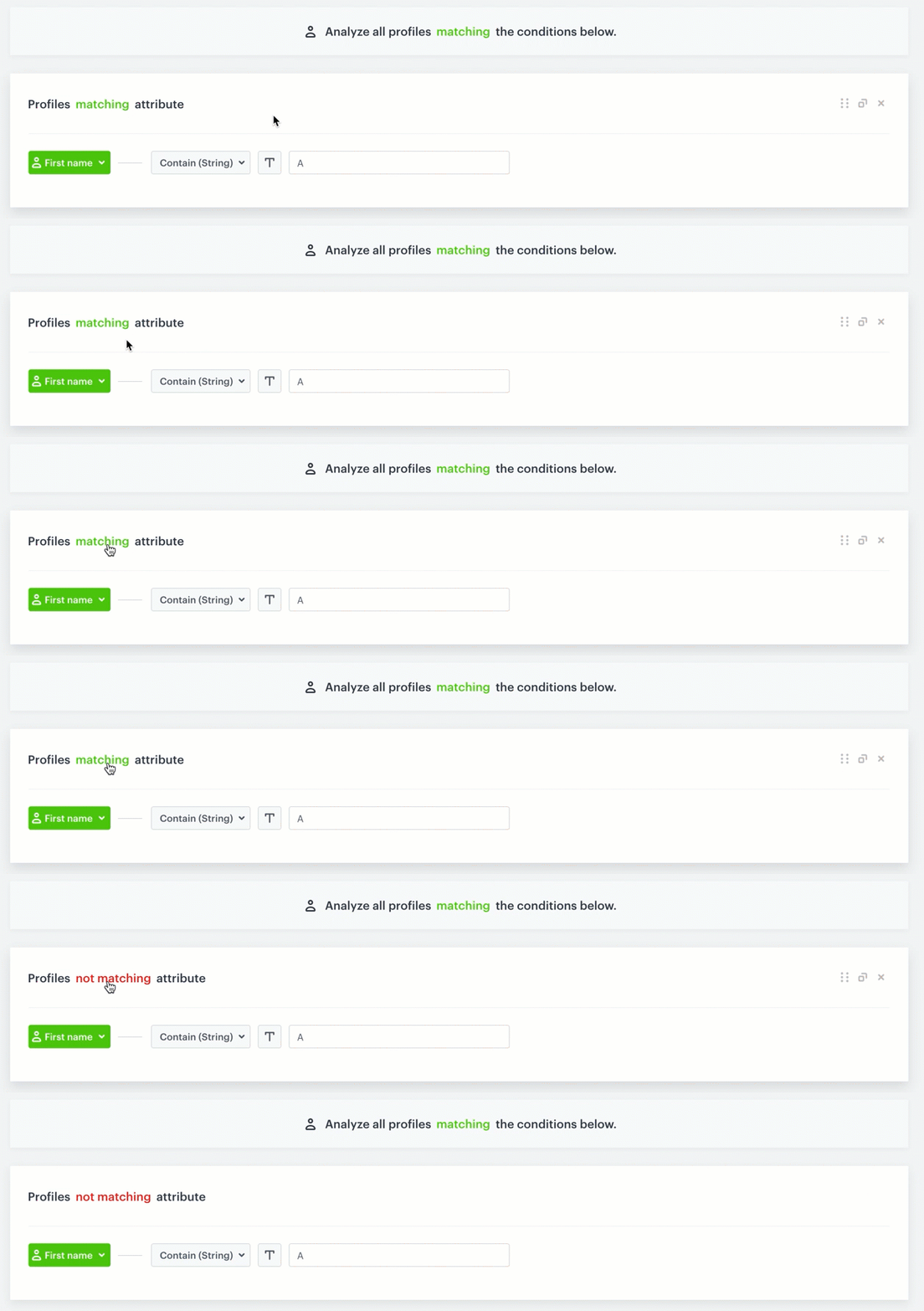
Changing the filter logic between matching and not matching a single condition
- To apply exclusion for a single condition, in the **Profiles matching attribute** or **Profiles matching funnel** sentences, click the **matching** word to change it to **not matching**.
Changing the filter logic between matching and not matching the entire analysis