---

With inline analyses, you can create [segments](/glossary#segment), [aggregates](/glossary#aggregate), [expressions](/glossary#expression), and [metrics](/glossary#metric) directly while building an analysis. You define or adjust analytics objects in place, without leaving the area you are working in. You can also nest local objects inside one another, for example a local metric containing a local event aggregate.

Objects created inline are **local** by default, meaning they are scoped to the analysis where they were created. 


<div class="admonition admonition-note"><div class="admonition-icon"><svg xmlns="http://www.w3.org/2000/svg" fill="none" viewBox="0 0 24 24" stroke="currentColor" stroke-width="2.5"><path stroke-linecap="round" stroke-linejoin="round" d="M13 16h-1v-4h-1m1-4h.01M21 12a9 9 0 11-18 0 9 9 0 0118 0z" /></svg></div><div class="admonition-body"><div class="admonition-content">

A local object can only be used in the single place where you created it. If you need the same object in two different places, create a regular analysis and use in both places.

</div></div></div>


## Availability and permissions

Creating inline objects is available across the Decision Hub, with the exception of dashboards and Sankey diagrams - there, you can only select existing global objects.

To create, edit, or apply a local object, you only need [permission to the main analysis type](/docs/settings/identity-access-management/permissions/analytics-permissions) you are working in (for example, the segmentation or report). No separate permission is required for the local objects you create or edit inside it.

You can [clone an analysis to another workspace](/docs/settings/workspace/cloning-objects/cloning-analyses-to-workspaces) even if it contains local objects - they're cloned together with the main analysis.

## Which object types are available for inline creation

You can create a local object of a given type wherever you could otherwise select an existing global object of that type. For example, if a field lets you choose a profile aggregate, you can also create a local profile aggregate there instead.

## Limits

- You can create up to 100 local objects (of any type, including nested ones) within a single analysis.
- Local objects can be nested up to 100 levels deep. This limit is enforced automatically - in practice, you'll reach the limit of 100 total local objects first.
- You can create inline objects only in the Decision Hub. 
- A local segment can only contain a single segment definition. Creating multiple segments, as you can in the standalone [Segmentations](/docs/analytics/segmentations/introduction-to-segmentations), isn't supported inline.

## Creating a local object

1. In the analysis you are building, open a field that supports inline creation - for example, click **Add condition** or **Choose metric**, or open the dropdown for event parameters.  
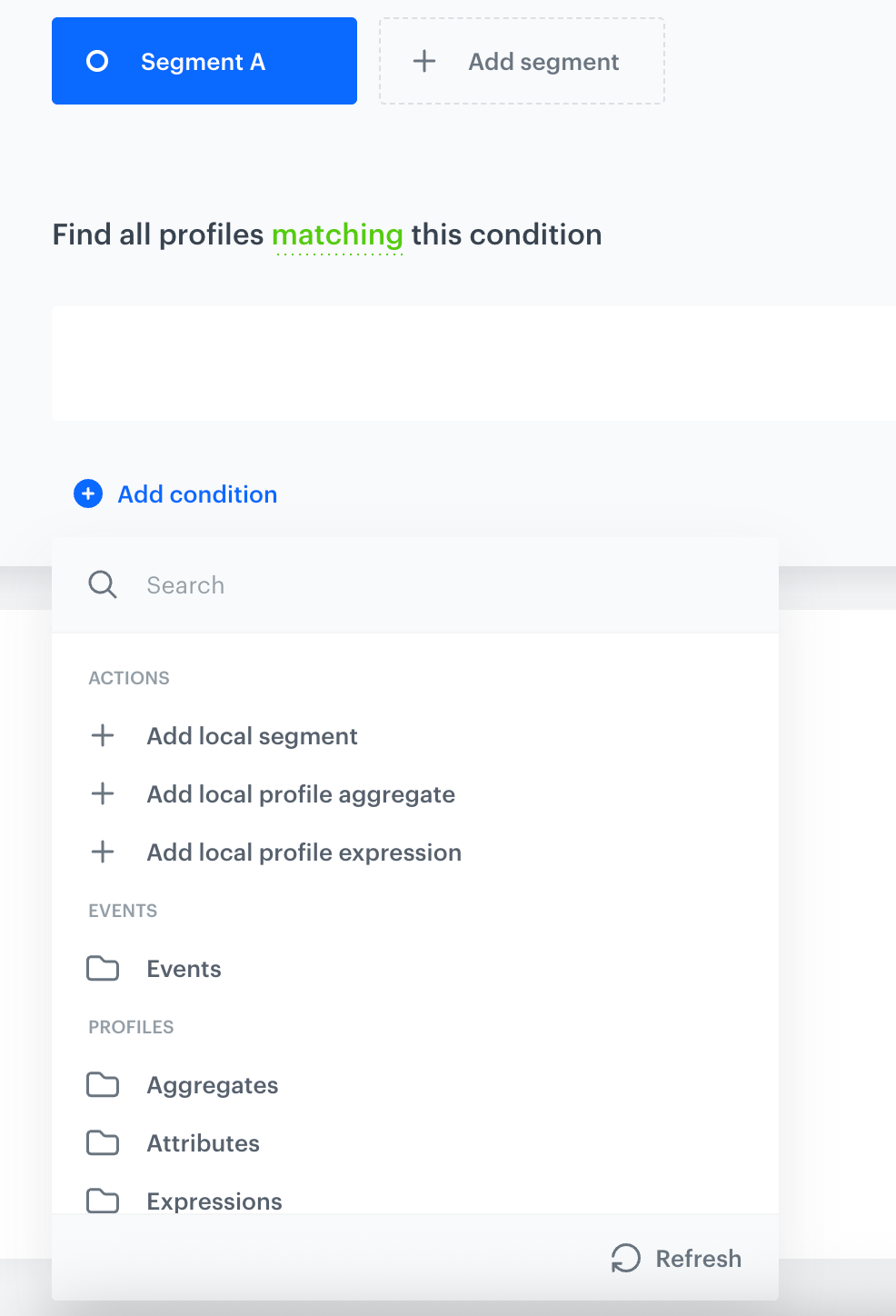
   **Result**: A search panel opens. It looks the same regardless of which field you opened it from, though the available options depend on the field (see step 2).  
   <figure><img src="/api/docs/image/33809906e2beed50b6bbc0a49c2cd3aa747e7b55/docs/analytics/_gfx/list-with-local-objects.png" class="medium" alt="Search panel opened from Add condition in a segmentation, with an Actions section listing Add local segment, Add local profile aggregate, and Add local profile expression"><figcaption>An example search panel, opened by clicking Add condition in a segmentation</figcaption></figure>
2. In the search panel that opens, under **Actions**, select the type of object to create. The available options depend on the field:
   - **Add local segment**
   - **Add local profile aggregate**
   - **Add local profile expression**
   - **Add local event aggregate**
   - **Add local event expression**
   - **Add local metric**

   
     <div class="admonition admonition-note"><div class="admonition-icon"><svg xmlns="http://www.w3.org/2000/svg" fill="none" viewBox="0 0 24 24" stroke="currentColor" stroke-width="2.5"><path stroke-linecap="round" stroke-linejoin="round" d="M13 16h-1v-4h-1m1-4h.01M21 12a9 9 0 11-18 0 9 9 0 0118 0z" /></svg></div><div class="admonition-body"><div class="admonition-content">

     When you create a local metric, the system doesn't check whether it's compatible with the report or histogram you're adding it to. If it isn't compatible, you'll only find out when you save the main analysis - the save will fail with an error.

     </div></div></div>


3. An editor opens. Fill in the details:
   - **Name** - enter a name for the object.
   - Local analysis conditions - define the conditions of the local analysis.

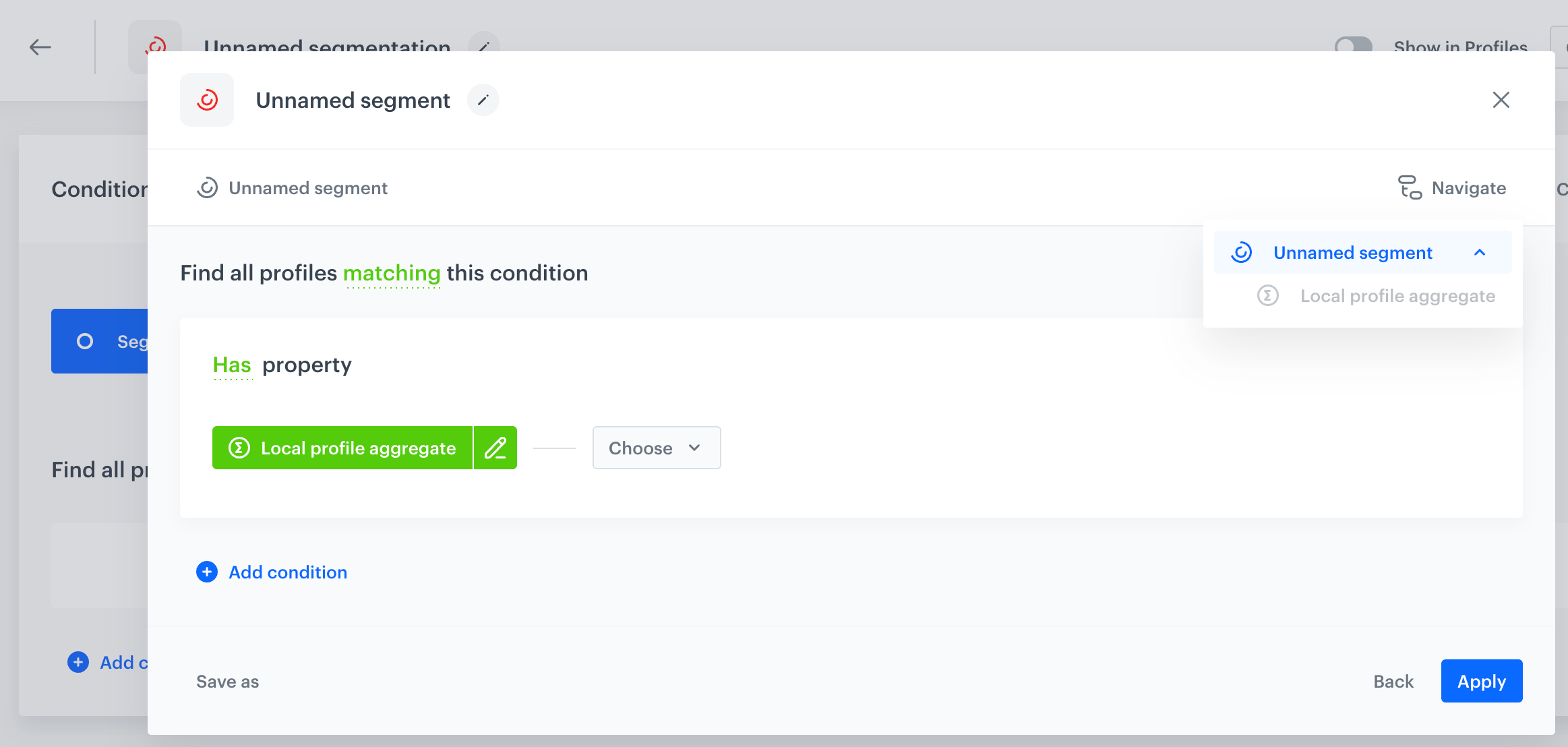
   <figure><img src="/api/docs/image/33809906e2beed50b6bbc0a49c2cd3aa747e7b55/docs/analytics/_gfx/local-segment-nested.png" class="medium" alt="Editor of a local segment with a Has property condition using a nested local profile aggregate, and the Navigate panel showing the nesting hierarchy"><figcaption>A local segment with a nested local profile aggregate, shown in the Navigate panel</figcaption></figure>


   - **Apply** only confirms the local object's definition into the analysis you are building — it does not save the object or the analysis. Your changes are persisted only when you save the main analysis itself.
   - If the object isn't nested inside another local object, the **Back** button discards your changes and closes the pop-up, returning you to the main analysis.
   - If the object is nested inside another local object, the **Back** button discards your changes and returns you one level up. 


4. Click **Apply**.  
   **Result**:  
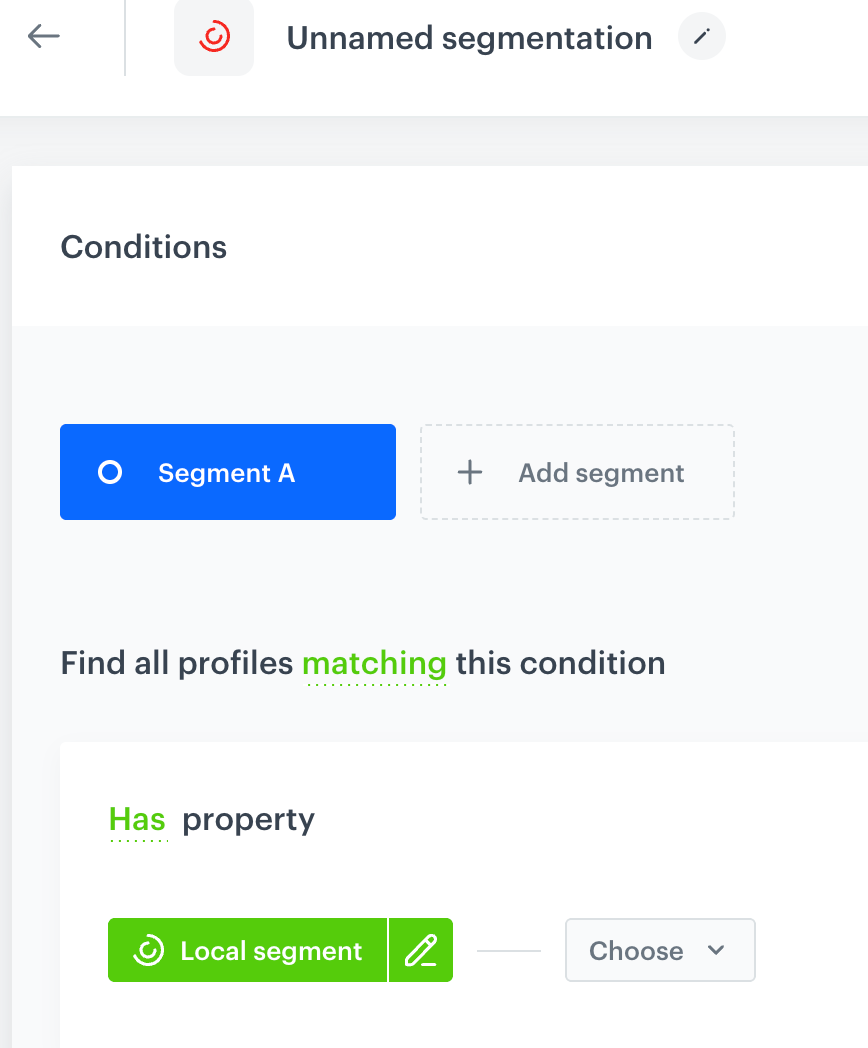
   <figure><img src="/api/docs/image/33809906e2beed50b6bbc0a49c2cd3aa747e7b55/docs/analytics/_gfx/local-segment-added.png" class="medium" alt="A local segment added to the conditions of the segmentation"><figcaption>A local segment added to the conditions of the segmentation</figcaption></figure>


## Editing a local object

You can edit a local object the same way you would edit its global counterpart. Open its editor by clicking its name (or the pencil icon next to it), then adjust its conditions or definition using the same options available when creating it.

Whenever you are in a local object's editor — while creating it or editing it later — you can create another local object inside it, following the same steps as in [Creating a local object](#creating-a-local-object). This lets you nest local objects, for example, a local metric containing a local event aggregate, which in turn contains a local event expression.

In the object editor, click **Navigate** to open a panel that shows the objects related to the one you are editing (including any nested local objects), along with their status. Use it to move between nesting levels.


## Deleting a local object

A local object doesn't appear in search results, so you can't find and delete it directly. To delete a local object, delete the condition, dimension, or parameter of the main analysis that contains it.


<div class="admonition admonition-warning"><div class="admonition-icon"><svg xmlns="http://www.w3.org/2000/svg" fill="none" viewBox="0 0 24 24" stroke="currentColor" stroke-width="2.5"><path stroke-linecap="round" stroke-linejoin="round" d="M12 9v2m0 4h.01m-6.938 4h13.856c1.54 0 2.502-1.667 1.732-2.5L13.732 4c-.77-.833-1.964-.833-2.732 0L4.082 16.5c-.77.833.192 2.5 1.732 2.5z" /></svg></div><div class="admonition-body"><div class="admonition-content">

Deleting the condition, dimension, or parameter where a local object was created also deletes all local objects created inside it. This deletion isn't final until you save the main analysis - until then, you can revert it, for example by closing the analysis without saving.
</div></div></div>