Create a report on the basis of metrics to analyze the aspects of selected metrics.

## Allowed metrics  

The table below summarizes metric configurations and their compatibility with reports.


<div class="admonition admonition-note"><div class="admonition-icon"><svg xmlns="http://www.w3.org/2000/svg" fill="none" viewBox="0 0 24 24" stroke="currentColor" stroke-width="2.5"><path stroke-linecap="round" stroke-linejoin="round" d="M13 16h-1v-4h-1m1-4h.01M21 12a9 9 0 11-18 0 9 9 0 0118 0z" /></svg></div><div class="admonition-body"><div class="admonition-content">

The metric type is only determined by whether event parameters or profile attributes are used in the metric conditions. Doing math operations (like adding or subtracting), adding numbers, or using functions in metrics does not change the metric type.

</div></div></div>


| Metric conditions*                                                                                          | Allowed to be selected in the report conditions?                       | Allowed dimensions for these metric conditions                                                                              |
|----------------------------------------------------------------------------------------------------------|------------------------------------------------------------|-----------------------------------------------------------------------------------------------------------------------------|
| Contain only [profile attributes](/docs/assets/customer-properties)                                         | Yes           | All profile attributes (all options available in the **Profiles** tab)                                                                                                 |
| Contain one [event](/docs/assets/events/introduction-to-events)                                                    | Yes           | - All profile attributes (all options available in the **Profiles** tab)<br>- All types of event parameters ([event parameters](/docs/assets/events/adding-event-parameters) and specials, [event expressions](/docs/analytics/expressions/creating-event-expression), [event aggregates](/docs/analytics/aggregates/creating-event-aggregates)) |
| Contain multiple events or one event with multiple parameters          | Yes            | Only [event parameters](/docs/assets/events/adding-event-parameters), specials, [event aggregates](/docs/analytics/aggregates/creating-event-aggregates) that are shared between the events included in the metric                  |
| Contain a profile attribute and an event                           | No                                                       | n/a                                                                                                                        |
| No event or profile attribute in conditions (e.g., static value metric)                   | No                                                        | n/a                                                                                                                     |

### How to read this table?

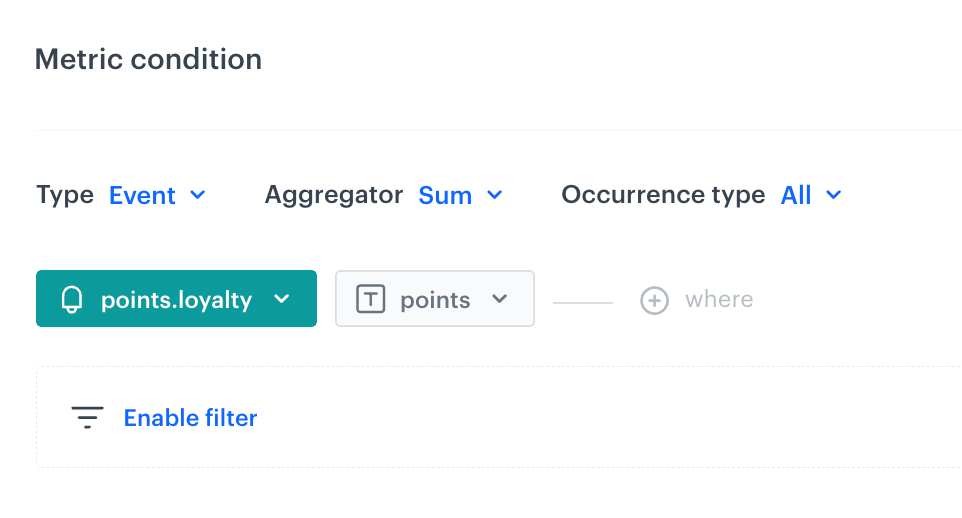
- `*`*Metric conditions* refers to the configuration of a metric on the interface for the following metric types: 
  
  <div class="content-tabs" data-tab-group="tabgrp-1248">
  <div class="tab-buttons"><button class="tab-button" data-tab-id="tabgrp-1248-0" data-tab-group="tabgrp-1248" data-tab-active="true">Simple</button><button class="tab-button" data-tab-id="tabgrp-1248-1" data-tab-group="tabgrp-1248">Formula</button></div>

  <div class="tab-panel" data-tab-id="tabgrp-1248-0" data-tab-group="tabgrp-1248" data-tab-active="true">

  <figure><img src="/api/docs/image/54176ad07f146575310749eba44b7c2f42c1b327/docs/analytics/_gfx/metric-conditions.png" class="large" alt="The highlighted section on the screen presents metric conditions"><figcaption>Metric conditions of a simple metric</figcaption></figure>

  </div>

  <div class="tab-panel" data-tab-id="tabgrp-1248-1" data-tab-group="tabgrp-1248">

  <figure><img src="/api/docs/image/54176ad07f146575310749eba44b7c2f42c1b327/docs/analytics/_gfx/formula-metric-conditions.png" class="large" alt="The highlighted section on the screen presents metric conditions"><figcaption>Metric conditions of a formula metric</figcaption></figure>

  </div>
  </div>

- *Report configuration* refers to the dropdown list with metrics to be selected for a report:
  <figure><img src="/api/docs/image/54176ad07f146575310749eba44b7c2f42c1b327/docs/analytics/_gfx/report-conditions.png" class="small" alt="This option is available in the configuration of a report in Analytics > Report > New report"><figcaption>This option is available in the configuration of a report in Analytics > Report > New report</figcaption></figure>

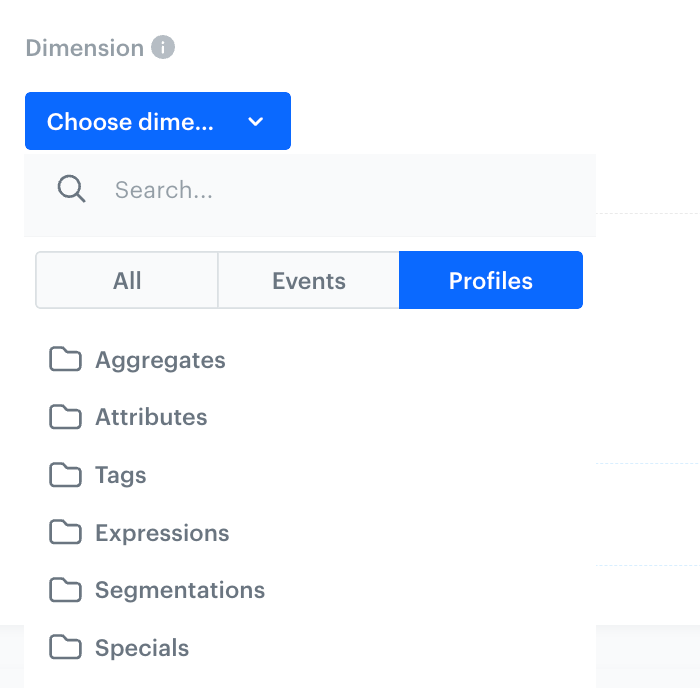
- *Allowed dimensions* refers to the option in the report configuration that opens a dropdown with event parameters (the **Event** tab) and profile attributes (the **Profiles** tab):
  <figure><img src="/api/docs/image/54176ad07f146575310749eba44b7c2f42c1b327/docs/analytics/_gfx/report-dimension.png" class="medium" alt="Report dimension dropdown options"><figcaption>Report dimension dropdown options</figcaption></figure>


## Requirements
---

- You must have a [user role](/docs/settings/identity-access-management/permissions) with the following permissions:
  - [access the Decision Hub](/docs/settings/identity-access-management/permissions/analytics-permissions#access-the-decision-hub)
  - [view analyses](/docs/settings/identity-access-management/permissions/analytics-permissions#view-analyses)
  - [create analyses](/docs/settings/identity-access-management/permissions/analytics-permissions#create-analyses)
  - [edit analyses](/docs/settings/identity-access-management/permissions/analytics-permissions#edit-analyses)
  - [preview results](/docs/settings/identity-access-management/permissions/analytics-permissions#preview-results)
- Create a metric  
  Refer to the table in the ["Allowed metrics" section](#allowed-metrics) to become familiar with the limits and constraints.  
  
  <div class="admonition admonition-note"><div class="admonition-icon"><svg xmlns="http://www.w3.org/2000/svg" fill="none" viewBox="0 0 24 24" stroke="currentColor" stroke-width="2.5"><path stroke-linecap="round" stroke-linejoin="round" d="M13 16h-1v-4h-1m1-4h.01M21 12a9 9 0 11-18 0 9 9 0 0118 0z" /></svg></div><div class="admonition-body"><div class="admonition-content">

  You can read more about metrics in:
  - [Creating simple metrics](/docs/analytics/metrics/creating-simple-metrics)
  - [Creating formula metrics](/docs/analytics/metrics/creating-formula-metrics)  

  Also, you can explore a [collection of use cases demonstrating how reports and metrics are employed](/use-cases/?ordering=DESC&sortBy=publishDate&filters=tags%3D%3D"metrics"ORtags%3D%3D"reports").

  </div></div></div>


## Creating a report
---

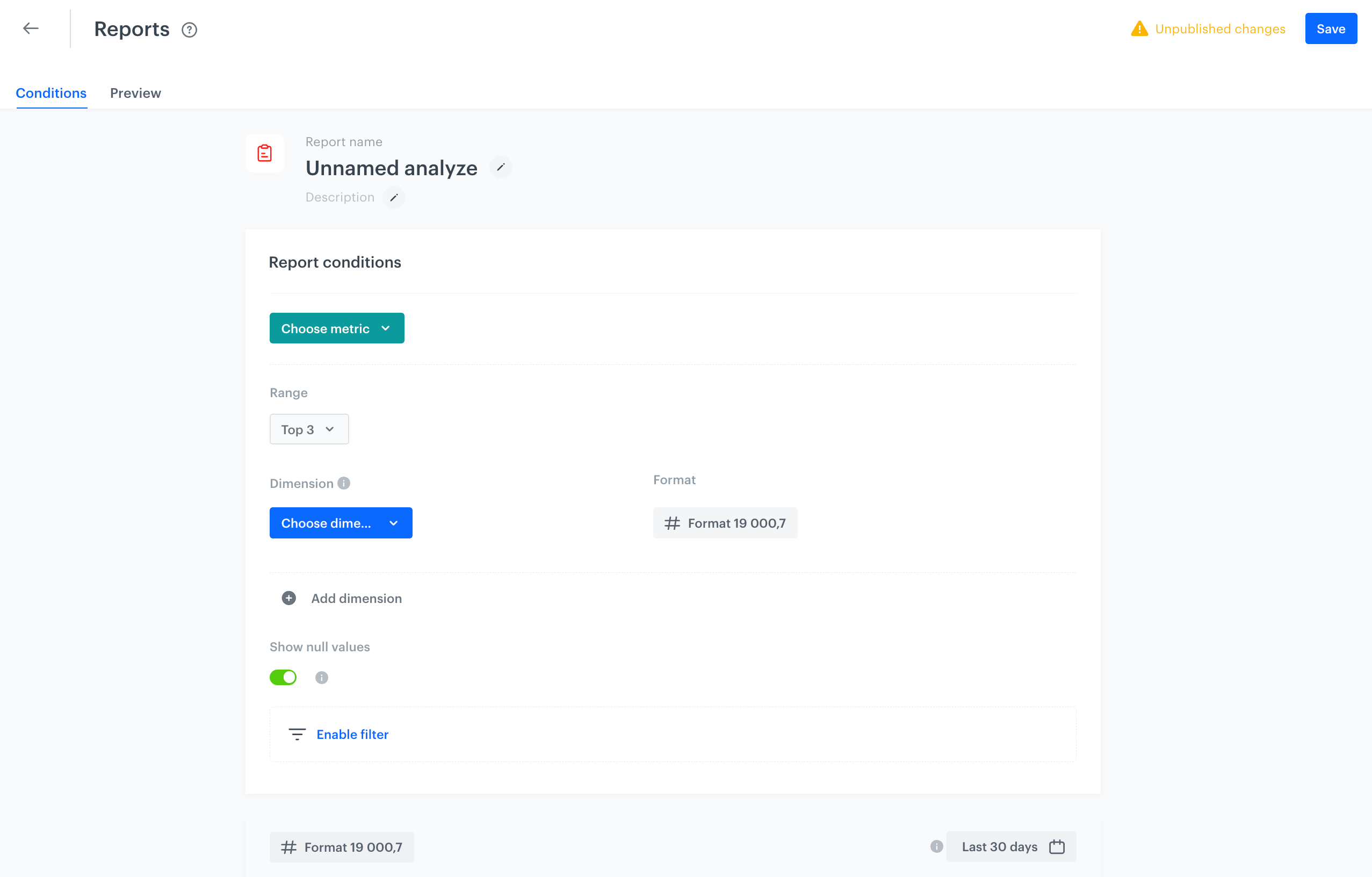
<figure>
<img src="/api/docs/image/54176ad07f146575310749eba44b7c2f42c1b327/docs/analytics/_gfx/creating-reports.png" alt="Report wizard" class="full" >
<figcaption> A blank report </figcaption>
</figure>

1. Go to <img src="/api/docs/image/54176ad07f146575310749eba44b7c2f42c1b327/icons/decision-hub-icon.svg" alt="Decision Hub icon" class="icon"> **Decision Hub > Reports > New report**.
2. Enter the name of the report.
3. Optionally, to let other users know about the purpose of the analysis, write a short description. 
4. Select a metric on the basis of which the report is created. To do so, click the **Choose metric** and from the dropdown list, select a metric.  
  Refer to the table in the ["Allowed metrics" section](#allowed-metrics) to become familiar with the limits and constraints. 
5. To choose the type of results you want to generate in the report, click the button in the **Range** section. From a dropdown list select either top (receiving the highest results) or last results (last meaning recent).
6. To choose the aspects of data from the metrics (dates, names, quantity, and more) you want to include in the report, click the **Choose dimension** button.  
  Refer to the table in the ["Allowed metrics" section](#allowed-metrics) to become familiar with the allowed dimensions for the metric you selected in the step 4.
1. If you want to add a time context to display the dates when the event occurred, click **Add dimension**. Then go to **Events > Expressions**. From the list of expressions, select an event expression.  
  
   <div class="admonition admonition-tip"><div class="admonition-icon"><svg xmlns="http://www.w3.org/2000/svg" fill="none" viewBox="0 0 24 24" stroke="currentColor" stroke-width="2.5"><path stroke-linecap="round" stroke-linejoin="round" d="M9.663 17h4.673M12 3v1m6.364 1.636l-.707.707M21 12h-1M4 12H3m3.343-5.657l-.707-.707m2.828 9.9a5 5 0 117.072 0l-.548.547A3.374 3.374 0 0014 18.469V19a2 2 0 11-4 0v-.531c0-.895-.356-1.754-.988-2.386l-.548-.547z" /></svg></div><div class="admonition-body"><div class="admonition-content">

   You can create an [event expression](/docs/analytics/expressions/event-expression-for-reports) which uses one of the following expression functions: [Day of month](/docs/crm/expressions/functions-in-expressions#day-of-month), [Day of week](/docs/crm/expressions/functions-in-expressions#day-of-week), [Day of year](/docs/crm/expressions/functions-in-expressions#day-of-year)

   </div></div></div>

7. To turn off the null values (to increase the readability of the analysis), switch the **Show null values** option off.
8. If you want to narrow down the scope of the metric data, click the **Enable filter** option. This [filter](/docs/analytics/i_client-filter) works as an additional condition.
9. To determine the time range from which the data will be analyzed, click the calendar and define the [date filter](/docs/analytics/i_date-filters).
   
   <div class="admonition admonition-important"><div class="admonition-icon"><svg xmlns="http://www.w3.org/2000/svg" fill="none" viewBox="0 0 24 24" stroke="currentColor" stroke-width="2.5"><path stroke-linecap="round" stroke-linejoin="round" d="M12 8v4m0 4h.01M21 12a9 9 0 11-18 0 9 9 0 0118 0z" /></svg></div><div class="admonition-body"><div class="admonition-content">

   The date range in the report doesn’t have to overlap the date range in the metric.

   </div></div></div>

10. To complete the process, click the **Save** button. 


