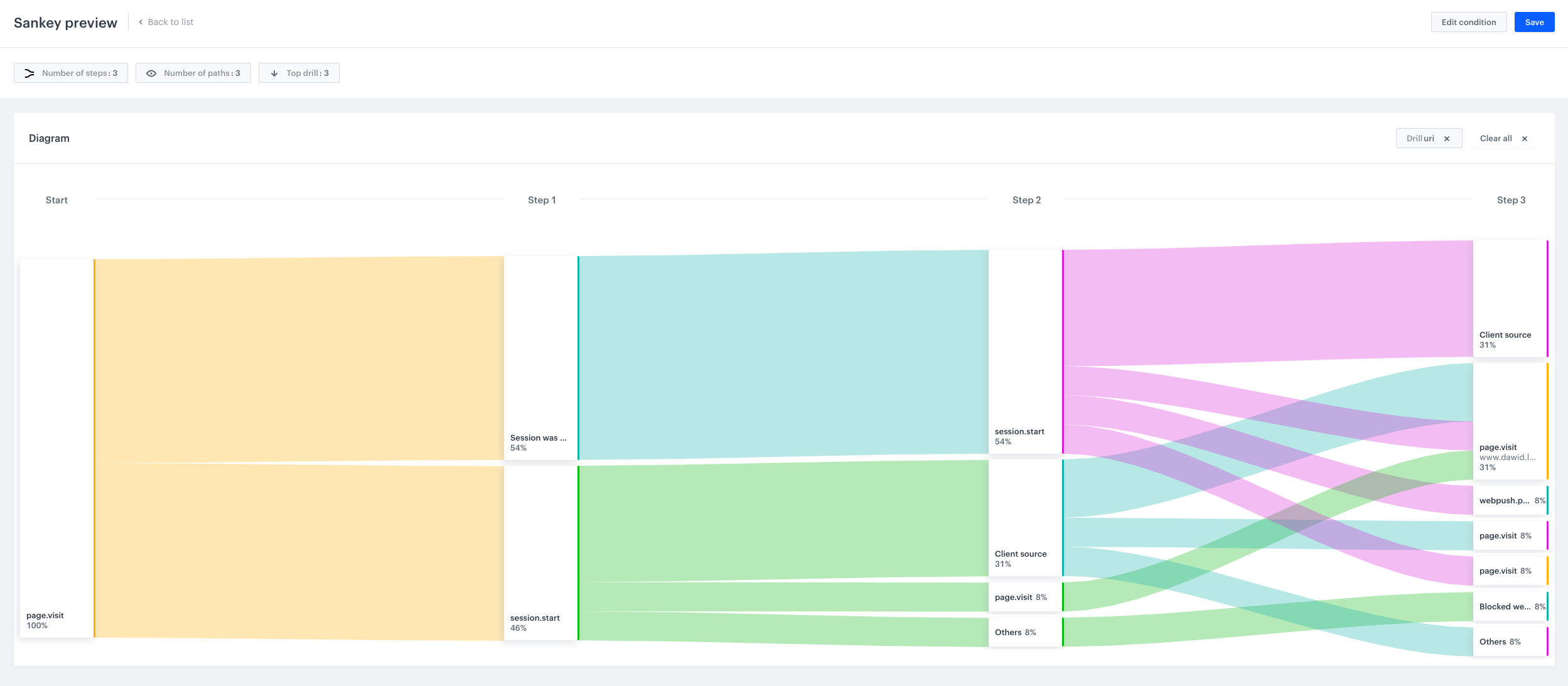
Once you create a Sankey diagram, you may see the results of the analysis. They are presented in the form of the chart which visualize the steps taken by customers before or after an event (depending on the option selected when you created the chart). 


<figure>
<img src="/api/docs/image/54176ad07f146575310749eba44b7c2f42c1b327/docs/analytics/_gfx/sankey-preview-without-table.png" alt="Image presents the preview of the Sankey chart" class="full">
<figcaption> Preview of the Sankey diagram </figcaption></figure>

1. Go to **Decision Hub > Sankey Diagrams**.
2. Find a Sankey diagram you want to see the preview of.
3. Click the <img src="/api/docs/image/54176ad07f146575310749eba44b7c2f42c1b327/icons/threedoticon.png" alt="Three-dot icon" class="icon"> icon on the right and select the **Preview** option.
4. You can perform several actions:

    - If you want to display the parameters of an event (such as URL in `page visit`), click the event under the **Step column** and select the **Drill down** option. Then, from the list of event parameters, select a parameter. 

    
      <div class="admonition admonition-tip"><div class="admonition-icon"><svg xmlns="http://www.w3.org/2000/svg" fill="none" viewBox="0 0 24 24" stroke="currentColor" stroke-width="2.5"><path stroke-linecap="round" stroke-linejoin="round" d="M9.663 17h4.673M12 3v1m6.364 1.636l-.707.707M21 12h-1M4 12H3m3.343-5.657l-.707-.707m2.828 9.9a5 5 0 117.072 0l-.548.547A3.374 3.374 0 0014 18.469V19a2 2 0 11-4 0v-.531c0-.895-.356-1.754-.988-2.386l-.548-.547z" /></svg></div><div class="admonition-body"><div class="admonition-content">

      Each event parameter is displayed on the chart as a separate path. They take the place of non-drilled events. It happens due to the limit defined by the number of paths.

      </div></div></div>


    - If you want to get the list of the customers who arrived to a point in the path, click the event under the **Step column** and select the **Open in Profiles** option. 
    - If you want to change the number of the top event parameters chosen through drill downs, click the **Top drill** button and choose the number of the results you want to display.
    - If you want to change the number of paths, click the **Number of paths** button and select a number.
    - If you want to change the number of steps, click the **Number of steps** button and select a number. 