 **Decision Hub > Segmentations**.
2. On the top bar on the segmentation list, click **Share as**.
**Result**: A pop-up appears.
3. If the workspace you're working on is a [co-brand workspace](/docs/settings/workspace/multibrand-workspaces/about), the pop-up contains the synchronization type selection. To share segmentation results to one workspace only, select **Workspace Sync**.
4. From the **Process frequency** dropdown list, select how often membership attributes will be synchronized.
- **Daily** - The process will start once a day at a random time between 4 A.M. and 6 A.M.
- **Every 6 hours** - The process will start every hour every six hours.
5. Click **Go to sharing process**.
6. On the pop-up, select the segmentations whose results will be shared and synchronized to the workspace you're logged in. The results will be saved as membership attributes.
7. Become familiar with the summary of the configured process:
- The number of unique profiles that meet the criteria of at least one selected segmentation and have the specified profile ID. Each profile is counted only once, even if it appears in multiple segmentations. Become familiar with [limits](/docs/settings/workspace/multibrand-workspaces/limits-and-constraints).
- The list of attributes which will be created and/or synchronized
8. To start the process, click **Apply**.
9. Confirm by clicking **Yes, start**.
**Result**: The first synchronization job starts immediately. Other will occur according to the schedule.
## What's next
### Checking synchronization status
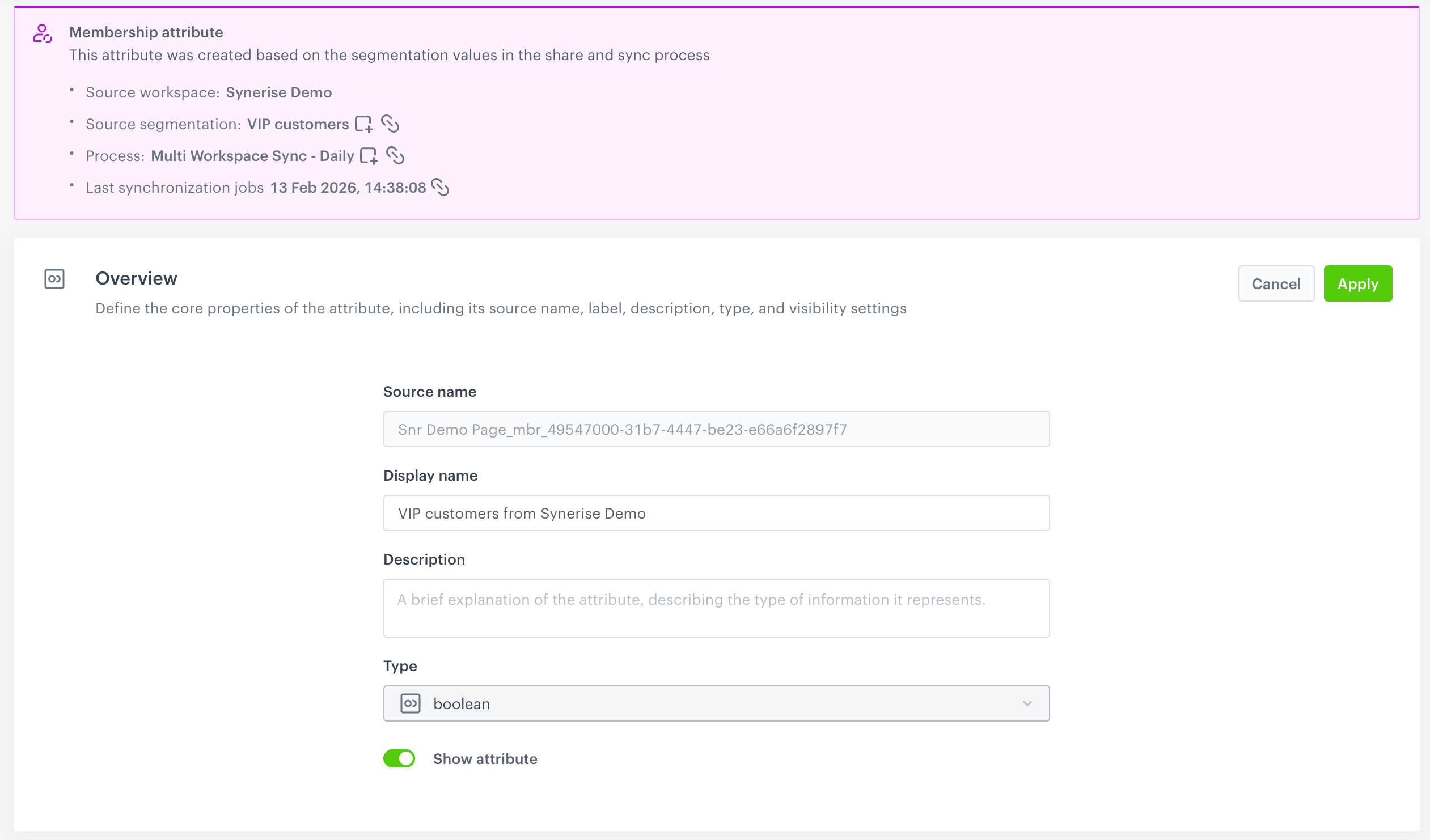
To view the status of synchronization processes go to the details of the membership attribute (**Behavioral Data Hub > Attributes > Membership attributes**) and find the link to the synchronization process where you will find logs and statuses.
**Decision Hub > Segmentations**.
2. On the top bar on the segmentation list, click **Share as**.
**Result**: A pop-up appears.
3. If the workspace you're working on is a [co-brand workspace](/docs/settings/workspace/multibrand-workspaces/about), the pop-up contains the synchronization type selection. To share segmentation results to one workspace only, select **Workspace Sync**.
4. From the **Process frequency** dropdown list, select how often membership attributes will be synchronized.
- **Daily** - The process will start once a day at a random time between 4 A.M. and 6 A.M.
- **Every 6 hours** - The process will start every hour every six hours.
5. Click **Go to sharing process**.
6. On the pop-up, select the segmentations whose results will be shared and synchronized to the workspace you're logged in. The results will be saved as membership attributes.
7. Become familiar with the summary of the configured process:
- The number of unique profiles that meet the criteria of at least one selected segmentation and have the specified profile ID. Each profile is counted only once, even if it appears in multiple segmentations. Become familiar with [limits](/docs/settings/workspace/multibrand-workspaces/limits-and-constraints).
- The list of attributes which will be created and/or synchronized
8. To start the process, click **Apply**.
9. Confirm by clicking **Yes, start**.
**Result**: The first synchronization job starts immediately. Other will occur according to the schedule.
## What's next
### Checking synchronization status
To view the status of synchronization processes go to the details of the membership attribute (**Behavioral Data Hub > Attributes > Membership attributes**) and find the link to the synchronization process where you will find logs and statuses.
 **Behavioral Data Hub > Membership Attributes Sync**.
2. Select the **Processes** tabs.
3. Open the details of a synchronization process.
4. Add or remove segmentations from the process.
5. Confirm changes by clicking **Apply**.
**Result**: The synchronization process with the change is launched immediately. Other jobs will be performed as scheduled through the **Process frequency** option.
### I want to edit synchronization process
- **Frequency and location cannot be edited for existing processes**
To change the frequency or sharing location, you must create a new synchronization process.
- **Segmentations can be added or removed from existing processes**
Changes will take effect:
- immediately for synchronizations scheduled every 6 hours - subsequent runs will be performed according to the schedule.
- on the next scheduled run for daily synchronizations.
- **Stopping synchronizations**
To stop synchronizing, remove segmentations from the process.
### I want to manage membership attributes in a workspace
- [Previewing attribute details](/docs/crm/customer-properties#viewing-attribute-details)
- [Changing display name and attribute description](/docs/crm/customer-properties#changing-display-name-and-description)
- [Changing attribute visibility across filters](/docs/crm/customer-properties#changing-membership-attribute-visibility)
### I want to analyze how profiles joined and left segmentations
The analysis will be based on the `profile.updated` event, which captures changes to membership attributes. Since the state of a membership attribute indicates whether a profile belongs to the segmentation it was created from, analyzing the `profile.updated` event ensures reliable results.
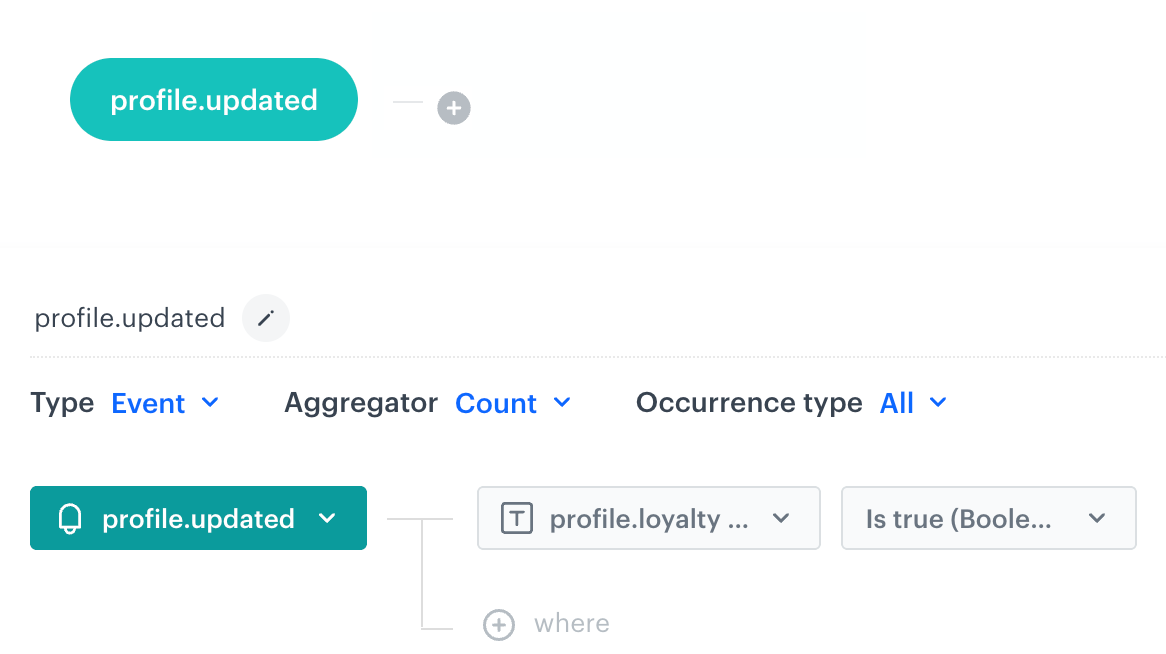
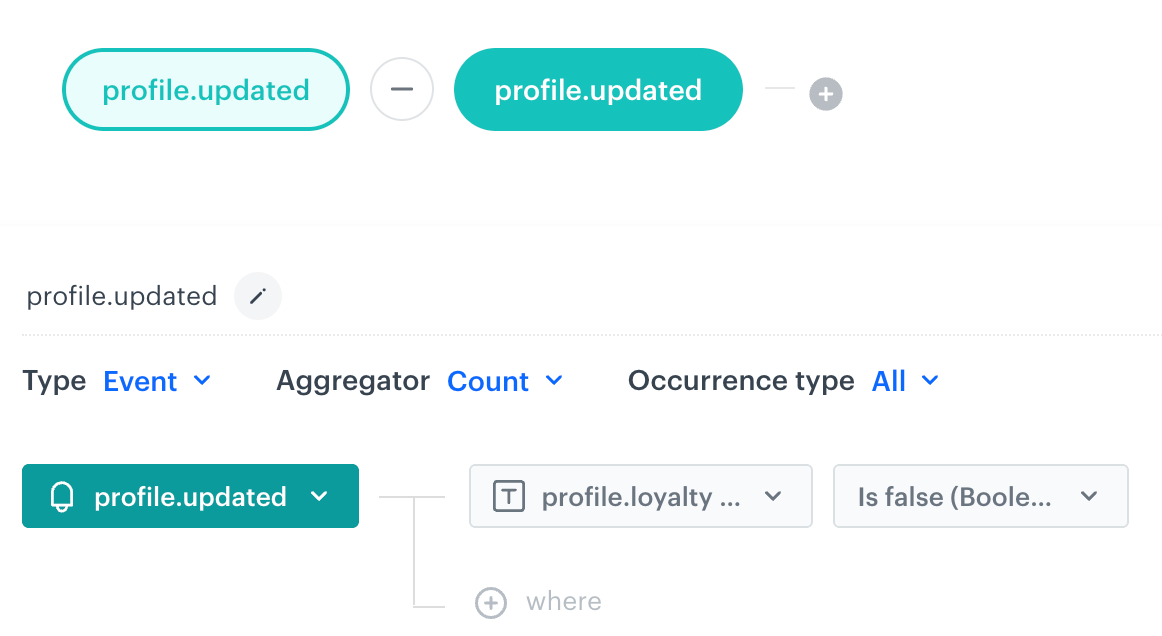
1. Create a formula metric which will deduct the count of `profile.updated` events with the membership attribute value set to true from the count of `profile.updated` events with the membership attribute value set to false.
1. Go to **Decision Hub > Metrics > New metric**.
2. Select **Formula metric**.
3. Select **Event**.
4. Select `profile.updated`.
5. Click **+ where**.
6. From the dropdown list, select the attribute with the name of a membership attribute.
7. Set the condition to `is true`.
**Behavioral Data Hub > Membership Attributes Sync**.
2. Select the **Processes** tabs.
3. Open the details of a synchronization process.
4. Add or remove segmentations from the process.
5. Confirm changes by clicking **Apply**.
**Result**: The synchronization process with the change is launched immediately. Other jobs will be performed as scheduled through the **Process frequency** option.
### I want to edit synchronization process
- **Frequency and location cannot be edited for existing processes**
To change the frequency or sharing location, you must create a new synchronization process.
- **Segmentations can be added or removed from existing processes**
Changes will take effect:
- immediately for synchronizations scheduled every 6 hours - subsequent runs will be performed according to the schedule.
- on the next scheduled run for daily synchronizations.
- **Stopping synchronizations**
To stop synchronizing, remove segmentations from the process.
### I want to manage membership attributes in a workspace
- [Previewing attribute details](/docs/crm/customer-properties#viewing-attribute-details)
- [Changing display name and attribute description](/docs/crm/customer-properties#changing-display-name-and-description)
- [Changing attribute visibility across filters](/docs/crm/customer-properties#changing-membership-attribute-visibility)
### I want to analyze how profiles joined and left segmentations
The analysis will be based on the `profile.updated` event, which captures changes to membership attributes. Since the state of a membership attribute indicates whether a profile belongs to the segmentation it was created from, analyzing the `profile.updated` event ensures reliable results.
1. Create a formula metric which will deduct the count of `profile.updated` events with the membership attribute value set to true from the count of `profile.updated` events with the membership attribute value set to false.
1. Go to **Decision Hub > Metrics > New metric**.
2. Select **Formula metric**.
3. Select **Event**.
4. Select `profile.updated`.
5. Click **+ where**.
6. From the dropdown list, select the attribute with the name of a membership attribute.
7. Set the condition to `is true`.
 **Decision Hub > Histograms > New histogram**.
2. Select the metric you created in the previous step.
3. Save the histogram.
3. Create a dashboard which displays the histogram results.
1. Go to **Decision Hub > Dashboards > Add dashboard**.
2. Click the
**Decision Hub > Histograms > New histogram**.
2. Select the metric you created in the previous step.
3. Save the histogram.
3. Create a dashboard which displays the histogram results.
1. Go to **Decision Hub > Dashboards > Add dashboard**.
2. Click the  icon on the dashboard.
3. Select the histogram you created in the previous step.
4. Click the histogram widget which has been added to the dashboard.
5. On the right panel, select the **Style** tab.
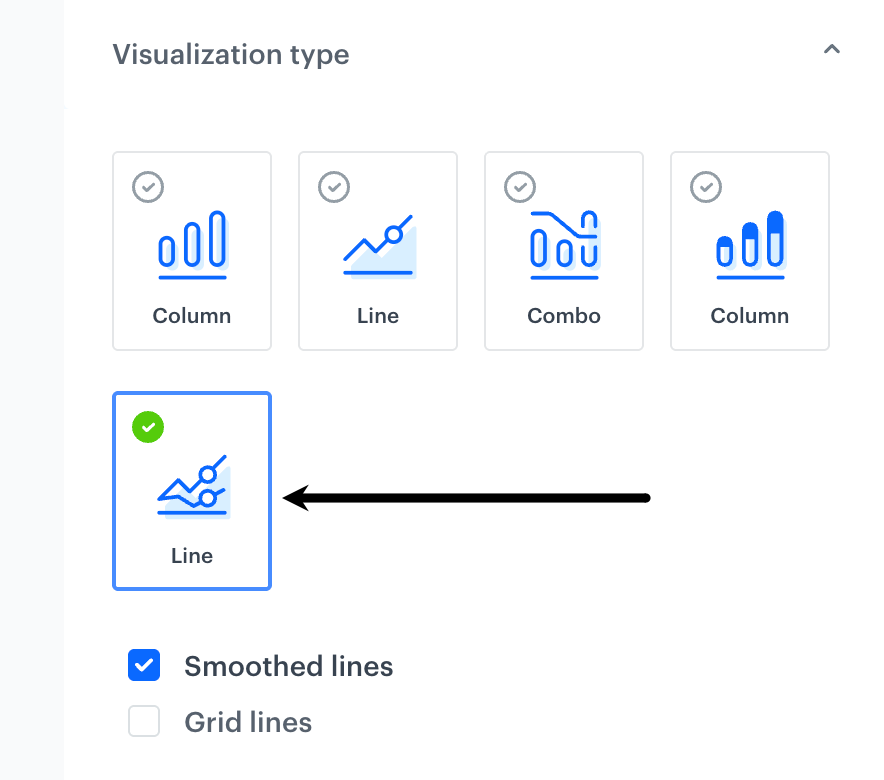
6. Select the following visualization type:
icon on the dashboard.
3. Select the histogram you created in the previous step.
4. Click the histogram widget which has been added to the dashboard.
5. On the right panel, select the **Style** tab.
6. Select the following visualization type: