Response transformers let you change the output while [generating an object](/docs/assets/brickworks/generating-objects). 

You can use this to manipulate the results of object generation. For example:
- Maintain compatibility between an updated schema and your mobile app by changing the content while it's generated - for example, if the name or data type of a field in the schema changes, you can use the transformer to keep generating content with the old name/data type without changing your mobile app.
- Simplify responses from external sources to limit the amount of data returned when generating a record.
- Modify the result of record generation depending on the result of another field in the record (for example, an analysis result).

## How it works

The transformer is a JavaScript function applied to the generated object before returning it in the API/SDK response. You [define the content of the function](#building-the-transformation-script) - by default, it's empty. 

## Creating response transformers

You can create multiple transformers for a schema, but only one can be active. The others can be selected when previewing a record, so you can test transformers without changing the active one.


<div class="admonition admonition-tip"><div class="admonition-icon"><svg xmlns="http://www.w3.org/2000/svg" fill="none" viewBox="0 0 24 24" stroke="currentColor" stroke-width="2.5"><path stroke-linecap="round" stroke-linejoin="round" d="M9.663 17h4.673M12 3v1m6.364 1.636l-.707.707M21 12h-1M4 12H3m3.343-5.657l-.707-.707m2.828 9.9a5 5 0 117.072 0l-.548.547A3.374 3.374 0 0014 18.469V19a2 2 0 11-4 0v-.531c0-.895-.356-1.754-.988-2.386l-.548-.547z" /></svg></div><div class="admonition-body"><div class="admonition-content">

Transformers are [versioned](#transformer-versions); so you don't need to create different versions of the same transformer as new transformers.

</div></div></div>


1. On the **Response transformers** tab, click **Edit > Add transformer**.  
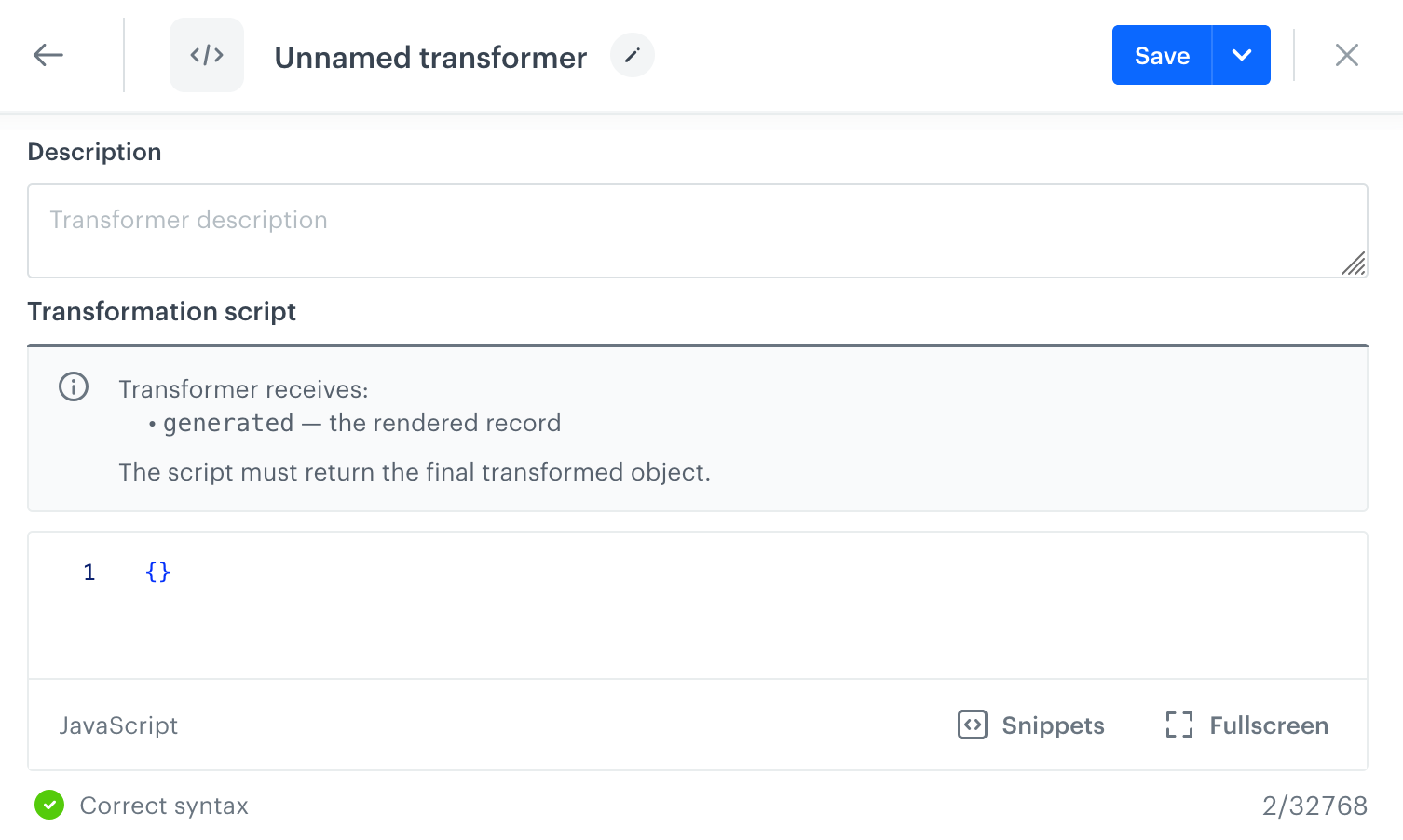
    **Result**: The transformer editor opens.  
    <figure><img src="/api/docs/image/fcf1bf44944bec1b40071673f1d122ae9f3a65be/docs/assets/_gfx/brickworks-transformer-editor.png" class="large" alt="The transformer editor"><figcaption>The transformer editor</figcaption></figure>
2. Enter the transformer name.
3. Enter a description.  
    The description is saved separately for each version of the transformer, so you can use it to differentiate between versions.
4. Enter the transformation script.  
    For details, see ["Building the transformation script"](#building-the-transformation-script).
5. Click **Save** or **Save and close**.
6. If you want to start using the script:
   1. On the **Response transformers** tab, select the transformer as the active one.
   2. Save the schema.

### Building the transformation script

The transformation script is a function which the backend runs after generating content, before returning the response to you. 

The function can access the content (key/value) map of a generated record by referencing the `generated` object. To access a field, use dot notation, for example `generated.exampleString`  

Take these requirements and mechanisms into account:
- The script must end with a return statement which returns the transformed object. You can overwrite the properties of the `generated` object or create a new object from it, modify some values, and return a new object.
- The transformer runs only for the top-level record (the one you requested). If the record references other records with their own response transformers, those nested transformers aren't processed.
- After running the function, the generated object is not validated against the schema. The response transformer can change the data type of a field.
- You can add error handling and logging in the function and see its results in the response when the function fails - the API returns an HTTP 400 message with a `details` object that shows the error message and logs.
- The number of transformers and their versions is [limited](/docs/assets/brickworks/limits).
- The transformation script can't make HTTP requests and other external calls; it can only transform data received from a processed record, so you can use an External Data field.

### Transformer example 1

Here's a simple transformer example:
1. A schema has one field: `exampleString`
2. The transformer is:  
    ```js
    {
    generated.exampleString = "new value";
    return generated;
    }
    ```  
    This code replaces the value of the `exampleString` field in the record with `"new value"`

3. When you make a content generation request, the response is:
   
   <div class="highlight-code-block" data-hl-lines="7">
   <pre><code class="language-json">{
       "__slug": "exampleRecord",
       "__recordVersion": 6,
       "__publishedAt": "2026-06-18T12:04:34.340257Z",
       "__matchedAudience": true,
       "__updatedAt": "2026-06-18T12:04:34.283001Z",
       "exampleString": "new value",
       "__createdAt": "2026-06-18T11:21:06.960940Z",
       "__schemaId": "2e38959d-b9d9-4699-9ace-9e5eeb96b251",
       "__id": "715f4d74-25c3-47ca-874b-861f9d0ab190",
       "__schemaVersion": 20
   }</code></pre>
   </div>


### Transformer example 2

1. A schema is used to create a visual element by referencing records from another schema.  
    This is the structure of the schema, with the `stories` field defined as a [reference to records from another schema](/docs/assets/brickworks/schema-field-types#one-to-many) (`"subtype": "one_to_many"`):  
    **JSON structure**:  
    ```json
    {
      "type": "object",
      "required": ["stories"],
      "properties": {
          "title":           { "type": "string",  "default": "Let's start jogging!" },
          "stories":         { "type": "array",   "subtype": "one_to_many", "items": { "subtype": "one_to_one", "referenceId": "db6df665-..." }, "maxItems": 5 },
          "buttonText":      { "type": "string",  "default": "Shop now!" },
          "buttonColor":     { "type": "string",  "default": "#000" },
          "buttonTextColor": { "type": "string",  "default": "#fff" }
      }
    }
    ```  
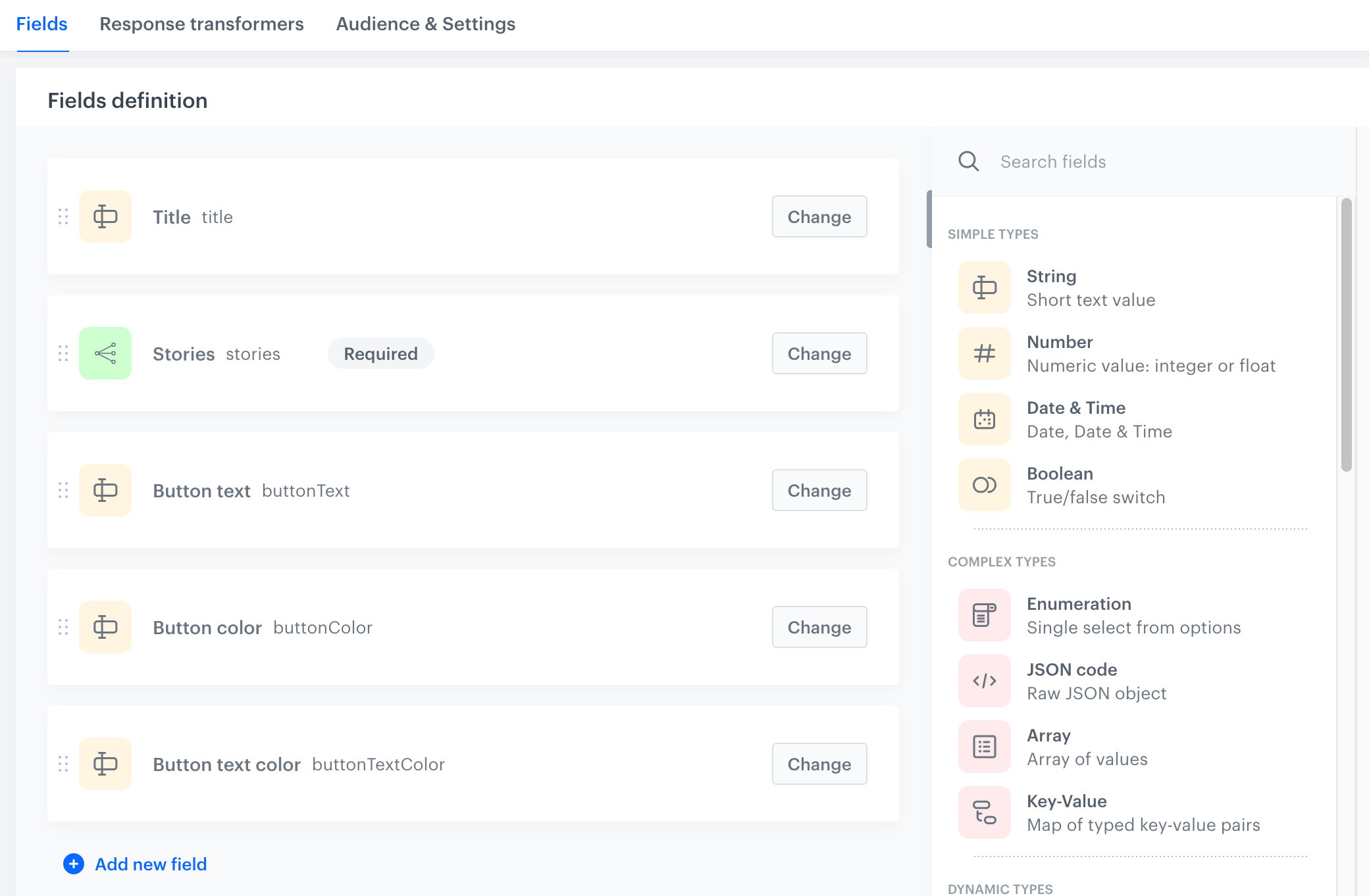
    **Schema editor view**:  
   <figure><img src="/api/docs/image/fcf1bf44944bec1b40071673f1d122ae9f3a65be/docs/assets/_gfx/brickworks-transformers-schema-example.png" class="full" alt="An example schema"><figcaption>An example schema</figcaption></figure>

2. When generating an object, `stories` is generated as an array of objects. Each object in the array has an `image` object with a `url` property (string) that points to the image.  
    This is how `stories` looks before applying the transformer:  
    ```json
    "stories": [
        {
            "name": "Example item 1",
            "image": {
                "url": "https://example.com/images/image1.png",
                "thumb": "https://example.com/thumbs/image1.png"
            }
        },
        {
            "name": "Example item 2",
            "image": {
                "url": "https://example.com/images/image2.png",
                "thumb": "https://example.com/thumbs/image2.png"
            }
        }
    ]
    ```
3. The following transformer replaces the `image` object in each story with just the object's URL string. This simplifies handling the output.  
    ```js
   {
   const updatedStories = generated['stories'].map(story => {
       return {
           ...story,
           image: story.image.url
       };
   });

   return {...generated, stories: updatedStories};
   }
    ```
4. This is how `stories` looks after applying the transformer:  
    ```json
    "stories": [
        {
            "name": "Example item 1",
            "image": "https://example.com/images/image1.png"
        },
        {
            "name": "Example item 2",
            "image": "https://example.com/images/image2.png"
        }
    ]
    ```

## Activating response transformers for a schema

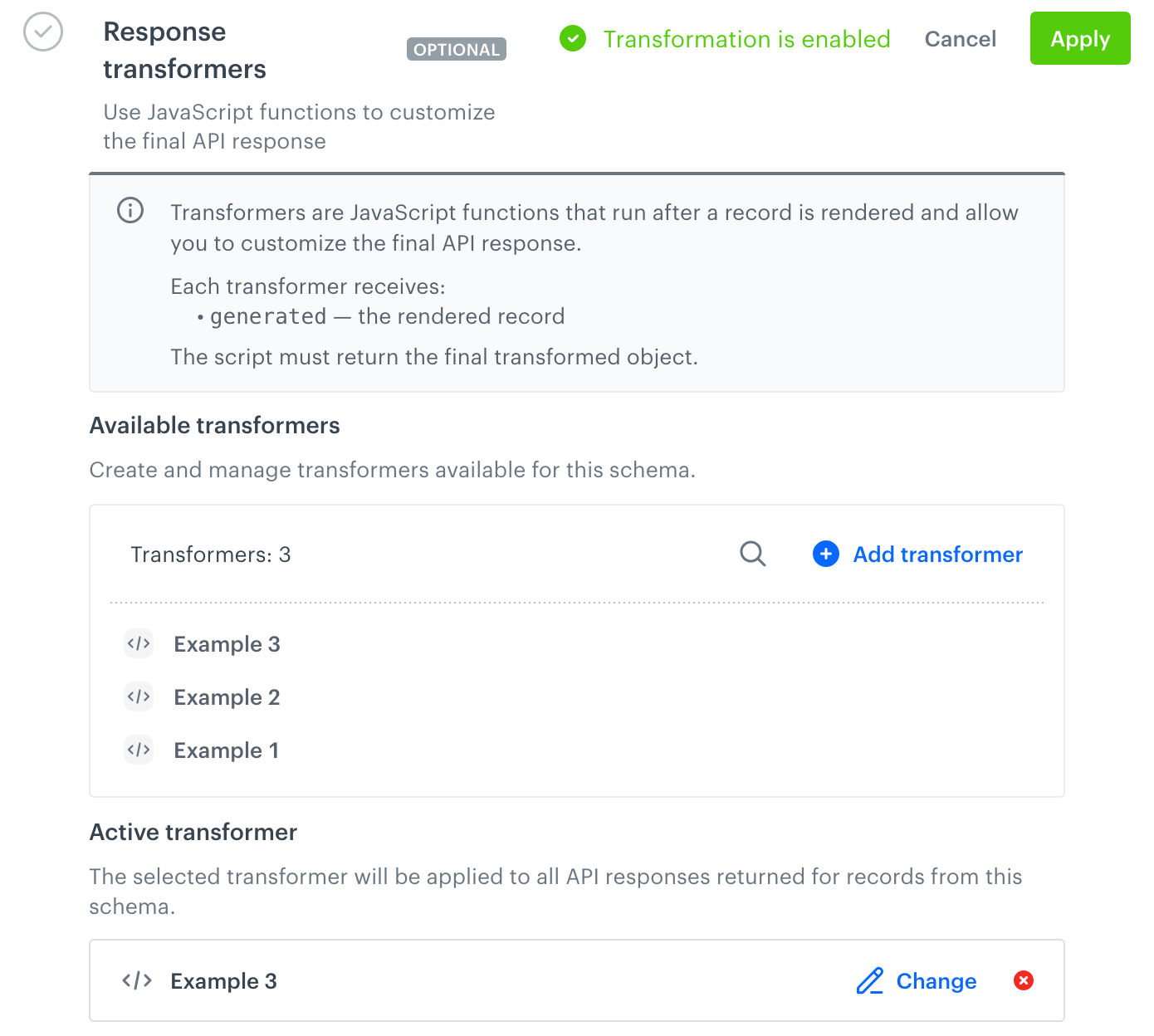
Each schema has its own list of transformers. Only one transformer from the list can be active.

<figure><img src="/api/docs/image/fcf1bf44944bec1b40071673f1d122ae9f3a65be/docs/assets/_gfx/brickworks-transformer-list.png" class="large" alt="A list of transformers assigned to a schema. 'Example 3' is selected as the active transformer."><figcaption>A list of transformers assigned to a schema. "Example 3" is selected as the active transformer.</figcaption></figure>

1. [Create and save your schema](/docs/assets/brickworks/quick-start/creating-a-schema).
2. In the schema editor, go to the **Response transformers** tab.
3. Click **Edit**.  
4. Activate a transformer:
    - If no transformers exist or you want to create a new one, proceed to ["Creating response transformers"](#creating-response-transformers).
    - If no transformer is active, click **Select** and select a transformer from the list.
    - If a transformer is active and you want to use a different one, click **Change** on the active transformer and select a different one.
5. Click **Apply**.
6. Save the schema by clicking **Save**.

## Previewing transformer results

To preview and test transformers, use the **Transforming response** tab in a [record preview](/docs/assets/brickworks/quick-start/creating-a-record#previewing-records).

The preview lets you test different versions of the schema (drafts) and inactive transformers without affecting the published schema version and active transformer.

## Managing response transformers

On the **Response transformers** tab, in the list of transformers, hover over a transformer and:
   - to delete the transformer, click the cross icon, then confirm.
   - to duplicate the transformer, click the copy icon.
   - to edit a transformer, click the pencil icon and edit the transformer in the same way as when [creating one](#creating-response-transformers).  
   
   <div class="admonition admonition-note"><div class="admonition-icon"><svg xmlns="http://www.w3.org/2000/svg" fill="none" viewBox="0 0 24 24" stroke="currentColor" stroke-width="2.5"><path stroke-linecap="round" stroke-linejoin="round" d="M13 16h-1v-4h-1m1-4h.01M21 12a9 9 0 11-18 0 9 9 0 0118 0z" /></svg></div><div class="admonition-body"><div class="admonition-content">

   When you edit and save an active transformer, the change takes effect without saving the schema.

   </div></div></div>


### Transformer versions

A transformer version is created whenever you save the transformer in the editor. When you exceed the [version limit](/docs/assets/brickworks/limits), the oldest version is removed.

To access and manage versions:
1. On the **Response transformers** tab, in the list of transformers, hover over a transformer and click the pencil icon.
2. In the editor that opens, click **Versions history**.  
    **Result**: The version history modal opens.  
    - To view a version, select it and click **Show**.
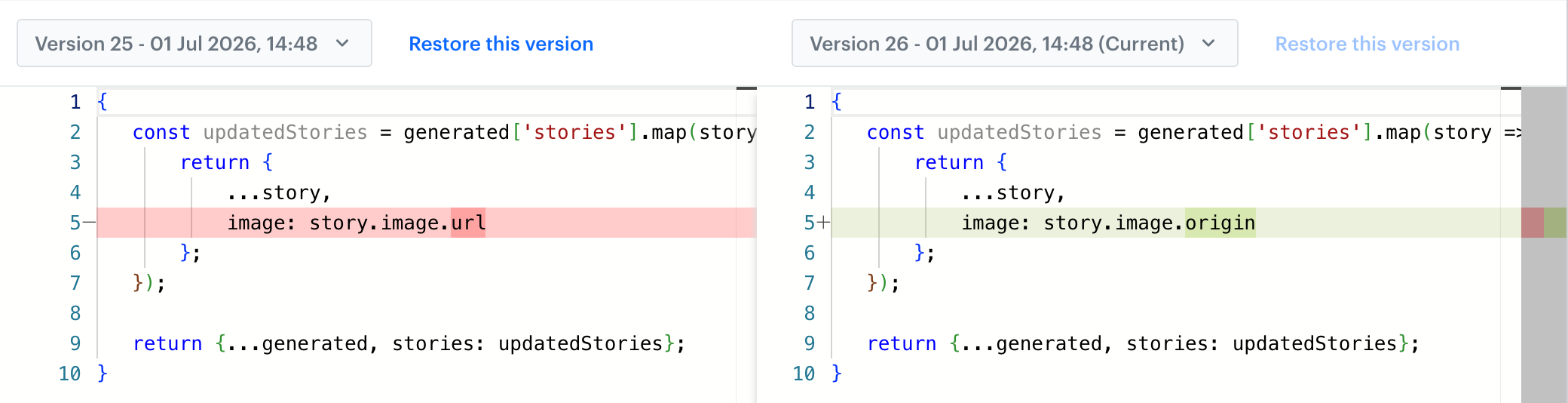
    - To compare versions, select two versions and click **Compare**.  
    **Result**: A git-style diff opens.  
      <figure><img src="/api/docs/image/fcf1bf44944bec1b40071673f1d122ae9f3a65be/docs/assets/_gfx/brickworks-transformer-version-compare.png" class="large" alt="A view of the version comparison"><figcaption>A view of the version comparison</figcaption></figure>  

    - To restore a version:
      1. Open two versions for comparison.
      2. Above the version that you want to restore, click **Restore this version**.  
           **Result**: The restored version is saved as a new version and the editor closes.

## Disabling response transformers

Disabling a transformer doesn't delete it.

1. On the **Response transformers** tab, next to the active transformer, click the cross icon.
2. In the pop-up that opens, confirm the operation.