A [schema](/docs/assets/brickworks/quick-start/creating-a-schema) may include a number of different types of data fields:
- Simple types - static, atomic values and expect data entries that strictly conform to their specified types. Can be set as searchable unique.
- Complex types - structured or grouped data, allowing for more complex and flexible data representations beyond simple atomic values.
- Dynamic types - Jinjava inserts and data pulled from external sources.
- Relations - data retrieved from records in other schemas.
- Synerise objects - leverage existing data within Synerise by adding Synerise objects as fields. These objects enable advanced personalization and dynamic content.  
    To learn more, see [Synerise objects](/docs/assets/brickworks/synerise-objects).
- Assets - files from the [Files Explorer](/docs/assets/files-explorer).

## Common field properties

These properties exist in multiple field types:

- **Display name**: A human-readable name for the field, shown in the record editor.
- **API name**: A system name for the field.  
    -  In the `{{ record.APIname }}` insert, this name is the `APIname`
    -  When retrieving/creating/updating a record with the API, this name is the identifier of the field.
    -  When generating an object from a record, this is the name of the key that stores the field's value.
- **Description**: A human-readable description of the field's purpose, shown in the record editor.
- **Block record-level overwriting**: Disables changing any values in this field in individual records. You must provide a default value, which will be applied to all records in the schema.
- **Conditional visibility**: Enforces adding a value to a field when another field meets a condition.  
    See [explanation below](#conditional-visibility).
- **Use as record title**: If the record doesn't have a set name, the value of the field is used as the name.
- **Required field**: A record can only be saved if a value for this field is provided.
- **Default value**: The provided value will be used for object generation in records where a value is not set.  
  This is only used when a value isn't defined in a record. It is **not a fallback**. For example, if an expression referenced in a record returns null or an error, the system **doesn't** use the default value.
- **Unique values only**: No other record in the schema may have the same value for this field.  
    You can use this to store your own unique record identifiers.  
    The number of fields with this setting is [limited](/docs/assets/brickworks/limits).
- **Enable search & filtering**: The value can be used when searching and filtering records.  
    The number of fields with this setting is [limited](/docs/assets/brickworks/limits).

### Conditional visibility
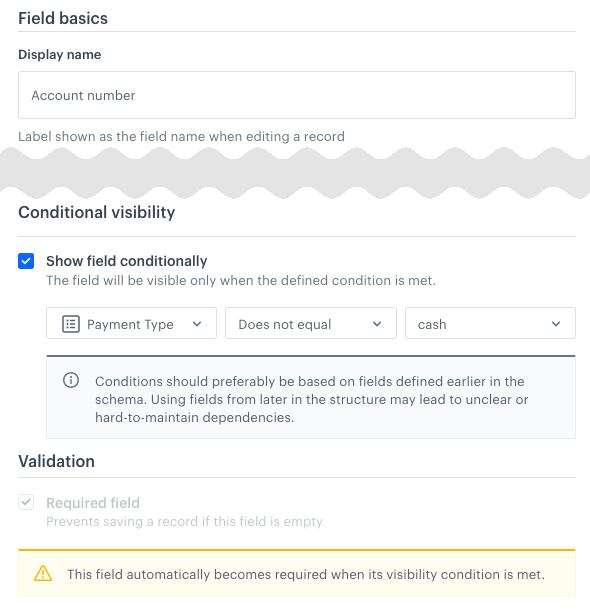
You can enforce entering a value into a field when another field meets a condition. If the condition isn't met, the field with this setting isn't visible in the schema editor/viewer.

The field that appears when the condition is met must have a default value (because it's required).

**Example**:  
<figure><img src="/api/docs/image/54176ad07f146575310749eba44b7c2f42c1b327/docs/assets/brickworks/_gfx/conditional.png" class="medium" alt="Conditional display example: the Account number field is only available (and must be filled) when the Payment Type field (enumeration) is not cash"><figcaption>the <strong>Account number</strong> field is only available (and must be filled) when the <strong>Payment Type</strong> field (enumeration) is not <code>"cash"</code></figcaption></figure>

**Operators**:  
The available operators depend on the type of the field that is checked:
| String | Number | Boolean | Enumeration |
| --- | --- | --- | --- |
| <ul><li>Equals</li><li>Contains</li><li>Is empty</li><li>Is not empty</li></ul> | <ul><li>Equals</li><li>Does not equal</li><li>Greater than</li><li>Less than</li><li>Is empty</li><li>Is not empty</li></ul> | <ul><li>Is true</li><li>Is false</li></ul> | <ul><li>Equals</li><li>Does not equal</li></ul> |

## Field type summary

### Simple types

| Field name                                                   | Stored values                                                                                                                                     | Primitive data type                                               | Can be searchable<sup>1</sup>                                                 | Can be unique<sup>2</sup>                                                     | Accepts Jinjava                                                   | Nullable |
| ------------------------------------------------------------ | ------------------------------------------------------------------------------------------------------------------------------------------------- | ----------------------------------------------------------------- | ----------------------------------------------------------------- | ----------------------------------------------------------------- | ----------------------------------------------------------------- | --- |
| [String](#string)                                            | Static strings                                                                                                                                    | <img src="/api/docs/image/54176ad07f146575310749eba44b7c2f42c1b327/icons/check-s.svg" class="icon" alt="Green checkmark"> | <img src="/api/docs/image/54176ad07f146575310749eba44b7c2f42c1b327/icons/check-s.svg" class="icon" alt="Green checkmark"> | <img src="/api/docs/image/54176ad07f146575310749eba44b7c2f42c1b327/icons/check-s.svg" class="icon" alt="Green checkmark"> | <img src="/api/docs/image/54176ad07f146575310749eba44b7c2f42c1b327/icons/close-s.svg" class="icon" alt="Red checkmark">   |<img src="/api/docs/image/54176ad07f146575310749eba44b7c2f42c1b327/icons/check-s.svg" class="icon" alt="Green checkmark"> |
| [Number](#number)                                            | Integers or floating point numbers                                                                                                                | <img src="/api/docs/image/54176ad07f146575310749eba44b7c2f42c1b327/icons/check-s.svg" class="icon" alt="Green checkmark"> | <img src="/api/docs/image/54176ad07f146575310749eba44b7c2f42c1b327/icons/check-s.svg" class="icon" alt="Green checkmark"> | <img src="/api/docs/image/54176ad07f146575310749eba44b7c2f42c1b327/icons/check-s.svg" class="icon" alt="Green checkmark"> | <img src="/api/docs/image/54176ad07f146575310749eba44b7c2f42c1b327/icons/close-s.svg" class="icon" alt="Red checkmark">   |<img src="/api/docs/image/54176ad07f146575310749eba44b7c2f42c1b327/icons/check-s.svg" class="icon" alt="Green checkmark"> |
| [Date & Time](#date--time)                                   | A date or date and time                                                                                                                           | <img src="/api/docs/image/54176ad07f146575310749eba44b7c2f42c1b327/icons/close-s.svg" class="icon" alt="Red checkmark">   | <img src="/api/docs/image/54176ad07f146575310749eba44b7c2f42c1b327/icons/close-s.svg" class="icon" alt="Red checkmark">   | <img src="/api/docs/image/54176ad07f146575310749eba44b7c2f42c1b327/icons/close-s.svg" class="icon" alt="Red checkmark">   | <img src="/api/docs/image/54176ad07f146575310749eba44b7c2f42c1b327/icons/close-s.svg" class="icon" alt="Red checkmark">   |<img src="/api/docs/image/54176ad07f146575310749eba44b7c2f42c1b327/icons/check-s.svg" class="icon" alt="Green checkmark"> |
| [Boolean](#boolean)                                          | `true`/`false` values                                                                                                                             | <img src="/api/docs/image/54176ad07f146575310749eba44b7c2f42c1b327/icons/check-s.svg" class="icon" alt="Green checkmark"> | <img src="/api/docs/image/54176ad07f146575310749eba44b7c2f42c1b327/icons/check-s.svg" class="icon" alt="Green checkmark"> | <img src="/api/docs/image/54176ad07f146575310749eba44b7c2f42c1b327/icons/check-s.svg" class="icon" alt="Green checkmark"> | <img src="/api/docs/image/54176ad07f146575310749eba44b7c2f42c1b327/icons/close-s.svg" class="icon" alt="Red checkmark">   |<img src="/api/docs/image/54176ad07f146575310749eba44b7c2f42c1b327/icons/check-s.svg" class="icon" alt="Green checkmark"> |

<sup>1,2</sup>The number of fields with this setting is [limited](/docs/assets/brickworks/limits).

### Complex types

| Field name                                                   | Stored values                                                                                                                                     | Primitive data type                                               | Can be searchable<sup>1</sup>                                                 | Can be unique<sup>2</sup>                                                     | Accepts Jinjava                                                   | Nullable |
| ------------------------------------------------------------ | ------------------------------------------------------------------------------------------------------------------------------------------------- | ----------------------------------------------------------------- | ----------------------------------------------------------------- | ----------------------------------------------------------------- | ----------------------------------------------------------------- | --- |
| [Enumeration](#enumeration)                                  | A list of allowed values, displayed as a dropdown list                                                                                            | <img src="/api/docs/image/54176ad07f146575310749eba44b7c2f42c1b327/icons/check-s.svg" class="icon" alt="Green checkmark"> | <img src="/api/docs/image/54176ad07f146575310749eba44b7c2f42c1b327/icons/close-s.svg" class="icon" alt="Red checkmark">   | <img src="/api/docs/image/54176ad07f146575310749eba44b7c2f42c1b327/icons/check-s.svg" class="icon" alt="Green checkmark"> | <img src="/api/docs/image/54176ad07f146575310749eba44b7c2f42c1b327/icons/close-s.svg" class="icon" alt="Red checkmark">   |<img src="/api/docs/image/54176ad07f146575310749eba44b7c2f42c1b327/icons/check-s.svg" class="icon" alt="Green checkmark"> |
| [JSON code](#json-code)                                      | Raw JSON content                                                                                                                                  | <img src="/api/docs/image/54176ad07f146575310749eba44b7c2f42c1b327/icons/close-s.svg" class="icon" alt="Red checkmark">   | <img src="/api/docs/image/54176ad07f146575310749eba44b7c2f42c1b327/icons/close-s.svg" class="icon" alt="Red checkmark">   | <img src="/api/docs/image/54176ad07f146575310749eba44b7c2f42c1b327/icons/close-s.svg" class="icon" alt="Red checkmark">   | <img src="/api/docs/image/54176ad07f146575310749eba44b7c2f42c1b327/icons/close-s.svg" class="icon" alt="Red checkmark">   |<img src="/api/docs/image/54176ad07f146575310749eba44b7c2f42c1b327/icons/check-s.svg" class="icon" alt="Green checkmark"> |
| [Array](#array)                                              | Lists of values                                                                                                                                   | <img src="/api/docs/image/54176ad07f146575310749eba44b7c2f42c1b327/icons/check-s.svg" class="icon" alt="Green checkmark"> | <img src="/api/docs/image/54176ad07f146575310749eba44b7c2f42c1b327/icons/check-s.svg" class="icon" alt="Green checkmark"> | <img src="/api/docs/image/54176ad07f146575310749eba44b7c2f42c1b327/icons/check-s.svg" class="icon" alt="Green checkmark"> | <img src="/api/docs/image/54176ad07f146575310749eba44b7c2f42c1b327/icons/close-s.svg" class="icon" alt="Red checkmark">   |<img src="/api/docs/image/54176ad07f146575310749eba44b7c2f42c1b327/icons/check-s.svg" class="icon" alt="Green checkmark"> |

<sup>1,2</sup>The number of fields with this setting is [limited](/docs/assets/brickworks/limits).

### Dynamic types

| Field name                                                   | Stored values                                                                                                                                     | Primitive data type                                               | Can be searchable<sup>1</sup>                                                 | Can be unique<sup>2</sup>                                                     | Accepts Jinjava                                                   | Nullable |
| ------------------------------------------------------------ | ------------------------------------------------------------------------------------------------------------------------------------------------- | ----------------------------------------------------------------- | ----------------------------------------------------------------- | ----------------------------------------------------------------- | ----------------------------------------------------------------- | --- |
| [Jinjava code](#jinjava-code)                                | A string which contains Jinjava inserts.                                                                                                          | <img src="/api/docs/image/54176ad07f146575310749eba44b7c2f42c1b327/icons/close-s.svg" class="icon" alt="Red checkmark">   | <img src="/api/docs/image/54176ad07f146575310749eba44b7c2f42c1b327/icons/close-s.svg" class="icon" alt="Red checkmark">   | <img src="/api/docs/image/54176ad07f146575310749eba44b7c2f42c1b327/icons/close-s.svg" class="icon" alt="Red checkmark">   | <img src="/api/docs/image/54176ad07f146575310749eba44b7c2f42c1b327/icons/check-s.svg" class="icon" alt="Green checkmark"> |<img src="/api/docs/image/54176ad07f146575310749eba44b7c2f42c1b327/icons/check-s.svg" class="icon" alt="Green checkmark"> |
| [External Data](#external-data)                              | Pulls data from an external source when generating an object from a record                                                                        | <img src="/api/docs/image/54176ad07f146575310749eba44b7c2f42c1b327/icons/close-s.svg" class="icon" alt="Red checkmark">   | <img src="/api/docs/image/54176ad07f146575310749eba44b7c2f42c1b327/icons/close-s.svg" class="icon" alt="Red checkmark">   | <img src="/api/docs/image/54176ad07f146575310749eba44b7c2f42c1b327/icons/close-s.svg" class="icon" alt="Red checkmark">   | <img src="/api/docs/image/54176ad07f146575310749eba44b7c2f42c1b327/icons/check-s.svg" class="icon" alt="Green checkmark"> |<img src="/api/docs/image/54176ad07f146575310749eba44b7c2f42c1b327/icons/check-s.svg" class="icon" alt="Green checkmark"> |

<sup>1,2</sup>The number of fields with this setting is [limited](/docs/assets/brickworks/limits).

### Relations

| Field name                                                   | Stored values                                                                                                                                     | Primitive data type                                               | Can be searchable<sup>1</sup>                                                 | Can be unique<sup>2</sup>                                                     | Accepts Jinjava                                                   | Nullable |
| ------------------------------------------------------------ | ------------------------------------------------------------------------------------------------------------------------------------------------- | ----------------------------------------------------------------- | ----------------------------------------------------------------- | ----------------------------------------------------------------- | ----------------------------------------------------------------- | --- |
| [One to one](#one-to-one)                                    | Reference to one record from another schema                                                                                              | <img src="/api/docs/image/54176ad07f146575310749eba44b7c2f42c1b327/icons/close-s.svg" class="icon" alt="Red checkmark">   | <img src="/api/docs/image/54176ad07f146575310749eba44b7c2f42c1b327/icons/close-s.svg" class="icon" alt="Red checkmark">   | <img src="/api/docs/image/54176ad07f146575310749eba44b7c2f42c1b327/icons/close-s.svg" class="icon" alt="Red checkmark">   | <img src="/api/docs/image/54176ad07f146575310749eba44b7c2f42c1b327/icons/close-s.svg" class="icon" alt="Red checkmark">   |<img src="/api/docs/image/54176ad07f146575310749eba44b7c2f42c1b327/icons/check-s.svg" class="icon" alt="Green checkmark"> |
| [One to many](#one-to-many)                                  | References to multiple records from another schema                                                                                       | <img src="/api/docs/image/54176ad07f146575310749eba44b7c2f42c1b327/icons/close-s.svg" class="icon" alt="Red checkmark">   | <img src="/api/docs/image/54176ad07f146575310749eba44b7c2f42c1b327/icons/close-s.svg" class="icon" alt="Red checkmark">   | <img src="/api/docs/image/54176ad07f146575310749eba44b7c2f42c1b327/icons/close-s.svg" class="icon" alt="Red checkmark">   | <img src="/api/docs/image/54176ad07f146575310749eba44b7c2f42c1b327/icons/close-s.svg" class="icon" alt="Red checkmark">   |<img src="/api/docs/image/54176ad07f146575310749eba44b7c2f42c1b327/icons/check-s.svg" class="icon" alt="Green checkmark"> |
| [One to many filtered](#one-to-many-filtered) | References multiple fields from a schema if they meet a filter | | <img src="/api/docs/image/54176ad07f146575310749eba44b7c2f42c1b327/icons/close-s.svg" class="icon" alt="Red checkmark">   | <img src="/api/docs/image/54176ad07f146575310749eba44b7c2f42c1b327/icons/close-s.svg" class="icon" alt="Red checkmark">   | <img src="/api/docs/image/54176ad07f146575310749eba44b7c2f42c1b327/icons/close-s.svg" class="icon" alt="Red checkmark">   | <img src="/api/docs/image/54176ad07f146575310749eba44b7c2f42c1b327/icons/close-s.svg" class="icon" alt="Red checkmark">   |<img src="/api/docs/image/54176ad07f146575310749eba44b7c2f42c1b327/icons/check-s.svg" class="icon" alt="Green checkmark"> |

<sup>1,2</sup>The number of fields with this setting is [limited](/docs/assets/brickworks/limits).

### Synerise objects

See [Synerise objects](/docs/assets/brickworks/synerise-objects) to learn to use: AI recommendations, aggregates, catalogs, expressions, metrics, and vouchers.

### Assets

| Field name                                                   | Stored values                                                                                                                                     | Primitive data type                                               | Can be searchable<sup>1</sup>                                                 | Can be unique<sup>2</sup>                                                     | Accepts Jinjava                                                   | Nullable |
| ------------------------------------------------------------ | ------------------------------------------------------------------------------------------------------------------------------------------------- | ----------------------------------------------------------------- | ----------------------------------------------------------------- | ----------------------------------------------------------------- | ----------------------------------------------------------------- | --- |
| [File](#file)                                                | Reference to a file (other than image) from [**Data Modeling Hub > Files**](/docs/assets/files-explorer)                                            | <img src="/api/docs/image/54176ad07f146575310749eba44b7c2f42c1b327/icons/close-s.svg" class="icon" alt="Red checkmark">   | <img src="/api/docs/image/54176ad07f146575310749eba44b7c2f42c1b327/icons/close-s.svg" class="icon" alt="Red checkmark">   | <img src="/api/docs/image/54176ad07f146575310749eba44b7c2f42c1b327/icons/close-s.svg" class="icon" alt="Red checkmark">   | <img src="/api/docs/image/54176ad07f146575310749eba44b7c2f42c1b327/icons/close-s.svg" class="icon" alt="Red checkmark">   |<img src="/api/docs/image/54176ad07f146575310749eba44b7c2f42c1b327/icons/check-s.svg" class="icon" alt="Green checkmark"> |
| [Image](#image)                                              | Reference to an image from [**Data Modeling Hub > Files**](/docs/assets/files-explorer)                                                             | <img src="/api/docs/image/54176ad07f146575310749eba44b7c2f42c1b327/icons/close-s.svg" class="icon" alt="Red checkmark">   | <img src="/api/docs/image/54176ad07f146575310749eba44b7c2f42c1b327/icons/close-s.svg" class="icon" alt="Red checkmark">   | <img src="/api/docs/image/54176ad07f146575310749eba44b7c2f42c1b327/icons/close-s.svg" class="icon" alt="Red checkmark">   | <img src="/api/docs/image/54176ad07f146575310749eba44b7c2f42c1b327/icons/close-s.svg" class="icon" alt="Red checkmark">   |<img src="/api/docs/image/54176ad07f146575310749eba44b7c2f42c1b327/icons/check-s.svg" class="icon" alt="Green checkmark"> |

<sup>1,2</sup>The number of fields with this setting is [limited](/docs/assets/brickworks/limits).

## Array

This field lets you add a list of multiple values within a single field. You can make the array untyped (default behavior) or configure it to accept only strings or only numbers.

#### Field configuration in a schema
1. If you want to select the data type of an array, select it from the **Array type** dropdown.  
    This setting can't be changed per record.

#### Object generation example
Arrays don't require extra parameters in the object generation request.  
The generated content is the value of the array:

<pre><code class="language-json">[
    "string1",
    "string2"
]</code></pre>


## Boolean

This field type accepts `true` or `false` as the value. In the record editor, it's shown as a checkbox.

#### Object generation example
Booleans don't require extra parameters in the object generation request.  
The generated content is the value of the field:

<pre><code class="language-json">true</code></pre>


## Date & Time

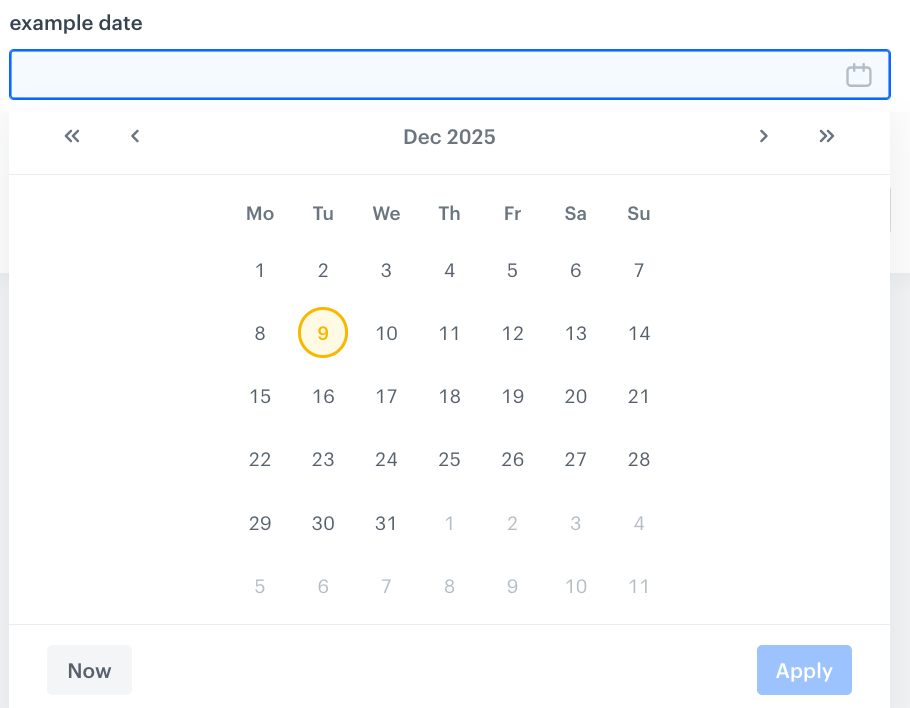
This field accepts a date or date and time, according to ISO 8601.

In the record editor, you can select the value with a date picker:

<figure><img src="/api/docs/image/54176ad07f146575310749eba44b7c2f42c1b327/docs/assets/brickworks/_gfx/brickworks-date-picker.png" class="medium" alt="Date picker and a date/date-time value editor"><figcaption>Date picker and a date/date-time record editor</figcaption></figure>

#### Object generation example
Dates and times don't require extra parameters in the object generation request.  
The generated content is the value of the field.

<pre><code class="language-json">"exampleDateAndTime": "2025-12-09T17:19:13+01:00",
"exampleDate": "2025-12-09"</code></pre>

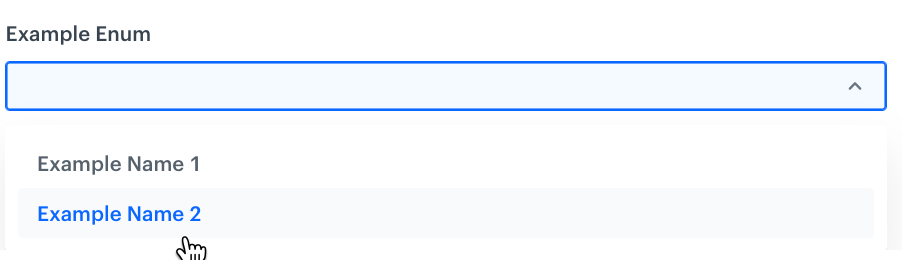
## Enumeration

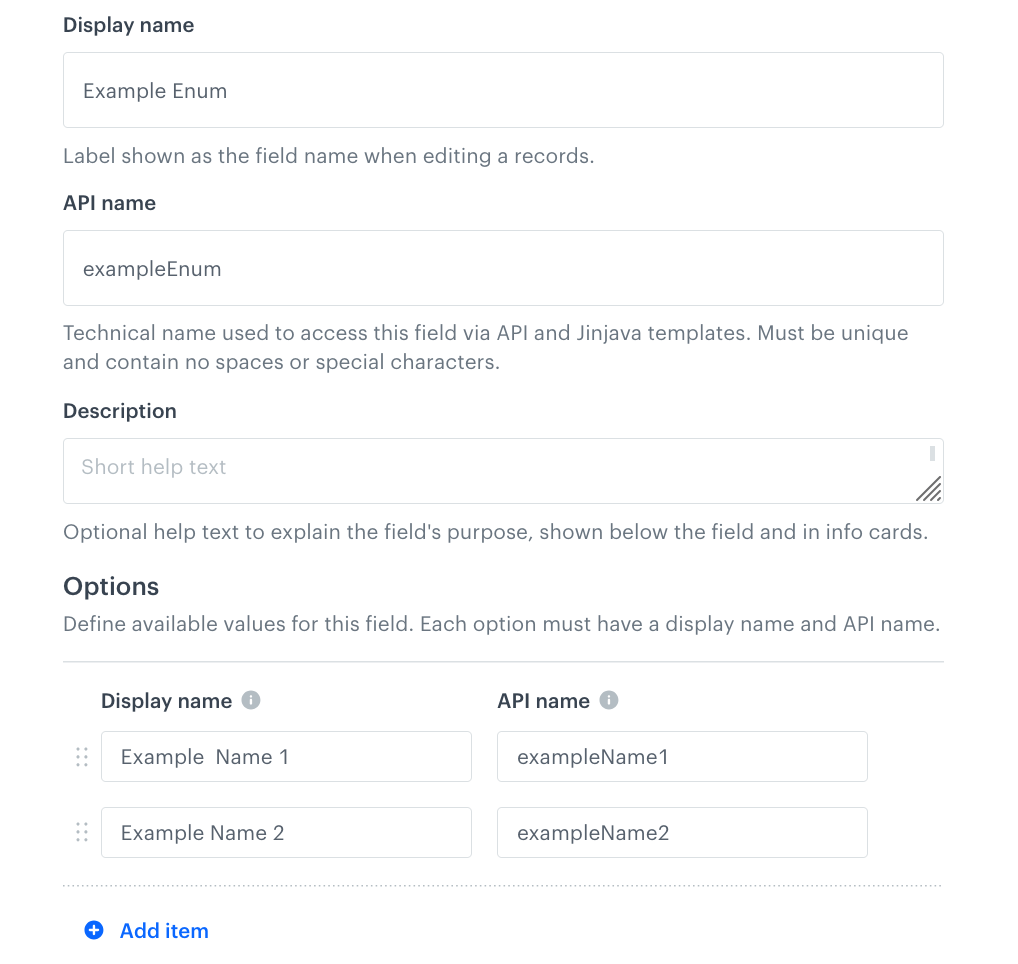
This field type lets you add a fixed set of allowed values. In the record configuration list, it will appear as a dropdown. You can add human-readable labels to show in the dropdown.  
When a record is created or updated, the value of this field must match one of the allowed values.


<div class="content-tabs" data-tab-group="tabgrp-1254">
<div class="tab-buttons"><button class="tab-button" data-tab-id="tabgrp-1254-0" data-tab-group="tabgrp-1254" data-tab-active="true">Schema editor</button><button class="tab-button" data-tab-id="tabgrp-1254-1" data-tab-group="tabgrp-1254">Record editor</button></div>

<div class="tab-panel" data-tab-id="tabgrp-1254-0" data-tab-group="tabgrp-1254" data-tab-active="true">

<figure><img src="/api/docs/image/54176ad07f146575310749eba44b7c2f42c1b327/docs/assets/brickworks/_gfx/brickworks-enum-schema.png" class="medium" alt="Enumeration in the schema editor"><figcaption>Enumeration in the schema editor</figcaption></figure>

</div>

<div class="tab-panel" data-tab-id="tabgrp-1254-1" data-tab-group="tabgrp-1254">

<figure><img src="/api/docs/image/54176ad07f146575310749eba44b7c2f42c1b327/docs/assets/brickworks/_gfx/brickworks-enum-record.png" class="large" alt="Enumeration in the record editor"><figcaption>Enumeration in the record editor</figcaption></figure>

</div>
</div>


#### Field configuration in a schema

1. In the **Options** section:  
    1. Click **Add item**.
    3. On the left side, enter the human-readable name shown in the record editor.
    4. On the right side, enter the value that will be returned when an object is generated.  
        This value is returned when you generate content from a record. This field doesn't support diacritic characters.

#### Object generation example
Enumerations don't require extra parameters in the object generation request.  
The generated content is the value of the field:

<pre><code class="language-json">"exampleName2"</code></pre>


## External Data

This field lets you add a dropdown with [external sources](/docs/assets/brickworks/creating-external-source) to a schema. When you generate an object from a record, a request is made to the external source and the data from the response is added to the generated content.

The external source selected in the schema applies to all records and can't be changed per record.

#### Field configuration in a schema 

From the **Select an external source** dropdown list, select an external source.  

#### Object generation example
External sources don't require extra parameters in the object generation request.  
The generated content is the response body from the external source.


<pre><code class="language-json">{
    "key1": "value1",
    "key2": "value2"
}</code></pre>


## File

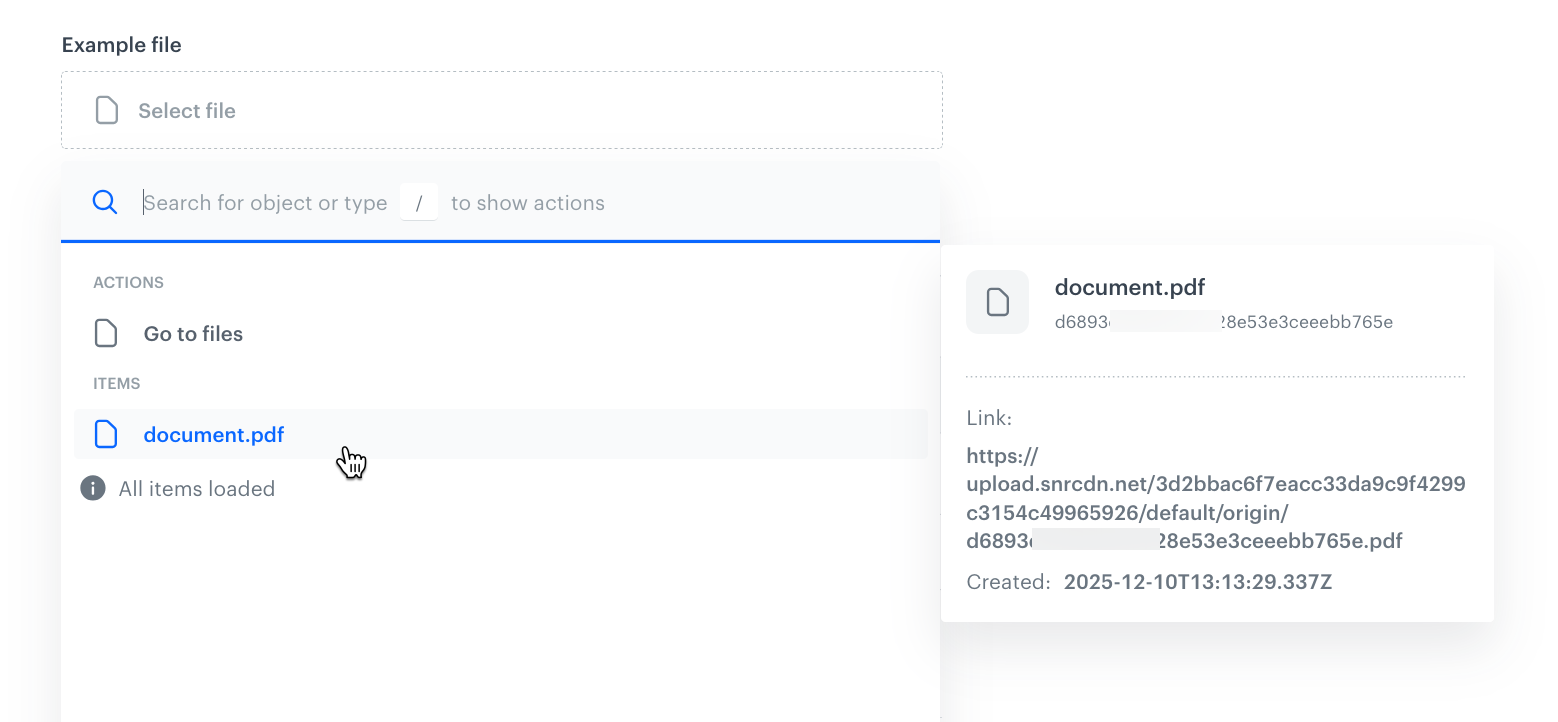
This field lets you add a dropdown with a selection of files available in [**Data Modeling Hub > Files**](/docs/assets/files-explorer), except for image files. To add a dropdown with image selection, see [Image](#image).

<figure><img src="/api/docs/image/54176ad07f146575310749eba44b7c2f42c1b327/docs/assets/brickworks/_gfx/brickworks-file-record.png" class="medium" alt="File selector in the record editor"><figcaption>File selector in the record editor</figcaption></figure>

#### Object generation example
Files don't require extra parameters in the object generation request.  
The generated content is an object with a link to the file.

<pre><code class="language-json">{
        "origin": "https://upload.snrcdn.net/3d2bbac6f7eacc33da9c9f4299c3154c49965926/default/origin/1a87f667856cfoobarba514d6282be4e.pdf",
        "large": null,
        "thumb": null
    }</code></pre>

## Image

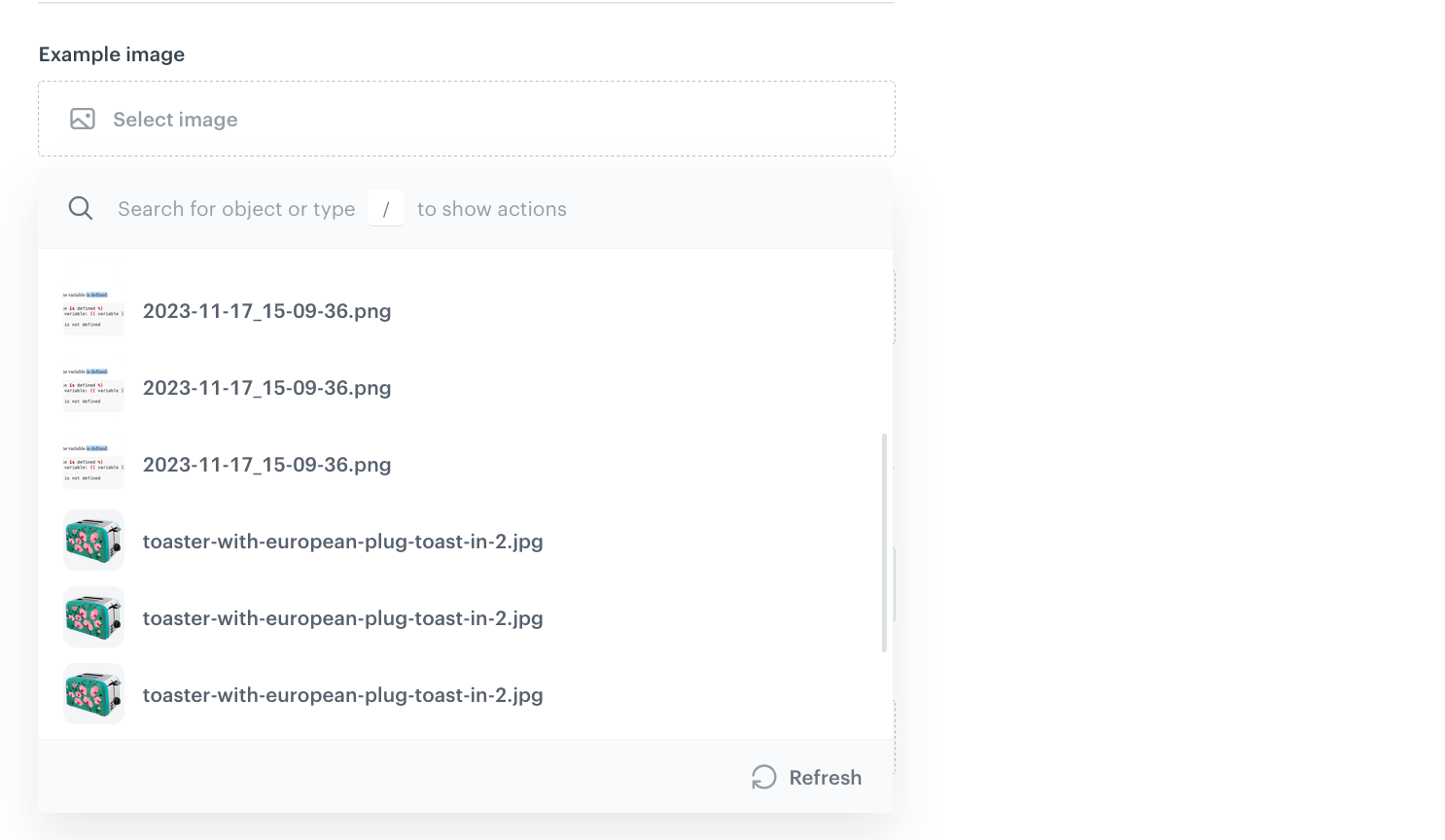
This field lets you add a dropdown with a selection of images available in [**Data Modeling Hub > Files**](/docs/assets/files-explorer).

<figure><img src="/api/docs/image/54176ad07f146575310749eba44b7c2f42c1b327/docs/assets/brickworks/_gfx/brickworks-image-record.png" class="medium" alt="Image selector in the record editor"><figcaption>Image selector in the record editor</figcaption></figure>

#### Object generation example
Images don't require extra parameters in the object generation request.  
The generated content is an object with links to the image.

<pre><code class="language-json">{
        "origin": "https://upload.snrcdn.net/3d2bbac6f7eacc33da9c9f4299c3154c49965926/default/origin/1a87f667856cfoobarba514d6282be4e.png",
        "large": "https://upload.snrcdn.net/3d2bbac6f7eacc33da9c9f4299c3154c49965926/default/medium/1a87f667856cfoobarba514d6282be4e.png",
        "thumb": "https://upload.snrcdn.net/3d2bbac6f7eacc33da9c9f4299c3154c49965926/default/thumb/1a87f667856cfoobarba514d6282be4e.png"
    }</code></pre>


## Jinjava code

This field allows you to input and store [Jinjava template code](/developers/inserts) within the schema. Using this field, you can define reusable templates or dynamic text that will be rendered based on the context data at runtime.


<div class="admonition admonition-important"><div class="admonition-icon"><svg xmlns="http://www.w3.org/2000/svg" fill="none" viewBox="0 0 24 24" stroke="currentColor" stroke-width="2.5"><path stroke-linecap="round" stroke-linejoin="round" d="M12 8v4m0 4h.01M21 12a9 9 0 11-18 0 9 9 0 0118 0z" /></svg></div><div class="admonition-body"><div class="admonition-content">

When referencing profile attributes with Jinjava, you should check if they exist. See the below image for an example.<br>

For more details, see [Insert usage](/developers/inserts/insert-usage#inserting-attributes-conditionally).

</div></div></div>


<figure><img src="/api/docs/image/54176ad07f146575310749eba44b7c2f42c1b327/docs/assets/brickworks/_gfx/brickworks-jinjava-record.png" class="large" alt="Jinjava in the record editor"><figcaption>Jinjava in the record editor</figcaption></figure>

Additionally, in this field, you can use [inserts for retrieving values from other fields and providing context](/docs/assets/brickworks/brickworks-jinjava-inserts).  

#### Field configuration in a schema 

1. In **Jinjava code**, enter the default code.
2. If you want to enforce casting the output of Jinjava code to a specific value type:
    1. Enable the **Cast to** option.  
    3. From the **Choose type** dropdown list, select the data type to which the Jinjava code output will be cast to. 
    4. If you want to return `null` when casting fails, enable **Strict casting**.  
        If strict casting is disabled, the raw value (string) is returned instead of an error.

#### Object generation example
In the following example, content is generated from the record shown in the screen above:  
- The name of the customer is pulled from the profile for whom the content was generated (see [Generating objects](/docs/assets/brickworks/generating-objects)).
- The day of week is added in the `context` object of the generation request.

  <div class="content-tabs" data-tab-group="tabgrp-1255">
  <div class="tab-buttons"><button class="tab-button" data-tab-id="tabgrp-1255-0" data-tab-group="tabgrp-1255" data-tab-active="true">Request</button><button class="tab-button" data-tab-id="tabgrp-1255-1" data-tab-group="tabgrp-1255">Generated content</button></div>

  <div class="tab-panel" data-tab-id="tabgrp-1255-0" data-tab-group="tabgrp-1255" data-tab-active="true">

  <pre><code class="language-json">"context": {
      "dayOfWeek": "Monday"
  }</code></pre>

  </div>

  <div class="tab-panel" data-tab-id="tabgrp-1255-1" data-tab-group="tabgrp-1255">

  <pre><code class="language-json">"Hello, Tom!\nIt's Monday.",</code></pre>

  </div>
  </div>


## JSON code  

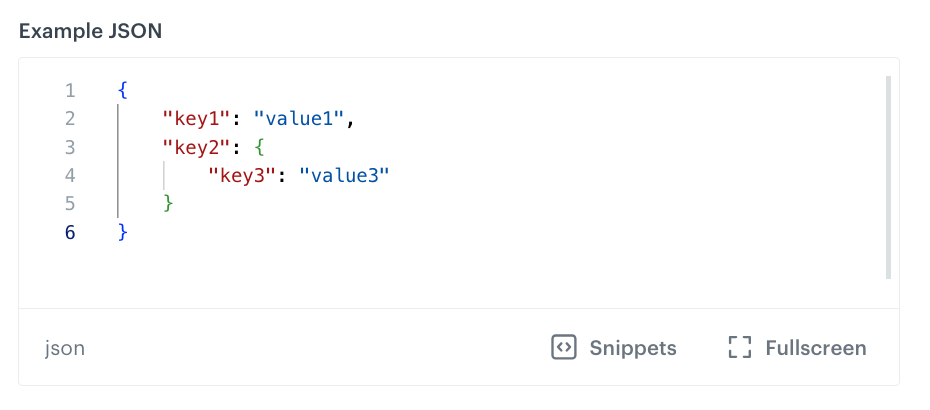
This field allows you to input and store raw JSON data. The field includes validation to ensure the JSON is well-formed, enabling accurate storage and retrieval of structured data exactly as provided.

<figure><img src="/api/docs/image/54176ad07f146575310749eba44b7c2f42c1b327/docs/assets/brickworks/_gfx/brickworks-json-record.png" class="medium" alt="Raw JSON in the record editor"><figcaption>Raw JSON in the record editor</figcaption></figure>

#### Field configuration in a schema  
Only [common properties](#common-field-properties).

#### Object generation example
JSON fields don't require extra parameters in the object generation request.  
The generated content is the value of the field:

<pre><code class="language-json">{
    "key1": "value1",
    "key2": {
        "key3": "value3"
    }
}</code></pre>

## Number

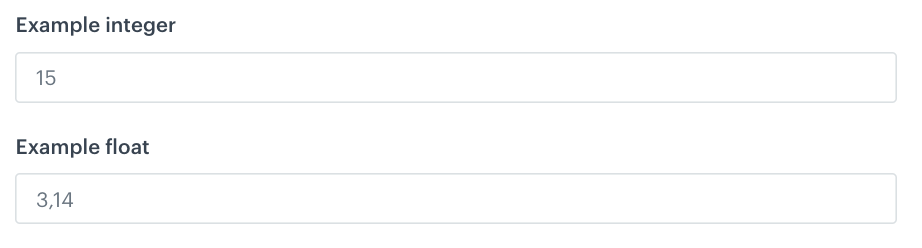
This field type lets you store numbers. You can choose to accept only integers or integers and floating-point numbers.

<figure><img src="/api/docs/image/54176ad07f146575310749eba44b7c2f42c1b327/docs/assets/brickworks/_gfx/brickworks-number-record.png" class="medium" alt="Two variants of the number field in the record editor"><figcaption>Two variants of the number field in the record editor</figcaption></figure>

#### Field configuration in a schema  

1. Select one of the following options:  
    - **Integer** - To allow a whole number that can be positive, negative, or zero, but does not include any fractional or decimal part. 
    - **Float** - To let users type real numbers, including decimal values.
4. To set limits on values for the field:
    1. Select the **Limit value** checkbox.  
        This limit isn't enforced when previewing a record. It only applies when trying to save or update the record.
    2. Provide the minimum and maximum values the field can accept.  

#### Object generation example
Numbers don't require extra parameters in the object generation request.  
The generated content is the value of the field:

<pre><code class="language-json">"exampleInteger": 15,
"exampleFloat": 3.14</code></pre>

## One to one 

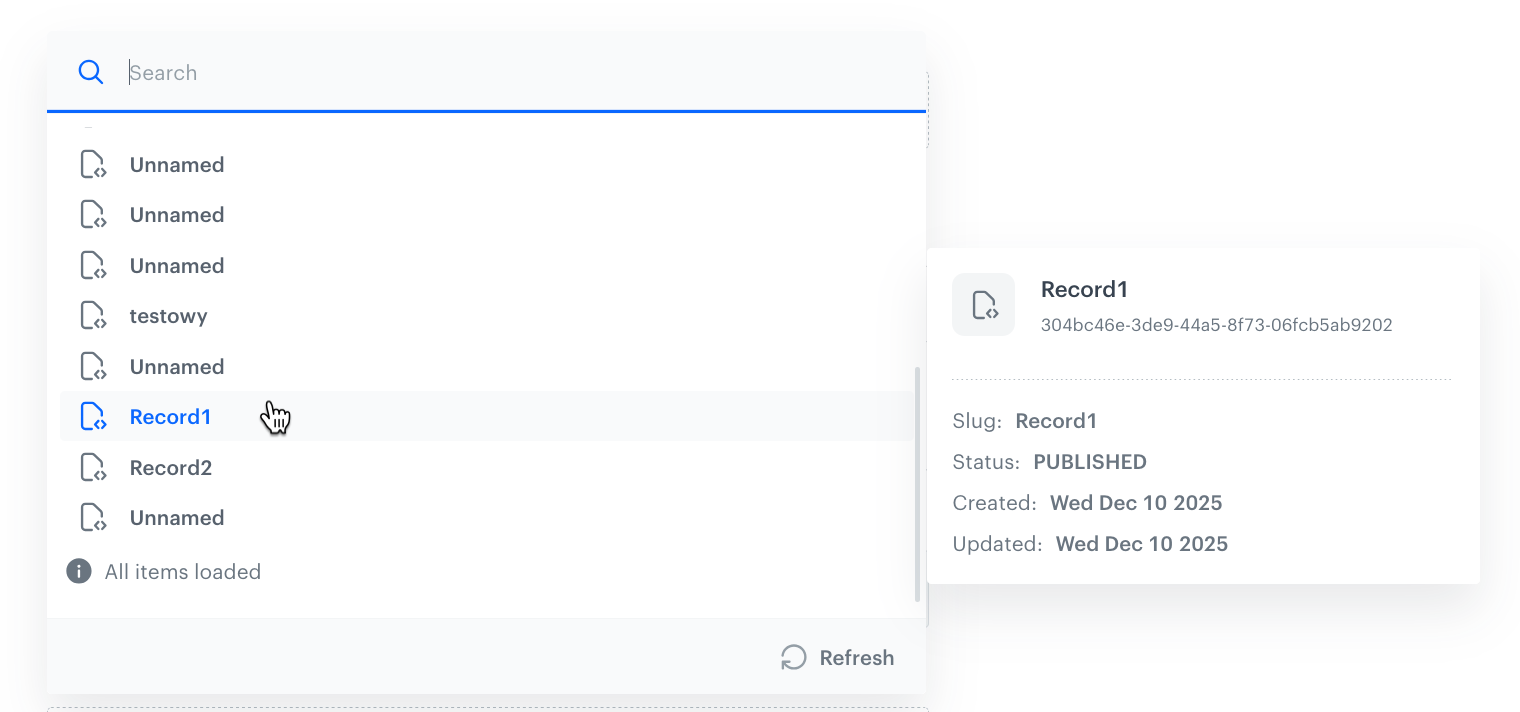
This is a relation field type that provides a dropdown populated with records from a selected schema. It allows a schema record to reference a single record from another schema. When a record is selected from the related schema, values from all fields of that referenced record are accessible.  

<figure><img src="/api/docs/image/54176ad07f146575310749eba44b7c2f42c1b327/docs/assets/brickworks/_gfx/brickworks-onetoone-record.png" class="medium" alt="Selecting a record in a one-to-one reference"><figcaption>Selecting a record in a one-to-one reference</figcaption></figure>

#### Field configuration in a schema 

1. From the **Select schema** dropdown list, select a schema which stores the records that can be referenced.  
    This can't be changed per record.

#### Object generation example
If the referenced records contain:
- fields which use the `context.keyName` inserts, you can provide the context as described in the [Jinjava code](#jinjava-code) fields.
- AI recommendation fields, you can provide the context as described in the [AI recommendation](/docs/assets/brickworks/synerise-objects#ai-recommendation) field.

The generated content is the processed content of the referenced record. In the following example, the referenced record has two fields: `someNumber`  and `someString`

<pre><code class="language-json">{
    "someNumber": 35.7,
    "someString": "defaultvalue"
}</code></pre>

## One to many

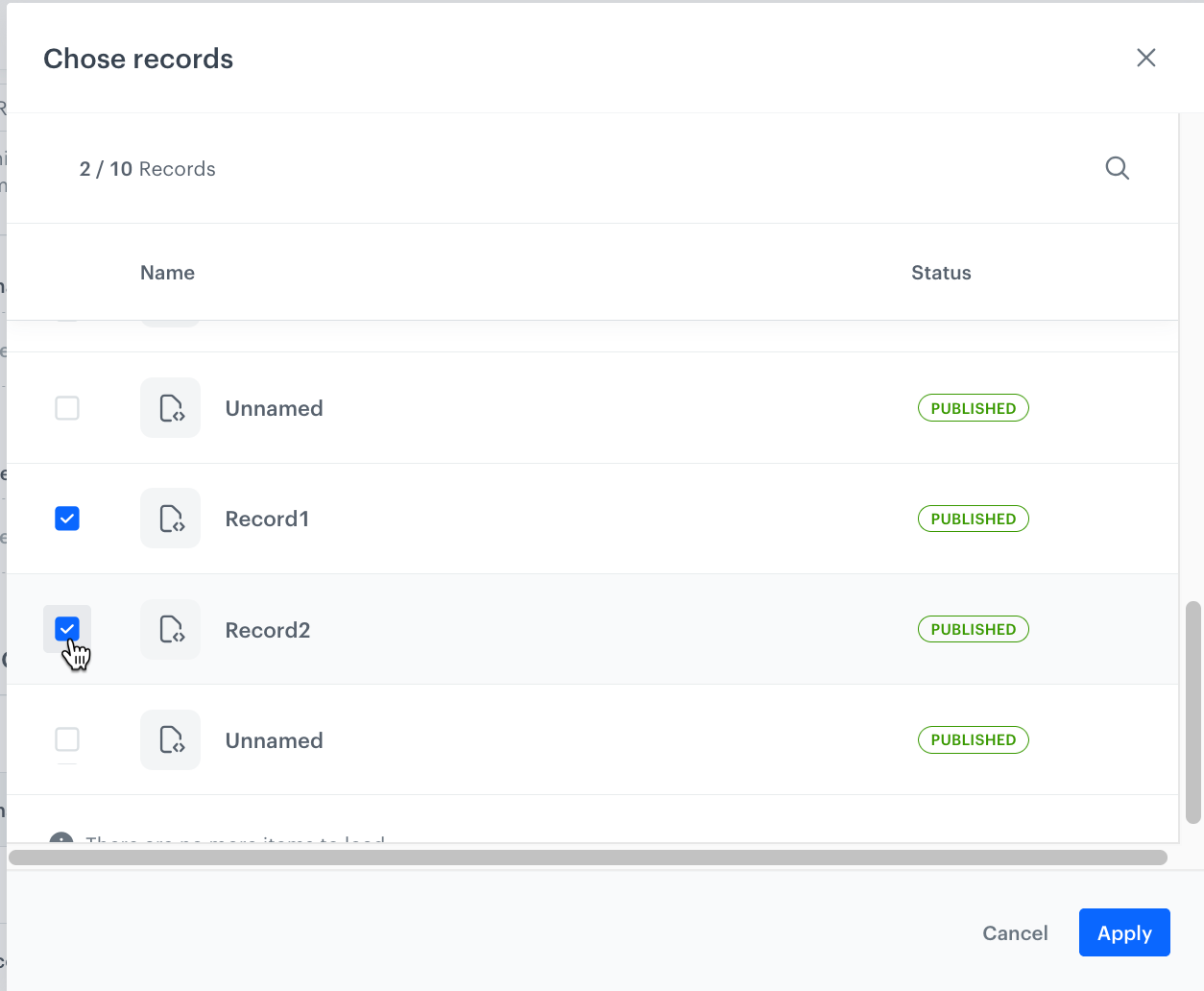
This is a relation field type that provides a dropdown populated with records from a selected schema. It allows a schema record to reference up to 10 records from another schema. When a record is selected from the related schema, values from all fields of that referenced record are accessible.

<figure><img src="/api/docs/image/54176ad07f146575310749eba44b7c2f42c1b327/docs/assets/brickworks/_gfx/brickworks-onetomany-record.png" class="medium" alt="Selecting a record in a one-to-many reference"><figcaption>Selecting a record in a one-to-many reference</figcaption></figure>

#### Field configuration in a schema 

1. From the **Select schema** dropdown list, select a schema which stores the records that can be referenced.  
    This can't be changed per record.
2. In **Limit**, set the maximum number of records that a record can link.  
    This can't be changed per record.

#### Object generation example
If the referenced records contain:
- fields which use the `context.keyName` inserts, you can provide the context as described in the [Jinjava code](#jinjava-code) fields.
- AI recommendation fields, you can provide the context as described in the [AI recommendation](/docs/assets/brickworks/synerise-objects#ai-recommendation) field.

The generated content is the processed content of the referenced records. In the following example, two single-field records are fetched.


<pre><code class="language-json">[
    {
        "someString": "value1"
    },
    {
        "someString": "value2"
    }
]</code></pre>

## One to many filtered

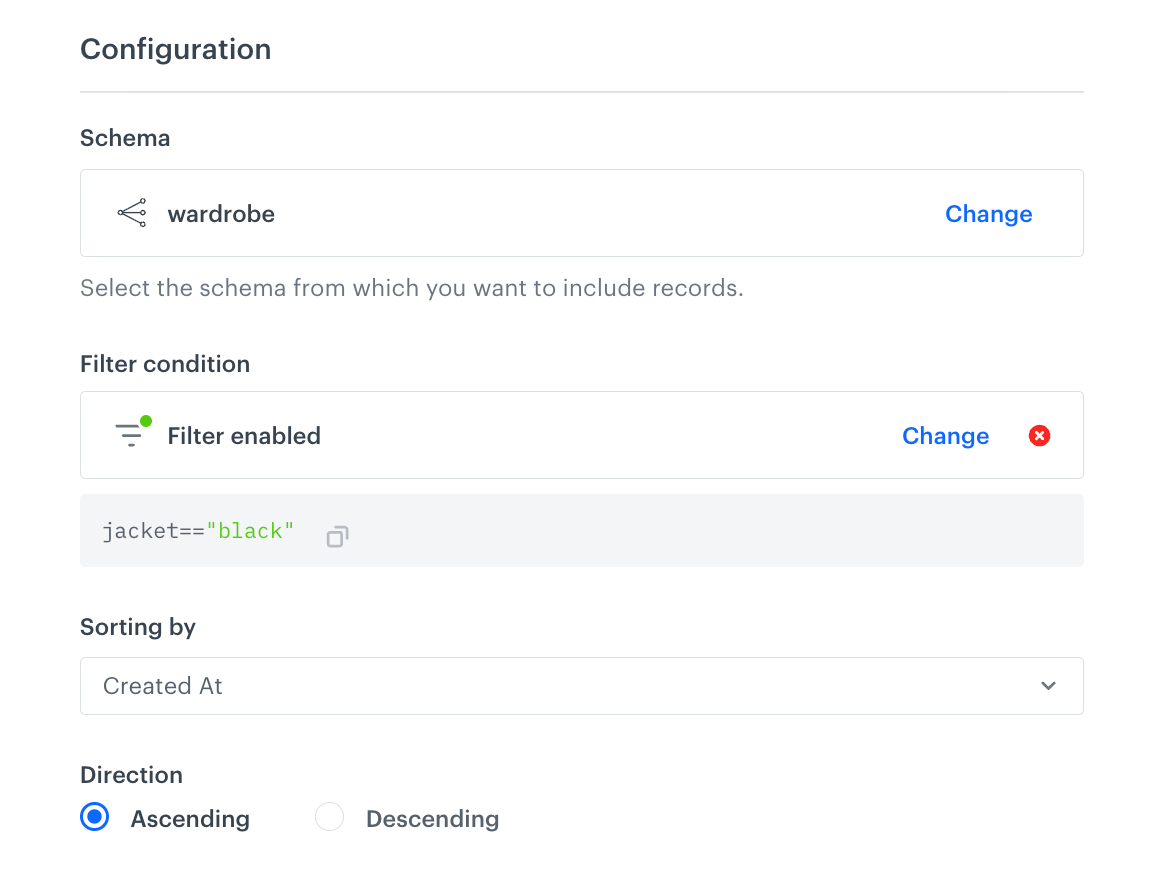
This relation field type provides a dropdown populated with schemas. You can select a schema and define filter conditions to return only the records that meet those conditions.


<div class="admonition admonition-important"><div class="admonition-icon"><svg xmlns="http://www.w3.org/2000/svg" fill="none" viewBox="0 0 24 24" stroke="currentColor" stroke-width="2.5"><path stroke-linecap="round" stroke-linejoin="round" d="M12 8v4m0 4h.01M21 12a9 9 0 11-18 0 9 9 0 0118 0z" /></svg></div><div class="admonition-body"><div class="admonition-content">

Filters can be applied only if the selected schema contains fields marked as **Unique values only** and/or has the **Enable search & filtering option** enabled. Otherwise, the filter will be inactive in the interface.

</div></div></div>


<figure><img src="/api/docs/image/54176ad07f146575310749eba44b7c2f42c1b327/docs/assets/brickworks/_gfx/brickworks-onetomany-filtered.png" class="medium" alt="Selecting records in a one-to-many filtered reference"><figcaption>Selecting a record in a one-to-many filtered reference</figcaption></figure>

#### Field configuration in a schema 

1. From the **Select schema** dropdown list, select a schema which stores the records that can be referenced.  
    This can't be changed per record.
2. To define filters, click **Define filter**.  
    1. From the **Select field** dropdown list, select the field from the schema you selected in the step before.  
    2. From the **Select operator** dropdown list, select the condition type to apply when filtering data.
    3. Provide a value.
    4. To add more conditions, click **Add condition**.  
    5. To change the dependency between the conditions (AND/OR), click **Or**.  
    6. Confirm by clicking **Apply**.  
3. From the **Sorting by** dropdown list, select the attribute by which the filter results will be ordered.
4. In the **Direction** section, choose whether the results will be sorted in ascending or descending order.


#### Object generation example 

<div class="content-tabs" data-tab-group="tabgrp-1256">
<div class="tab-buttons"><button class="tab-button" data-tab-id="tabgrp-1256-0" data-tab-group="tabgrp-1256" data-tab-active="true">Request</button><button class="tab-button" data-tab-id="tabgrp-1256-1" data-tab-group="tabgrp-1256">Response</button></div>

<div class="tab-panel" data-tab-id="tabgrp-1256-0" data-tab-group="tabgrp-1256" data-tab-active="true">

<pre><code class="language-json">{
  "identifierValue": "6b7fed6d-da01-42f1-b98c-b2b31aed9ac3",
  "context": {},
  "values": {
    "relations": {
      "query": "jacket==\"black\"",
      "sortBy": "createdAt",
      "sortDirection": "asc"
    }
  }
}</code></pre>

</div>

<div class="tab-panel" data-tab-id="tabgrp-1256-1" data-tab-group="tabgrp-1256">

<pre><code class="language-json">{
    "__slug": "Schema with one to many filtered",
    "__recordVersion": 1,
    "__publishedAt": "2026-02-26T15:39:45.572337Z",
    "__updatedAt": "2026-02-26T15:39:45.564786Z",
    "__createdAt": "2026-02-26T15:39:45.564786Z",
    "relations": [
        {
            "shirt": "blue",
            "hoodie": "green",
            "jacket": "black",
            "trousers": "yellow"
        },
        {
            "shirt": "brown",
            "hoodie": "brown",
            "jacket": "black",
            "trousers": "brown"
        }
    ],
    "__schemaId": "a7e1ebc8-0e62-4f7c-b0db-3a1824efb1ac",
    "__id": "25104d4d-5d2b-4293-9758-c07d726c32a3",
    "__schemaVersion": 1
}</code></pre>

</div>
</div>


## String

This field type lets you add a text field.  


<div class="admonition admonition-tip"><div class="admonition-icon"><svg xmlns="http://www.w3.org/2000/svg" fill="none" viewBox="0 0 24 24" stroke="currentColor" stroke-width="2.5"><path stroke-linecap="round" stroke-linejoin="round" d="M9.663 17h4.673M12 3v1m6.364 1.636l-.707.707M21 12h-1M4 12H3m3.343-5.657l-.707-.707m2.828 9.9a5 5 0 117.072 0l-.548.547A3.374 3.374 0 0014 18.469V19a2 2 0 11-4 0v-.531c0-.895-.356-1.754-.988-2.386l-.548-.547z" /></svg></div><div class="admonition-body"><div class="admonition-content">

To add a string with Jinjava inserts, use the [Jinjava code field](#jinjava-code).

</div></div></div>


#### Field configuration in a schema

1. To set length limits for the field value, select the **Character limits** checkbox and specify the minimum and maximum number of characters allowed.  
6. To enable regex validation for the field value, select **Validation pattern** and enter the expression.


#### Object generation example
Strings don't require extra parameters in the object generation request.  
The generated content is the value of the field:

<pre><code class="language-json">"Lorem ipsum"</code></pre>