You can create catalogs and upload there a CSV file with data that can be used to further actions in the application.
You can also upload JSON and XML files to catalogs through API or by importing.
- [Uploading JSON through API](https://developers.synerise.com/DataManagement/DataManagement.html#operation/addItemsBatch)
- [Requirements for importing JSON and XML files](/docs/assets/catalogs/creating-catalogs#requirements)
- [Importing product feed to a catalog](/use-cases/import-product-feed-to-catalog)
We strongly discourage you from storing personal data in catalogs. Instead, store this information only in **Behavioral Data Hub**.
## Requirements
---
- Permissions that allow access to Catalogs section and adding new catalogs.
- **CSV files only**:
- Values in one column must be unique because the column itself serves as the key. Otherwise, the values may be overwritten.
- Avoid spaces and special characters in the column names and the name of the file.
- A file can contain up to 200 000 records.
## Creating a catalog
---
A list of catalogs
1. Go to **Data Modeling Hub > Catalogs > New Catalog**.
**Result**: A pop-up opens.
2. Enter the name of the catalog.
You can use the following characters: `a-z`; `A-Z`; `0-9`, `-`
Spaces (` `) are allowed, but not recommended. Catalogs with spaces in their names can't be referenced with [inserts](/developers/inserts/insert-usage#catalogs).
3. Confirm creating the catalog by clicking **Apply**.
**Result**: A catalog appears on the list. Its position on the list is defined by alphabetic order (the list is arranged from Z-A).
## Importing data into the catalog
---
To learn how to import data to a catalog, see [this article](/docs/assets/imports/importing-data-to-catalogs).
Records imported into a catalog will be available on the **Records list** tab.
The preview of a catalog after import of records
## Enriching events with data from catalog
---
You can use the data in catalog parameters (columns) to enrich event information. This takes place when the value of a selected event parameter matches the value of the primary key selected in the catalogs's event enrichment settings.
You can find more information about enriching event with catalog data and its limits in the ["Enriching events with data from catalogs"](/docs/assets/events/adding-event-parameters#enriching-events-with-data-from-catalogs) section of the ["Event parameters and enrichment"](/docs/assets/events/adding-event-parameters) document.
1. Go to the **Settings** tab.
2. On the **Event enrichment** section, click **Show**.
**Result**:
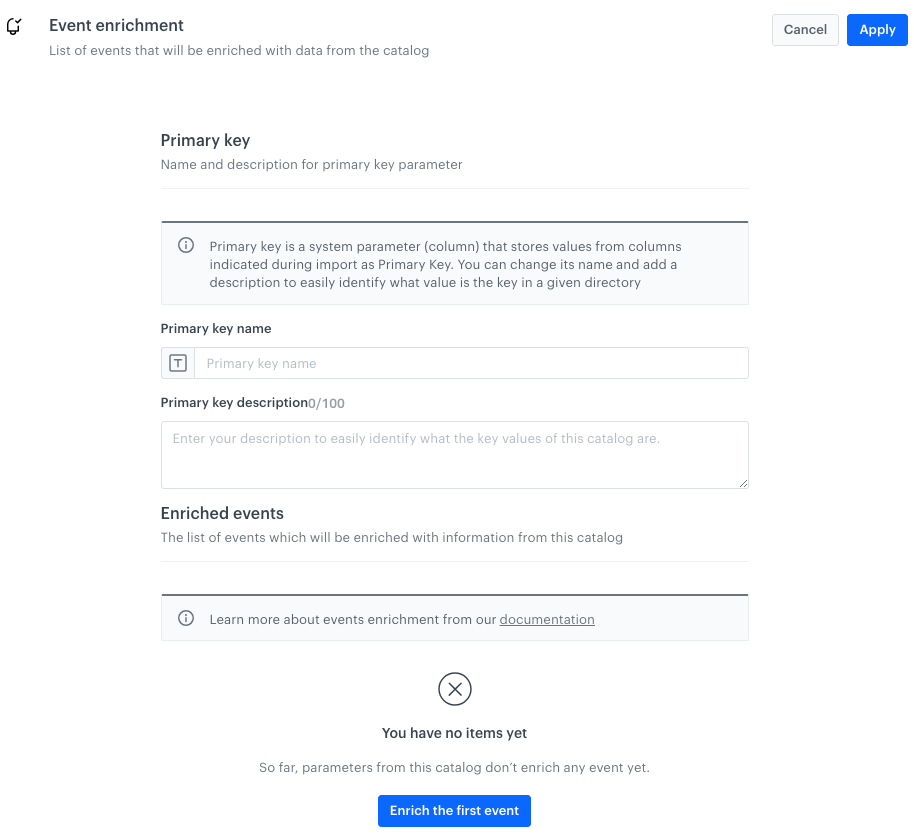
The Event enrichment section
3. In the **Primary key name** field, enter the name of the column whose values need to match the value of the event parameter you will select later.
4. In the **Primary key description** field, enter the description for the primary key which makes it easy for you and other workspace users to identify the key.
5. To select the first event for enrichment, in the **Enriched events** section, click **Enrich first event**.
If it's not your first event, click **Enrich an event** button.
**Result**: A pop-up appears.
6. From the **Event name** dropdown list, select the event you want to enrich.
7. Follow the instructions from the ["Procedure" section the in Event parameters and enrichment article](/docs/assets/events/adding-event-parameters#procedure), step 5.
## Indexing catalogs
---
Indexing a catalog lets you use catalog columns as attributes while creating filter conditions for [promotions](/docs/ai-hub/promotions/managing-promotions#filtering-promotions) and previewing AI recommendations (if the catalog was used for [AI Engine Configuration](/docs/settings/configuration/ai-engine-configuration)). You can select up to 10 columns.
### For new catalogs
1. Go to the **Settings** tab.
2. On the **Indexing attributes** section, click **Show**.
**Result**:
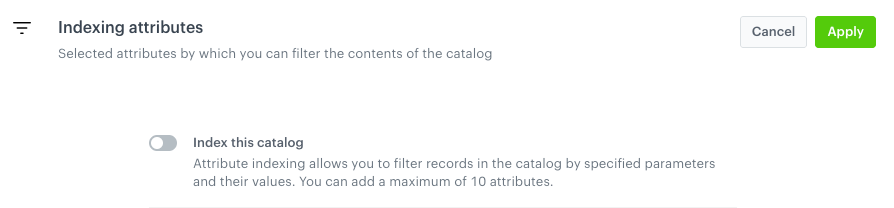
The Indexing attributes section
3. Enable the **Index this catalog** option.
4. Click **Select attributes**.
**Result**: A pop-up appears.
5. To select the attributes for indexing, next to the parameter name, select the checkbox.
You can select up to 10 attributes.
6. Confirm your choice by clicking **Apply** on the pop-up.
The selection of attributes can only be changed by re-enabling the indexing.
7. Confirm the settings by clicking **Apply** on the **Indexing attributes** section.
### For old catalogs
Catalogs created before the 27th of May, 2025 are considered old.
All columns in the catalog are indexed automatically by default. To change indexing settings (for example, change scope of indexed columns), you must [remove the index from a catalog](#removing-indexing) and re-enable indexing by following the procedure [for new catalogs](#for-new-catalogs).
Information that a catalog uses old indexing
## Check dependencies
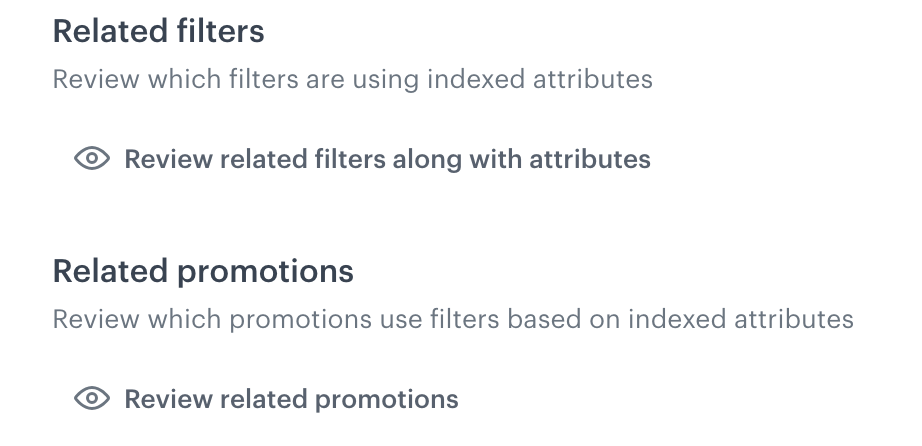
You can check where the indexed columns are used in promotion filters and recommendations. It's a useful thing to do before making changes to the scope of indexing settings or removing it from the catalog.
Section with catalog columns used in filters across the Synerise platform
## Removing indexing
1. Go to the **Settings** tab.
2. On the **Indexing attributes** section, click **Show**.
3. At the bottom of the section, click **Remove the index for this catalog**.
**Result**: A pop-up appears.
4. On the pop-up, review related filters and promotions.
5. You can remove releated filters by enabling **Remove related filters**.
6. Confirm index removal by clicking **Remove the index from this catalog**.

 **Data Modeling Hub > Catalogs > New Catalog**.
**Result**: A pop-up opens.
2. Enter the name of the catalog.
You can use the following characters: `a-z`; `A-Z`; `0-9`, `-`
**Data Modeling Hub > Catalogs > New Catalog**.
**Result**: A pop-up opens.
2. Enter the name of the catalog.
You can use the following characters: `a-z`; `A-Z`; `0-9`, `-`