A document lets you inject an object with a specific content into a mobile application dedicated for the specific audiences. 


<div class="admonition admonition-note"><div class="admonition-icon"><svg xmlns="http://www.w3.org/2000/svg" fill="none" viewBox="0 0 24 24" stroke="currentColor" stroke-width="2.5"><path stroke-linecap="round" stroke-linejoin="round" d="M13 16h-1v-4h-1m1-4h.01M21 12a9 9 0 11-18 0 9 9 0 0118 0z" /></svg></div><div class="admonition-body"><div class="admonition-content">

To see the summary of the changes implemented to the Documents feature, see [this article](/docs/assets/documents/whats-new).

</div></div></div>


#### Assigning groups
- In terms of organizing documents, you create groups (categories) and assign documents to them, so you can later manage documents in a convenient way.

- If you are using documents in [a screen view campaign](/docs/campaign/screen-views), you can select them one by one from the list of documents or you can select a document group to include all documents assigned to a selected group.  

- When you add new documents to the group and this group is selected in an active screen view campaign, these new documents will appear automatically within this campaign.

#### Assigning priority
- A priority defines the order of displaying documents in a mobile application. Use numbers from 1 to 99 to define priority, where 1 is the highest. 

- What if there are two documents for the same audiences that have the same priority? Which one will be first?

If a profile matches the conditions of both documents, then the date of creation will take precedence here - the profile will be displayed the document with the latest date of creation.

#### Nesting documents in other documents

- You can use other documents in the content of a document.
- Due to optimization, documents whose audience is a segmentation or segmentations can't be nested inside documents whose audience is also segmentation or segmentations.

#### Editing documents
You can edit a document only when it has the following statuses: **Paused** and **Draft**

## Requirements
---
A complete set of requirements is available at [this link](/docs/assets/documents/introduction-to-documents#requirements).

## Procedure
---

### Define the recipients

1. Go to <img src="/api/docs/image/54176ad07f146575310749eba44b7c2f42c1b327/docs/assets/_gfx/assets-icon.png" alt="Data Modeling Hub icon" class="icon"> **Data Modeling Hub > Documents > Add document**.
2. In the **Audience** section, click **Define**.  
3. Select one of the options:  
    - **Everyone** - the document will be visible to all application users.
    - **Segment** - select an existing segmentation of application users who will see the contents of the document in the application.  
    - **New audience** - create a segmentation of application users who will see the contents of the document in the application.
4. Confirm the settings in the **Audience** section by clicking **Apply**.  
    
   <div class="admonition admonition-important"><div class="admonition-icon"><svg xmlns="http://www.w3.org/2000/svg" fill="none" viewBox="0 0 24 24" stroke="currentColor" stroke-width="2.5"><path stroke-linecap="round" stroke-linejoin="round" d="M12 8v4m0 4h.01M21 12a9 9 0 11-18 0 9 9 0 0118 0z" /></svg></div><div class="admonition-body"><div class="admonition-content">

   If the audience of the document is more than one segmentation and one of the segmentation returns `0` results, then the whole audience is `0`. In such circumstances, such a document will not be visible when active.

   </div></div></div>
  

### Define the contents of the document

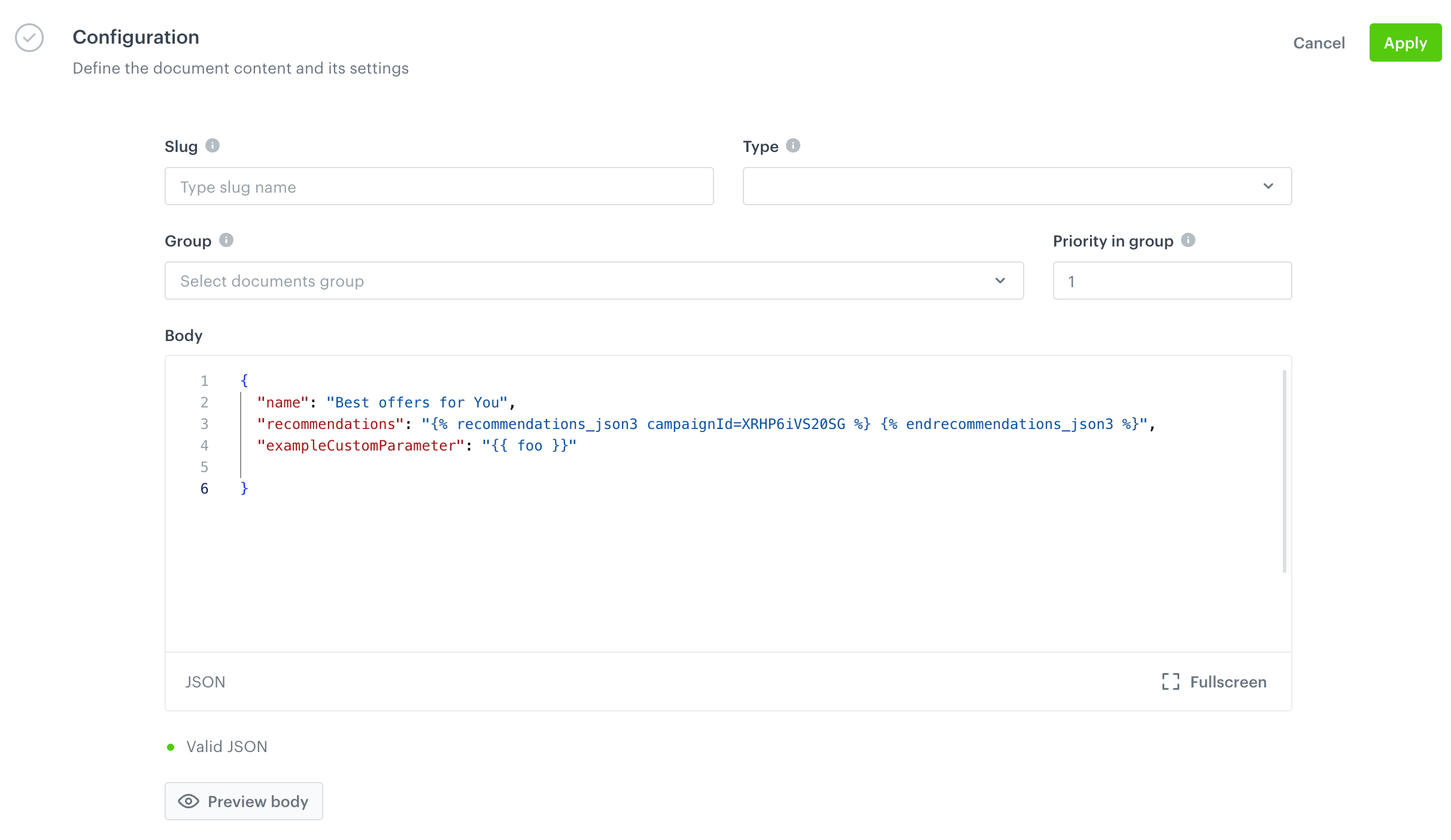
5. In the **Configuration** section, click **Define**.  
    1. In the **Slug** field, enter a unique identifier for the document (for example, `autumn-collection`). When you refer to this particular document in another document, you must use the value of the slug, like in the example below.
    
       <details class="accordion"><summary>Click here to see example</summary><div class="accordion-content"><p>The example presents contents of a document that refers to two other documents with the following slugs: <code>welcome</code>, and <code>autumn-collection</code>.</p> <pre><code class="language-json">{ "sections": [ "{% document welcome %}", "{% document autumn-collection %}" ], "type": "sections-list" }</code></pre></div></details>


    2. In the **Priority** field, define the order in which the document will be displayed. You can use numbers from 1 to 99, where 1 is the highest (this document will be returned first) and 99 is the lowest.
    3. From the **Group** dropdown list, select the name of the group to which the document will be assigned. If there is no group to which you can assign a document, at the bottom of the dropdown list, click **Add group**.
    
       <div class="admonition admonition-tip"><div class="admonition-icon"><svg xmlns="http://www.w3.org/2000/svg" fill="none" viewBox="0 0 24 24" stroke="currentColor" stroke-width="2.5"><path stroke-linecap="round" stroke-linejoin="round" d="M9.663 17h4.673M12 3v1m6.364 1.636l-.707.707M21 12h-1M4 12H3m3.343-5.657l-.707-.707m2.828 9.9a5 5 0 117.072 0l-.548.547A3.374 3.374 0 0014 18.469V19a2 2 0 11-4 0v-.531c0-.895-.356-1.754-.988-2.386l-.548-.547z" /></svg></div><div class="admonition-body"><div class="admonition-content">

       You can select documents for a [screen view campaign](/docs/campaign/screen-views) by selecting groups.

       </div></div></div>
 
    4. From the **Type** dropdown list, select the type of the document. You can define the purpose of the value of this field (for example, you can use this value here to indicate the way of processing of the content). This field is mandatory. To define a new type, at the bottom of the dropdown list, click **Add type**. 
    5. In the **Body** section, define the content of the document. Below you can find an example that contains an AI recommendation created in Synerise, a context item (required for some recommendation types) and the name that will display above the frame with the recommendations:
    
    <pre><code class="language-json">{
      "name": "Best offers for You",
      "itemId": "7892348432",
      "recommendations": "{% recommendations_json3 campaignId=XRHP6iVS20SG %} {% endrecommendations_json3 %}",
      "exampleCustomParameter": "{{ foo }}"
    }</code></pre>
  

    <figure><img src="/api/docs/image/54176ad07f146575310749eba44b7c2f42c1b327/docs/assets/_gfx/doc-body-configuration.png" class="full" alt="A blank configuration form of a document"><figcaption>A blank configuration form of a document</figcaption></figure> 

### Preview body

7. Optionally, you can preview the body of the document for a specific customer.  
    1. Click **Preview body**.  
        <figure><img src="/api/docs/image/54176ad07f146575310749eba44b7c2f42c1b327/docs/assets/_gfx/preview-body.png" class="medium" alt="A form for defining the profile for whom the preview will be generated and additional parameters from the request body"><figcaption>A form for defining a profile for whom the preview will be generated and additional parameters from the request body</figcaption></figure>  

    2. On the pop-up, click **Choose profile**.  
    3. From the dropdown list, select a profile for whom you want to generate the preview of the document body.
    3. In the **Additional context parameters** section, provide values for non-profile variables.  
        Variables are automatically detected and the **Key** column is filled out (as presented in Figure 2, `foo` was detected in the request body as non-profile variable). You must provide all keys of additional context parameters, otherwise the preview won't be generated.
    4. Confirm by clicking **Apply**.  
    
### Schedule document display  

7. Confirm the settings in the **Configuration** section by clicking **Apply**. 
8. In the **Schedule** section, click **Define**.  
    1. To display the document immediately after the activation, click the **Run immediately** section.
    2. To schedule the display of the document at a future date, click **Scheduled**.  
    3. For both options, you can set time windows (the **Set time windows** option) during which the content of the document will be visible in the mobile application.
9. Confirm the settings in the **Schedule** section.
10. To save the document for activation according to the schedule, in the upper right corner, click **Activate**. 


## Examples of use
---

### Embedding content through the API

Define a piece of application that shows a defined type of content (in this example, it is a promotion) retrieved through the API. As an effect, the users of the application are provided with a specific promotion with a defined background color.

**slug: promo-api**

<pre><code class="language-json">{
  "content-type": "promotions",
  "background-color": "#123123",
  "title": "Promotions",
  "action": { 
          "data-schema": "promotions", 
          "uri": "https://api.snrapi.com/schema-service/proxy/promotions?type=GENERAL&amp;sort=requireRedeemedPoints,asc"
  }
}</code></pre>


### Embedding content through the SDK

Instead of using API endpoints, you can pass information about the SDK method you want to use and define the parameters of the method. Example below shows a call to the `Client.getPromotions()` method:

**slug: promo-sdk**

<pre><code class="language-json">{
  "content-type": "promotions",
  "background-color": "#123123",
  "title": "Promotions",
  "action": { 
        "method": "Client.getPromotions",
        "type": "GENERAL",
        "sort": "requireRedeemedPoints,asc"
  }
}</code></pre>


### Inserting content
You can also insert the details of a specific promotion and select the fields that will be sent back to your application.

**slug: daily-promo**

<pre><code class="language-json">{
  "content-type": "promotion",
  "background-color": "#123321",
  "title": "Offer of the day",
  "promotion": "{% promotion fields=uuid,name,discountType,discountValue,code,params,tags,type,price,images,description,expireAt %} 3a3750b0-c00b-4c57-9c5f-d55652b417a0 {% endpromotion %}"
}</code></pre>


<div class="admonition admonition-important"><div class="admonition-icon"><svg xmlns="http://www.w3.org/2000/svg" fill="none" viewBox="0 0 24 24" stroke="currentColor" stroke-width="2.5"><path stroke-linecap="round" stroke-linejoin="round" d="M12 8v4m0 4h.01M21 12a9 9 0 11-18 0 9 9 0 0118 0z" /></svg></div><div class="admonition-body"><div class="admonition-content">

You are able to define the fields to be displayed on the interface only in the case of a "promotion" content type.

</div></div></div>


### Using tags to retrieve content

The following example shows the retrieval of promotions from the Synerise API by means of tags. 

1. Create tags in **Data Modeling Hub > Tags**.
2. Create a document with (a `tagNames` argument in the uri):

**slug: club**


<pre><code class="language-json">{
  "content-type": "promotions",
  "background-color": "#123123",
  "description": "Club offers",
  "title": "Special offers only for club members",
  "action": { 
          "data-schema": "promotions", 
          "uri": "https://{SYNERISE_API_BASE_PATH}/v4/promotions/promotion/get-for-client?type=GENERAL&amp;tagNames=club"
  }  
}</code></pre>


<div class="admonition admonition-tip"><div class="admonition-icon"><svg xmlns="http://www.w3.org/2000/svg" fill="none" viewBox="0 0 24 24" stroke="currentColor" stroke-width="2.5"><path stroke-linecap="round" stroke-linejoin="round" d="M9.663 17h4.673M12 3v1m6.364 1.636l-.707.707M21 12h-1M4 12H3m3.343-5.657l-.707-.707m2.828 9.9a5 5 0 117.072 0l-.548.547A3.374 3.374 0 0014 18.469V19a2 2 0 11-4 0v-.531c0-.895-.356-1.754-.988-2.386l-.548-.547z" /></svg></div><div class="admonition-body"><div class="admonition-content">

You can create various content and come up with your own use cases.

</div></div></div>


### Final effect
The final effect of what has been done so far is a single slug: `main`. The application users are provided with the content of each document referred to in the article when the document slug: `main` is retrieved.

**slug: main**

<pre><code class="language-json">{
    "sections": [
        {
            "content": {
                "color": "#ffffff",
                "description": "Hello to our interactive documents demo",
                "text": "bold"
            },
            "schema": "intro",
            "slug": "welcome",
            "uuid": "33f6fcd0-96e0-43f8-be40-0da733112c5f"
        },
        {
            "content": {
                "action": {
                    "data-schema": "promotions",
                    "uri": "https://api.snrapi.com/schema-service/proxy/promotions?tagNames=autumn-collection"
                },
                "section-background-color": "#123123",
                "section-title": "Autumn Collection",
                "section-type": "promotions"
            },
            "schema": "promotions",
            "slug": "autumn-collection",
            "uuid": "5b722719-66af-4c8f-a9ca-9e026d8157b2"
        },
        {
            "content": {
                "action": {
                    "method": "ContentWidget",
                    "slug": "recommendations"
                },
                "background-color": "#ffffff",
                "section-type": "content-widget",
                "title": "Best offers for you"
            },
            "schema": "content-widget",
            "slug": "content-widget",
            "uuid": "360dbd79-1972-40f0-bd48-db28c7b8c3a2"
        },
        {
            "content": {
                "action": {
                    "data-schema": "promotions",
                    "uri": "https://{SYNERISE_API_BASE_PATH}/v4/promotions/promotion/get-for-client?type=GENERAL&amp;tagNames=club"
                },
                "background-color": "#123123",
                "content-type": "promotions",
                "description": "Club offers",
                "title": "Special offers only for club members"
            },
            "schema": "promotions",
            "slug": "club",
            "uuid": "98f92187-603b-4c61-a45c-73cfe555fb06"
        },
        {
            "content": {
                "background-color": "#123321",
                "content-type": "promotion",
                "promotion": {
                    "code": "apple-promo",
                    "description": "Apple products 10% cheaper !!!",
                    "discountType": "PERCENT",
                    "discountValue": -10,
                    "expireAt": "2029-12-26T23:59:59.000Z",
                    "images": [
                        {
                            "type": "image",
                            "url": "https://www.snrcdn.net/upload/f2afa4d4d7af216196047d1f7f0613f22a50a8c8/default/origin/1537188695830-el-mbppro.png"
                        },
                        {
                            "type": "image",
                            "url": "https://www.snrcdn.net/upload/f2afa4d4d7af216196047d1f7f0613f22a50a8c8/default/origin/1537188692254-el-iphx.png"
                        },
                        {
                            "type": "image",
                            "url": "https://www.snrcdn.net/upload/f2afa4d4d7af216196047d1f7f0613f22a50a8c8/default/origin/1537188683527-el-ipadpro.png"
                        }
                    ],
                    "name": "Apple products 10% cheaper",
                    "params": null,
                    "price": 0,
                    "tags": null,
                    "type": "MEMBERS_ONLY",
                    "uuid": "3a3750b0-c00b-4c57-9c5f-d55652b417a0"
                },
                "title": "Offer of the day"
            },
            "schema": "promotion",
            "slug": "daily-promo",
            "uuid": "2a45411a-f615-4aec-a303-8a772974621f"
        },
        {
            "content": {
                "action": {
                    "data-schema": "promotions",
                    "uri": "https://api.snrapi.com/schema-service/proxy/promotions?type=GENERAL&amp;sort=requireRedeemedPoints,asc"
                },
                "background-color": "#123123",
                "content-type": "promotions",
                "title": "Promotions"
            },
            "schema": "promotions",
            "slug": "promo-api",
            "uuid": "11357ed3-94a2-4844-a8ce-c1ae119f25ab"
        },
        {
            "content": {
                "action": {
                    "method": "Client.getPromotions",
                    "sort": "requireRedeemedPoints,asc",
                    "type": "GENERAL"
                },
                "background-color": "#123123",
                "content-type": "promotions",
                "title": "Promotions"
            },
            "schema": "promotions",
            "slug": "promo-sdk",
            "uuid": "2836dab5-249b-4884-9bc5-c375960048eb"
        }
    ],
    "type": "sections-list"
}</code></pre>

