
This article outlines which Synerise data you can export, the export methods, and accessing the exported files and export logs. 

## Prerequisites
---
You must be assigned with a user role with the following permissions:
- [export data](/docs/settings/identity-access-management/permissions/settings-permissions#export-data) - to access Export feature in Data Modeling Hub
- [create and edit workflows](/docs/settings/identity-access-management/permissions/automation-permissions#create-and-edit-workflows) - to export using Automation Hub
- to download CSV from a report preview:
    - **Analytics > Report**: `read`, `create`, `execute`
    - **Analytics > Metrics**: `read`
- to export catalogs: **Assets > Catalogs**: `read`


## Data type and available export methods

The table lists the data types you can export from Synerise and the export methods available for each. Each export method downloads a file in the formats shown in the table, except when stated differently. 

You can access the exported files regardless of the export method in <img src="/api/docs/image/54176ad07f146575310749eba44b7c2f42c1b327/icons/data-modeling-hub-icon.svg" alt="Data Modeling Hub icon" class="icon"> **Data Modeling Hub > Exports**. 

| Data Type                 | Export Methods                                                                                     | File format |
|---------------------------|--------------------------------------------------------------------------------------------------|---------------|
| [Profiles](/docs/crm/crm-profile)              | - [Simple export](/docs/crm/exporting-profiles#single-export) <br> - [Automation Hub](/docs/crm/exporting-profiles#export-in-automation-hub)                                            | - `CSV`,<br>- `JSON`,<br>- `JSONL` |
| [Segmentations](/docs/analytics/segmentations)             | Go to **Decision Hub > Segmentations** (on segmentation list, next to the segmentation which you want to export, click <img src="/api/docs/image/54176ad07f146575310749eba44b7c2f42c1b327/icons/vtex-threedot-icon.png" alt="Three dot icon" class="icon"> **> Export**)   |  - `CSV`,<br>- `JSON`,<br>- `JSONL` |
| [Schema Records (Brickworks)](/docs/assets/brickworks) | - [Simple export](/docs/assets/brickworks/exporting-records#simple-export) <br> - In [Automation Hub](/docs/assets/brickworks/exporting-records#export-through-the-automation-hub)  | - `JSON`,<br>- `JSONL` |
| [Metric results](/docs/analytics/metrics)            | - [Automation Hub](/docs/automation/actions/synerise-integrations/get-metric-results)                                                                                  |  - `CSV`,<br>- `JSON`,<br>- `JSONL`|
| [Report results](/docs/analytics/reports)            | - From report preview (CSV format) - go to **Descision Hub > Reports**, select a report, then select the **Preview** tab, <br>-  [Automation Hub](/docs/automation/actions/synerise-integrations/get-analytics-report)  <div class="admonition admonition-important"><div class="admonition-icon"><svg xmlns="http://www.w3.org/2000/svg" fill="none" viewBox="0 0 24 24" stroke="currentColor" stroke-width="2.5"><path stroke-linecap="round" stroke-linejoin="round" d="M12 8v4m0 4h.01M21 12a9 9 0 11-18 0 9 9 0 0118 0z" /></svg></div><div class="admonition-body"><div class="admonition-content"> Automation Hub report export is limited to a maximum of 250,000 records </div></div></div> |  - `CSV`,<br>- `JSON`,<br>- `JSONL` |
| Communication Statistics  | [Automation Hub](/docs/automation/actions/synerise-integrations/get-statistics)                                                                                  | - `CSV`,<br>- `JSON`,<br>- `JSONL` |
| [Catalog records](/docs/assets/catalogs)          | - [Simple export](/docs/assets/catalogs/exporting-data-from-catalogs#simple-export) <br>- [Automation Hub](/docs/automation/actions/synerise-integrations/export-data-from-catalog) | - `CSV`, <br>- `JSON`,<br>- `JSONL` |


### What is simple export?
---
A simple export is a built-in feature available directly within Synerise components that allows you to quickly export data to a file. For example, to perform a one-off export of profiles:

1. Go to **Behavioral Data > Profiles**.
2. In the upper-right corner, click **Export > Export single file**.  

This method provides a straightforward way to export data without the need for additional configurations or workflows.

### What is Automation Hub export?
---
The Automation Hub export method allows you to create workflows that perform either one-off or recurring exports of data to various destinations:  

- Downloadable file from the Synerise platform:  
   For example, a workflow that performs a one-off export of statistics from a specific email campaign to a file. 
    <figure><img src="/api/docs/image/54176ad07f146575310749eba44b7c2f42c1b327/docs/assets/_gfx/export-to-downloadable-file.png" class="large" alt="This workflow performs a one-off export of statistics of specific email campaign to a file"><figcaption>This workflow performs a one-off export of statistics of specific email campaign to a file</figcaption></figure>
- External sources with which there are native integrations:  
    For example, a scheduled workflow that retrieves metrics results on a defined date and sends the file to Azure Blob Storage.
    
  <div class="admonition admonition-note"><div class="admonition-icon"><svg xmlns="http://www.w3.org/2000/svg" fill="none" viewBox="0 0 24 24" stroke="currentColor" stroke-width="2.5"><path stroke-linecap="round" stroke-linejoin="round" d="M13 16h-1v-4h-1m1-4h.01M21 12a9 9 0 11-18 0 9 9 0 0118 0z" /></svg></div><div class="admonition-body"><div class="admonition-content">

  Check the list of [native integrations available in Automation Hub](/docs/automation/integration) - the Send File node actions (for example, Amazon S3 Bucket ["Send File" node](/docs/automation/integration/amazon-s3-bucket/send-file-amazon-s3-bucket)) let you export the files further.

  </div></div></div>

    
    <figure><img src="/api/docs/image/54176ad07f146575310749eba44b7c2f42c1b327/docs/automation/_gfx/get-metrics-node-example.png" class="large" alt="This workflow is scheduled at a define date, retrieves results from a selected metrics, and send the file to Azure Blob Storage"><figcaption>This workflow is scheduled at a define date, retrieves results from a selected metrics, and send the file to Azure Blob Storage</figcaption></figure>
- Any endpoint:  
    For example, a one-off export of statistics from a specific email campaign to a custom endpoint configured in the [Outgoing Integration](/docs/automation/integration/outgoing-webhook)  

    <figure><img src="/api/docs/image/54176ad07f146575310749eba44b7c2f42c1b327/docs/assets/_gfx/export-to-any-endpoint.png" class="large" alt="This workflow performs a one-off export of statistics of specific email campaign to an endpoint defined in the settings of the Outgoing Integration node"><figcaption>This workflow performs a one-off export of statistics of specific email campaign to an endpoint defined in the settings of the Outgoing Integration node</figcaption></figure>

#### Benefits
- Flexible scheduling: define when the export process starts.
- Control over frequency: run exports one-time or on a recurring basis
- Data customization: modify the data file before export by applying transformation rules.  
    
  <div class="admonition admonition-note"><div class="admonition-icon"><svg xmlns="http://www.w3.org/2000/svg" fill="none" viewBox="0 0 24 24" stroke="currentColor" stroke-width="2.5"><path stroke-linecap="round" stroke-linejoin="round" d="M13 16h-1v-4h-1m1-4h.01M21 12a9 9 0 11-18 0 9 9 0 0118 0z" /></svg></div><div class="admonition-body"><div class="admonition-content">

  To modify data before exporting, you first need to create a [transformation rule](/docs/automation/data-transformation-and-imports/creating-data-transformation) first, and then create a workflow which contains ["Outgoing Integration" node](/docs/automation/actions/webhook-node) placed before a node that exports data.

  </div></div></div>

- For certain data types (for example, profiles and schema records), Synerise provides draft workflows that you can use as-is or customize to fit your business scenario, you can read the instructions of using these workflows in:
    - [Configure and lanauch workflow section](/docs/assets/brickworks/exporting-records#configure-and-launch-workflow) in the documentation for exporting schema records
    - [Export in Automation hub section](/docs/crm/exporting-profiles#export-in-automation-hub) in the documentation for exporting profiles  

## Accessing export logs and files

Whichever export method you choose, you can access logs and files from the list of exports in Data Modeling Hub.

### Accessing logs

1. Go to <img src="/api/docs/image/54176ad07f146575310749eba44b7c2f42c1b327/icons/data-modeling-hub-icon.svg" alt="Data Modeling Hub icon" class="icon"> **Data Modeling > Exports**.  
2. On the left pane, select the location from which the export of data was initiated.  
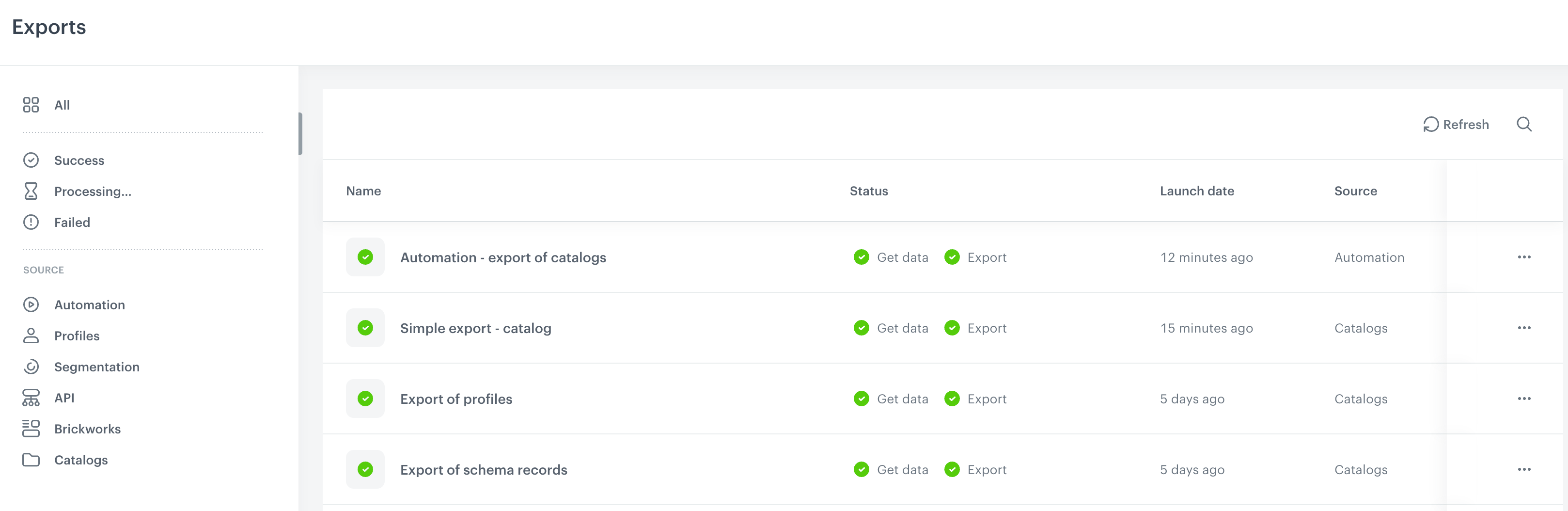
    <figure><img src="/api/docs/image/54176ad07f146575310749eba44b7c2f42c1b327/docs/assets/_gfx/list-of-exports.png" class="large" alt="List of exports from Data Modeling > Exports"><figcaption>List of exports from Data Modeling > Exports</figcaption></figure>
3. In the row with the export process, click <img src="/api/docs/image/54176ad07f146575310749eba44b7c2f42c1b327/icons/threedoticon.png" alt="Three-dot icon" class="icon">.
4. Click **Show details**.  


### Accessing files

1. Go to <img src="/api/docs/image/54176ad07f146575310749eba44b7c2f42c1b327/icons/data-modeling-hub-icon.svg" alt="Data Modeling Hub icon" class="icon"> **Data Modeling > Exports**.  
2. On the left pane, select the location from which the export of data was initiated.  
3. In the row with the export process, click <img src="/api/docs/image/54176ad07f146575310749eba44b7c2f42c1b327/icons/threedoticon.png" alt="Three-dot icon" class="icon">.
4. From the menu select one of the following options:
    - Download CSV
    - Download JSON
    - Download JSON lines