Relations are defined between schemas, but applied in practice to records of these schemas.

For example, you can create a list of people and a list of projects where these people are involved.

To do this, you need to:
1. Create two schemas and define relations between them OR update existing schemas with relations.
2. Connect employee records with project records.

When you create a relation in a schema, the other schema is updated automatically.

For a practical [example](#relation-example) of creating a relation, continue reading this article.


<div class="admonition admonition-important"><div class="admonition-icon"><svg xmlns="http://www.w3.org/2000/svg" fill="none" viewBox="0 0 24 24" stroke="currentColor" stroke-width="2.5"><path stroke-linecap="round" stroke-linejoin="round" d="M12 8v4m0 4h.01M21 12a9 9 0 11-18 0 9 9 0 0118 0z" /></svg></div><div class="admonition-body"><div class="admonition-content">

A schema can include multiple relation definitions.  
Relations are not mutually exclusive - at the same time, you can have a relation that allows each person to be assigned to only one project and another, where a person can belong to many projects.  
An example is creating one relation to assign project leaders (a person can only lead one project at a time) and another relation to assign all project stakeholders (a project leader can be involved in the workflows of many other projects).

</div></div></div>


## Relation types

In the explanations below, the following terms are used:
- *Source schema* is the schema where you add the relation. In the [example](#relation-example), this is the employee schema.
- *Target schema* is the schema that is updated automatically when you save the source schema. In the [example](#relation-example), this is the project schema.

| Icon | Name | Description |
| --- | --- | --- |
| <img src="/api/docs/image/54176ad07f146575310749eba44b7c2f42c1b327/docs/assets/schema-builder/_gfx/one-to-one.png" alt="One to one relation icon" class="full"> | One to one | A record in the source schema can be related to only one record in the target schema; a record in the target schema can be related to only one record in the source schema. |
| <img src="/api/docs/image/54176ad07f146575310749eba44b7c2f42c1b327/docs/assets/schema-builder/_gfx/one-to-many.png" alt="One to multiple relation icon" class="full"> | One to multiple | A record in the source schema can be related to multiple records in the target schema; a record in the target schema can be related to only one record in the source schema. |
| <img src="/api/docs/image/54176ad07f146575310749eba44b7c2f42c1b327/docs/assets/schema-builder/_gfx/many-to-one.png" alt="Multiple to one relation icon" class="full"> | Multiple to one | A record in the source schema can be related to only one record in the target schema; a record in the target schema can be related to multiple records in the source schema. |
| <img src="/api/docs/image/54176ad07f146575310749eba44b7c2f42c1b327/docs/assets/schema-builder/_gfx/many-to-many.png" alt="Multiple to multiple relation icon" class="full"> | Multiple to multiple | Records in both schemas can be related to multiple records. |

## Defining relations in schemas

1. Create a new schema or start editing an existing one.
2. Add a **Relation** component.
3. Open the component for editing.
4. On the **Data** tab, perform the following actions:
    1. Select the [type of relation](#relation-types).
    2. From the **Relation to** drop-down list, select the target schema.
    3. **Optional**: From the **Displayed field** drop-down list, select the field whose value will be displayed from the target record when browsing records.  
        For an example of the result, see [the relation example](#displayed-field).
5. Click **Apply**.
6. Save the schema.

## Relation example


Before proceeding with the example, you should know how to [create schemas](/docs/assets/schema-builder/creating-schemas) and [add records](/docs/assets/schema-builder/schema-records).

The example shows how to create a project-employee relation, in which an employee can only be associated with one project and a project can have many employees assigned.

The example assumes that you create new schemas, but **you can add relations to existing schemas** in the same way by updating the schemas.

### Project schema

This schema only stores one value: the name of the project.

It does not have any relation defined, because the employee schema does not yet exist in this example, so a relation cannot be created.

<figure><img src="/api/docs/image/54176ad07f146575310749eba44b7c2f42c1b327/docs/assets/schema-builder/_gfx/project-schema.png" alt="A simple project schema" class="medium"><figcaption>A simple project schema</figcaption></figure>

### Employee schema

The schema has two fields:
- the name of the employee
- the definition of a relation; with the **Displayed field** set to **Project name**.

<figure><img src="/api/docs/image/54176ad07f146575310749eba44b7c2f42c1b327/docs/assets/schema-builder/_gfx/employee-schema.png" alt="The employee schema with a relation to the project schema. The Data tab of the relation field is open for editing." class="large"><figcaption>The employee schema with a relation to the project schema. The <strong>Data</strong> tab of the relation field is open for editing.</figcaption></figure>

When you save this schema, the project schema is updated automatically with a field for defining the relation.

### Connecting records

1. Create a project record.  
Employee records do not exist, so you can't connect anything yet.  
The relation field has the default label "relation", because it was created automatically.
    <figure><img src="/api/docs/image/54176ad07f146575310749eba44b7c2f42c1b327/docs/assets/schema-builder/_gfx/project-record.png" alt="A single project record, no relation" class="large"><figcaption>A single project record, no relation</figcaption></figure>  
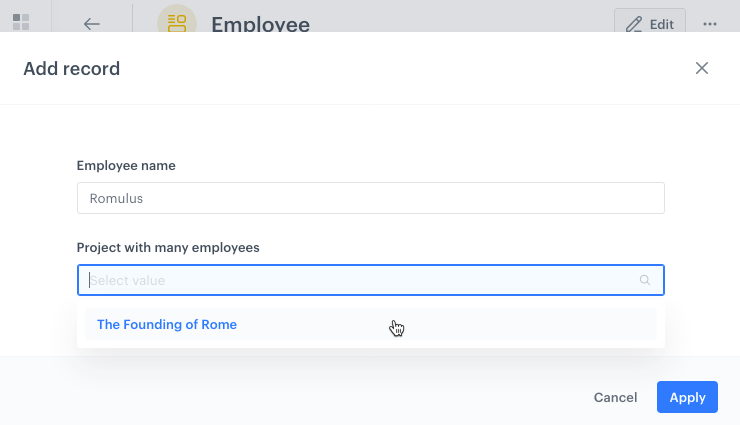
1. Create some employee records with a relation to the project record you created. 
    
   <div class="admonition admonition-tip"><div class="admonition-icon"><svg xmlns="http://www.w3.org/2000/svg" fill="none" viewBox="0 0 24 24" stroke="currentColor" stroke-width="2.5"><path stroke-linecap="round" stroke-linejoin="round" d="M9.663 17h4.673M12 3v1m6.364 1.636l-.707.707M21 12h-1M4 12H3m3.343-5.657l-.707-.707m2.828 9.9a5 5 0 117.072 0l-.548.547A3.374 3.374 0 0014 18.469V19a2 2 0 11-4 0v-.531c0-.895-.356-1.754-.988-2.386l-.548-.547z" /></svg></div><div class="admonition-body"><div class="admonition-content">

   If you're editing an existing record, open it and add the relation drop-down by clicking the **Add another** button. This is also used to add more than one relation to a record.

   </div></div></div>

    <figure><img src="/api/docs/image/54176ad07f146575310749eba44b7c2f42c1b327/docs/assets/schema-builder/_gfx/adding-relation.png" alt="Creating a new record with a relation" class="large"><figcaption>Creating a new record with a relation</figcaption></figure>  

    **Result:**  
    You can see the relation in the employee records and the project record.
    <figure><img src="/api/docs/image/54176ad07f146575310749eba44b7c2f42c1b327/docs/assets/schema-builder/_gfx/employee-records.png" class="large" alt="Employee records"><figcaption>Screenshot of two employee records related to the same project</figcaption></figure>
    The project record is updated automatically:
    <figure><img src="/api/docs/image/54176ad07f146575310749eba44b7c2f42c1b327/docs/assets/schema-builder/_gfx/project-record-relation.png" class="large" alt="Screenshot of a project record relation that has no human-readable label"><figcaption>Project record before updating the relation with human-readable labels</figcaption></figure>
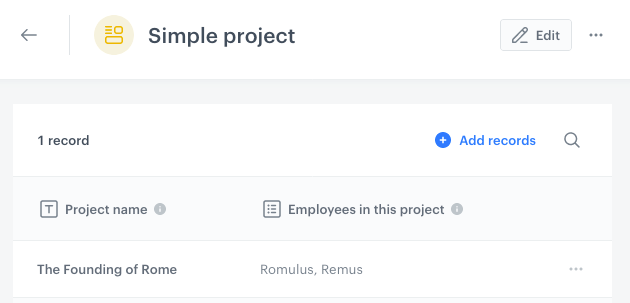
1. <span id="displayed-field" />If you want the project record to display the names of the employees and the name of the relation:
    1. Open the project schema for editing.
    2. Open the relation field for editing.
    3. On the **Design** tab, in the **Label** field, enter a name for the relation, for example `Employees in this project`.
    4. On the **Data** tab, in the **Displayed field**, select **Employee name (\<field ID>)**.  
    The **field ID** depends on the ID you assigned when creating the schema. If you didn't assign any, it receives a default value.  
    5. Apply the changes and save the schema.  
    **Result:**
    The project record displays employee names and the relation name.  
    <figure><img src="/api/docs/image/54176ad07f146575310749eba44b7c2f42c1b327/docs/assets/schema-builder/_gfx/project-relation-updated.png" alt="Project record after updating the relation with human-readable labels" class="large"><figcaption>Project record after updating the relation with human-readable labels</figcaption></figure>