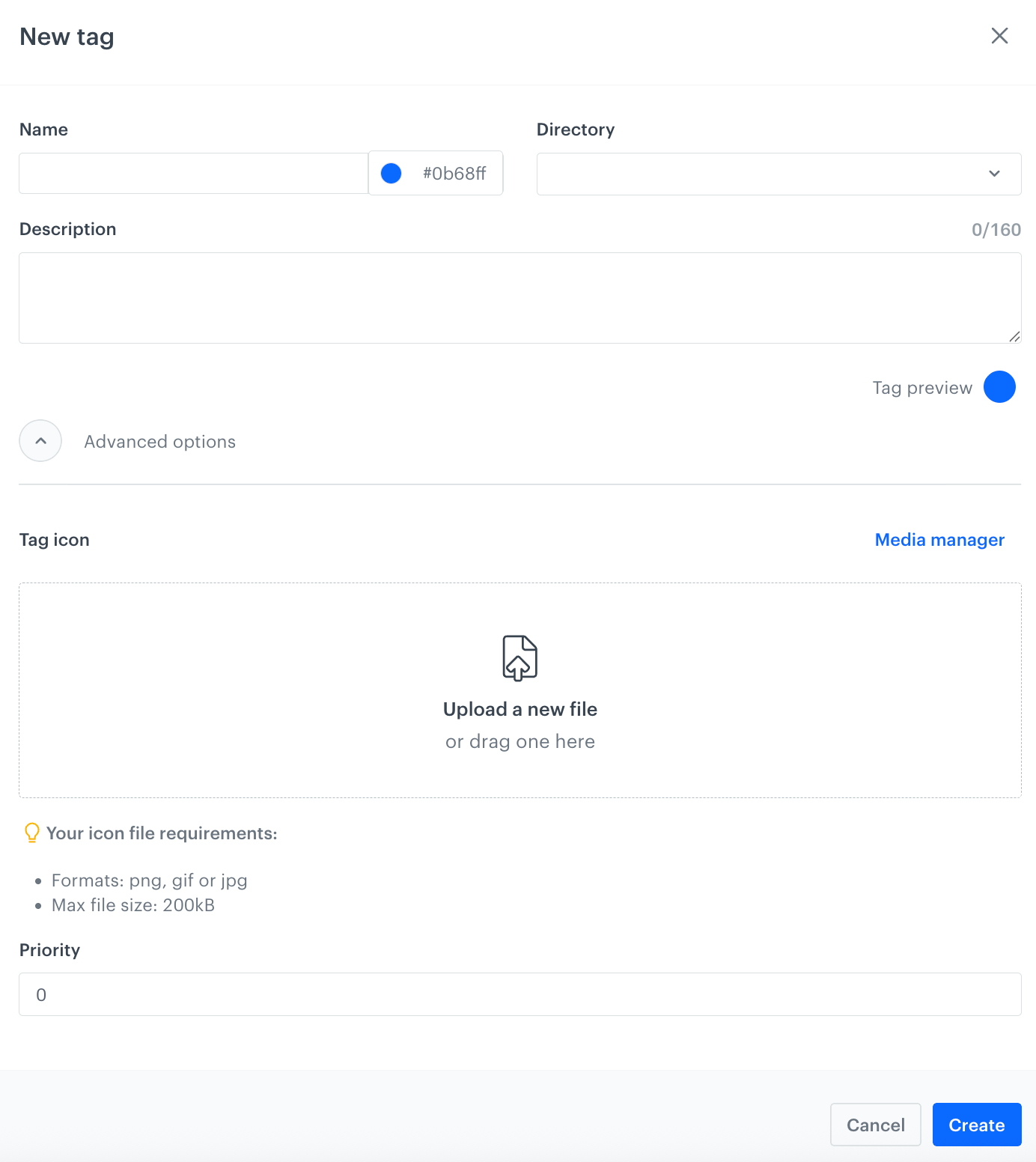
 **Data Modeling Hub > Tags > Add tag**.
**Result**:
**Data Modeling Hub > Tags**.
1. Search for a tag you want to edit using the search box marked above the tag list.
2. Next to the tag author, click
**Data Modeling Hub > Tags > Add tag**.
**Result**:
**Data Modeling Hub > Tags**.
1. Search for a tag you want to edit using the search box marked above the tag list.
2. Next to the tag author, click  3. From the dropdown list, select **Edit**.
**Result**: A pop-up appears.
3. Make changes to the tag settings; field descriptions are available in the ["Adding tags" section](#adding-tags).
4. Confirm changes by clicking **Save**.
## Adding tag folders
---
Tag folders help you group and organize tags within your workspace.
When you create a workspace, predefined tag folders are available by default. These predefined tag folders are also accessible in already existing workspaces, ensuring consistency across your projects.
Predefined tag folders include:
- **automation** - for [tags assigned to workflows](/docs/automation/tagging-workflows)
- **campaigns** - for [tags assigned to communication](/docs/campaign/tagging-campaigns)
- **promotions** - for tags [assigned to promotions](/docs/ai-hub/promotions/promotion-tags)
To add a new tag folder, follow these steps:
1. Go to **Data Modeling Hub > Tags**.
2. On the left panel, click **Add folder**.
**Result**: Below the **Add folder** button a text field appears.
3. Provide the name of the folder.
4. Confirm the name by clicking **Enter**.
**Result**:
The folder is created. To change its settings, for example set the folder type, see ["Edit folder settings"](#editing-folder-settings).
## Editing folder settings
1. In the list of tag folders, hover over the folder you want to edit.
**Result**: The folder management icons appear.
3. To open the folder settings, click the
3. From the dropdown list, select **Edit**.
**Result**: A pop-up appears.
3. Make changes to the tag settings; field descriptions are available in the ["Adding tags" section](#adding-tags).
4. Confirm changes by clicking **Save**.
## Adding tag folders
---
Tag folders help you group and organize tags within your workspace.
When you create a workspace, predefined tag folders are available by default. These predefined tag folders are also accessible in already existing workspaces, ensuring consistency across your projects.
Predefined tag folders include:
- **automation** - for [tags assigned to workflows](/docs/automation/tagging-workflows)
- **campaigns** - for [tags assigned to communication](/docs/campaign/tagging-campaigns)
- **promotions** - for tags [assigned to promotions](/docs/ai-hub/promotions/promotion-tags)
To add a new tag folder, follow these steps:
1. Go to **Data Modeling Hub > Tags**.
2. On the left panel, click **Add folder**.
**Result**: Below the **Add folder** button a text field appears.
3. Provide the name of the folder.
4. Confirm the name by clicking **Enter**.
**Result**:
The folder is created. To change its settings, for example set the folder type, see ["Edit folder settings"](#editing-folder-settings).
## Editing folder settings
1. In the list of tag folders, hover over the folder you want to edit.
**Result**: The folder management icons appear.
3. To open the folder settings, click the  icon.
4. From the **Type** dropdown list, assign a type to the folder.
5. If you want to edit free-form parameters of the folder:
1. Expand **Advanced options**.
2. Add or remove parameters.
6. Save the settings by clicking **Save**.
icon.
4. From the **Type** dropdown list, assign a type to the folder.
5. If you want to edit free-form parameters of the folder:
1. Expand **Advanced options**.
2. Add or remove parameters.
6. Save the settings by clicking **Save**.
 icon.
5. Confirm by clicking **OK**.
icon.
5. Confirm by clicking **OK**.