The **Update Profile** node lets you modify profile attributes, as well as add or remove tags from profiles.

- A profile attribute is a characteristic assigned to profiles. There are two types of profile attributes: custom (those which you create yourself) and default (attributes which are assigned to a profile, such as first name, last name, phone, city, email, and so on). Profiles can have many attributes, all displayed on a card in <img src="/api/docs/image/54176ad07f146575310749eba44b7c2f42c1b327/icons/behavioral-data-hub-icon.svg" alt="Behavioral Data Hub icon" class="icon"> **Behavioral Data Hub > Profiles**. 
- Profile tags help you organize your profiles into groups for better communication and management.  
    To find out more about profile tags, you can refer to [Profile tags](/docs/crm/customer-tag).

The actions available in the **Update Profiles** node vary depending on whether the attributes are custom or default.


<div class="admonition admonition-warning"><div class="admonition-icon"><svg xmlns="http://www.w3.org/2000/svg" fill="none" viewBox="0 0 24 24" stroke="currentColor" stroke-width="2.5"><path stroke-linecap="round" stroke-linejoin="round" d="M12 9v2m0 4h.01m-6.938 4h13.856c1.54 0 2.502-1.667 1.732-2.5L13.732 4c-.77-.833-1.964-.833-2.732 0L4.082 16.5c-.77.833.192 2.5 1.732 2.5z" /></svg></div><div class="admonition-body"><div class="admonition-content">

When the workflow is launched for a large amount of profiles, it can take longer to update the attributes.

</div></div></div>


## Requirements
---
You must implement the tracking code to your website. 

## Node configuration
---
1. To configure the settings of the node, click it.    
    **Result**: A pop-up opens.
2. From the **Attribute** dropdown list, you can:  
    - select an existing attribute or tag,
    - create a new profile attribute or tag by clicking **Add profile attribute** or **Add profile tag**, respectively.
3. From the **Action** dropdown, select an action:
    - The **Clear field** option removes the old value and leaves the attribute empty. This option is available only for default profile attributes such as `email`.  
    - The **Update** option defines a new value for the profile attribute. 
    - The **Add** option adds the selected tag to a profile. 
    - The **Remove** option deletes the selected tag and/or a custom attribute. 
4. For the **Update** option: Next to the action selection dropdown, enter a value that replaces the old value. You can also add [snippets](/docs/assets/snippets) by clicking the <img src="/api/docs/image/54176ad07f146575310749eba44b7c2f42c1b327/icons/snippet-icon.png" alt="Snippet icon" class="icon"> icon in the field. It's useful when you want to update the attribute value with the value of the aggregate, expression or the event parameter. 
4. To impose a limit on the action, switch the **Action limit** toggle. Enter a number and from the dropdown list, select the time unit. You can define how many times this action can be executed for the whole automation process (**workflow**), or you can define how many times per second/minute/hour/day/week/month can be executed.
6. Confirm by clicking **Apply**.


   <div class="admonition admonition-important"><div class="admonition-icon"><svg xmlns="http://www.w3.org/2000/svg" fill="none" viewBox="0 0 24 24" stroke="currentColor" stroke-width="2.5"><path stroke-linecap="round" stroke-linejoin="round" d="M12 8v4m0 4h.01M21 12a9 9 0 11-18 0 9 9 0 0118 0z" /></svg></div><div class="admonition-body"><div class="admonition-content">

   If the Update Profile node is used in the workflow triggered by an event occurrence, the changes of attribute are processed in real time. In the case of the workflows triggered by the [Audience node](/docs/automation/triggers/audience-node), the changes of attribute are processed in a separate queue and the duration of the processing depends on the load.

   </div></div></div>


## Example of use
---

<figure>
<img src="/api/docs/image/54176ad07f146575310749eba44b7c2f42c1b327/docs/automation/_gfx/update-profile-node-workflow.png" alt="Example of use" class="full">
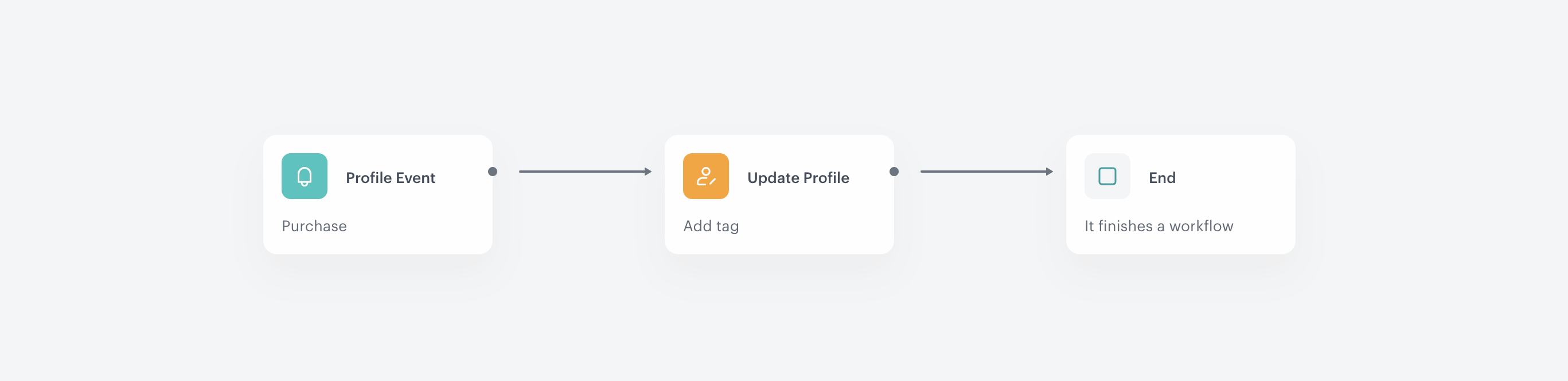
<figcaption>Example of the workflow that uses the Update Profile action </figcaption>
</figure>


The output of this workflow is tag assignment to profiles who buy premium-classified products is tagged with the `TopCustomer` label. 

1. Add the **Profile Event** trigger and select an event that signifies transaction (`product.buy`).
2. Add an action that updates a profile attribute. In this case we add the TopCustomer tag.  
**Result**: Once the action is launched, the scenario is completed.