# Send Mobile Push node
The **Send Mobile Push** node allows you to communicate with your customers through push notifications based on events and other conditions defined in a workflow.
When a workflow that contains this node is launched, a mobile push campaign is created as a result. You can find its statistics in **Experience Hub** as well as in the **Send Mobile Push** node itself.
The configuration of the node requires:
- selecting the type of mobile push notification
- selecting or creating a template
Optionally, you can:
- add UTM and URL parameters,
- add custom event parameters,
- send a test message
## Requirements
---
- You must have your own mobile application.
- You must configure [Synerise SDK](/developers/).
## Node configuration
---
1. Go to **Automation Hub > Workflows > New workflow**.
2. Select one of the profile trigger nodes, for example [Profile Event](/docs/automation/triggers/client-event-node).
3. Click **THEN > Send Mobile Push**.
4. To open the configuration form of the node, click it.
5. Optionally, next to the node name, you can add a custom node title which will be displayed on the node.
6. If you want to assign a tag to the mobile push campaign you will send through the workflow, under the node title, click **Add tag**.
7. From the dropdown list, select the [tag](/docs/assets/tags).
The list contains only the tags which are available in the predefined **campaigns** tag folder.
Assigning tags helps you organize your communications by categorizing campaigns across different channels. Additionally, you can control [communication limits](/docs/settings/configuration/campaign-limits) by applying restrictions to these tags.
### Select type of notification
1. On the **Mobile push type** section, click **Define**.
2. You can select the following mobile push types:
- **Simple push** - a notification that is displayed in the notification center on mobile devices.
- **Silent push** - a hidden notification that is delivered to the app on a user’s device. Unlike a typical push, it does not cause any interaction with the user. Silent notifications quietly deliver data to the app. You can use it, for example, to let the app know about changes in content.
3. Confirm your choice by clicking **Apply**.
### Create or select template
3. In the **Content** section, click **Define**.
2. If you want to:
- Select a template, click **Create message**. From the list of the templates, select the one you want to use.
- If you make changes to the template, click **Save** and then **Use in node**.
- If you don't make changes to the template, click **Use in node**.
- Create a message without using an existing template, click **Create message > New template**. The template will be available only in this node for preview and modifications.
1. Select one of the mobile push template builders:
- **Visual builder**
- **Code editor**
1. Prepare the template according to the instructions available in ["Creating mobile push templates"](/docs/campaign/Mobile/creating-mobile-push-templates).
2. After finishing the template, click **Use in node**.
3. If you want to send this message regardless of the marketing consent, select the **Send without marketing agreement** checkbox (not recommended).
2. Confirm settings in the section by clicking **Apply**.
Modifying [the notification type](#select-type-of-notification) after creating content clears the settings in the Content section.
### Adding additional parameters
---
If you want to add custom event parameters with constant values to the automatically generated events in the mobile push channel, in the **Additional parameters** section, click **Define**. Add additional parameters according to the instructions in the ["Define additional parameters"](/docs/campaign/Mobile/creating-mobile-push#define-additional-parameters) section.
### Sending a test message
---
In this part of the node configuration, you can send a test mobile push notification **only** to the users available in the [Behavioral Data Hub](/docs/crm/crm-profile), who have the `has_mobile_push_devices` attribute set to `true`.
1. In the **Test** section, click **Define**.
2. In the search box, you can search users who are available in **Behavioral Data Hub > Profiles**
3. In the search results, select the users.
4. In the search box, to confirm the list of recipients of the test push notification, click **Add**.
**Result**: The list of recipients you added is shown.
4. When your test is ready to be sent, in the upper right corner of the section, click **Send test**.
### Adding UTM and URL parameters
---
In this part of the node configuration, you will define UTM and URL parameters that will be added to the mobile campaign launched with the start of the workflow. This part is optional.
1. In the **UTM & URL parameters** section:
- To omit this step, click **Skip step**. Otherwise, you won't be able to save the workflow with this empty section.
- To add UTM and/or URL parameters, click **Define**.
1. Fill in the following fields: **UTM campaign**, **UTM medium**, **UTM source**, and **UTM term**.
2. To add URL parameters, in the **URL parameters** section, click **Add parameter**.
3. Enter values for the **Parameter** and **Value** fields.
2. Confirm by clicking **Apply**.
### Defining additional node settings
---
1. To impose a limit on the action, switch the **Action limit** toggle. Enter a number and from the dropdown list, select the time unit. You can define how many times this action can be executed for the whole automation process (**workflow**), or you can define how many times per second/minute/hour/day/week/month can be executed.
2. If you want to make sure that this message is sent to a customer, even it exceeds the global limit of this type of messages for a single customer per day (more information is available [here](/docs/settings/configuration/campaign-limits)), enable the **Ignore limits** toggle. You may apply it to system messages such as a transaction confirmation, notifications about order delays, and so on.
3. If you want to exclude customers who belong to the [global control group](/docs/settings/configuration/global-control-group) from the recipients, enable the **Enable Global Control Group** option.
This option is only visible in workspaces where the global control group is enabled.
## Example of use
---
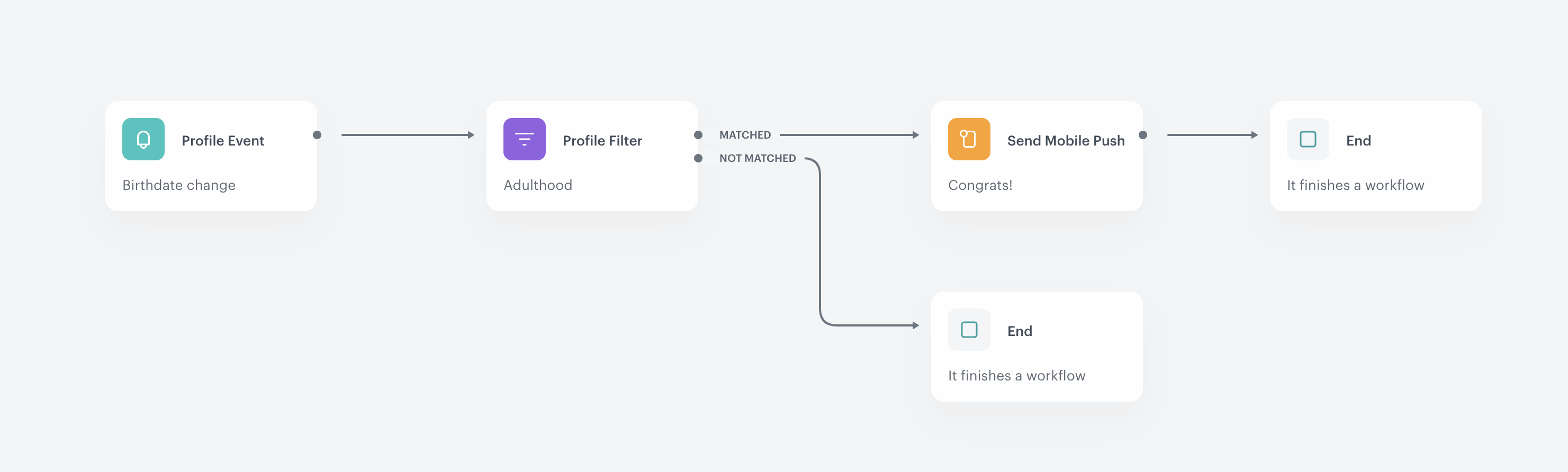
Example of the workflow that uses the Send Mobile Push action
The purpose of this workflow is to send a mobile push notification with a welcome message informing about access to special offers.
1. The **Data Changed** trigger that reacts to birth date changes.
2. The **Profile Filter** condition node checks if the birthdate change meets the requirement of a segmentation that defines customers as adults.
3. If customers belong to the segmentation, they proceed to the next stage. A mobile push is sent to them.
4. When the push is sent, the workflow ends.