
The **Get Analytics Report** node allows you to retrieve any report you have created in Decision Hub and incorporate it into a workflow. This enables you to distribute report results to external services where the report data is crucial for business operations.

The report is exported to the workflow as a file and can contain up to 250,000 records. You can set or change the limit on the number of records within the report. For example, if the report settings restrict the results to 3 records, the node configuration allows you to override this setting and include more results in the report.

## Prerequisites
---
- [Create a report](/docs/analytics/reports/creating-reports).
- You must be assigned a user role with an **Export analytics report** permission within Data export (read, execute, edit)

## Node configuration
---

1. To create a workflow that lets you export the results of the report, go to **Automation Hub > Workflows > New workflow**.  
2. Select one of the business trigger nodes, for example [Scheduled Run](/docs/automation/triggers/scheduled-run).
3. Click **THEN > Synerise > Get Analytics Report**.  
4. To open the configuration form of the node, click it.
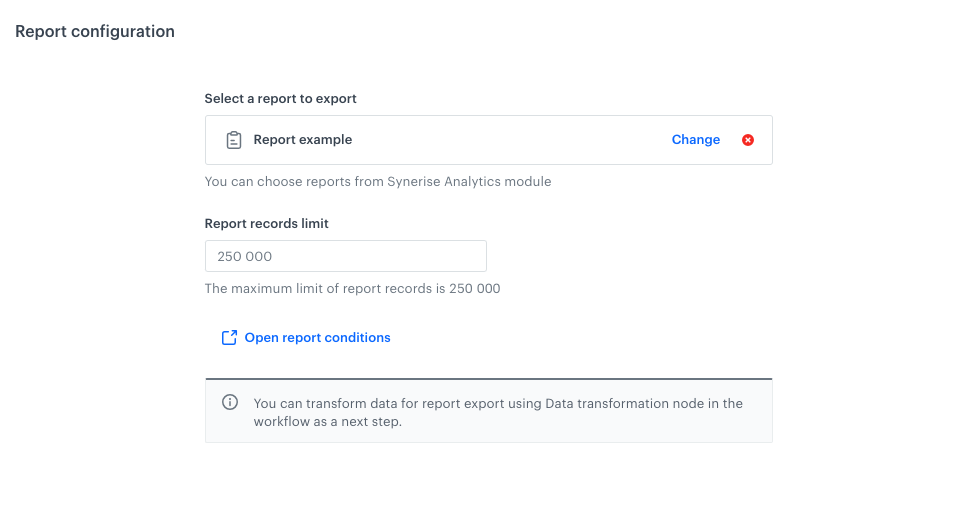
5. From the **Select report to export** dropdown list, select the report you want to fetch into the workflow.  
6. The default and maximum limit that can be retrieved is 250,000 records. If you need to narrow down the results of your report, you can define a lower limit.
7. Confirm the settings by clicking **Apply**.

 <figure><img src="/api/docs/image/54176ad07f146575310749eba44b7c2f42c1b327/docs/automation/_gfx/get-report-configuration.png" class="full" alt="The configuration of the node"><figcaption>The configuration of the node</figcaption></figure>


   <div class="admonition admonition-tip"><div class="admonition-icon"><svg xmlns="http://www.w3.org/2000/svg" fill="none" viewBox="0 0 24 24" stroke="currentColor" stroke-width="2.5"><path stroke-linecap="round" stroke-linejoin="round" d="M9.663 17h4.673M12 3v1m6.364 1.636l-.707.707M21 12h-1M4 12H3m3.343-5.657l-.707-.707m2.828 9.9a5 5 0 117.072 0l-.548.547A3.374 3.374 0 0014 18.469V19a2 2 0 11-4 0v-.531c0-.895-.356-1.754-.988-2.386l-.548-.547z" /></svg></div><div class="admonition-body"><div class="admonition-content">

   You can transform the data from the report. First, you must [prepare a transformation rule](/docs/automation/data-transformation-and-imports/creating-data-transformation). To get a data sample for the transformation rule, go to the settings of the report (**Decision Hub > Report**) and download a report in the form of the CSV file. After the rule is complete, use it in the [Data Transformation node](/docs/automation/operation/data-transformation-node) added after the **Get Analytics Report** node.

   </div></div></div>


## Example of use
---
You can launch a workflow that exports the result of the report to Google Cloud Storage. 

1. Start the workflow with the **Scheduled Run** node. In the configuration of the node:  
    1. Set the **Run trigger** to **one time**.  
    2. Select the **Immediately** tab.  
2. Add the **Get Analytics Report** node. Configure the node according to the instruction in this article.  
3. Add the **Google Cloud Storage > Send File**. In the configuration of the node:  
    1. Select the connection.  
   - If no connections are available or you want to create a new one, see [Create a connection](/docs/automation/integration/google-cloud-storage/send-file-to-gcp#create-a-connection).
   - If you selected an existing connection, proceed to [defining the integration settings](/docs/automation/integration/google-cloud-storage/send-file-to-gcp#define-the-integration-settings).
4. Add the **End** node.  
    **Result**:   
    <figure><img src="/api/docs/image/54176ad07f146575310749eba44b7c2f42c1b327/docs/automation/_gfx/example-get-report.png" class="full" alt="The configuration of the workflow"><figcaption>The configuration of the workflow</figcaption></figure>