This node is available in private preview mode, meaning it is accessible only on selected workspaces.
In Synerise, [Brickworks](/docs/assets/brickworks/what-makes-brickworks-different) let you create and manage structured data tailored to your needs. You start by [creating a schema](/docs/assets/brickworks/quick-start/creating-a-schema) that defines the structure and fields of your data. Optionally, you can specify the target audience for that schema. Then, you add data submissions, where each submission creates a single [record](/docs/assets/brickworks/quick-start/creating-a-record) based on the schema.
The **Get Brickworks Schema Records** node lets you retrieve a JSON or JSON Lines file with all records from a selected schema. You can combine this node with others, like [Send File to Amazon S3](/docs/automation/integration/amazon-s3-bucket/send-file-amazon-s3-bucket) or [Send File to Google Cloud Store](/docs/automation/integration/google-cloud-storage/send-file-to-gcp), to export the data to external systems.
Alternatively, use this node and ["Save File" node](/docs/automation/actions/synerise-integrations/save-file) to export schema records to a file you can download directly from the Synerise platform (then, the file will be available in **Data Modeling > Export > Automation**).
### What you can do with this node
- Select the schema to retrieve records from.
- Preview example data from the file to check its structure and content before exporting.
- If needed, modify the data using a [data transformation rule](/docs/automation/data-transformation-and-imports/creating-data-transformation) applied through the [Data Transformation node](/docs/automation/operation/data-transformation-node) placed right after the **Get Brickworks Schema Records** node in your workflow.
This node can be used only in [business workflows](/docs/glossary#business-workflow).
## Prerequisites
---
- [Create a schema](/docs/assets/brickworks/quick-start/creating-a-schema)
- [Add records to schema](/docs/assets/brickworks/quick-start/creating-a-record)
- To retrieve a file with schema records, you must be assigned with a role with the following permissions:
- [access Automation Hub](/docs/settings/identity-access-management/permissions/automation-permissions#access-the-automation-hub)
- [create workflows](/docs/settings/identity-access-management/permissions/automation-permissions#create-and-edit-workflows)
- [access Brickworks](/docs/settings/identity-access-management/permissions/data-management-permissions#work-with-brickworks)
- [export data](/docs/settings/identity-access-management/permissions/settings-permissions#export-data)
- [export data to downloadable files](/docs/settings/identity-access-management/permissions/data-management-permissions#export-data-to-downloadable-files)
## Node configuration
---
1. To create a workflow that lets you export the file with schema records, go to **Automation Hub > Workflows > New workflow**.
2. Select one of the business trigger nodes, for example [Scheduled Run](/docs/automation/triggers/scheduled-run).
3. Click **THEN > Synerise > Get Brickworks Schema Records**.
4. Open the configuration form of the node by clicking it.
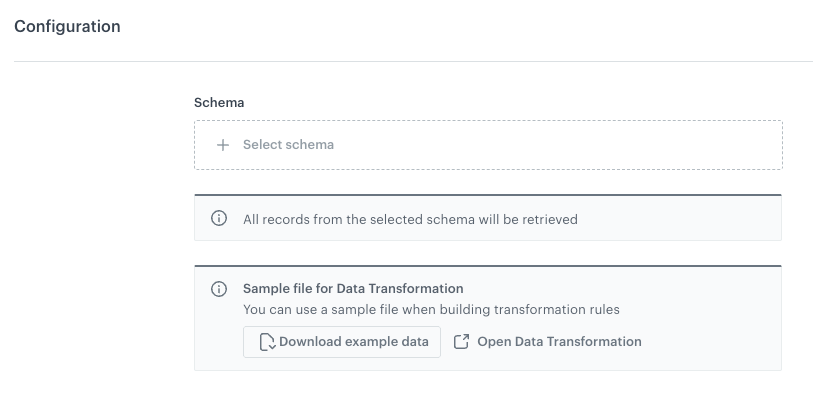
**Result**:
A blank node configuration form
5. From the dropdown list, select a schema whose records will be retrieved.
6. Optionally, to get a preview of a file, click **Download example data**.
This way, you can find out what a sample data structure for export from the Brickworks schema looks like.
7. Optionally, to prepare a transformation rule that will modify the file with schema records, click **Open Data Transformation**.
## Example of use
---
You can find instructions on workflow exporting schema records in the ["Export through Automation Hub" section](/docs/assets/brickworks/exporting-records#export-through-the-automation-hub).