
The **Get Metrics** node lets you retrieve results of up to 50 metrics created in **Decision Hub**  and incorporate them into workflows to distribute metrics results to external services where the metrics data is crucial for business operations. You can use this node only in [business workflows](/docs/glossary#business-workflow). 


### How does it work?

The **Get Metric** node exports a file to the workflow which contains 3 columns:

- `id` (the ID of the metric), 
- `name` (the title of the metric), 
- `result` (the result of the metric) 

When the Get Metrics node is reached, the workflow will only progress after the requested metric results are calculated. The workflow uses the most recent metric versions.  
If a metric can't be calculated, an error is logged on the **Transformation logs** tab

### Node settings

In the node settings, you can:

| Action                                                   | More information                                                                                                                                                                                                                                                                                                                                        |
|----------------------------------------------------------|---------------------------------------------------------------------------------------------------------------------------------------------------------------------------------------------------------------------------------------------------------------------------------------------------------------------------------------------------------|
| Select metrics                                           | You can select up to 50 metrics.                                                                                                                                                                                                                                                                                                                      |
| Select the period from which you want to get the results | The workflow's <br> time range settings will take precedence over the original <br> metric settings. For instance, if a metric is set <br> to the last 7 days, but the **Get Metrics** node in the workflow <br> requests results from the last 30 days, the 30-day range will be used. |
| Define the value of a dynamic key or dynamic keys        | If the system detects dynamic keys in the conditions of <br> the selected metrics, they are displayed in the node.                                                                                                                                                                                                                                           |

### Dynamic keys in metrics

If the metrics selected in the node contain at least one dynamic key, the name of the keys with their default values are displayed in the settings of the node. You can see an example dynamic key used in a metric in Figure 1 below.

- In the settings of the **Get Metrics** node, you can enter values for the dynamic keys to use in the calculation. 
- You can use static values, [snippets](/docs/assets/snippets), and [inserts](/developers/inserts) as dynamic key values. 
- If multiple metrics include a dynamic key with the same name, it's included as a single item on the list. All metrics which contain that dynamic key will be calculated for the specified value.
- If the metric is modified and the dynamic keys change, the results will be generated for the most recent metric version. If there is a difference between the keys in the node and the latest metric version, you will receive information about it in the **Insights** section in the workflows which use this metric.

<figure>
<img src="/api/docs/image/54176ad07f146575310749eba44b7c2f42c1b327/docs/analytics/_gfx/dynamic-key-value.png" alt="The marked area on the screen presents the dynamic key value selected in a metric condition. In this example the $sku parameter must be equal to the value of the id dynamic key (default is 12345678)" class="full" >
<figcaption>The marked area on the screen presents the dynamic key value selected in a metric condition. In this example the $sku parameter must be equal to the value of the id dynamic key (default is 12345678) </figcaption>
</figure>  


## Prerequisites
---
- [Create a metric](/docs/analytics/metrics). 
- You must be granted a user role that includes the `Data export > Export metrics result` permission. 

## Node configuration
---

1. To create a workflow that lets you export the results of metrics, go to **Automation Hub > Workflows > New workflow**.  
2. Select one of the business trigger nodes, for example [Scheduled Run](/docs/automation/triggers/scheduled-run).
3. Click **THEN > Synerise > Get Metrics**.  
4. Open the configuration form of the node by clicking it.
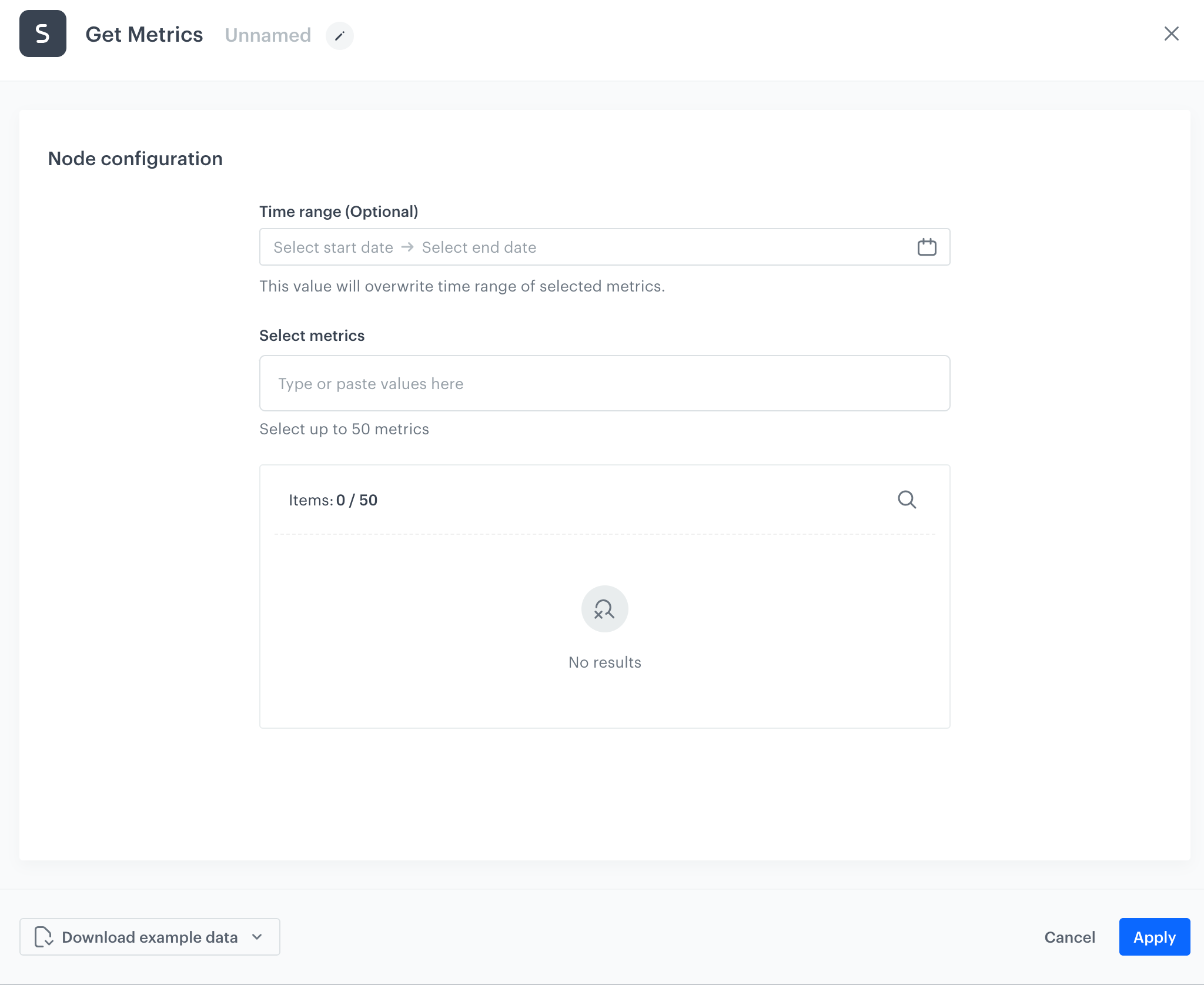
    <figure><img src="/api/docs/image/54176ad07f146575310749eba44b7c2f42c1b327/docs/automation/_gfx/get-metrics-node.png" class="large" alt="The configuration form of the Get Metrics node"><figcaption>The configuration form of the Get Metrics node</figcaption></figure>  

1. Optionally, in the **Time range** field, on the calendar, select the time range from which you want to get the results of the metric or metrics. The time range you select will override the original time range settings of the metrics.
2. In the **Select metrics** field, select one or more metrics whose results you want to extract.  
    If the selected metrics contain a dynamic key, you will be shown a list of the keys used in metrics. You can replace a default key value with your own using a static value, such as `123` string or [inserts](/developers/inserts), so the results for the metrics which contain dynamic key will be generated for that value.
    
7. Confirm the settings by clicking **Apply**.


   <div class="admonition admonition-tip"><div class="admonition-icon"><svg xmlns="http://www.w3.org/2000/svg" fill="none" viewBox="0 0 24 24" stroke="currentColor" stroke-width="2.5"><path stroke-linecap="round" stroke-linejoin="round" d="M9.663 17h4.673M12 3v1m6.364 1.636l-.707.707M21 12h-1M4 12H3m3.343-5.657l-.707-.707m2.828 9.9a5 5 0 117.072 0l-.548.547A3.374 3.374 0 0014 18.469V19a2 2 0 11-4 0v-.531c0-.895-.356-1.754-.988-2.386l-.548-.547z" /></svg></div><div class="admonition-body"><div class="admonition-content">

   You can transform the data from the metric. First, you must [prepare a transformation rule](/docs/automation/data-transformation-and-imports/creating-data-transformation). To get a data sample for the transformation rule, click **Download example data** in the configuration of the **Get Metrics** node and select CSV format. After the rule is complete, use it in the [Data Transformation node](/docs/automation/operation/data-transformation-node) added after the **Get Metrics** node.

   </div></div></div>


## Example of use
---
You can launch a workflow that exports the number of event occurrences from the day before the current day.

In the example, metrics for the following events are used (you must create the metrics yourself):
- [`product.addToCart`](/docs/assets/events/event-reference/items#productaddtocart)
- [`transaction.charge`](/docs/assets/events/event-reference/items#transactioncharge)
- [`product.buy`](/docs/assets/events/event-reference/items#productbuy)

The workflow will be launched every day at 2:00 A.M.  

1. Start the workflow with the **Scheduled Run** node. In the configuration of the node:  
    1. Set the **Run trigger** to **all time**.  
    2. Select the timezone in which the workflow will be launched.
    3. Select the **Everyday** tab.  
    4. In the field with time, set the value to `02:00`.
    5. Confirm by clicking **Apply**.
2. Add the **Get Metrics** node. In the configuration of the node, select the three metrics and set the time range to the day before the current day. 
3. Add the **Azure Blob Storage > Send File**. In the configuration of the node:  
    1. Select the connection.  
    - If no connections are available or you want to create a new one, see [Create a connection](/docs/automation/integration/azure-blob-storage/send-file-azure-blob-storage#create-a-connection).
    - If you selected an existing connection, proceed to [defining the integration settings](/docs/automation/integration/azure-blob-storage/send-file-azure-blob-storage#define-the-integration-settings).

4. Add the **End** node.  
    **Result**:   
    <figure><img src="/api/docs/image/54176ad07f146575310749eba44b7c2f42c1b327/docs/automation/_gfx/get-metrics-node-example.png" class="large" alt="The configuration form of the Get Metrics node"><figcaption>The final configuration of the workflow</figcaption></figure>