The **Get Statistics** node lets you retrieve Synerise campaign statistics sent manually or through Automation Hub and incorporate them into a workflow. This way, you can distribute campaign statistics to external services where these data is crucial for business operations.
The campaign scope includes **emails**, **SMS**, **web push notifications**, and **push notifications**. You can select specific campaigns for statistical export or choose to export statistics for campaigns launched within a specified time period (with a 30-day limitation). Exporting a mix of campaign types is not permitted.
You can also choose whether to report campaigns with multiple versions (A/B testing) as a single aggregated record or as separate entries. Additionally, you can select scheduled campaigns, but you must make sure that the workflow trigger date aligns with the campaign send date.
In a workflow with the Get Statistics node, the logs will have two stages: Get File and Export. Even if the campaign is not found or if the campaign selection is missing in the node settings, the Get File log may still show a successful status. However, the Export log will fail because the retrieved file will be empty in these situations.
## Prerequisites
---
- Create an [email](/docs/campaign/e-mail/creating-email-campaigns)/[SMS](/docs/campaign/SMS/sending-sms)/[web push](/docs/campaign/Webpush/creating-webpush-campaigns)/[push notification campaign](/docs/campaign/Mobile/creating-mobile-push).
- You must be assigned a user role with an **Export campaign statistics** permission within Data export (read, execute, edit)
## Node configuration
---
1. To create a workflow that lets you export campaign results, go to **Automation Hub > Workflows > New workflow**.
2. Select one of the business trigger nodes, for example [Scheduled Run](/docs/automation/triggers/scheduled-run).
3. Click **THEN > Synerise > Get Statistics**.
4. Select one of the following tabs:
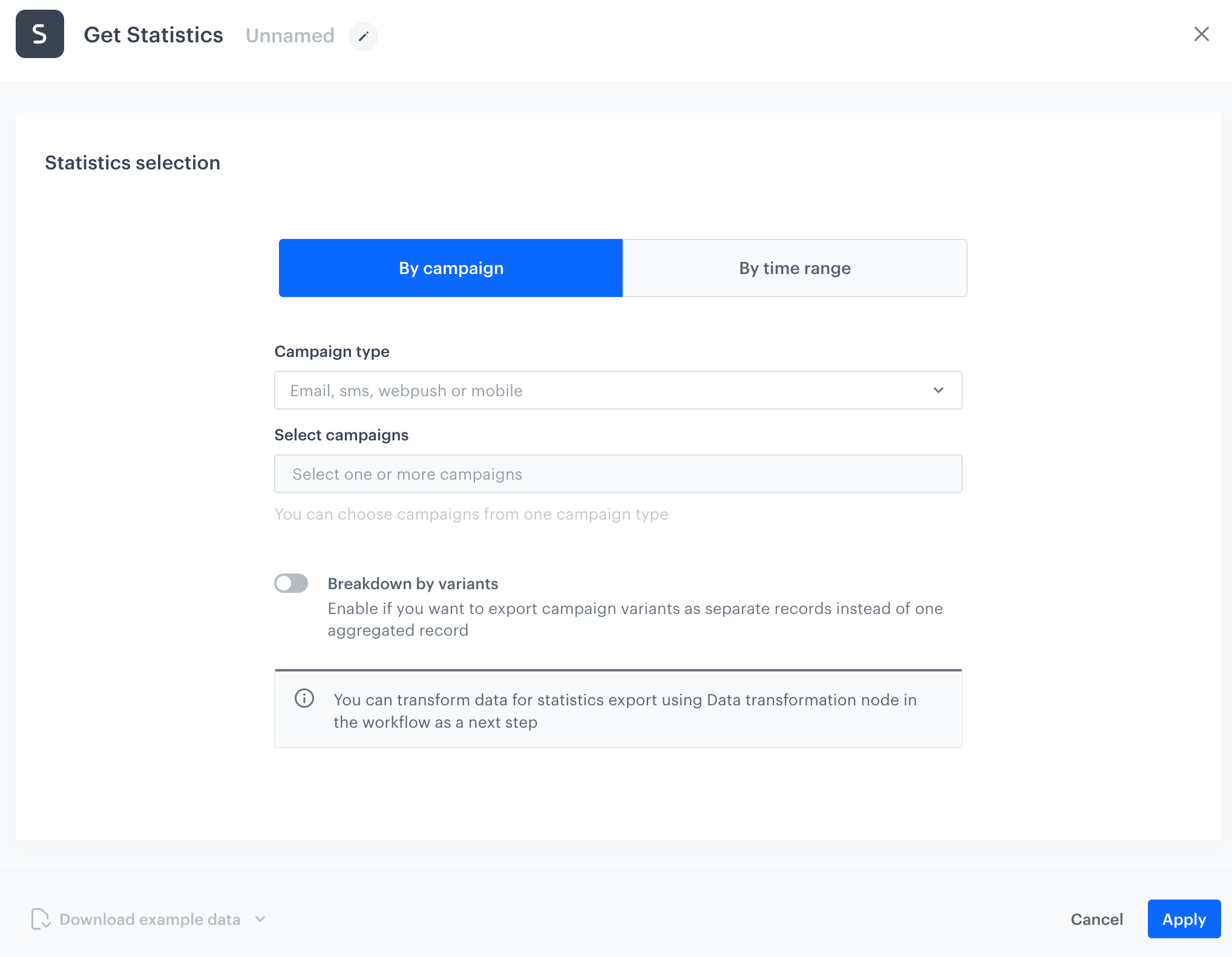
- **By campaign** - You can select campaigns whose statistics you want to export.
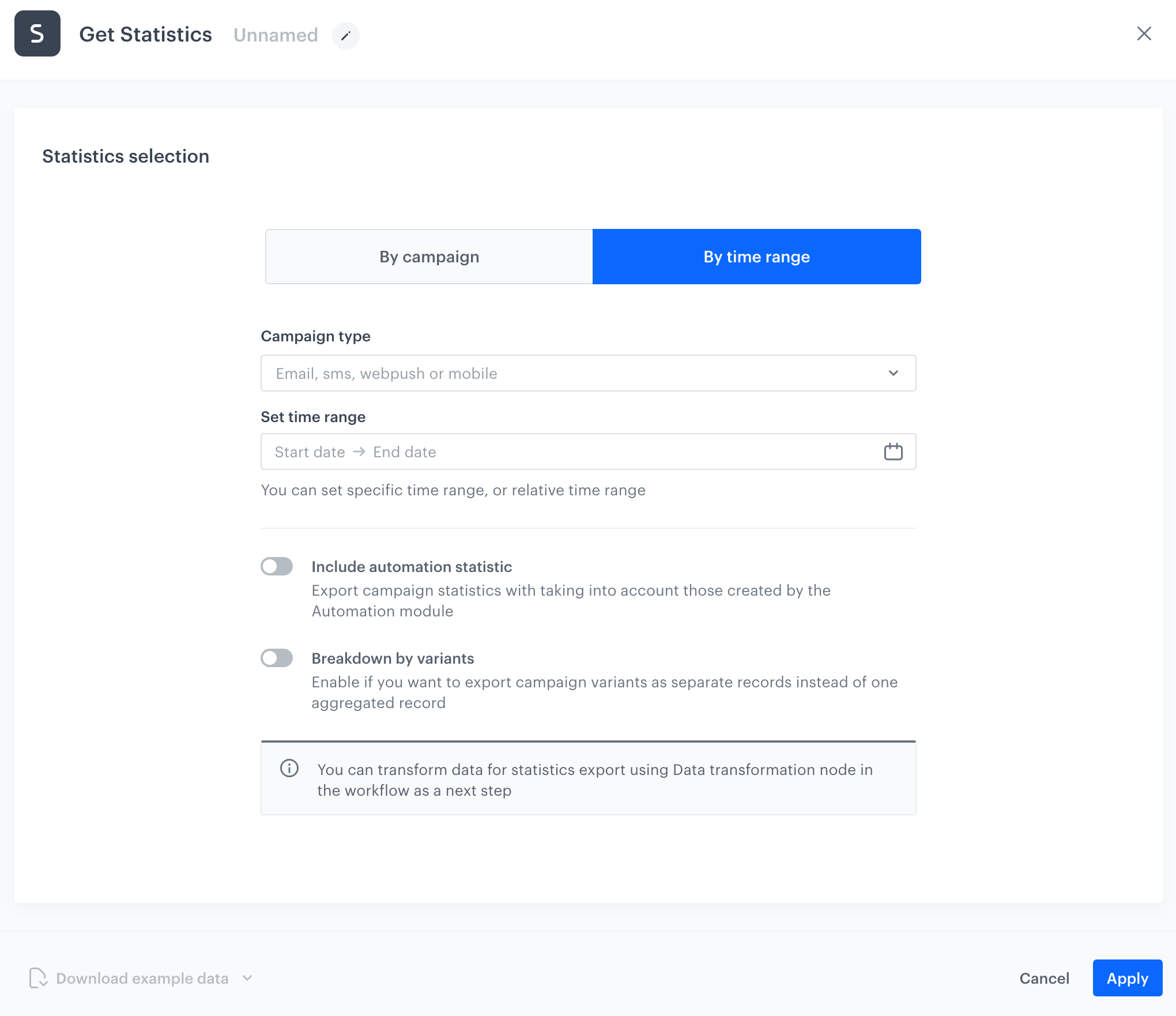
- **By time range** - It lets export statistics from selected time range from a specific campaign type. In this variant, you can select campaigns that were launched by Automation Hub.
5. Perform the instructions based on the selection in the previous step.
Blank configuration form in the By campaign tab
1. From the **Campaign type** dropdown, select from which campaign type you would like to export statistics.
Selecting a mix of campaign types is impossible.
2. From the **Select campaigns** dropdown list, select the campaigns whose statistics you want to export.
2. Optionally, at the bottom of the **Select campaigns** dropdown, by switching on the **Show drafts** option, you can include scheduled campaigns on the list.
If you select scheduled campaigns, set the trigger date that comes after the scheduled launch of the campaigns.
2. Optionally, if you want to export variants of one campaign as separate records, enable **Breakdown by variants**.
By default, if statistics of a campaign selected for export contains more than one version (due to A/B testing), the statistics for each variant are a single aggregated record.
5. Before exporting campaign statistics to an external resource, you can transform the file structure.
- To obtain a sample file for input in [a data transformation rule](/docs/automation/data-transformation-and-imports/creating-data-transformation), click **Download example data** and select the desired file format (.csv, .json, .jsonl) from the dropdown list. All mentioned file formats are allowed as data input in a transformation rule.
- The workflow which modifies the campaign statistics file must use the [Data Transformation node](/docs/automation/operation/data-transformation-node) after the **Get Statistics** node.
3. Confirm by clicking **Apply**.
Blank configuration form in the By time range tab
1. From the **Campaign type** dropdown list, select the campaign type that you would like to export statistics for.
2. In the **Set time range** field, select the time range from which you would like to export statistics.
You can either select a period up to 30 days backwards from the current date or relative time range (for example, last 5 days).
3. The default setting includes statistics for manually sent campaigns only. If you also want to include statistics for campaigns launched through Automation Hub, enable the **Include automation statistics** option.
If this option is selected, the output will include campaigns set up by Automation Hub that meet one of the following criteria:
- the date of creation is within the indicated time range,
- at least one sending event has occurred in the indicated time range
4. Optionally, if you want to export variants of one campaign as separate records, enable **Breakdown by variants**.
By default, if statistics of a campaign selected for export contains more than one version (due to A/B testing), the statistics for each variant are a single aggregated record.
5. Before exporting campaign statistics to an external resource, you can transform the file structure.
- To obtain a sample file for input in [a data transformation rule](/docs/automation/data-transformation-and-imports/creating-data-transformation), click **Download example data** and select the desired file format (.csv, .json, .jsonl) from the dropdown list. All mentioned file formats are allowed as data input in a transformation rule.
- The workflow which modifies the campaign statistics file must use the [Data Transformation node](/docs/automation/operation/data-transformation-node) after the **Get Statistics** node.
6. Confirm by clicking **Apply**.
## Example of use
---
You can launch a workflow that exports the campaign statistics to Google Cloud Storage.
1. Start the workflow with the **Scheduled Run** node. In the configuration of the node:
1. Set the **Run trigger** to **one time**.
2. Select the **Immediately** tab.
2. Add the **Get Statistics** node. Configure the node according to the instruction in this article.
3. Add the **Google Cloud Storage > Send File**. In the configuration of the node:
1. Select the connection.
- If no connections are available or you want to create a new one, see [Create a connection](/docs/automation/integration/google-cloud-storage/send-file-to-gcp#create-a-connection).
- If you selected an existing connection, proceed to [defining the integration settings](/docs/automation/integration/google-cloud-storage/send-file-to-gcp#define-the-integration-settings).
4. Add the **End** node.
**Result**:
The configuration of the workflow