
This node allows you to initiate an import of vouchers to a specific voucher pool created in **Data Modeling Hub > Voucher Pools**.


<div class="admonition admonition-note"><div class="admonition-icon"><svg xmlns="http://www.w3.org/2000/svg" fill="none" viewBox="0 0 24 24" stroke="currentColor" stroke-width="2.5"><path stroke-linecap="round" stroke-linejoin="round" d="M13 16h-1v-4h-1m1-4h.01M21 12a9 9 0 11-18 0 9 9 0 0118 0z" /></svg></div><div class="admonition-body"><div class="admonition-content">

You can read more about voucher pools [here](/docs/assets/code-pools).

</div></div></div>


## Requirements
---
- The file must contain only one column (case sensitive): `code`  
- Values in the `code` column must be unique across the entire workspace, meaning that codes cannot be duplicated in any voucher pool  

## Node configuration
---

<div class="admonition admonition-important"><div class="admonition-icon"><svg xmlns="http://www.w3.org/2000/svg" fill="none" viewBox="0 0 24 24" stroke="currentColor" stroke-width="2.5"><path stroke-linecap="round" stroke-linejoin="round" d="M12 8v4m0 4h.01M21 12a9 9 0 11-18 0 9 9 0 0118 0z" /></svg></div><div class="admonition-body"><div class="admonition-content">

Before you add the **Import to Voucher Pool** node, feed workflow with data by using one of the following nodes:
- [Local File](/docs/automation/operation/local-file-node)
- [SFTP](/docs/automation/integration/sftp-integrations)
- [HTTPS](/docs/automation/integration/http-integrations)
</div></div></div>


1. Click the **Import to Voucher Pool** node.
2. From the dropdown list, select the voucher pool to which the data from the file will be imported.  
2. Confirm by clicking **Apply**.  

## Example of use
---
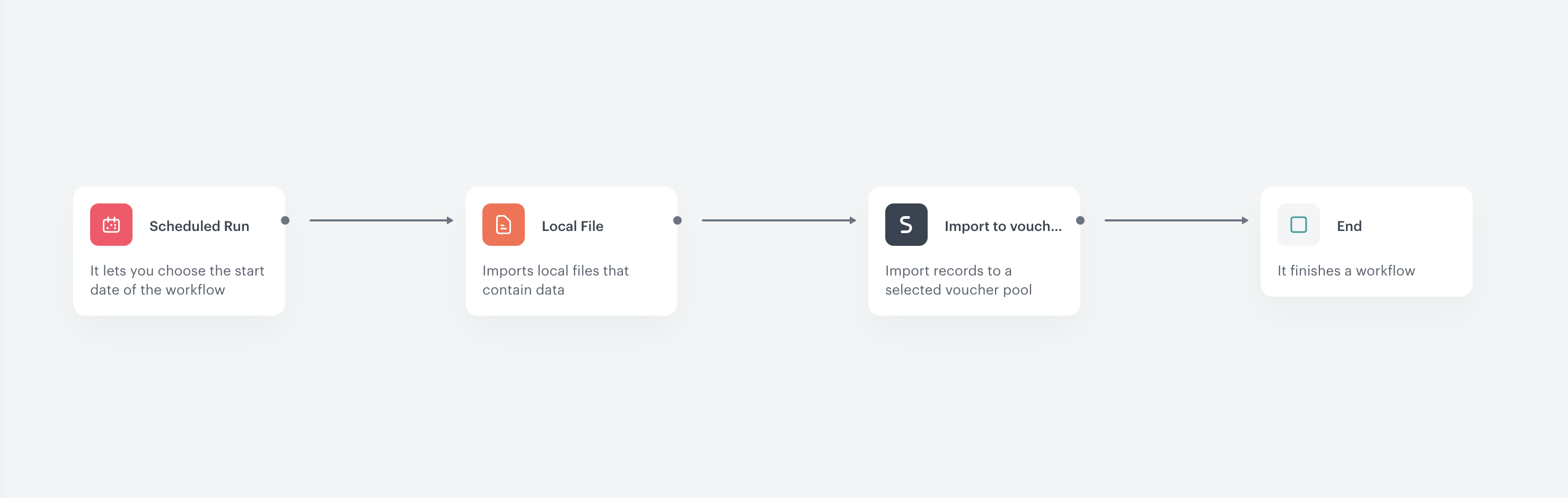
You can launch a single import of vouchers to Synerise. The file used in this example contains sample voucher data.


<details class="accordion"><summary>The file used in this example</summary><div class="accordion-content"><pre><code class="language-plaintext">code 13746362 84383873 39074938 49289484</code></pre></div></details>


<figure>
<img src="/api/docs/image/54176ad07f146575310749eba44b7c2f42c1b327/docs/automation/_gfx/import-vouchers-example.png" alt="The final configuration of the import vouchers workflow" class="full">
<figcaption>The final configuration of the import transactions workflow</figcaption>
</figure>

1. Start the workflow with the **Scheduled Run** node.  
2. In the configuration of the node:  
    1. Set the **Run trigger** to **one time**.  
    2. Select the **Immediately** tab.  
    3. Click **Apply**.  
3. Add the **Local File** node.  
4. In the configuration of the node:  
    1. Upload the file with vouchers.
    2. Click **Apply**.  
5. Add the **Import to Voucher Pool** node.  
6. In the configuration of the node, select the voucher pool to which the codes from the file will be imported. 
6. Add the **End** node.  
    **Result**: The codes from the file are imported to the selected voucher pool.