The **Save File** node initiates an export job to generate a file containing data retrieved in the workflow. You can download the file directly from the [export list](/docs/crm/exporting-profiles#accessing-the-exported-files) view or in the **Transformation logs** tab (you can access it in the workflow view).
The **Save File** node must be preceded by a node which retrieves data, for example: **Get Profiles** node or any **Get File** node available within the native integrations (such as [Amazon S3](/docs/automation/integration/amazon-s3-bucket), [Google Cloud Platform](/docs/automation/integration/google-cloud-storage), and so on).
You can only use this node in [business workflows](/docs/glossary#business-workflow).
## Prerequisites
---
- If the exported data must follow specific requirements (for example, specific column names), create a [data trasnformation rule](/docs/automation/data-transformation-and-imports/creating-data-transformation).
- You must be assigned with a [user role](/docs/settings/identity-access-management/permissions) with the following [permissions](/docs/settings/identity-access-management/permissions#permissions):
- to preview the **Save File** node configuration: **Data export > Save file** - **Read**
- to run and resume workflows containing the **Save File** node: **Data export > Save file** - **Execute**
- to edit the **Save File** node configuration: **Data export > Save file** - **Edit**
## Limits
---
There are some limits you must follow:
- You can export up to 10,000,000 profiles per a single export.
- The file containing profiles cannot exceed 5GB in size.
## Node configuration
---
1. Click the node.
**Result**: A pop-up opens.
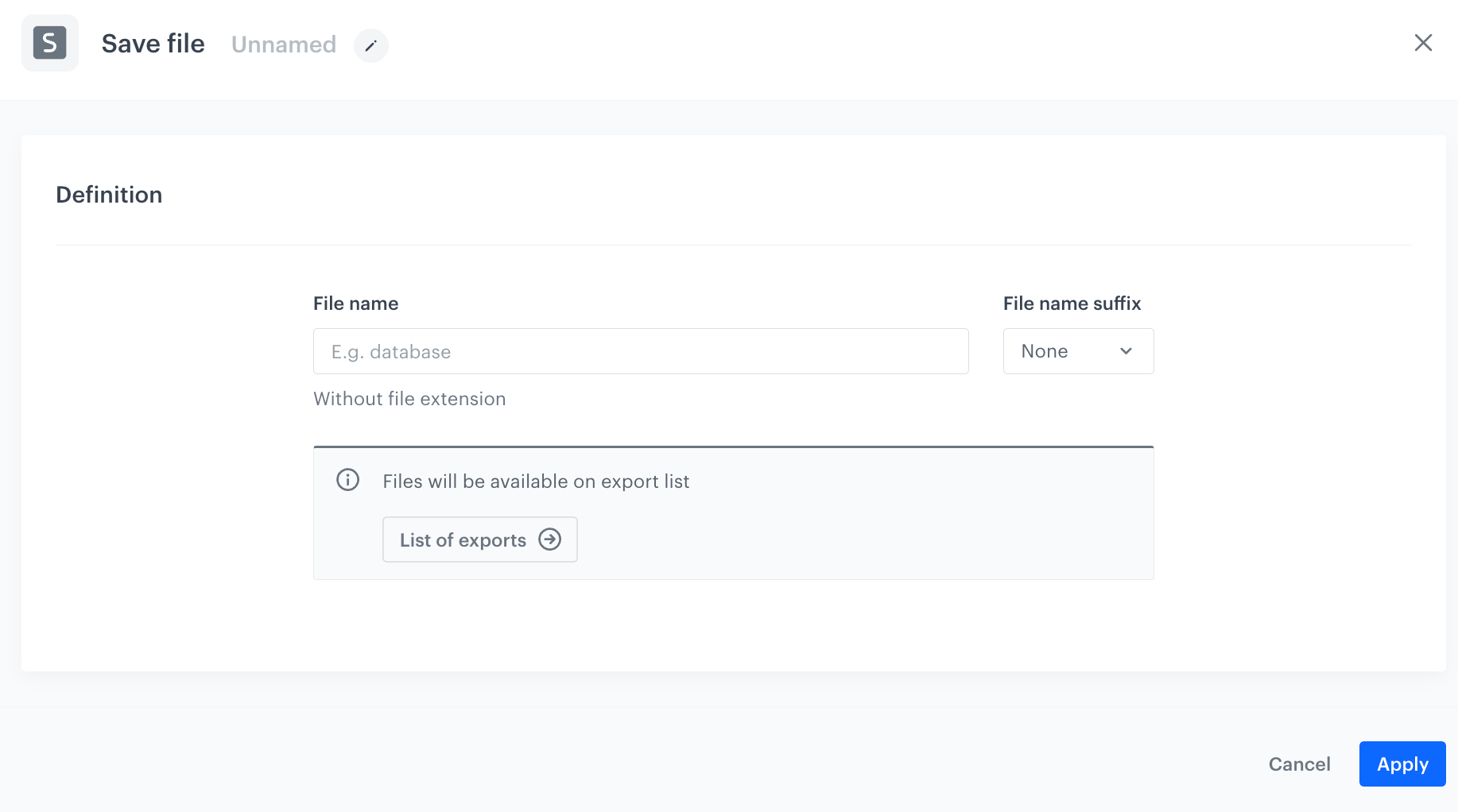
An empty configuration form of the Save File node; you can open it by clicking the node on the canvas
2. In the **File name** field, provide the name of the exported file.
It can't be longer than 128 characters.
3. Optionally, you can add the date suffix to the file name, by selecting **Date** from the **File name suffix** dropdown list.
As a result, the file will be exported as: `[name of the file] - [current date]`
4. Confirm the settings by clicking **Apply**.
## Example of use
---
You can use the **Save File** node to create a workflow which periodically [exports](/docs/crm/exporting-profiles) a specific group of customers to a file which you can download to your device.
1. As the trigger node, select **Scheduled Run**.
In the configuration of the node, define the frequency of triggering the workflow. You can learn more about this node in ["Scheduled Run" node](/docs/automation/triggers/scheduled-run).
2. As the next node, add **Get Profiles**.
In the configuration of the node, select the group of customers you want to export and, optionally, select the attributes to include in the export.
You can learn more about this node in ["Get Profiles" node](/docs/automation/actions/synerise-integrations/get-profiles).
3. Add the **Save File** node.
This way, the customers and their information selected in the Get Profiles node will be exported to a file.
4. As the final node, add **End**.
You can download the file directly from the [export list](/docs/crm/exporting-profiles#accessing-the-exported-files) view or in the **Transformation logs** tab (you can access it in the workflow view).
**Result**:
The final configuration of a workflow exporting a group of customers to a file