
The **Update Wallet Pass** node triggers an update of a [wallet pass](/docs/campaign/wallet-passes/creating-wallet-passes) that's already installed on the device of the customer going through the workflow. This node calls the endpoint that refreshes the wallet pass template - see [Updating a wallet pass](/docs/campaign/wallet-passes/managing-wallet-passes#updating-a-wallet-pass-on-customer-devices).

**Result**:
- The [walletPass.updated](/docs/assets/events/event-reference/wallet-passes#walletpassupdated) event is generated on the profile going through the workflow.
- If a value on the pass actually changed as a result of the update, the customer receives a notification on their device. This only happens on Apple Wallet (iOS) - Google Wallet doesn't notify the customer when a pass is updated. If nothing changed, the node still completes successfully, but no notification is sent.


<div class="admonition admonition-important"><div class="admonition-icon"><svg xmlns="http://www.w3.org/2000/svg" fill="none" viewBox="0 0 24 24" stroke="currentColor" stroke-width="2.5"><path stroke-linecap="round" stroke-linejoin="round" d="M12 8v4m0 4h.01M21 12a9 9 0 11-18 0 9 9 0 0118 0z" /></svg></div><div class="admonition-body"><div class="admonition-content">

Think carefully about which events should trigger this node - especially when the wallet pass contains dynamic fields, such as an [expression](/docs/assets/brickworks/synerise-objects#expression) used for a points or cashback balance. Trigger the update only when the underlying data behind those fields is likely to have changed.
</div></div></div>


You can use this node in profile and business-oriented workflows.

## Prerequisites
---
- [Create a wallet pass](/docs/campaign/wallet-passes/creating-wallet-passes). If the pass isn't installed on the customer's device, the update has nothing to apply.
- You must be assigned a user role to [create and edit workflows](/docs/settings/identity-access-management/permissions/automation-permissions#create-and-edit-workflows).

## Node configuration
---
1. Click the node.  
    **Result**: A pop-up opens.  
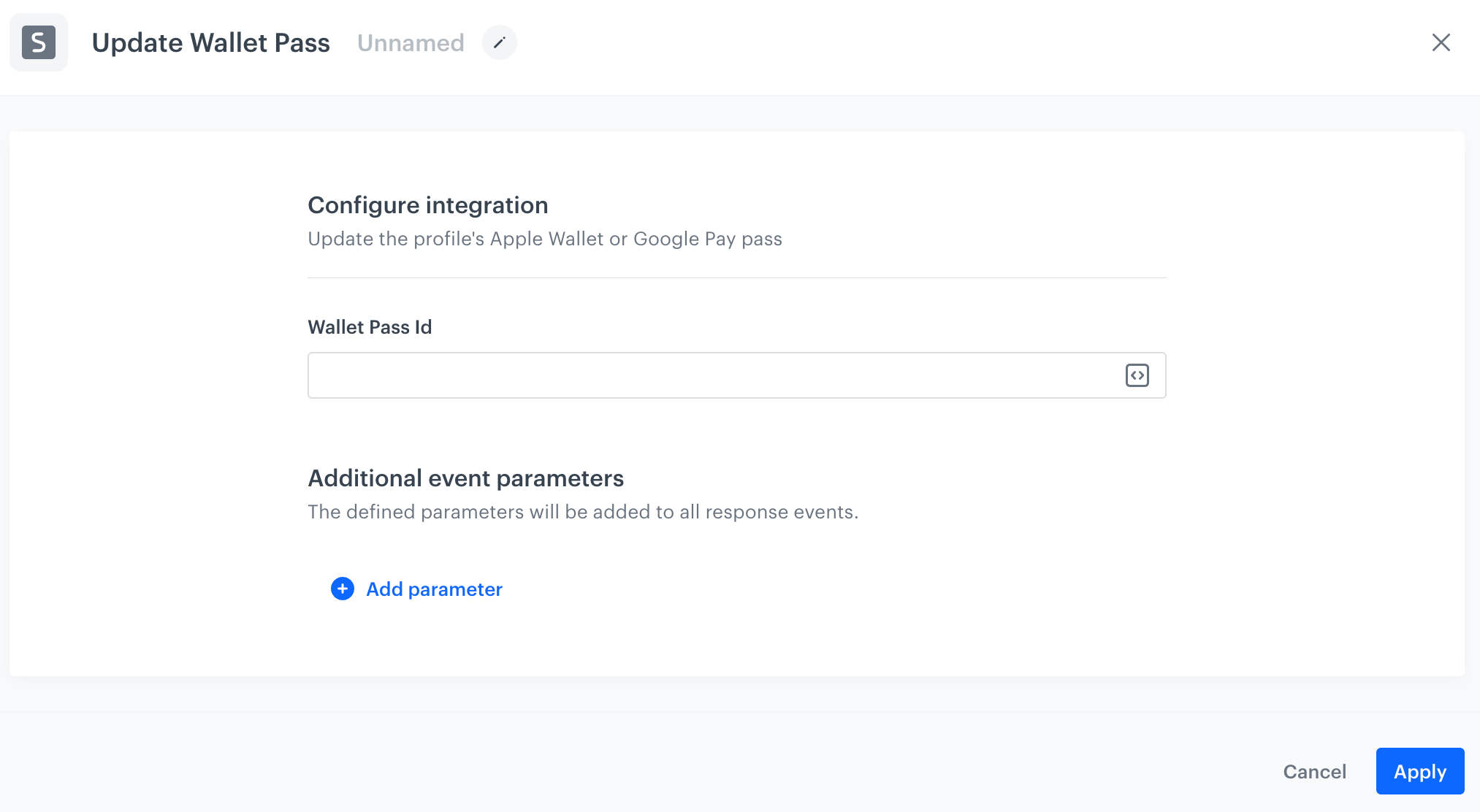
    <figure><img src="/api/docs/image/ad5911f3e3e1b87d3cda4bbfa051e6606d9bbc87/docs/automation/_gfx/update-wallet-pass-node.png" class="large" alt="A blank Update Wallet Pass node configuration"><figcaption>A blank Update Wallet Pass node configuration</figcaption></figure>  
2. In the **Wallet pass ID** field, enter the ID of the wallet pass you want to update. To find it, open the wallet pass for editing - the ID appears in the URL.
3. Confirm by clicking **Apply**.

## Example of use
---
You can use this node to keep a wallet pass showing a dynamic value, such as a points balance, in sync with its actual, current value.

1. Start the workflow with a profile event trigger that indicates the underlying data has changed, for example an event that recalculates the customer's points balance.
2. Add the **Update Wallet Pass** node.  
    In the configuration of the node, in the **Wallet pass ID** field, enter the ID of the wallet pass to update.
3. Add the **End** node.  
    **Result**: The pass's dynamic fields are re-evaluated. Customers who installed the pass on an iOS device and whose points balance actually changed receive a notification that their card was updated.
