# Metric Filter node
This condition allows splitting paths of a scenario in two. The result of the metric decides which path is continued.
## Requirements
---
- You must implement a tracking code into your website.
- You must create a [metric](/docs/analytics/metrics) to be used in the automation process.
## Configuration
---
1. Click the pencil icon.
**Result**: A pop-up opens.
2. From the **Define condition** dropdown, select the metric or create a new one.
Read more about creating [metrics](/docs/analytics/metrics).
3. Select a mathematical symbol.
4. In the next field, enter the value of the metric.
5. If the condition met, the `matched` path is continued. If not, then the `not matched` path is selected.
6. If If you want to monitor the entries into this step, switch the **Track datapoints** toggle on. As a result, events related to the movement between nodes (`automation.clientPathStep`) will be available in Decision Hub to use. These events (`automation.clientPathStep`, `automation.clientEndStep`, `automation.startPath`) are displayed on the activity list on the profile card regardless of the configuration of this option.
7. Confirm by clicking **Apply**.
## Example of use
---
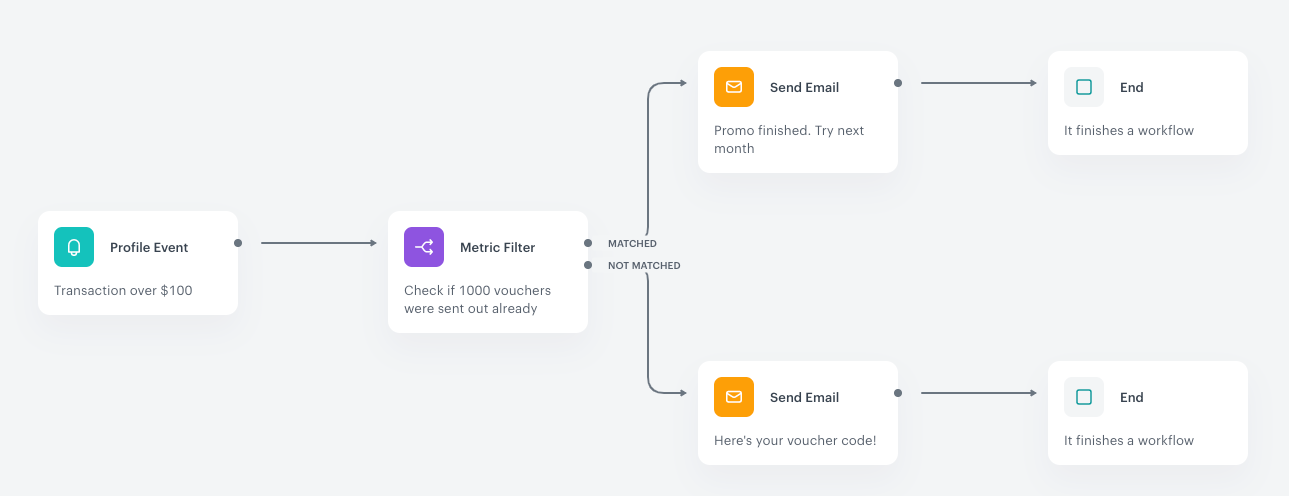
Example of an automation process that uses the Metric Filter condition
You can have a look at the [use case](/use-cases/ab-test-mailing) that involves a workflow that includes Metric Filter node.
1. It starts with a **Profile Event** trigger node. In the trigger settings, a transaction amount is defined at over 100$.
2. The **Metric Filter** contains a metric that counts the number of emails with a discount code. The critical value entered in the condition is 1000.
3. Then the customer proceeds to action:
1. If the value defined in the condition is not exceeded, the customer follows the path in which the email with voucher code is sent.
2. If the value defined in the condition is exceeded, the customer receives an email with information that the voucher pool just run out.
4. When an email is sent, the process is completed.