The procedure describes the creation of a workflow. 

## Requirements
---
- You must be granted user permissions which allow access to Automation Hub.
- If a workflow uses nodes that rely on customer activity on the website (for example `page.visit`, `product.buy`, and so on), you must implement a tracking code into the website.
- If the workflow uses nodes that rely on sending emails, text messages, pushes or web pushes, the respective accounts for sending these must be configured in the Synerise system.

## Basic information
---

3. [Workflow and path](/docs/automation/introduction-to-automation#workflow-and-path) are terms you can encounter in the documentation on **Automation Hub**. 
5. You can create workflows of these types:
    - [Business-oriented workflow](/docs/glossary#business-workflow) - This type of workflow in most cases is oriented at integrating Synerise with external services.
    - [Profile-oriented workflow](/docs/glossary#profile-oriented-workflow) - This type of workflow is oriented at performing direct actions towards customers.
2. A workflow is linear and it always moves in one direction.
1. A node is an element a workflow is built with. It can be a trigger that launches a workflow, a condition such as the **Profile Filter**, an action such as the **Send Email**, and so on. 
4. Action nodes are processed on the basis of a fire and forget method. It means that in a situation where the process consists of a trigger, condition, action (for example, Send Email), and a finalizing **End** node, the workflow is finished when email sending is launched. The completion of the workflow isn't conditioned upon the completion of sending emails.
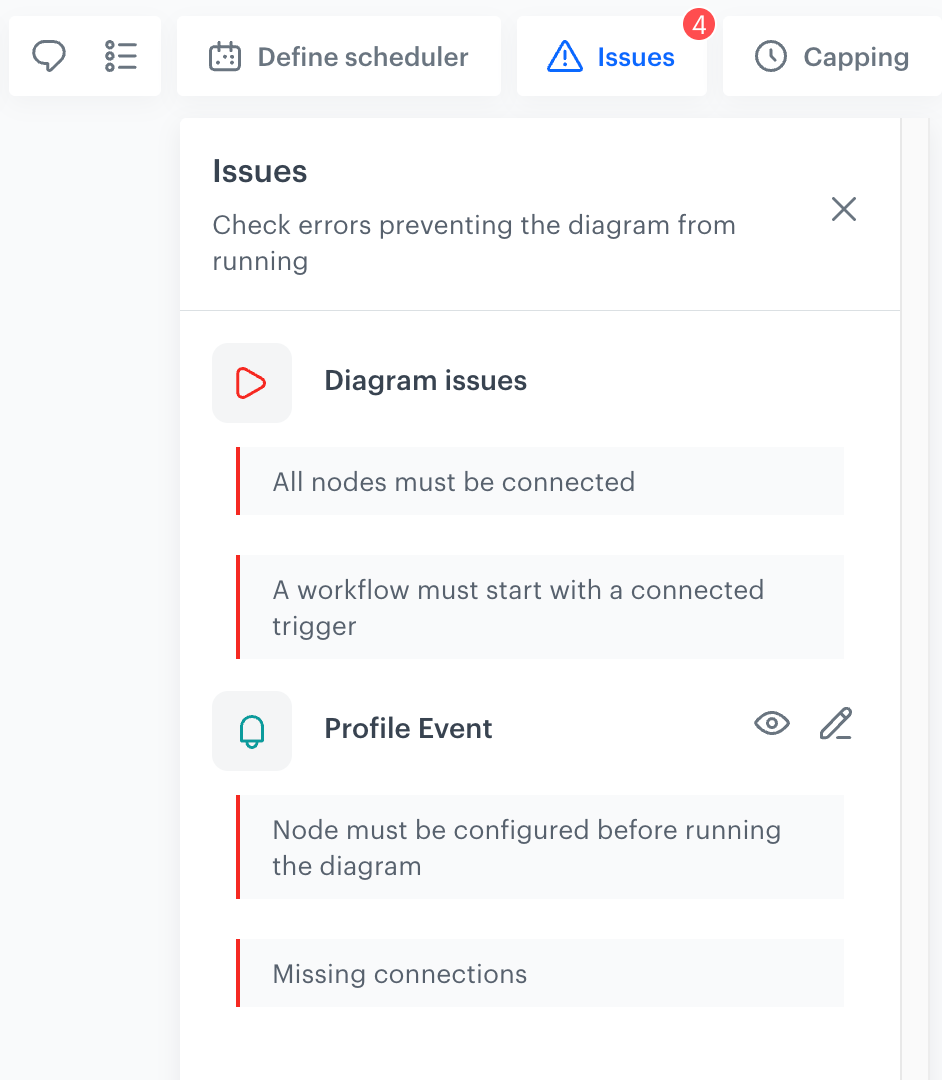
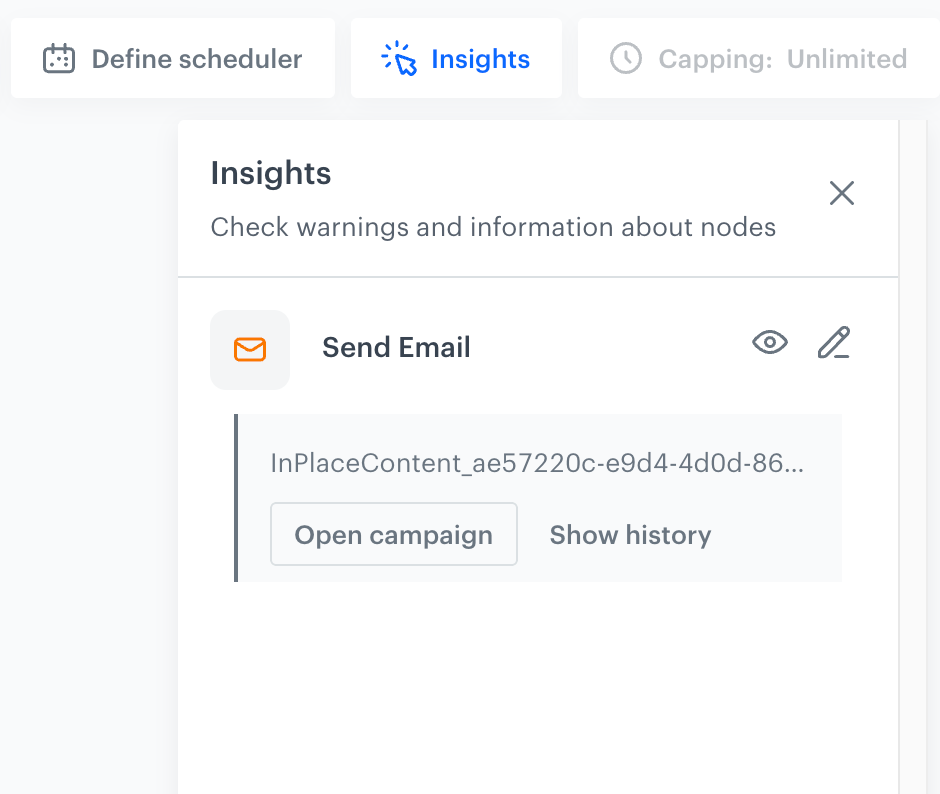
5. While creating a workflow, you can follow the hints in the **Issues** and **Insights** tabs which will help you through the process of creating a workflow:
    - **Issues** - This tab presents all issues that need to be addressed in order to activate the workflow, for example, missing connections between nodes, missing title to the workflow, and so on.  
    <figure><img src="/api/docs/image/54176ad07f146575310749eba44b7c2f42c1b327/docs/automation/_gfx/issues.png" class="medium" alt="The Issues tab"><figcaption>The Issues tab</figcaption></figure>  

    - **Insights** - This tab presents collective information about communication (messages) that have been concluded upon workflow launch. It also contains suggestions on actions you may want to take, such as updating message templates used in a workflow to the latest version. 
        <figure><img src="/api/docs/image/54176ad07f146575310749eba44b7c2f42c1b327/docs/automation/_gfx/insights.png" class="medium" alt="The Insights tab"><figcaption>The Insights tab</figcaption></figure> 
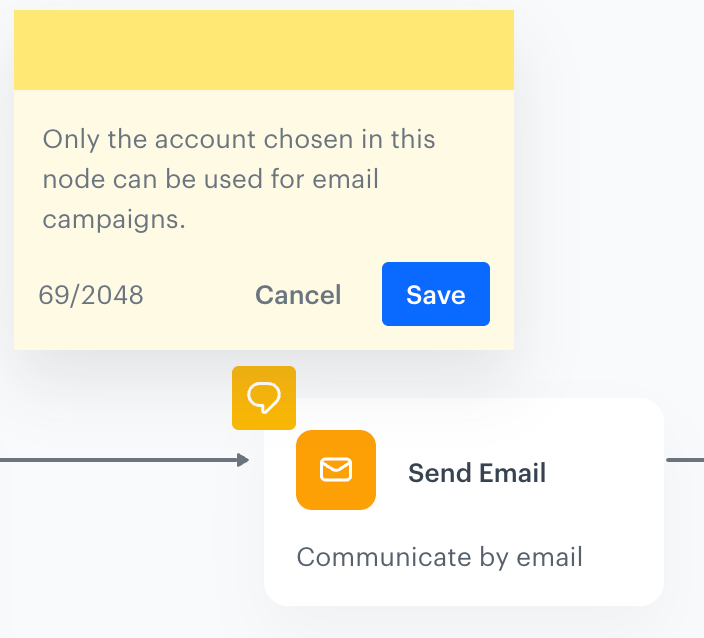
6. You can [add notes to nodes](#adding-notes) in a workflow to inform other users about the purpose and assumptions of the node.  
    <figure><img src="/api/docs/image/54176ad07f146575310749eba44b7c2f42c1b327/docs/automation/_gfx/example-note.png" class="small" alt="Example note added to the Send Email node"><figcaption>Example note added to the Send Email node</figcaption></figure>

5. You can [preview node statistics](/docs/automation/automation-activity-tracking) for activated workflows.
6. You can use workflow [limits](/docs/automation/automation-capping) that let you restrict the number of repetitions in the context of a particular workflow and nodes used in a workflow, as well as ignore the global limit of messages.
    

   <div class="admonition admonition-important"><div class="admonition-icon"><svg xmlns="http://www.w3.org/2000/svg" fill="none" viewBox="0 0 24 24" stroke="currentColor" stroke-width="2.5"><path stroke-linecap="round" stroke-linejoin="round" d="M12 8v4m0 4h.01M21 12a9 9 0 11-18 0 9 9 0 0118 0z" /></svg></div><div class="admonition-body"><div class="admonition-content">

   Segmentation, expression, and aggregate definitions are cached for 20 minutes after a node with the analysis is activated in a journey.<br>
   When another journey in the Automation Hub requests a result of the same analysis in that period, the cached definition is used to calculate the results. This means that if you edit a segmentation, aggregate, or expression used in a workflow, it takes 20 minutes for the new version to start being used in journeys.<br>
   This includes definitions of segmentations, expressions, and aggregates nested in other analyses and used in Inserts.

   </div></div></div>


## Creating a standard workflow
---

1. Go to <img src="/api/docs/image/54176ad07f146575310749eba44b7c2f42c1b327/icons/automation-hub-icon.svg" alt="Automation Hub icon" class="icon" > **Automation Hub > Workflows > New workflow**.  
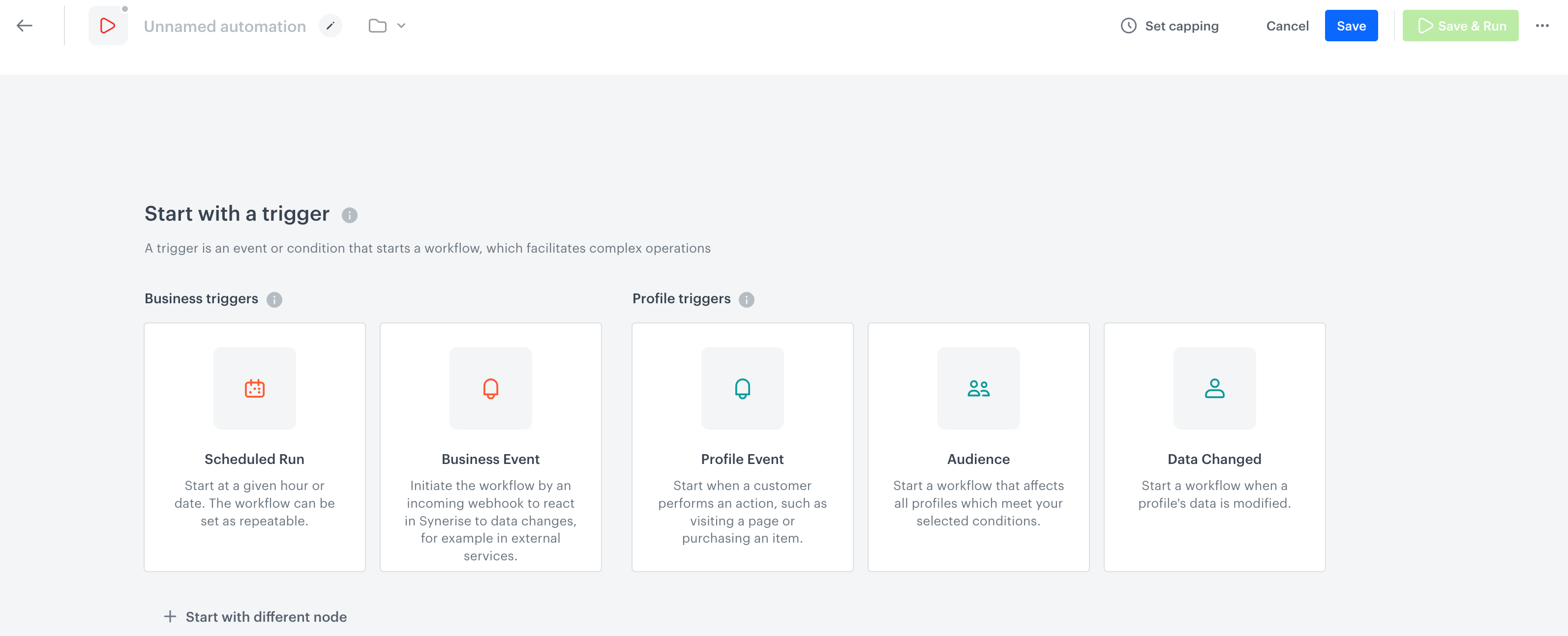
    **Result**: A canvas opens:
    <figure><img src="/api/docs/image/54176ad07f146575310749eba44b7c2f42c1b327/docs/automation/_gfx/workflow-start-view.png" class="large" alt="Start view"><figcaption>Start view</figcaption></figure>
2. From the canvas, select a node that will trigger a workflow.      
    **Result**: The chosen node appears on the automation process dashboard.
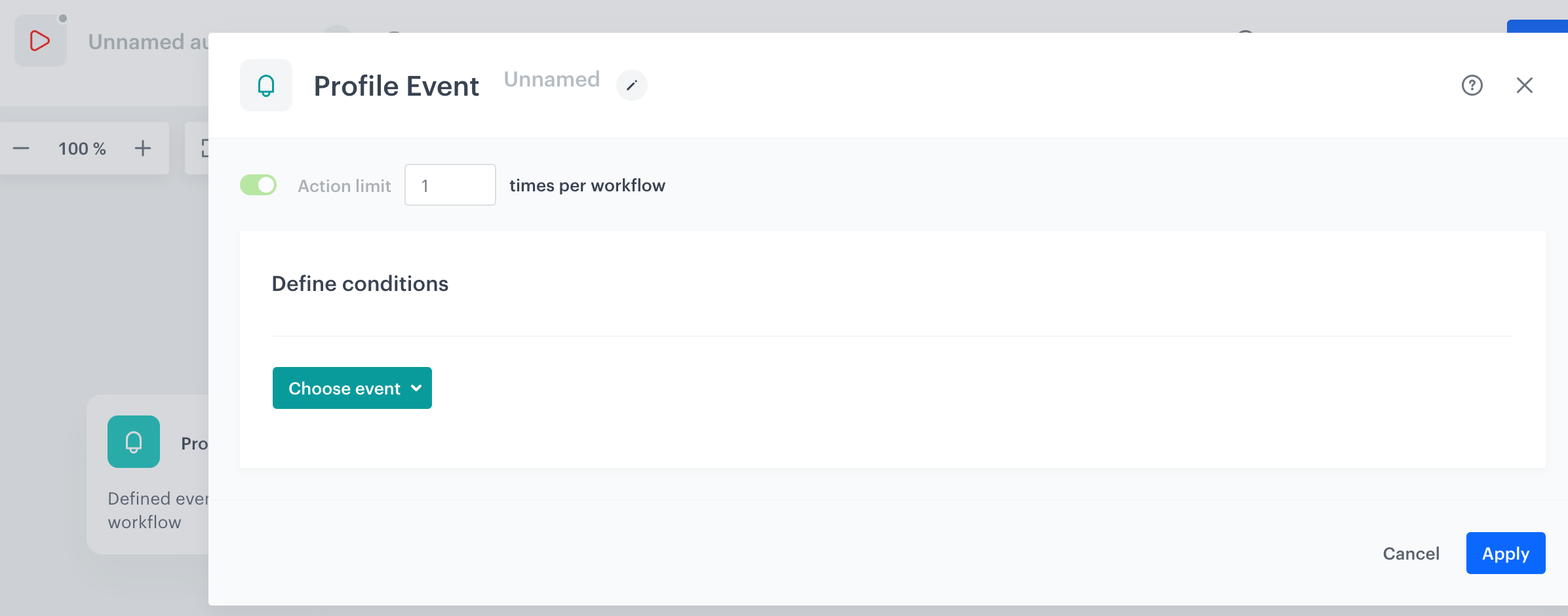
4. To edit the settings of the node, click the node.
    **Result**: A pop-up is shown.  
    <figure><img src="/api/docs/image/54176ad07f146575310749eba44b7c2f42c1b327/docs/automation/_gfx/profile-event-config-form.png" class="large" alt="Configuration of the Profile Event node"><figcaption>Configuration of the Profile Event node</figcaption></figure>
5. On the pop-up, define the settings of the trigger. 
6. To inform other users about the purpose of the node, you can write a short description. In the header of the pop-up, click the pencil icon and enter the text.
7. Confirm the settings by clicking **Apply**.
8. To select the further elements of the workflow, click the **THEN** button on the trigger node. You have three types of nodes to choose from:
    - [Flow](/docs/automation/flow-control) - Settings that concern the connections between the nodes.
    - [Conditions](/docs/automation/conditions) - Nodes in the workflow that allow you to narrow the group of customers the workflow is directed to. 
    - [Actions](/docs/automation/actions) - Nodes which define the kind of action to be executed as a response to the fulfilled conditions.
    - [Integrations](/docs/automation/integration) - Nodes which let you integrate with external systems.
9. When you choose the next node, adjust its settings by clicking the node on the canvas.
10. Place at least one **End** node in the workflow. Otherwise, you won't be able to save it. 
11. You can define an automatic change or changes of the workflow status by clicking **Define schedule**. This option lets you create schedule rules according to which the workflow changes status at a given date and time.
    You can find the detailed instructions in the [Workflow scheduler](/docs/automation/workflow-scheduler) article.
11. Define a limit on the number of workflows that a customer can launch/that can be launched within a specific time range, by clicking **Set capping** in the upper-right corner.
    1. In the **Limit** field, enter the number of times the automation process can be triggered.
    2. In the **Time** field, enter the number.
    3. From the dropdown list, select the time unit. 
    4. Confirm the settings by clicking **Apply**.

## Saving the workflow

You can:
- save a workflow as a draft, which lets you save your progress without running the workflow.
- save and activate the workflow immediately.
 
The process of saving and activating the workflow depends on application of [scheduler rules](/docs/automation/workflow-scheduler) in it.

### Save as draft

If you want to save your progress without activating the workflow, follow the instructions in this section.  

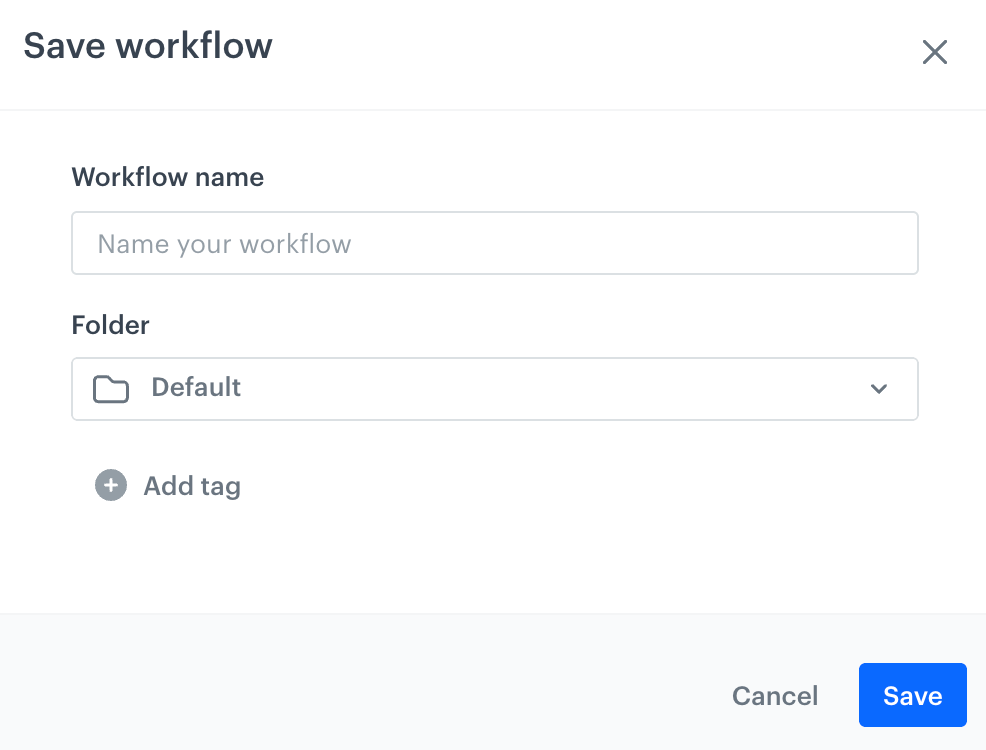
<figure><img src="/api/docs/image/54176ad07f146575310749eba44b7c2f42c1b327/docs/automation/_gfx/save-as-draft.png" class="medium" alt="The pop-up which appears after clicking the Save button in the workflow"><figcaption>The pop-up which appears after clicking the Save button in the workflow</figcaption></figure>

1. In the upper-right corner, click **Save**.  
    **Result**: A pop-up appears. This pop-up appears while saving a draft for the first time.   
1. In **Workflow name**, provide the name of the workflow.  
2. From the **Folder** list, you can select the folder in which the workflow will be saved.  
    Saving workflows in folders lets you quickly find and efficiently manage them.  
3. Optionally, you can add tags to workflows by clicking **Add tag**.
    Tags are a method of organizing and managing your workflows. By assigning relevant tags from the predefined automations folder, you can keep your workflows structured and easy to navigate.

4. From the dropdown list, select the tags you want to assign to the workflow.  
    The list contains only tags from [the `automation` tag folder](/docs/automation/tagging-workflows#creating-automation-tags).
5. Confirm the settings by clicking **Save**. 

### Save and run

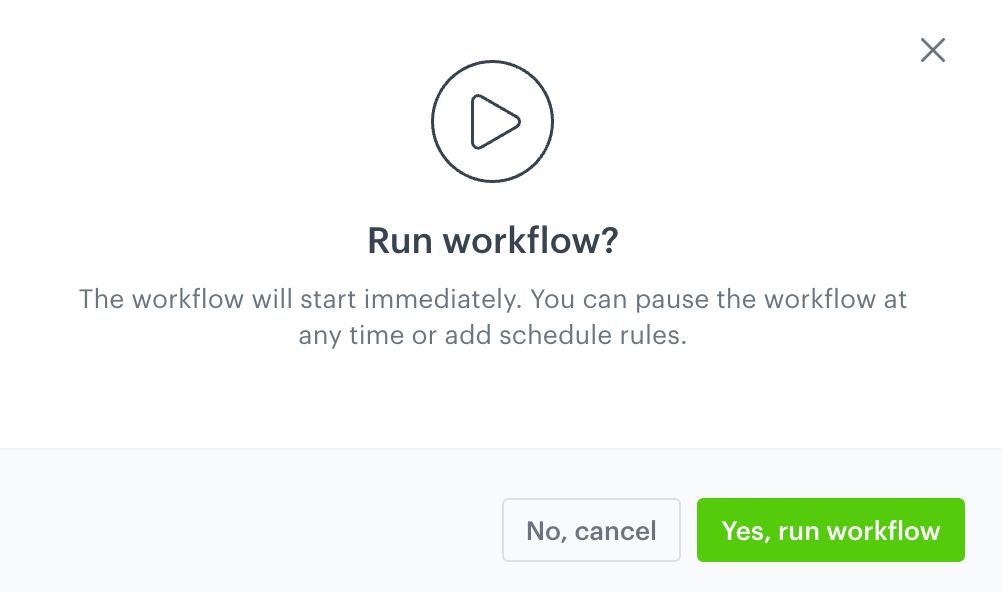
To save and activate the workflow, in the upper-right corner, click **Save & Run**.  
    **Result**: A pop-up appears.

#### Without scheduler rules

<figure><img src="/api/docs/image/54176ad07f146575310749eba44b7c2f42c1b327/docs/automation/_gfx/save-and-run-no-rules.png" class="medium" alt="A confirmation pop-up"><figcaption>A confirmation pop-up</figcaption></figure>

Confirm by clicking **Yes, run workflow**.  

#### With scheduler rules

<figure><img src="/api/docs/image/54176ad07f146575310749eba44b7c2f42c1b327/docs/automation/_gfx/activate-workflow-schedule-rules.png" class="medium" alt="A pop-up with activate options"><figcaption>A pop-up that appears after clicking Save & Run for a workflow with schedule rules</figcaption></figure> 

| Option                                  | When selected                                                                                                                                                                                                                                  |
|-----------------------------------------|----------------------------------------------------------------------------------------------------------------------------------------------------------------------------------------------------------------------------------------------|
| **Run workflow immediately**             | Ignores schedule rules and runs the workflow immediately. Schedule rules are disabled, and any status changes must be done manually.                                                                                                          |
| **Activate schedule rules**               | Runs the workflow according to the schedule rules. The workflow stays in Pending status until the scheduled activation date, then proceeds based on the schedule rules.                                                                      |
| **Run workflow immediately** and **Activate schedule rules** | Runs the workflow immediately and applies schedule rules. The workflow is immediately set to Active status, schedule rules are enforced, but if the first rule is activation, it is ignored since the workflow is already active. |


Confirm by clicking **Yes, run workflow**.


## Workflow status

The status of the workflow changes to **Stopped** when (applies only to workflows triggered by **Audience**):
- it's been 62 days from the latest execution of the trigger, 
- it is a one-off workflow and it is completed,
- the limit of repetitions in the trigger settings runs out  

In the audit log, this change of the workflow status will be marked as a change done by `internal user`.


<div class="admonition admonition-warning"><div class="admonition-icon"><svg xmlns="http://www.w3.org/2000/svg" fill="none" viewBox="0 0 24 24" stroke="currentColor" stroke-width="2.5"><path stroke-linecap="round" stroke-linejoin="round" d="M12 9v2m0 4h.01m-6.938 4h13.856c1.54 0 2.502-1.667 1.732-2.5L13.732 4c-.77-.833-1.964-.833-2.732 0L4.082 16.5c-.77.833.192 2.5 1.732 2.5z" /></svg></div><div class="admonition-body"><div class="admonition-content">

Activating a paused or stopped automation that starts with the Audience trigger results in restarting the automation for all customers (also those who completed the automation before pausing or stopping it).

</div></div></div>


<div class="admonition admonition-important"><div class="admonition-icon"><svg xmlns="http://www.w3.org/2000/svg" fill="none" viewBox="0 0 24 24" stroke="currentColor" stroke-width="2.5"><path stroke-linecap="round" stroke-linejoin="round" d="M12 8v4m0 4h.01M21 12a9 9 0 11-18 0 9 9 0 0118 0z" /></svg></div><div class="admonition-body"><div class="admonition-content">

If your automation includes any communication nodes (send email/SMS/mobile push/webpush), a communication is created for each node. The communication is named after the template that was used and the author is `Automation`. The UUID of the communication is available in the details of the node.  
**DO NOT** remove communications created for nodes. Removing such a communication breaks the node.

</div></div></div>


Each status allows certain scope of actions. The scope of actions:

| Action: | &nbsp;Edit&nbsp; | Activate | Pause | Stop |
|---------|:------:|:----------:|:-------:|:------:|
| Draft   |  <img src="/api/docs/image/54176ad07f146575310749eba44b7c2f42c1b327/icons/check-s.svg" class="icon" alt="Green checkmark">    |    <img src="/api/docs/image/54176ad07f146575310749eba44b7c2f42c1b327/icons/check-s.svg" class="icon" alt="Green checkmark">      |  <img src="/api/docs/image/54176ad07f146575310749eba44b7c2f42c1b327/icons/close-s.svg" class="icon" alt= "Red checkmark">     |  <img src="/api/docs/image/54176ad07f146575310749eba44b7c2f42c1b327/icons/close-s.svg" class="icon" alt= "Red checkmark">    |
| Pending | <img src="/api/docs/image/54176ad07f146575310749eba44b7c2f42c1b327/icons/check-s.svg" class="icon" alt="Green checkmark">* |   <img src="/api/docs/image/54176ad07f146575310749eba44b7c2f42c1b327/icons/check-s.svg" class="icon" alt="Green checkmark">       |   <img src="/api/docs/image/54176ad07f146575310749eba44b7c2f42c1b327/icons/close-s.svg" class="icon" alt= "Red checkmark">    |   <img src="/api/docs/image/54176ad07f146575310749eba44b7c2f42c1b327/icons/check-s.svg" class="icon" alt="Green checkmark">   |
| Active | <img src="/api/docs/image/54176ad07f146575310749eba44b7c2f42c1b327/icons/check-s.svg" class="icon" alt="Green checkmark">* |   <img src="/api/docs/image/54176ad07f146575310749eba44b7c2f42c1b327/icons/close-s.svg" class="icon" alt= "Red checkmark">       |   <img src="/api/docs/image/54176ad07f146575310749eba44b7c2f42c1b327/icons/check-s.svg" class="icon" alt="Green checkmark">    |   <img src="/api/docs/image/54176ad07f146575310749eba44b7c2f42c1b327/icons/check-s.svg" class="icon" alt="Green checkmark">   |
| Paused  |  <img src="/api/docs/image/54176ad07f146575310749eba44b7c2f42c1b327/icons/check-s.svg" class="icon" alt="Green checkmark">*    |    <img src="/api/docs/image/54176ad07f146575310749eba44b7c2f42c1b327/icons/check-s.svg" class="icon" alt="Green checkmark">      |  <img src="/api/docs/image/54176ad07f146575310749eba44b7c2f42c1b327/icons/close-s.svg" class="icon" alt= "Red checkmark">     |  <img src="/api/docs/image/54176ad07f146575310749eba44b7c2f42c1b327/icons/check-s.svg" class="icon" alt= "Green checkmark">    |
| Stopped |   <img src="/api/docs/image/54176ad07f146575310749eba44b7c2f42c1b327/icons/close-s.svg" class="icon" alt="Red checkmark">   |    <img src="/api/docs/image/54176ad07f146575310749eba44b7c2f42c1b327/icons/close-s.svg" class="icon" alt= "Red checkmark">      |  <img src="/api/docs/image/54176ad07f146575310749eba44b7c2f42c1b327/icons/close-s.svg" class="icon" alt= "Red checkmark">     |  <img src="/api/docs/image/54176ad07f146575310749eba44b7c2f42c1b327/icons/close-s.svg" class="icon" alt= "Red checkmark">    |

*The editing option allows changing the settings in the nodes only. You won't be able to add new nodes to the diagram. 

## Adding notes
---

As workflows grow, understanding decisions becomes harder especially for teams and future maintainers. Adding notes directly to nodes or placing them freely on the canvas helps capture important context like intent and assumptions where it’s needed most. This improves clarity, speeds up onboarding, enhances collaboration, and reduces knowledge loss by keeping critical information embedded within the workflow. Notes can also be updated as the workflow changes, keeping everything clear and up-to-date. 

### Requirements and restrictions

- Make sure your role is assigned with permissions that allow adding notes to workflow. These permissions are included within the set required for creating and editing workflows. See permission reference for [creating and editing workflows](/docs/settings/identity-access-management/permissions/automation-permissions#create-and-edit-workflows).
- To add notes, a workflow must be at least saved as a draft.
- A note can be 2048 characters long.
- You can only add one note per node. Notes added directly to the canvas are not tied to any node and can be placed freely.

### Adding notes

Notes can be added to nodes or placed directly on the canvas. There are multiple ways of adding notes:
- adding notes one by one to nodes:
    - using [the node's context menu](#node-context-menu):
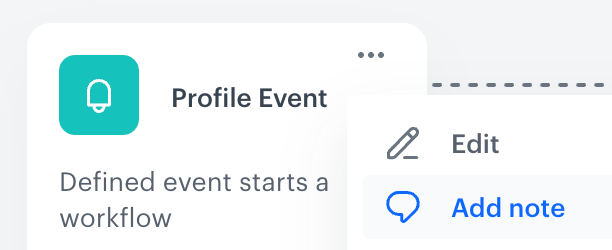
        <figure><img src="/api/docs/image/54176ad07f146575310749eba44b7c2f42c1b327/docs/automation/_gfx/add-note-node-context-menu.png" class="small" alt="Adding note from the node context menu"><figcaption>Adding note from the node context menu</figcaption></figure>
    - in the [settings of the node](#node-settings): 
        <figure><img src="/api/docs/image/54176ad07f146575310749eba44b7c2f42c1b327/docs/automation/_gfx/add-note-node-settings.png" class="medium" alt="Adding note from the node context menu"><figcaption>Adding note from the node context menu</figcaption></figure>
- [batch adding notes](#batch-add-notes) 
    <figure><img src="/api/docs/image/54176ad07f146575310749eba44b7c2f42c1b327/docs/automation/_gfx/add-notes.png" class="small" alt="Add notes icon"><figcaption>Add notes icon</figcaption></figure> 


#### Node context menu

1. Hover the cursor over the node to which you want to add a note.  
2. Click <img src="/api/docs/image/54176ad07f146575310749eba44b7c2f42c1b327/icons/threedoticon.png" alt="Three-dot icon" class="icon">
3. From the dropdown list, select **Add note**.  
4. In the text field, enter the text of the note.  
    **Result**:  
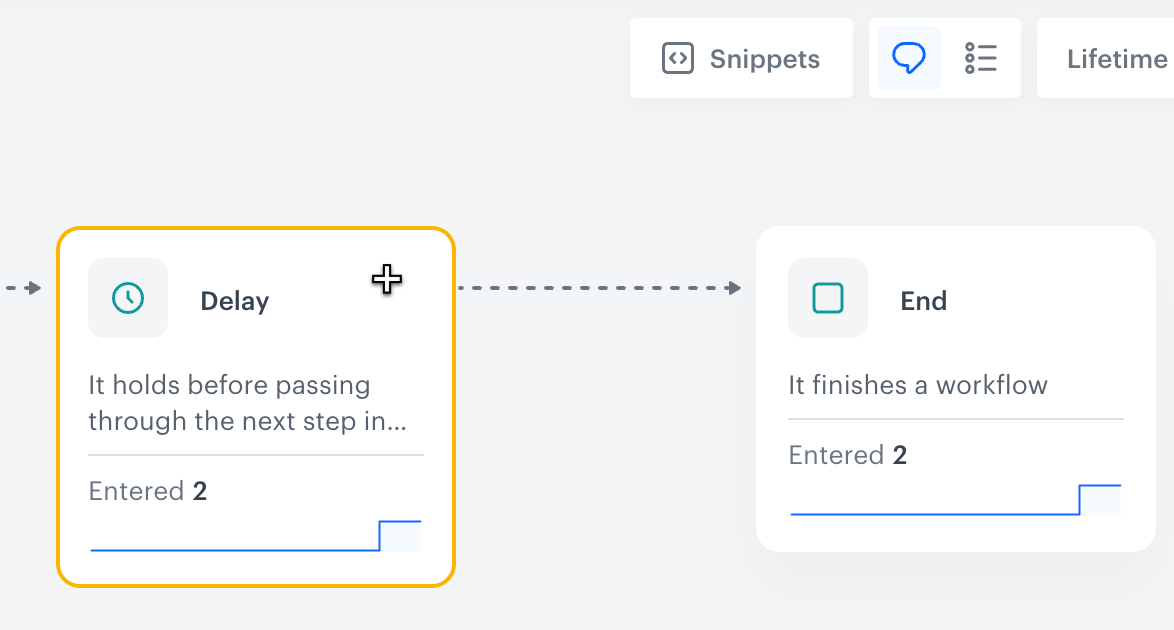
    <figure><img src="/api/docs/image/54176ad07f146575310749eba44b7c2f42c1b327/docs/automation/_gfx/example-note.png" class="small" alt="Example note added to the Send Email node"><figcaption>Example note added to the Send Email node</figcaption></figure>
5. Confirm by clicking **Save**.  

##### Node settings

1. Go to the settings of the node.  
2. In the upper-right corner of the pop-up, click **Add note**.  
3. In the text field, enter the text of the node. 
4. Confirm by clicking **Save**.  

#### Batch add notes

You can add multiple notes consecutively, which is useful when you want to describe existing workflows in detail or add several notes at once.

1. On the canvas, click the note list icon.  
    **Result**: A sidebar appears, and the mouse cursor changes to a plus shape.
2. Hover the cursor over the node to which you want to add the note or anywhere on the canvas.  
    <figure><img src="/api/docs/image/54176ad07f146575310749eba44b7c2f42c1b327/docs/automation/_gfx/batch-add-notes.png" class="medium" alt="Adding a note to a node"><figcaption>Adding a note to a node</figcaption></figure> 
3. Click the mouse button.  
    **Result**: A text field appears.  
4. In the text field, enter the text of the note.  
5. Click **Save**.  
6. Repeat steps 2-5 if needed.
7. To leave batch add mode, on your keyboard, press the `Esc` key on your keyboard.

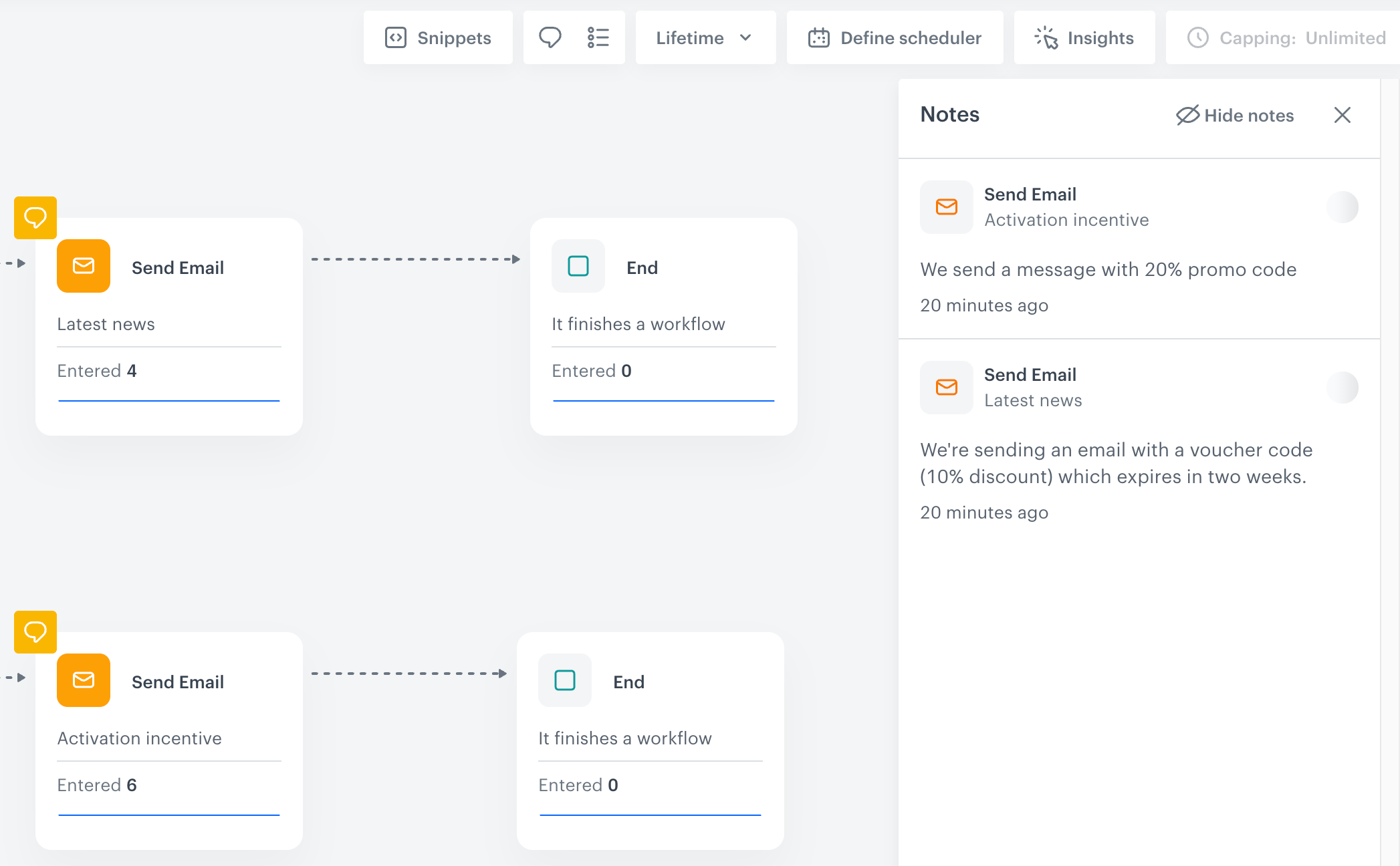
### Workflow notes overview

You can view all notes added to the workflow in the Notes Collector available on the workflow canvas. 

To display a list of notes, on the canvas, click the note list icon: 

<figure><img src="/api/docs/image/54176ad07f146575310749eba44b7c2f42c1b327/docs/automation/_gfx/note-list.png" class="small" alt="Note list icon"><figcaption>Note list icon</figcaption></figure> 

**Result**: 

<figure><img src="/api/docs/image/54176ad07f146575310749eba44b7c2f42c1b327/docs/automation/_gfx/notes-overview.png" class="medium" alt="Overview of all notes added within a workflow"><figcaption>Overview of all notes added within a workflow</figcaption></figure> 

## Keyboard shortcuts and bulk operations on nodes
---
Batch operations on nodes allow you to efficiently manage multiple elements on the canvas.

| Action                   | Keyboard shortcut     | Description                                                                                                          |
|--------------------------|-----------------------|----------------------------------------------------------------------------------------------------------------------|
| Selecting multiple nodes | Hold shift and select | To select several nodes, hold Shift while clicking individual nodes or drag a selection box across the desired area. |
| Copying selected nodes   | Cmd+C / Ctrl+C        | Copies the selected canvas elements.                                                                                 |
| Pasting the copied nodes | Cmd+V / Ctrl+V        | Pastes canvas elements from the clipboard.                                                                           |
| Deleting selected nodes  | Backspace             | Deletes the selected elements.                                                                                       |


<div class="admonition admonition-important"><div class="admonition-icon"><svg xmlns="http://www.w3.org/2000/svg" fill="none" viewBox="0 0 24 24" stroke="currentColor" stroke-width="2.5"><path stroke-linecap="round" stroke-linejoin="round" d="M12 8v4m0 4h.01M21 12a9 9 0 11-18 0 9 9 0 0118 0z" /></svg></div><div class="admonition-body"><div class="admonition-content">

Remember that the diagram’s structure can only be modified while it is in draft status.

</div></div></div>


## Tagging worfklows

You can assign [the automation tags](/docs/automation/tagging-workflows#creating-automation-tags) to workflows. 

## Workflow folders

You can save the workflows in folders which will let you better organize and manage your workflows.  

### Adding folders

To create your custom folders, follow the instructions in this section:
1. Go to **Automation Hub > Workflows**.
2. On the left pane, click **Add folder**.  
    **Result**: A text field appears under the **Add folder** button.  
3. Enter the name of the folder.  
4. Confirm the name by clicking enter.  
    **Result**: A folder appears on the list.  

### Assigning workflows to folders

You can assign workflows to folders in the following ways:  
- while [saving the workflow as draft](#save-as-draft)
- after saving the workflow, on the list of workflows, click <img src="/api/docs/image/54176ad07f146575310749eba44b7c2f42c1b327/icons/threedoticon.png" alt="Three dot icon" class="icon" > **> Move to**.  
    **Result**: A pop-up appears.  
    From the dropdown list, select the folder name and to confirm the action, click **Apply**.