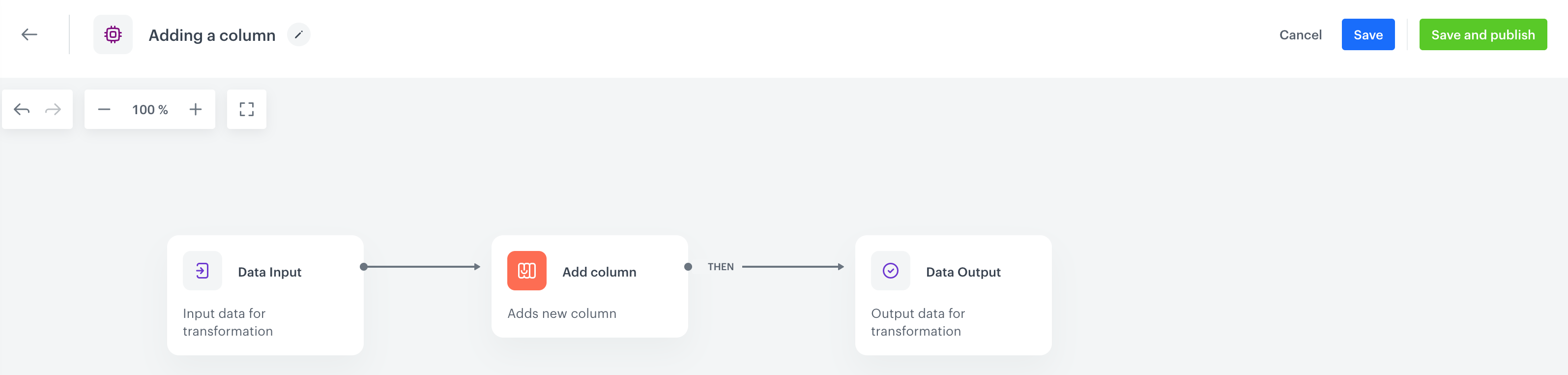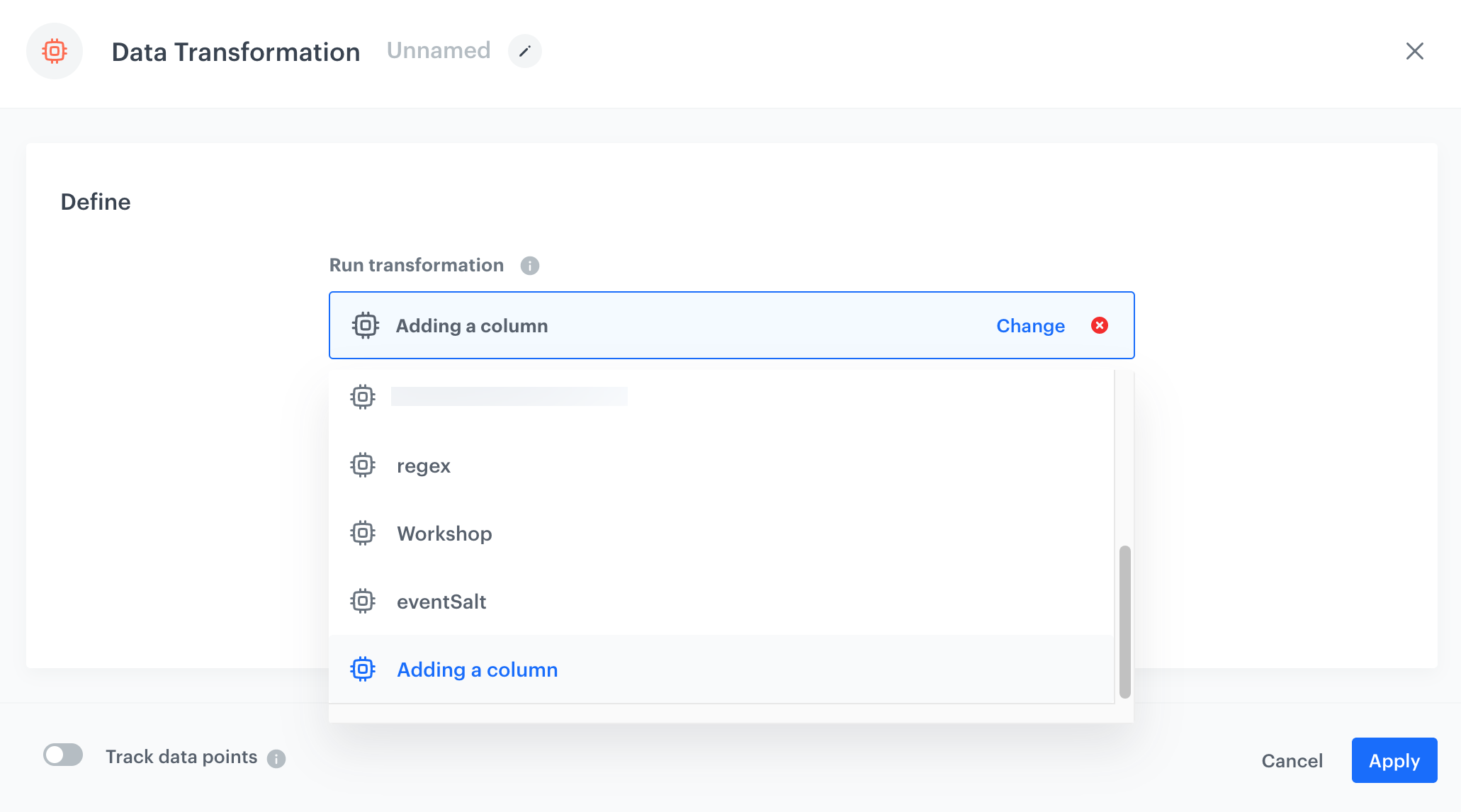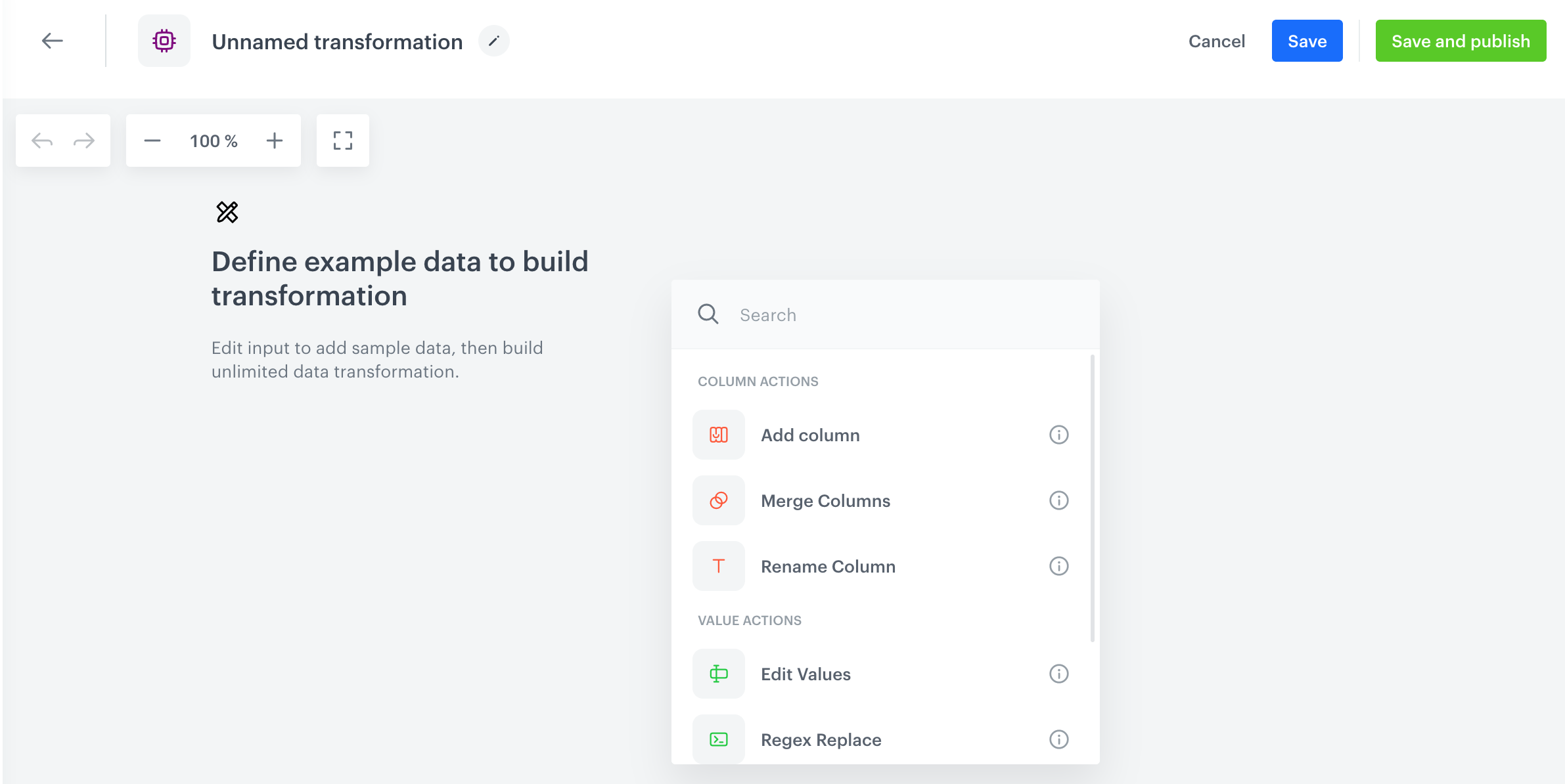
 **Automation Hub > Transformations > Create transformation**.
2. Enter the name of the transformation.
## Select a goal
---
Before you proceed with selecting sample data and defining transformation rules, optionally you can [select a goal](/docs/automation/data-transformation-and-imports/creating-data-transformation#select-a-goal) to help you structure the data. Your goal may be to an import of transactions, events, or profiles into Synerise (called **standard goals**). When you select one of the standard goals, you will see a list of columns with their names which are required as the output of the selected transformation. The system will automatically check which columns you included and inform you if some are missing.
If you want to create a transformation diagram without a specific goal and you know the structure of the output data, skip this step.
1. On the dashboard, on the upper right corner, click **Add goal**.
2. On the left pane, select a goal:
- **Import profiles**
- **Import transactions**
- **Import vouchers**
- **Import events**
- **Import promotions**
3. On the right pane, expand the list of required columns the output data must contain.
3. Click **Apply**.
## Create a rule diagram
---
1. Upload a file with the sample data.
We recommend selecting a file that contains a sample of data you use.
**Automation Hub > Transformations > Create transformation**.
2. Enter the name of the transformation.
## Select a goal
---
Before you proceed with selecting sample data and defining transformation rules, optionally you can [select a goal](/docs/automation/data-transformation-and-imports/creating-data-transformation#select-a-goal) to help you structure the data. Your goal may be to an import of transactions, events, or profiles into Synerise (called **standard goals**). When you select one of the standard goals, you will see a list of columns with their names which are required as the output of the selected transformation. The system will automatically check which columns you included and inform you if some are missing.
If you want to create a transformation diagram without a specific goal and you know the structure of the output data, skip this step.
1. On the dashboard, on the upper right corner, click **Add goal**.
2. On the left pane, select a goal:
- **Import profiles**
- **Import transactions**
- **Import vouchers**
- **Import events**
- **Import promotions**
3. On the right pane, expand the list of required columns the output data must contain.
3. Click **Apply**.
## Create a rule diagram
---
1. Upload a file with the sample data.
We recommend selecting a file that contains a sample of data you use.