The **Data Input** node is the first node to be used while building a transformation. In the configuration of the node, you upload a sample file that imitates a structure of the source file (it can be a fragment of the real file or the whole file unless it contains 500 lines). Then, you can continue building a transformation with other nodes that let you add, merge, and rename columns, edit values in the rows, and so on. The transformation made on this sample file will help you see the results of the transformation made on the actual file. Data from the sample file is not passed to a [workflow](/docs/automation/creating-automation) itself.

The node contains the preview of the data in the file and their presentation depends on the file type.

The preview of the transformed file is available in the [Data Output node](/docs/automation/data-transformation-and-imports/transformations-and-data-operators/data-output), which is always the closing component of the transformation workflow. 

After the transformation is saved and published, it can be used in further processes, such as imports, as a set of rules for the actual file to be transformed. 

#### File requirements
- The file can contain up to 500 rows
- Supported file formats: `.CSV`, `.XML feed`, `.JSONL`, `.JSON`

#### Example files


<details class="accordion"><summary>Customer data</summary><div class="accordion-content"><pre><code class="language-plaintext">name,surname,email_address Dwight,Addams,dwight.addams@test.com Martin,Smith,martin.smith@test.com Kurt,Doe,kurt.doe@test.com</code></pre></div></details>


<details class="accordion"><summary>Transactions</summary><div class="accordion-content"><pre><code class="language-plaintext">customId,orderId,paymentInfo,finalUnitPriceAmount,productQuantity,sku,eventTimestamp,productName,productPriceAmount 123345,448362,cash,13.35,1,642,13.02.2022,shoe1,13.35 123345,448362,cash,40,1,453,13.02.2022,shoe2,40 345678,45678990,online,13.99,1,726,13.02.2022,shoe3,13.99</code></pre></div></details>


## Node configuration
---
2. Upload the file or drag it onto the specified area on the pop-up.  
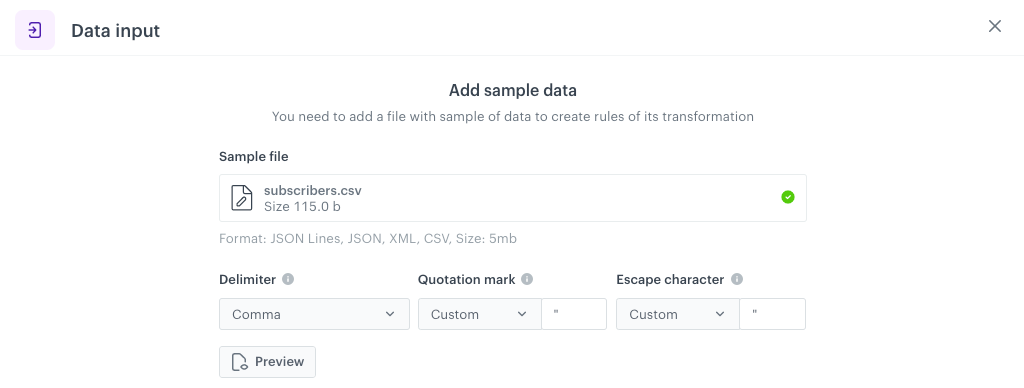
3. Verify the values **Delimiter**, **Quotation mark**, and **Escape character** fields - they describe separators in the file you uploaded. You can use the **Preview** option to see the first 10 rows of the file.
    <figure>
    <img src="/api/docs/image/54176ad07f146575310749eba44b7c2f42c1b327/docs/automation/_gfx/data-input.png" alt="Configuration of the Data Input node" class="full">
    <figcaption>Configuration of the Data Input node</figcaption>
    </figure>
4. Confirm by clicking **Generate**.  
