The **Encrypt Data** transformation lets you encrypt values in selected columns of a dataset. It enhances data security and confidentiality by encrypting sensitive information with AES-256 key using AES-GCM mode that is unreadable without the proper decryption key.
To decrypt the data, you can use the [**Decrypt data** node](/docs/automation/data-transformation-and-imports/transformations-and-data-operators/decrypt-data) or an external tool.
By using this transformation, you can safeguard your data and comply with privacy regulations while maintaining the integrity of your dataset.
## Requirements
---
- You must have a user role with the following permission: **Settings > Encryption keys > Read** - To preview list of encryption keys, preview list of encryption keys in Encrypt Data and Decrypt Data nodes in Data Transformation;
- [Add an encryption key in Synerise](/docs/settings/data-exchange-encryption)
- Your decryption tool/program must support the Synerise encryption format: `base64encode([IV] + [Encrypted Text] + [Authentication Tag])`, where `IV` is the initialization vector used to initiate the encryption algorithm and `Encrypted Text` is the result of an AES-GCM algorithm with a 256-bit secret.
## Node configuration
---
1. Click the **Encrypt Data** node.
2. Click **Add rule**.
3. Select one of the **Include** options, by clicking the icon next to **these**:
- **these** - the default; it lets you select the columns in which you want to encrypt data.
- **all except these** - this option lets you select the columns in which you do NOT want to encrypt data. Values from the other columns will be encrypted as defined in the further steps.
3. Select columns to include/exclude (according to the **Include** setting above) in one of the following ways:
- **Select column** - from the dropdown list, you can select the columns to be included or excluded from the transformation.
- **Add condition** - you can create a dynamic condition which columns must meet to encrypt their values; for this purpose, you can use logical operators such as contain, starts with, ends with, and so on.
You can't combine dynamic conditions with the **Include all except these** option.
For further instructions, select one of the tabs below, depending on the option you have chosen in step 4.
Select column option
4. From the dropdown list, select the first column whose values will be encrypted.
5. To add more columns, click icon.
5. From the **Encrypt data using** dropdown list, select the key with which the data will be encrypted.
Define condition option
1. Select one of the following logical operators to define the conditions which column name must:
- **Ends with** - for example, if you enter `a`, the operation will be performed on the columns whose names end with `a`.
- **Starts with** - for example, if you enter `pro`, then the operation will be performed on the columns whose name starts with `pro`.
- **Contain** - for example, if you enter `xyz`, the operation will be performed on the columns whose name contains `xyz`.
- **Not contain** - for example, if you enter `123`, the operation will be performed on the columns whose names doesn't contain `123`.
- **Regex** - You can perform the operation on the columns whose names match the regular expression.
5. From the **Encrypt data using** dropdown list, select the key with which the data will be encrypted.
5. To add more rules, click **Add rule** and repeat steps from 3 to 5.
5. You can check the preview of the file after changes in the **Output data** tab.
6. Confirm the settings by clicking **Apply**.
## Example of use
---
You can use the **Encrypt Data** node to encrypt a set of sensitive data. For example, you want to encrypt a column in a CSV file that contains email addresses of your customers. This example of use contains instructions how to create a transformation rule that encrypts a set of sensitive data. You can use this transformation rule in the [Data Transformation node](/docs/automation/operation/data-transformation-node) in a workflow that sends the file to an external source.
Before you proceed to creating a transformation rule that uses this node, ensure that you meet the [requirements](#requirements).
File sample used in the Data Input node
1. As the first node of the transformation rule, add **Data Input**.
2. In the settings of the node, upload a file sample which imitates the structure of the source file (the one which will be used in a workflow which sends the actual file to your external source).
3. Confirm the settings by clicking **Apply**.
3. As the next node, add **Encrypt Data**.
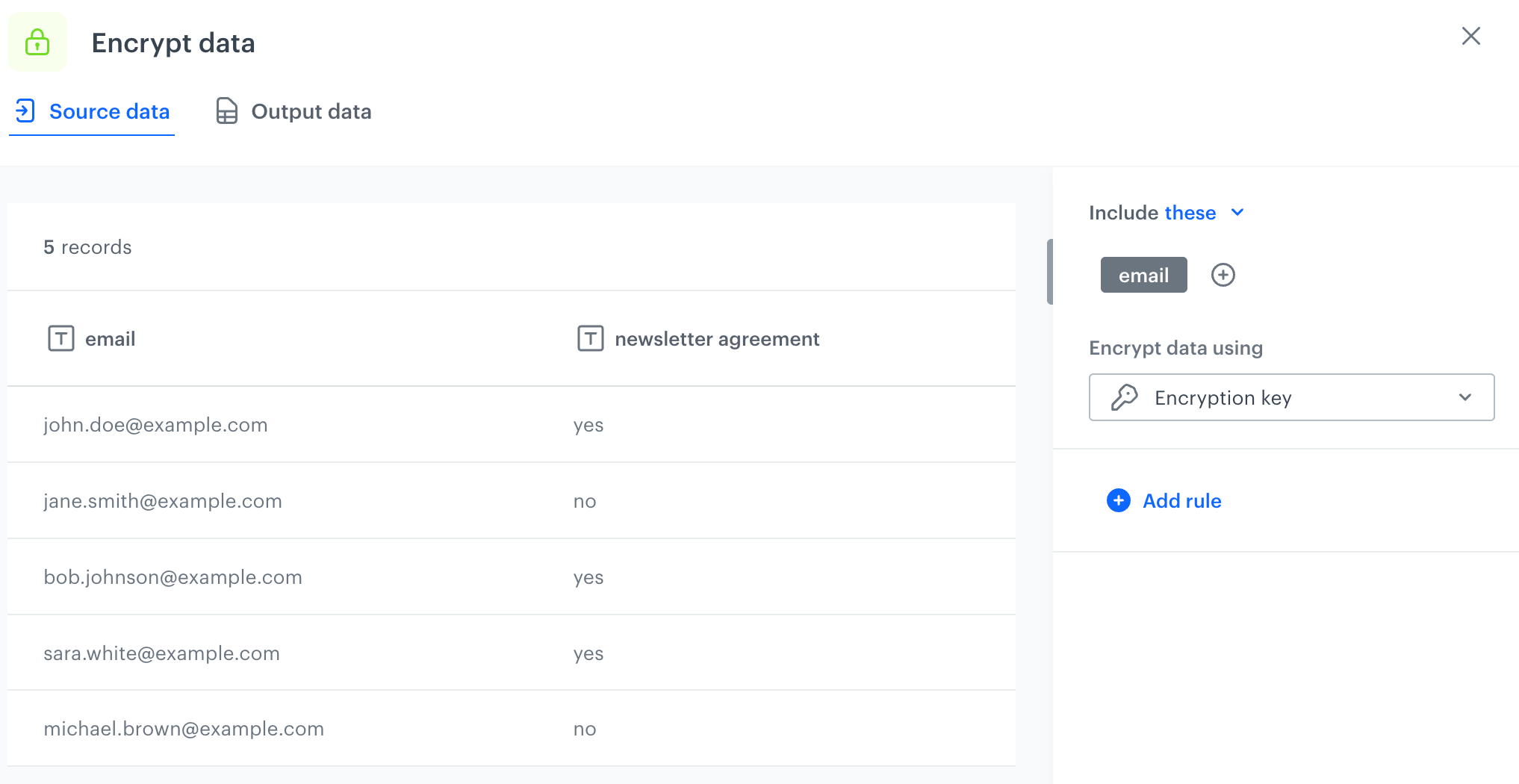
4. In the settings of the node, select the email column.
5. From the **Encrypt data using** dropdown list, select the Synerise encryption key which will be used to encrypt data in this column.
Configuration of the Encrypt Data node
6. Confirm the settings by clicking **Apply**.
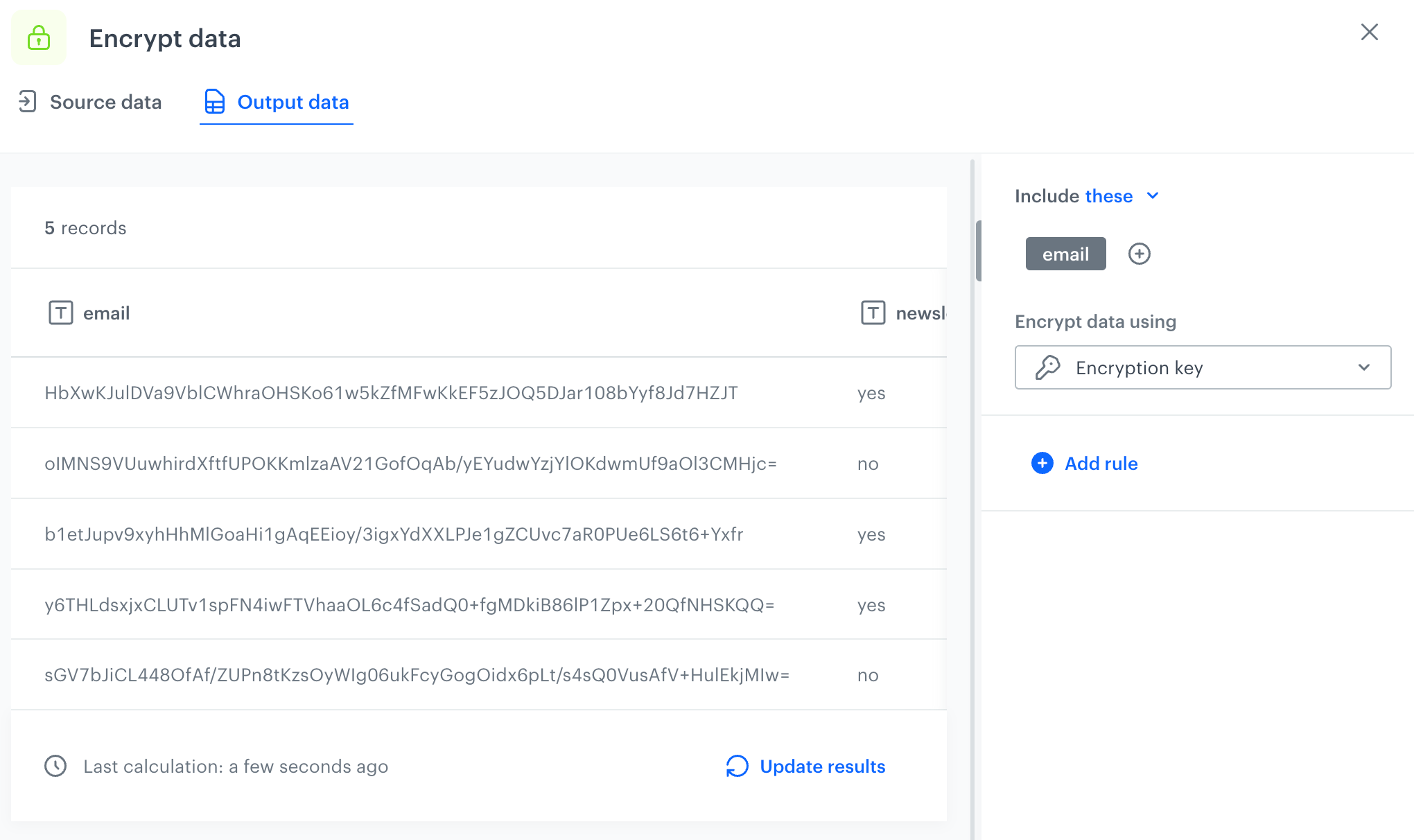
7. In the **Output data** tab in the **Encrypt Data** node, you can preview the results of the transformation in the node.
Output of the transformation performed within the Encrypt Data node
7. Add the **Output Data** node.
In the further steps, you can create a workflow that is triggered repeatedly, retrieves customers with email address assigned, encrypts email addresses with the transformation rule created in the previous steps, and sends the encrypted file with SFTP.
Example workflow that uses transformation rule in a workflow

 icon.
5. From the **Encrypt data using** dropdown list, select the key with which the data will be encrypted.
icon.
5. From the **Encrypt data using** dropdown list, select the key with which the data will be encrypted.

 icon next to **these**:
- **these** - the default; it lets you select the columns in which you want to encrypt data.
- **all except these** - this option lets you select the columns in which you do NOT want to encrypt data. Values from the other columns will be encrypted as defined in the further steps.
3. Select columns to include/exclude (according to the **Include** setting above) in one of the following ways:
- **Select column** - from the dropdown list, you can select the columns to be included or excluded from the transformation.
- **Add condition** - you can create a dynamic condition which columns must meet to encrypt their values; for this purpose, you can use logical operators such as contain, starts with, ends with, and so on.
icon next to **these**:
- **these** - the default; it lets you select the columns in which you want to encrypt data.
- **all except these** - this option lets you select the columns in which you do NOT want to encrypt data. Values from the other columns will be encrypted as defined in the further steps.
3. Select columns to include/exclude (according to the **Include** setting above) in one of the following ways:
- **Select column** - from the dropdown list, you can select the columns to be included or excluded from the transformation.
- **Add condition** - you can create a dynamic condition which columns must meet to encrypt their values; for this purpose, you can use logical operators such as contain, starts with, ends with, and so on.