If you need to collectively edit values in the columns, you can use **Regex Replace** node. It allows you to replace a group of values that share the same pattern with a new value or just a part of the value.
In the settings of this node, you must select the columns from which the values will be edited. You can do this by selecting the column names or you can create a condition (referred to as a _dynamic condition_ further in this article) that the column names must meet in order for the transformation to be performed on their values, for example, the column name must start with the letter "A".
Dynamic conditions are especially helpful when using a JSON file as a sample in the ["Data Input" node](/docs/automation/data-transformation-and-imports/transformations-and-data-operators/data-input). When a JSON file contains an object deeper than the root object, its items will be transferred to the Data Input node as separate columns named `{object}.{parameter}`. When choosing columns manually, you can't add those new columns from a JSON list to the transformation. Dynamic conditions can be set up to include those columns, for example by including columns whose name includes the name of the object they were created from.
## Node configuration
---
Edit values which match regular expression operation on an example file
1. Click **Add rule**.
2. Select one of the **Include** options, by clicking the icon next to **these**:
- **these** - the default; it allows you to select the columns that will be considered.
- **all except these** - this option let you apply the changes to all values which match a regular expression except those in the columns you select.
3. Select columns to include/exclude (according to the **Include** setting above) in one of the following ways:
- **Select column** - from the dropdown list, you can select the columns for the transformation or to exclude them from it.
- **Define conditions** - you can create a dynamic condition which column must meet to edit their values; for this purpose you can use logical operators such as contain, starts with, ends with, and so on.
You can't combine dynamic conditions with the **Include all except these** option.
For further instructions, select one of the tabs below, depending on the option you have chosen in step 3.
4. From the dropdown list, select the column whose values will be edited.
5. To add more columns, click icon.
1. Select one of the following logical operators to define the conditions which column name must:
- **Ends with** - If a column name ends with a specified string, for example, `a`, then the operation will be performed on the columns whose names end with `a`.
- **Starts with** - If a column name starts with a specified string, for example, `pro`, then the operation will be performed on the columns whose name starts with `pro`.
- **Contain** - If a column name contains a specified string, for example `xyz`, then the operation will be performed on the columns whose name contains `xyz`.
- **Not contain** - If a column name doesn't contain a specified string, for example, `123`, then the operation will be performed on the columns whose names doesn't contain `123`.
- **Regex** - You can perform the operation on the column whose name matches the regular expression.
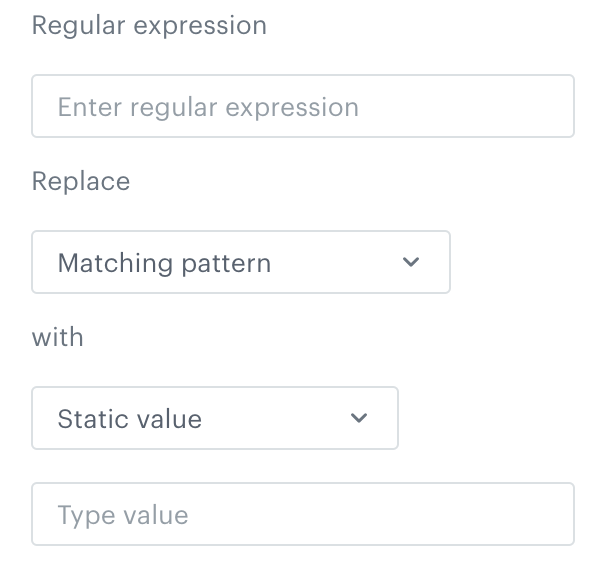
5. In the **Regular expression** field, enter the regular expression.
Regular expression configuration form
6. From the **Replace** dropdown list, select one of the options:
- **Matching pattern** - only the part of the value which matches the regular expression is replaced.
- **Entire value in the cell** - the entire content of the cell is replaced.
7. From the **with** dropdown list, select the method of replacing the matching fragment or entire value in the cell:
- **Static value** - when you select this option, all values in matching cells are replaced with the string entered in the **Type value** field.
If you choose the **Static value** option and leave the **Type value** field empty, the values in the column will be replaced with empty strings.
- **Dynamic value** - This option replaces the original value according to the logic expressed by a [Data transformation insert (Jinja)](/developers/inserts/imports). The use of custom Jinja tags (for example, referring to customer attributes, aggregates, expressions, and so on) is not possible. For example, using the following insert: `{{ root["name"]|replace("Bob", "Robert") }}` transforms all occurrences of `Bob` in the `name` column into `Robert` - only the part of the value which matches will be replaced.
- **No value** - when you select this option, all values in matching cells are removed and the cells remain empty.
If you choose the **No value** option, the values in the column will be null. It means that if you use this transformation for importing profiles and a corresponding attribute exists, it will be deleted.
- **UUID** - when you select this option, all values in matching cells are replaced with a randomly generated UUID v4 (unique for each row).
- **Current date** - when you select this option, all values in matching cells are replaced with the current date (the date and time are generated on an ongoing basis during the transformation). You can select the timezone and [date format](#current-date-option).
5. To add more rules, click **Add rule** and repeat steps from 2 to 7.
You can preview the results in the **Output data** tab.
6. To define what happens if rows contain errors, select one of the options available in the [Error handling](#handle-errors) section.
7. Click **Apply**.
### Current date option
Using the **Current date** option, you can enrich your data with a dynamically injected date and time which can be used, for example, to build an event salt.
To define a rule with **Current date**:
1. Select a timezone.
2. Select one of the available formats:
* ISO (for example 2022-10-05T05:55:16.786596Z)
* Timestamp (for example 1664949342323)
* MMM d, YYYY (for example Oct 5, 2022)
* MMM d, YYYY, HH:mm:ss (for example Oct 5, 2022, 05:57:14)
* YYYY-MM-dd HH:mm (for example 2022-10-05 05:57)
* Custom - you can create [your own date and time format](#custom-date-format).
#### Custom date format
You can use the following elements to build a custom format. The example values use October 05, 2022 as the date.
* MMM - name of month (Oct)
* MM - number of month (10)
* DD - day of year (278)
* dd - day of month (05)
* YYYY - year (2022)
* YY - year (22)
### Handle errors
You can define what to do with failed values (for example, as a result of Jinja rendering or in other cases) in cells where data type modification failed.
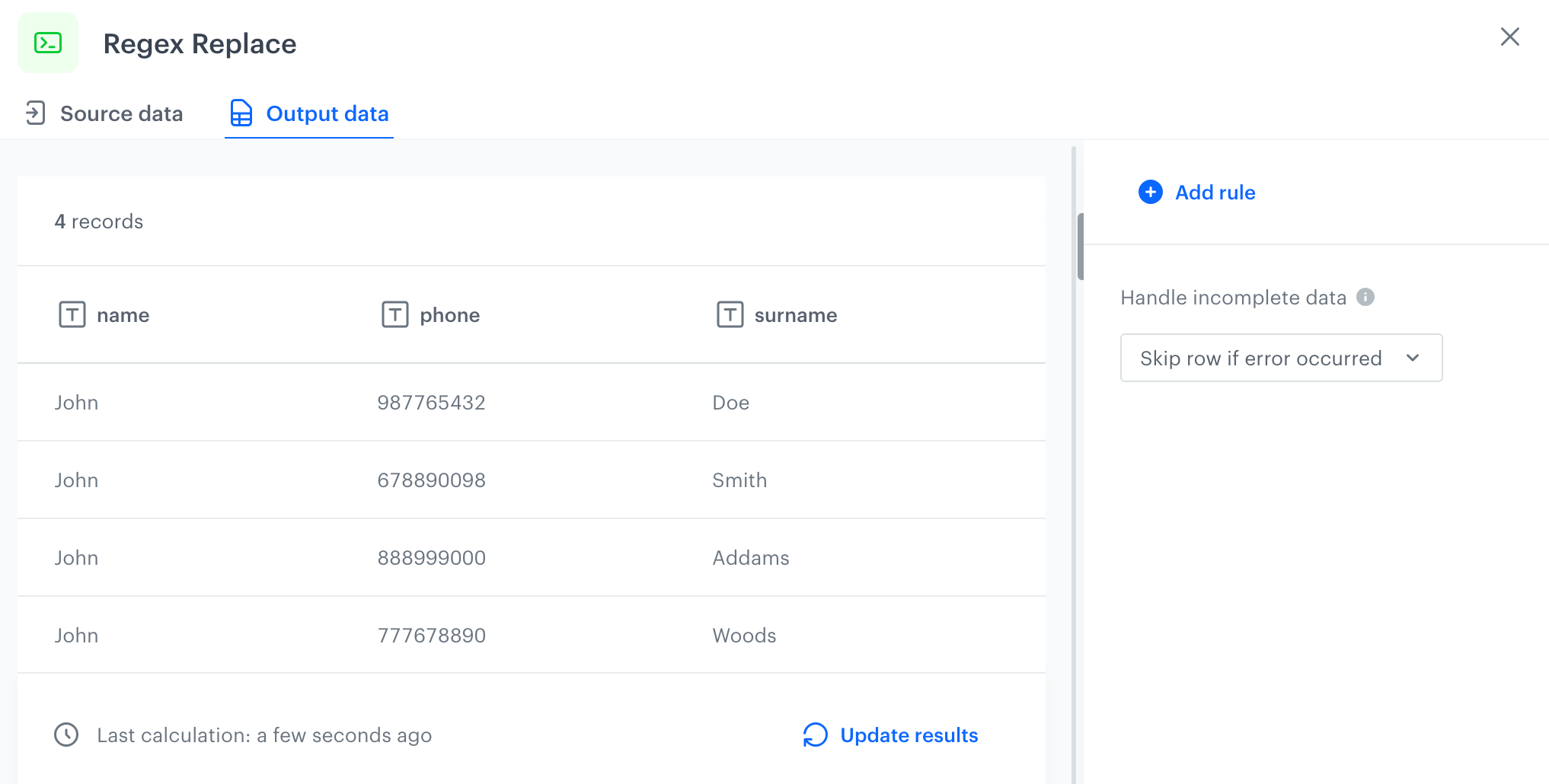
In the **Handle incomplete data** section, select one of the following options:
- **Skip row if error occurred** - It omits the row when an exception occurs.
- **Skip if result is null or empty string** - It omits rows with empty strings and `null` (which may be the result of rendering Jinja)
- **Stop further transformation** - The transformation stops at the row with an error. The data before the line that caused the error is transformed (and imported if the transformation rule is used in the Data Transformation node).
- **Insert null if error occurred** - Wrong values are replaced with `null`. If you use such a transformation for the import of profiles, the existing value of an attribute is cleared and replaced with the `null` value.
- **Insert empty string if error occurred** - Wrong value is removed and the cell remains empty.
## Example of use
---
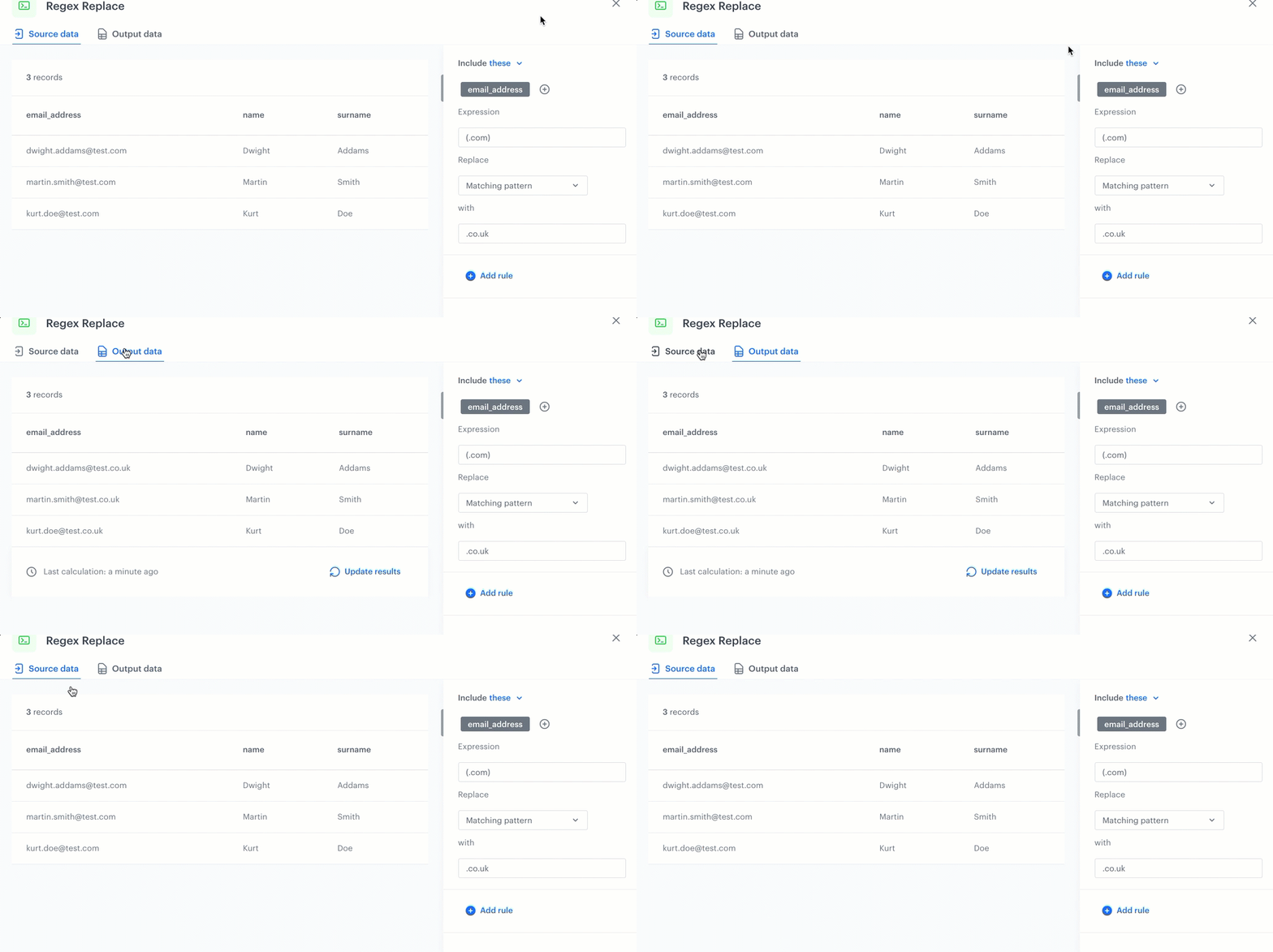
You can replace the part of the domain in the email addresses of your customers - from `.com` to `.co.uk`. You can use this transformation in the further processes, for example, in importing customers to Synerise.
Example of use
1. Start the transformation with the **Data Input** node.
2. Click the node.
3. Upload a file on which you want to perform data transformation.
4. Add the **Regex Replace** node and join it with the **Data Output** node.
5. In the configuration of the **Regex Replace** node:
1. Click **Add rule**.
2. Select **Include these**
3. Select the column with email addresses.
4. In the **Expression** field, enter `(.com)`
5. From the **Replace** dropdown list, select **Matching pattern**.
6. In the **Value** field, enter `.co.uk`
Changes applied
7. Click **Apply**.
8. Add the **Data Output** node.
9. Join the node with the **Regex Replace** node.
 icon next to **these**:
- **these** - the default; it allows you to select the columns that will be considered.
- **all except these** - this option let you apply the changes to all values which match a regular expression except those in the columns you select.
3. Select columns to include/exclude (according to the **Include** setting above) in one of the following ways:
- **Select column** - from the dropdown list, you can select the columns for the transformation or to exclude them from it.
- **Define conditions** - you can create a dynamic condition which column must meet to edit their values; for this purpose you can use logical operators such as contain, starts with, ends with, and so on.
icon next to **these**:
- **these** - the default; it allows you to select the columns that will be considered.
- **all except these** - this option let you apply the changes to all values which match a regular expression except those in the columns you select.
3. Select columns to include/exclude (according to the **Include** setting above) in one of the following ways:
- **Select column** - from the dropdown list, you can select the columns for the transformation or to exclude them from it.
- **Define conditions** - you can create a dynamic condition which column must meet to edit their values; for this purpose you can use logical operators such as contain, starts with, ends with, and so on.
 icon.
icon.